
RPN Scientific 15 manual · Chapter 1 of 12
Getting started
The display, the f and g shift keys, your first RPN calculation, clearing and editing numbers, and typing with a computer keyboard.
1.1What this calculator is for#
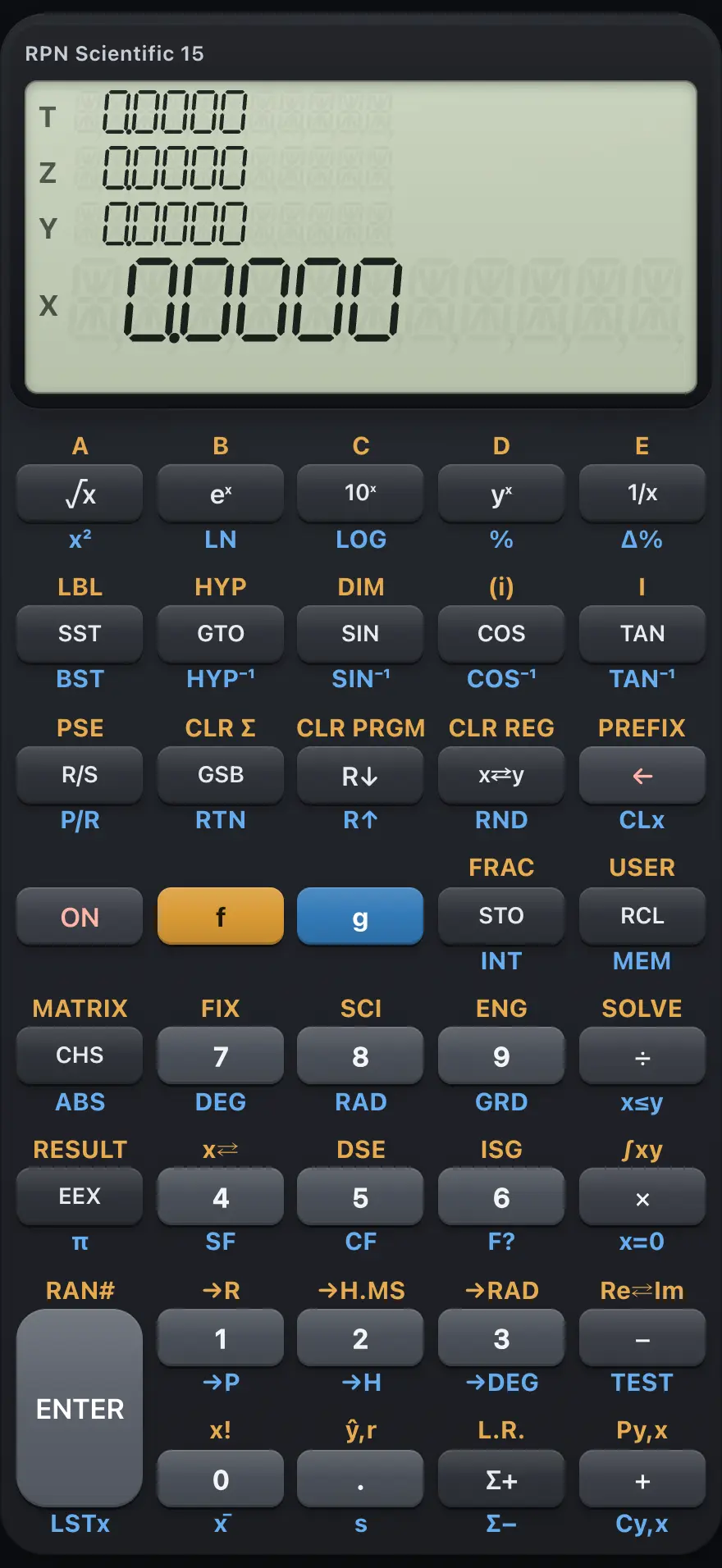
- Display: shows X, the number you work on (with Y, Z and T above it)
- f: gold prefix for the functions printed above the keys
- g: blue prefix for the functions printed below the keys
- ENTER: separates two numbers
- Back arrow: delete a digit, or clear X
- CHS: change the sign
- STO: store X in a register
- RCL: recall a register
- R/S: run or stop a program (g R/S switches program mode)
- Σ+: add a statistics data point
RPN Scientific 15 is built for people who like to see every step of a calculation. You never type a long expression and wait for the answer. You work on one number at a time, and the in-between answers stay in view on a small pile called the stack.
It has scientific functions, hyperbolics, polar and rectangular conversions, statistics, linear regression, a root finder (SOLVE), numeric integration (∫xy) and keystroke programming. Programs can use labels, subroutines, flags, loops and indirect addressing.
1.2The display and its indicators#
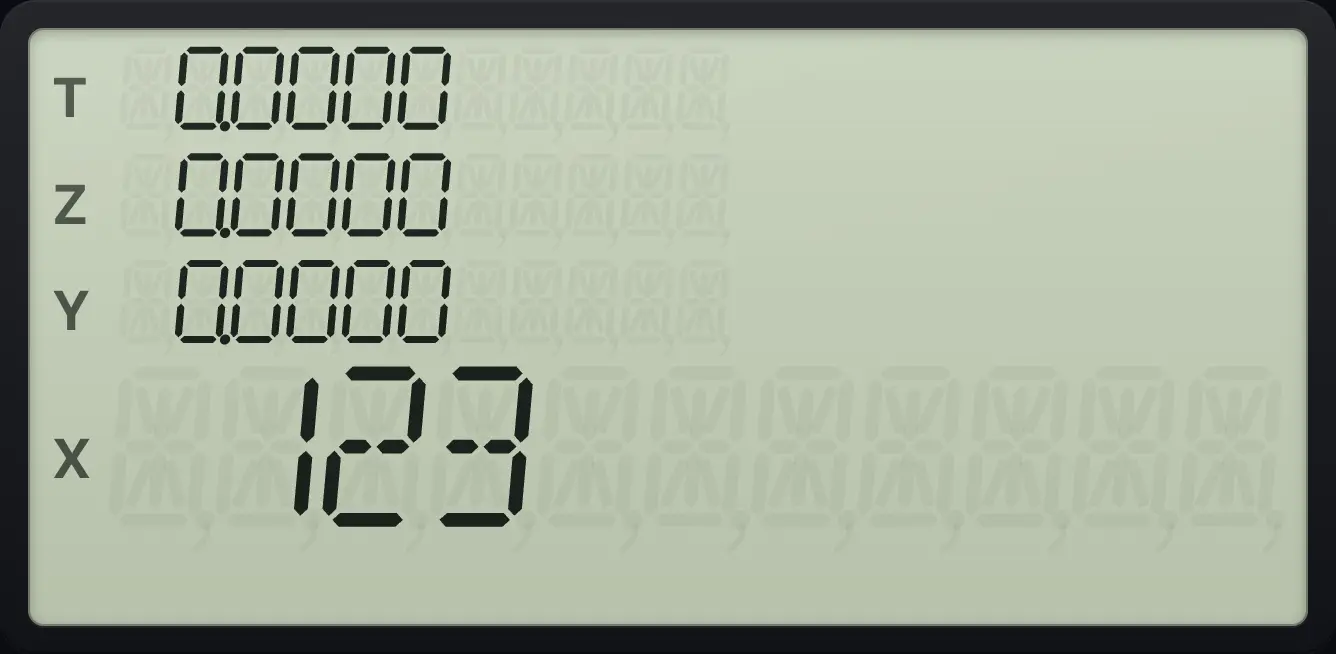
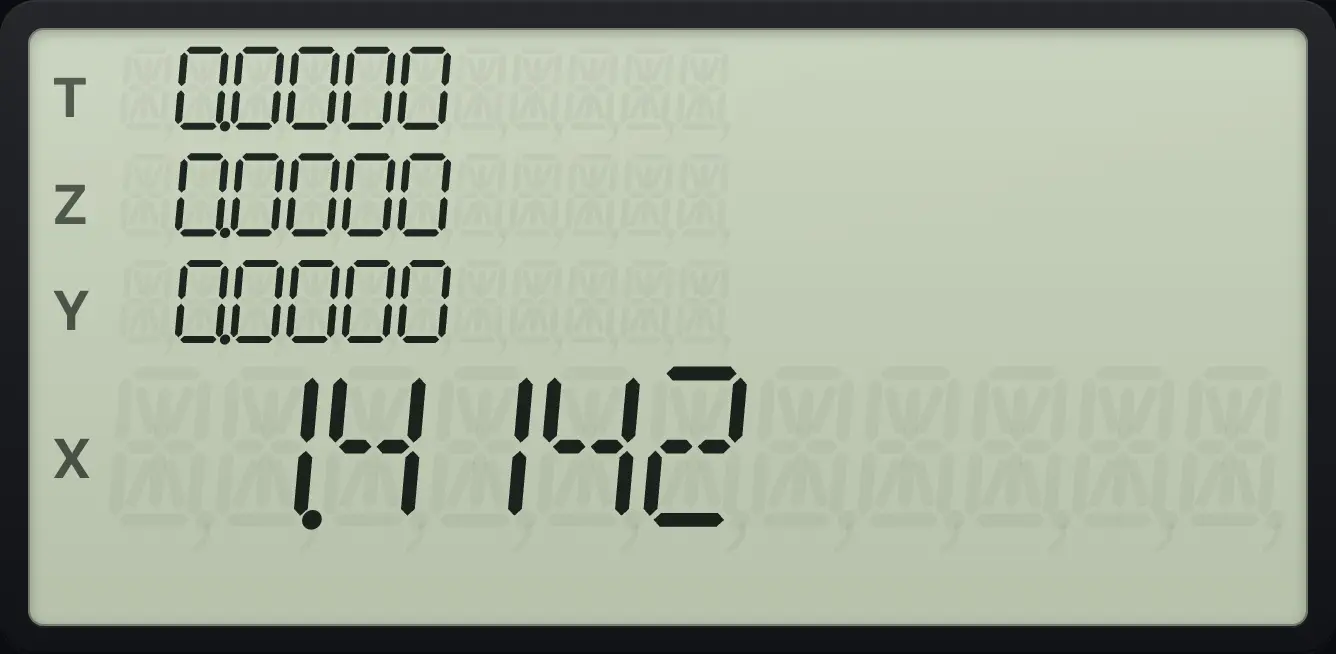
The display shows the number in the X register: up to ten digits, with a minus sign in front of negative numbers. Large numbers are grouped with commas, for example 1,234.5000. The app also shows the other three stack levels (Y, Z and T) above X.
While you type a number, the display shows exactly what you have typed so far. After you press any operation key, it shows the result in the current display format (FIX 4 when the calculator is new).
| Indicator | Meaning |
|---|---|
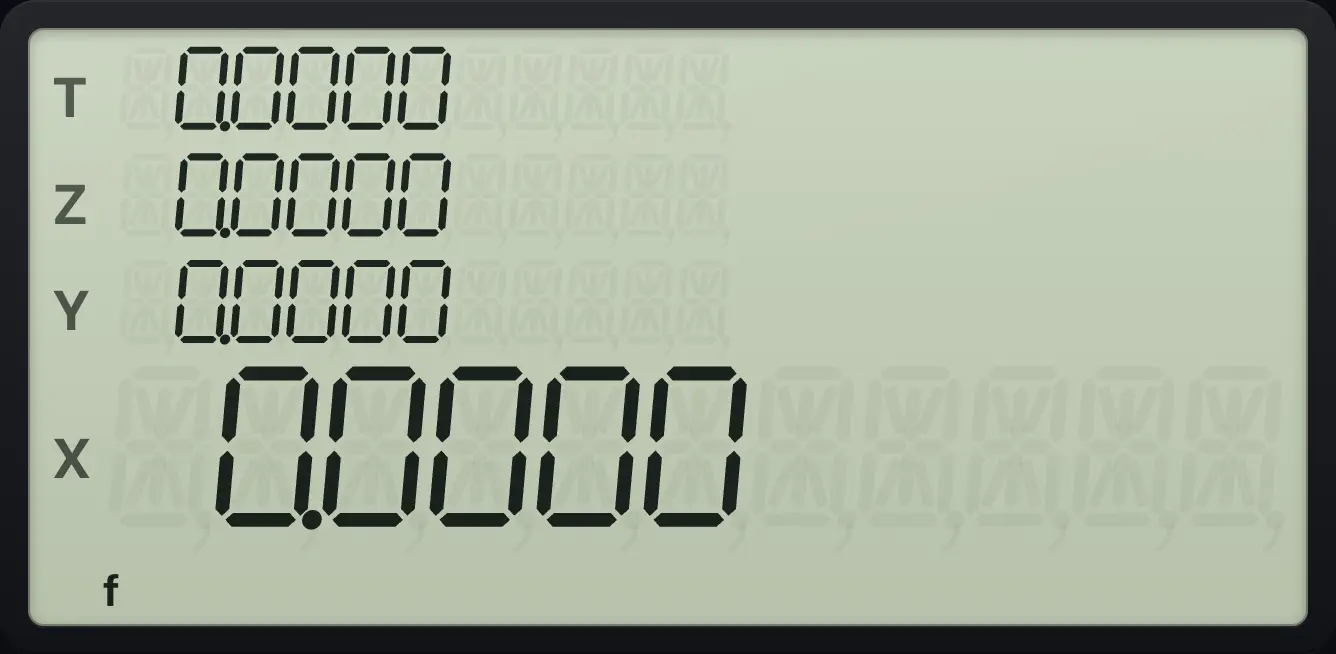
| f | The gold prefix key was pressed. The next key does its gold (upper) function. |
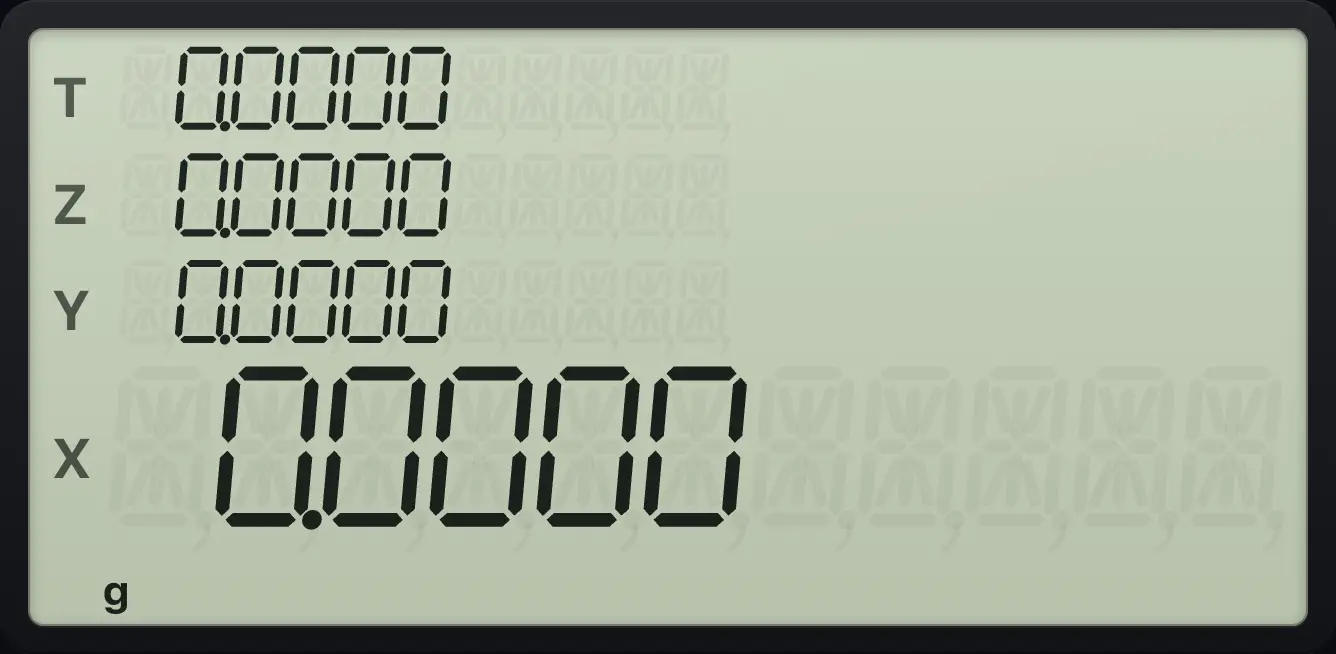
| g | The blue prefix key was pressed. The next key does its blue (lower) function. |
| USER | USER mode is on: the top-row keys A to E run program labels. See Modes. |
| PRGM | Program mode is on. Keys are recorded as program lines instead of being run. |
| DEG / RAD / GRAD | The current angle unit for trigonometry. The default is DEG (degrees). |
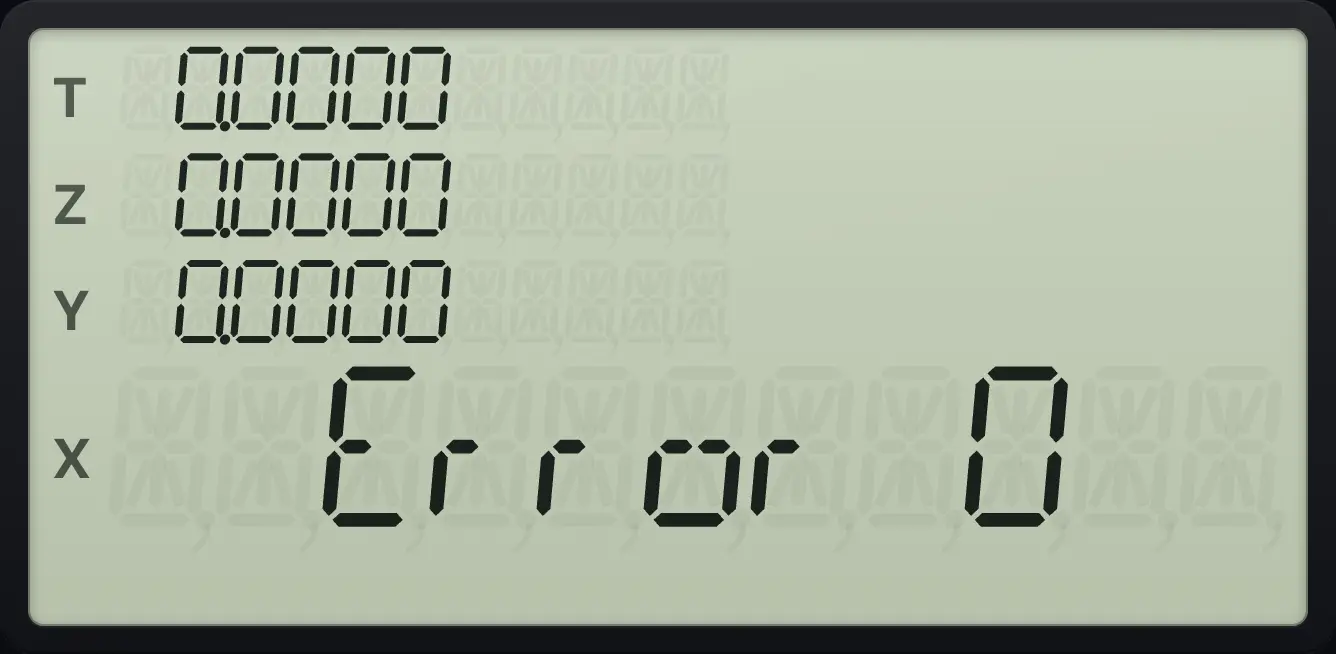
| Error n | A calculation could not be done. Press any key to clear it. See the Errors chapter. |
1.3The f and g shift keys#
Most keys do three jobs. The main job is printed on the key. A second job is printed in gold above the key: press f first, then the key. A third job is printed in blue below the key: press g first, then the key.
Press the prefix, release it, then press the function key. You press one key at a time. For example gx²√x is x² (the square), and fFIX7 starts the FIX display setting. If you press f or g by mistake, press the other prefix, or any key that has no shifted function, to cancel.
1.4Your first calculation#
To add 3 and 4, key in 3, press ENTER to tell the calculator the number is finished, key in 4, then press +. The answer appears at once. There is no equals key.
Add 3 and 4
Key in 3, press ENTER, key in 4 and press +.
3ENTER4+
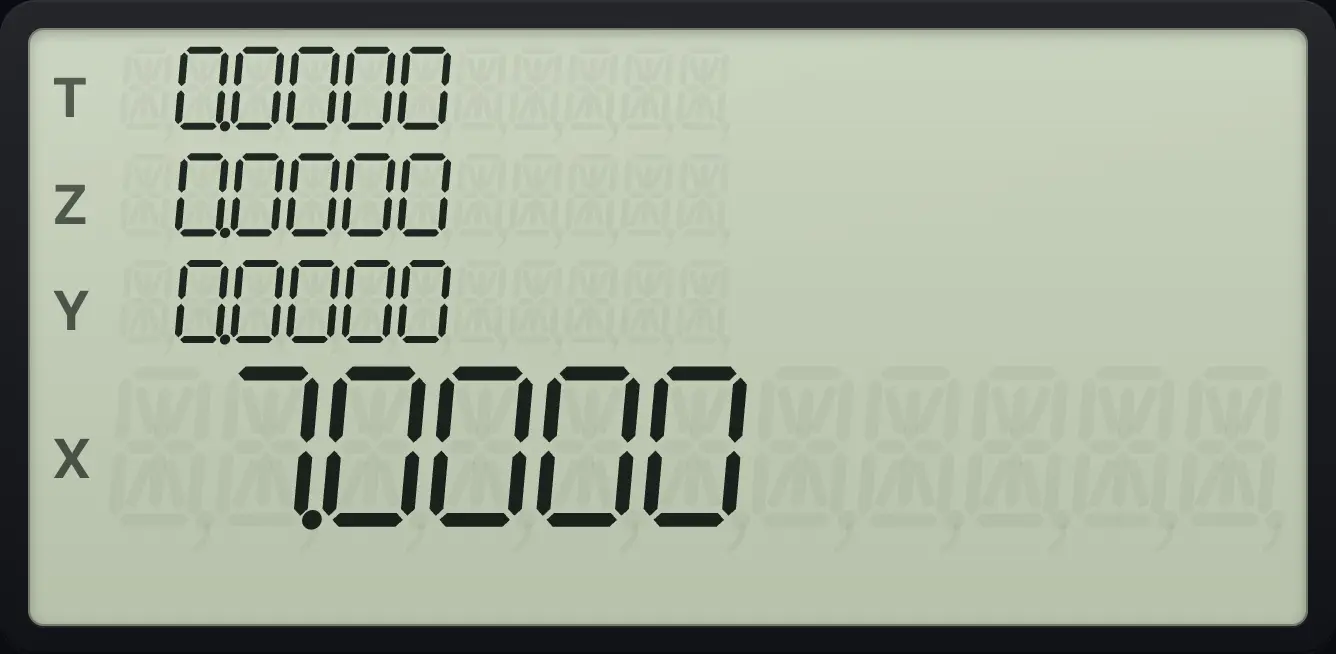
7.0000ENTER is only needed between two numbers typed one after the other. After an answer you can simply type the next number.
1.5Clear a mistake and correct a number#
While you are typing a number, ← deletes the last digit. Once the number is finished (after an operation or ENTER), ← clears X to zero. gCLx← (CLx) always clears X.
Delete a wrong digit while typing
Type 1 and 2, press the back arrow to delete the 2, then type 5. Press ENTER, key in 3 and add.
12←5ENTER3+
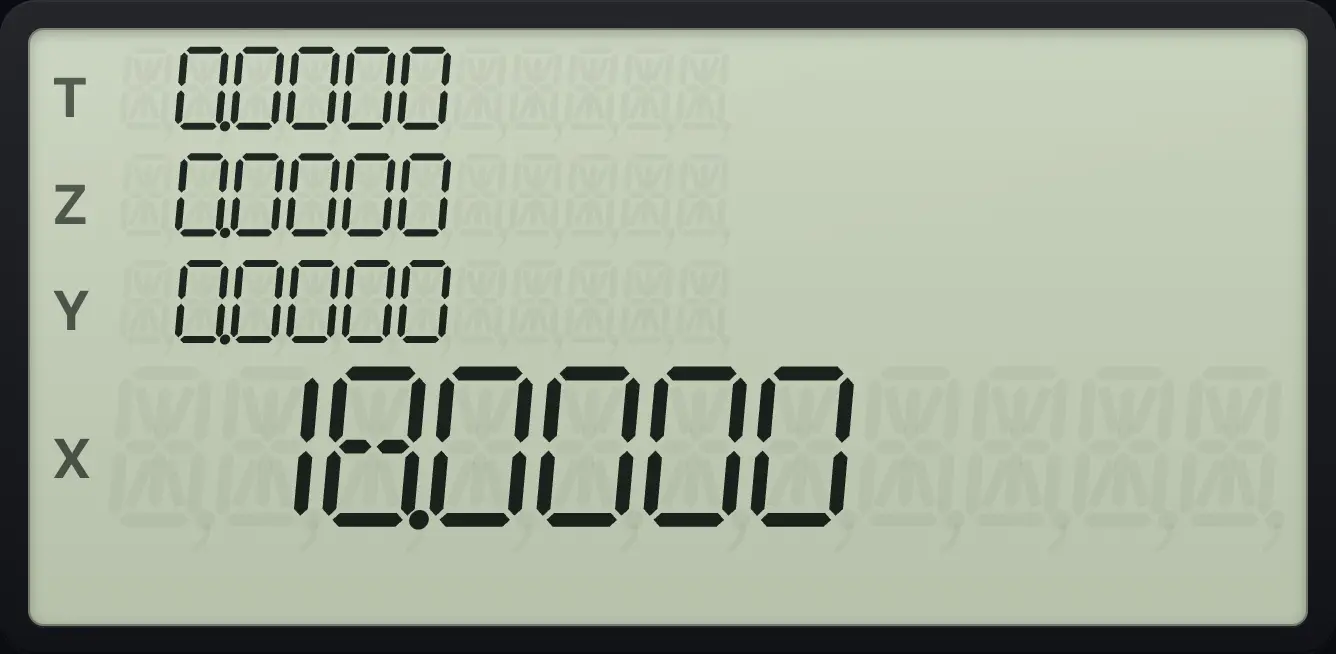
15 + 3 = 18.0000.Clear X with CLx and carry on
Key in 5 and ENTER, key in 7, then clear it with g CLx. Key in 2 and press +.
5ENTER7gCLx←2+
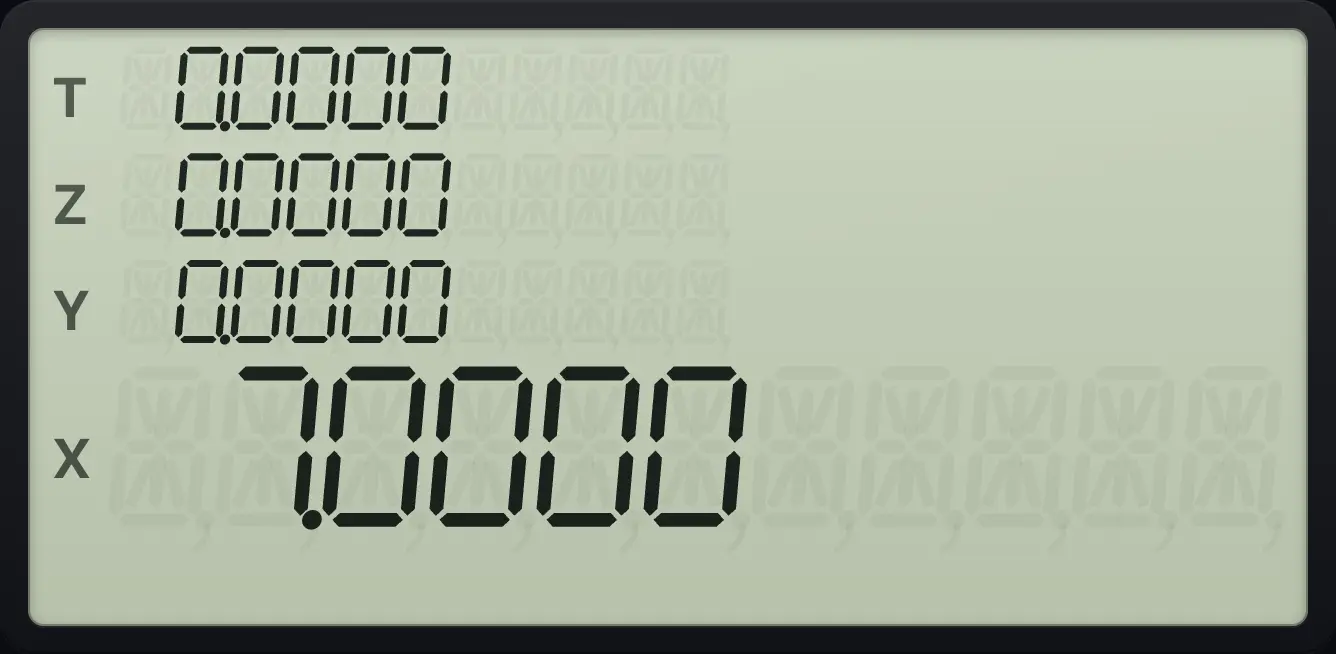
The 7 was cleared, so the sum is 5 + 2 = 7.0000.1.6Type with a laptop keyboard#
On a computer or Chromebook you can type instead of tapping. The digits, the point, + − * / and Enter work as you would expect, Backspace is the back arrow, and ^ is yˣ. Letters give common functions.
| Computer key | Calculator key |
|---|---|
| 0 to 9, . | Digits and decimal point |
| + - * / | + − × ÷ |
| Enter | ENTER |
| Backspace | ← |
| ^ | yˣ |
| f | f (gold prefix) |
| g | g (blue prefix) |
| s | x⇄y (x⇄y) |
| r | R↓ (R↓) |
| n | CHS (CHS) |
| e | EEX (EEX) |
| q | √x (√x) |
| i | 1/x (1/x) |
| x | eˣ (eˣ) |
| p | gπEEX (π) |
| l | gLSTxENTER (LSTx) |
| ! | fx!0 (x!) |
| % | g%yˣ (%) |
| Escape or Delete | gCLx← (CLx) |
See also Type with your computer keyboard
HP-15C is a trademark of HP Inc.. Trident Calculator is an independent product by South View Studios and is not affiliated with, sponsored by or endorsed by HP. The name is used only to describe the kind of calculator this model resembles; Trident's names, keys, display, fonts and software are its own clean-room design.