
RPN Scientific 15 manual · Chapter 2 of 12
How RPN and the stack work
What reverse Polish notation is, the four stack registers X, Y, Z and T, ENTER, stack lift, rolling, swapping and LAST X, with step-by-step examples.
2.1What RPN is and why people like it#
In RPN you give the numbers first and the operation last. To add 3 and 4 you do not write 3 + 4. You write 3 4 + , which reads "3 and 4: add them". That is where "reverse Polish" comes from.
This sounds odd for one sum, but it pays off in longer work. You never need brackets, because the order in which you press the operations decides the order of the maths. You never need an equals key, because each operation shows its answer at once. And you can see every in-between answer, so a slip is easy to spot.
Think of a stack of plates. You put numbers on the top of the pile. An operation takes the top plate (or the top two), works on them, and puts the answer back on the top.
2.2The four stack registers: X, Y, Z and T#
The stack has four places, called registers. They are named X, Y, Z and T, from the bottom of the pile to the top.
| Register | What it is | On the screen |
|---|---|---|
| X | The bottom of the stack. The number you are typing or the latest answer. It is the one shown in the main display, and the one one-number functions work on. | Bottom line |
| Y | The second level. Two-number operations use Y and X. | Line above X |
| Z | The third level. | Third line |
| T | The top level. | Top line |
A calculation with two numbers always reads "Y operation X". In Y ÷ X, Y is the number being divided and X is the divisor. So 10 ÷ 4 means 10 in Y and 4 in X: key in 10, press ENTER, key in 4, press ÷.
See all four registers
Key in 1, ENTER, 2, ENTER, 3, ENTER, 4. The four numbers fill the stack.
1ENTER2ENTER3ENTER4
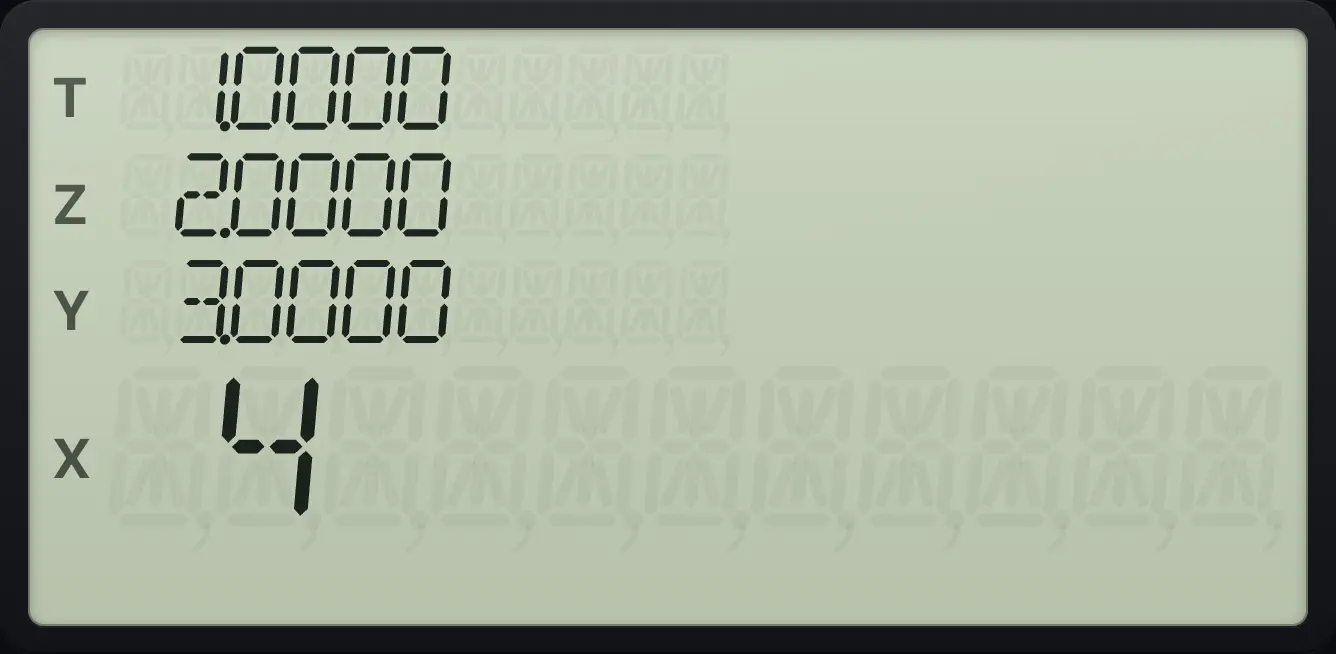
T = 1, Z = 2, Y = 3, X = 4.In every stack figure the registers are listed X first, then Y, Z and T.
2.3What ENTER does#
ENTER has one job: it separates two numbers. It copies the number in X up into Y (and moves what was in Y up to Z, and so on), and it leaves X holding the same number. The next number you type then replaces that copy in X, so nothing is wasted.
That is why 3 ENTER 4 + works. After 3 ENTER, both X and Y hold 3. When you type 4, it replaces the X copy. The stack is now 3 in Y and 4 in X, and + adds them.
3 ENTER 4 +
Key in 3, ENTER, 4, then +.
3ENTER4+
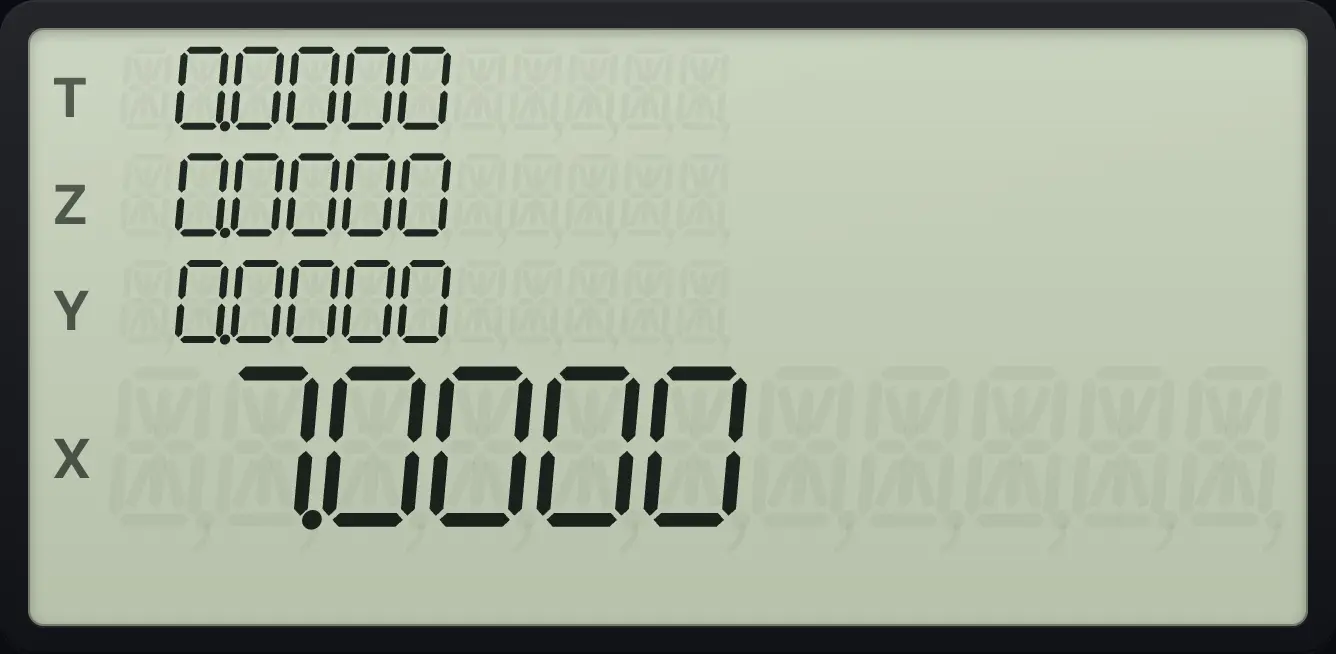
7.0000You do not press ENTER after the last number, and you do not press it before an operation key. If you press an operation straight after typing a number, the calculator finishes the number for you.
2.4One-number functions and two-number operations#
There are two kinds of key. A one-number function (√x, 1/x, SIN, LN, x! and so on) works on X only and replaces X with the answer. The rest of the stack does not move. Y, Z and T stay put.
A two-number operation (+, −, ×, ÷, yˣ, Py,x, Cy,x) uses Y and X. The answer goes into X, and the stack drops: Z moves down to Y, and T moves down to Z. T is not emptied. It keeps its value, and a copy also appears in Z.
Square root leaves the rest alone
Key in 5, ENTER, then 9 and press √x.
5ENTER9√x
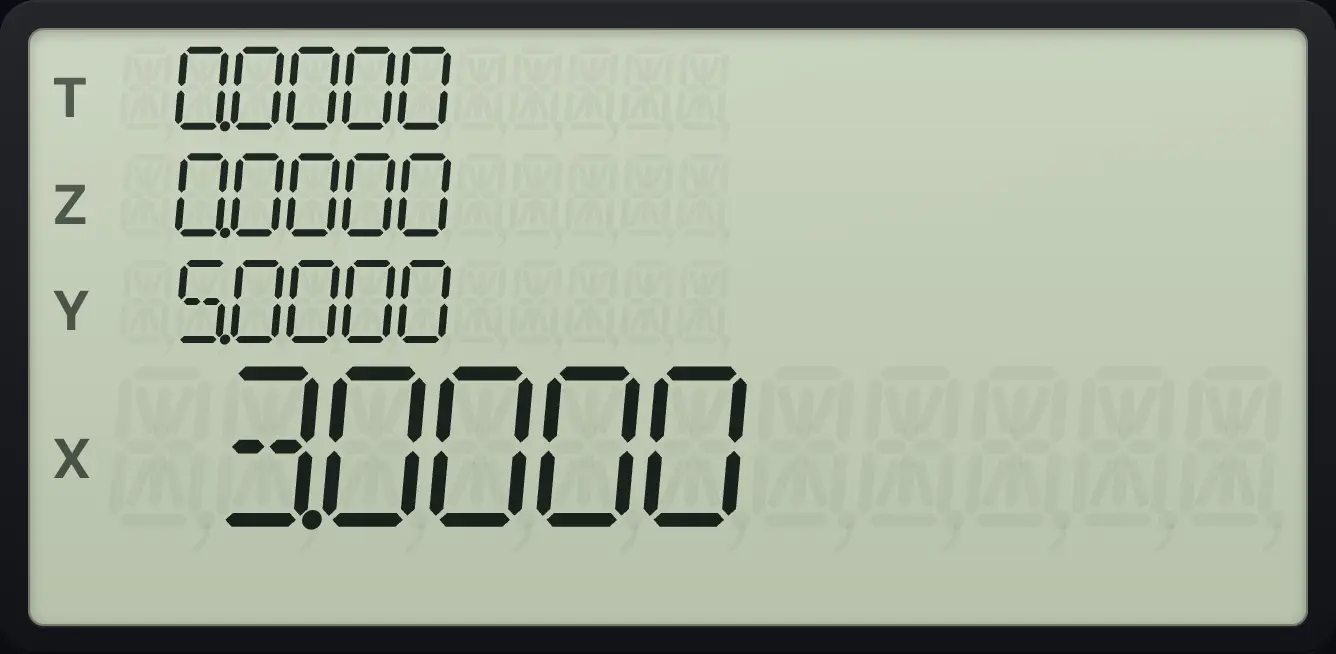
X shows 3.0000 and Y still holds 5.0000.The stack drops after an operation
Fill the stack with 1, 2, 3 and 4 as before, then press +.
1ENTER2ENTER3ENTER4+
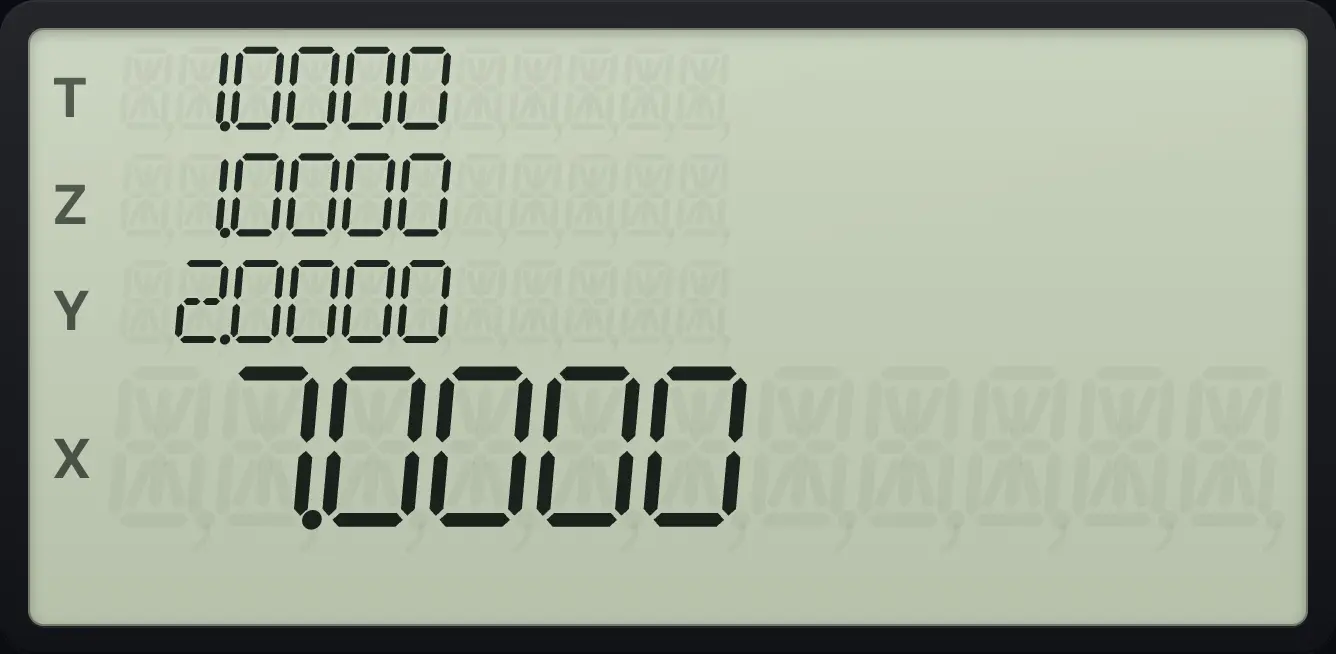
X = 7 (3 + 4), Y = 2, Z = 1 and T = 1: the old T value is copied downwards.2.5Chain calculations without brackets#
To work out (3 + 4) × (5 + 6), do the brackets first, one at a time, and let the answers wait on the stack. First 3 ENTER 4 + gives 7. That 7 stays in X. Now key in 5: because 7 was an answer, it moves up to Y automatically. Press ENTER, key in 6, press + to get 11. The 7 is in Y again. Press × to finish.
(3 + 4) × (5 + 6)
Add 3 and 4.
3ENTER4+Add 5 and 6. The 7 moves up by itself.
5ENTER6+Multiply the two answers.
×
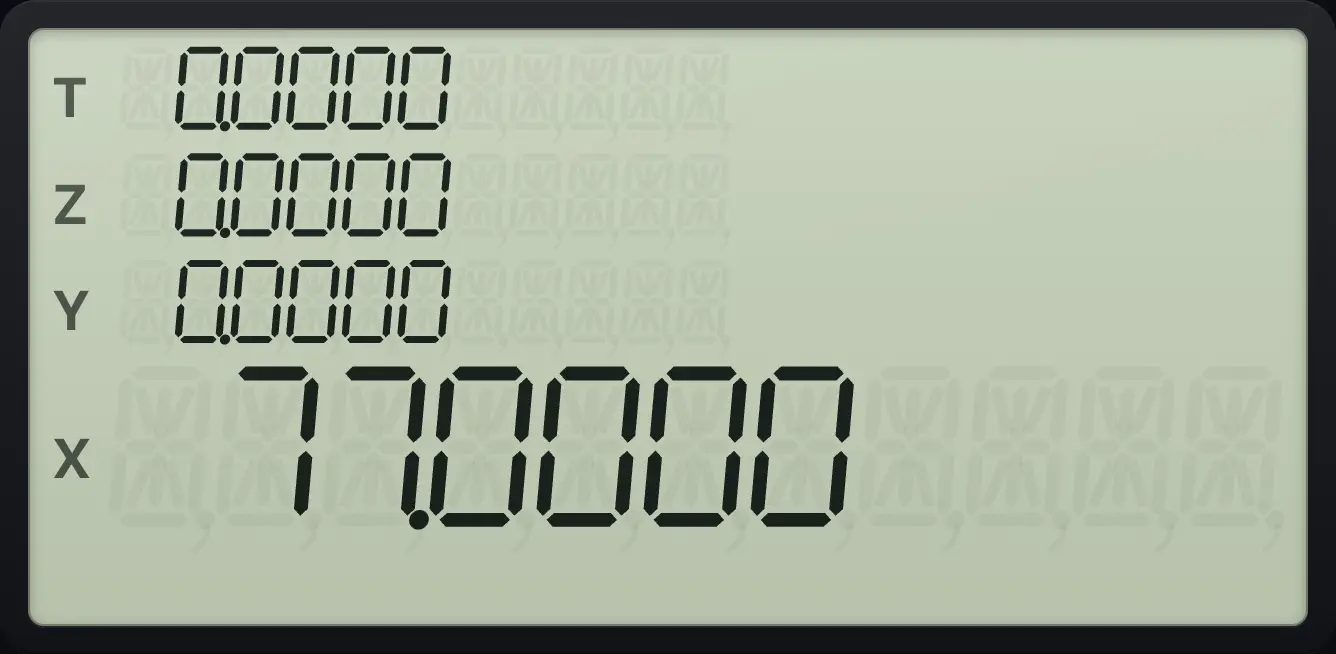
77.0000(12 + 8) ÷ (2 × 5)
Add 12 and 8.
12ENTER8+Multiply 2 and 5.
2ENTER5×Divide Y by X.
÷
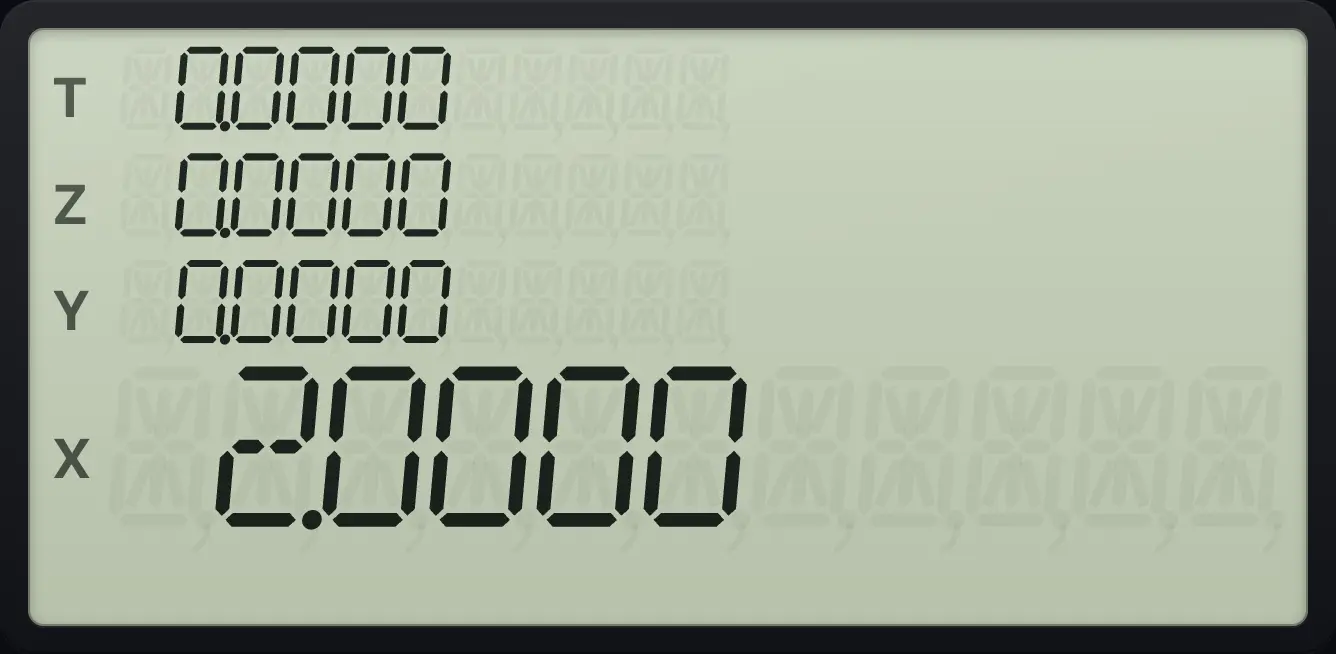
20 ÷ 10 = 2.0000.A good habit is to work from the inside out: do the innermost brackets first, then the next level, and so on. The stack is four levels deep, enough for most expressions of this kind.
2.6Why the next number sometimes replaces X and sometimes lifts the stack#
When you key in a new number, the calculator must decide: should this new number go on top of what is in X (lifting the stack), or replace what is in X? It follows one rule, called stack lift.
- After most operations (+, −, ×, ÷, functions, RCL, results of any kind), stack lift is on. The next number you key in lifts the stack: the old X moves up to Y, and your new number goes into X.
- After ENTER, stack lift is off. The next number you key in replaces X. This is what makes 3 ENTER 4 work.
- After gCLx← (CLx), stack lift is off too. The next number replaces the cleared X.
- After Σ+ or gΣ−Σ+ (Σ+ or Σ−) stack lift is off. The count n shown in X is replaced by the next data point.
- STO, the display settings (FIX, SCI, ENG), the angle settings and CHS on a finished number do not change the lift state.
A result lifts the stack when you type a new number
Add 2 and 3, then key in 4 and multiply.
2ENTER3+4×
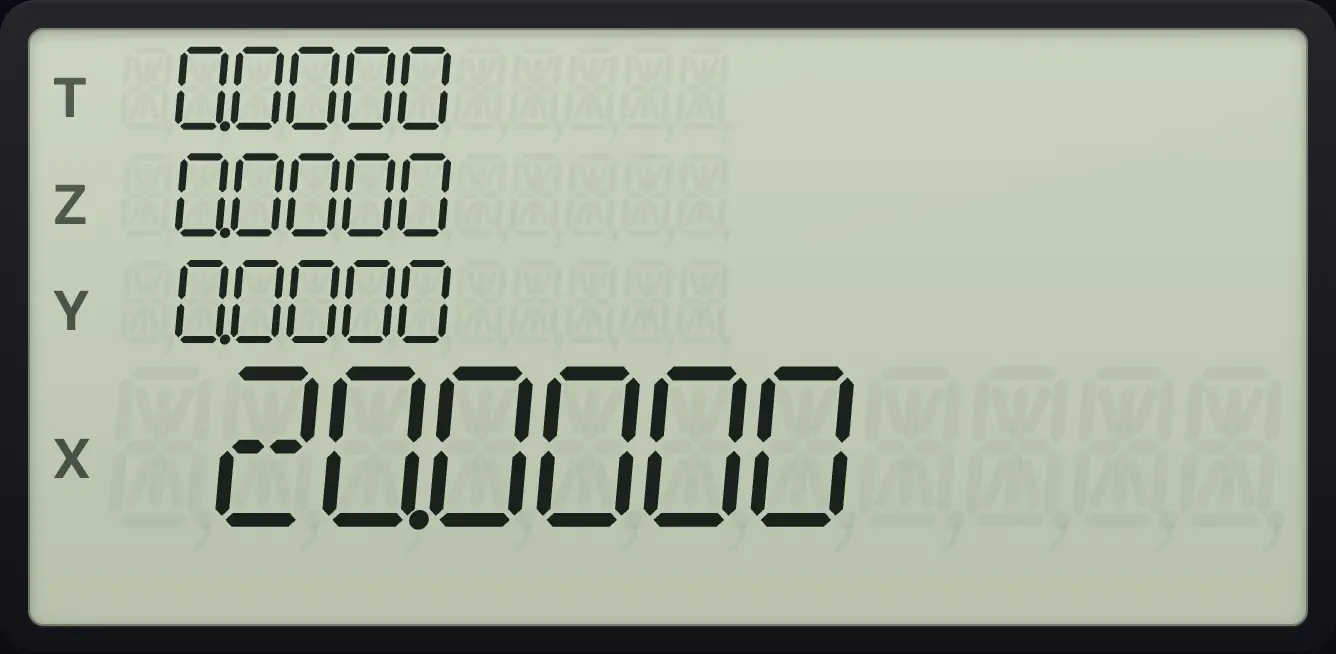
5 × 4 = 20.0000. The 5 moved up to Y when you typed 4.ENTER turns lift off
Key in 7, ENTER, then key in 8. The 8 replaces the copy in X.
7ENTER8
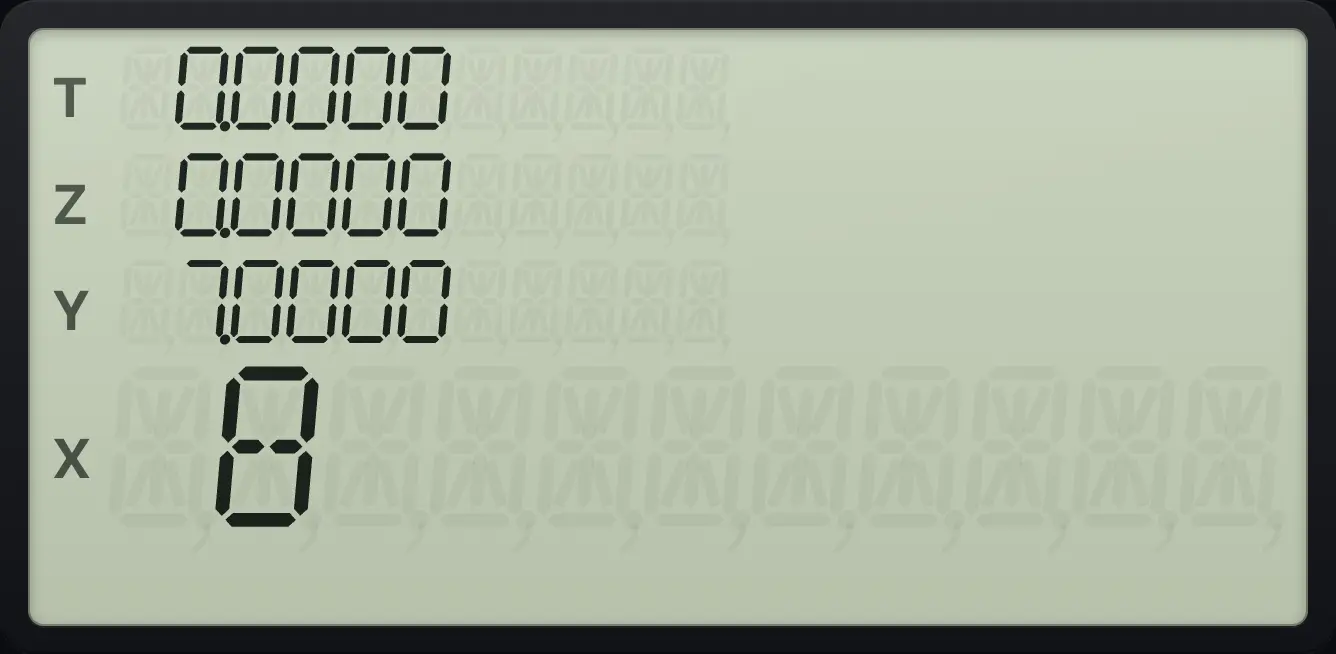
Y = 7 and X = 8. There is no extra 7.2.7Use a number twice: ENTER ENTER#
Pressing ENTER twice puts two copies of X on the stack. That helps when a number appears more than once. 3 ENTER ENTER × squares 3 and leaves a 3 behind in Y. Press × again and you get 3 × 3 × 3 = 27.
Cube a number
Key in 3, press ENTER twice, then × twice.
3ENTERENTER××
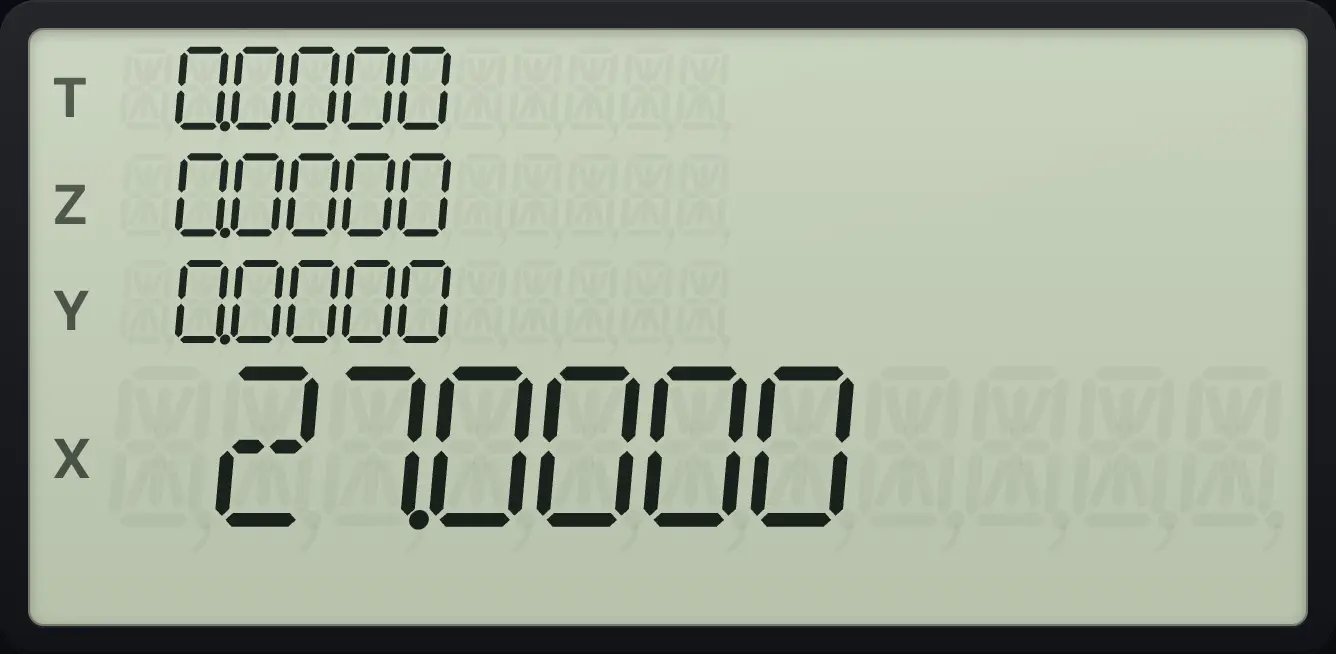
27.0000You can also use gx²√x (x²) to square X, or yˣ for any power. See Functions.
2.8Roll the stack and swap X and Y#
x⇄y (x⇄y) swaps X and Y. It is the cure for numbers keyed in the wrong order. For 4 ÷ 10 keyed as 10 ENTER 4 ÷ gives 2.5. If you wanted 4 ÷ 10, press x⇄y first.
Swap to divide the other way
Key in 10, ENTER, 4, swap, then divide.
10ENTER4x⇄y÷
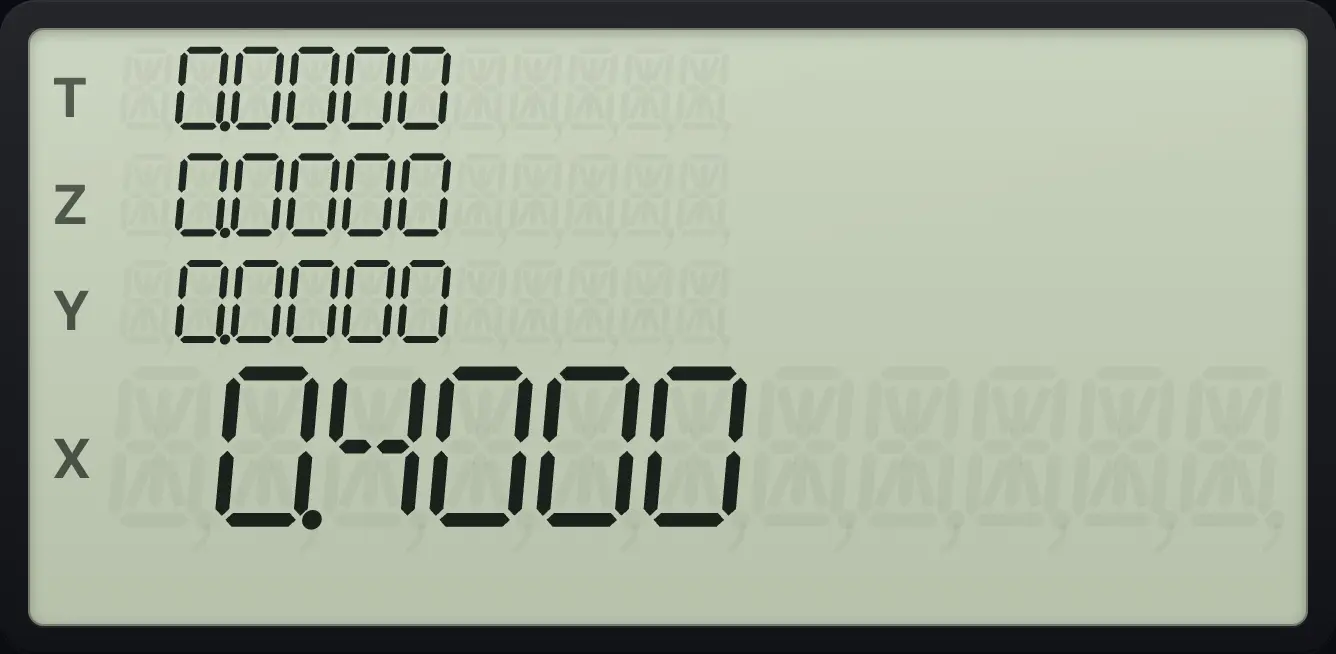
4 ÷ 10 = 0.4000.R↓ (R↓, roll down) moves every number down one level. X goes to the top (T), and Y, Z and T each move down. You lose nothing, because the numbers go round in a circle. gR↑R↓ (R↑, roll up) does the opposite: T drops into X and everything else moves up.
Roll down
Fill the stack with 1, 2, 3 and 4, then press R↓.
1ENTER2ENTER3ENTER4R↓
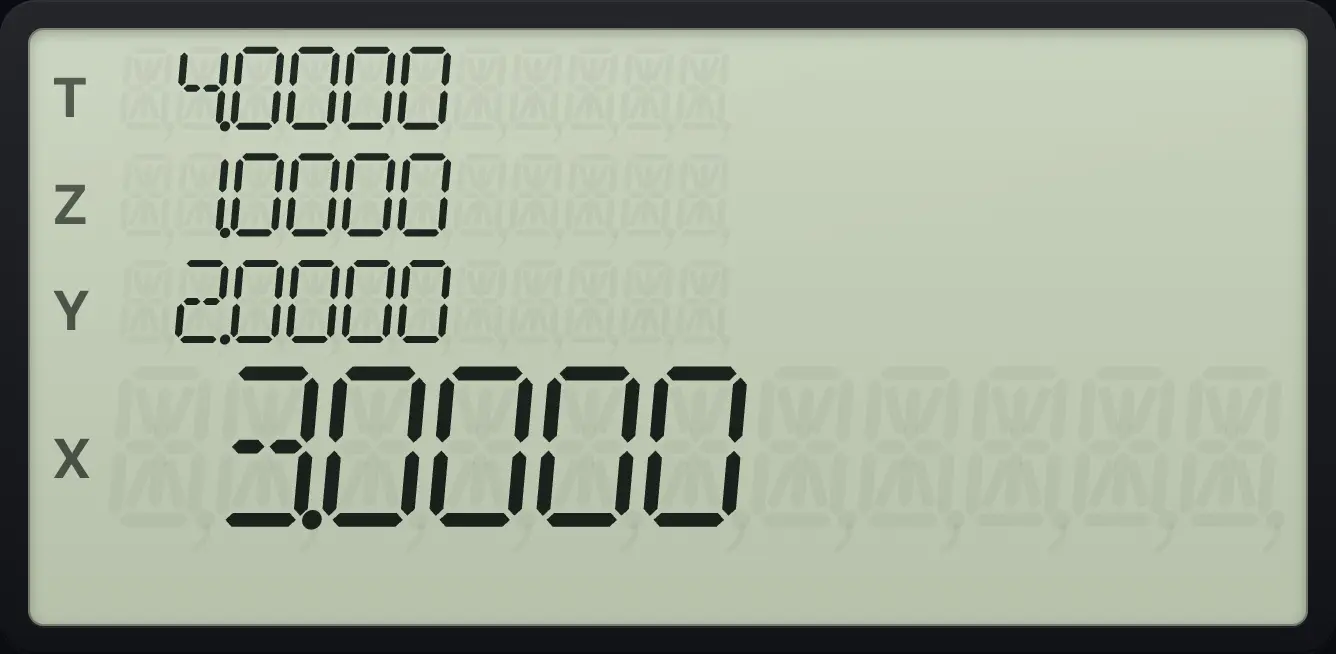
X = 3, Y = 2, Z = 1 and T = 4 (the 4 went round to the top).Roll up
Fill the stack with 1, 2, 3 and 4, then press g R↑.
1ENTER2ENTER3ENTER4gR↑R↓
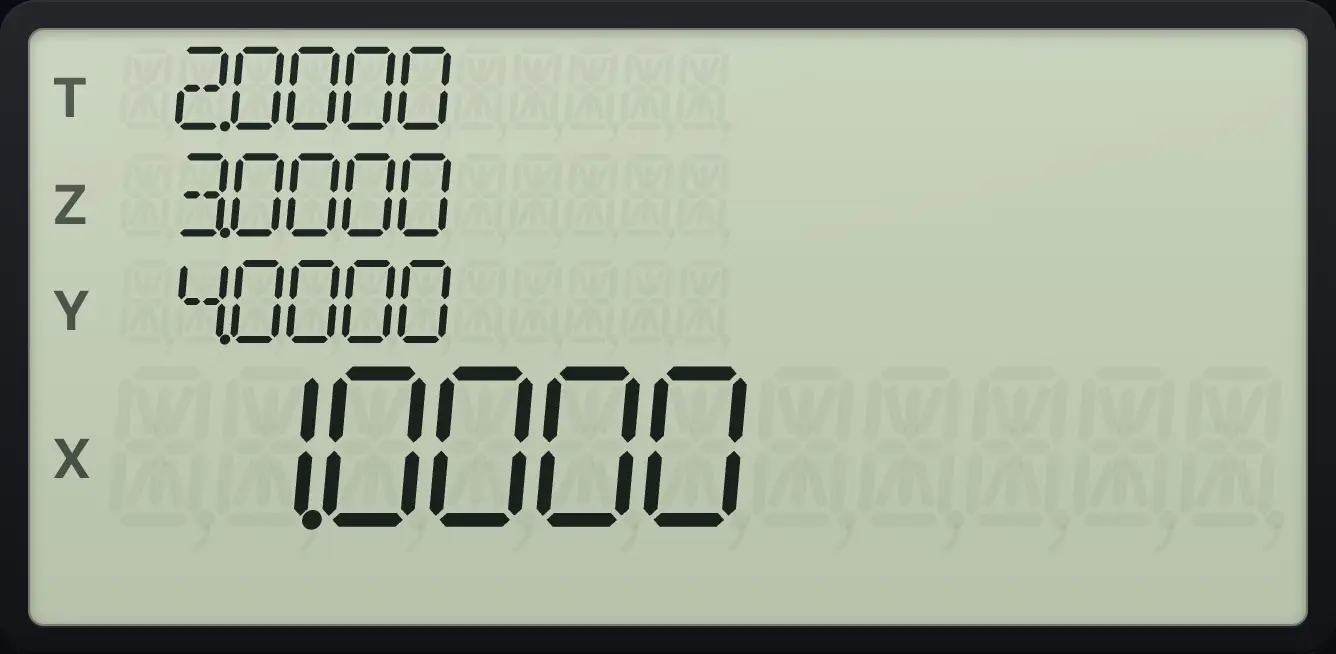
X = 1 (the old T), Y = 4, Z = 3 and T = 2.Four presses of R↓ bring the stack back to where it started. You can use that to look at all four numbers one by one.
2.9Bring back the last number with LSTx#
Every time you press a function or operation, the calculator saves the number that was in X just before it. gLSTxENTER (LSTx, "last X") pushes that number back. It is useful to correct a slip, or to use the same number again.
Undo a multiplication with LSTx
Key in 6, ENTER, 2 and press × (you meant to add). Press g LSTx to bring back the 2, then ÷.
6ENTER2×gLSTxENTER÷
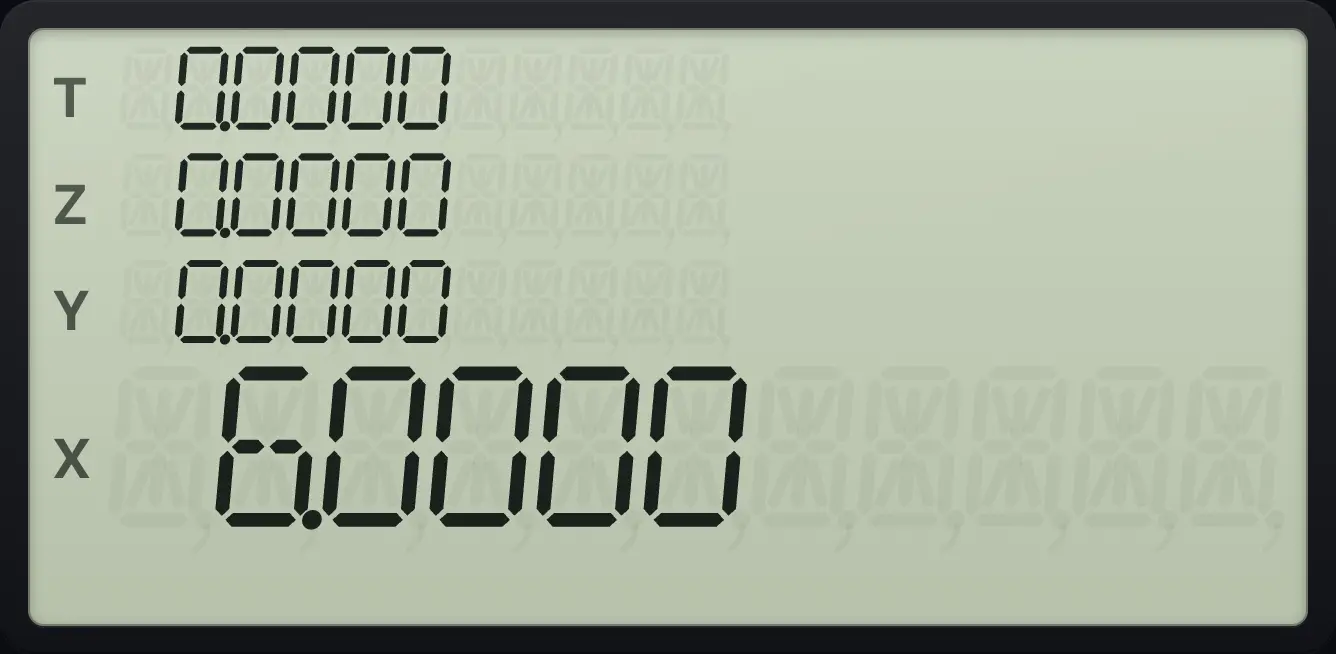
12 ÷ 2 returns to 6.0000, ready to try again.Reuse a number: 5 + 3 and then 3 more
Key in 5, ENTER, 3, then +. Press g LSTx to recall the 3, then + again.
5ENTER3+gLSTxENTER+
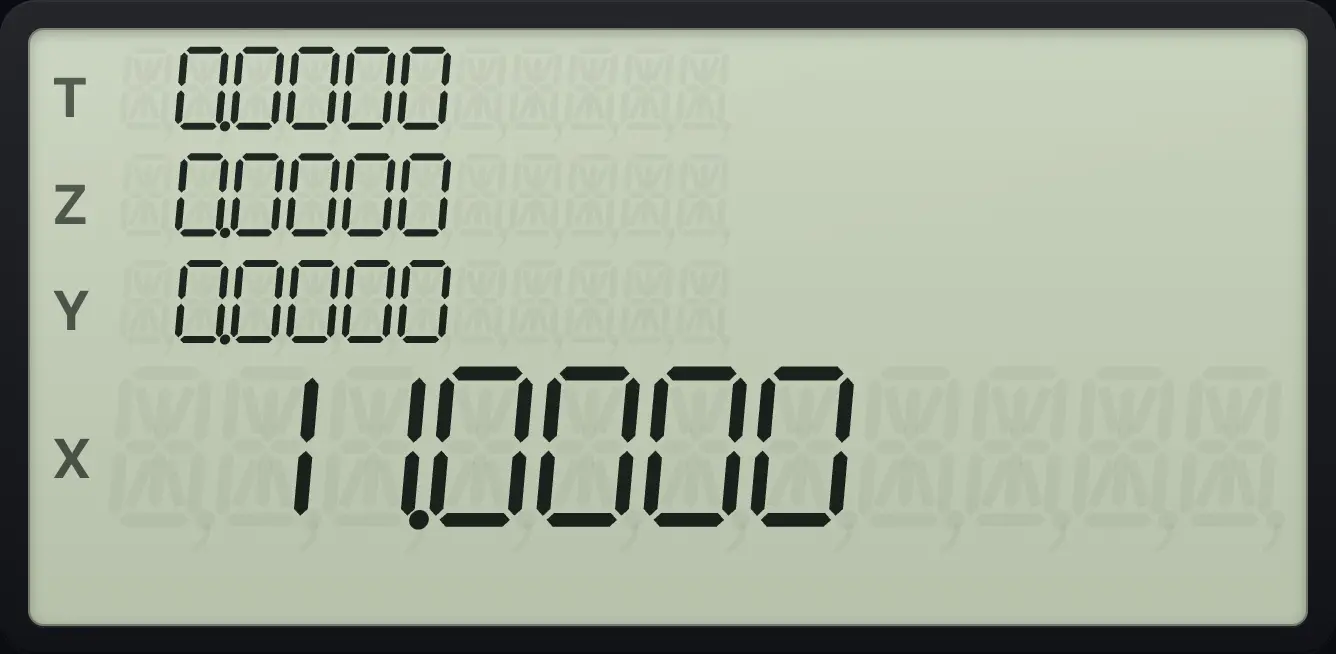
8 + 3 = 11.0000.2.10Stack habits that save time#
- Do not press ENTER after the last number or before an operation.
- Work from the inside out for brackets.
- If a result seems wrong, press R↓ a few times to look at Y, Z and T. The numbers you need are still there.
- The stack holds only four numbers. If you have more waiting to be used, store some in registers (see Memory).
- For a - b, key in a, ENTER, b and press −. For a ÷ b it is the same: a goes in first.
HP-15C is a trademark of HP Inc.. Trident Calculator is an independent product by South View Studios and is not affiliated with, sponsored by or endorsed by HP. The name is used only to describe the kind of calculator this model resembles; Trident's names, keys, display, fonts and software are its own clean-room design.