
Classic Scientific 30 manual · Chapter 1 of 13
Getting started
The screen, the 2nd key, typing an expression, clearing, editing and using a laptop keyboard.
1.1What this calculator is for#
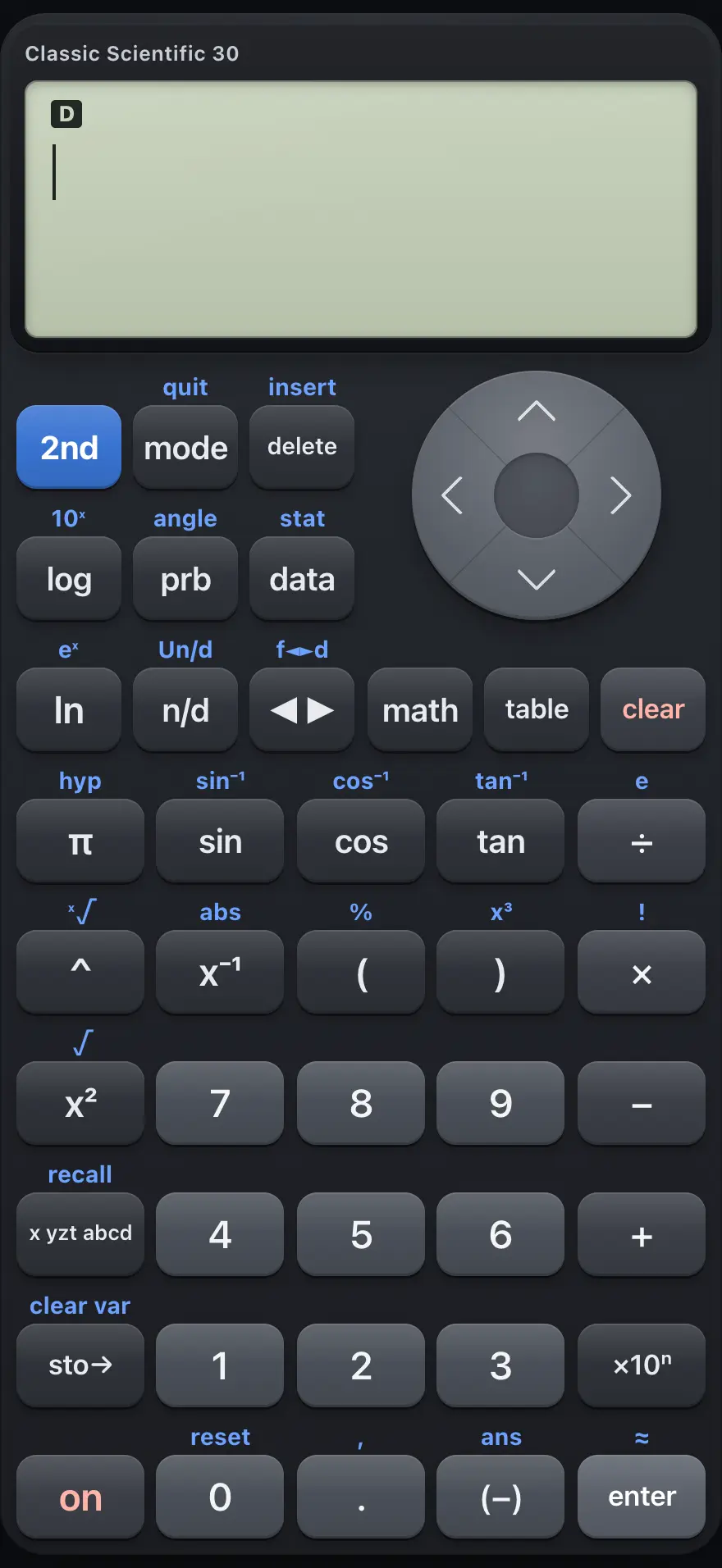
- Four-line display: history above, your entry below
- 2nd: use the function printed above a key
- mode: angle, number format and display settings
- n/d: build a stacked fraction
- toggle: switch an answer between exact and decimal
- data: lists for statistics
- var: variables x, y, z and more
- (-): negative sign (2nd gives Ans)
- enter: calculate
Classic Scientific 30 is made for school maths and science: arithmetic, fractions, powers and roots, logarithms, trigonometry, probability, simple statistics and tables of values. You type an expression the way you would write it, press enter, and the answer appears on the right side of the line below.
Answers are exact when they can be: a fraction stays a fraction, a square root stays a root, and a multiple of pi stays a multiple of pi. You can switch any answer to a decimal with one key.
1.2The screen and its indicators#
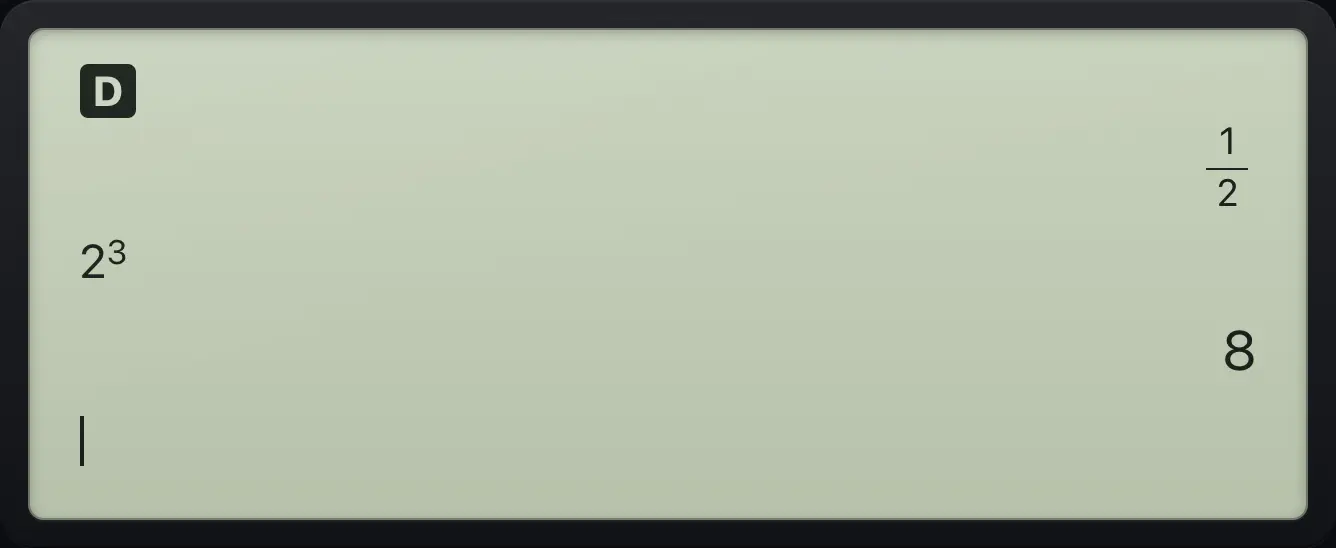
The screen shows four lines. Earlier entries are on the left of their line and their answers are on the right. Your current entry is on the bottom line, with a cursor where the next key will type.
Small indicators tell you the state of the calculator.
| Indicator | Meaning |
|---|---|
| 2nd | The 2nd key was pressed. The next key uses the function printed above it. It lasts for one key. |
| DEG, RAD, GRAD | The angle unit used by sin, cos, tan and their inverses. |
| SCI or ENG | Answers use scientific or engineering notation. |
| FIX | Answers are rounded to a fixed number of decimal places. |
| CPX | Complex numbers are turned on (a+bi or polar form). |
| CLASSIC | The old one-line style is selected instead of the stacked MathPrint style. |
1.3The 2nd key and shifted functions#
- 2nd shift
- sin sin⁻¹
- x² √
- ^ x-th root
- x⁻¹ abs
- (−) Ans
- enter ≈
- mode quit
Most keys have a second function printed above them. Press 2nd once, then the key, to use it. For example 2ndsin⁻¹sin gives the inverse sine, sin⁻¹. The shift lasts for one key only, so you press 2nd again for each shifted function.
In this manual a shifted key is shown as one keycap, such as 2nd√x² for the square root. The on key does nothing in the app because the calculator is always on.
1.4Your first calculation#
Type the expression, then press enter. Multiplication and division happen before addition and subtraction, just like on paper.
Order of operations
Type 2 + 3 × 4 and press enter. The multiplication is done first.
2+3×4enter
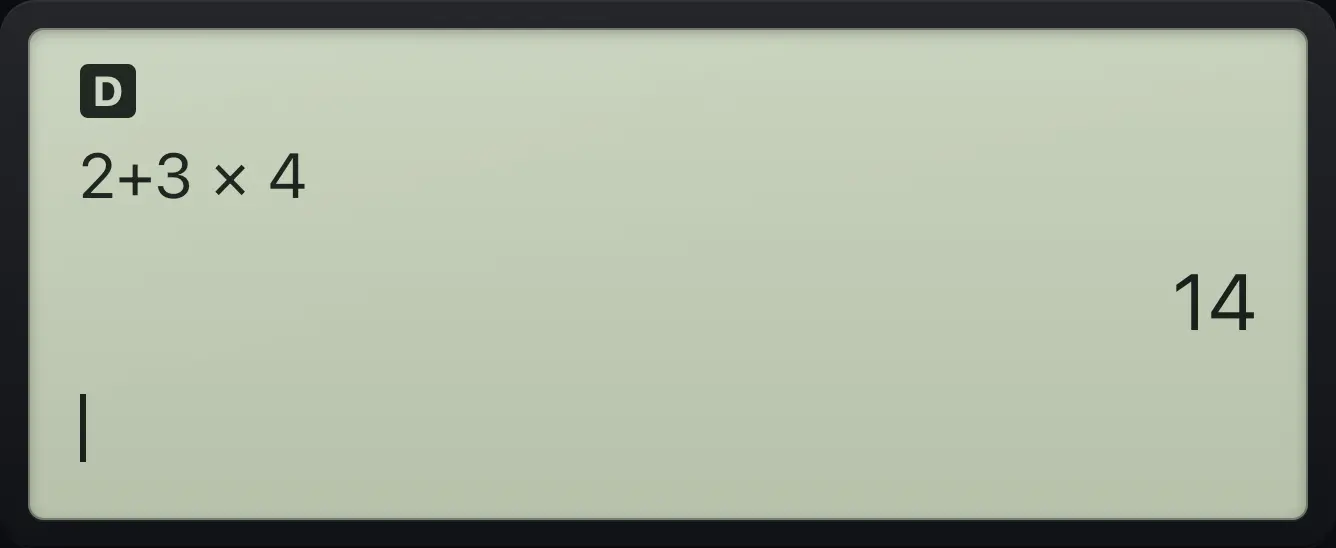
2+3×4 14A negative number
Use the (−) key for a negative number, and the − key to subtract.
(−)5+3enter
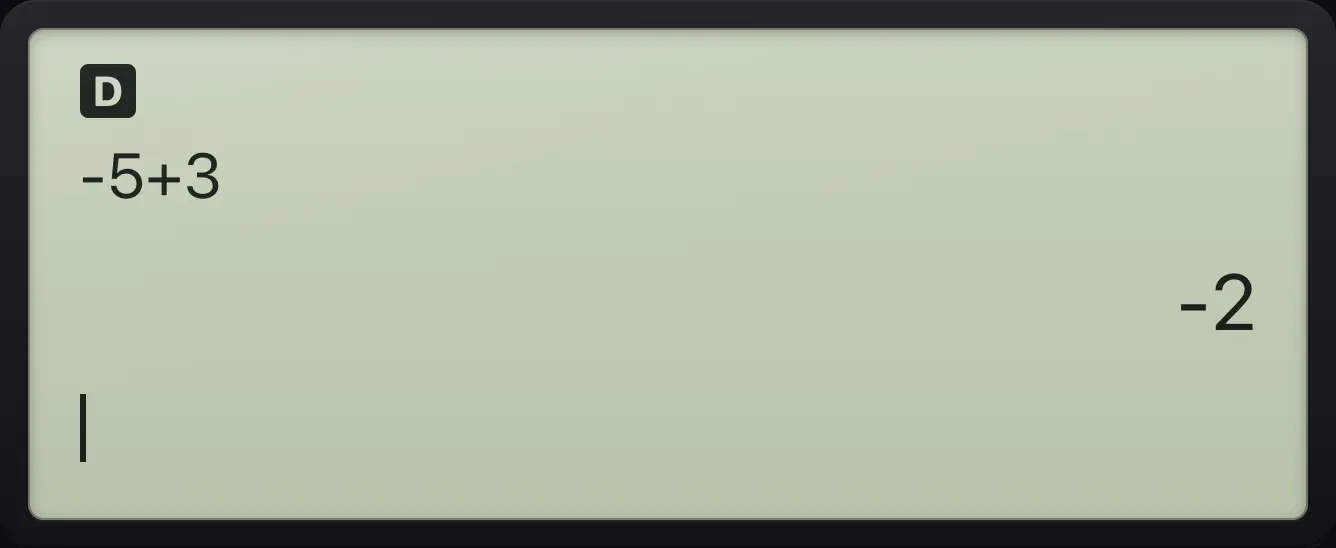
-5+3 -2Subtract
The − key takes one number away from another.
3−5enter
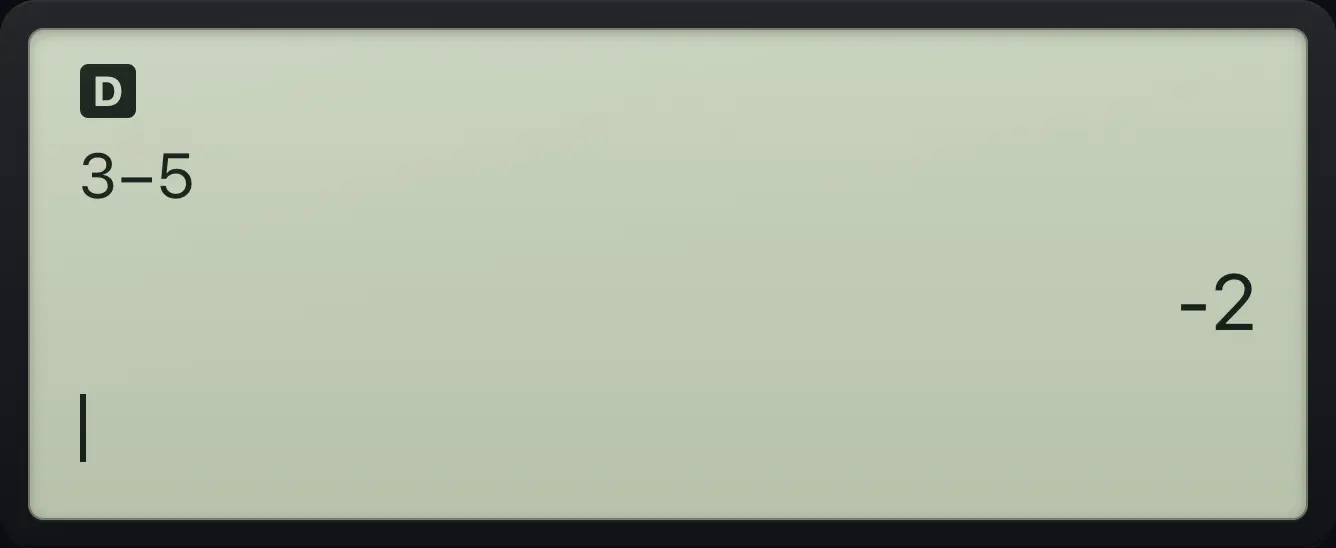
3−5 -2See also Do basic arithmeticEnter and calculate with negative numbersUse brackets to control the order
1.5Clear and edit an entry#
Press clear to erase the entry line. Press clear again on an empty line to wipe the screen of old lines (they stay in the history). Use ◀ and ▶ to move the cursor, delete to remove the character at the cursor (at the end of the line it removes the last character instead), and just type to insert at the cursor.
Insert a missing digit
Type 1 2 4. Then move the cursor left once and type 3.
124◀3
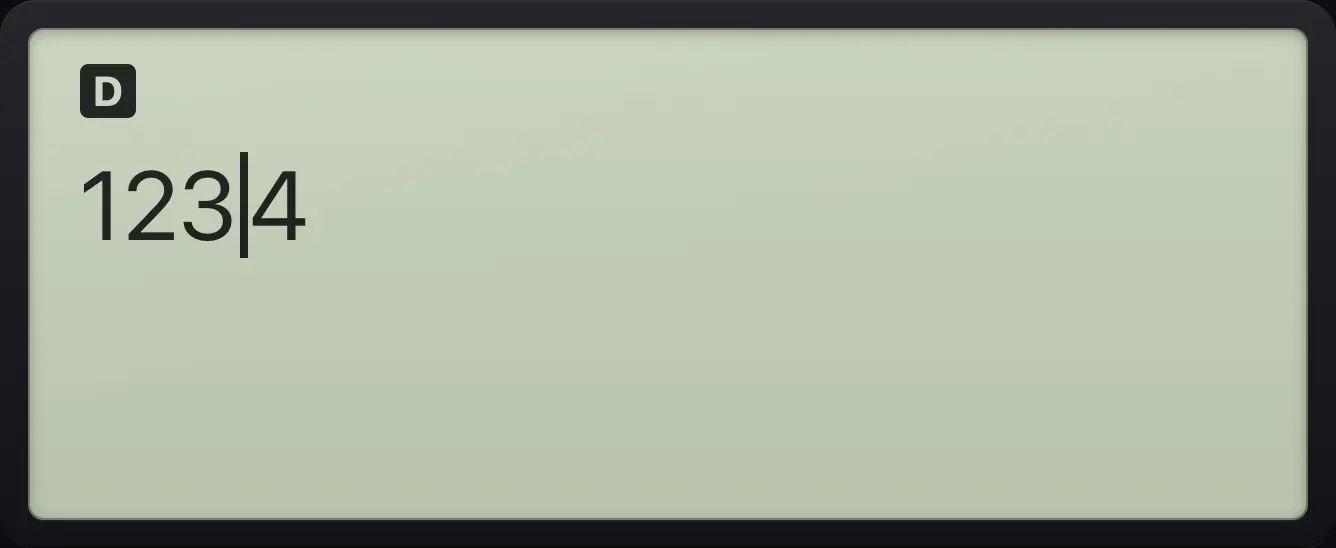
1234Delete a wrong digit
Type 1 2 3, move left twice so the cursor sits on the 2, and press delete to remove the 2.
123◀◀delete
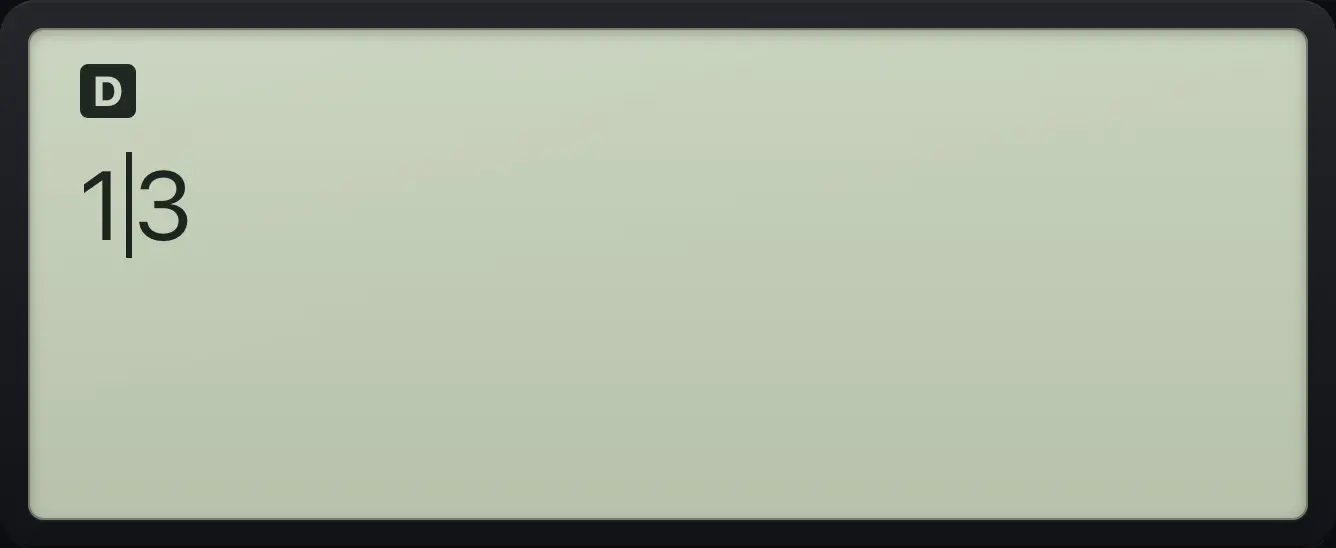
131.6Return to the main screen#
Press 2ndquitmode (QUIT) to leave any menu, the data editor, the table or the mode screen and go back to the calculation screen. Pressing clear inside a menu or the mode screen also closes it. None of these erase your numbers or settings.
1.7Use a laptop keyboard#
On a computer you can type instead of tapping the keys. Digits type themselves. These keys do the rest.
| Computer key | Calculator key |
|---|---|
| Enter or = | enter |
| Backspace or Delete | delete |
| Escape | clear |
| + - * | + − × |
| / | Fraction template n/d. Use the colon for a plain divide sign. |
| : | Divide ÷ |
| ^ | Power ^ |
| ( and ) | ( ) |
| . | . |
| , | Comma 2nd,. |
| x | Variable x yzt abcd |
| p | Pi π |
| s c t | sin cos tan |
| l and L | ln ln and log log |
| r and q | Square root 2nd√x² and square x² |
| e | Times ten to a power ×10ⁿ |
| n | Negative sign (−) |
| a | Last answer 2ndans(−) |
| m, d, T | Menus: mode data table |
| ! and % | Factorial 2nd!× and percent 2nd%( |
| Tab | The answer toggle ◄► |
See also Type with your computer keyboard
TI-30XS MultiView is a trademark of Texas Instruments Incorporated. Trident Calculator is an independent product by South View Studios and is not affiliated with, sponsored by or endorsed by Texas Instruments. The name is used only to describe the kind of calculator this model resembles; Trident's names, keys, display, fonts and software are its own clean-room design.