
Natural Scientific 991 manual · Chapter 3 of 18
Calculations
Arithmetic, order of operations, exact fractions and roots, decimals, percent, scientific and engineering notation, and Ans.
3.1Order of operations#
Powers and roots come first, then multiplication and division, then addition and subtraction. Use brackets to change the order. Implied multiplication such as 2π binds tighter than a division sign, so 1÷2π means 1 divided by (2π).
Brackets change the order
Type (2 + 3) × 4.
(2+3)×4Equals.
=
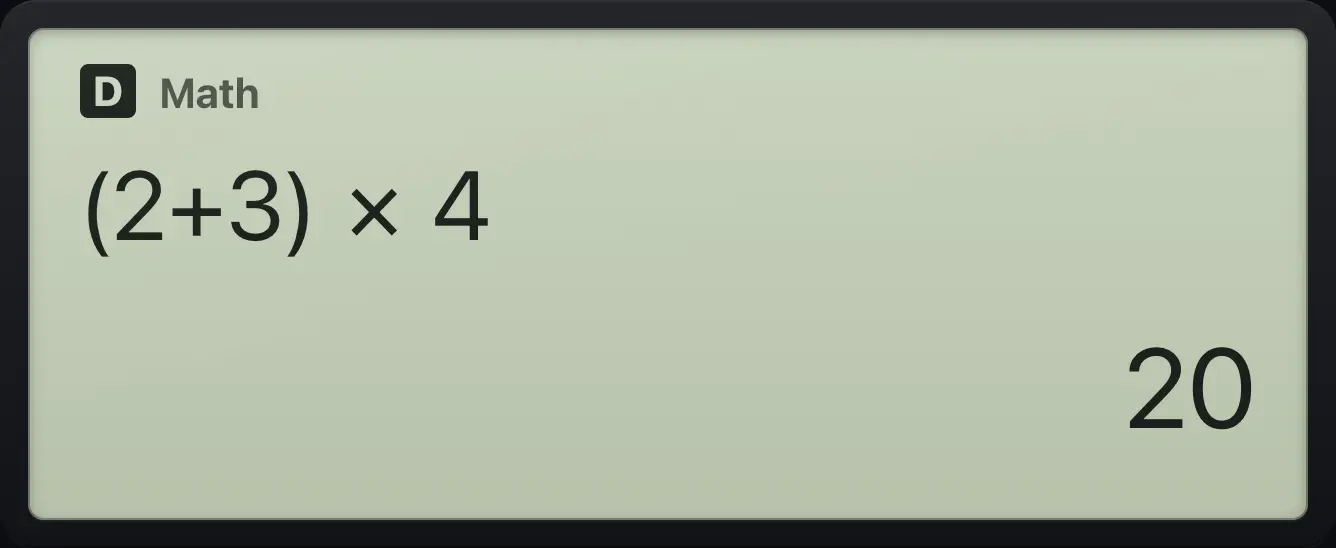
20Implied multiplication
Type 1 ÷ 2π.
1÷2SHIFTπ×10ˣEquals, then press S⇔D for the decimal.
=S⇔D
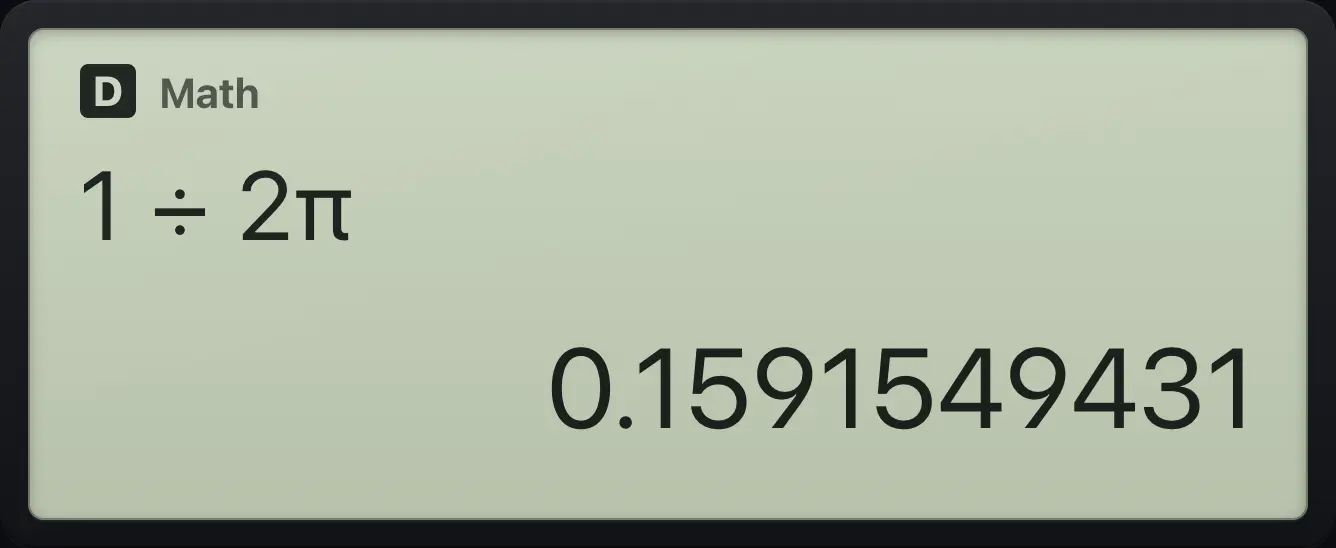
0.15915494313.2Negative numbers versus subtraction#
Use the (−) key for the sign of a number, as in -5, and − for subtraction. They are different keys.
Add a negative number
Type -5 + 8.
(−)5+8Equals.
=
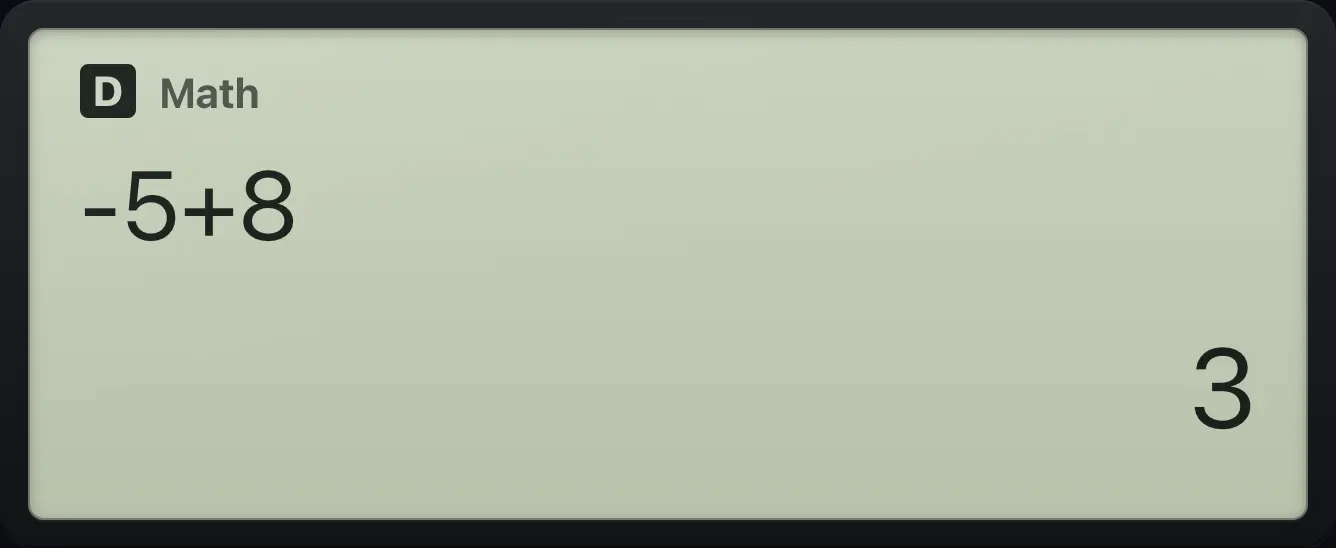
33.3Add and multiply fractions#
Press / to open a fraction template. Type the numerator, press ▼ to move to the denominator, type it, then press ▶ to step out of the fraction. If you typed a number first, that number becomes the numerator.
Add two fractions
Type 1/2.
/1▼2▶Plus 1/3.
+/1▼3▶Equals.
=
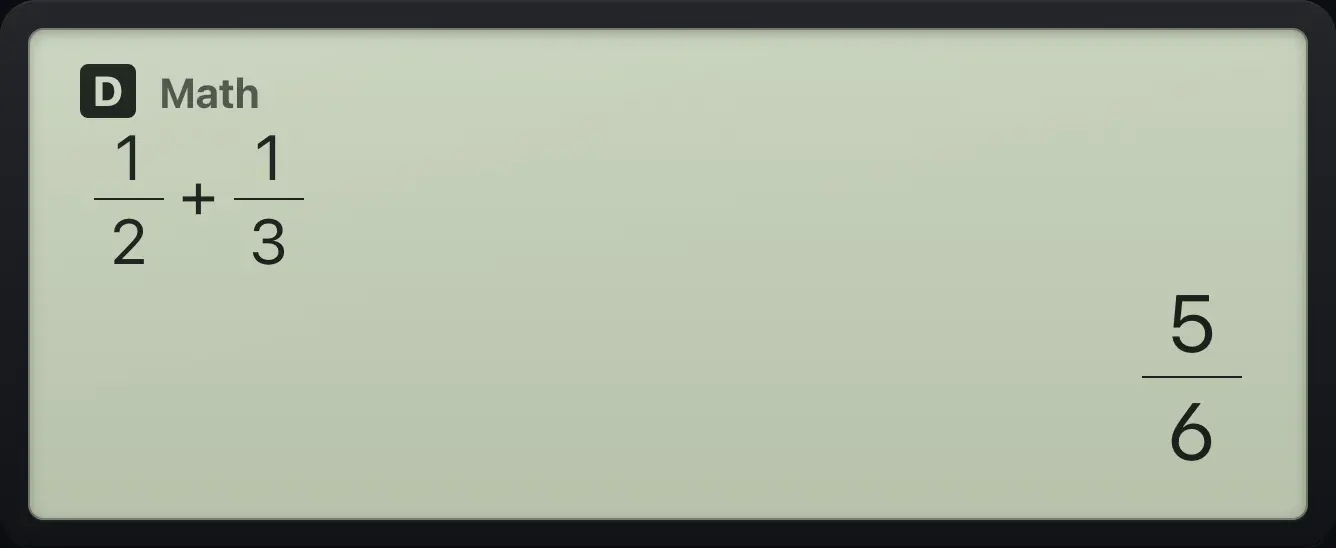
5/6Multiply fractions
Type 2/3 × 3/4. Typing the number first makes it the numerator.
2/3▶×3/4▶Equals. The answer is reduced.
=
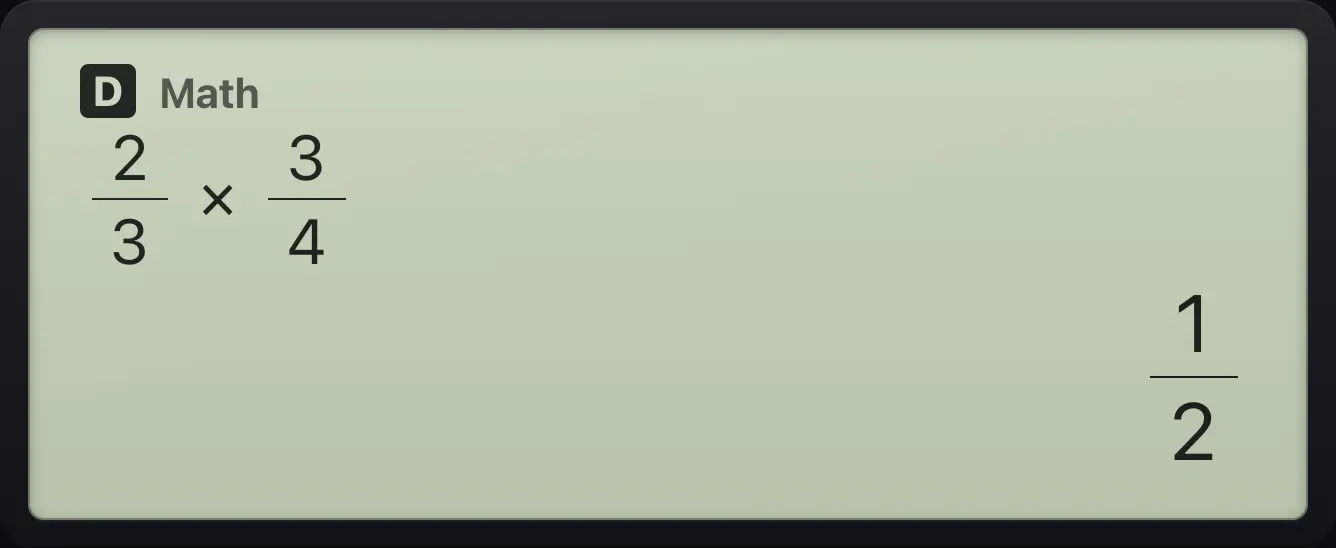
1/23.4Mixed numbers and improper fractions#
Press SHIFT// to type a mixed number: whole part, then numerator, then denominator. Use ▶ to move from box to box. Press SHIFTa b/c⇔d/cS⇔D on an answer to switch between mixed and improper form.
Type a mixed number
Open the mixed template and type 1, 1, 2.
SHIFT//1▶1▶2▶Add 1/2 and press equals.
+/1▼2▶=
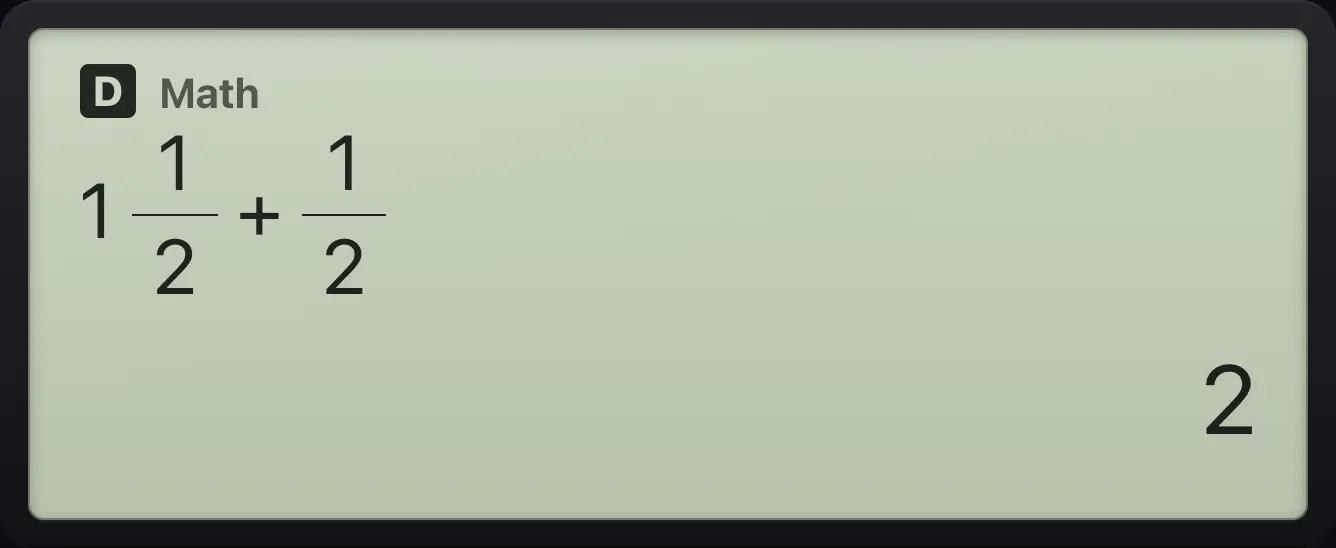
2Show an answer as a mixed number
Calculate 7/2.
7/2▶=Press SHIFT then S⇔D.
SHIFTa b/c⇔d/cS⇔D
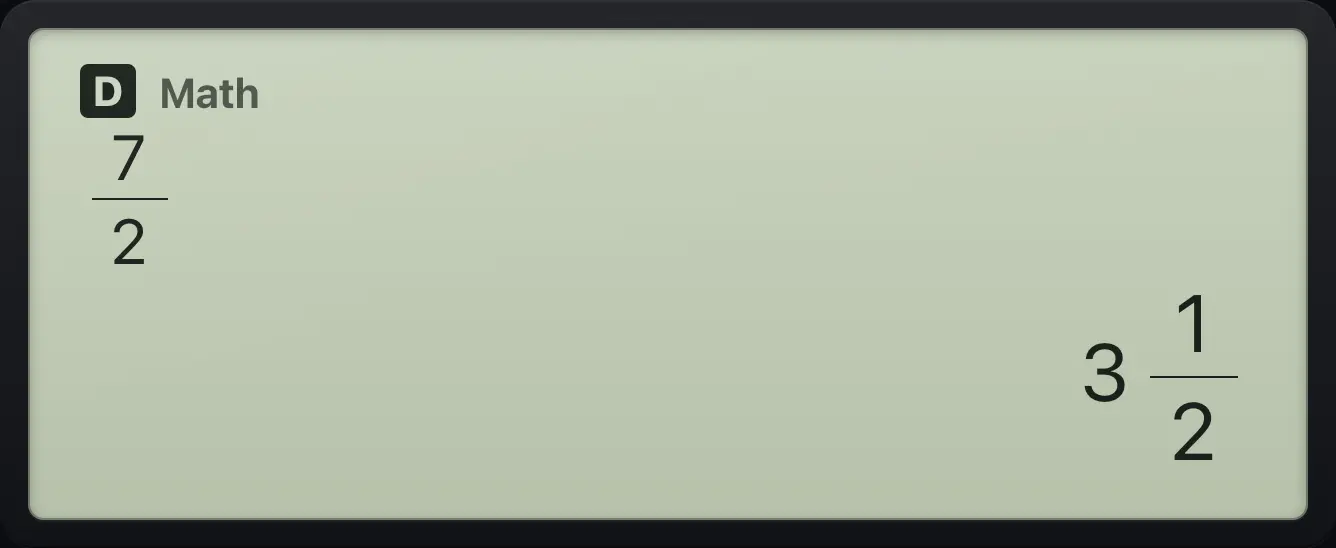
The answer changes from 7/2 to 3 1/2. Press SHIFT S⇔D again to go back.3.5Convert a decimal to a fraction#
Type the decimal and press =. The answer is shown as a fraction when one fits exactly.
0.1 + 0.2 as a fraction
Type 0.1 + 0.2 and press equals.
0.1+0.2=
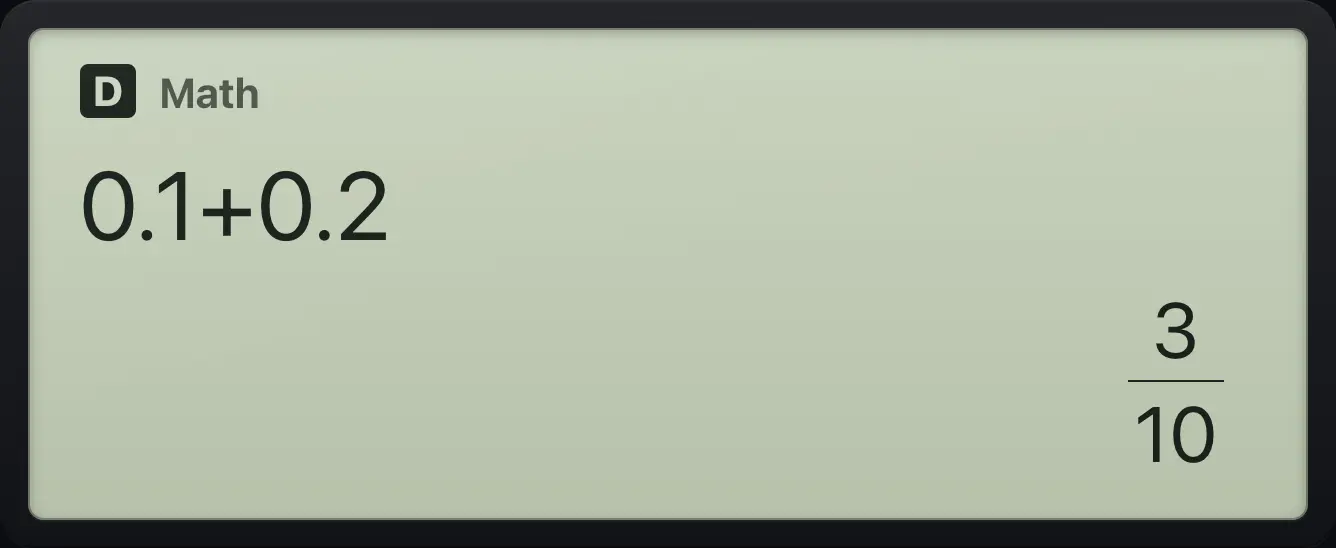
3/101.5 as a fraction
Type 1.5 and press equals.
1.5=
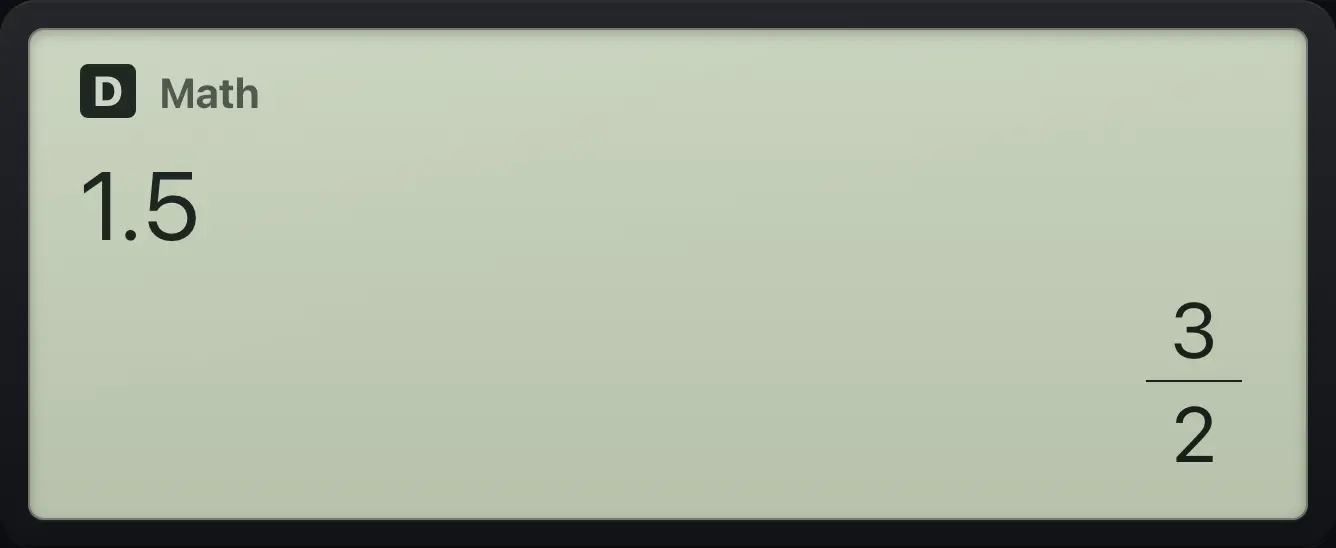
3/23.6Convert a fraction or root to a decimal#
Press S⇔D after an answer to switch between the exact form and the decimal form. Press SHIFT≈= instead of = to get the decimal straight away.
Fraction to decimal
Calculate 1 ÷ 3.
1÷3=Press S⇔D.
S⇔D
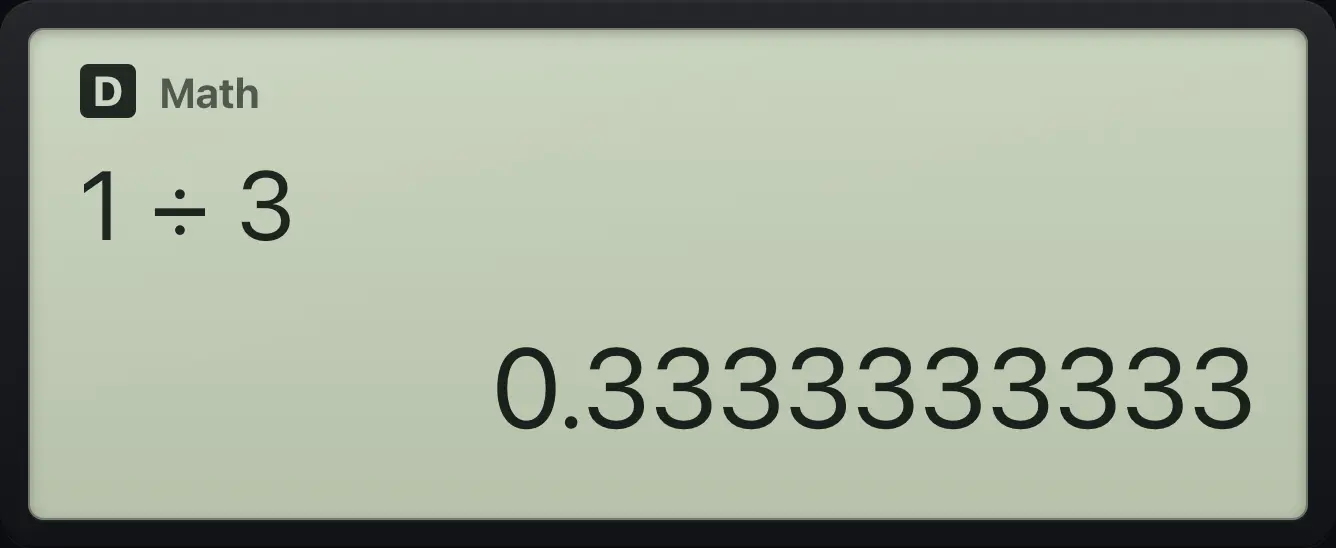
0.3333333333Decimal straight away
Type 2/3, then press SHIFT equals (≈).
2/3▶SHIFT≈=
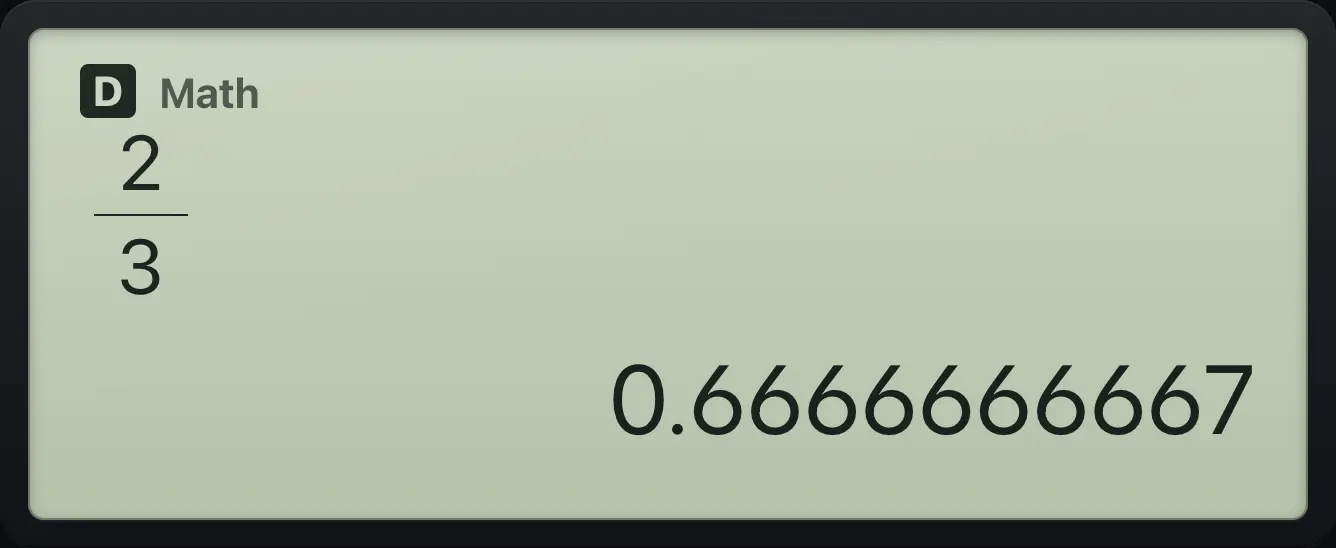
0.6666666667Square root to a decimal
Calculate √8, then press S⇔D.
√8=S⇔D
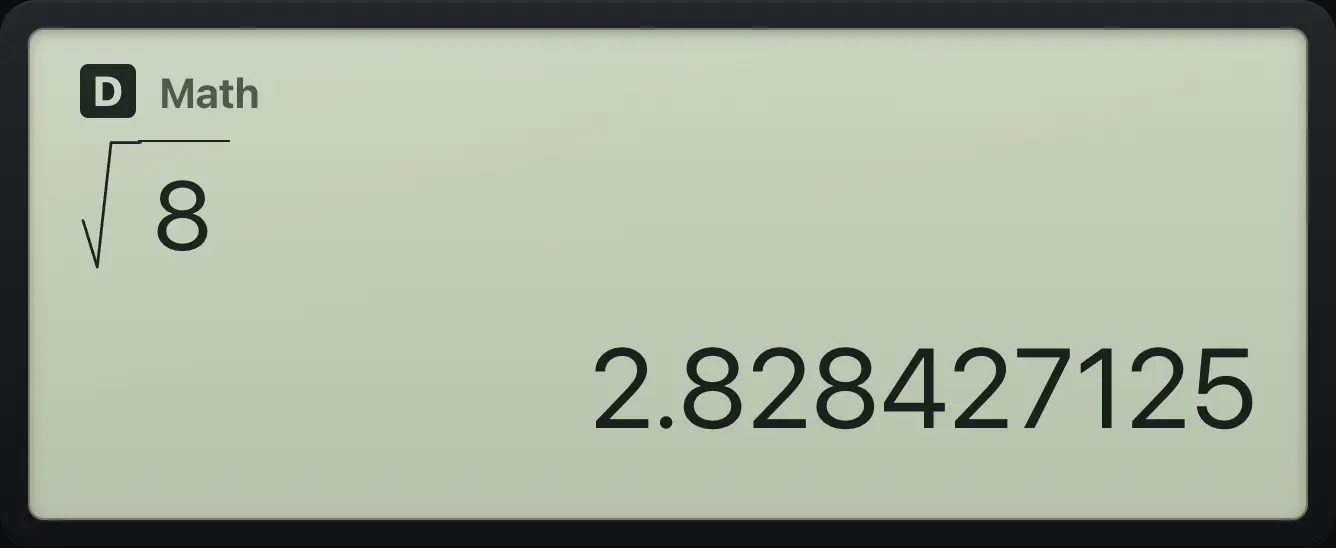
2.828427125- Answer 1/3
- S⇔D
- 0.3333333333
- S⇔D
- 1/3
3.7Exact roots and π#
Square roots are simplified and kept exact. Multiples of π are kept exact too, until you ask for a decimal.
Simplify a root
Type √8 and press equals.
√8=
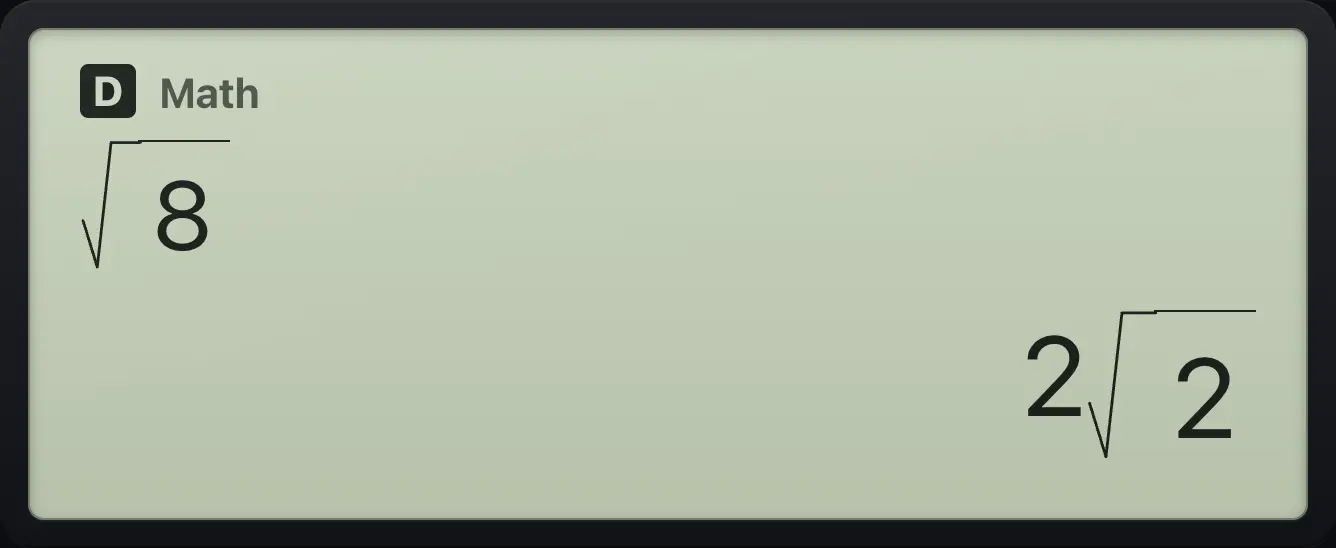
2√2Rationalize a denominator
Type 1 divided by √2.
1/√2▶Equals.
=
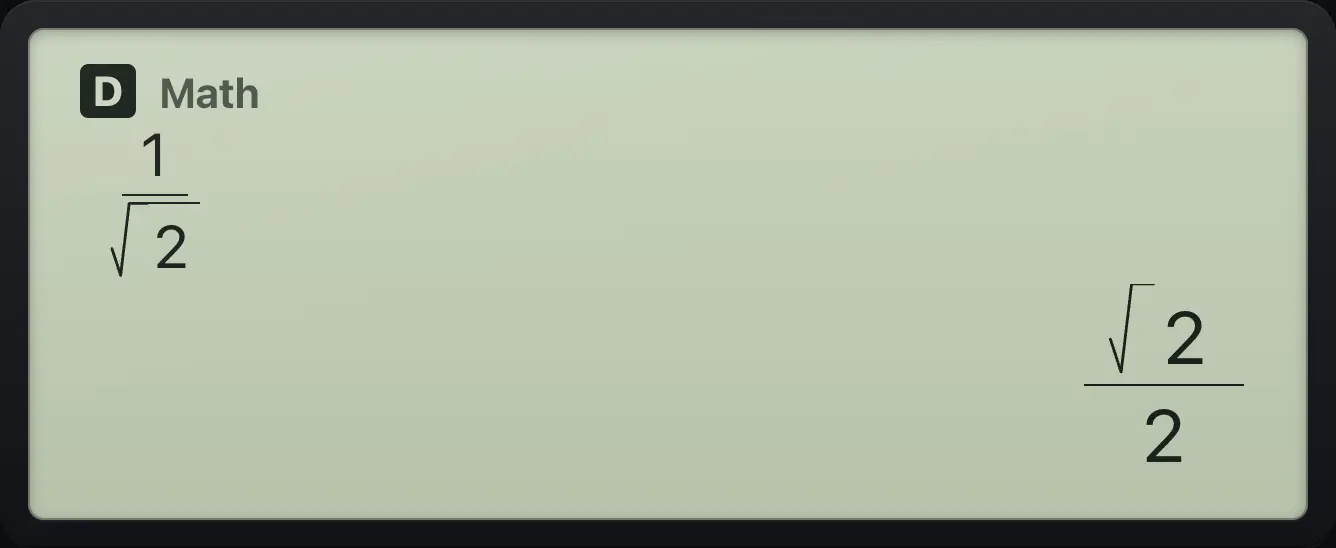
√2/2Add roots
Type √18 + √2. Press right to leave the first root.
√18▶+√2=
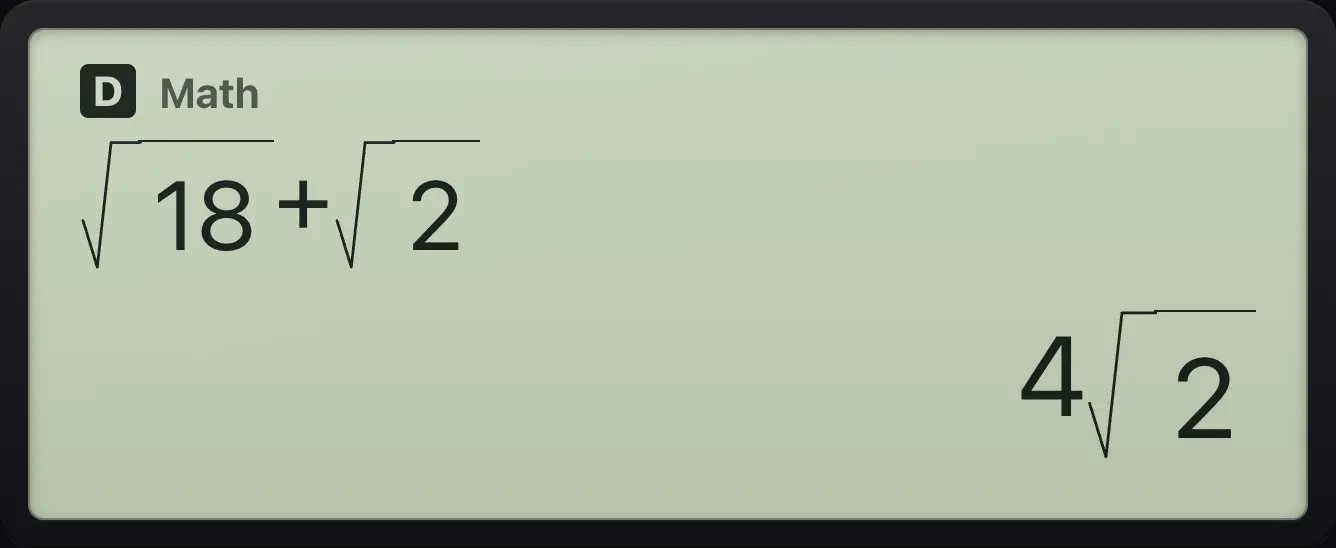
4√2Keep π exact
Type π × 2/3 and press equals.
SHIFTπ×10ˣ×2/3▶=
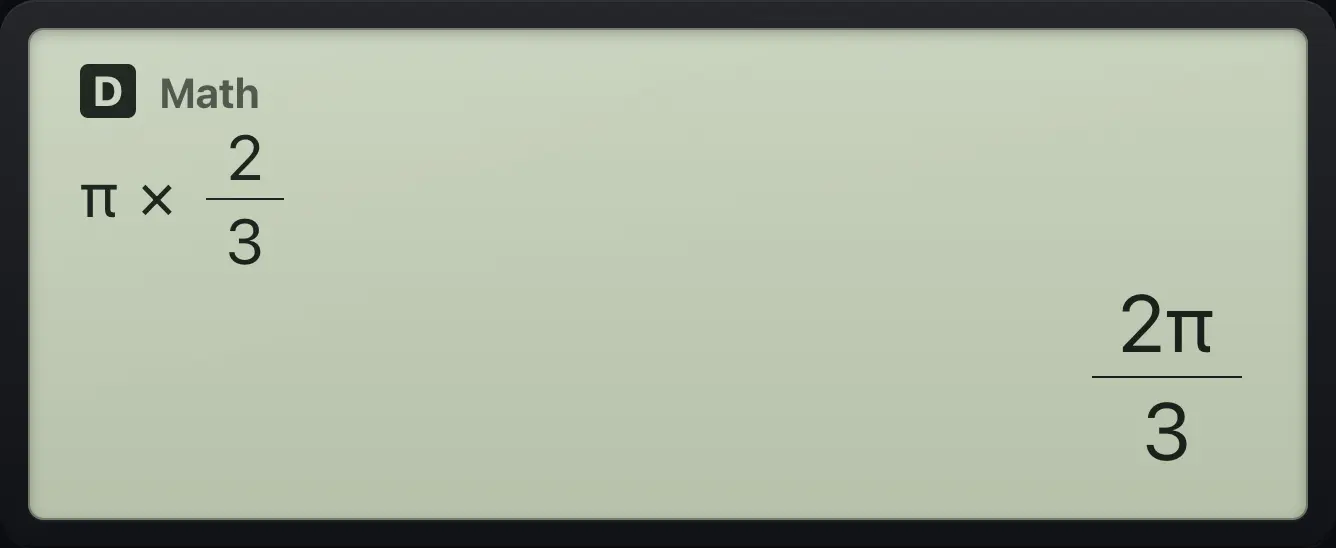
2π/33.8Find a percentage#
Type SHIFT%( after a number to make it a percent. .
15% of 200
Type 200 × 15 then the percent key.
200×15SHIFT%(Equals.
=
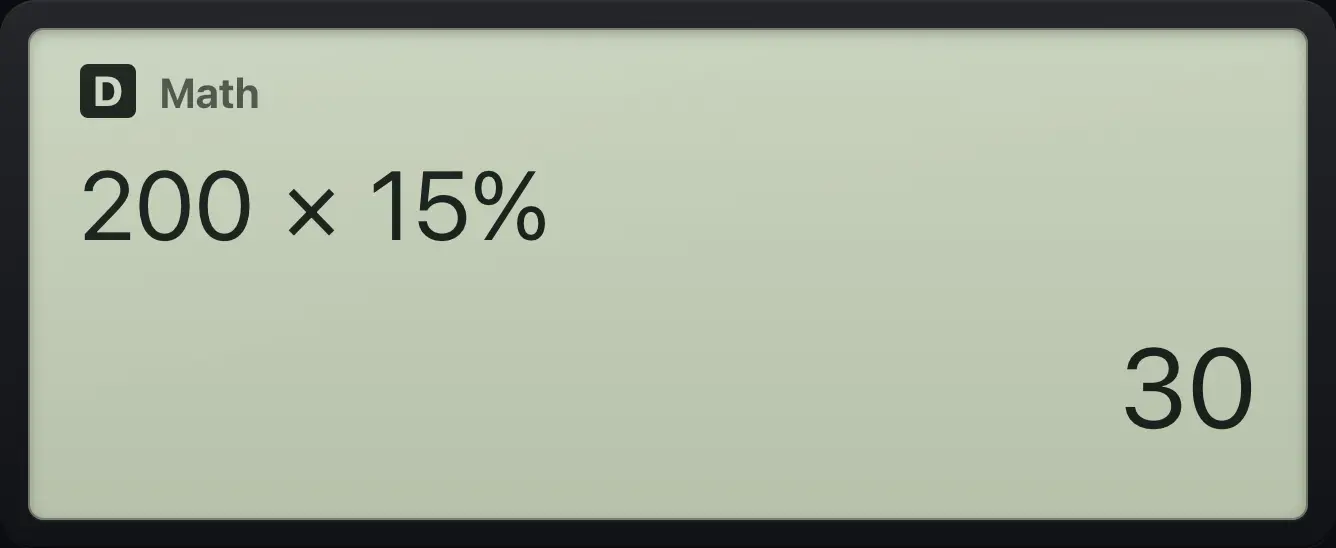
303.9Enter numbers in scientific notation#
Press ×10ˣ to type "times ten to the power". Type the exponent in the box that appears. Use (−) inside the box for a negative exponent.
2 × 10³
Type 2, the ×10ˣ key, and 3.
2×10ˣ3Equals.
=
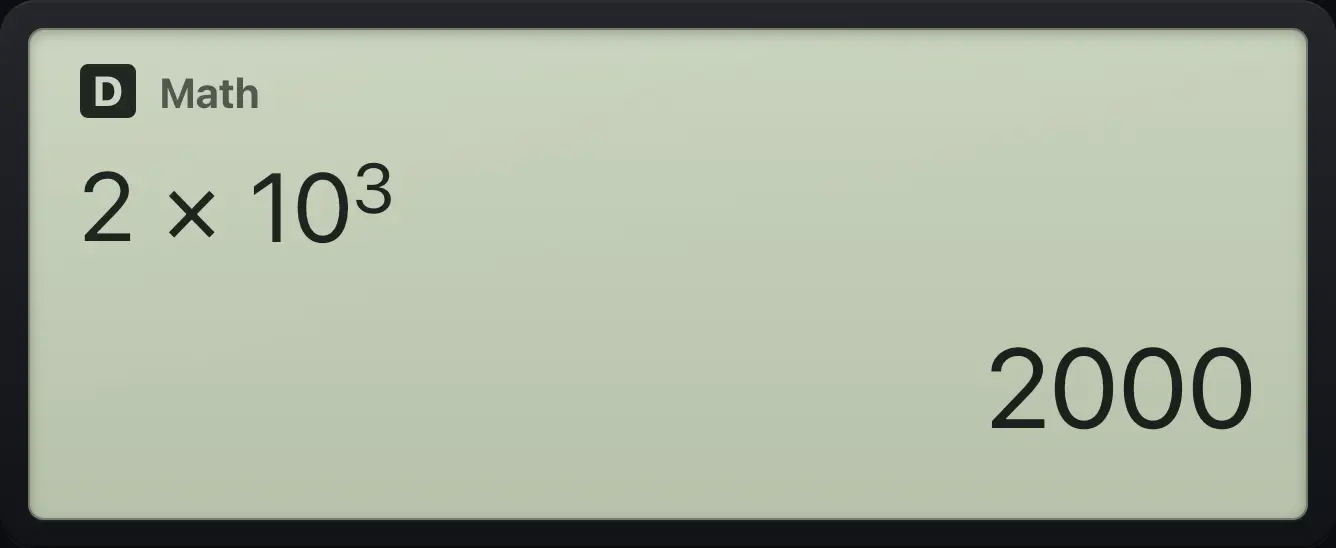
2000A small number
Type 2 × 10 to the minus 3.
2×10ˣ(−)3=
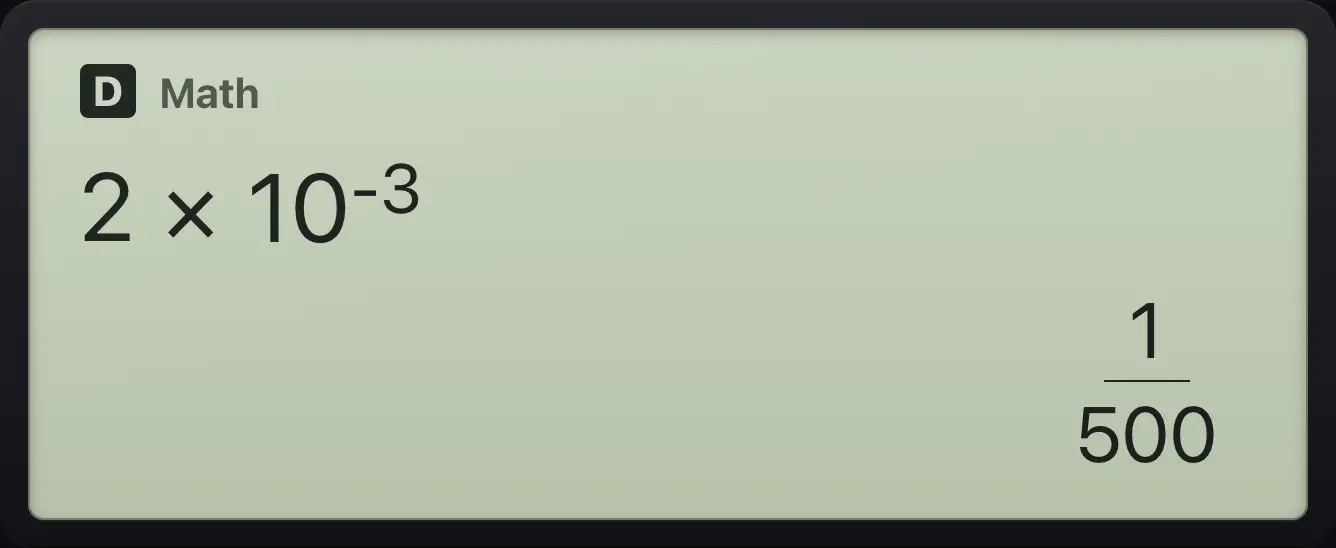
1/5003.10Show an answer in engineering notation#
Press ENG after an answer to move to an exponent that is a multiple of three, as used with units such as kilo and milli. Press ENG again to go further down, and SHIFT←ENGENG to go back up.
Move to ×10³
Calculate 123456.
123456=Press ENG.
ENG
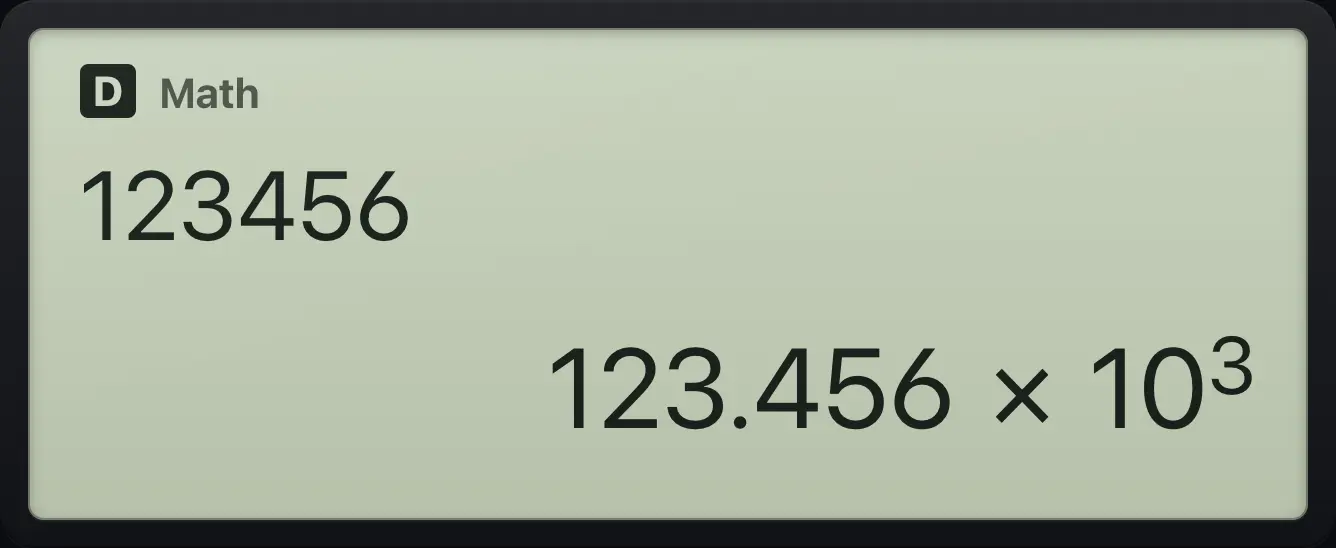
123.456×10^3Step the other way
Calculate 123456, then SHIFT ENG.
123456=SHIFT←ENGENG
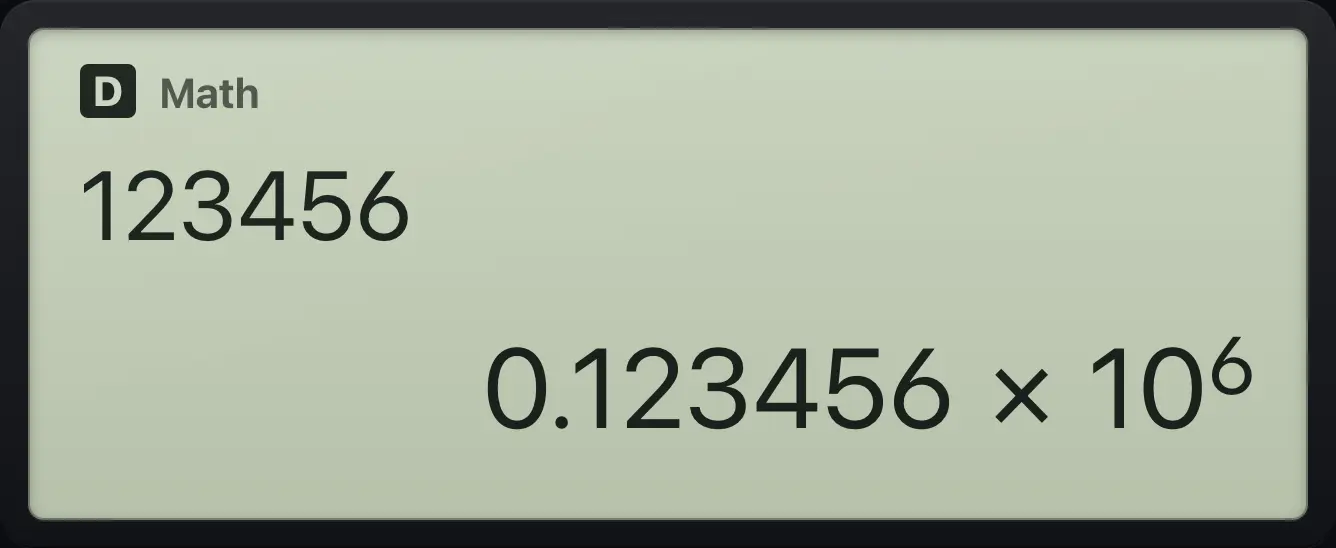
0.123456×10^63.11Use the last answer (Ans)#
Every answer is saved in Ans. Press Ans to type it into a new line. If you start a new line with an operator, Ans is inserted for you.
Operator after an answer
Calculate 2 + 3.
2+3=Press × 2 and equals.
×2=
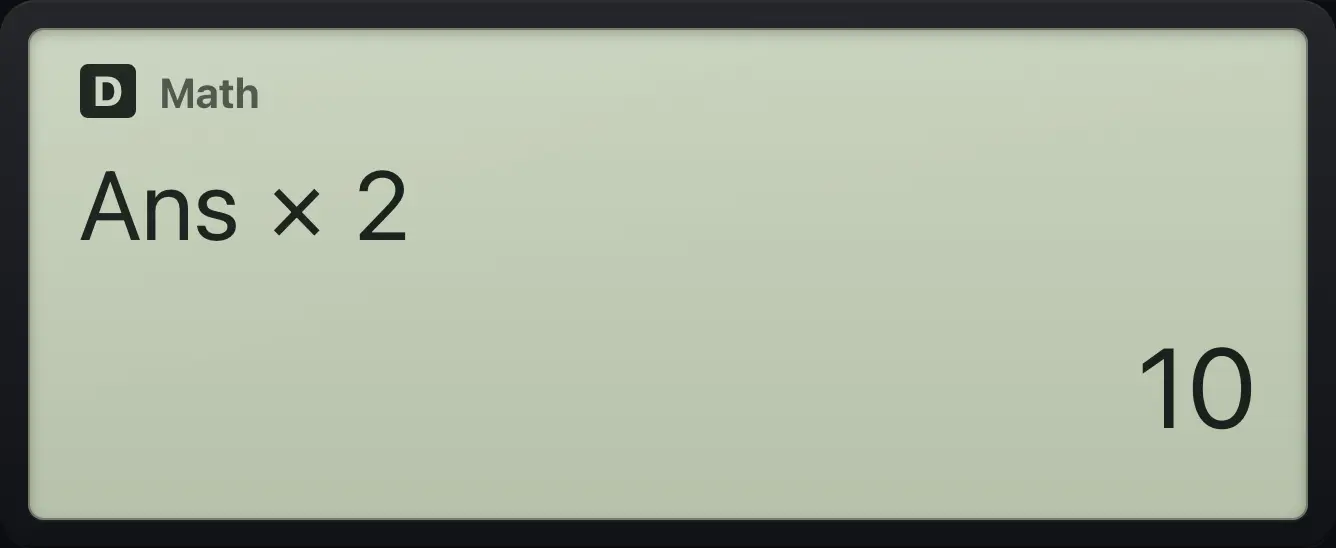
Ans×2 10The Ans key
Calculate 2 + 3, then type Ans + 1.
2+3=Ans+1=
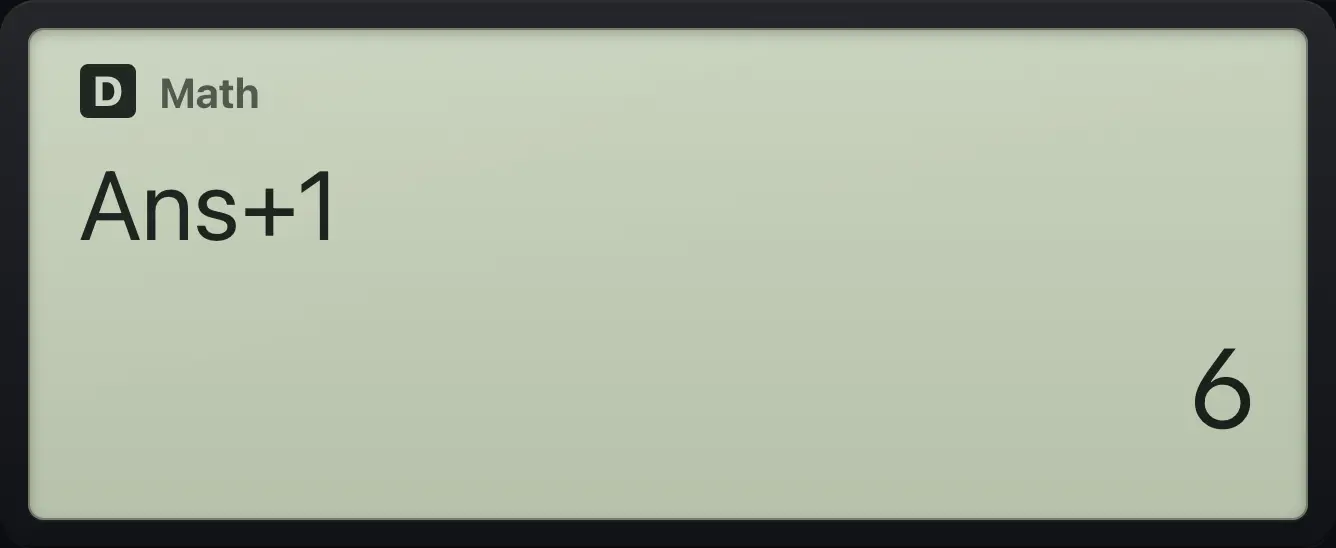
63.12Degrees, minutes and seconds#
Press °'" while typing to place the degree mark, then the minute mark, then the second mark. After an answer, press °'" to see a decimal angle as degrees, minutes and seconds.
Enter 3°30′
Type 3, the DMS key, 30, the DMS key.
3°'"30°'"Equals gives the angle as a decimal.
=
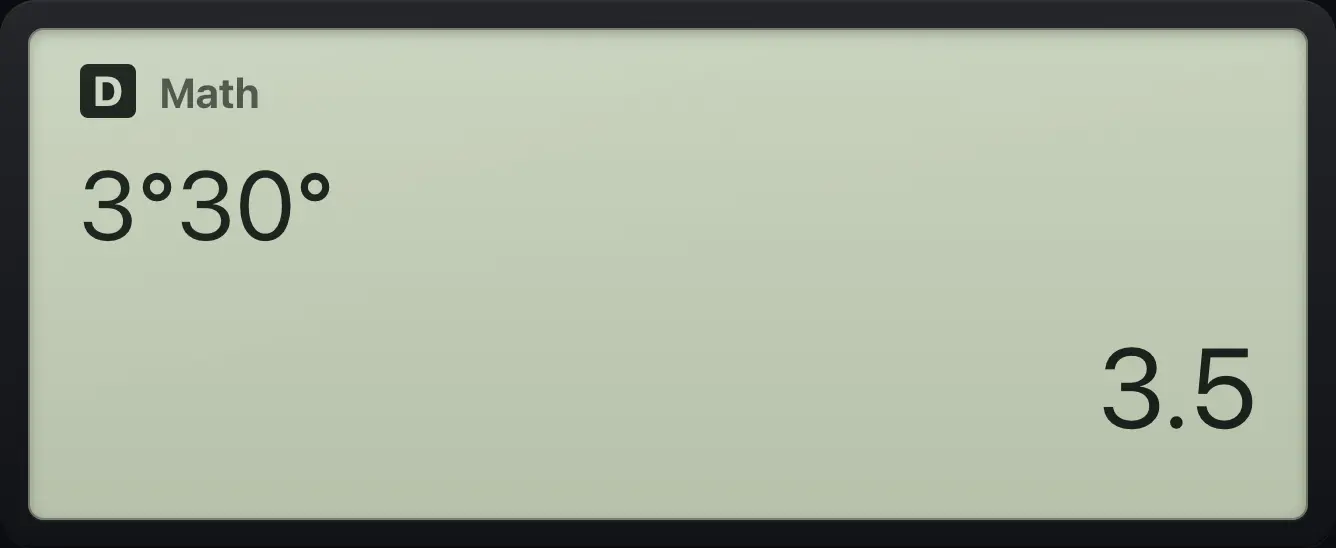
3.5Show 3.5 as DMS
Calculate 3.5, then press the DMS key.
3.5=°'"
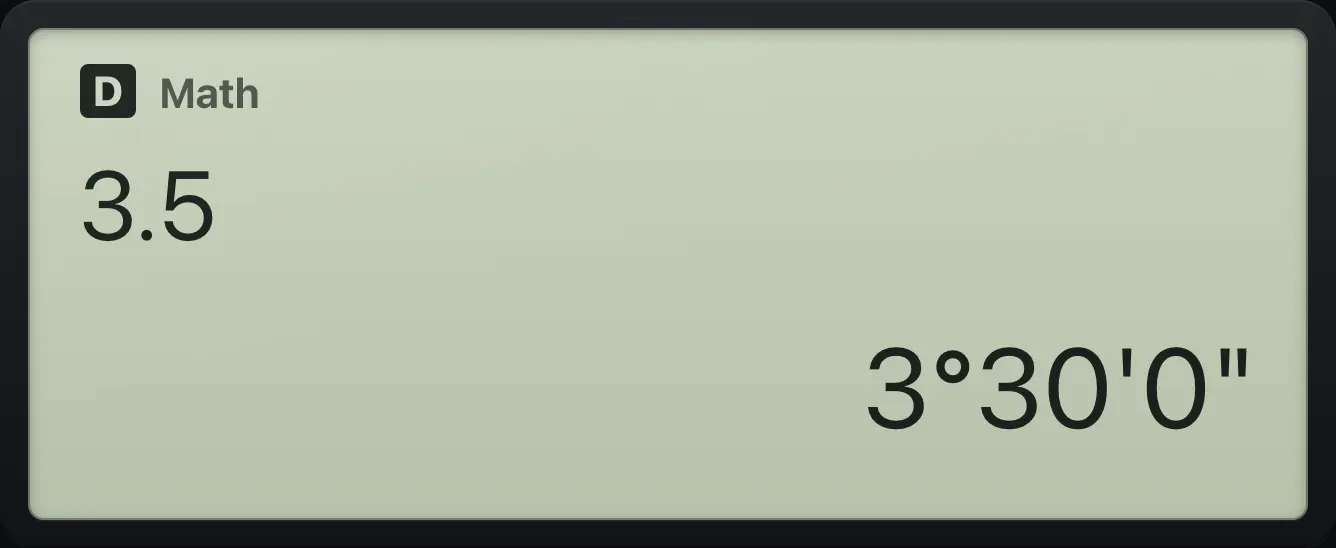
3°30'0"fx-991EX ClassWiz is a trademark of Casio Computer Co., Ltd.. Trident Calculator is an independent product by South View Studios and is not affiliated with, sponsored by or endorsed by Casio. The name is used only to describe the kind of calculator this model resembles; Trident's names, keys, display, fonts and software are its own clean-room design.