
Natural Scientific 991 manual · Chapter 1 of 18
Getting started
The screen, the SHIFT and ALPHA keys, your first calculation, editing, and getting back to the main screen.
1.1The screen and its indicators#
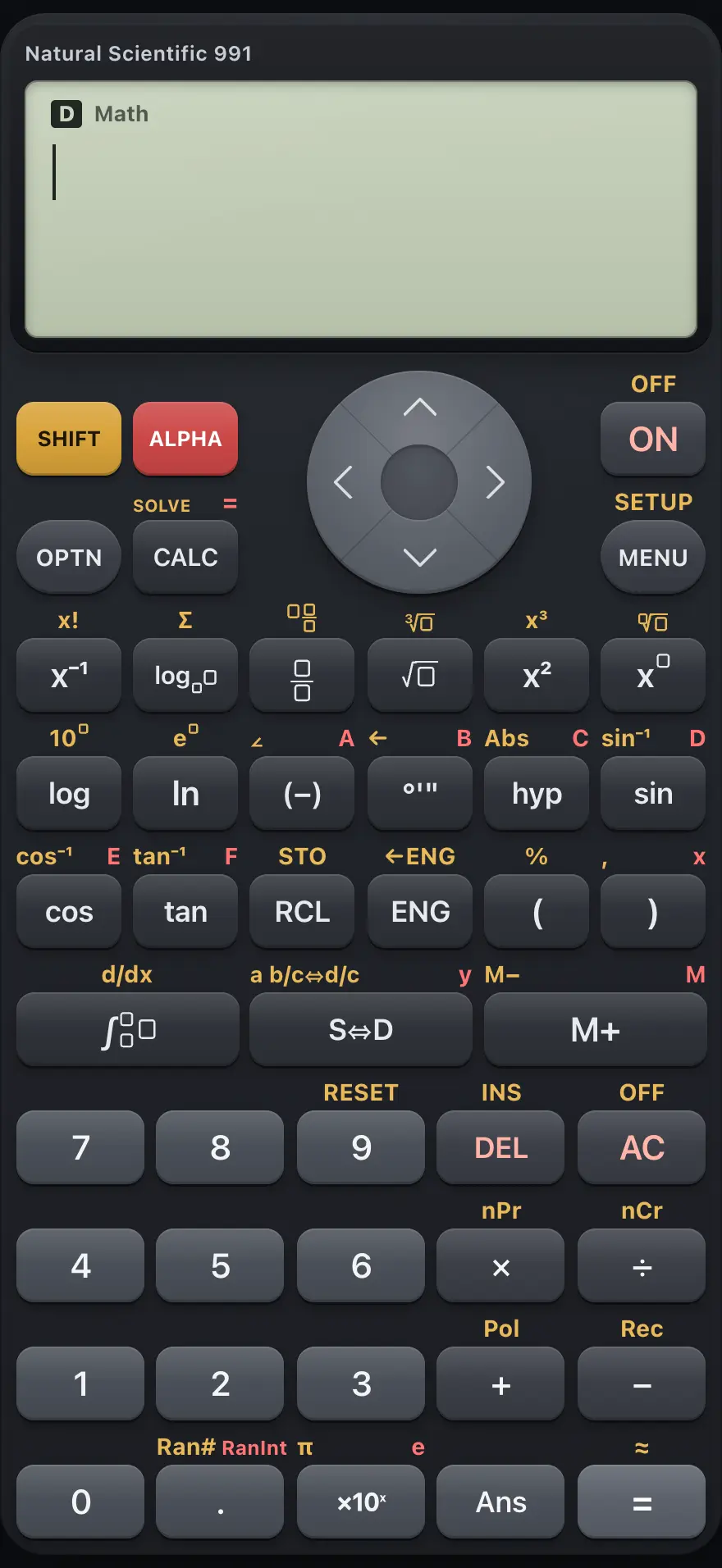
- Display: expression above, answer below
- SHIFT: gold functions
- ALPHA: red letters and variables
- OPTN: options for the current app
- CALC and SOLVE
- MENU: apps (SETUP with SHIFT)
- S⇔D: exact or decimal
- AC: clear
- Equals: calculate
The screen shows what you typed on the top line and the answer on the right of the line below. A row of small indicators sits above it and tells you the state of the calculator.
| Indicator | What it tells you |
|---|---|
| SHIFT | The next key press uses the gold function printed above the key. |
| ALPHA | The next key press uses the red letter or variable printed above the key. |
| D, R or G | The angle unit: degrees, radians or gradians. The default is degrees. |
| Math | Natural display is on: fractions and roots are drawn as in a textbook. |
| FIX or SCI | A fixed number of decimals (Fix) or significant digits (Sci) is chosen. |
| M | Variable M holds something other than zero. |
| STO | You pressed STO and the next variable key will store a value. |
| CMPLX, BASE, MAT, VCT, STAT, DIST, TABLE, EQN, RATIO | Which app from the MENU you are in. Plain Calculate shows no tag. |
1.2The SHIFT and ALPHA layers#
Most keys do two or three things. The key itself does the main job. The gold label above it is used after SHIFT, and the red label above it is used after ALPHA.
- Press SHIFT and then a key to use its gold function, for example SHIFTsin⁻¹sin is the inverse sine.
- Press ALPHA and then a key to type a variable such as A, B, x or M, or the constant e.
- Each press of SHIFT or ALPHA lasts for one key only. Pressing SHIFT twice cancels it.
Use the SHIFT layer
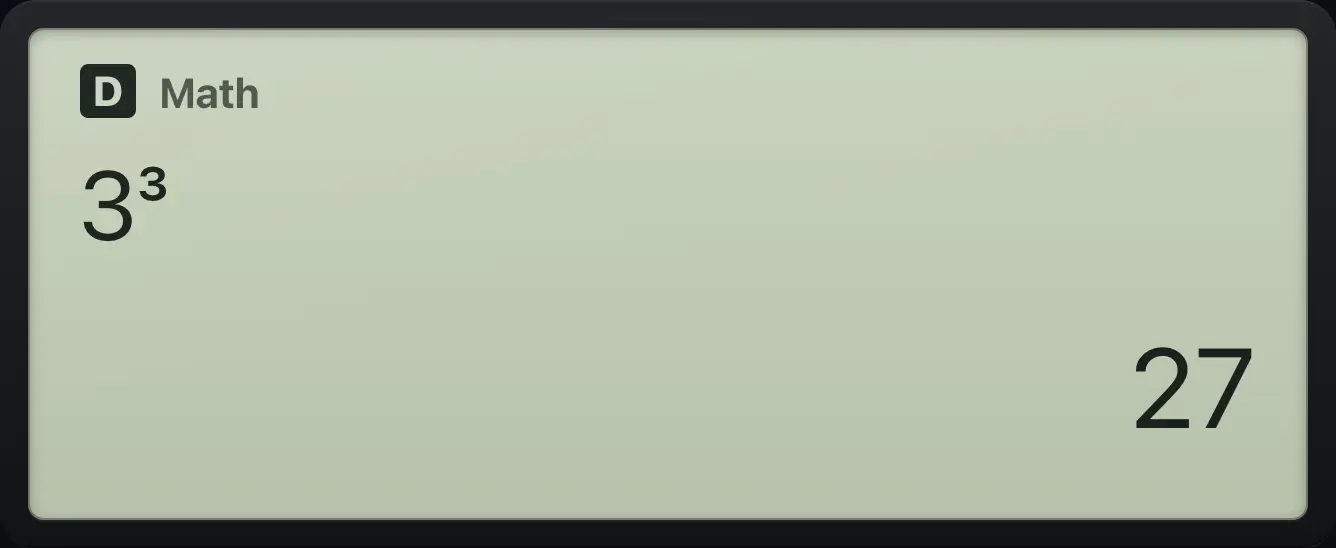
SHIFT then the cube key gives x cubed. Type 3, then SHIFT x².
3SHIFTx³x²Press equals.
=
271.3Your first calculation#
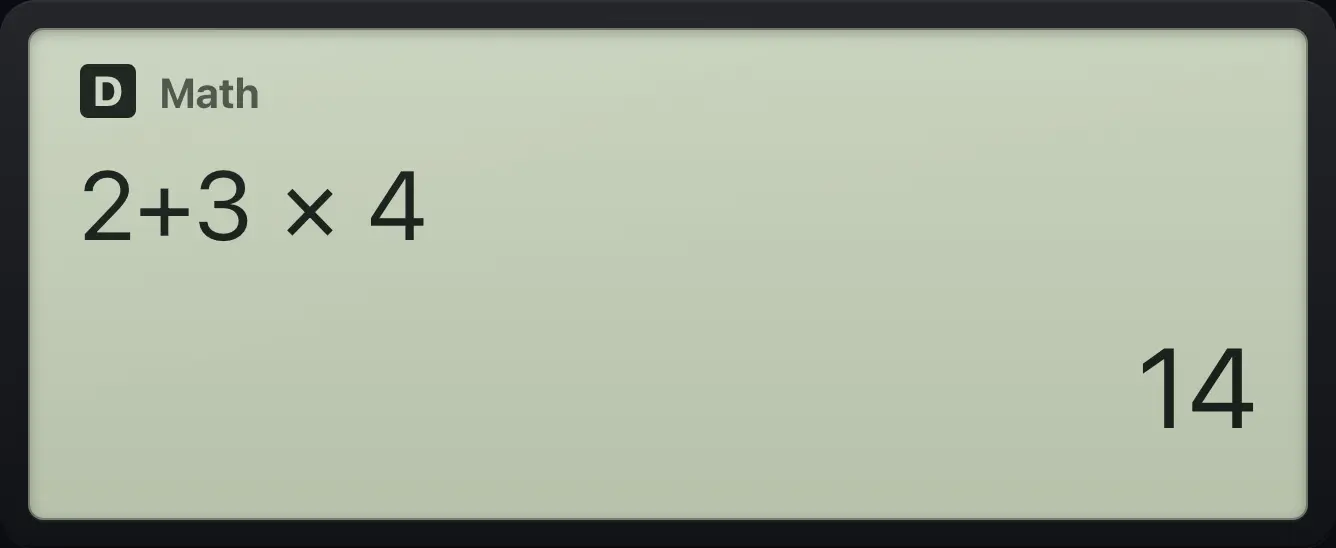
Type the calculation the way you would write it, then press =. The calculator follows the usual order of operations, so multiplication happens before addition.
Add and multiply
Type 2 + 3 × 4 and press equals.
2+3×4=
14See also Calculations: Order of operationsCalculations: Negative numbers versus subtraction
1.4Clear, delete and edit#
- AC clears the line you are typing and the answer.
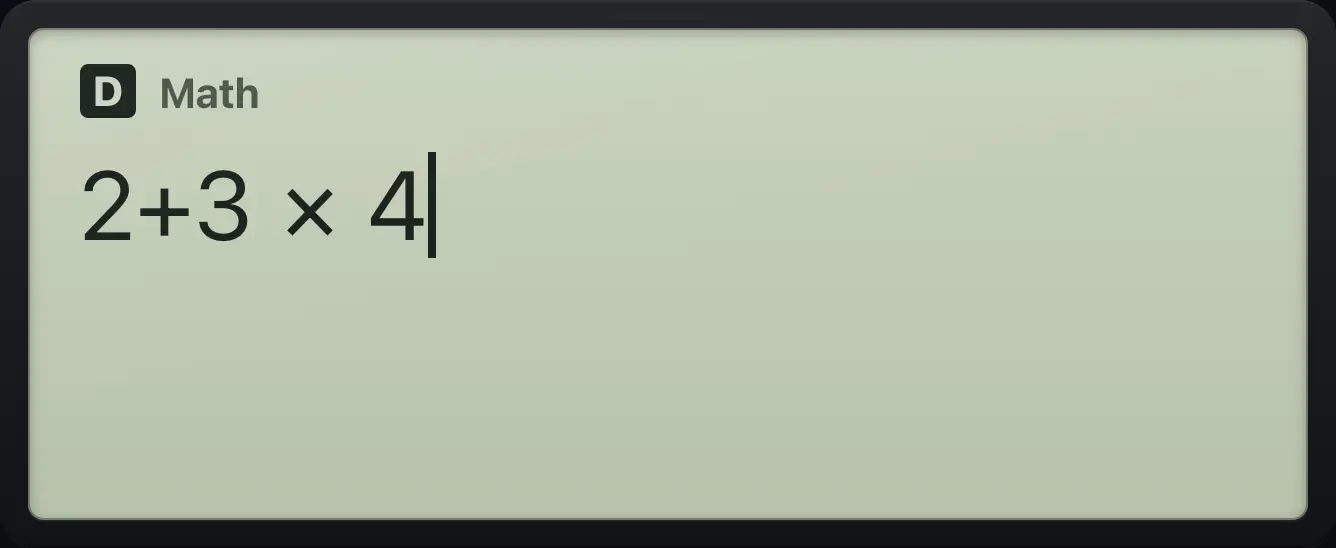
- DEL deletes the character just before the cursor. After an answer it brings the expression back so you can change it.
- ◀ and ▶ move the cursor along the line. After an answer, ◀ puts the expression back on the line with the cursor at the end, and ▶ puts it back with the cursor at the start.
- Inside a fraction, power or root, ▲ and ▼ move between the boxes and ▶ steps out of the last box.
Fix a typing mistake
Type 123 + 4, then delete the 4 and type 5.
123+4DEL5Press equals.
=
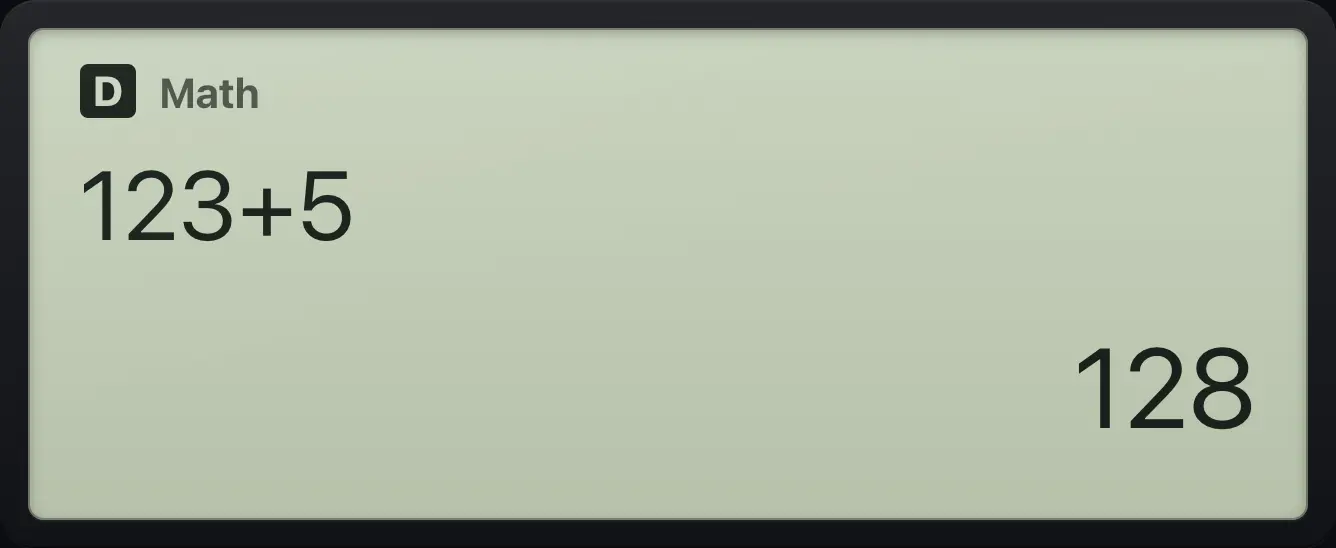
128Edit an answered line
Calculate 2 + 3.
2+3=Press the left arrow, delete the 3 and type 4.
◀DEL4Equals again.
=
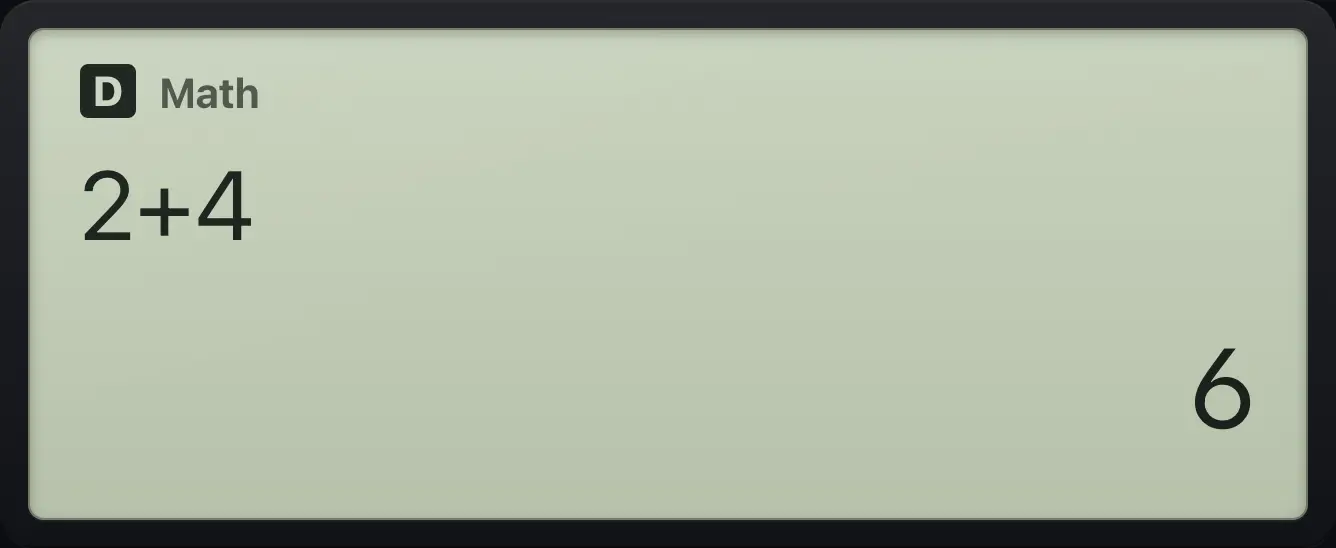
2+4 61.5Bring back an earlier calculation#
The calculator remembers your last 30 calculations. Press ▲ on an empty line or after an answer to step back through them, and ▼ to step forward. The calculation appears on the line ready to edit.
Recall and re-run
Do two calculations.
2+3=4×5=Press up twice to reach the first one.
▲▲Run it again.
=
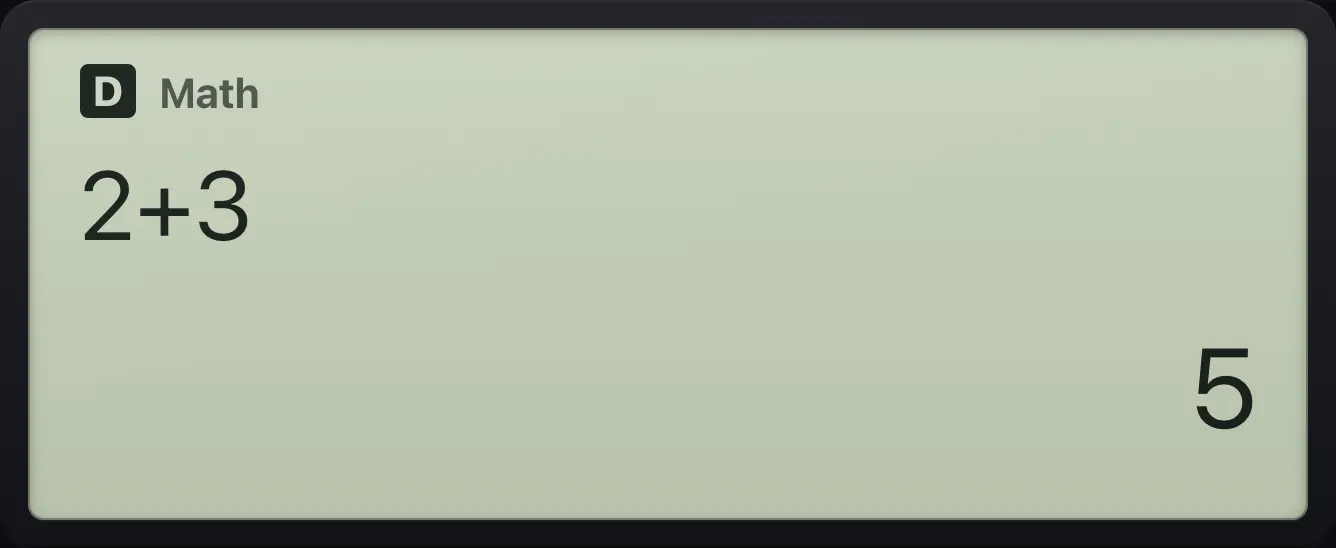
2+3 5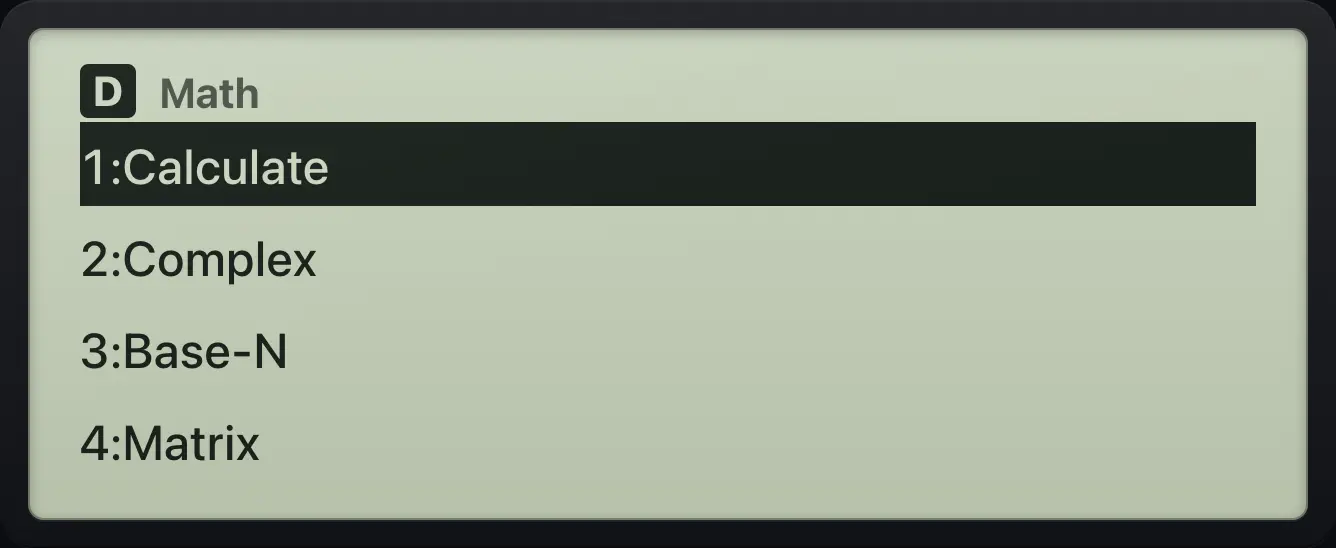
1.6Use a laptop keyboard#
On the web version you can type on a computer keyboard instead of tapping keys. These shortcuts are available.
| Computer key | Calculator key |
|---|---|
| Enter or = | = |
| Backspace or Delete | DEL |
| Escape | AC |
| + - * | + − × |
| : | ÷ (divide) |
| / | / (fraction template) |
| ^ | x (power template) |
| ( ) | ( ) |
| . | . |
| , | SHIFT,) (comma) |
| x y | ALPHAx) (x) ALPHAyS⇔D (y) |
| s c t | sin cos tan |
| l L | ln log |
| r q | √ x² |
| e | ×10ˣ (times ten to a power) |
| p | SHIFTπ×10ˣ (pi) |
| n | (−) (negative sign) |
| a | Ans |
| ! | SHIFTx!x⁻¹ (factorial) |
| % | SHIFT%( (percent) |
| i | ∫ (integral template) |
| ? | CALC |
| m o | MENU OPTN |
| d or Tab | S⇔D (exact or decimal) |
| S A | SHIFT ALPHA |
fx-991EX ClassWiz is a trademark of Casio Computer Co., Ltd.. Trident Calculator is an independent product by South View Studios and is not affiliated with, sponsored by or endorsed by Casio. The name is used only to describe the kind of calculator this model resembles; Trident's names, keys, display, fonts and software are its own clean-room design.