
RPN Financial 12 manual · Chapter 4 of 16
Everyday calculations
Arithmetic in RPN, negative numbers, percentages, powers, roots, logarithms, integer and fractional parts, rounding and scientific notation.
4.1Add, subtract, multiply and divide#
All four operations work on Y and X and leave the answer in X. Subtraction is Y − X and division is Y ÷ X, so key in the first number first.
Subtract: 10 − 4
Key in 10, ENTER, 4 and press −.
10ENTER4−
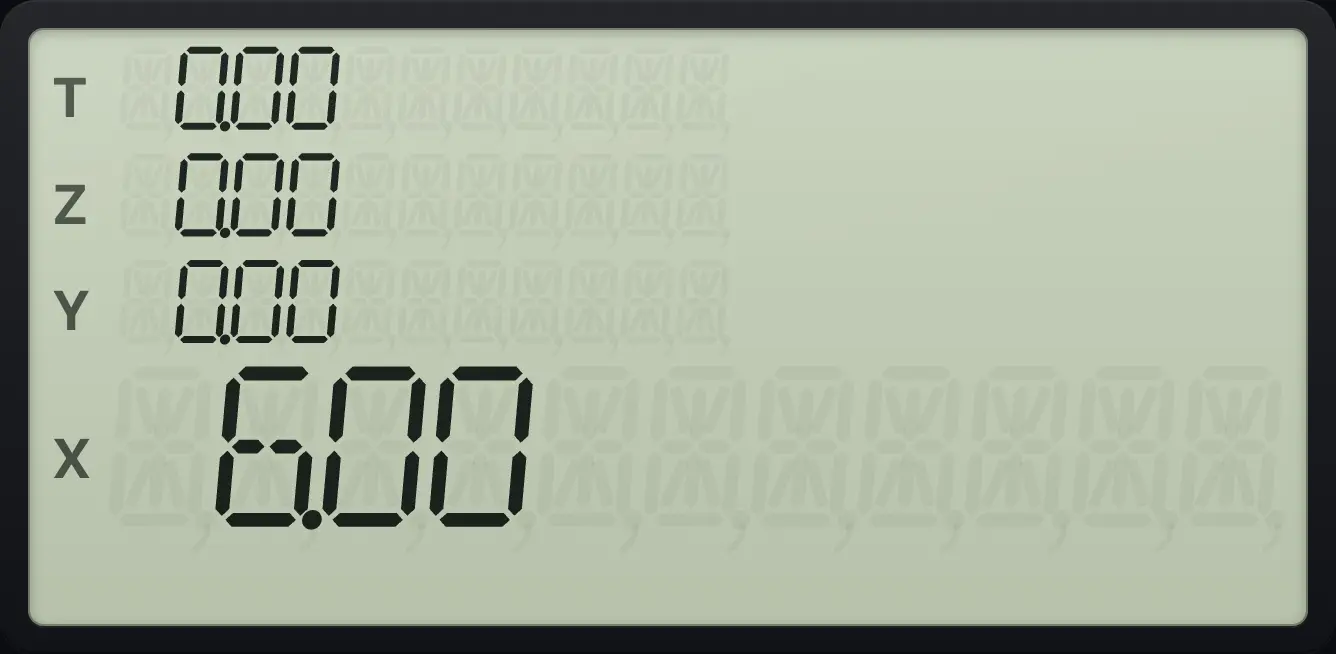
6.00Divide: 10 ÷ 4
Key in 10, ENTER, 4 and press ÷.
10ENTER4÷
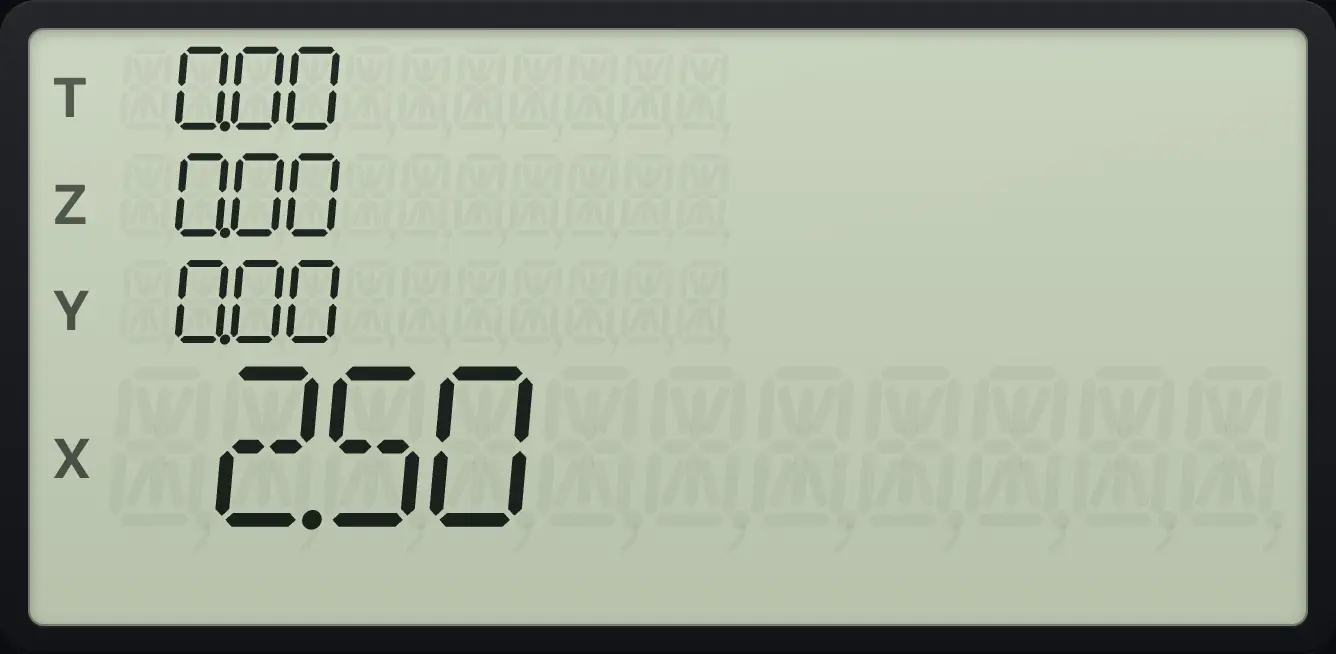
2.50Multiply and add: 6 × 7 + 8
Multiply 6 and 7. Key in 8 (the 42 lifts to Y) and add.
6ENTER7×8+
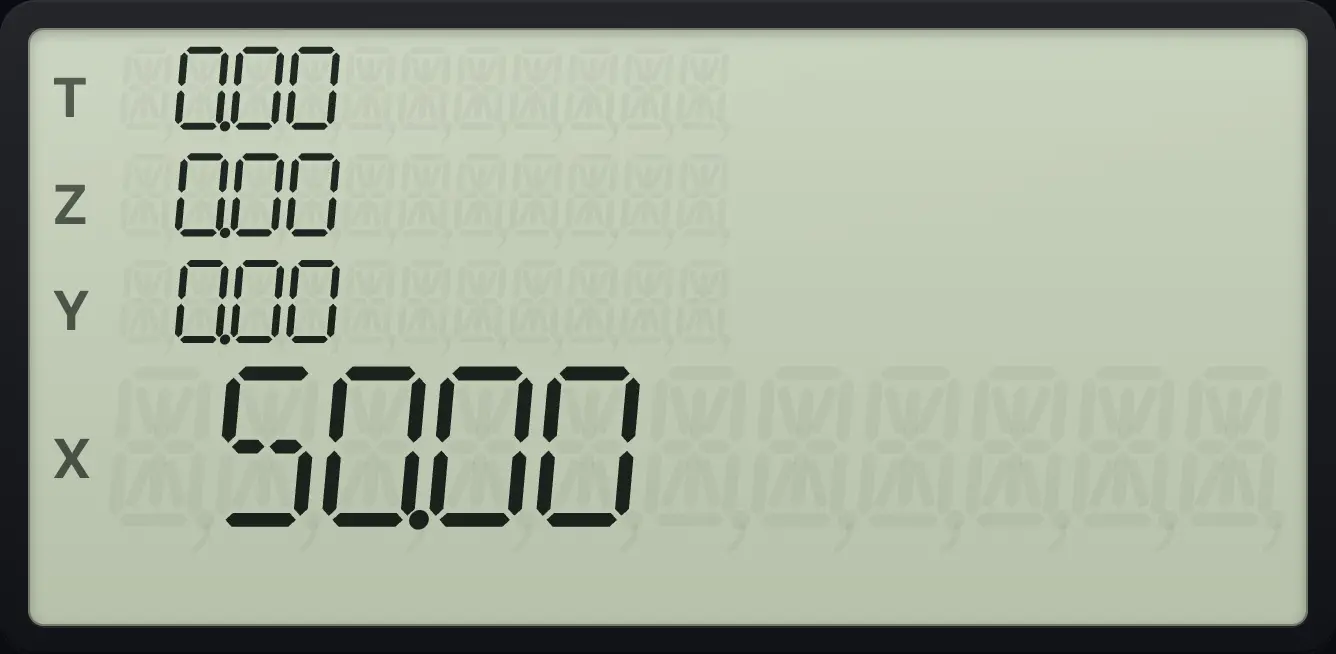
50.004.2Negative numbers: the CHS key#
Use CHS (change sign) to make a number negative. Key in the number, then press CHS. This matters a great deal in financial work: money you pay out is negative.
Add a negative number
Key in 5, press CHS, press ENTER, key in 3 and add.
5CHSENTER3+
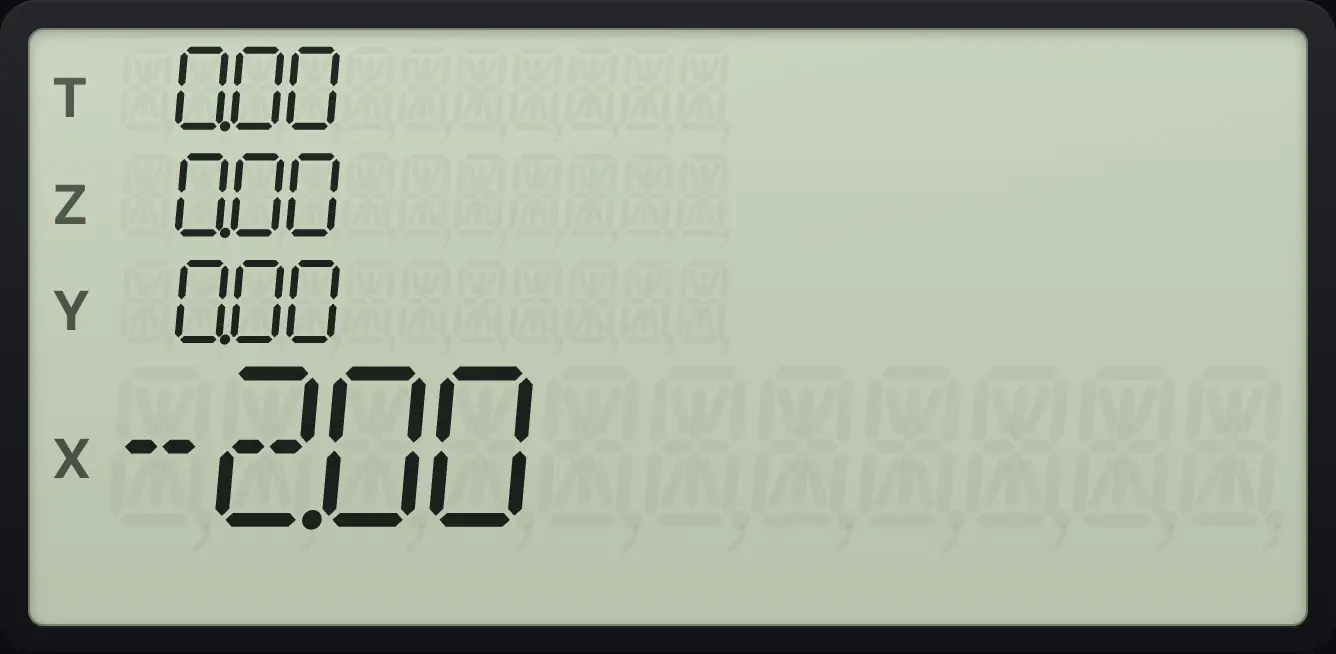
−5 + 3 = −2.00.Change the sign of an answer
Add 2 and 3, then press CHS.
2ENTER3+CHS
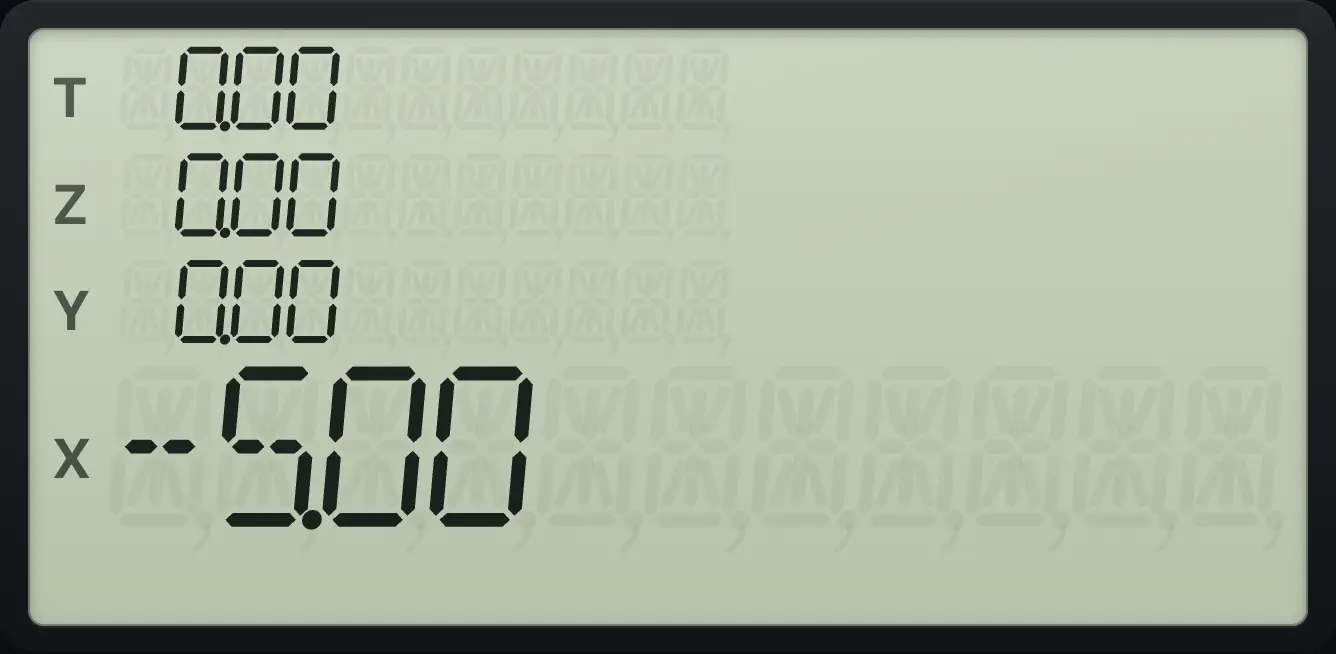
-5.004.3Percentages, percent of total and percent change#
Three keys deal with percentages. % (%) finds X percent of Y. %T (%T) shows X as a percent of Y. Δ% (Δ%) is the percent change from Y to X. In each case key in Y, ENTER, then X.
The % key leaves Y in place, so you can add or subtract the result straight away. That is handy for sales tax and discounts.
Find 15% of 200
Key in 200, ENTER, 15 and press %.
200ENTER15%
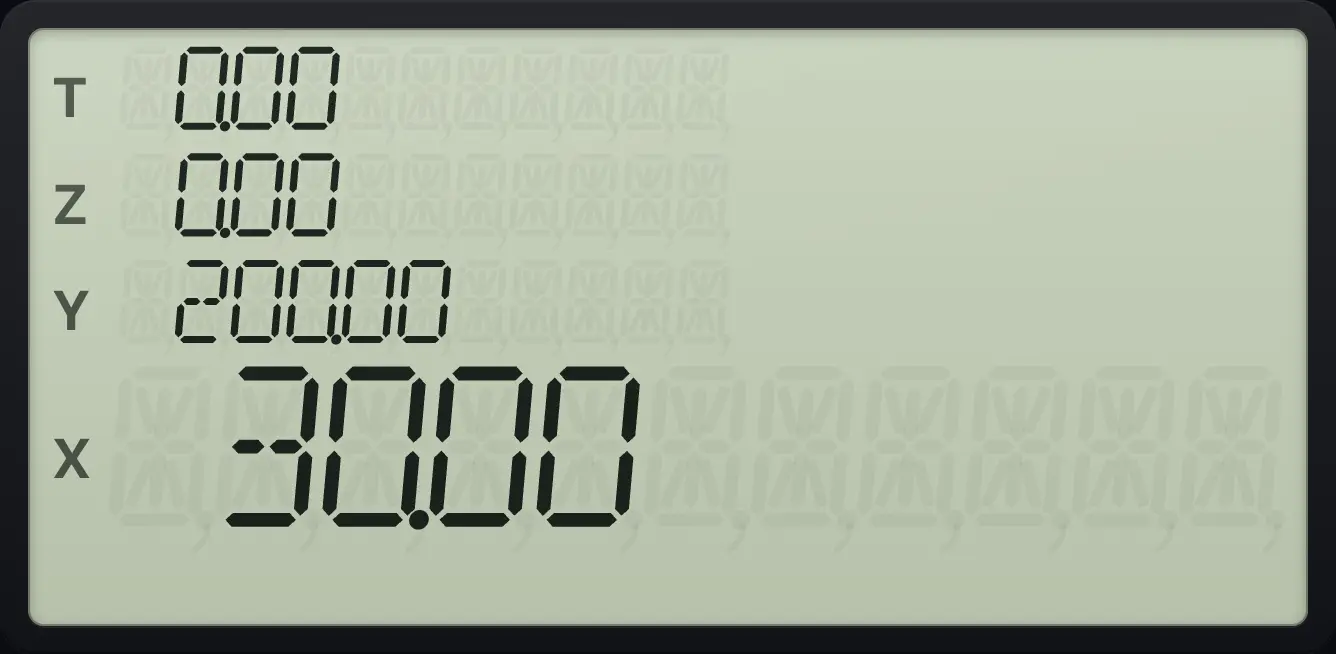
X shows 30.00. Y still holds 200.00.Add 15% sales tax to 200
Key in 200, ENTER, 15, %. Y still holds 200, so press + to add.
200ENTER15%+
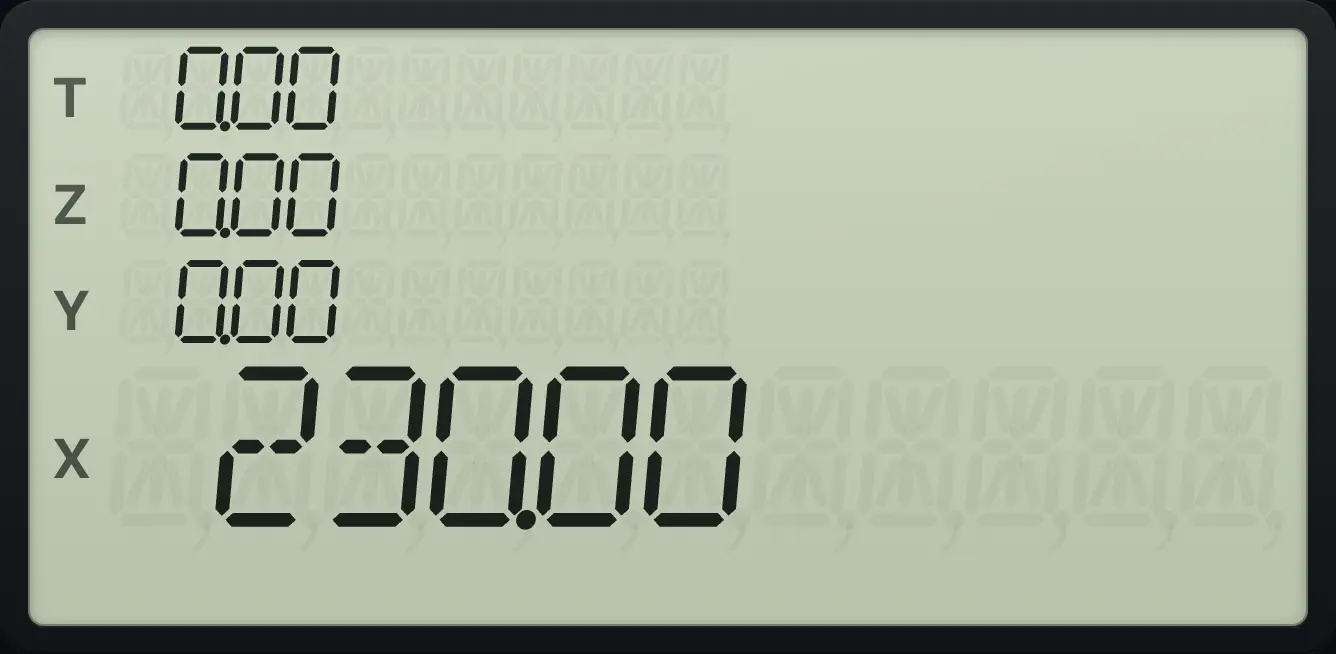
230.00What percent of 200 is 50?
Key in 200, ENTER, 50 and press %T.
200ENTER50%T
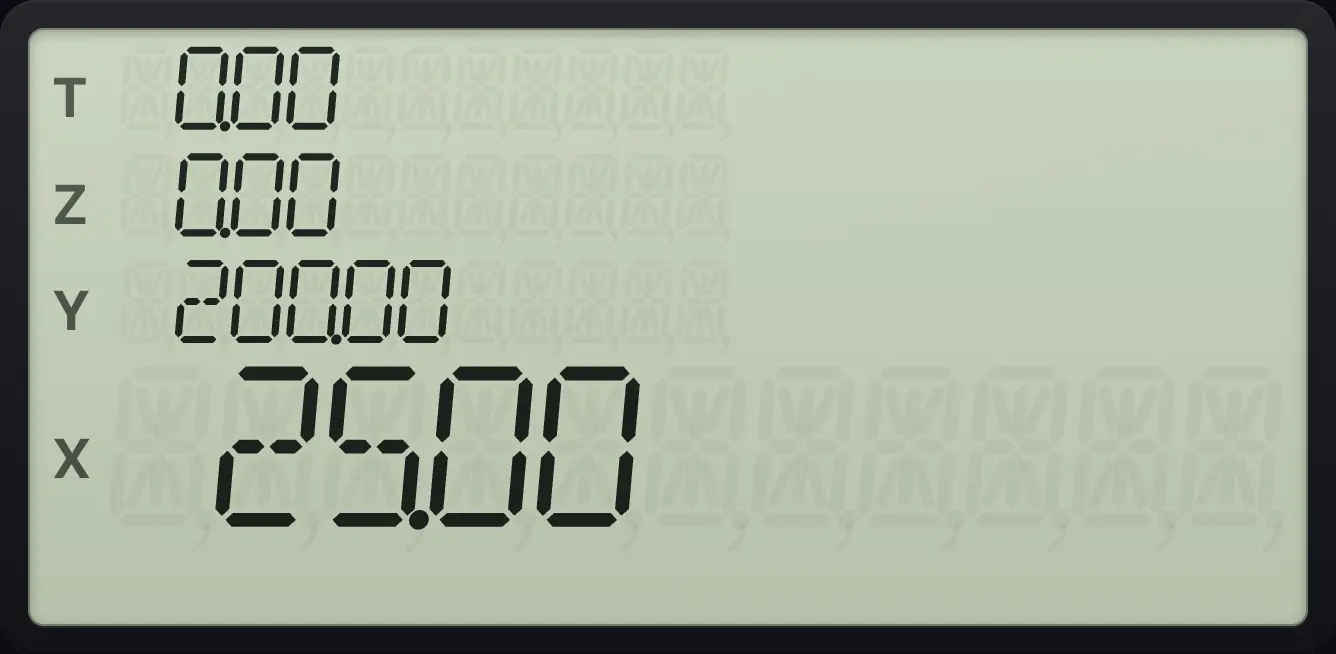
50 is 25.00 percent of 200.Percent change from 50 to 75
Key in 50, ENTER, 75 and press Δ%.
50ENTER75Δ%
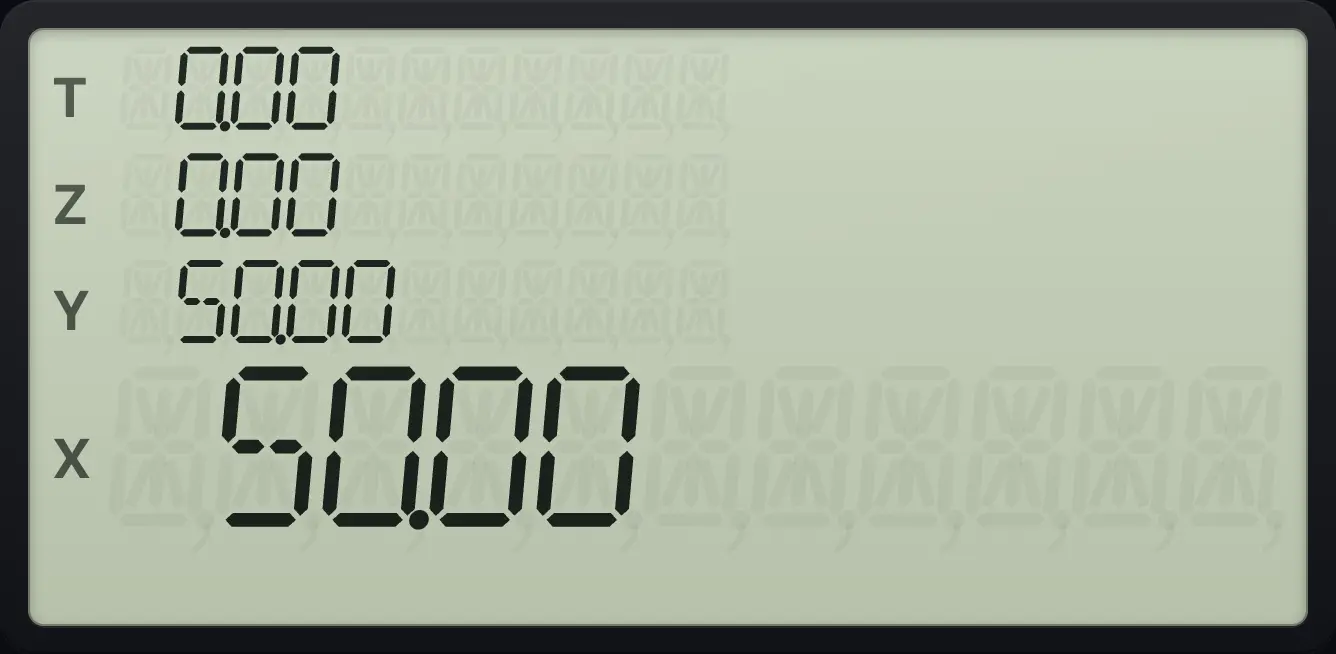
An increase of 50.00 percent.Percent change from 80 to 60
Key in 80, ENTER, 60 and press Δ%.
80ENTER60Δ%
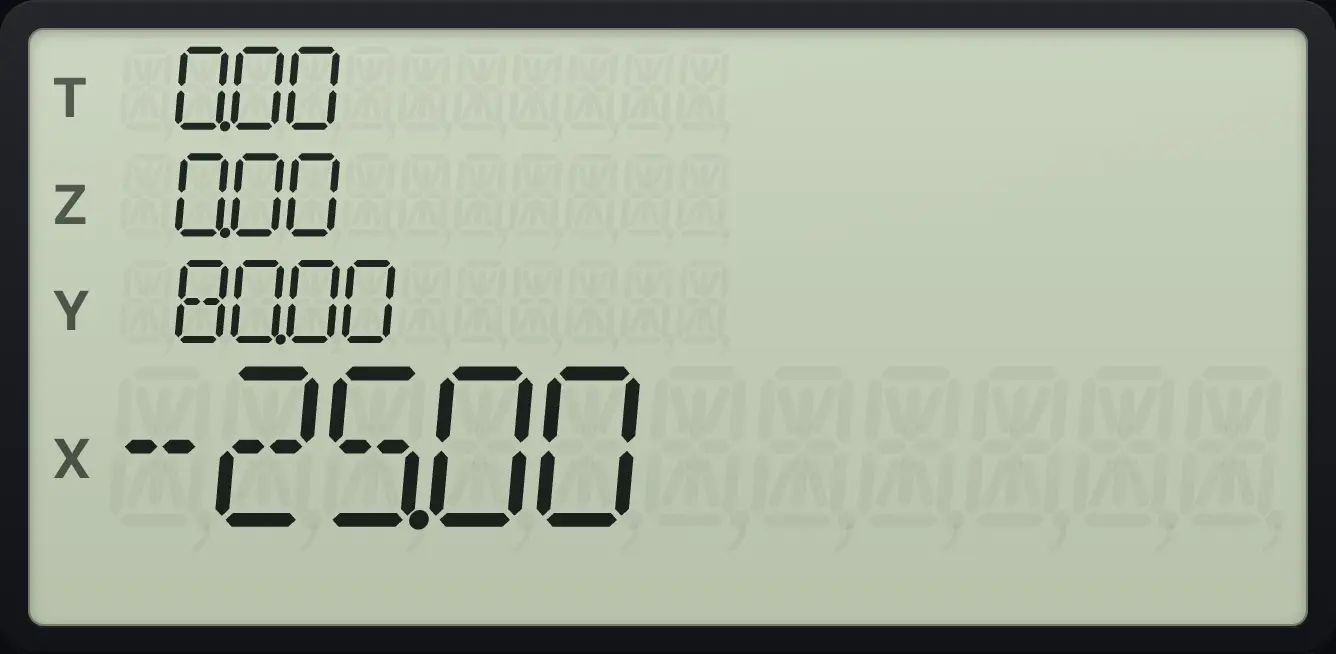
A fall of 25.00 percent.4.4Powers, roots and reciprocals#
yˣ raises Y to the power X. g√xyˣ is the square root. gx²× squares X. 1/x is 1 ÷ X. Any root is a power with a fractional exponent.
2 to the power 10
Key in 2, ENTER, 10 and press yˣ.
2ENTER10yˣ
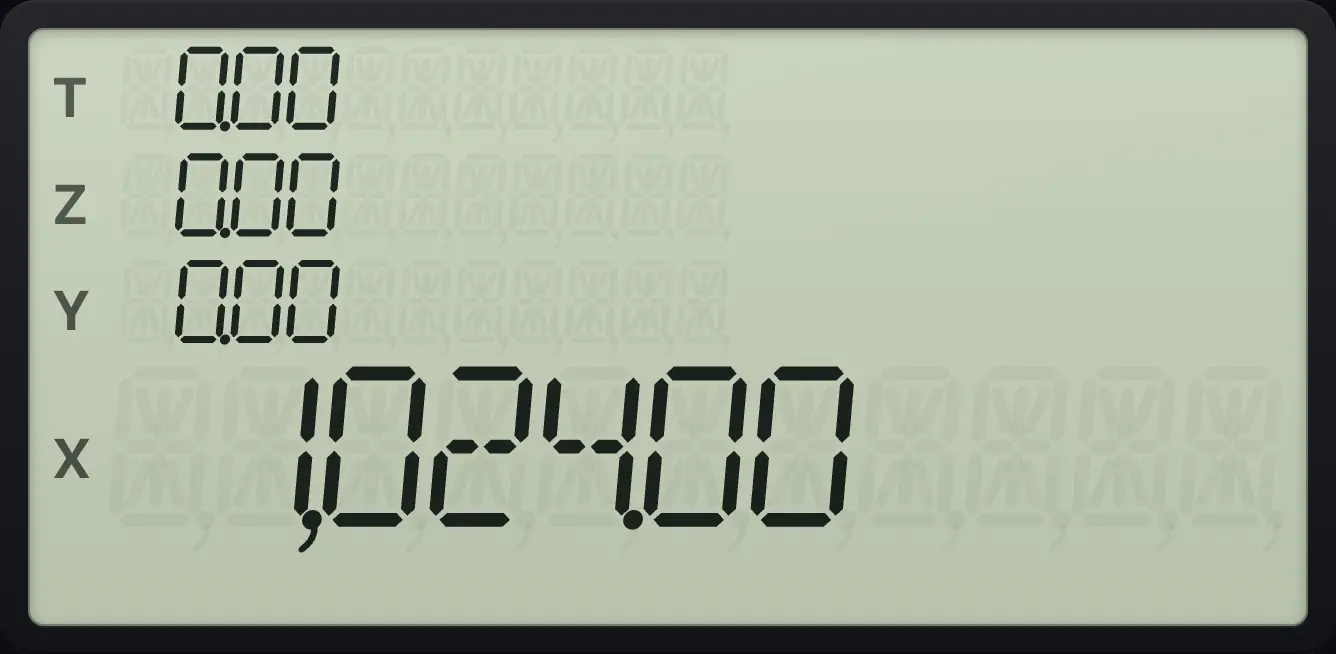
1,024.00Square root of 2
Key in 2 and press g, √x.
2g√xyˣ
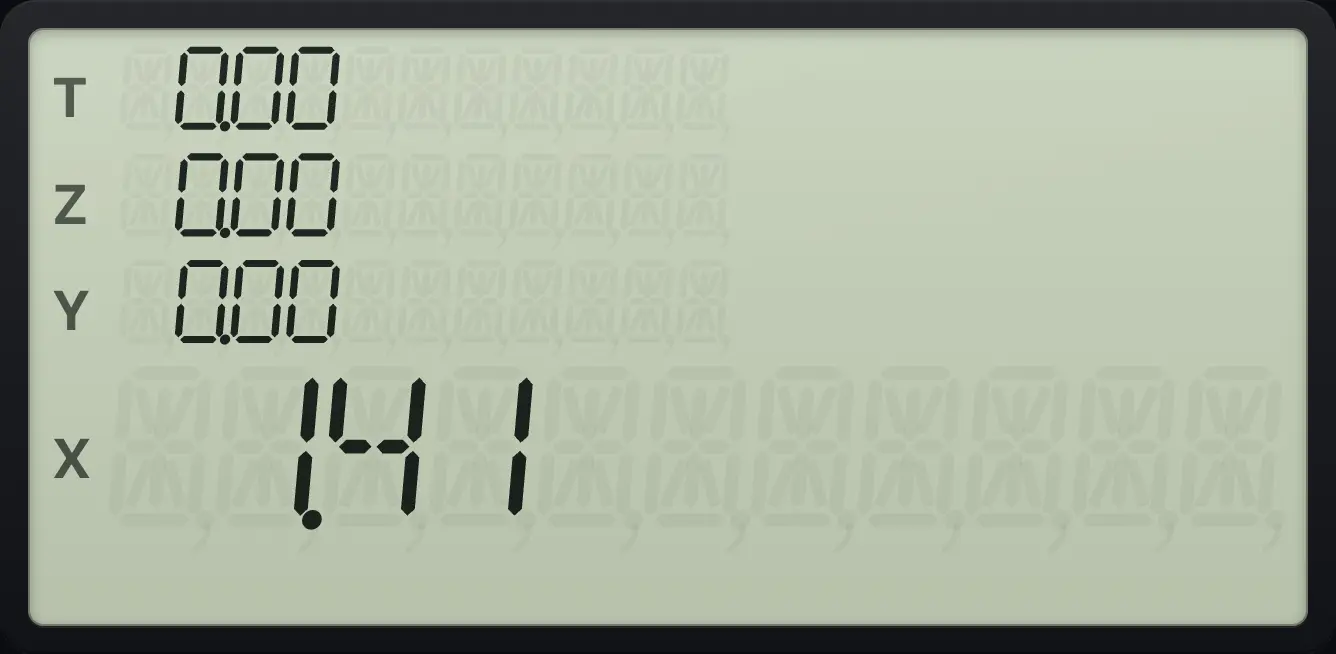
1.41Square of 3
Key in 3 and press g, x².
3gx²×
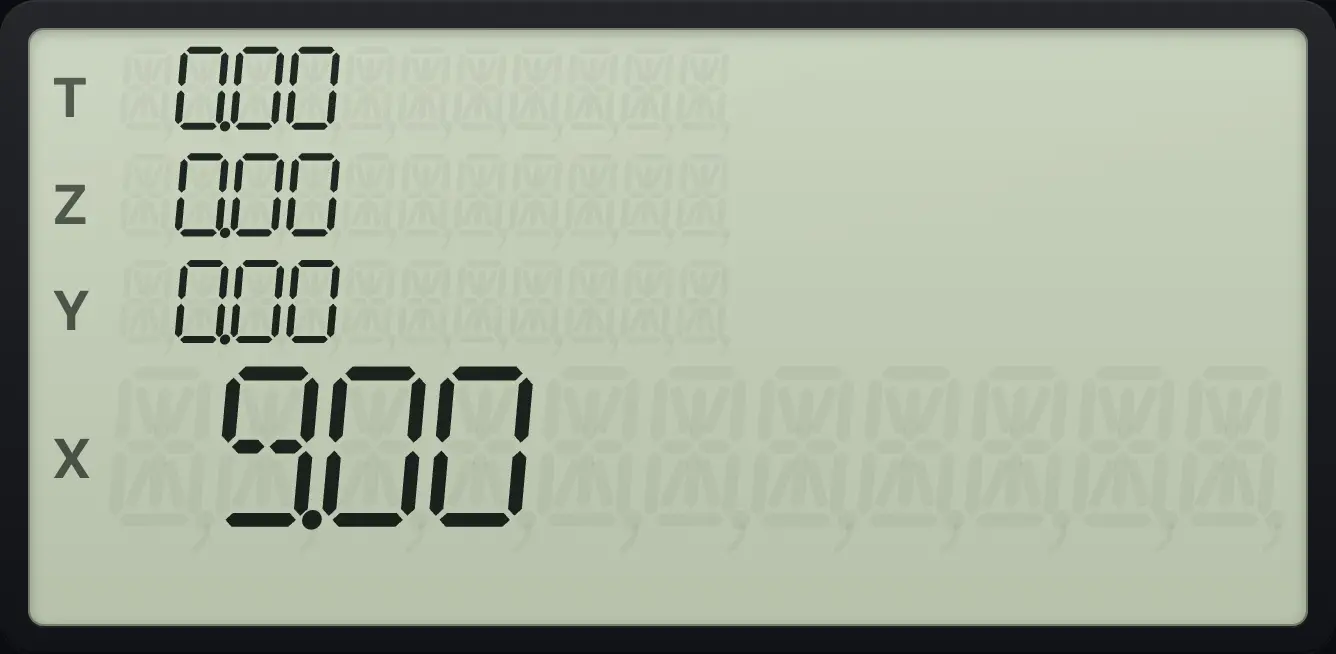
9.00Reciprocal of 4
Key in 4 and press 1/x.
41/x
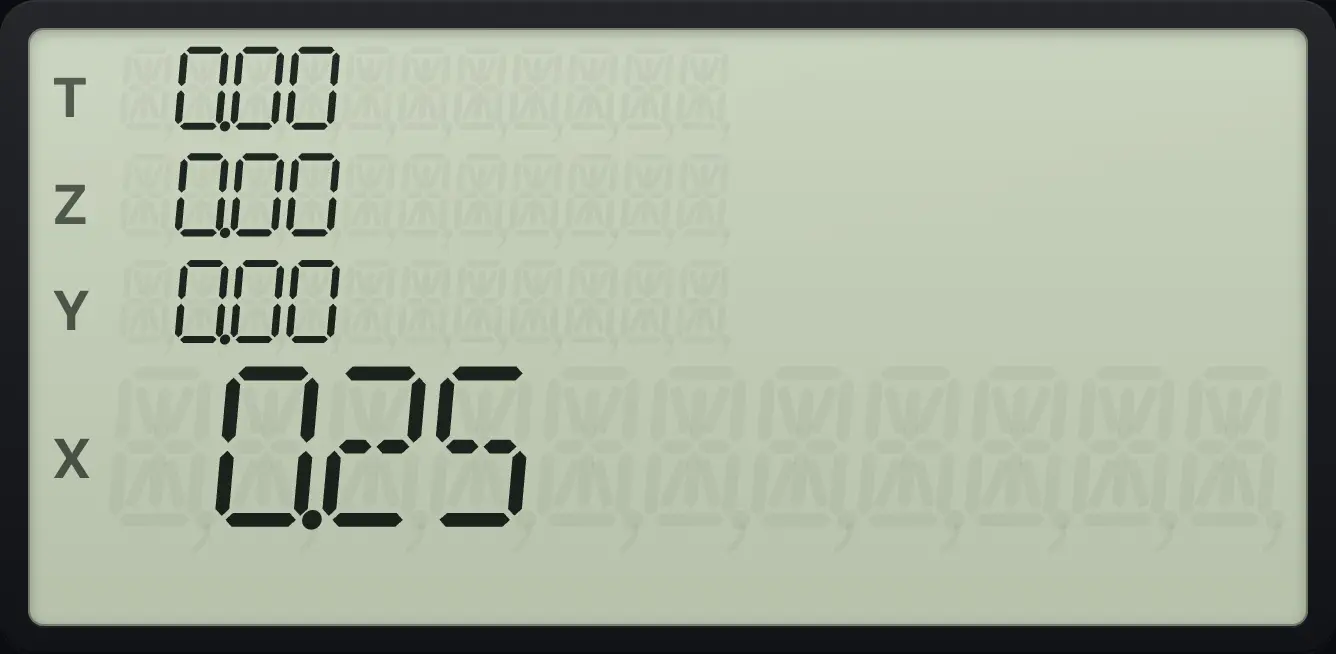
0.254.5Natural logarithm and eˣ#
geˣ1/x (eˣ) is e to the power X. gLN%T (LN) is the natural logarithm and needs X greater than zero. They are the building blocks for continuous compounding.
e to the power 1
Key in 1 and press g, eˣ.
1geˣ1/x
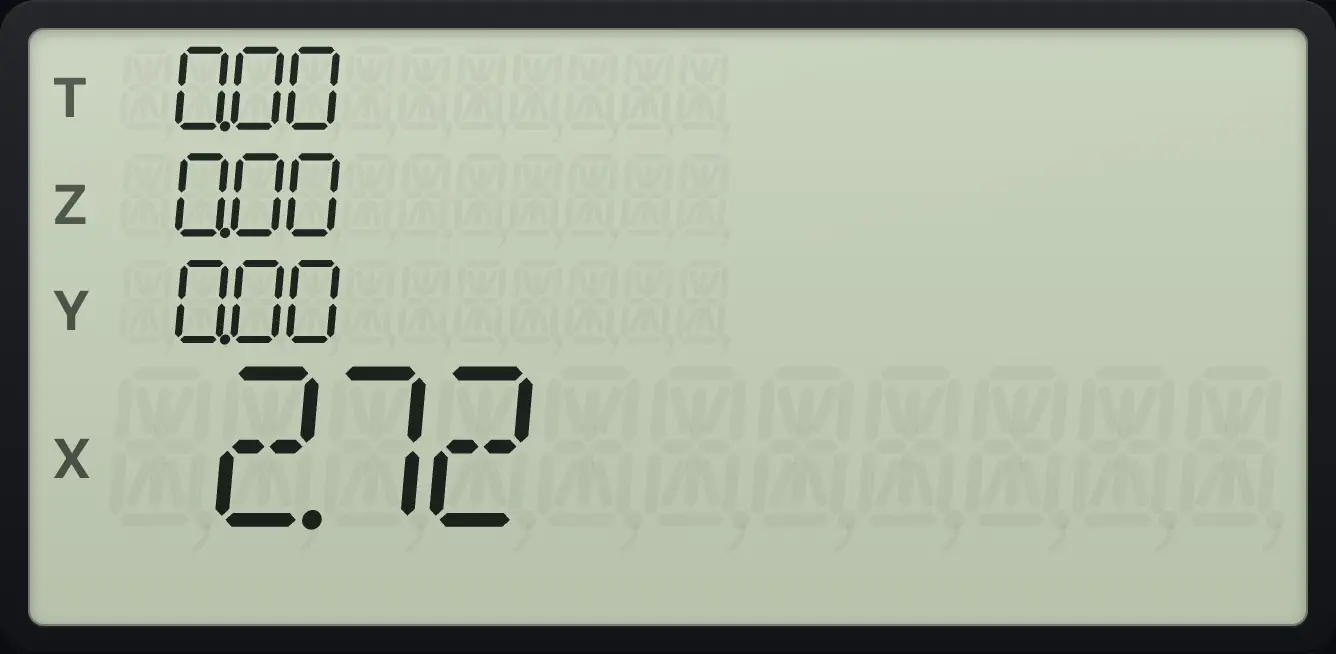
2.72Natural log of 100
Key in 100 and press g, LN.
100gLN%T
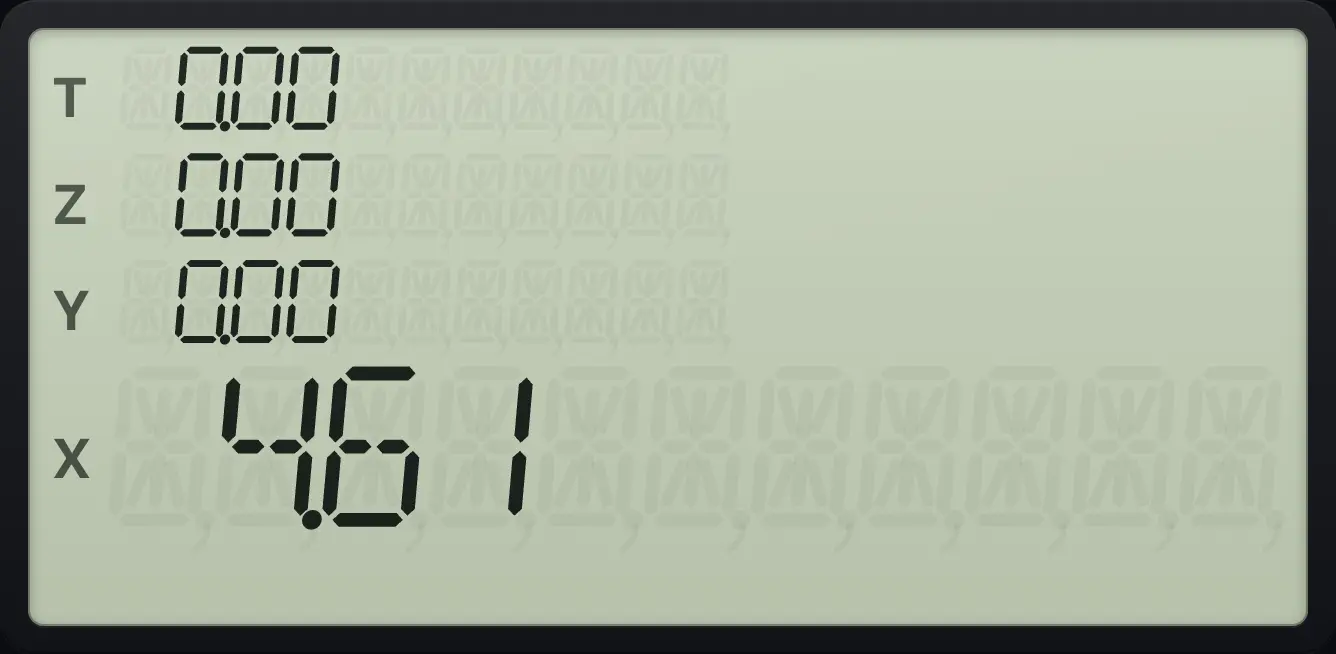
4.61Continuous compounding: 1,000 at 5% for 10 years
Key in 0.05, ENTER, 10, ×, then g, eˣ, then 1000 and ×.
0.05ENTER10×geˣ1/x1000×
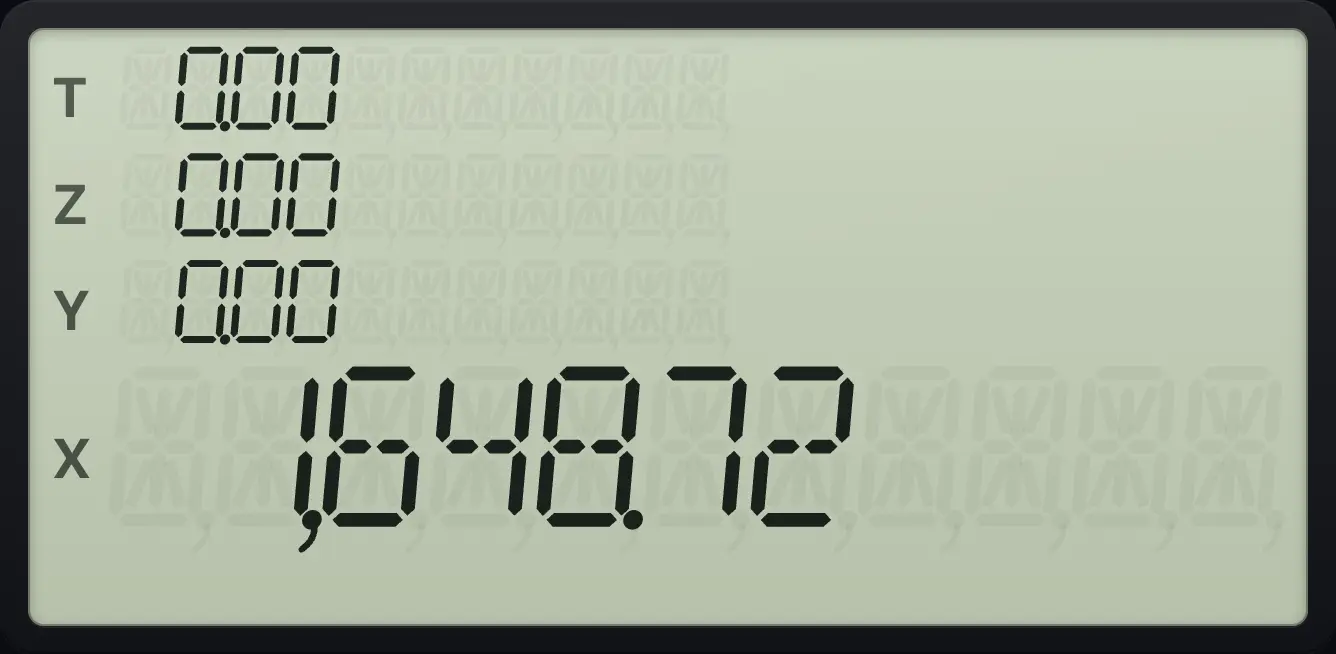
1,648.724.6Factorial#
gn!3 (n!) gives the factorial of X, a whole number from 0 up. Large values overflow to 9.99 × 10⁹⁹ in the display.
Factorial of 5
Key in 5 and press g, n!.
5gn!3
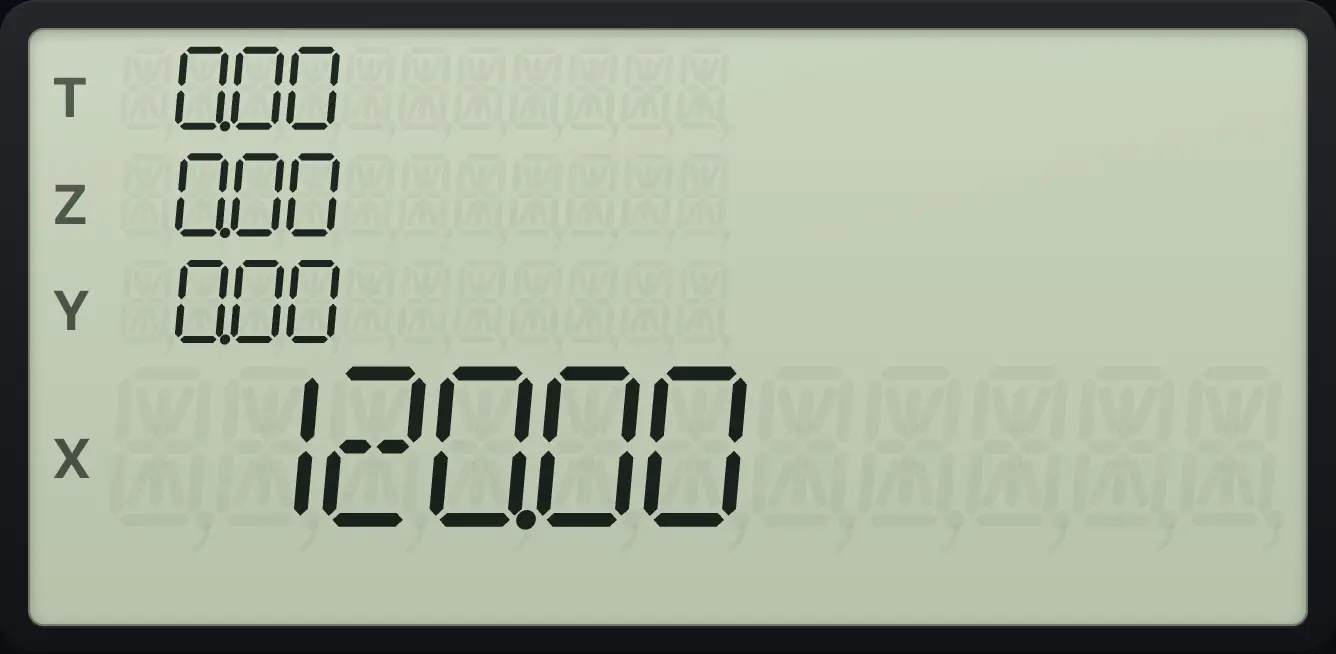
120.004.7Integer part and fractional part#
gINTG% (INTG) keeps the whole part of X. gFRACΔ% (FRAC) keeps the part after the point.
Integer part of 1.75
Key in 1.75 and press g, INTG.
1.75gINTG%
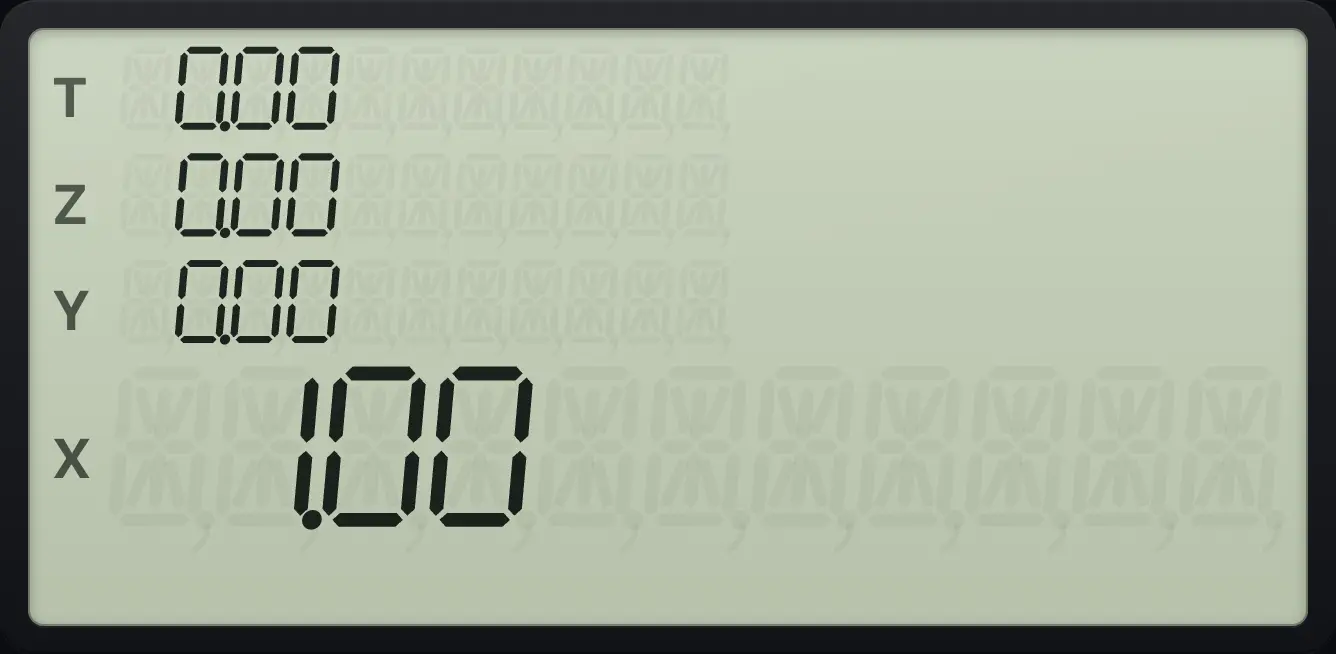
1.00Fractional part of 1.75
Key in 1.75 and press g, FRAC.
1.75gFRACΔ%
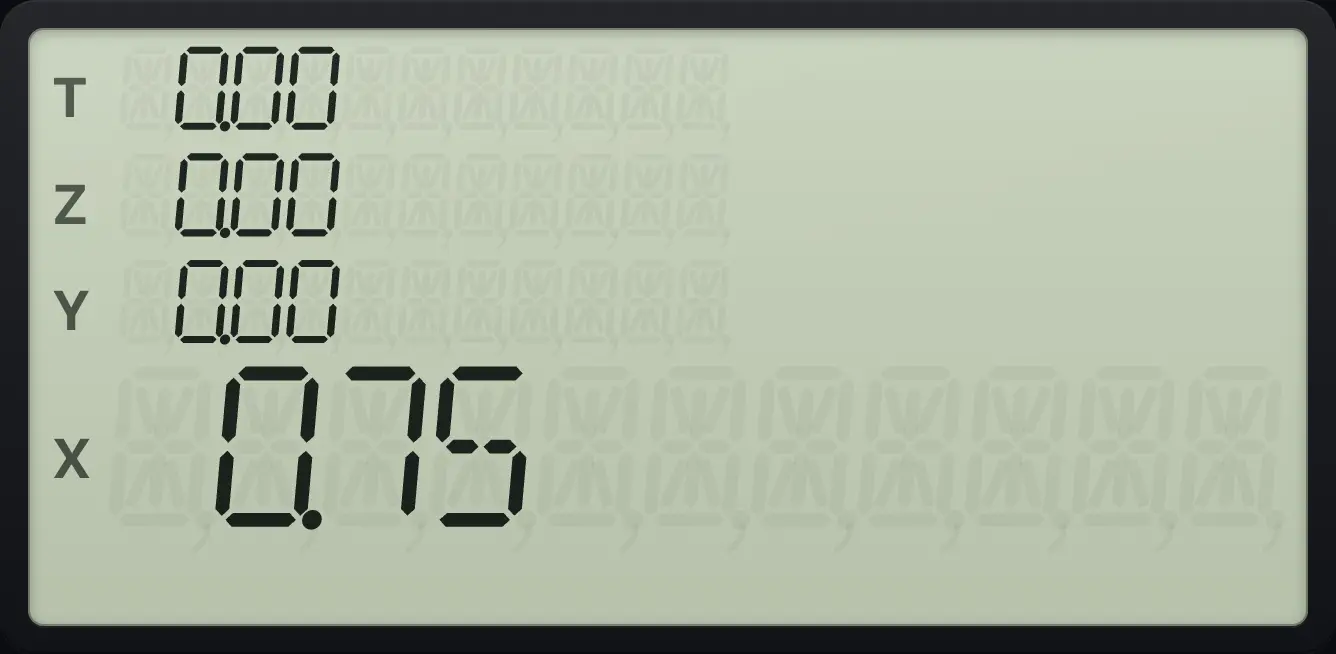
0.754.8Round to the displayed decimals#
The display shows two decimals, but the calculator keeps more. When you need the real value to equal what you see (for example an invoice total), press fRNDPMT (RND). It rounds X to the number of decimals shown.
Round 2.345 to two decimals, then show four
Key in 2.345 (shown as 2.35 in FIX 2), press f, RND, then f 4 to show four decimals.
2.345fRNDPMTf4
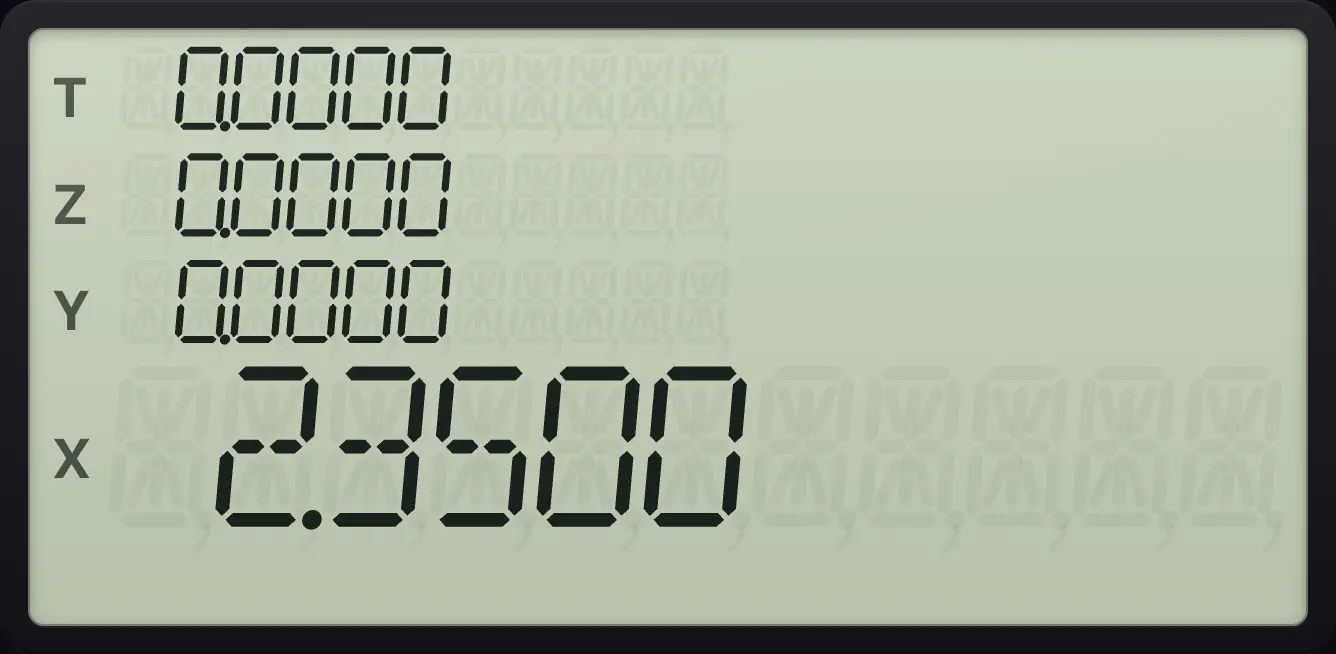
The stored value is now exactly 2.35.See also Display format and settings: Set the number of decimals: FIX
4.9Very large and very small numbers: EEX#
Press EEX to type a power of ten. Key in the mantissa, press EEX, then the exponent. Press CHS after EEX for a negative exponent. EEX with nothing typed uses 1 as the mantissa.
Key in 1.5 × 10⁻³
Key in 1.5, press EEX, press 3, then CHS and ENTER, and show four decimals.
1.5EEX3CHSENTERf4
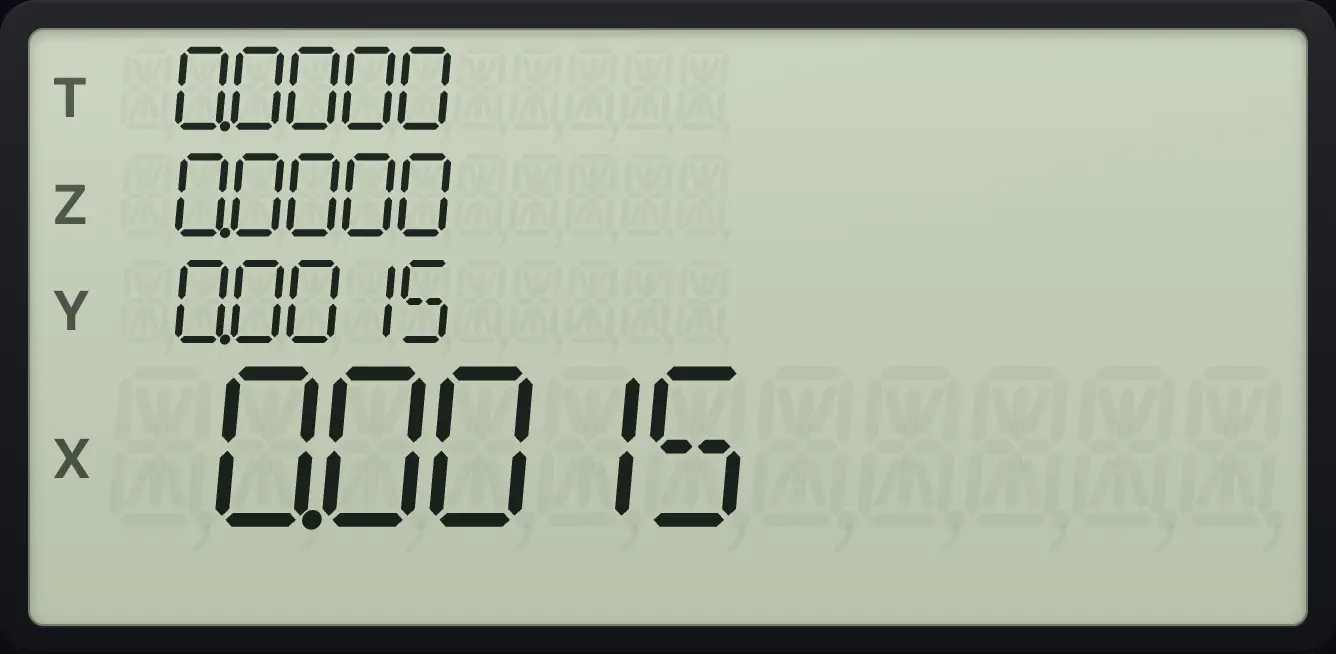
0.0015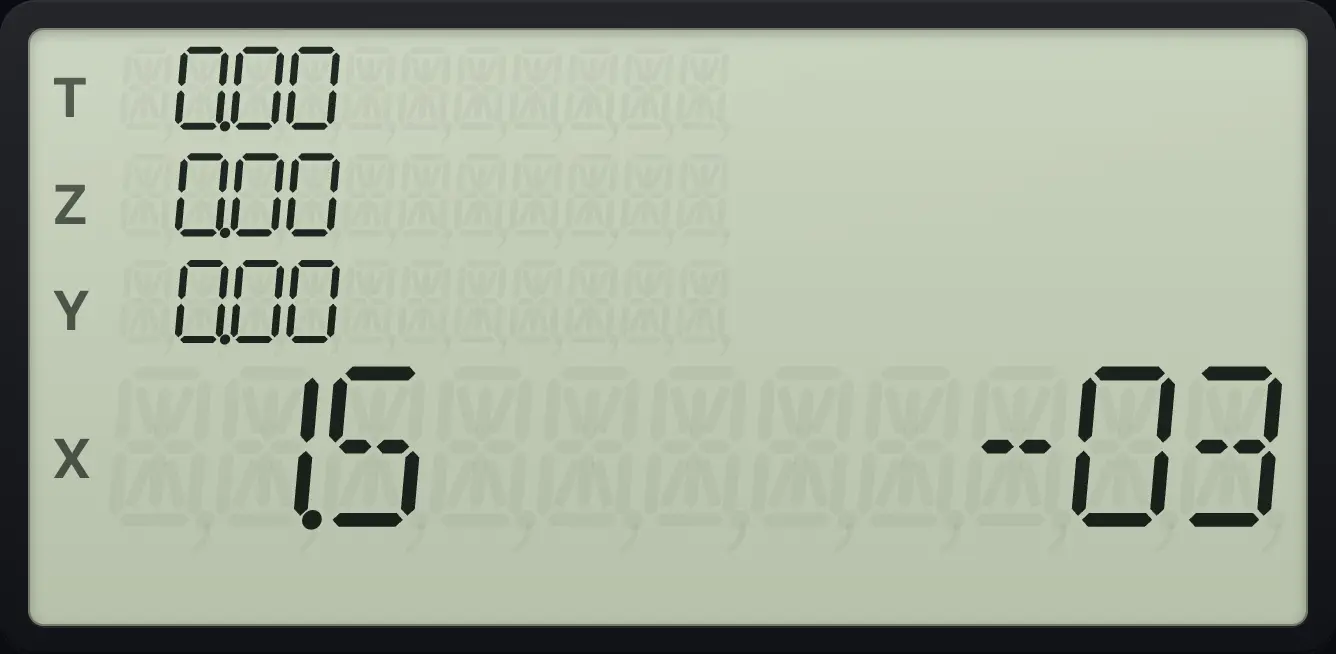
4.10The history list#
The app records each finished calculation, including loan results, in the history panel, with the keys you pressed and the result. It does not change the stack.
See also See your past calculations in HistoryReuse an earlier result
HP 12C is a trademark of HP Inc.. Trident Calculator is an independent product by South View Studios and is not affiliated with, sponsored by or endorsed by HP. The name is used only to describe the kind of calculator this model resembles; Trident's names, keys, display, fonts and software are its own clean-room design.