
RPN Financial 12 manual · Chapter 1 of 16
Getting started
The display, the f and g prefix keys, the first RPN calculation, correcting mistakes and typing with a computer keyboard.
1.1What this calculator is for#
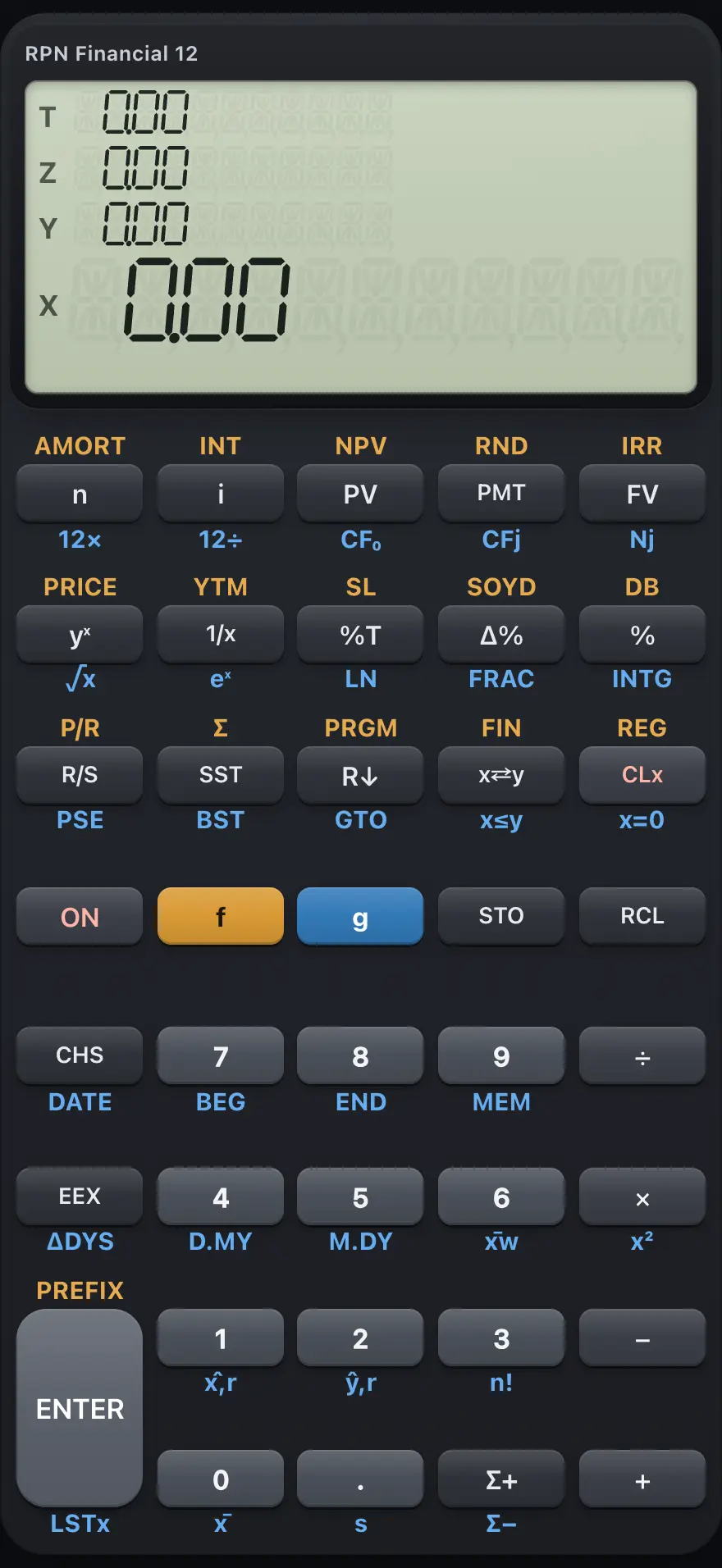
- Display: shows X, the number you work on
- n: number of periods
- i: interest rate per period (percent)
- PV: present value (the amount now)
- PMT: the regular payment
- FV: future value (the amount at the end)
- ENTER: separates two numbers
- f: gold prefix (the functions printed above the keys)
- g: blue prefix (the functions printed below the keys)
- CLx: clear the number in X
RPN Financial 12 is built for money problems. Loan payments, savings goals, leases, mortgages, bond prices and project returns are each solved with a few keys, and you can see every step of the working.
Underneath, it is an RPN calculator with a four-level stack. If you have not used RPN before, read the chapter "How RPN and the stack work" first. It takes ten minutes and then everything else is easy.
1.2The display and its indicators#
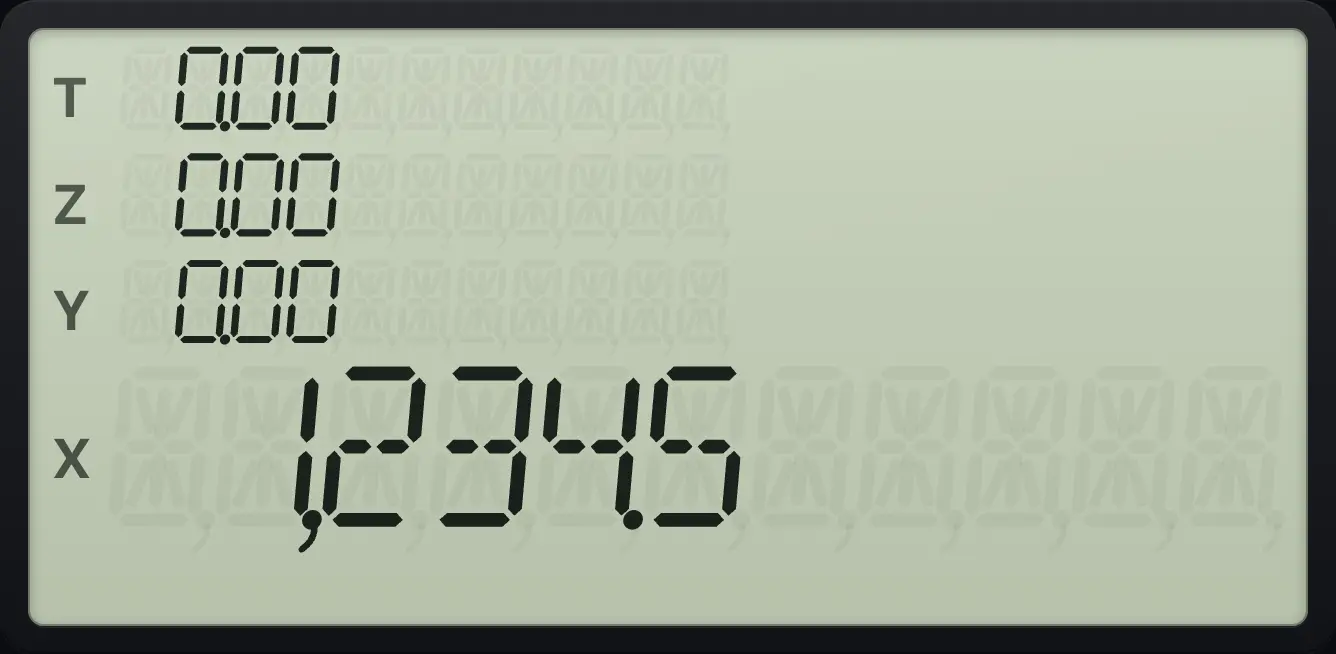
The display shows the number in the X register: up to ten digits and a minus sign. Large numbers are grouped with commas, for example 1,234.56. The app also shows Y, Z and T above X.
The default format shows two decimals (FIX 2), which suits money. The display only shows two decimals. The calculator keeps more digits inside, so repeated calculations do not lose accuracy.
| Indicator | Meaning |
|---|---|
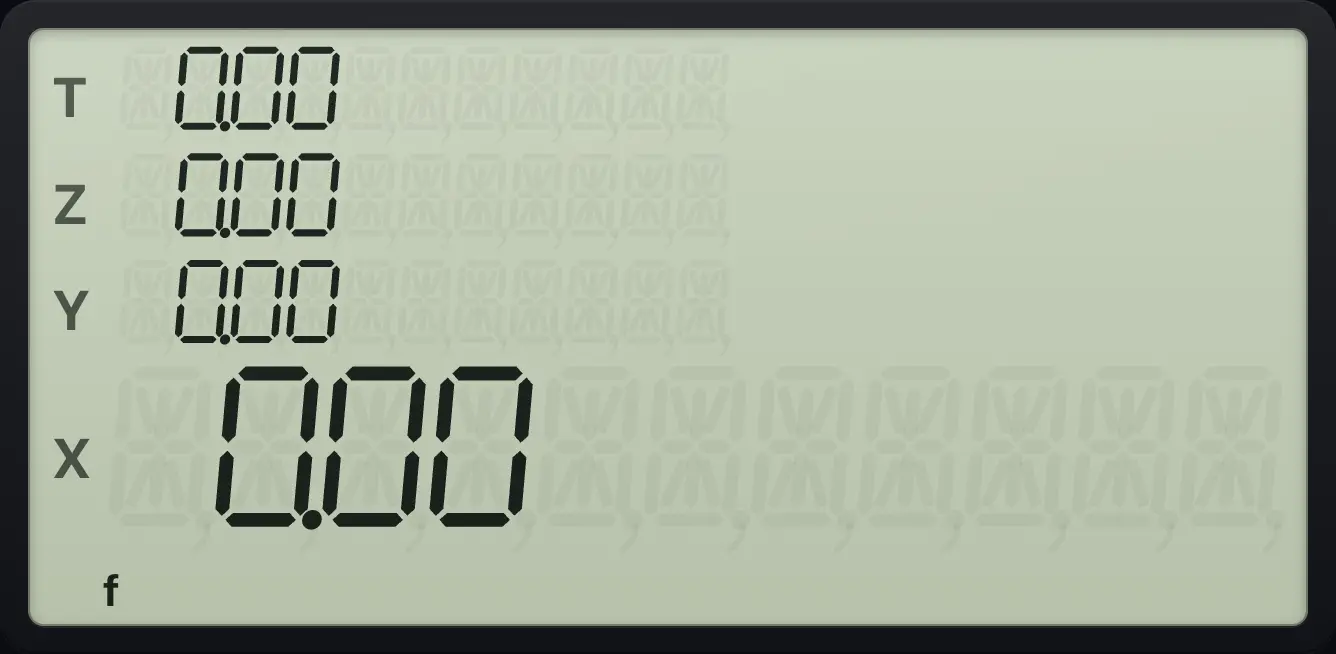
| f | The gold prefix was pressed. The next key does its gold function. |
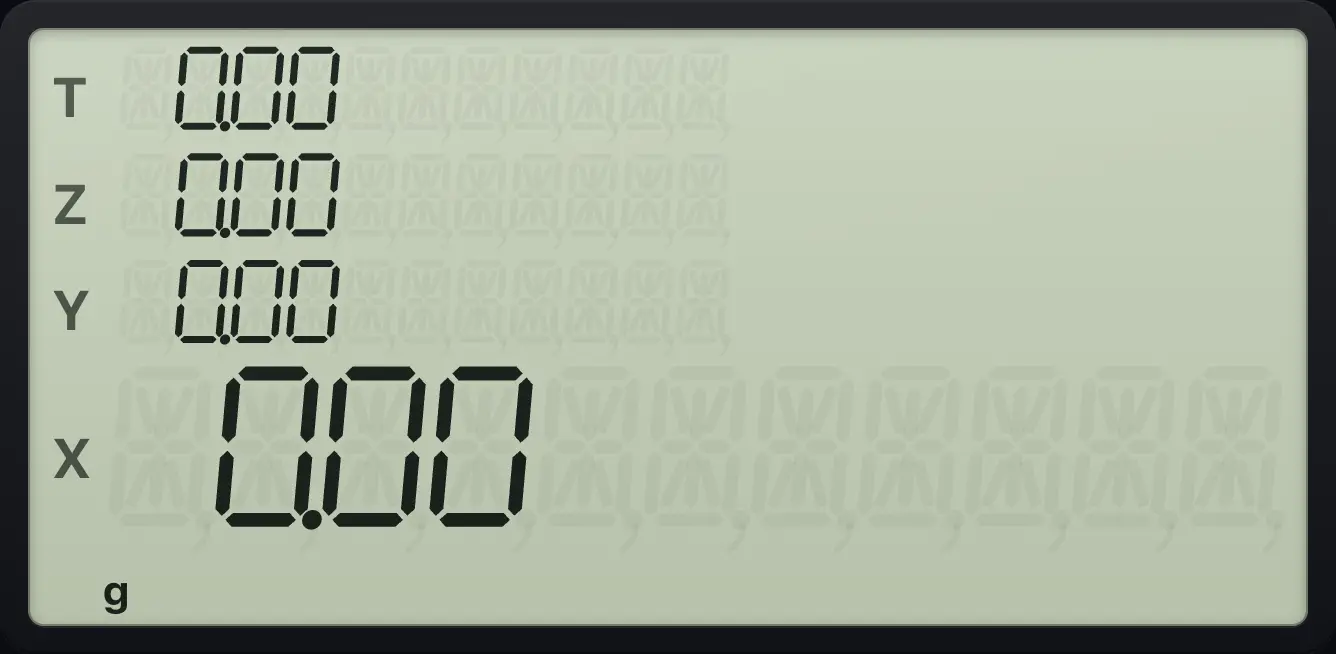
| g | The blue prefix was pressed. The next key does its blue function. |
| BEGIN | Payments are at the beginning of each period (annuity due). Without it, payments are at the end. |
| D.MY | Dates are keyed day first. Without it, dates are keyed month first. |
| C | Compound interest is used for a part period at the start. |
| PRGM | Program mode is on. Keys are recorded as program lines instead of being run. |
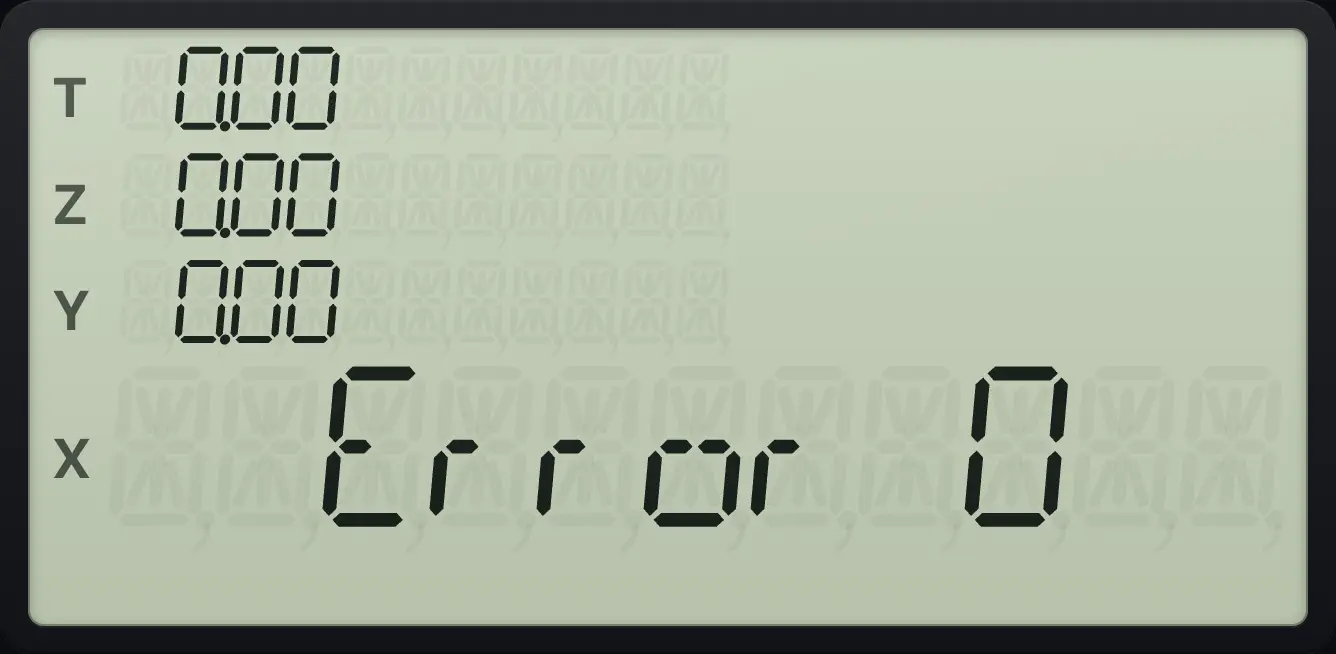
| Error n | A calculation could not be done. Press any key to clear it. See the Errors chapter. |
1.3The f and g prefix keys#
Most keys do up to three jobs. The main job is printed on the key. A gold function is printed above it: press f first, then the key. A blue function is printed on the front slope below it: press g first, then the key.
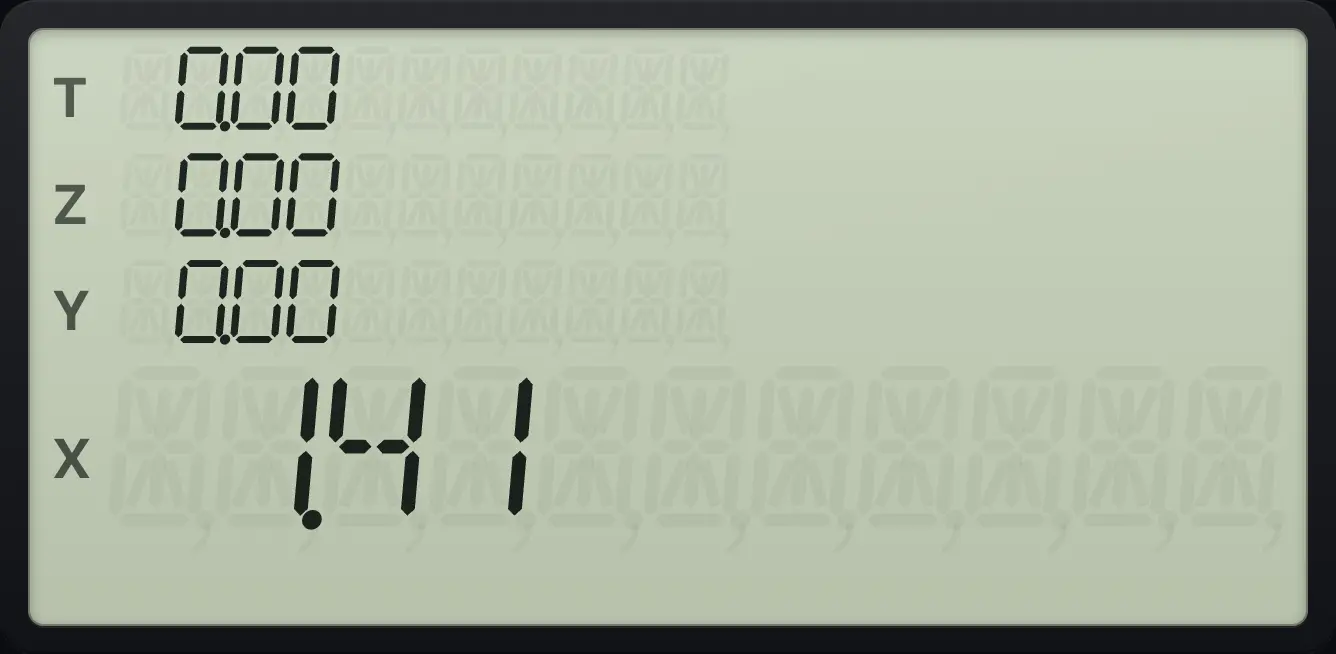
Press the prefix, release it, then press the function key, one key at a time. For example g√xyˣ is the square root, and f4 sets four decimals. ON cancels a prefix you pressed by mistake.
1.4Your first calculation#
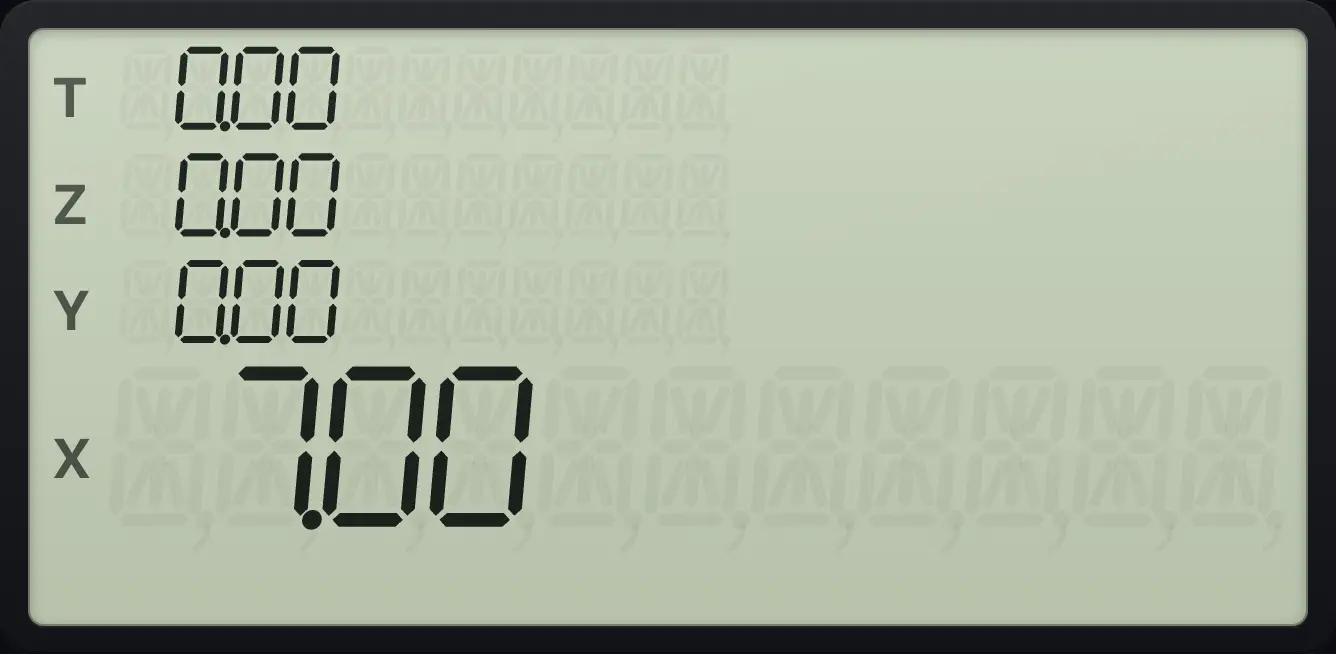
To add 3 and 4, key in 3, press ENTER to tell the calculator the number is finished, key in 4, then press +. The answer appears at once. There is no equals key.
Add 3 and 4
Key in 3, press ENTER, key in 4 and press +.
3ENTER4+
7.001.5Clear a mistake#
There is no back arrow. CLx (CLx) clears the number in X. If you are in the middle of typing a number, CLx clears what you typed so far, and you can type it again.
Clear a wrong number and carry on
Key in 5 and ENTER, key in 7, clear it with CLx, key in 2 and press +.
5ENTER7CLx2+
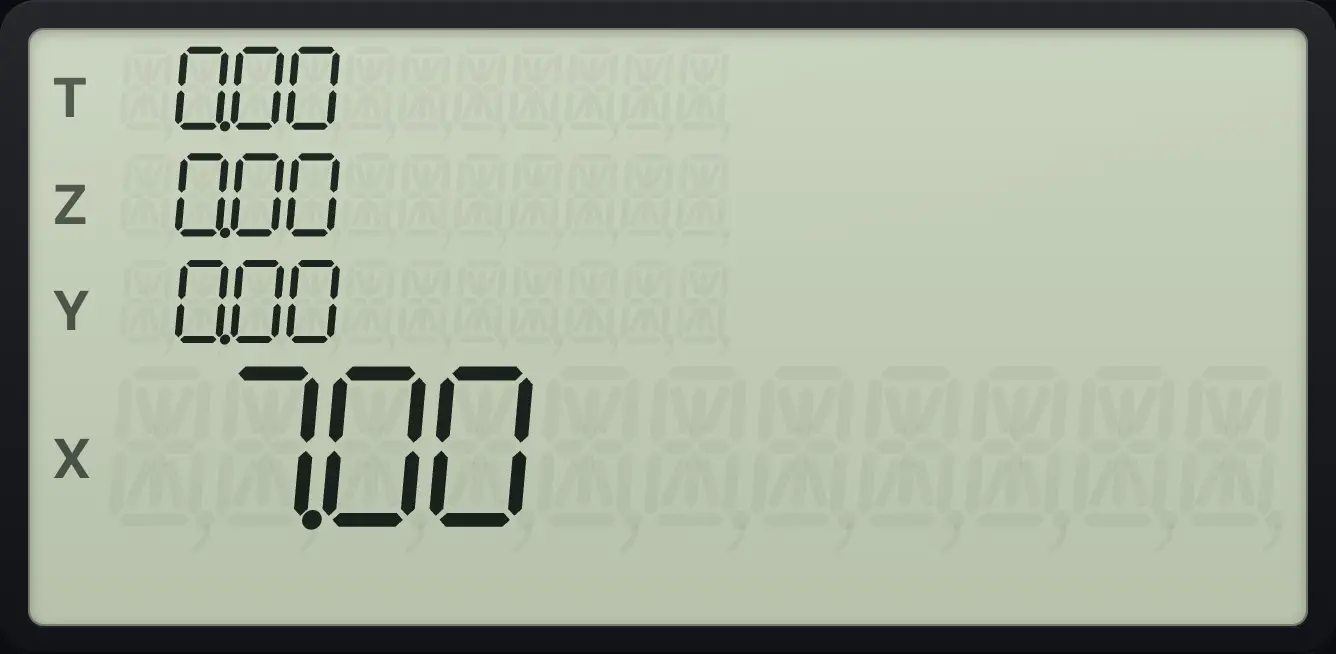
The 7 was cleared, so the sum is 5 + 2 = 7.00.1.6Type with a laptop keyboard#
On a computer or Chromebook you can type instead of tapping. Digits, the point, + − * / and Enter work as you would expect. Backspace and Escape clear X, and ^ is yˣ. Capital letters press the five financial keys.
| Computer key | Calculator key |
|---|---|
| 0 to 9, . | Digits and decimal point |
| + - * / | + − × ÷ |
| Enter | ENTER |
| Backspace, Escape, Delete | CLx |
| ^ | yˣ |
| % | % |
| f | f (gold prefix) |
| g | g (blue prefix) |
| s | x⇄y (x⇄y) |
| r | R↓ (R↓) |
| c | CHS (CHS) |
| e | EEX (EEX) |
| N | n |
| I | i |
| V | PV |
| P | PMT |
| F | FV |
See also Type with your computer keyboard
HP 12C is a trademark of HP Inc.. Trident Calculator is an independent product by South View Studios and is not affiliated with, sponsored by or endorsed by HP. The name is used only to describe the kind of calculator this model resembles; Trident's names, keys, display, fonts and software are its own clean-room design.