
RPN Financial 12 manual · Chapter 14 of 16
Keystroke programming
Record keys as a program of up to 99 lines, run it, pause for input, make decisions with tests, jump with GTO and step through it.
14.1What a program is#
A program is a list of keystrokes the calculator remembers. You turn on program mode, press the keys you would normally press, and each key press becomes one line. You run the list later with one key.
Program memory holds up to 99 lines. A command such as STO 1 is one line even though it takes two key presses. A multi-digit number takes one line per digit. Programs have no labels: you run from a line number, and jump with GTO and a line number.
- fP/RR/S program mode
- press your keys
- fP/RR/S leave
- number in X
- R/S run
14.2Enter a program#
- Press fP/RR/S (P/R) to turn program mode on. The PRGM indicator lights and the display shows 00-.
- Press the keys of the calculation, just as you would for a hand calculation.
- Press fP/RR/S again to leave program mode. The program pointer returns to line 00.
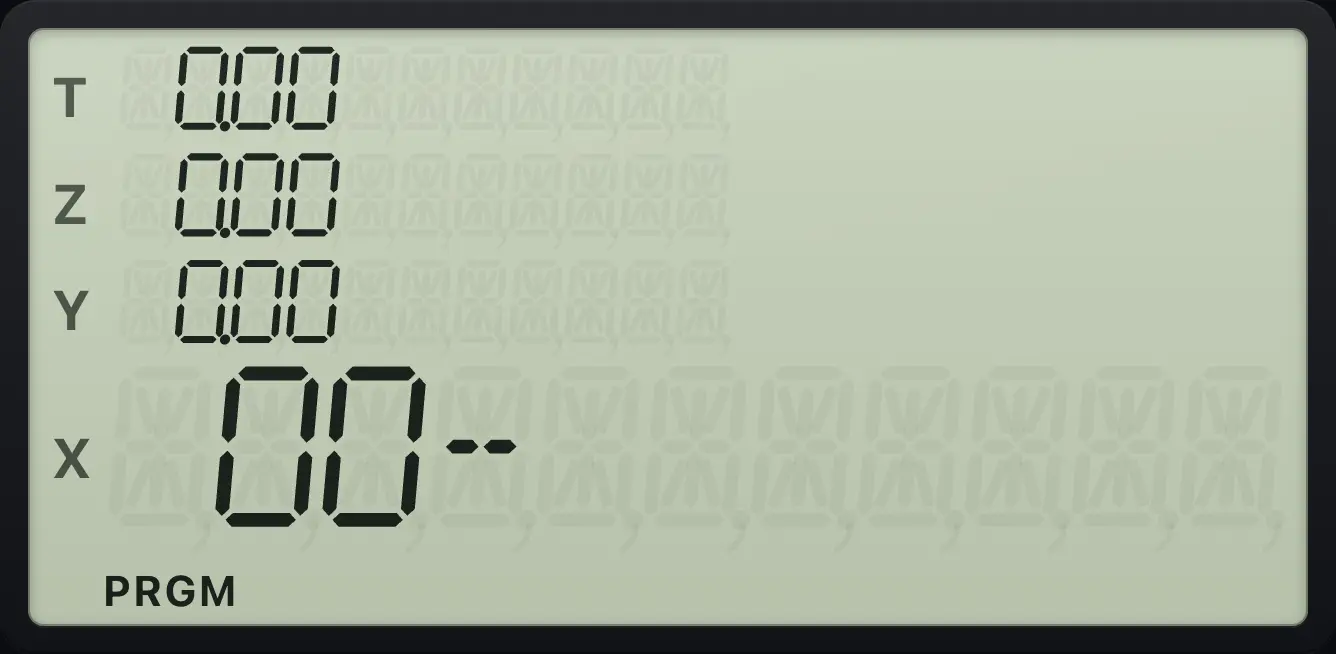
While you record, nothing is calculated and the stack is not touched. New lines are inserted after the line shown.
Add 1 to a number
Record 1 +. Leave program mode. Key in 5 and press R/S.
fP/RR/S1+fP/RR/S5R/S
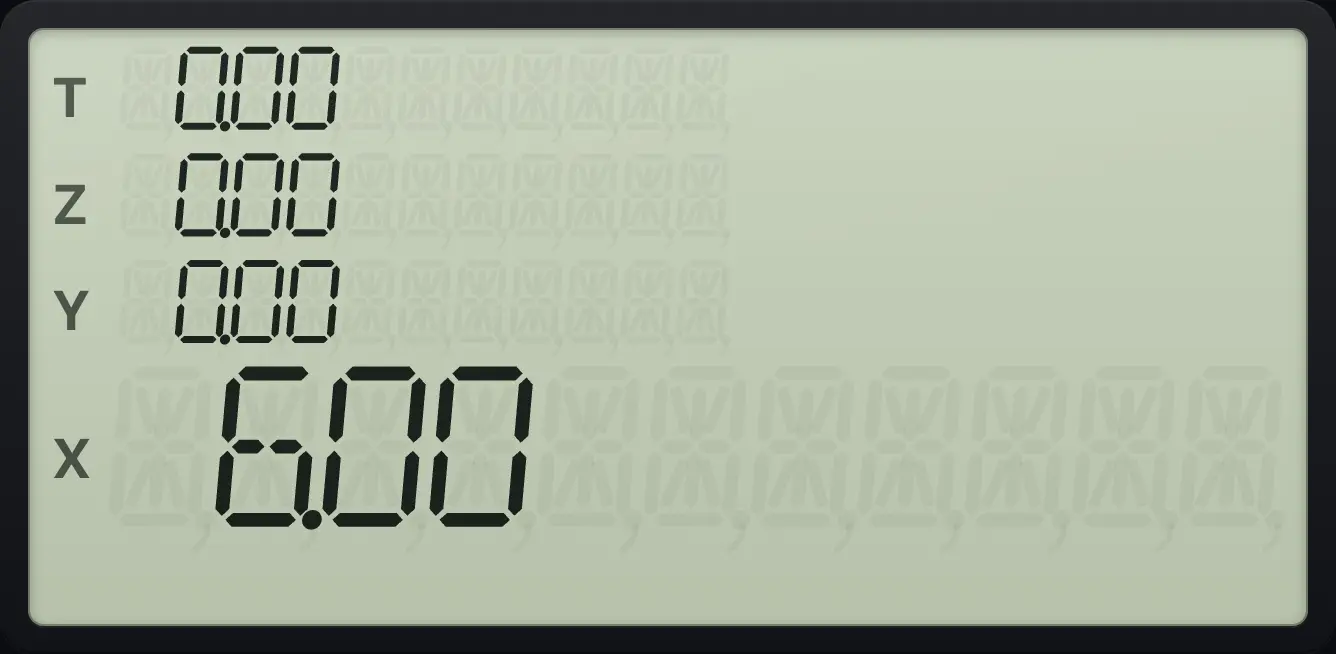
The program added 1: 5 becomes 6.00.Double and add 3
Record 2 × 3 +. Key in 10 and run.
fP/RR/S2×3+fP/RR/S10R/S
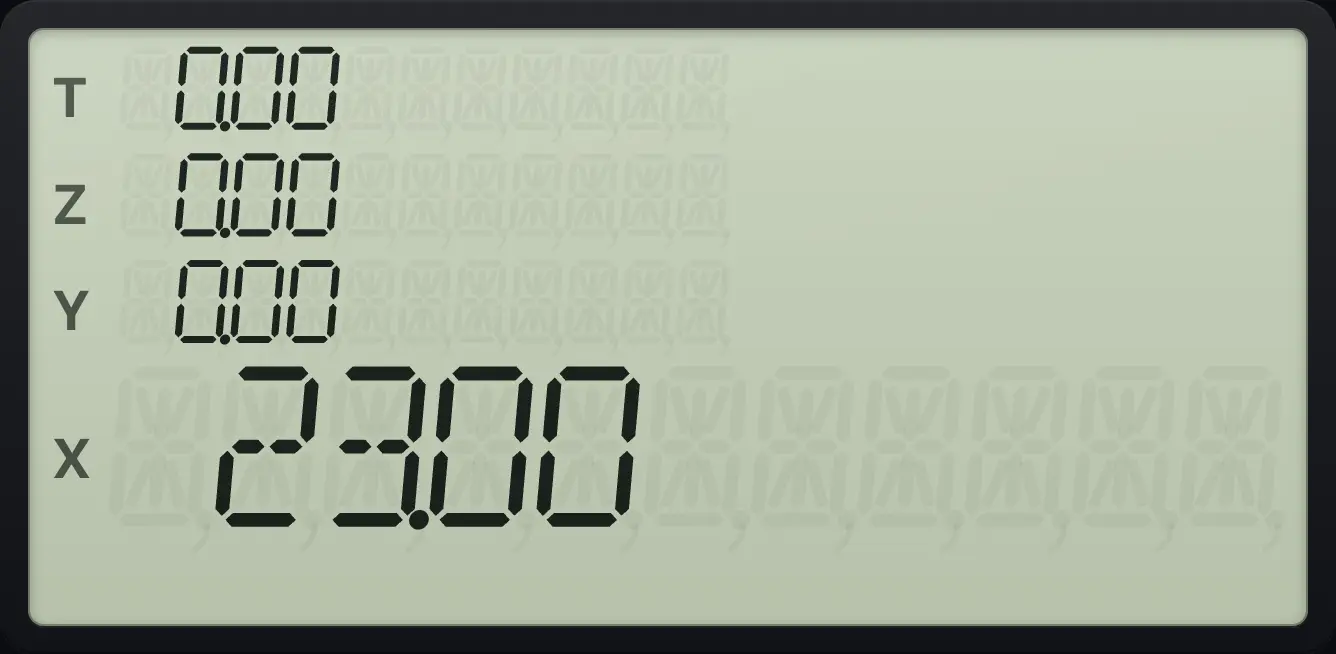
23.0014.3Read the program display#
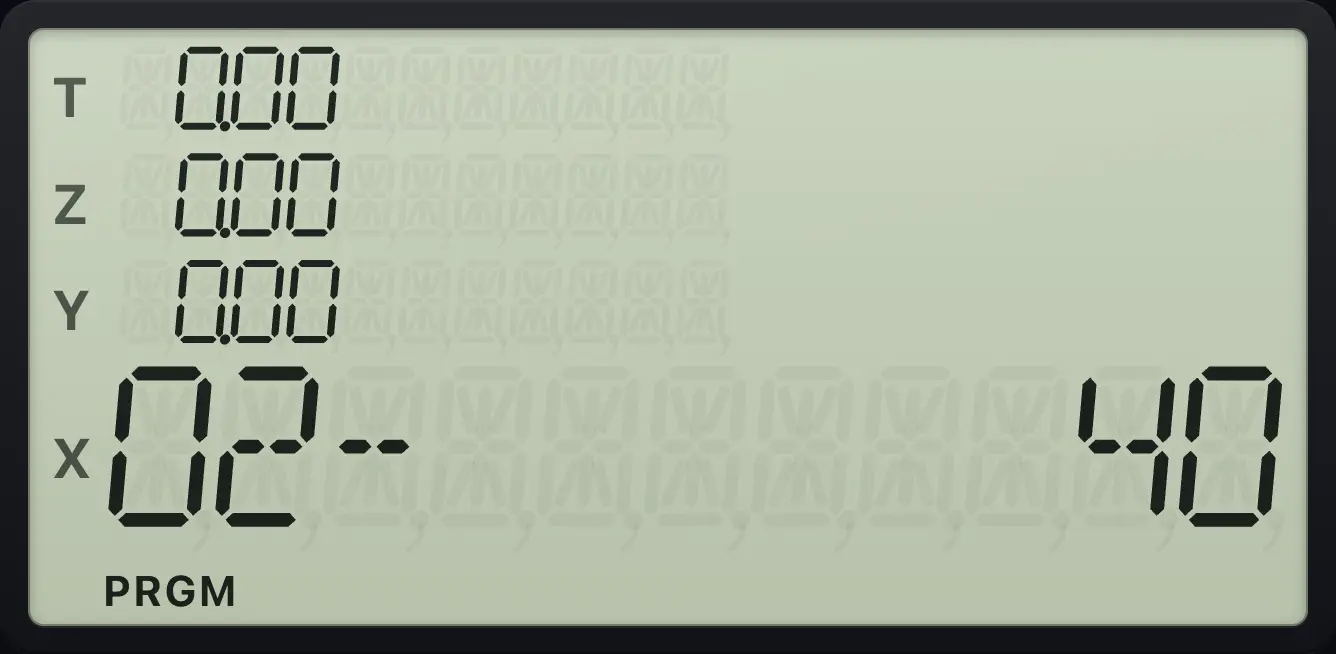
In program mode the display shows the line number and the keycode of the line, for example 01- 40. A keycode is the row and column of the key: 40 is the + key. Digits show as themselves. A prefixed key shows both codes: 43,21 is g, √x.
See a recorded line
Record + and look at line 01.
fP/RR/S+
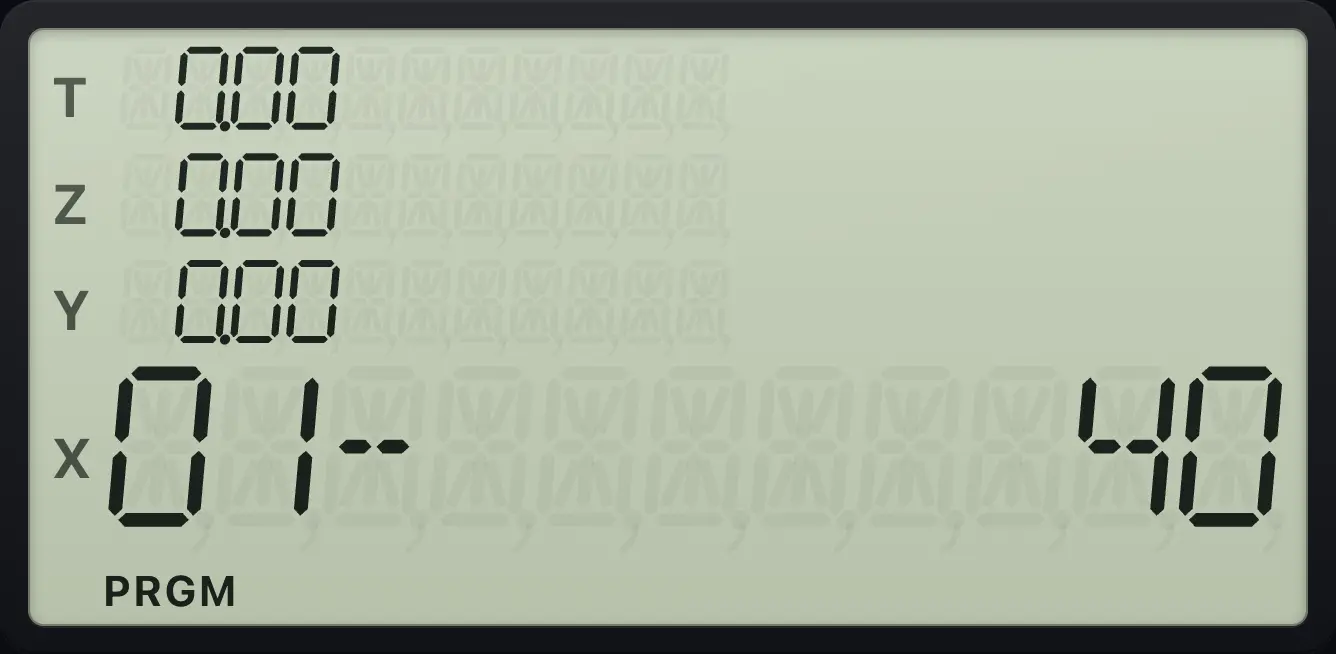
01- 40A blue-key line
Record g, √x.
fP/RR/Sg√xyˣ
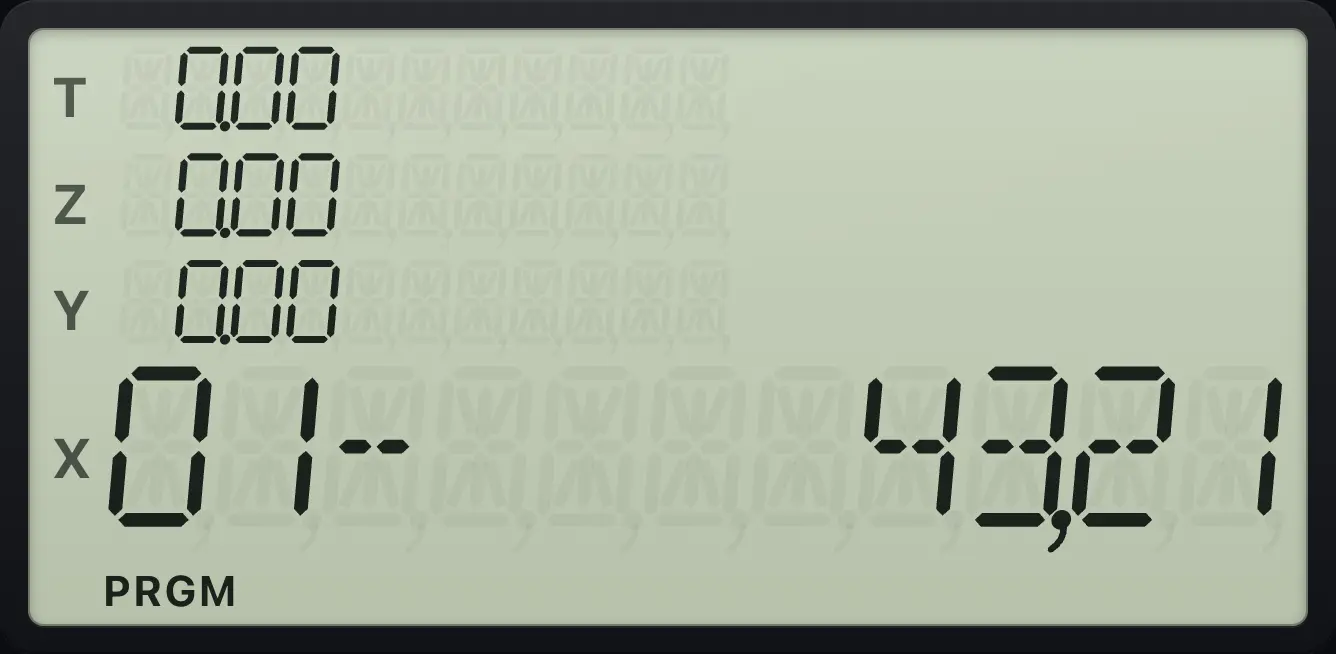
01- 43,21A storage line
Record STO + 1.
fP/RR/SSTO+1
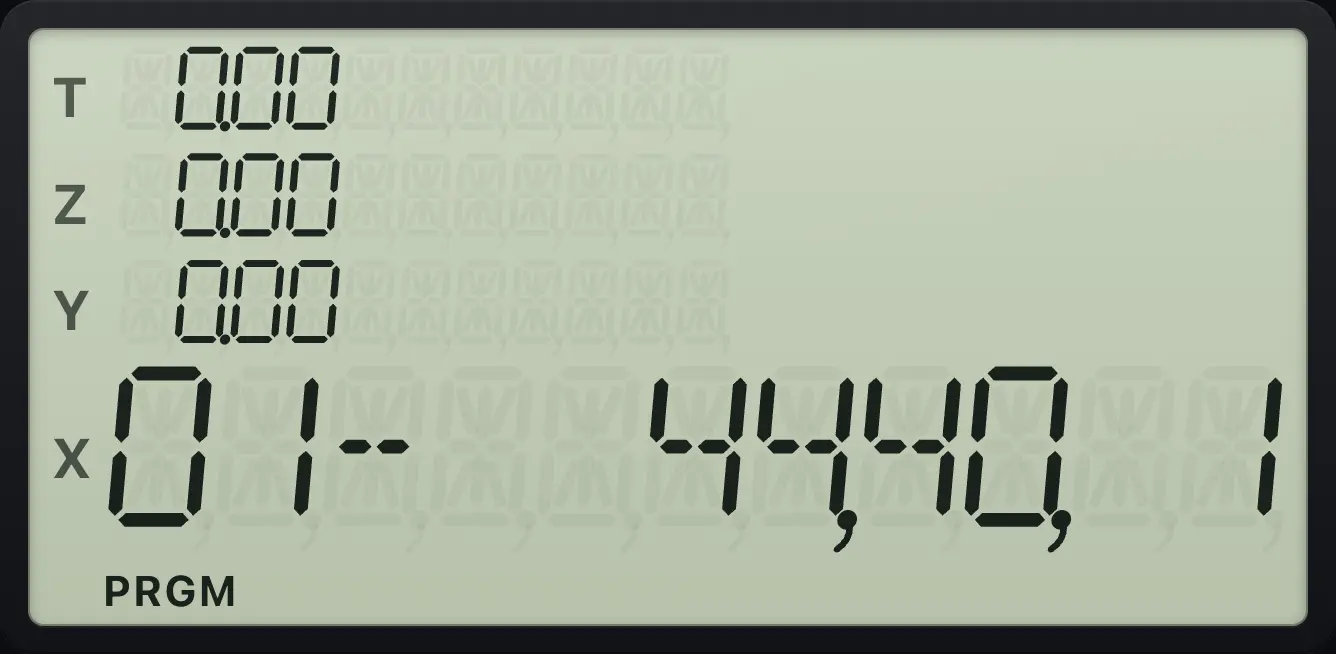
01- 44,40, 1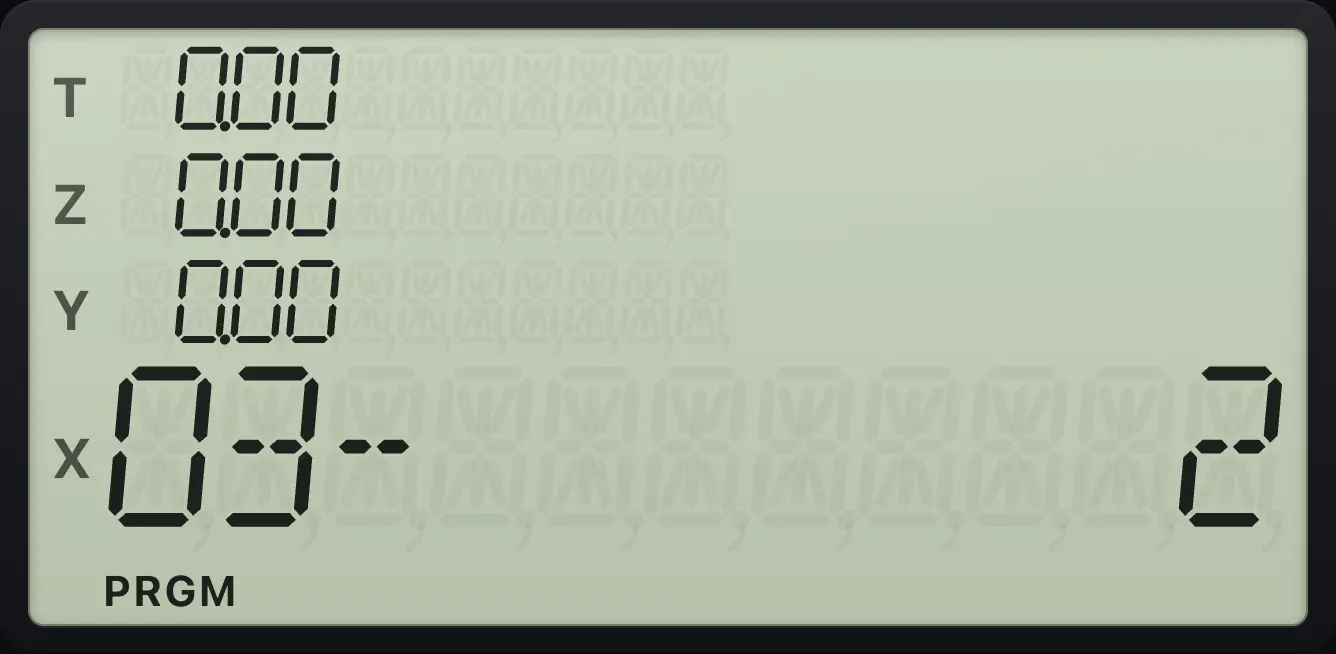
14.4Run a program#
Leave program mode, put the input on the stack and press R/S (R/S). The program runs from the current line to the end, or until it stops itself. Then the pointer returns to the start.
A loan payment program
Record n, 12÷ i, PV, FV and PMT keys. Years on the stack, rate, then amount: key in the amount, ENTER, rate, ENTER, years and run.
fP/RR/Sg12×nR↓g12÷iR↓PV0FVPMTfP/RR/S200000ENTER6ENTER30R/S
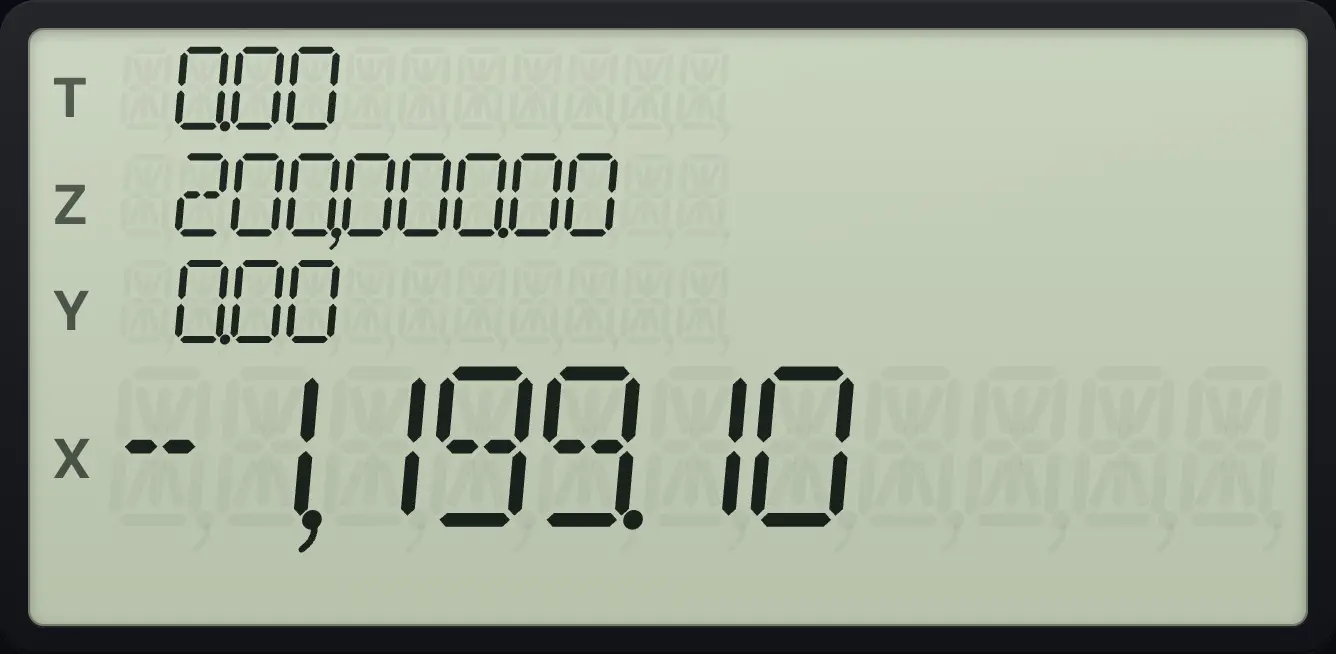
The program takes years (X), rate (Y) and amount (Z) and returns the monthly payment.In that program, g12×n (12×) turns the years in X into months. R↓ brings the rate into X, g12÷i (12÷) stores it as a monthly rate, and R↓ brings the amount into X for PV. Plan the order of your inputs so that each number reaches X when it is needed.
14.5Stop for input: R/S inside a program#
Put R/S in a program where it should pause. The calculator stops and shows X. Key in a number if you wish, then press R/S to carry on.
Pause in the middle of a program
Record 2 ×, R/S, 3 +. Run it on 5, then continue.
fP/RR/S2×R/S3+fP/RR/S5R/SR/S
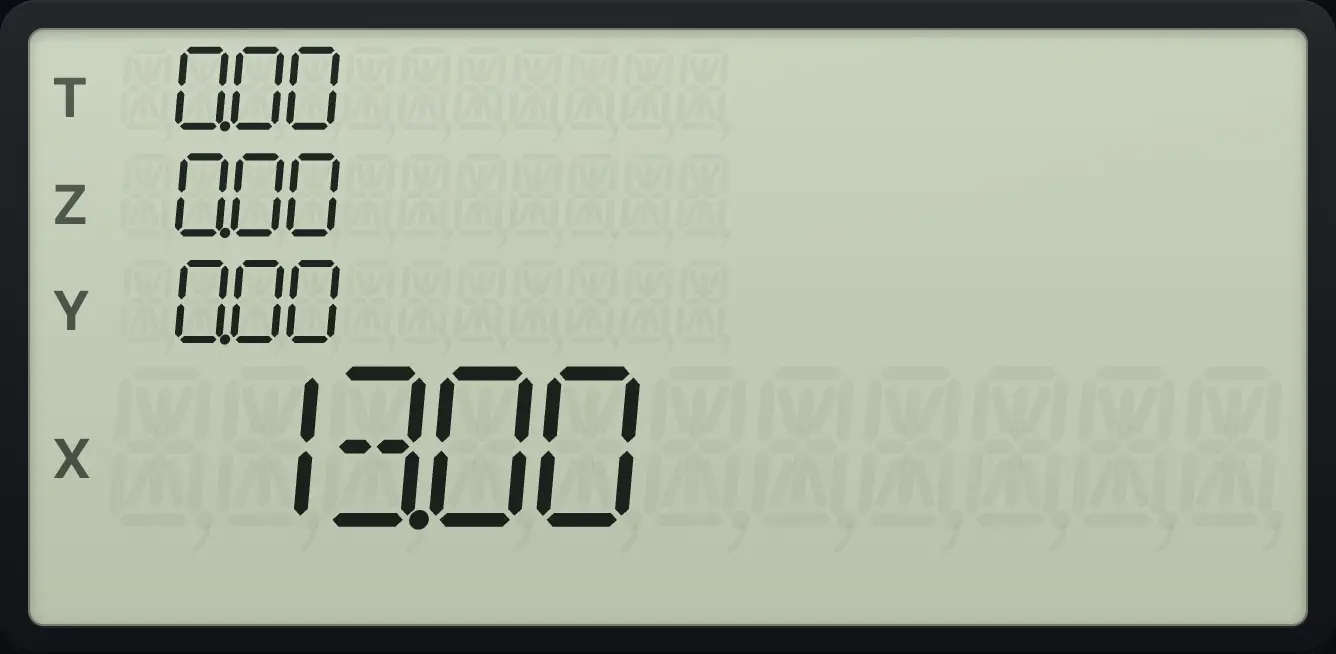
The first stop shows 10.00. After R/S the program adds 3 and shows 13.00.14.6Jump with GTO#
gGTOR↓ (GTO) and two digits jump to that line number. In a program, it makes the program continue from that line. From the keyboard, GTO and a line number positions the pointer, and R/S then runs from there. In program mode, GTO . and two digits (press the point after GTO) moves the pointer to a line, so that you can edit there.
Start from line 03
Record 1 +, then 2 ×. Go to line 03 and run on 5.
fP/RR/S1+2×fP/RR/S5gGTOR↓03R/S
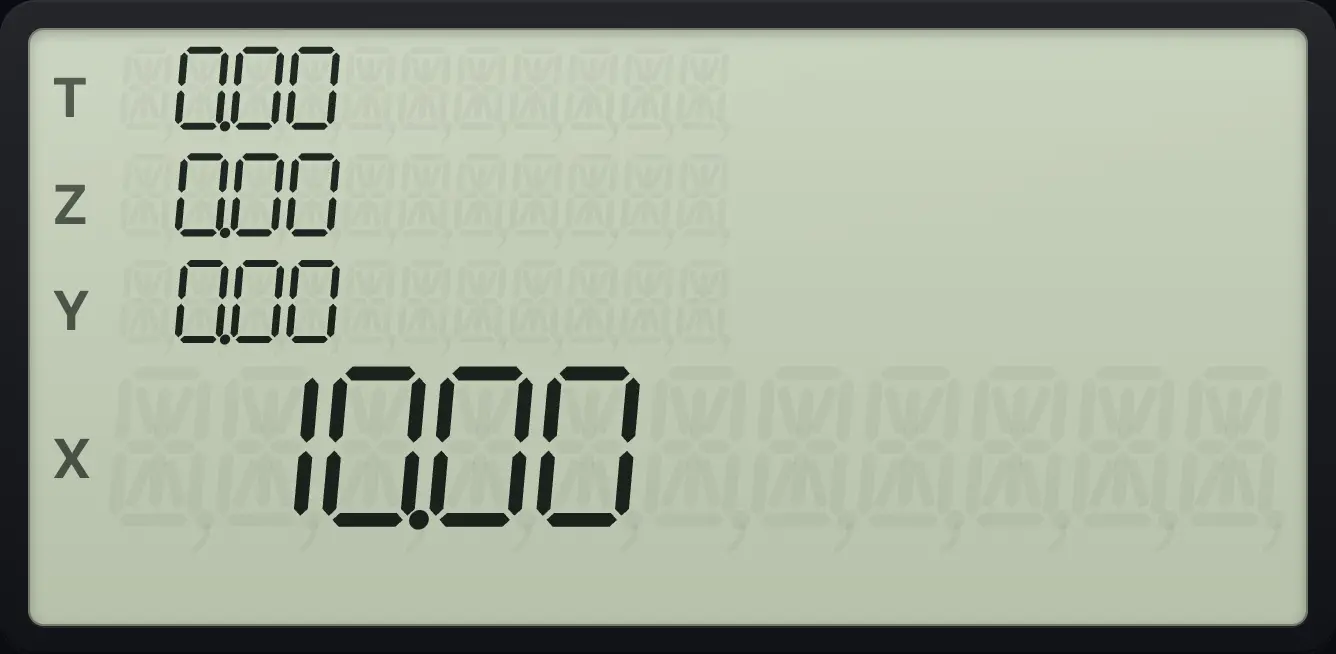
Only the "2 ×" part ran: 5 × 2 = 10.Go to a line while recording
Record 1, +, 2, then GTO . 01 to move to line 01.
fP/RR/S1+2gGTOR↓.01
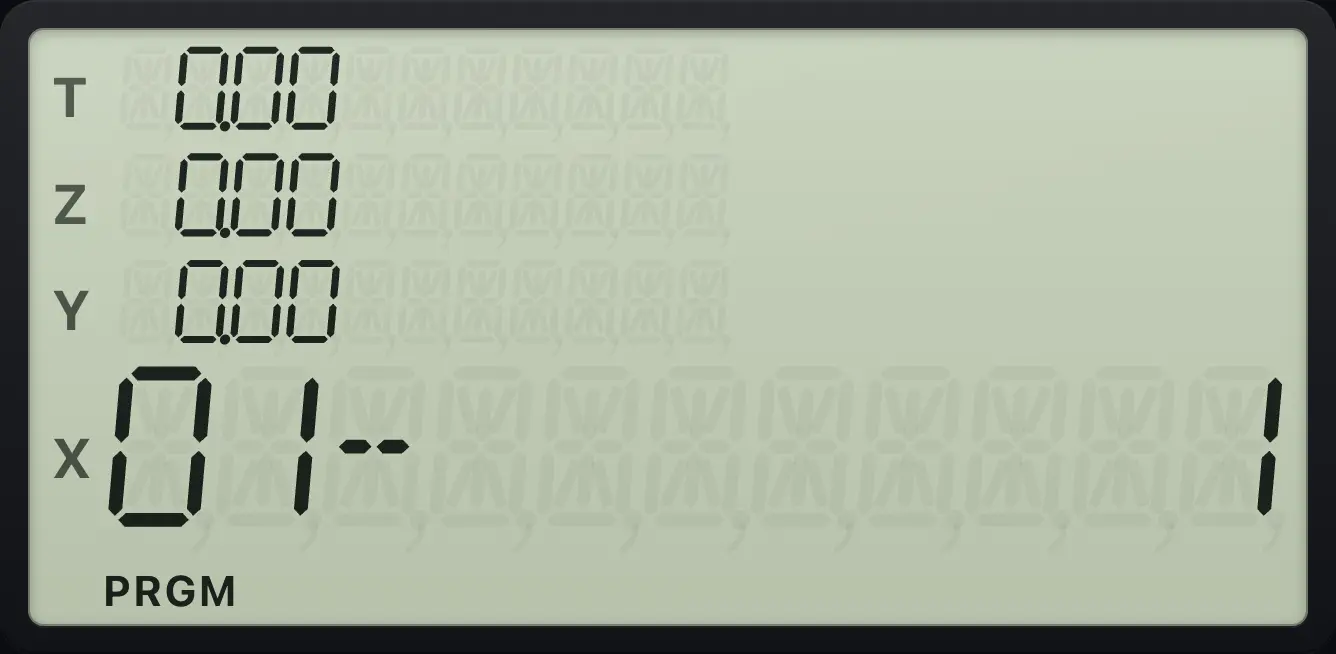
01- 114.7Make decisions with tests#
The test keys are gx≤yx⇄y (x≤y) and gx=0CLx (x=0). In a program, if the test is true, the next line runs. If false, the next line is skipped. Typed from the keyboard, a test has no visible effect.
Add 1 only when X is zero (x=0 test)
Record x=0, GTO 04, 1, +. Run on 0 and on 5.
fP/RR/Sgx=0CLxgGTOR↓041+fP/RR/S0R/S
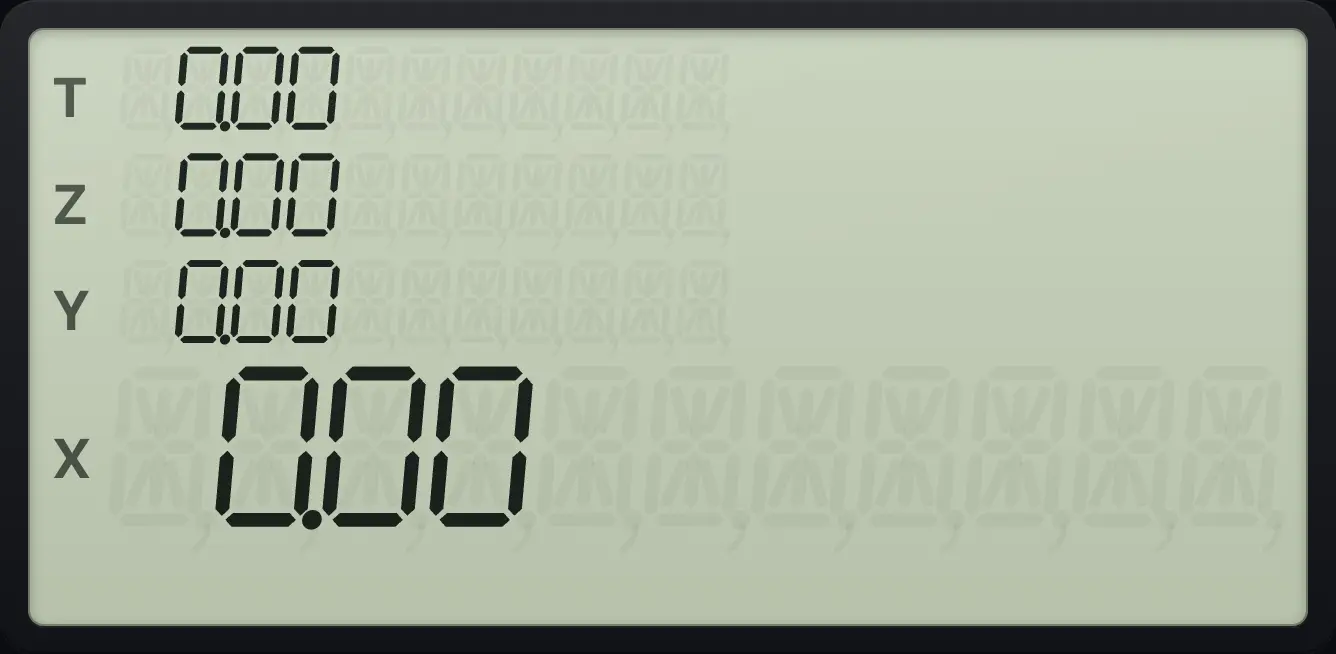
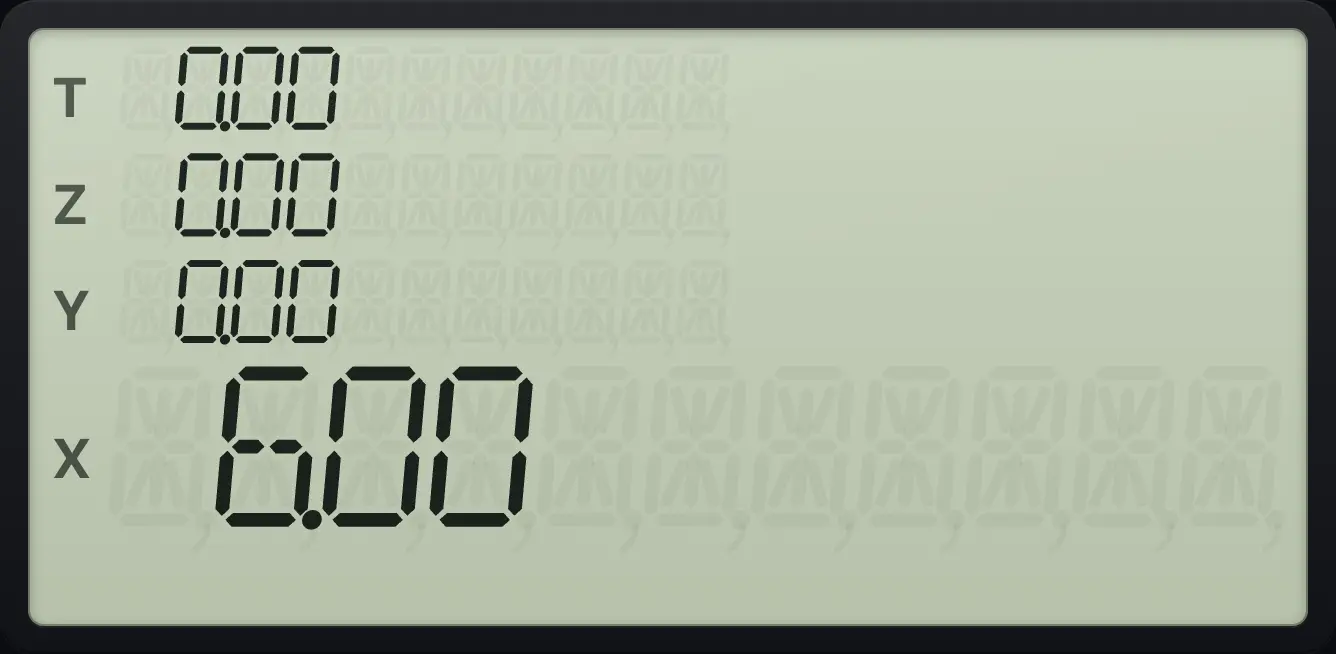
With 0 in X the program is stopped by the jump and returns 0.00.The same program on 5
With 5 in X the test is false, so the jump is skipped and 1 + runs.
fP/RR/Sgx=0CLxgGTOR↓041+fP/RR/S5R/S
6.00- test
- true: run next line
- false: skip next line
- continue
14.8A loop that counts#
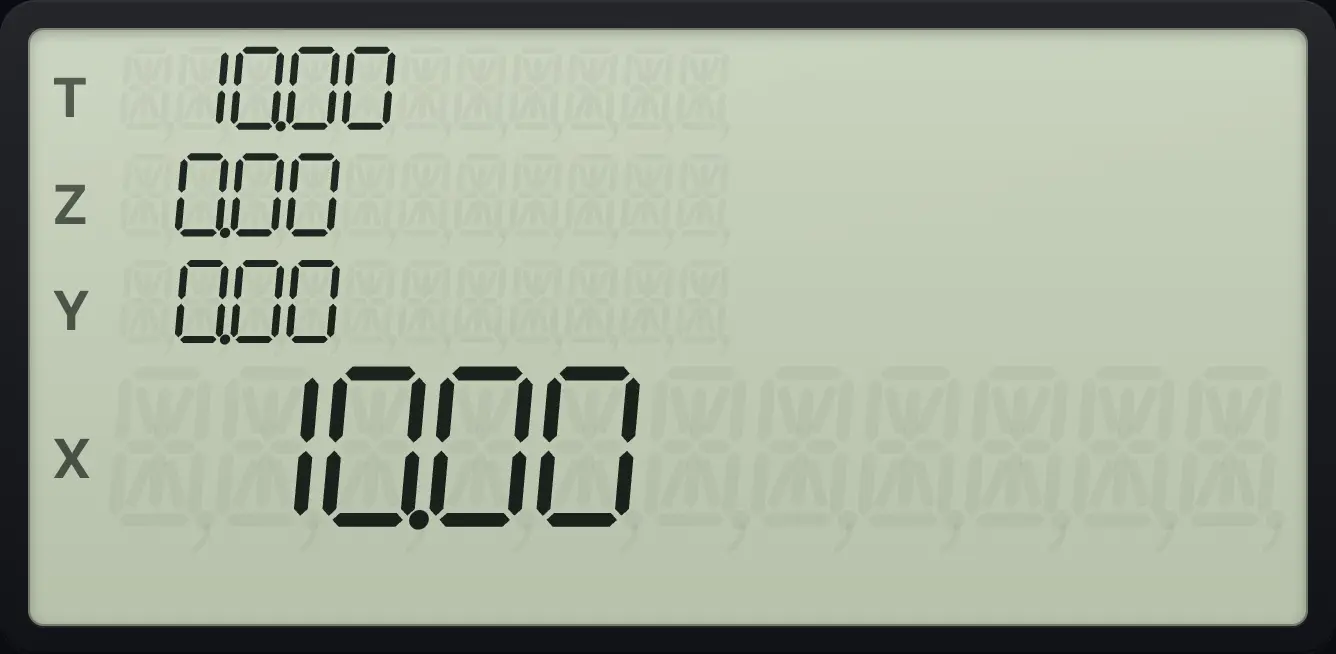
A test and a GTO make a loop. This program counts up from 0 to 10. It keeps the count in X, adds 1, puts 10 in Y and tests x≤y. When the count reaches 10 it jumps out.
Count to 10
Record the loop (lines 01 to 10) and run it from 0.
fP/RR/S1+ENTER10gx≤yx⇄ygGTOR↓10R↓gGTOR↓01R↓fP/RR/S0R/S
10.0014.9Step through a program#
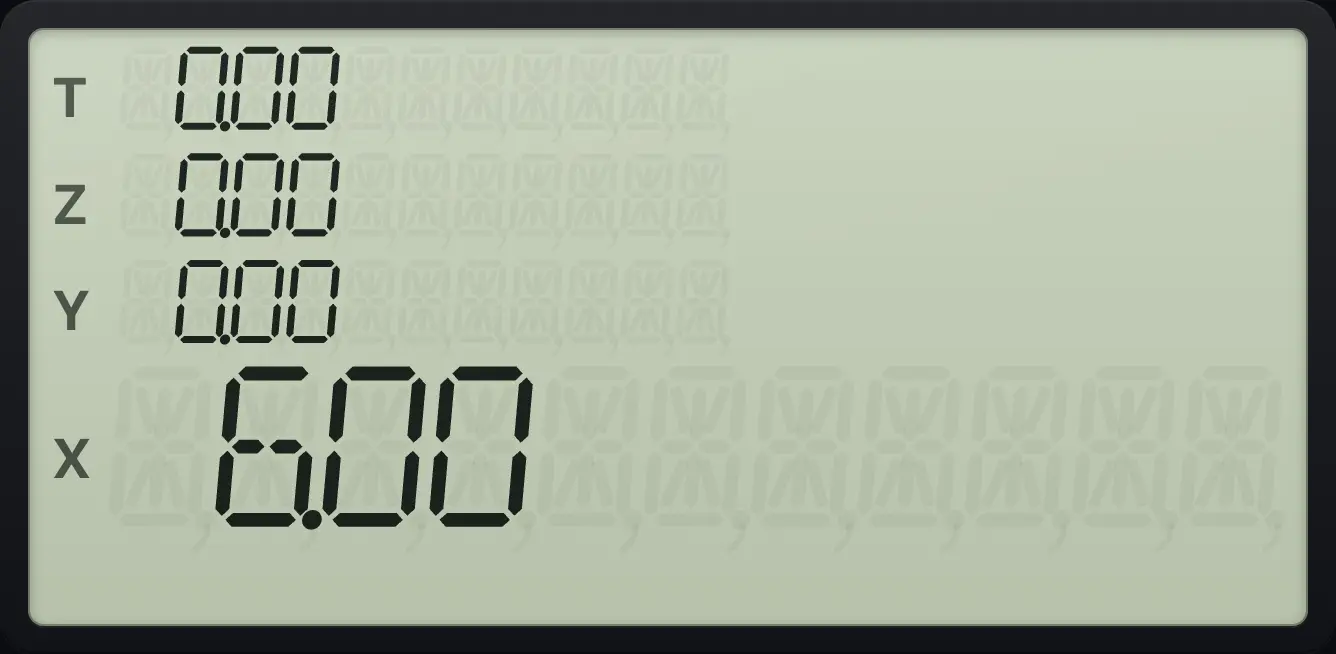
Outside program mode, SST runs the next line only and shows X. Use it to see what each line does. gBSTSST (BST) steps back in program mode. In program mode, SST moves the pointer forward without running anything.
Step one line at a time
Record 1 + and 2 ×. Key in 5 and press SST twice.
fP/RR/S1+2×fP/RR/S5SSTSST
6.00Step in program mode
Record 1, +, 2. Then press g BST to go back one line.
fP/RR/S1+2gBSTSST
02- 4014.10Edit and clear programs#
Use SST and BST in program mode to find a line, then record keys to insert after it. There is no delete-a-line key: to correct a program, clear it with fPRGMR↓ (CLEAR PRGM) in program mode and record it again.
Clear the program
Record 1 +, leave and re-enter program mode, then press f, CLEAR PRGM.
fP/RR/S1+fP/RR/SfP/RR/SfPRGMR↓
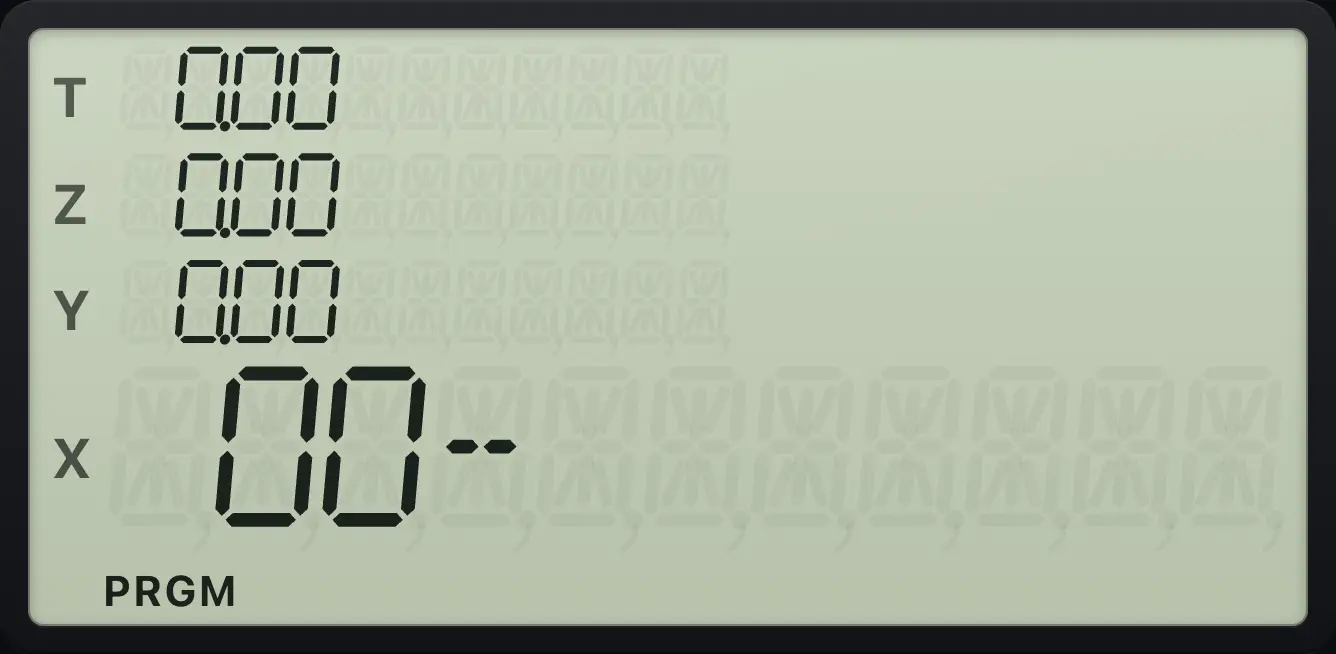
00-These keys are never recorded: P/R, SST, BST, CLEAR PRGM, PREFIX and MEM. They act at once.
14.11Limits#
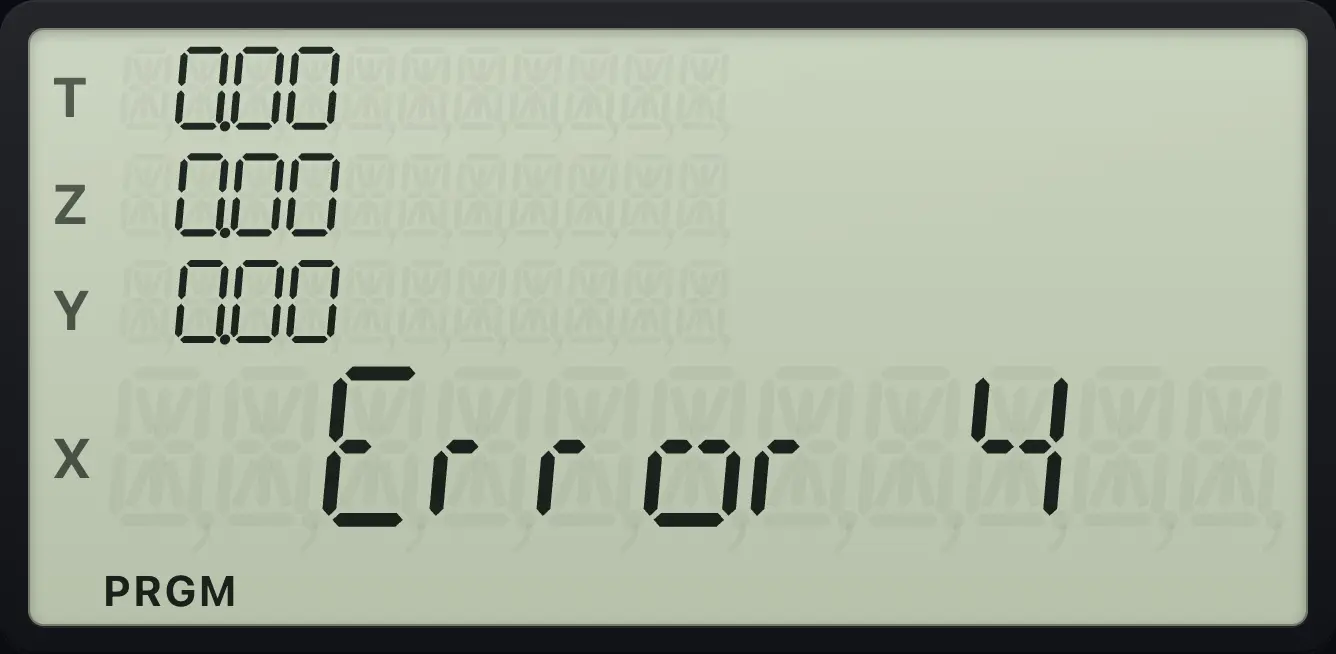
- Program memory is 99 lines. Adding line 100 gives Error 4.
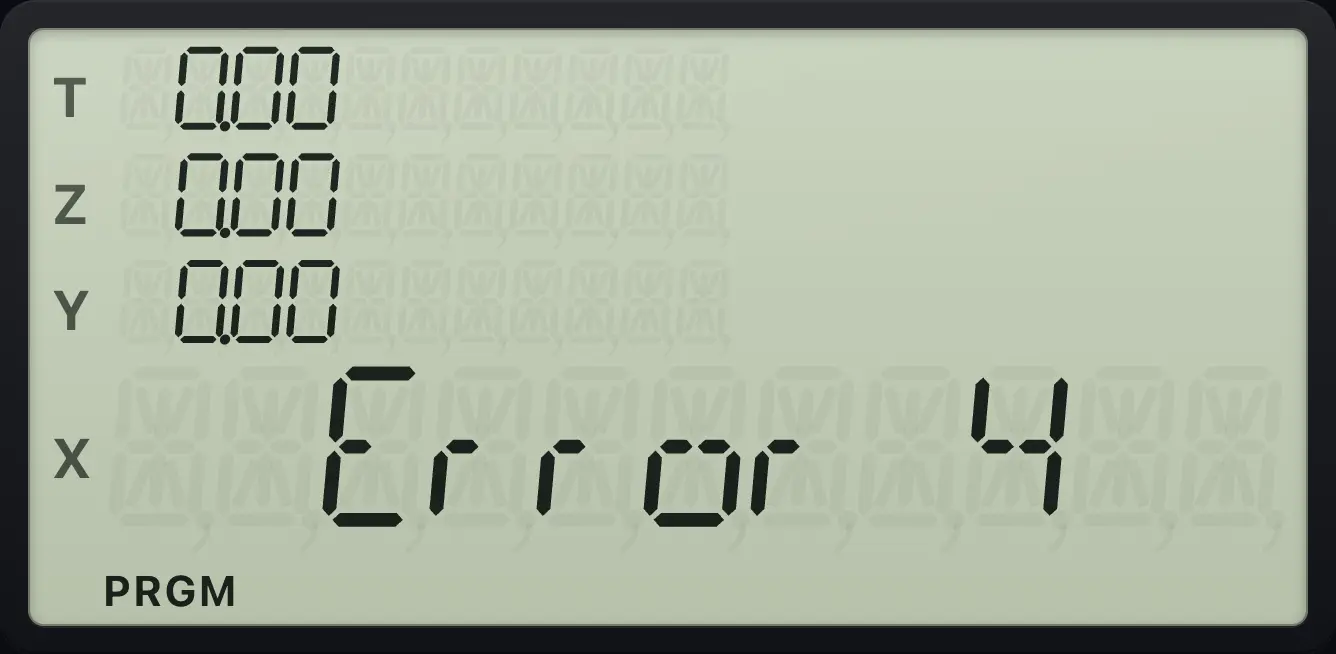
- GTO to a line beyond the end gives Error 4.
- A program that runs for a very long time (about a million steps) is interrupted so the app does not freeze.
- An error inside a program stops it and shows the error.
Too many lines
Record 100 lines.
fP/RR/S1111111111111111111111111111111111111111111111111111111111111111111111111111111111111111111111111111
Error 4A jump past the end
GTO . 05 in a program with one line.
fP/RR/S1gGTOR↓.05
Error 4HP 12C is a trademark of HP Inc.. Trident Calculator is an independent product by South View Studios and is not affiliated with, sponsored by or endorsed by HP. The name is used only to describe the kind of calculator this model resembles; Trident's names, keys, display, fonts and software are its own clean-room design.