
RPN Advanced 42 manual · Chapter 4 of 18
Everyday calculations
Arithmetic, negative numbers, scientific notation, powers, percent, pi and seeing all the digits of a result.
4.1Add, subtract, multiply and divide#
Enter the first number, press ENTER, enter the second number, then press the operation. The second number you enter is X, the first is Y. For subtraction and division the result is Y minus X and Y divided by X.
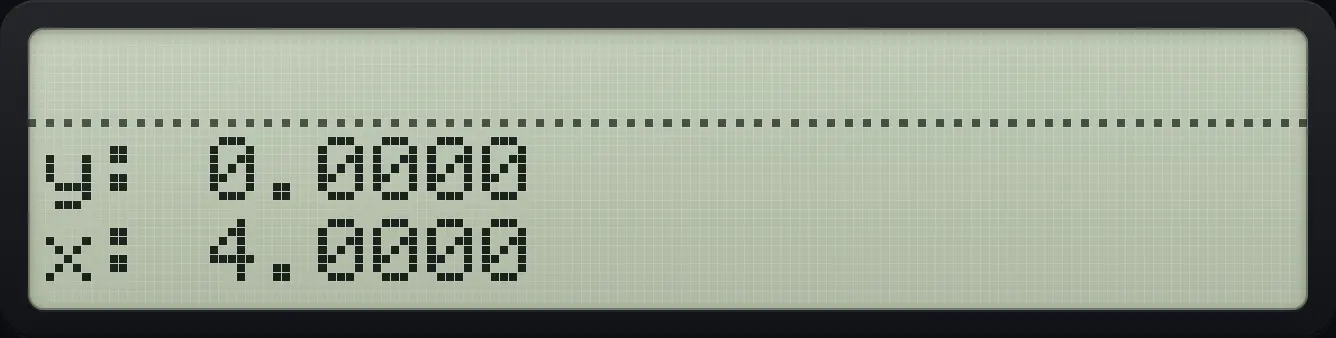
Divide 20 by 5
Type 20, ENTER, 5, then divide.
20ENTER5÷
4.0000Subtract: 10 minus 4
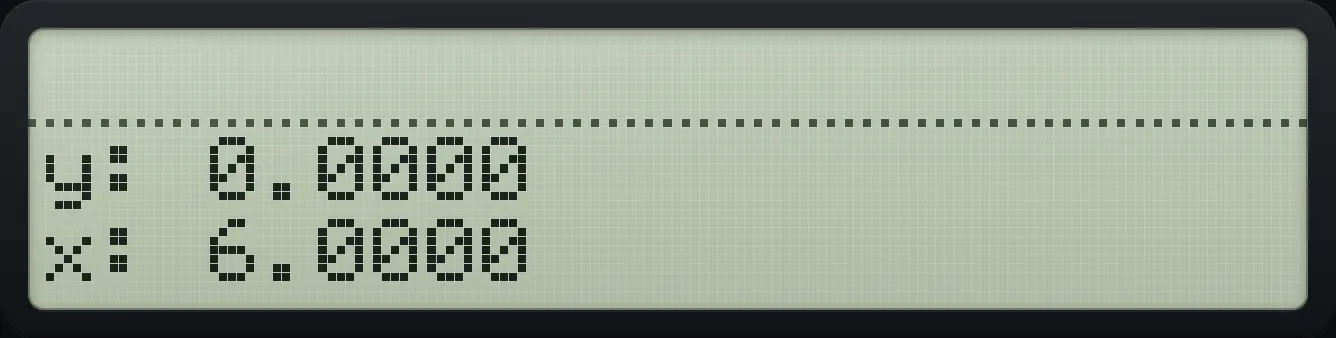
Type 10, ENTER, 4, then subtract.
10ENTER4−
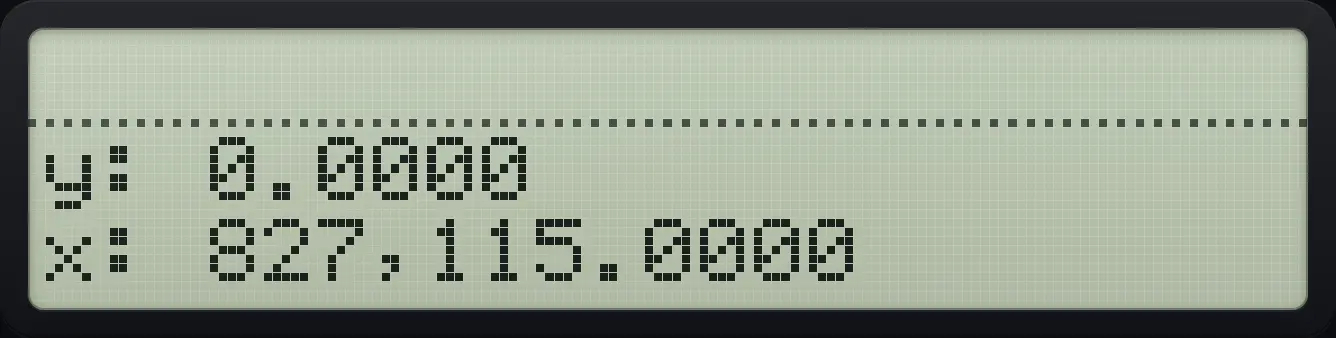
6.0000Long results use thousands separators
Multiply 12345 by 67.
12345ENTER67×
827,115.00004.2Negative numbers and changing the sign#
Type the digits first and then press +/− to make the number negative. If you press +/− when you are not typing, it changes the sign of X. There is no separate minus key for typing: − is always subtraction.
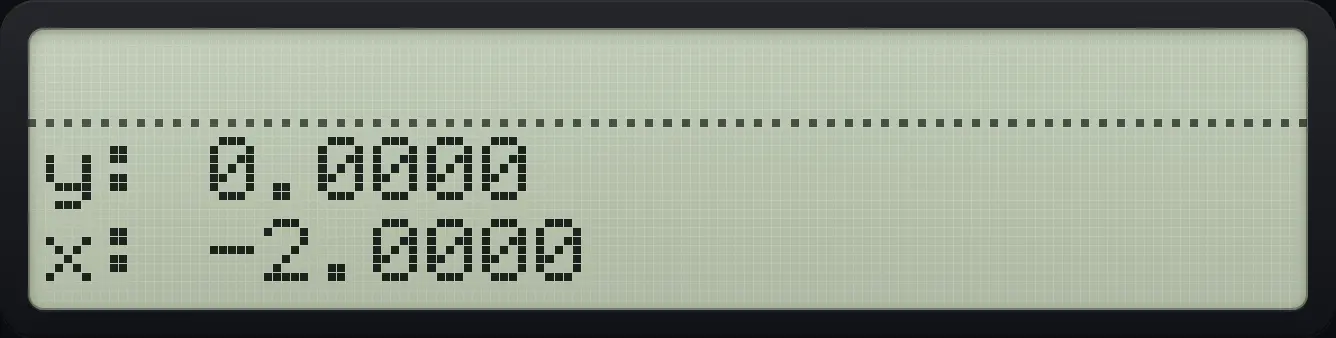
Enter a negative number
Type 5, press +/−, ENTER, then type 3 and add.
5+/−ENTER3+
-2.0000Change the sign of a result
Subtract 3 from 8, then change the sign of the answer.
8ENTER3−+/−
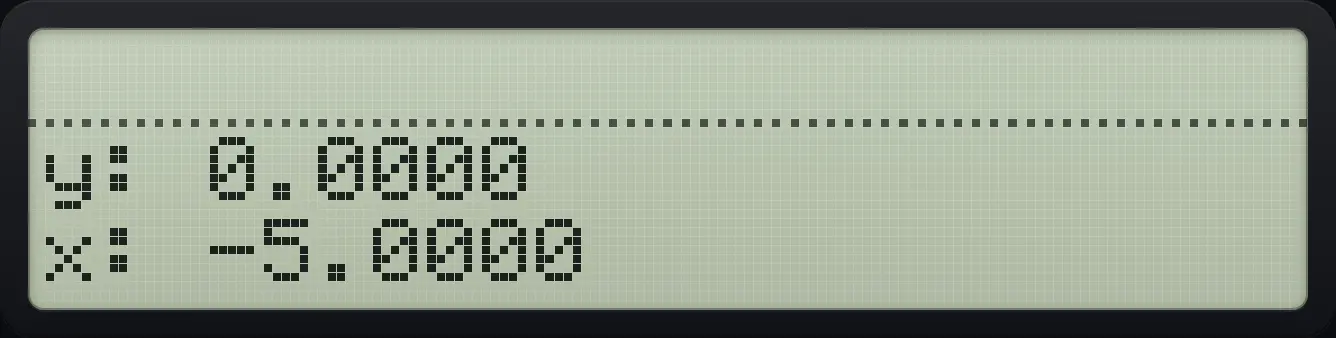
-5.00004.3Enter numbers in scientific notation#
Press E after the mantissa to type the power of ten. 1.5 E 3 means . To type a negative exponent press +/− after the exponent digits.
Double 1.5 × 10³
Type 1.5, E, 3, ENTER, then 2 and multiply.
1.5E3ENTER2×
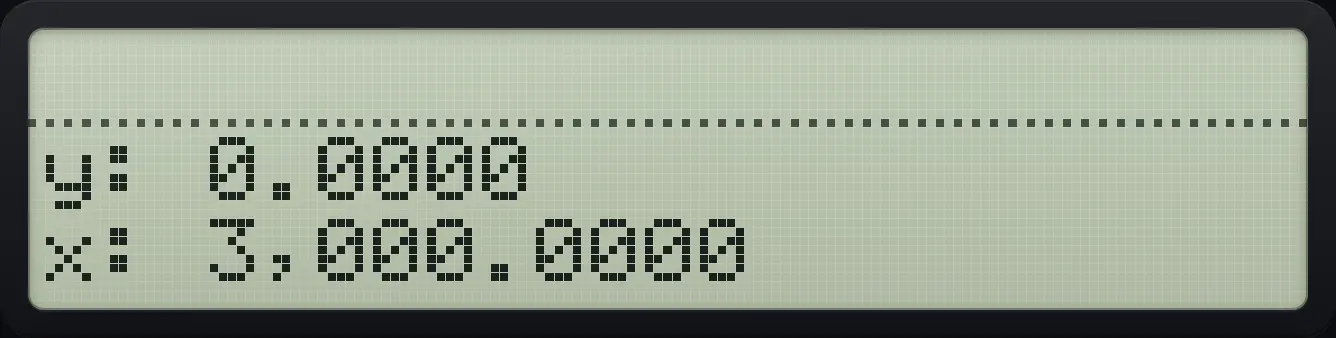
3,000.0000A small number: 2 × 10⁻³ times 5
Type 2, E, 3, +/−, ENTER, 5, multiply.
2E3+/−ENTER5×
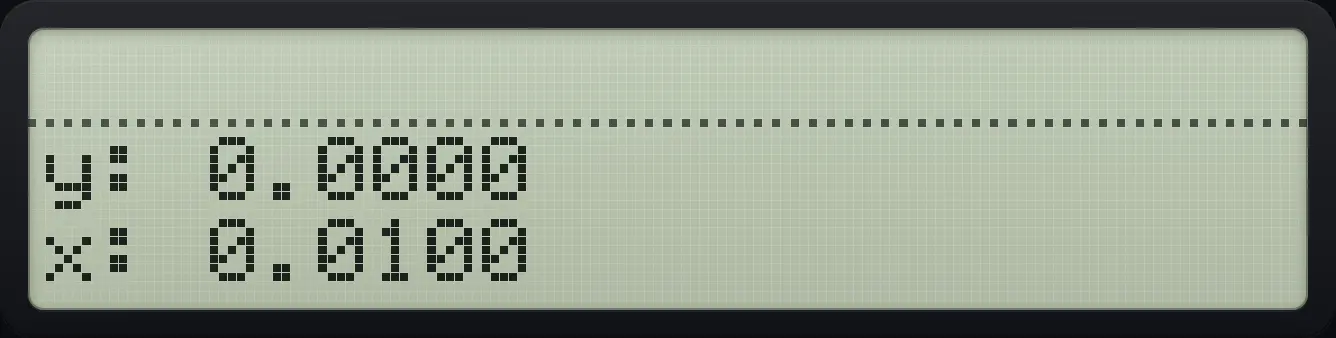
0.0100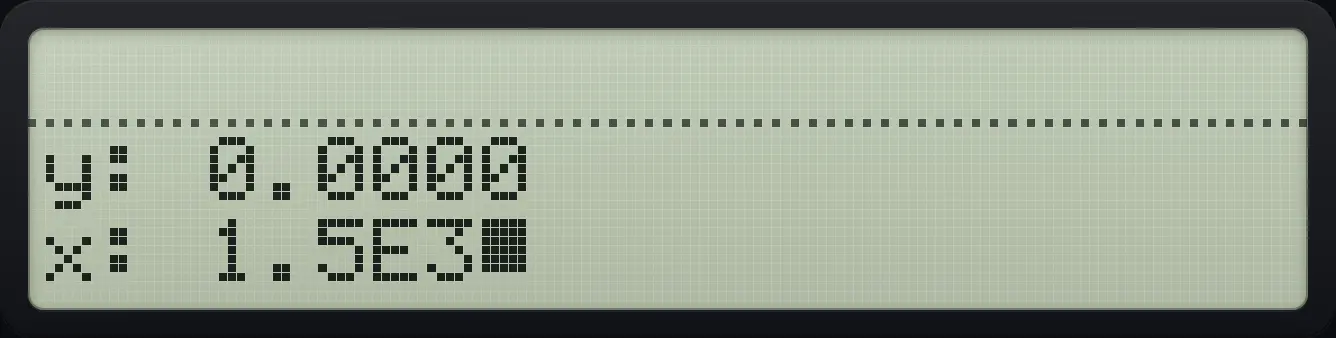
4.4Square, square root, reciprocal and powers#
√x takes the square root, shift √x squares, 1/x is the reciprocal 1/x, and shift 1/x raises Y to the power X.
Compute 2 to the power 10
Type 2, ENTER, 10, then shift and the 1/x key.
2ENTER10⇧yˣ1/x
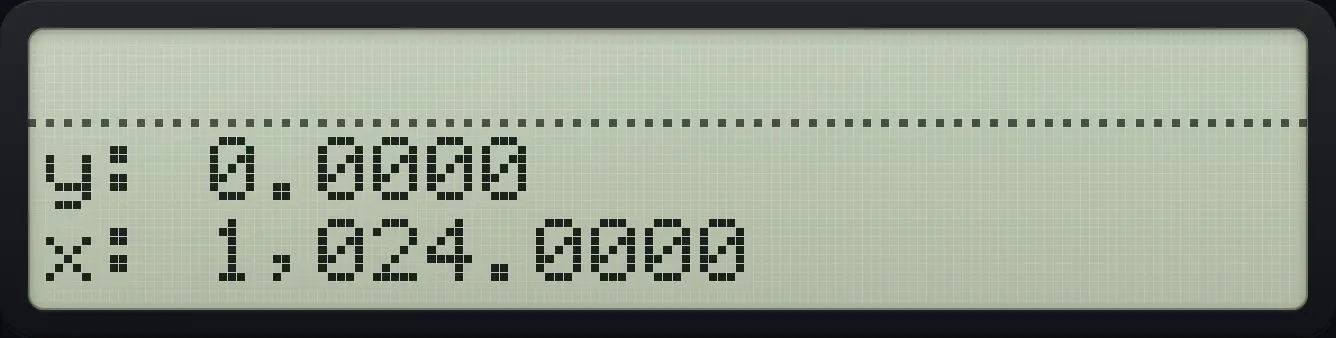
1,024.0000Square root of 144
Type 144 and press the square-root key.
144√x
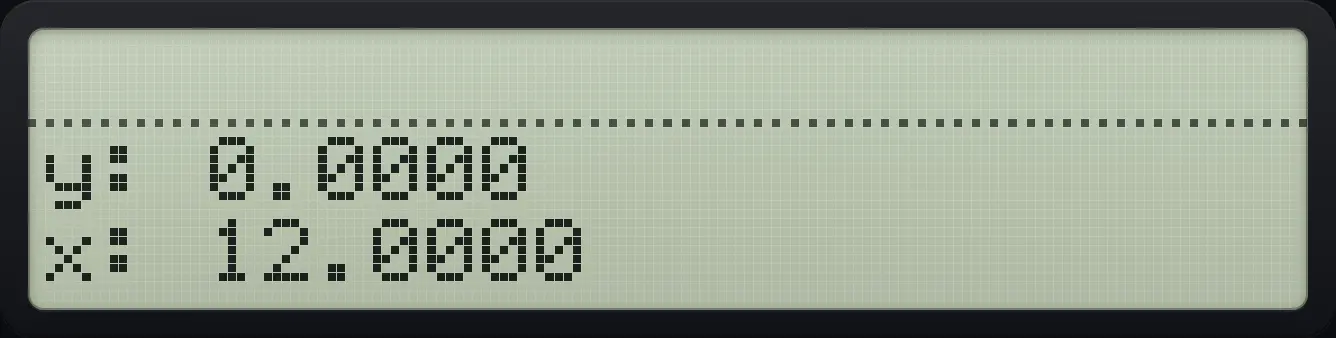
12.0000Reciprocal of 8
Type 8 and press 1/x.
81/x
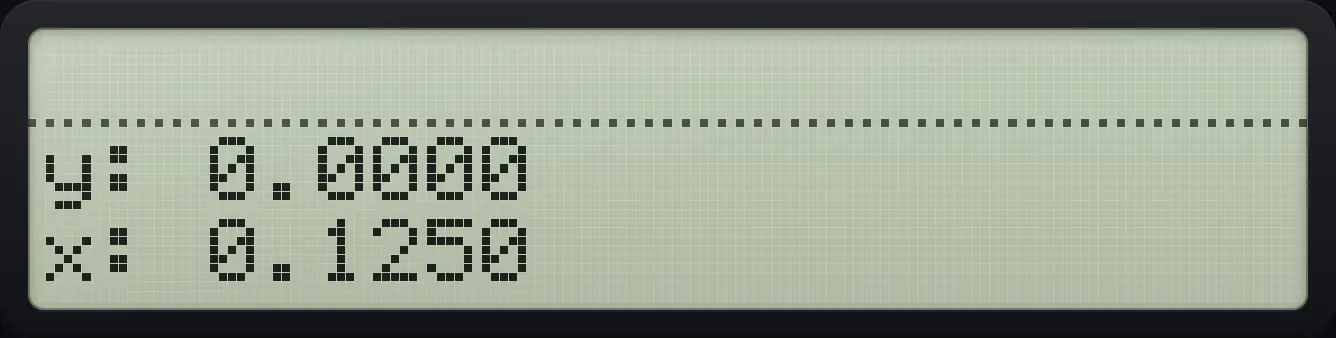
0.1250A cube root as a power
The cube root of 27 is 27 to the power one third. Type 27, ENTER, 3, then 1/x for 1/3, then shift 1/x.
27ENTER31/x⇧yˣ1/x
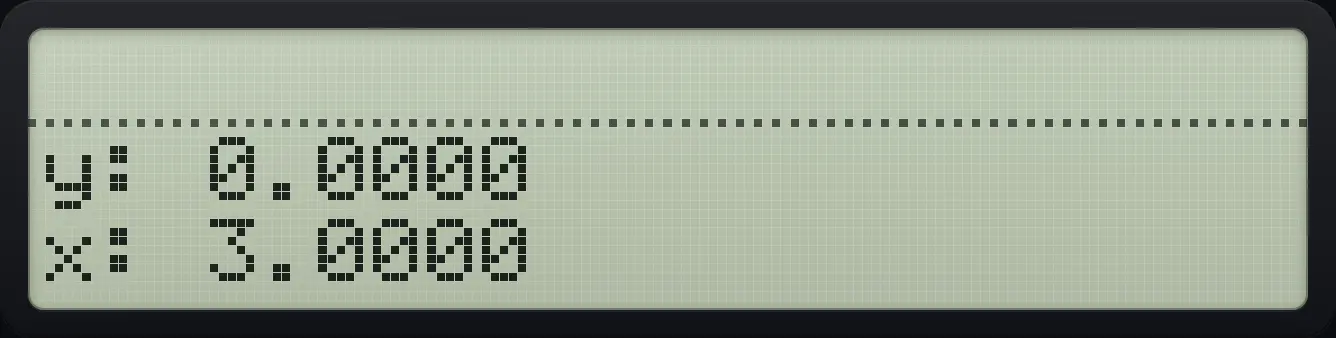
3.00004.5Calculate a percentage#
Shift RCL computes X percent of Y and leaves Y in place, so you can add or subtract it straight away.
Find 15 percent of 200
Type 200, ENTER, 15, then shift RCL.
200ENTER15⇧%RCL
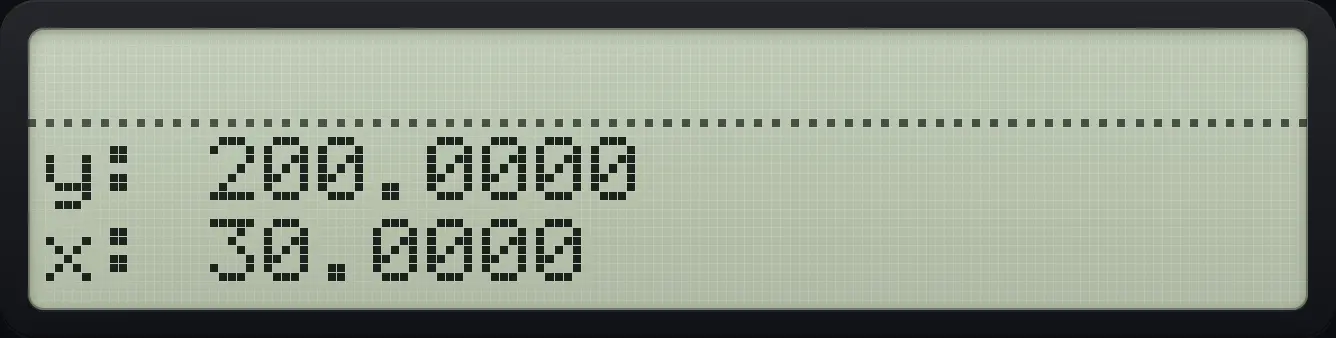
30.0000 y: 200.0000Add 15 percent
Compute 15 percent of 200, then add it to the 200 still in Y.
200ENTER15⇧%RCL+
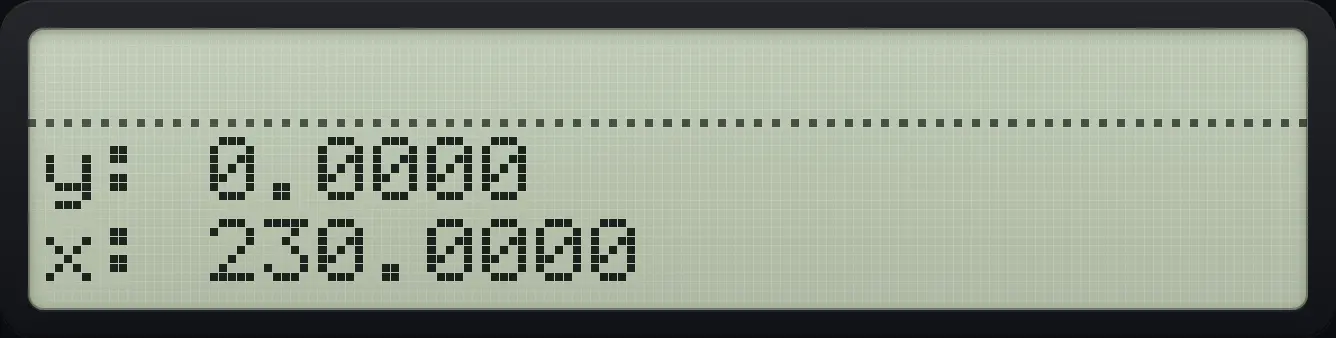
230.00004.6Use pi#
Shift R↓ pushes the value of (3.14159265359...) onto the stack.
Area of a circle with radius 5
Type 5, square it, push pi and multiply.
5⇧x²√x⇧πR↓×
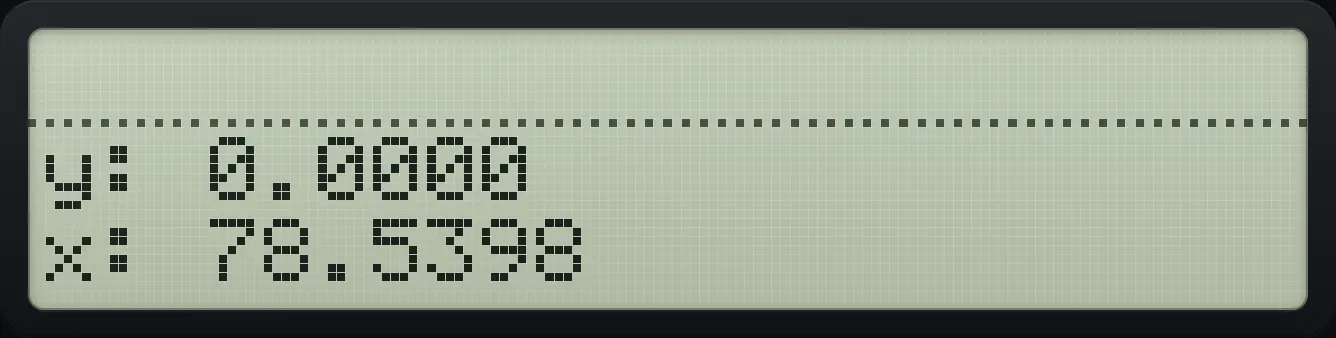
78.53984.7See all the digits of a number#
The display rounds to the format you chose, but the calculator keeps 12 significant digits. Shift . (SHOW) displays X with all of them for a moment.
Show the full value of the square root of 2
Type 2, take the square root, then press shift and the decimal point.
2√x⇧SHOW.
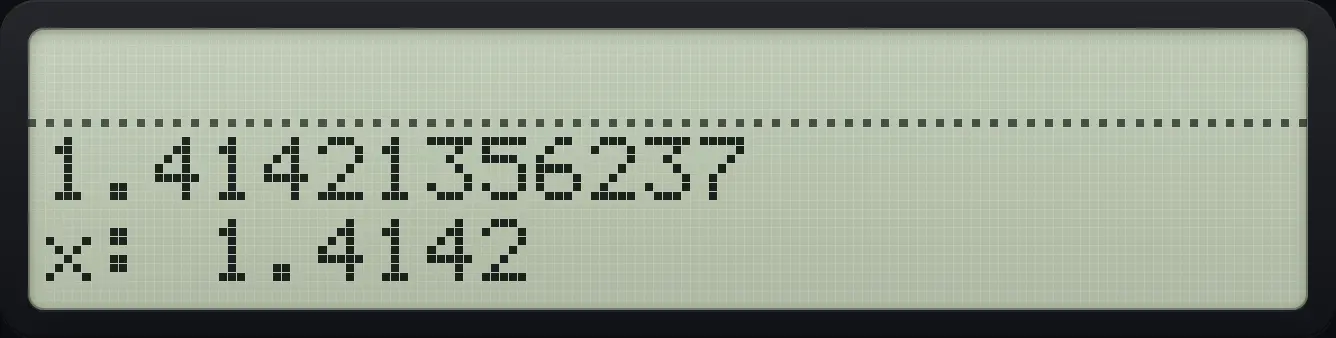
1.414213562374.8Look back at earlier calculations#
The app records calculations you finish in the History panel, with the keys you pressed and the result. Use it to review work. It does not change the stack; to reuse a value, use LASTx or store it in a variable.
See also See your past calculations in HistoryReuse an earlier result
HP-42S is a trademark of HP Inc.. Trident Calculator is an independent product by South View Studios and is not affiliated with, sponsored by or endorsed by HP. The name is used only to describe the kind of calculator this model resembles; Trident's names, keys, display, fonts and software are its own clean-room design.