
RPN Advanced 42 manual · Chapter 3 of 18
The stack
How the four-level stack works: X, Y, Z and T, ENTER, stack lift, swap, roll down, LASTx and how to plan a calculation.
3.1The four stack levels#
The stack is a pile of four numbered slots named X, Y, Z and T (top). X is the bottom slot and the one you see most. Y is directly above it. Operations such as + and × take their numbers from X and Y, leave the answer in X, and move everything above down one level. Matrices and complex numbers each take just one level, like a real number.
With no menu open the display shows only Y and X. Z and T are still there; roll the stack down with R↓ to look at them.
3.2What ENTER does and when the stack lifts#
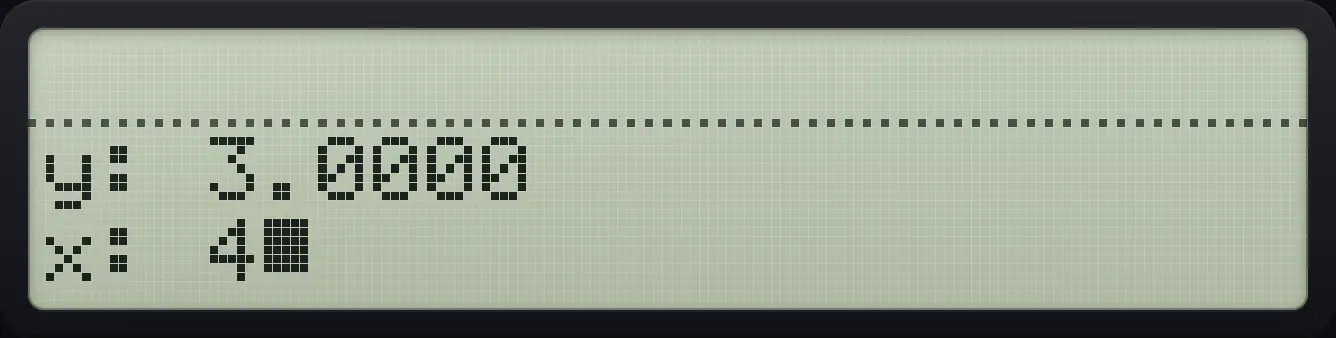
ENTER copies X into Y and pushes everything up. The old T is lost. ENTER also does something subtle: it turns the stack lift off, so the next number you type overwrites the copy in X instead of pushing the stack up again. That is why 3 ENTER 4 gives Y = 3 and X = 4 with no leftover copy.
The stack lift is on again after almost every other operation. After a calculation, typing a new number pushes the answer up to Y and leaves it there. Three keys turn the lift off: ENTER, ← when it clears X, and the CLX and CLST commands in CLEAR.
Square a number by duplicating it
Type 3, press ENTER to copy it, then press multiply.
3ENTERENTER×
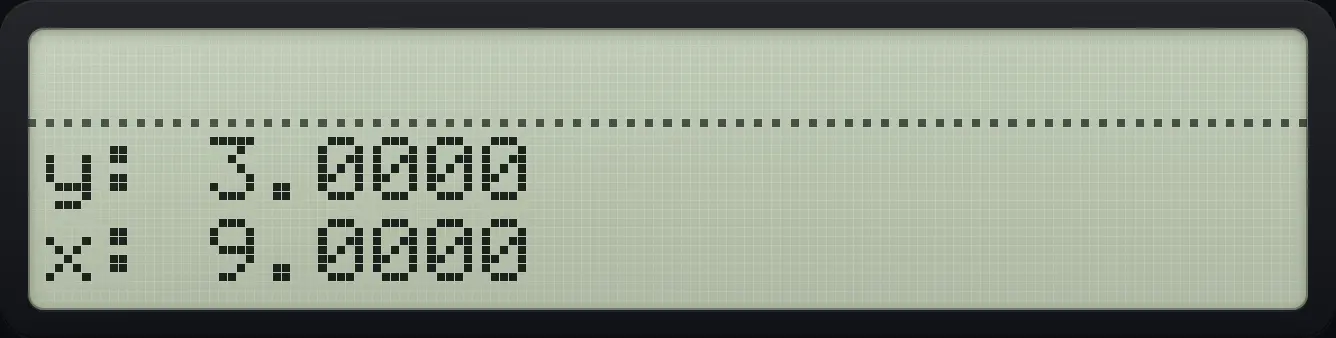
9.0000The first ENTER copies, the second ENTER is not needed: 3 ENTER mul is enough. A second ENTER simply copies again.
A number typed after ENTER replaces X
Type 5, press ENTER, then type 7. The 5 stays in Y and X shows 7.
5ENTER7
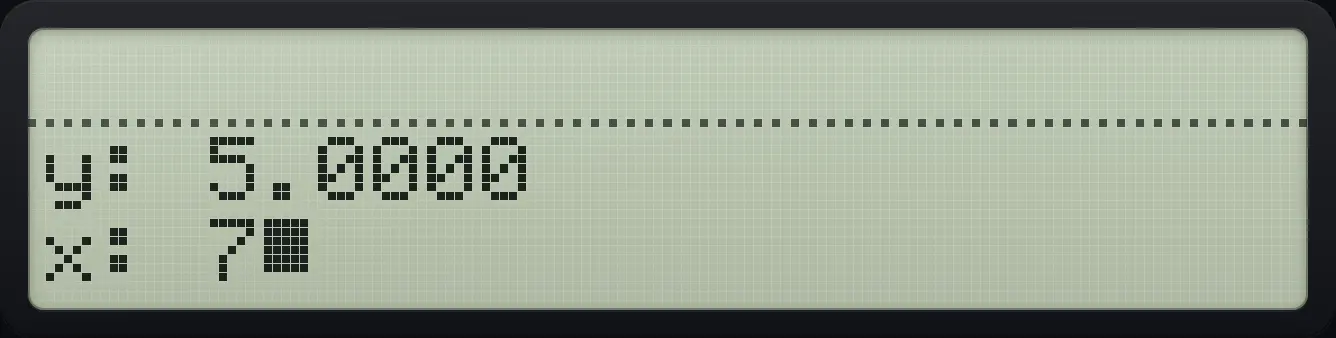
y: 5.0000 x: 7_A number typed after a calculation pushes the answer up
Add 5 and 6, then type 7. The answer 11 moves to Y.
5ENTER6+7
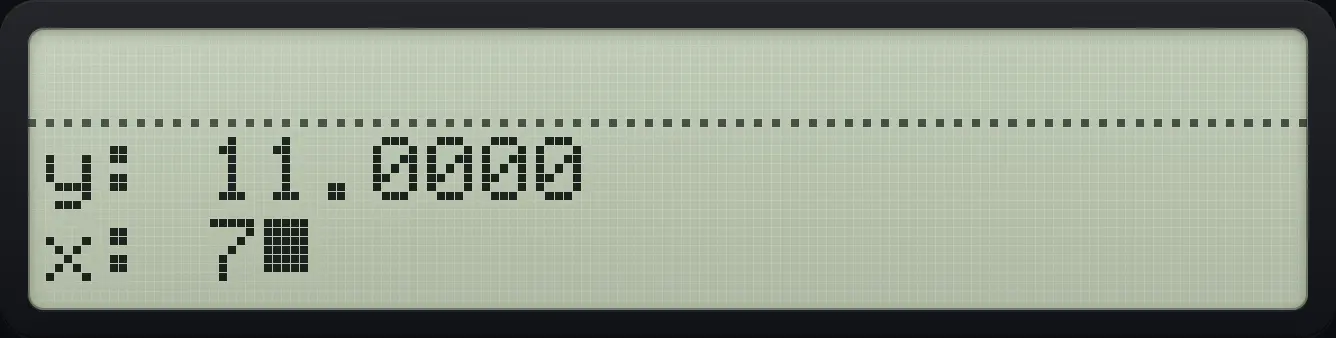
y: 11.0000 x: 7_Backspace clears X and turns the lift off
Type 7 ENTER 8, press backspace to clear X, type 5 and add. 5 replaced the cleared X.
7ENTER8←5+
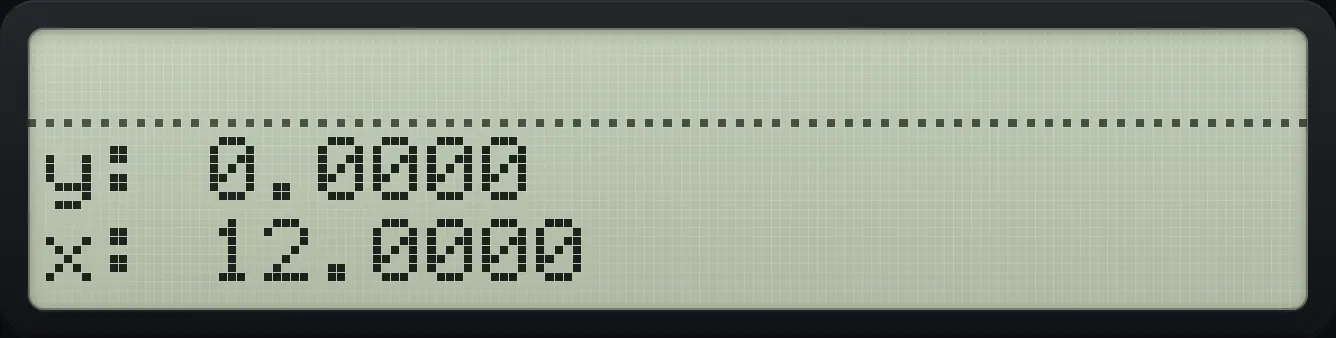
12.00003.3What happens to the stack during a calculation#
A two-number operation takes X and Y, puts the answer in X, and drops Z into Y and T into Z. T keeps its value, so it is copied down. This lets you reuse a constant that you have pushed into T.
Add down a full stack
Fill the stack with 1, 2, 3 and 4.
1ENTER2ENTER3ENTER4Press + three times.
+++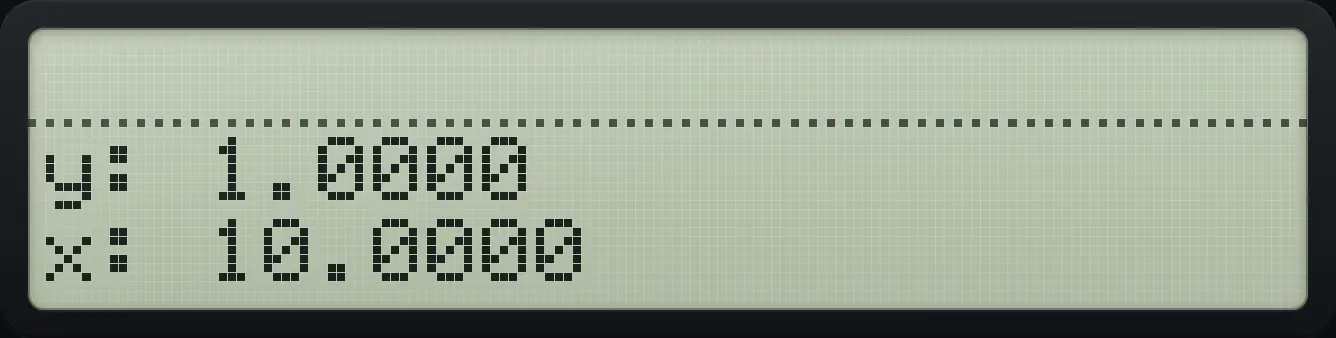
10.0000 y: 1.00003.4Swap and roll the stack#
x⇄y exchanges X and Y. It is the cure for numbers that were entered in the wrong order, which matters for subtraction and division. R↓ (roll down) moves every number down one slot and sends X round to T, so nothing is lost. Press it four times to get back where you started.
Subtract in the other order
Enter 3 then 10. Y = 3, X = 10.
3ENTER10Swap so that Y = 10 and X = 3.
x⇄y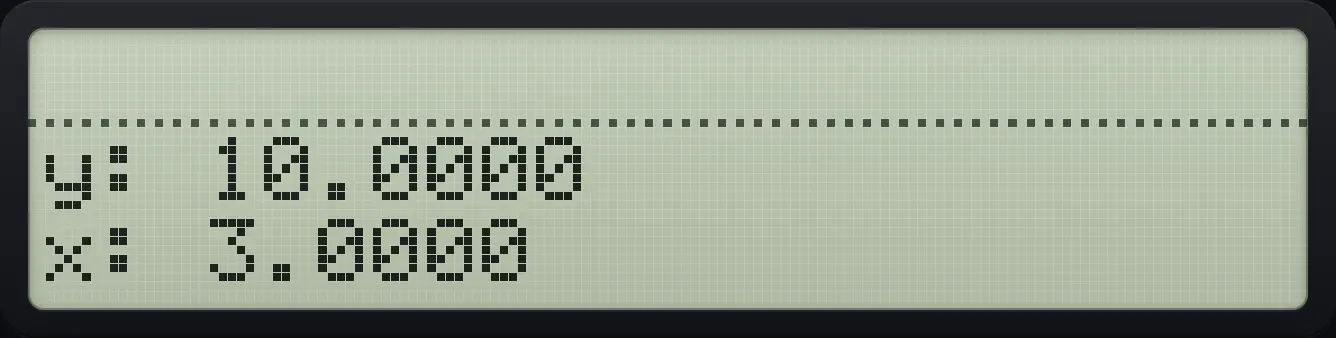
Subtract: 10 − 3.
−
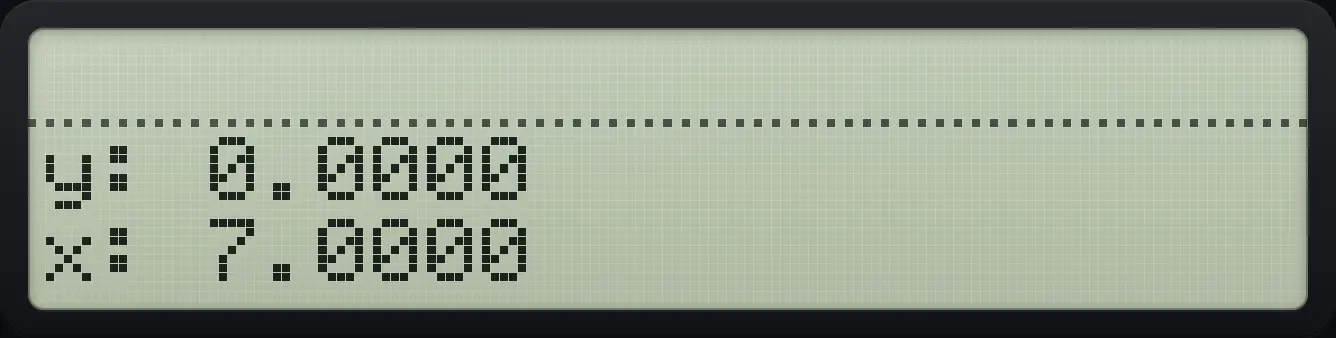
7.0000Roll the stack down
Fill the stack: T=1, Z=2, Y=3, X=4.
1ENTER2ENTER3ENTER4Press R-down once. X becomes 3 and the old X goes to T.
R↓
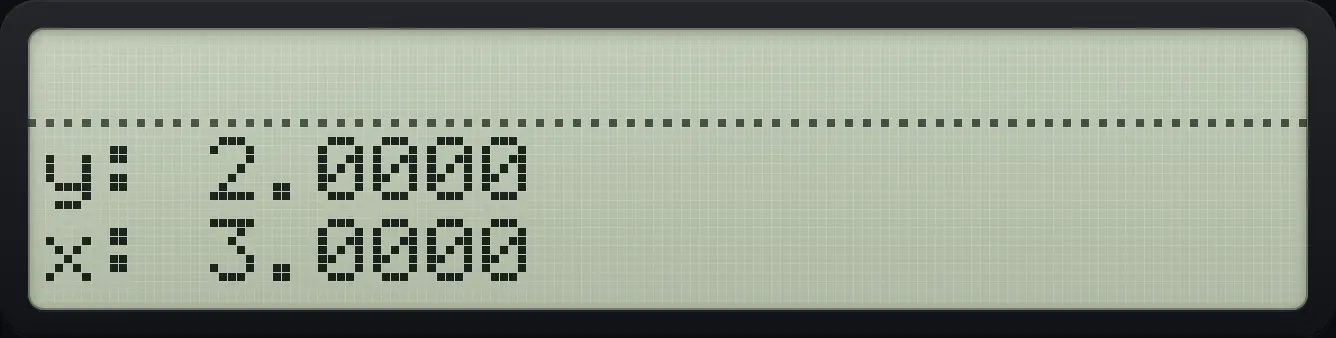
x: 3.0000 y: 2.00003.5Bring back the last X#
Before a function or operation runs, the calculator saves X in a register called LASTx. Shift x⇄y pushes it back onto the stack. Use it to recover a number you used by mistake, or to use the same number twice in one calculation.
Undo a divide
Divide 12 by 4.
12ENTER4÷Shift swap brings back the 4 that was divided by.
⇧LASTxx⇄y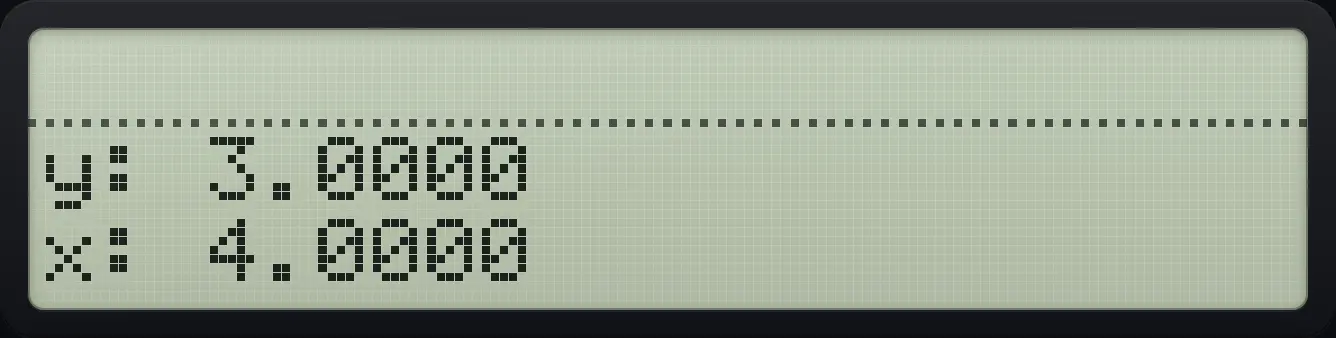
Multiply: 3 × 4 gives 12 again.
×
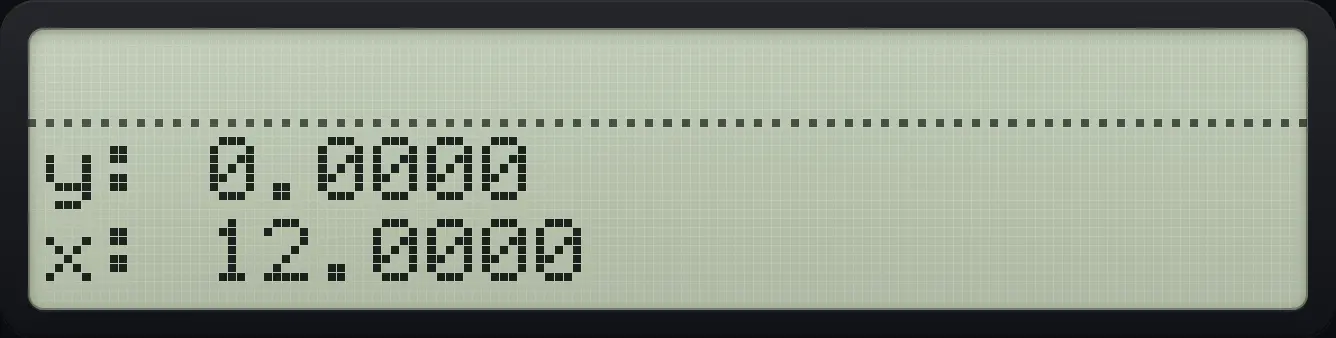
12.0000Reuse a number: 1 over (2 plus 3), times (2 plus 3)
Add 2 and 3.
2ENTER3+Take the reciprocal.
1/xLASTx brings back 5, the value before the reciprocal.
⇧LASTxx⇄yMultiply: 0.2 × 5.
×
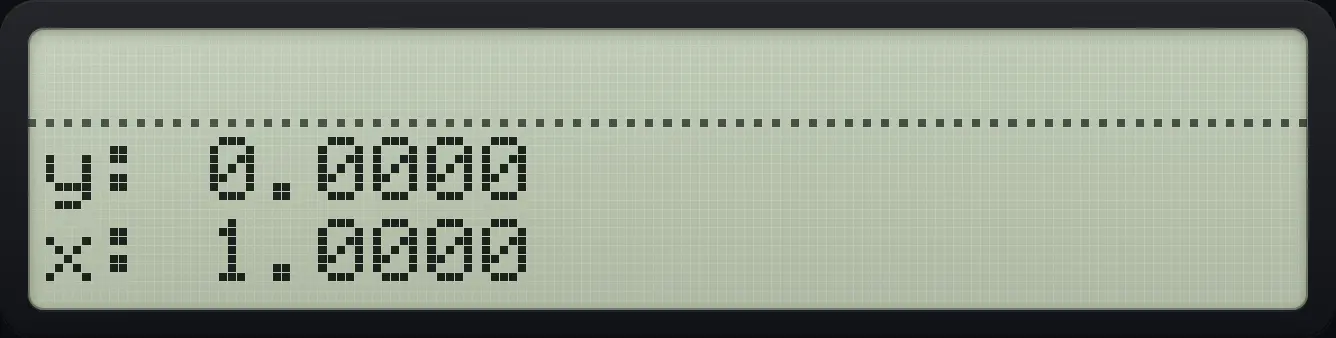
1.00003.6Plan a longer calculation#
Work from the innermost brackets outwards and keep intermediate answers on the stack. The stack has four levels, so you can keep up to four unfinished numbers. If an expression needs more, store a partial result in a variable instead.
Calculate 12 divided by (2 + 4)
Put 12 on the stack.
12ENTERAdd 2 and 4 on top of it.
2ENTER4+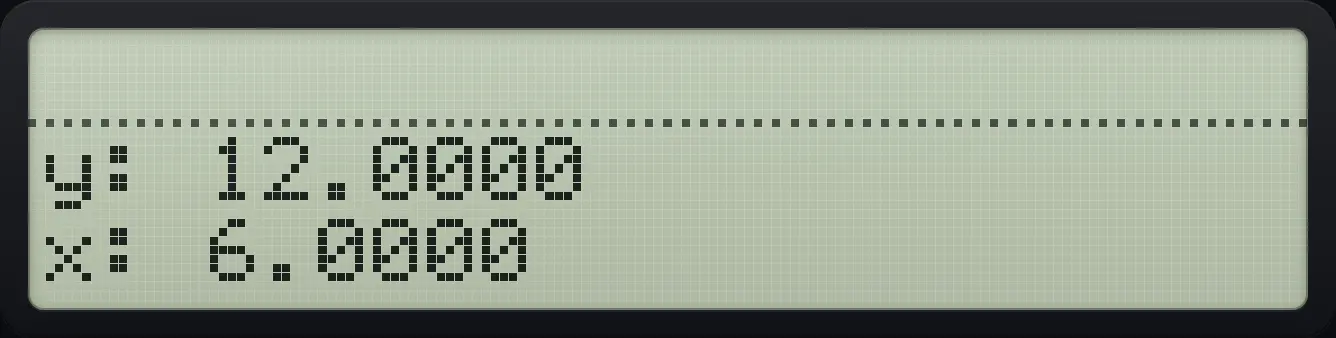
Divide Y by X.
÷
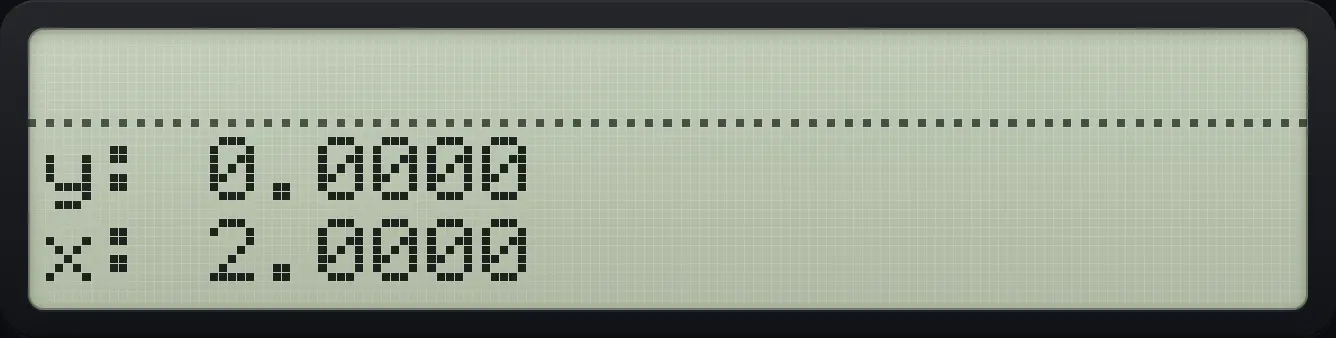
2.0000Calculate (2 × 3) + (4 × 5)
Multiply each pair, then add.
2ENTER3×4ENTER5×+
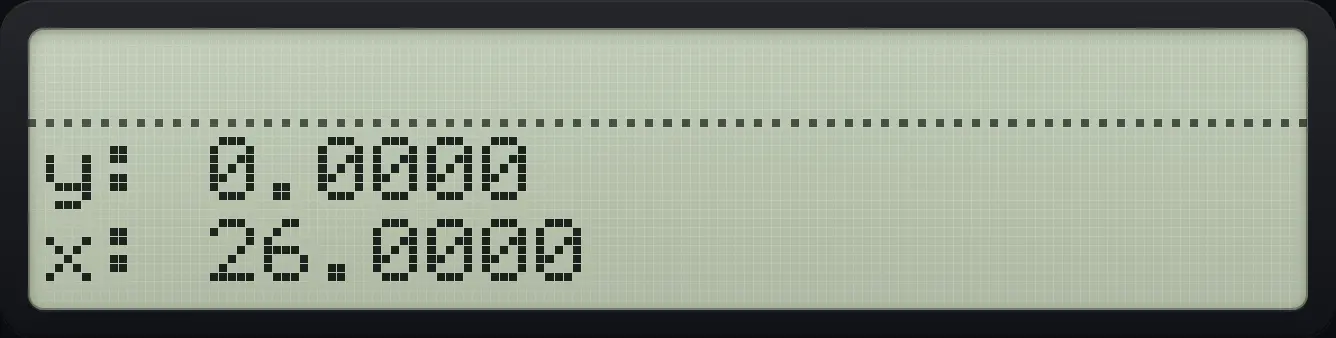
26.00003.7Clear X or the whole stack#
Backspace with no number being typed clears X (CLX). The CLEAR menu offers CST to clear the whole stack. LASTx and variables are not touched. Both leave the stack lift off.
Clear only X
Put 1 and 2 on the stack, press ENTER to copy the 2, then press backspace. X is cleared; the 2 in Y stays.
1ENTER2ENTER←
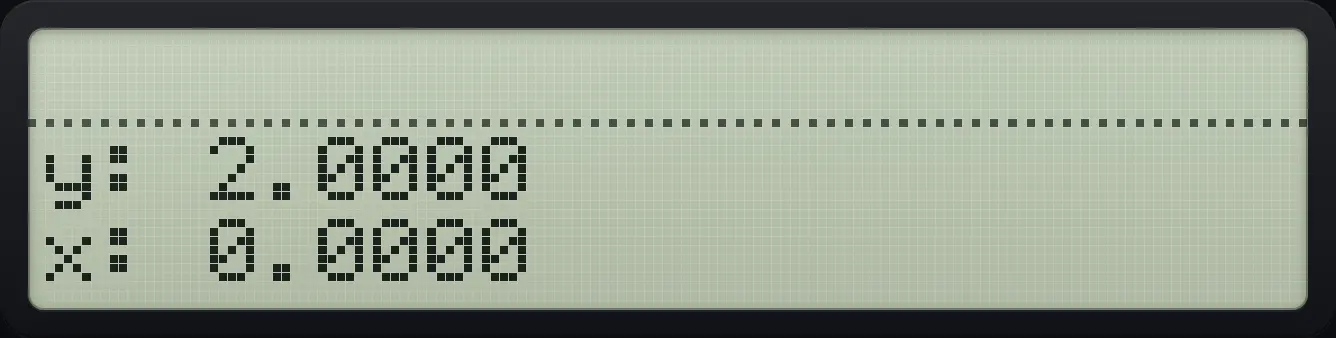
x: 0.0000 y: 2.0000HP-42S is a trademark of HP Inc.. Trident Calculator is an independent product by South View Studios and is not affiliated with, sponsored by or endorsed by HP. The name is used only to describe the kind of calculator this model resembles; Trident's names, keys, display, fonts and software are its own clean-room design.