
RPN Advanced 42 manual · Chapter 1 of 18
Getting started
The two-line screen, the shift key, menus, your first RPN calculation, correcting mistakes and using a laptop keyboard.
1.1What this calculator is for#
RPN Advanced 42 is built for people who like to work step by step. Instead of typing a whole expression and pressing equals, you enter the numbers first and then press the operation key. Every intermediate answer stays visible, and nothing needs brackets.
It is a good fit for engineering and science coursework: it handles complex numbers and matrices as single values, solves equations and integrates programs you write yourself, and converts between number bases.
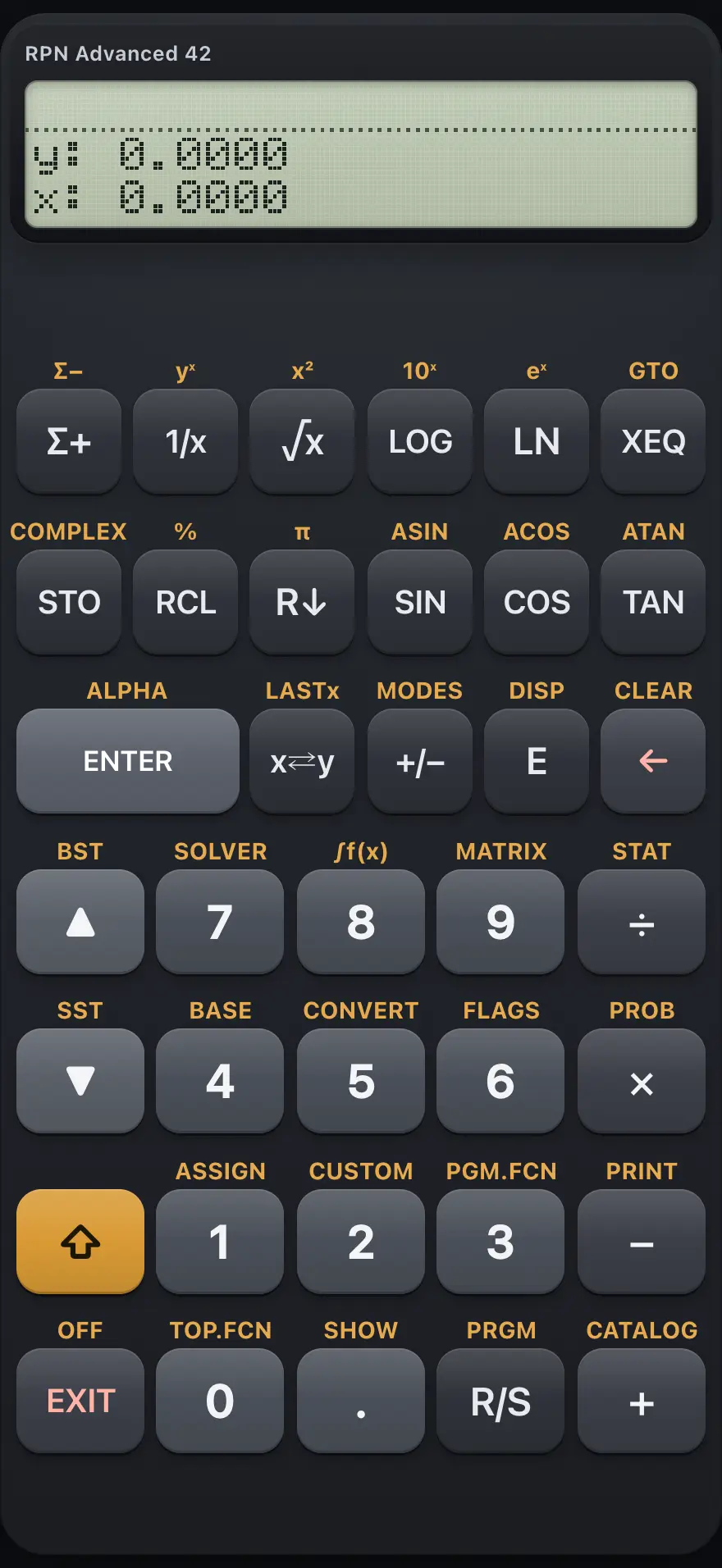
- Two-line display: Y above, X below (menus replace the Y line with a label row)
- Shift key: the next key does its shifted function
- ENTER copies X up the stack; shift ENTER turns on ALPHA mode
- Top row: six keys that double as menu keys
- x swap y: swap X and Y; shifted, brings back the last X
- EXIT closes a menu or prompt
- R/S runs or stops a program; shifted, turns PRGM mode on
- Backspace: deletes a digit or clears X; shifted, opens CLEAR
1.2Read the screen and its indicators#
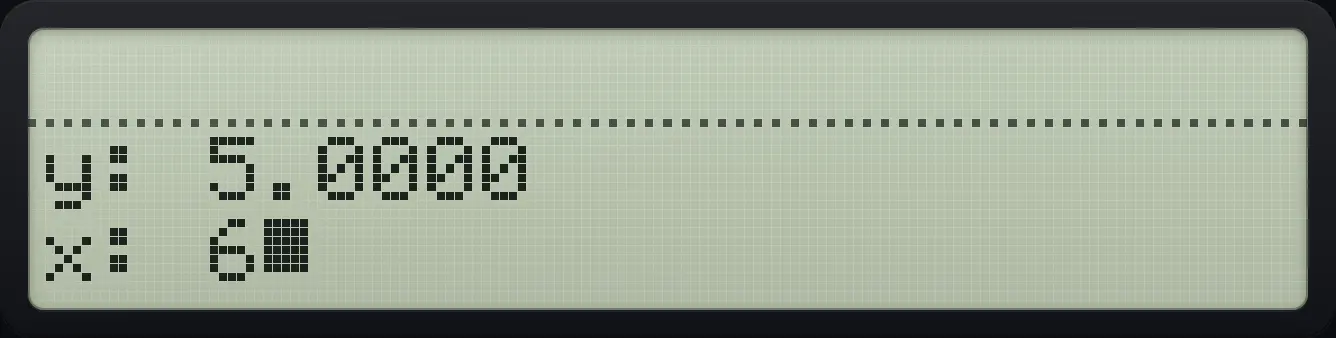
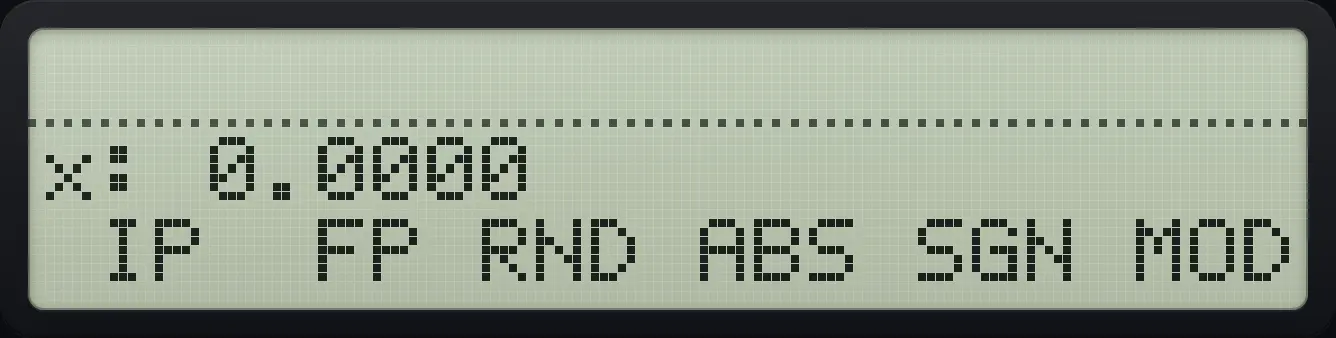
The display has two lines of 23 characters. With no menu open, line 1 shows Y (marked y:) and line 2 shows X (marked x:). X is the number you are working on. When a menu is open, line 1 shows X (or a message or prompt) and line 2 shows six menu labels. Each label has at most three characters, so some are short forms: SMQ is SIMQ, EDT is EDIT, LGC is LOGIC, CRG is CLRG, →PL is →POL, INP is INPUT and so on. The sixth BASE key LGC opens LOGIC; the two last DISP keys R. and R, are the radix marks.
Small indicators appear beside the display text when a mode is on:
| Indicator | Meaning |
|---|---|
| Shift armed | You pressed ⇧; the next key uses its shifted function. Press ⇧ again to cancel. |
| ALPHA | ALPHA mode is on: the top row types letters. |
| RAD or GRAD | The angle unit. Nothing is shown for degrees, the default. |
| PRGM | Program mode: keys are recorded as program lines, not executed. |
| HEX, OCT, BIN | A base other than decimal is active (see the BASE chapter). |
| ∠ | Complex numbers are shown in polar form. |
| Busy | A program is running. |
1.3Use the shift key#
Every key has a second function printed above it. Press ⇧ once, then the key. The shift is a toggle, not a hold: it stays armed until you press the next key. Pressing ⇧ twice cancels it.
Square a number with a shifted key
Type 7, press shift, then the square-root key. Its shifted function is x squared.
7⇧x²√x
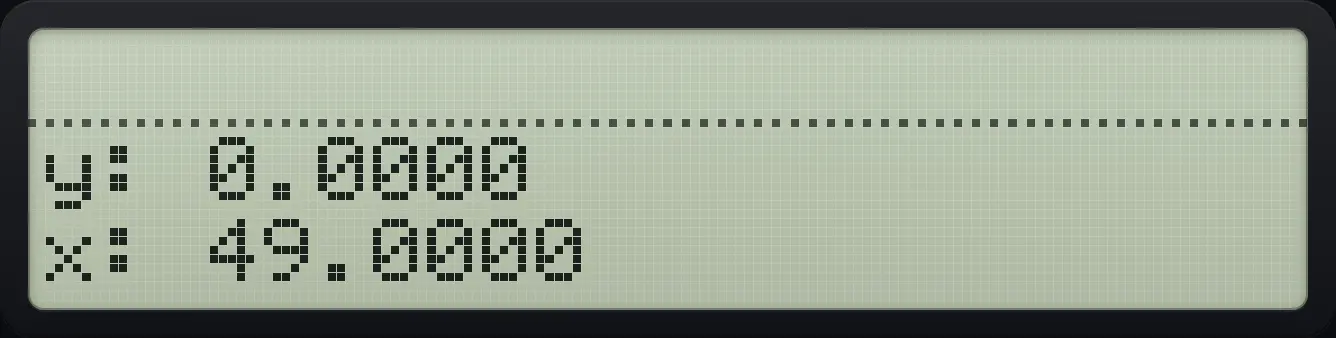
49.0000- ⇧ shift
- + +
- − −
- × ×
- ÷ ÷
1.4Your first calculation#
To add 3 and 4, type 3, press ENTER to separate the numbers, type 4, and press +. The operation always comes last. For longer sums, work from the inside out.
Calculate (3 + 4) × 5
Type 3 and press ENTER to push it onto the stack.
3ENTERType 4 and press +. X now shows 7.
4+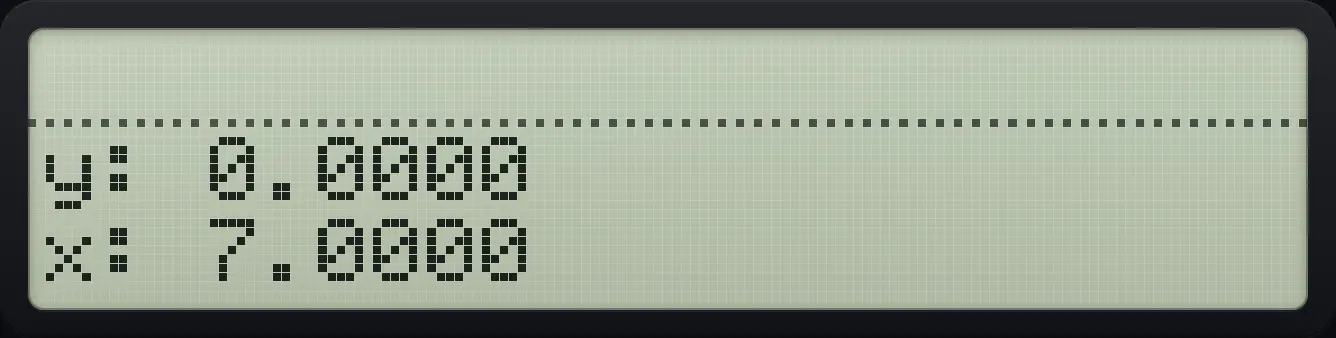
Type 5 and press ×.
5×
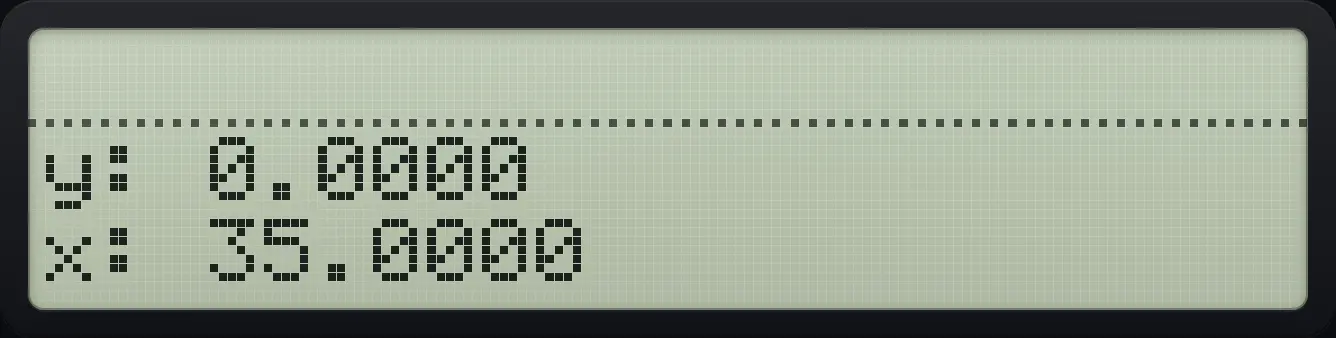
35.0000See also How the RPN stack worksThe stack: The four stack levels
1.5Correct a mistake and clear things#
While you are typing a number, ← removes the last digit. When you are not typing, ← clears X to zero. Shift ← opens the CLEAR menu for larger clean-ups.
Fix a typing mistake
Type 1 2 3, then press the backspace key to drop the 3, and type 4.
123←4
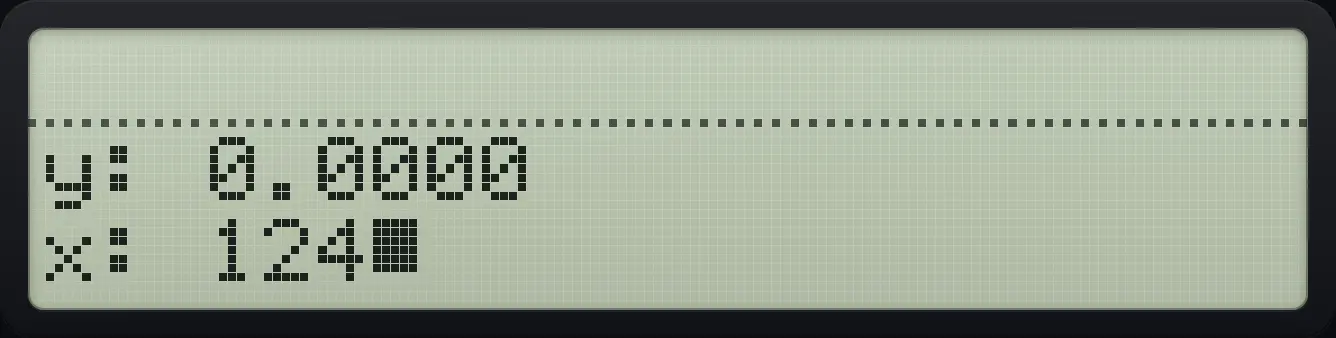
124The underscore after the number shows that you are still typing it.
Clear the whole stack
Put four numbers on the stack.
1ENTER2ENTER3ENTER4Open CLEAR (shift, backspace) and press the fourth menu key, CST.
⇧CLEAR←LOG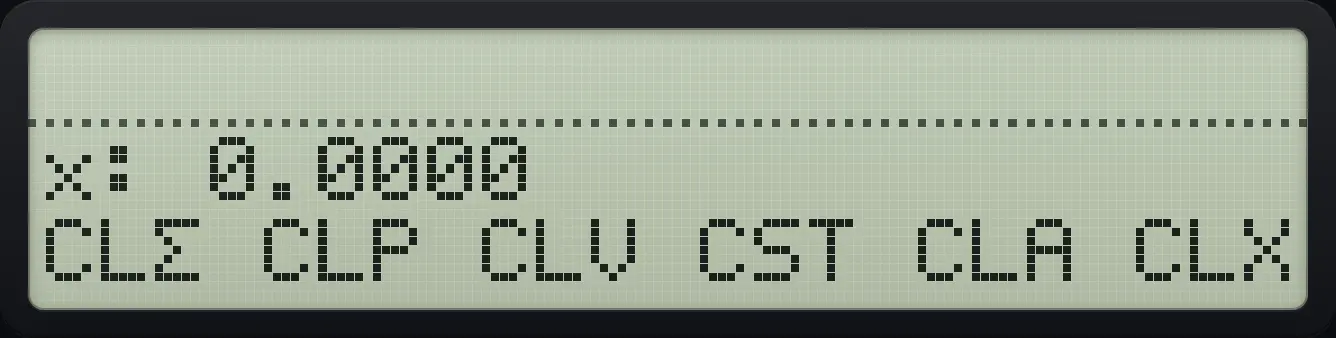
Press EXIT to close the menu.
EXIT
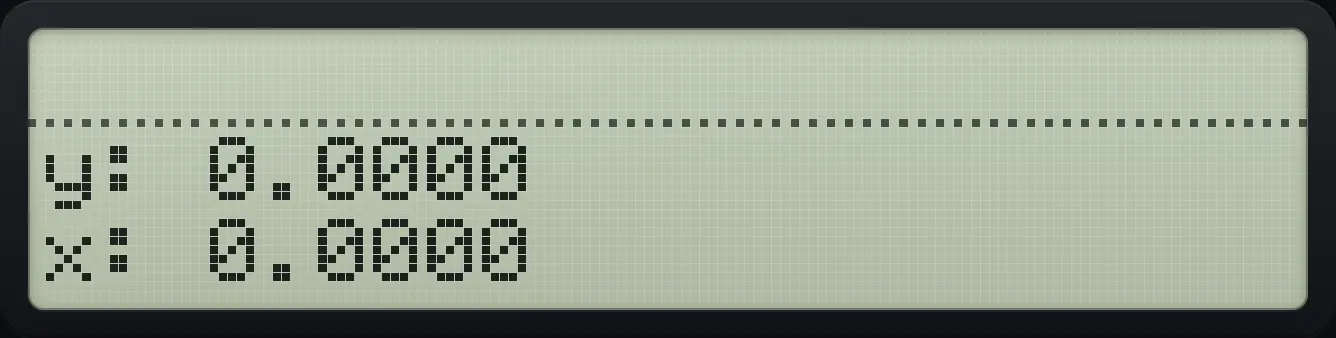
x: 0.0000 y: 0.0000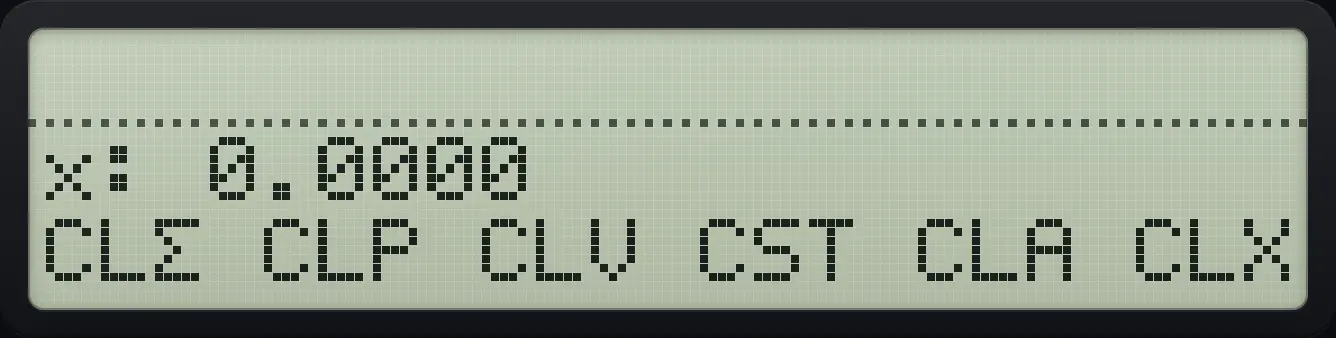
1.6Return to the main screen#
Press EXIT once to close the current menu or prompt, and again if menus are nested. When no menu is open you are on the main screen, with Y and X visible. The stack, variables and programs are never changed by leaving a menu.
Open a menu and leave it
Put 5 and 6 on the stack, then open the MODES menu (shift, +/−).
5ENTER6⇧MODES+/−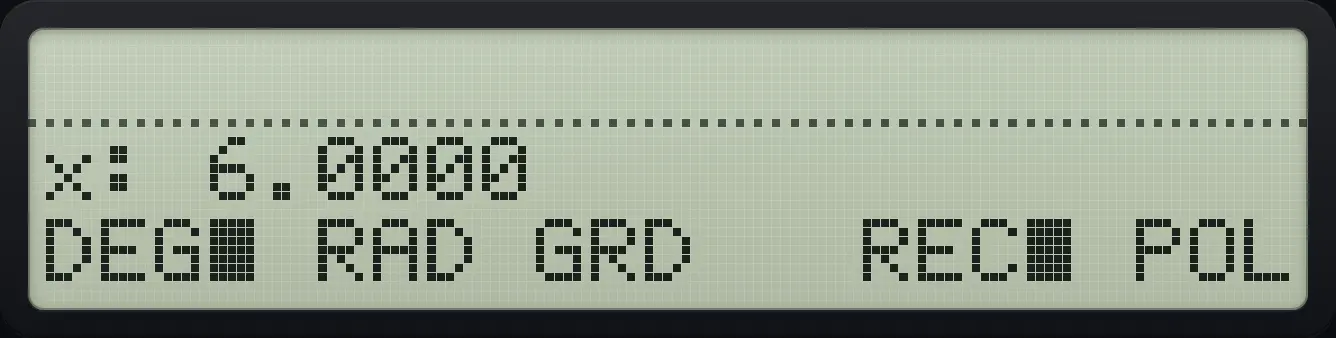
Press EXIT.
EXIT
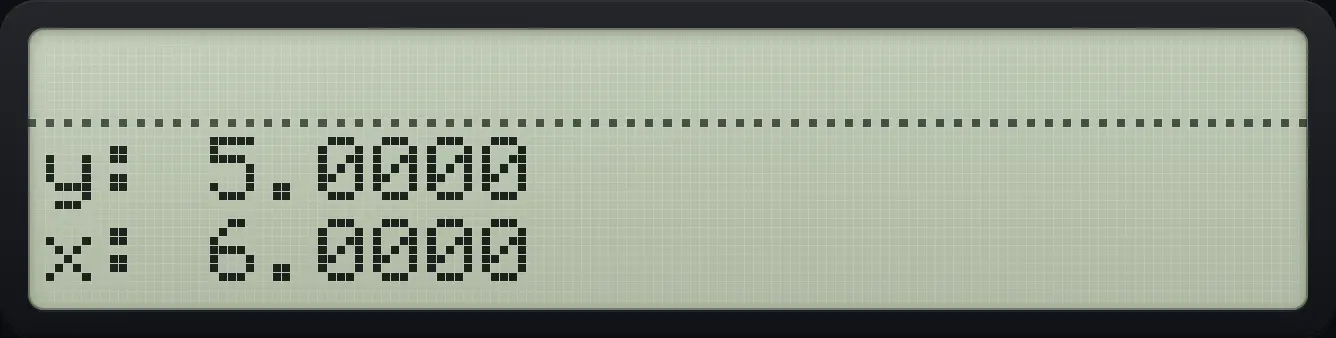
y: 5.0000 x: 6.0000- ⇧
- menu key, e.g. +/−
- pick an item with a top-row key
- EXIT
1.7Use menus#
Shifted keys such as MODES, DISP, MATRIX and STAT open a menu. A menu shows up to six labels on line 2, one above each of the six top-row keys (Σ+ 1/x √x LOG LN XEQ). Press the key under a label to choose it. Long labels are shortened to fit.
Menus with more than six items have several pages. Press ▼ or ▲ to move between pages. A label followed by a filled square, such as DEG■, marks the item that is currently selected.
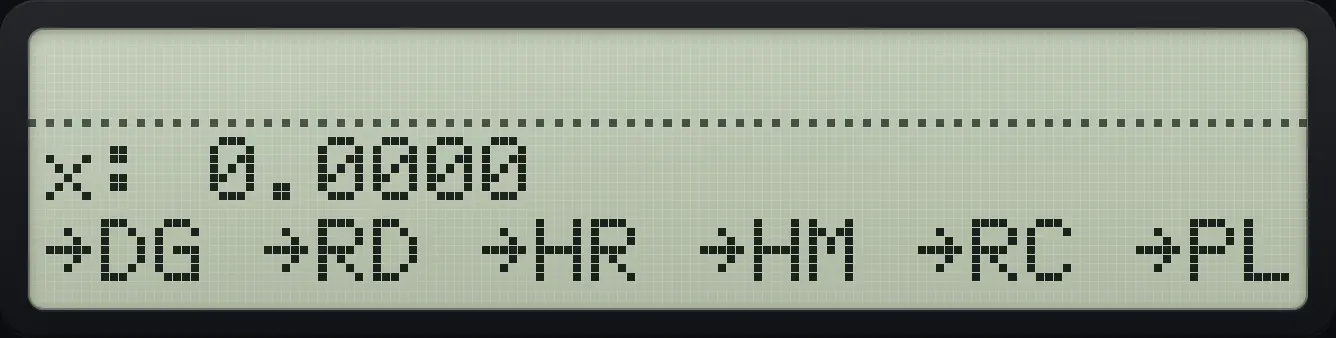
1.8Use a laptop keyboard#
On a computer you can type on the keyboard. Digits, the decimal point and + - * / work as expected, and Enter presses ENTER. These letters and symbols are shortcuts:
| Computer key | Calculator key |
|---|---|
| Escape | EXIT |
| Up / Down arrow | ▲ / ▼ |
| Backspace or Delete | ← |
| s | x⇄y |
| r | R↓ |
| n | +/− |
| e | E |
| q | √x |
| i | 1/x |
| l | LN |
| L (capital) | LOG |
| x | XEQ |
| S (capital) | STO |
| R (capital) | RCL |
| ^ | ⇧yˣ1/x (y to the power x) |
| % | ⇧%RCL (percent) |
| p | ⇧πR↓ (pi) |
See also Type with your computer keyboard
HP-42S is a trademark of HP Inc.. Trident Calculator is an independent product by South View Studios and is not affiliated with, sponsored by or endorsed by HP. The name is used only to describe the kind of calculator this model resembles; Trident's names, keys, display, fonts and software are its own clean-room design.