
RPN Advanced 42 manual · Chapter 10 of 18
Matrices and vectors
Create, edit, invert and multiply matrices, solve linear systems, and use dot and cross products.
10.1The MATRIX menu#
Open MATRIX with shift 9. A matrix is one value on the stack, shown as [ 2×2 Matrix ]. You can store it in a register or a named variable. Entries are real numbers.
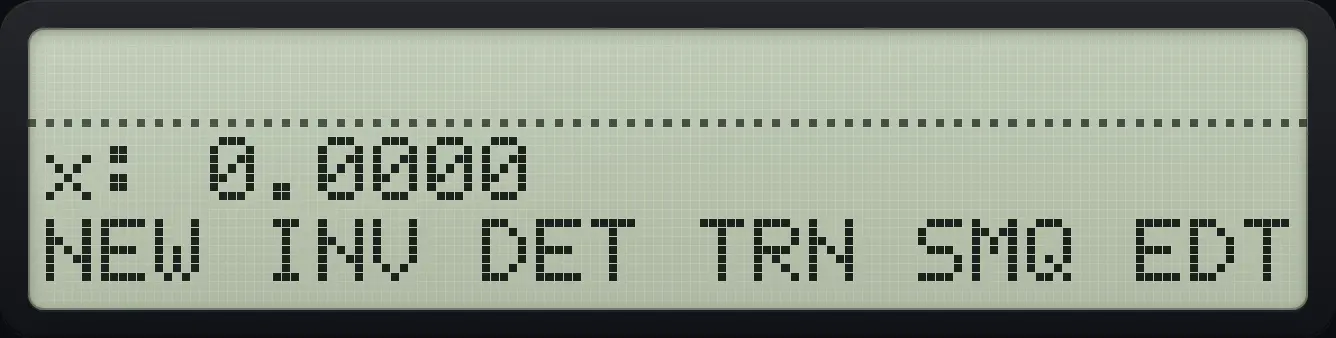
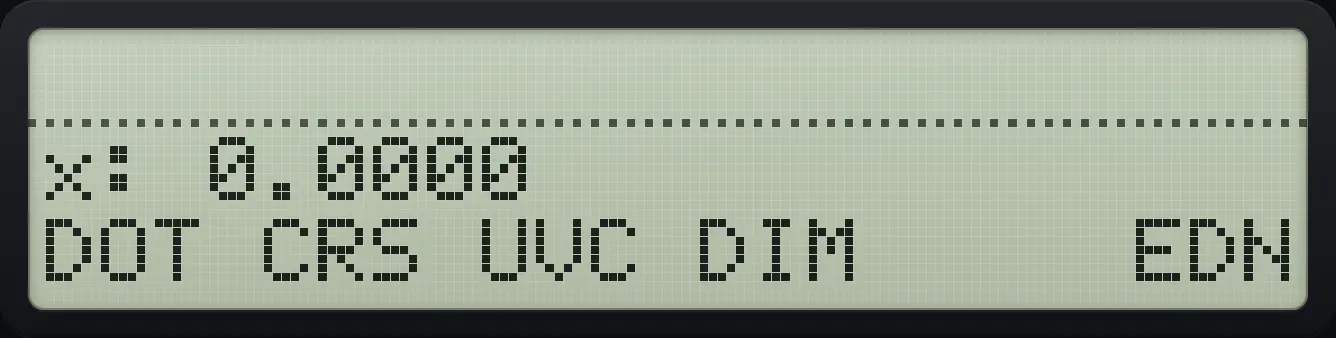
| Label | What it does |
|---|---|
| NEW | Makes a zero matrix. Y = rows, X = columns. |
| INV | Inverse of the matrix in X. |
| DET | Determinant of the matrix in X. |
| TRN | Transpose. |
| SMQ | Solve simultaneous equations (SIMQ). |
| EDT | Edit the matrix in X. |
| DOT (page 2) | Dot product of two vectors. |
| CRS | Cross product of two 3-element vectors. |
| UVC | Unit vector: divides a vector by its length. |
| DIM | Creates or resizes a named matrix (Y rows, X columns). |
| EDN | Edits a named matrix. |
10.2Create and edit a matrix#
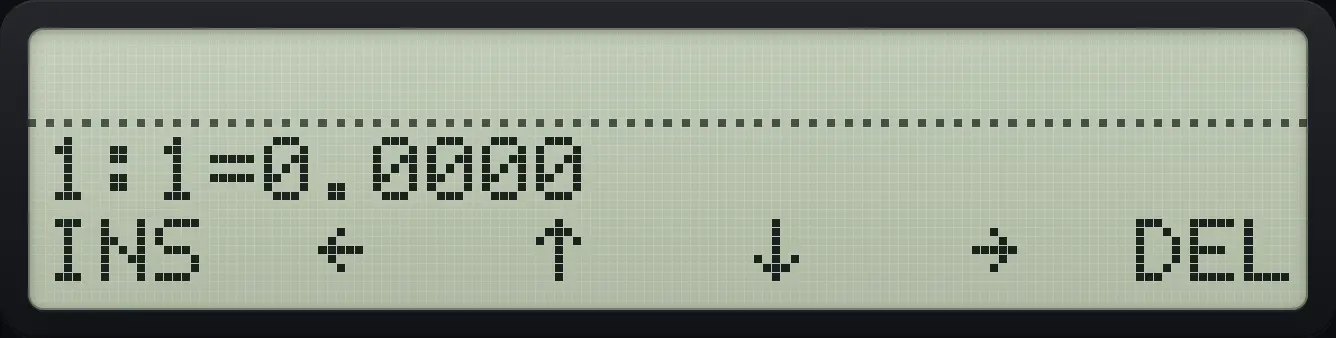
NEW makes a zero matrix, and EDIT opens it in the matrix editor. The top line shows row:column=value. Type a number and press the right-arrow menu key (→) to store it and move on. ENTER does the same as →: it stores the number and moves to the next element (after the last element it wraps to the first). Press EXIT to leave the editor; your edits are kept.
| Menu key | Label | Action |
|---|---|---|
| Σ+ | INS | Insert a row of zeros before the current row. |
| 1/x | ← | Move left (stores the number you were typing). |
| √x | ↑ | Move up. |
| LOG | ↓ | Move down. |
| LN | → | Move right. |
| XEQ | DEL | Delete the current row. |
The ▲ and ▼ keys also move between rows. Moving past the last cell wraps around to the first.
Build [[1, 2], [3, 4]]
Type 2, ENTER, 2 and press NEW (first key).
2ENTER2⇧MATRIX9Σ+Press EDIT (sixth key). Type each number and press → (fifth key); type the last number and EXIT.
XEQ1LN2LN3LN4EXIT![After step 2: Press EDIT (sixth key). Type each number and press → (fifth key); type the last number and EXIT. The display shows: x: [ 2×2 Matrix ] / NEW INV DET TRN SMQ EDT.](/trident/app/help/manual/img/569a1280s.webp)
[ 2×2 Matrix ]Check the editor shows the values
After building the matrix, open EDIT again and move right.
2ENTER2⇧MATRIX9Σ+XEQ1LN2LN3LN4EXITXEQLN
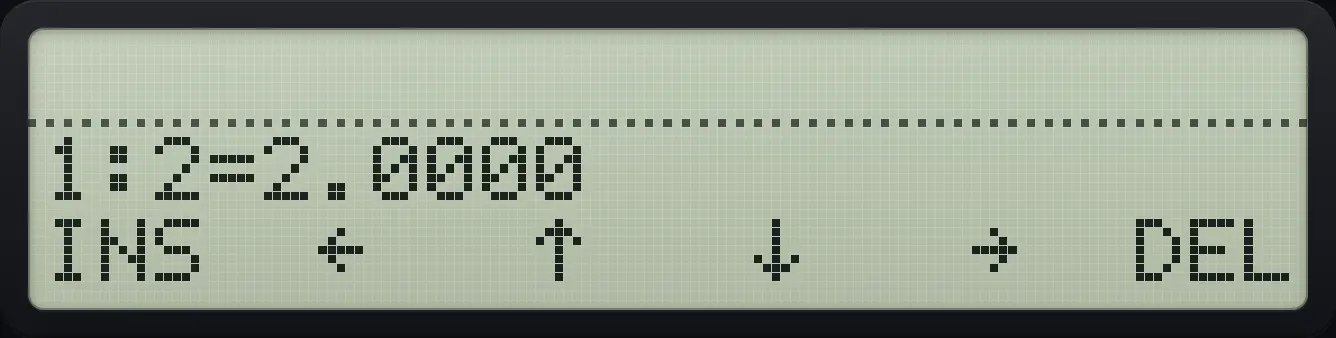
1:2=2.000010.3Determinant, inverse and transpose#
Determinant of [[1,2],[3,4]]
Build the matrix and press DET (third key).
2ENTER2⇧MATRIX9Σ+XEQ1LN2LN3LN4EXIT√x
![Result of the example "Determinant of [[1,2],[3,4]]" The display shows: x: -2.0000 / NEW INV DET TRN SMQ EDT.](/trident/app/help/manual/img/5d307bfas.webp)
-2.0000Inverse: look at the first entry
Build the matrix and press INV (second key).
2ENTER2⇧MATRIX9Σ+XEQ1LN2LN3LN4EXIT1/xOpen the editor to read it: the first value is −2.
XEQ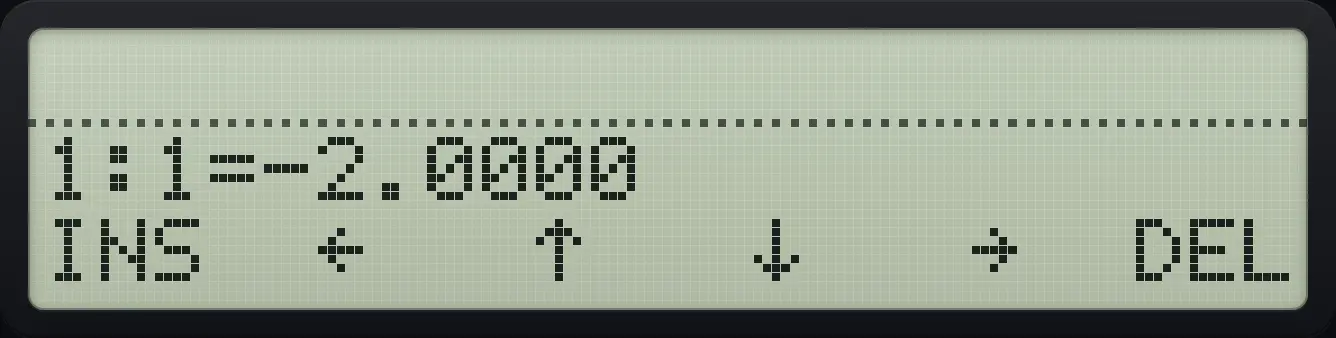
1:1=-2.0000Transpose
Build the matrix and press TRN (fourth key); the entry at 1:2 is now 3.
2ENTER2⇧MATRIX9Σ+XEQ1LN2LN3LN4EXITLOGXEQLN
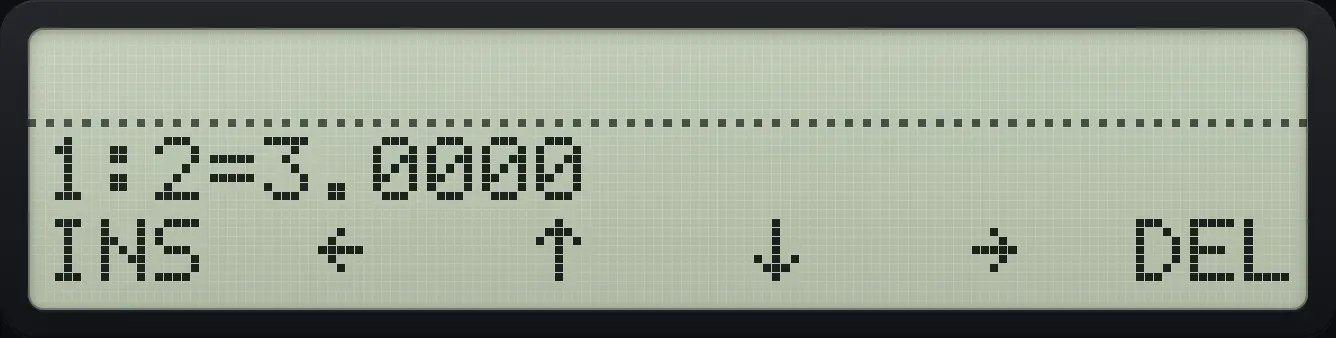
1:2=3.000010.4Add, multiply and scale matrices#
The ordinary operations work on matrices: + and − need matrices of the same size, × multiplies a matrix by a number or by a matrix with matching inner size, and ÷ solves a linear system when Y is the right-hand side matrix and X the coefficient matrix.
Square a matrix
Build [[1,2],[3,4]], duplicate it with ENTER and multiply.
2ENTER2⇧MATRIX9Σ+XEQ1LN2LN3LN4EXITEXITEXITENTER×⇧MATRIX9XEQ
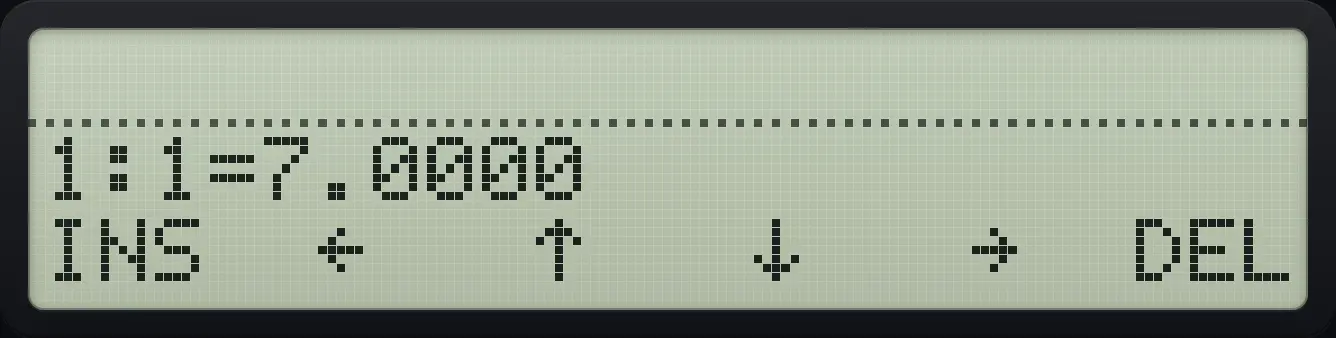
1:1=7.0000Multiply by a number
The first entry of 2 times the matrix is 2.
2ENTER2⇧MATRIX9Σ+XEQ1LN2LN3LN4EXITEXITEXIT2×⇧MATRIX9XEQ
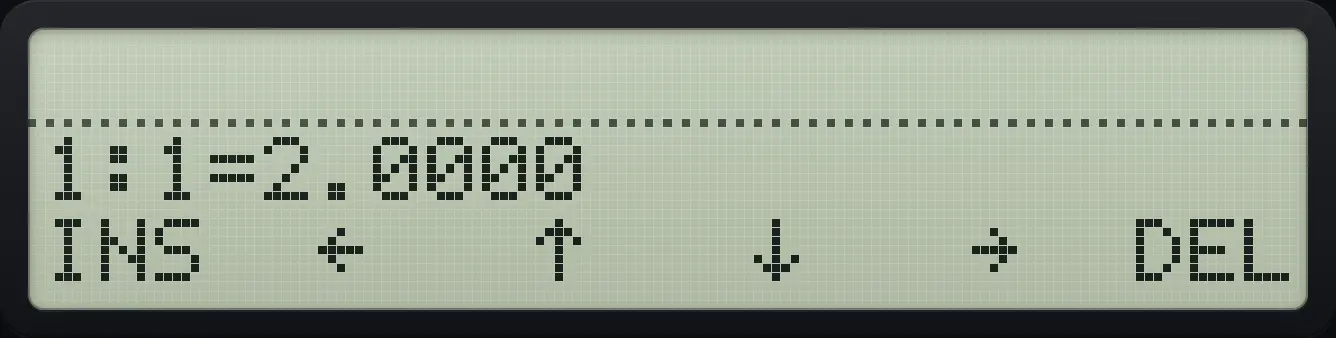
1:1=2.000010.5Solve a system of equations#
SIMQ solves . Type the number of equations and press SMQ. The menu offers A (coefficients), B (right-hand sides) and X (the answer). Edit A and B, then press X to compute and show the solution.
Solve x + y = 3 and x − y = 1
Type 2 and press SIMQ (fifth key). Edit matrix A (first key): 1, 1, 1, −1.
2⇧MATRIX9LNΣ+1LN1LN1LN1+/−EXIT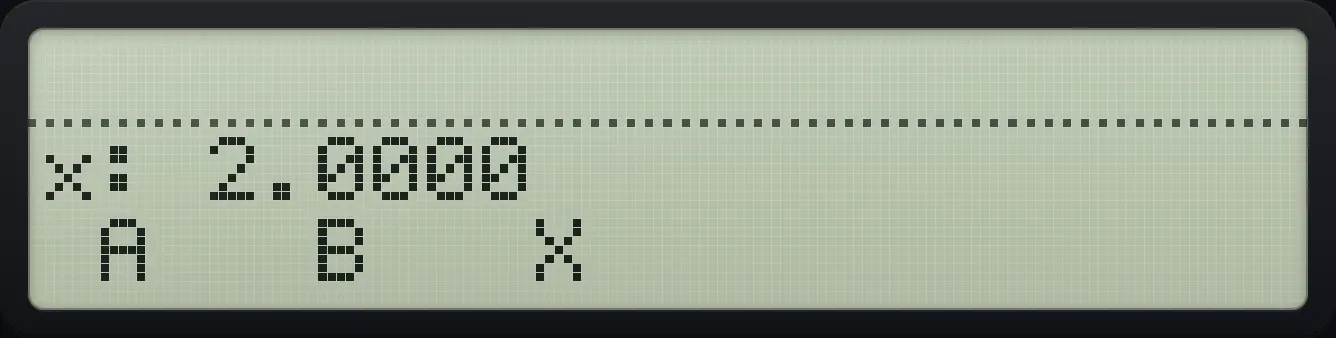
Edit B (second key): 3 and 1.
1/x3LN1EXITPress X (third key). The editor shows x in row 1.
√x
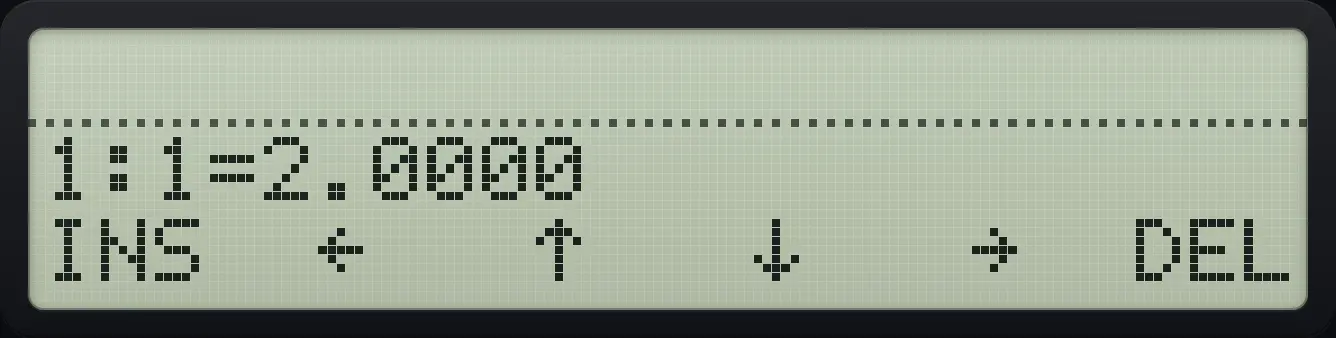
1:1=2.000010.6Dot product, cross product and unit vectors#
A vector is a matrix with one row or one column. DOT needs two vectors of the same length. CRS needs two vectors of length 3. UVC divides a vector by its length.
Dot product of (1,0,0) and (0,1,0)
Build both vectors with NEW 1 × 3 and EDIT.
1ENTER3⇧MATRIX9Σ+XEQ1LN0LN0EXITEXITEXIT1ENTER3⇧MATRIX9Σ+XEQ0LN1LN0EXITOpen page 2 and press DOT.
▼Σ+
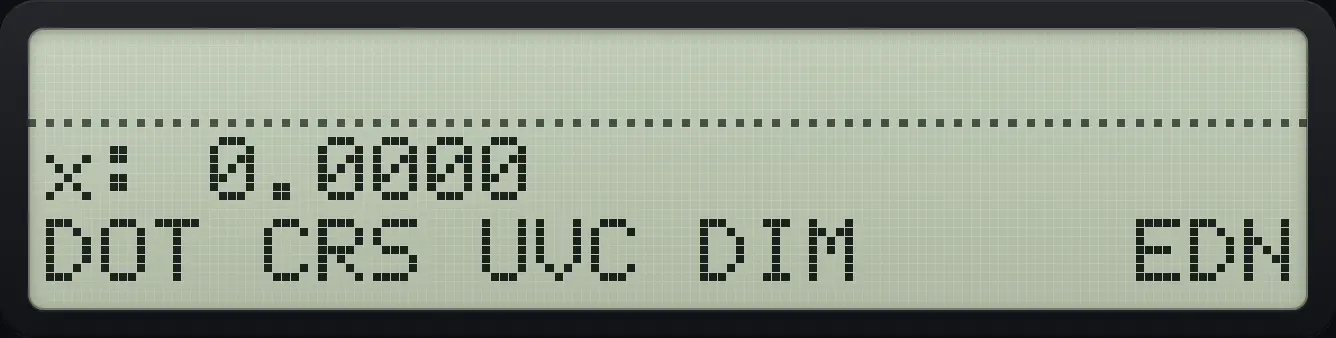
0.0000Unit vector of (3, 4)
Build the vector, open page 2 and press UVC (third key).
1ENTER2⇧MATRIX9Σ+XEQ3LN4EXIT▼√xOpen the editor: the first value is 0.6.
⇧MATRIX9XEQ
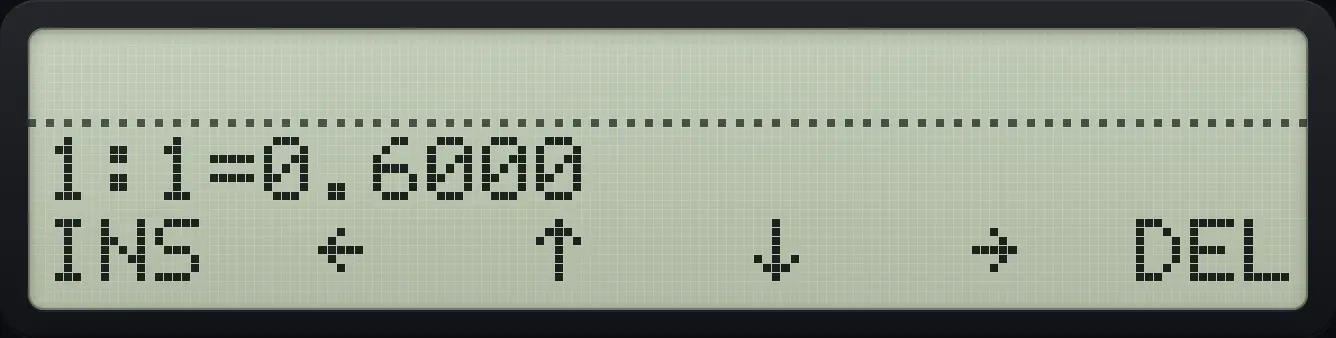
1:1=0.600010.7Name and store matrices#
DIM (page 2, fourth key) makes a named matrix of Y rows and X columns. EDN opens a named matrix for editing. A matrix can also be stored with STO into a register or variable, and recalled with RCL.
Make a named 2 by 3 matrix
Type 2, ENTER, 3, open page 2 and press DIM. Type M (group J K L M, fourth key) and ENTER.
2ENTER3⇧MATRIX9▼LOG√xLOGENTERRecall it.
EXITRCL⇧ALPHAENTER√xLOGENTER
![Result of the example "Make a named 2 by 3 matrix" The display shows: y: 3.0000 / x: [ 2×3 Matrix ].](/trident/app/help/manual/img/ba590999s.webp)
[ 2×3 Matrix ]Store a matrix in a register
Build [[1,2],[3,4]], store it in register 00 and recall it.
2ENTER2⇧MATRIX9Σ+XEQ1LN2LN3LN4EXITSTO000RCL00
![Result of the example "Store a matrix in a register" The display shows: x: [ 2×2 Matrix ] / NEW INV DET TRN SMQ EDT.](/trident/app/help/manual/img/5a8c4867s.webp)
[ 2×2 Matrix ]HP-42S is a trademark of HP Inc.. Trident Calculator is an independent product by South View Studios and is not affiliated with, sponsored by or endorsed by HP. The name is used only to describe the kind of calculator this model resembles; Trident's names, keys, display, fonts and software are its own clean-room design.