
RPN Advanced 42 manual · Chapter 16 of 18
Programming
Record keystrokes as a program: labels, running, loops, tests, subroutines, input and output, flags, and program memory.
16.1Program mode and how lines are recorded#
Shift R/S turns PRGM mode on or off. In PRGM mode keys are not executed; they are recorded as numbered program lines. The display shows the current line and the next line, for example 01▸LBL "CIRC". Line 00 is a header showing the program size, and .END. marks the end of memory. All programs share one memory.
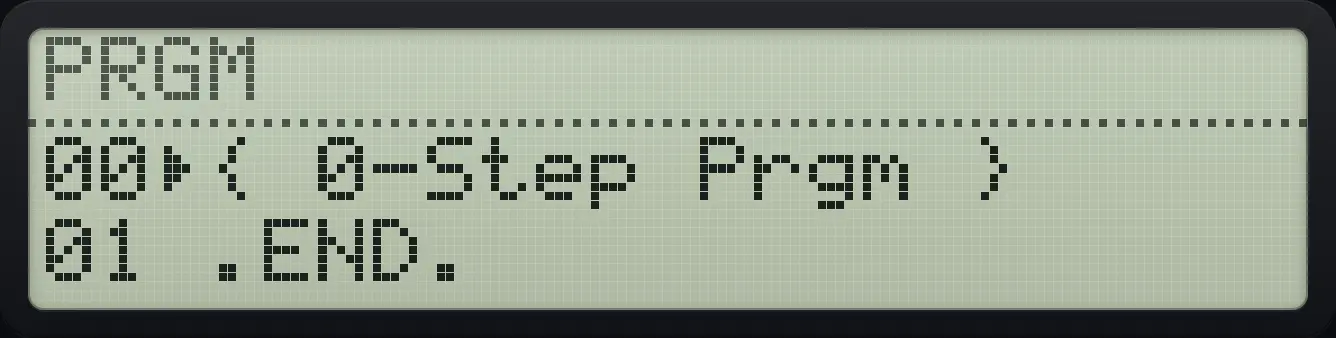
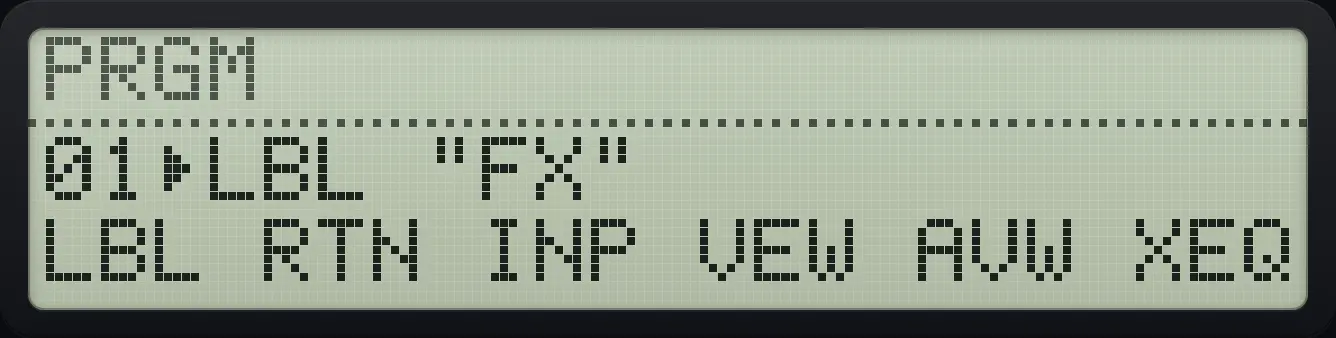
Numbers are recorded as typed. Two numbers in a row need ENTER between them. Press ← to delete the current line and ▲ / ▼ to move through the program. Shift ▲ and shift ▼ (BST and SST) also step through lines.
Record and read a program
Turn on PRGM mode and record a label, then x squared, then pi, then multiply and return.
⇧PRGMR/S⇧PGM.FCN3Σ+⇧ALPHAENTERΣ+√x1/xLOGLNΣ+Σ+√xENTER⇧x²√x⇧πR↓×⇧PGM.FCN31/x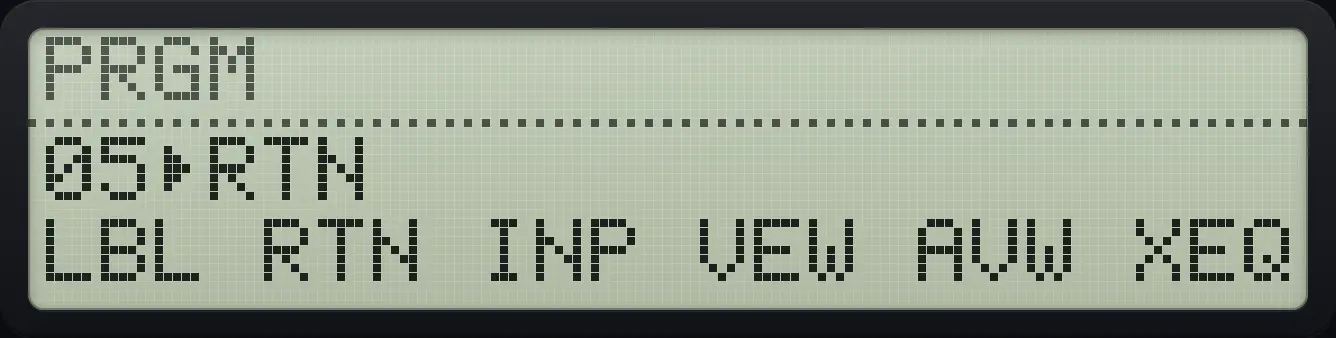
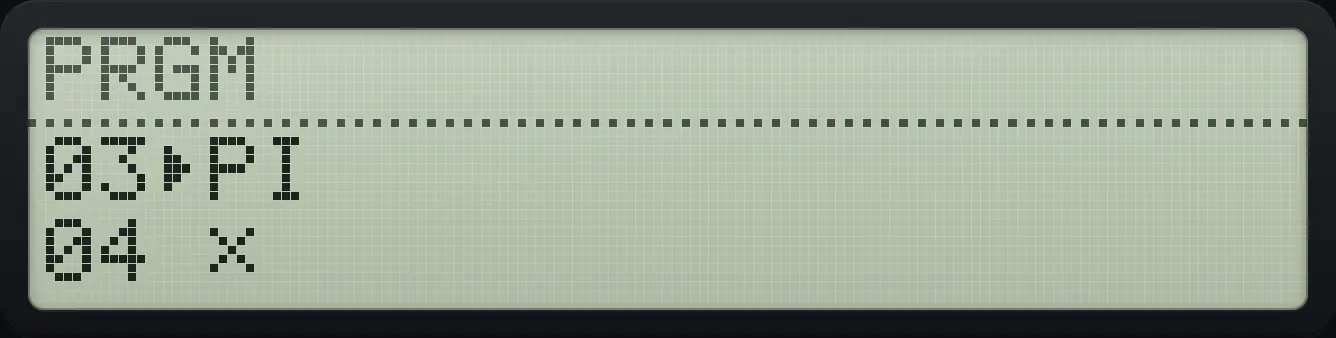
Press EXIT to close the menu, then up twice to move back through the lines.
EXIT▲▲
03▸16.2The PGM.FCN menu#
Shift 3 opens PGM.FCN, the program functions, over three pages.
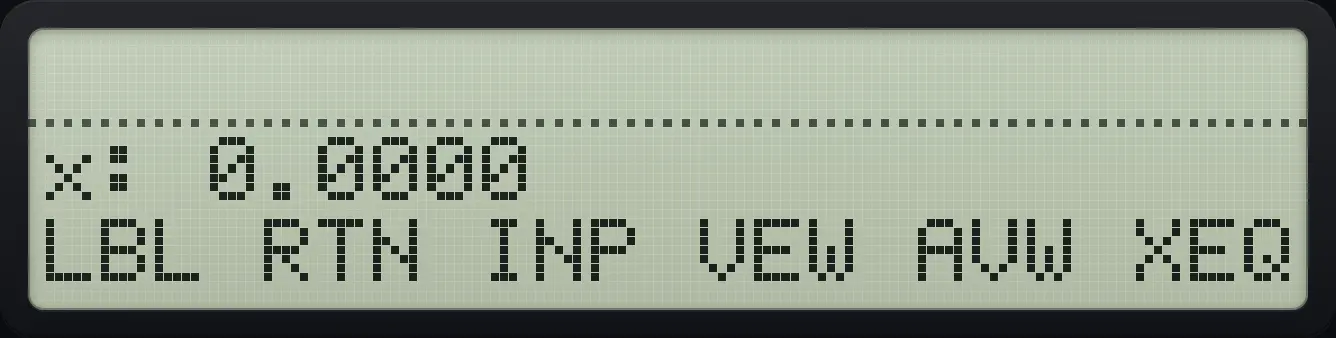
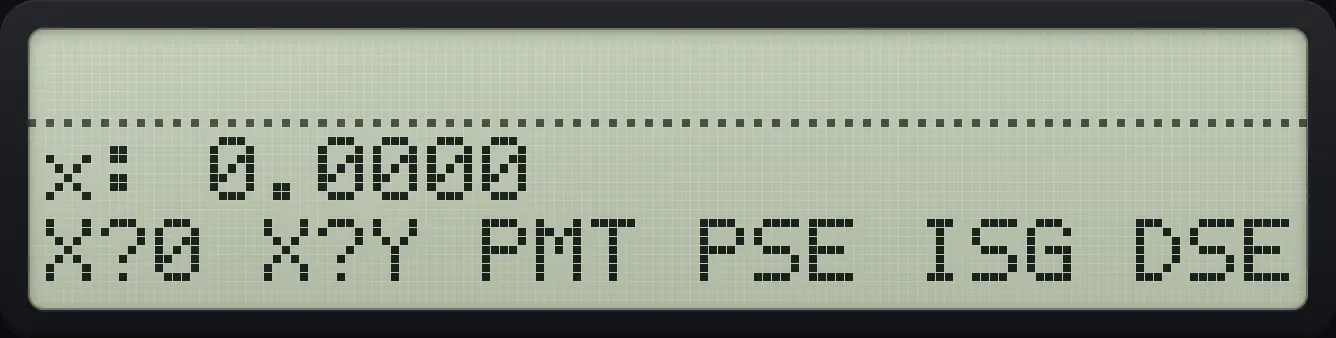
| Item | What it does |
|---|---|
| LBL | Marks a place in the program: a name ("CIRC") or a two-digit number. |
| RTN | Ends the program or returns from a subroutine. |
| INPUT | Asks for a value for a variable; the program stops until you press R/S. |
| VIEW | Shows a variable, as name=value. |
| AVIEW | Shows the ALPHA register. |
| XEQ | Runs a label or calls a subroutine. |
| X?0 | Opens the six comparisons with zero. |
| X?Y | Opens the six comparisons of X with Y. |
| PROMPT | Shows the ALPHA register and stops. |
| PSE | A pause. Programs run instantly in this app, so PSE just leaves X on the display (like VIEW X); it is shown if nothing else is displayed afterwards. |
| ISG, DSE | Counting loops (increment or decrement and skip). |
| MVAR (page 3) | Declares a variable of the solver or integrator. |
16.3Write and run a program#
A global label has a name such as "CIRC", typed in ALPHA. Run it with XEQ and the name, or press XEQ and choose it from the menu. A program continues until RTN. Local labels are two-digit numbers used inside a program.
Circle area program
Record CIRC: label, square, pi, multiply, return.
⇧PRGMR/S⇧PGM.FCN3Σ+⇧ALPHAENTERΣ+√x1/xLOGLNΣ+Σ+√xENTER⇧x²√x⇧πR↓×⇧PGM.FCN31/x⇧PRGMR/SEXITEXIT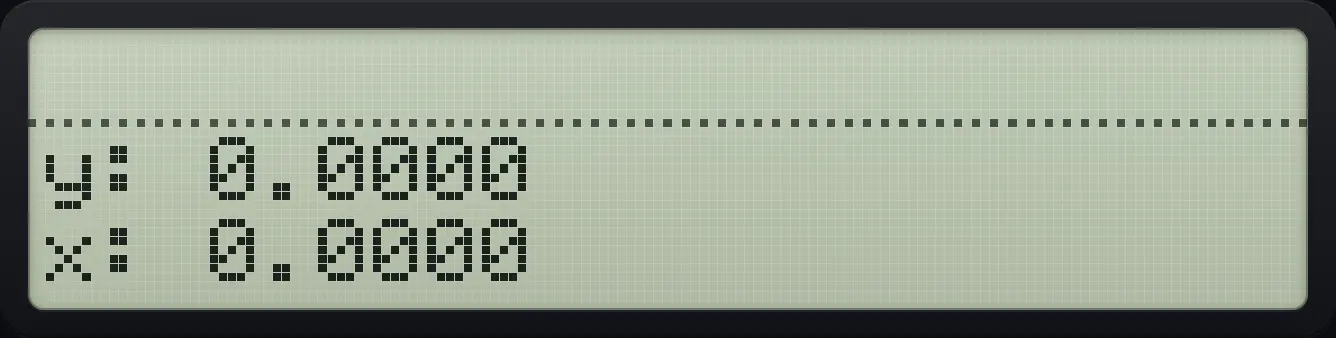
Run it with radius 5: XEQ, then the name.
5XEQ⇧ALPHAENTERΣ+√x1/xLOGLNΣ+Σ+√xENTER
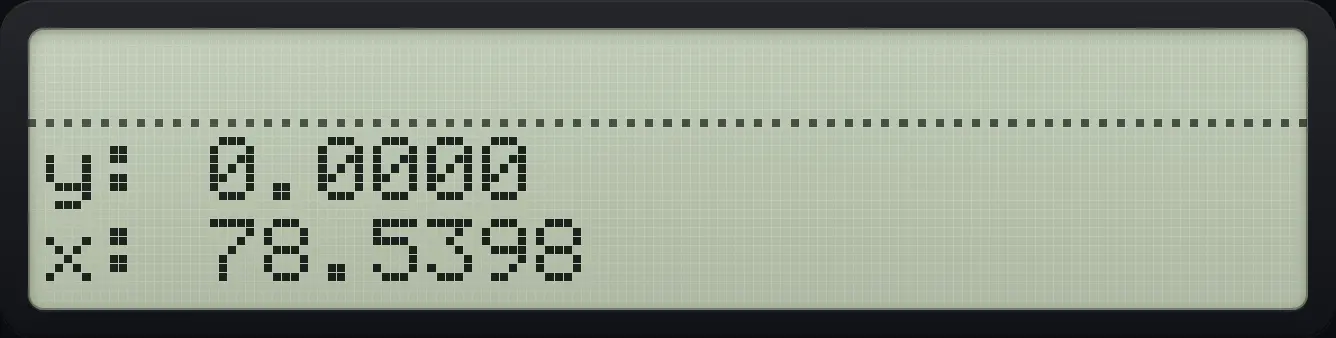
78.5398Hypotenuse from two legs
Record HYP: square, swap, square, add, square root. (EXIT closes the PGM.FCN menu so that the square-root key is not read as a menu key.)
⇧PRGMR/S⇧PGM.FCN3Σ+⇧ALPHAENTER1/x√xXEQ√xLOG√xENTER⇧x²√xx⇄y⇧x²√x+EXIT√x⇧PGM.FCN31/x⇧PRGMR/SEXITEXITEnter 3 and 4 and run it.
3ENTER4XEQ⇧ALPHAENTER1/x√xXEQ√xLOG√xENTER
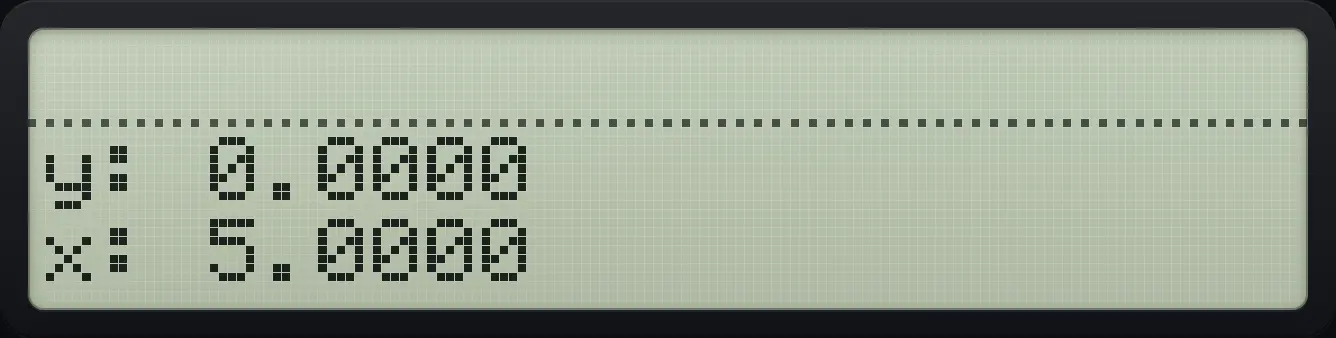
5.0000Choose the program from the XEQ menu
Record CIRC, then press XEQ and the first menu key.
⇧PRGMR/S⇧PGM.FCN3Σ+⇧ALPHAENTERΣ+√x1/xLOGLNΣ+Σ+√xENTER⇧x²√x⇧πR↓×⇧PGM.FCN31/x⇧PRGMR/SEXITEXIT5XEQΣ+
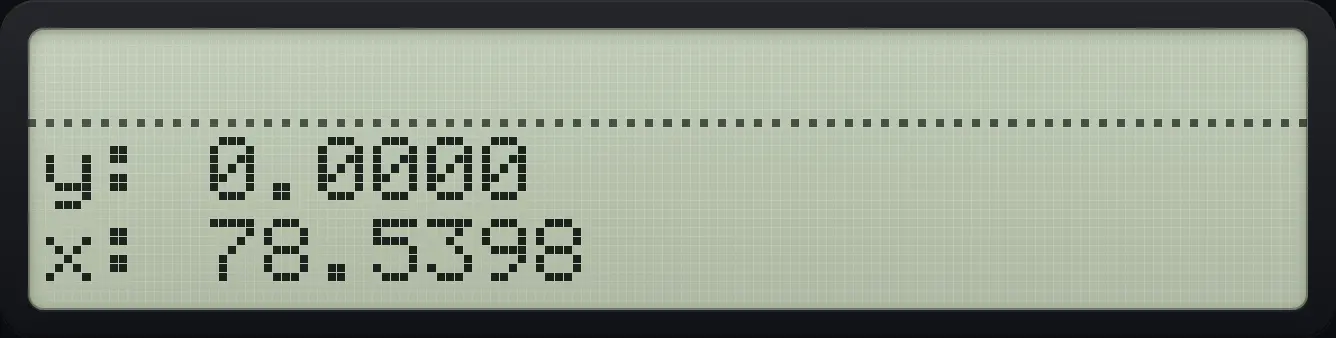
78.5398Running from the CATALOG
Open CATALOG, PGM, and press the program name.
⇧PRGMR/S⇧PGM.FCN3Σ+⇧ALPHAENTERΣ+√x1/xLOGLNΣ+Σ+√xENTER⇧x²√x⇧πR↓×⇧PGM.FCN31/x⇧PRGMR/SEXITEXIT2⇧CATALOG+1/xΣ+
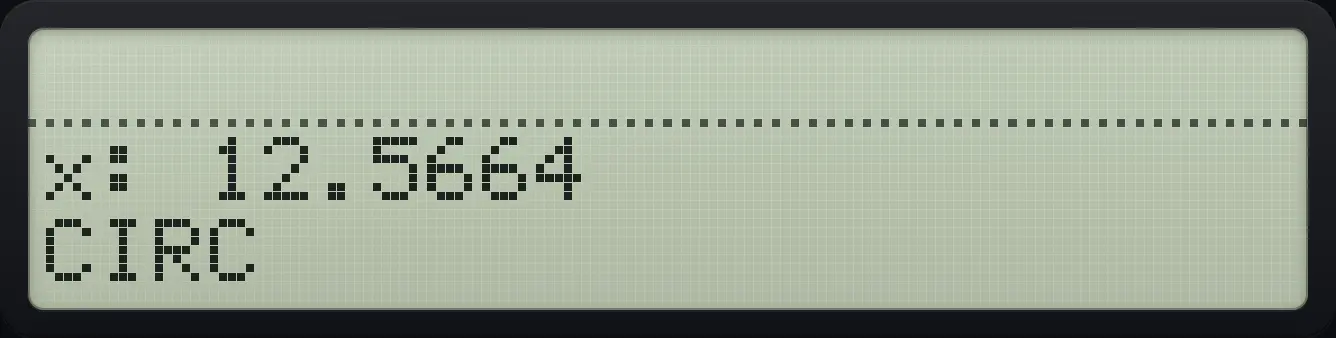
12.5664See also Record a keystroke programNamed programs with variables
16.4Loops with DSE and ISG#
DSE and ISG use a control number of the form : the counter, a final value and an increment. ISG adds the increment; DSE subtracts it. After the change, if the counter has passed the final value, the next program line is skipped. This is how a loop ends.
The program below sums the numbers from N down to 1. It stores N in register 00 and a running total in register 01.
- LBL "SUMN"
- STO 00
- 0
- STO 01
- LBL 01
- RCL 00
- STO+ 01
- DSE 00
- GTO 01
- RCL 01
- RTN
Sum 1 to 5
Record SUMN, then run it with 5.
⇧PRGMR/S⇧PGM.FCN3Σ+⇧ALPHAENTERLN1/xLNLOG√xLOGLOGΣ+ENTERSTO000STO01⇧PGM.FCN3Σ+01RCL00STO+01⇧PGM.FCN3▼XEQ00⇧GTOXEQ01RCL01⇧PGM.FCN31/x⇧PRGMR/SEXITEXIT5XEQ⇧ALPHAENTERLN1/xLNLOG√xLOGLOGΣ+ENTER
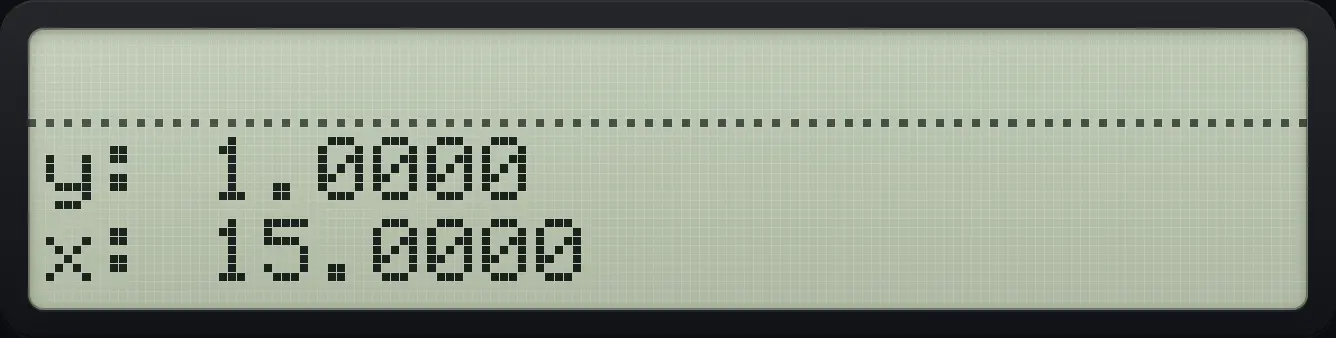
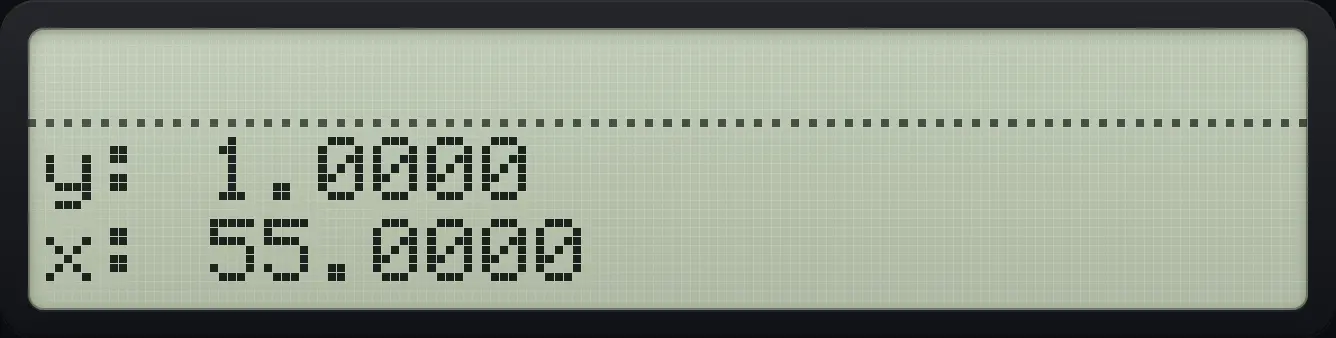
15.0000Sum 1 to 10
The same program with 10.
⇧PRGMR/S⇧PGM.FCN3Σ+⇧ALPHAENTERLN1/xLNLOG√xLOGLOGΣ+ENTERSTO000STO01⇧PGM.FCN3Σ+01RCL00STO+01⇧PGM.FCN3▼XEQ00⇧GTOXEQ01RCL01⇧PGM.FCN31/x⇧PRGMR/SEXITEXIT10XEQ⇧ALPHAENTERLN1/xLNLOG√xLOGLOGΣ+ENTER
55.000016.5Decisions with tests#
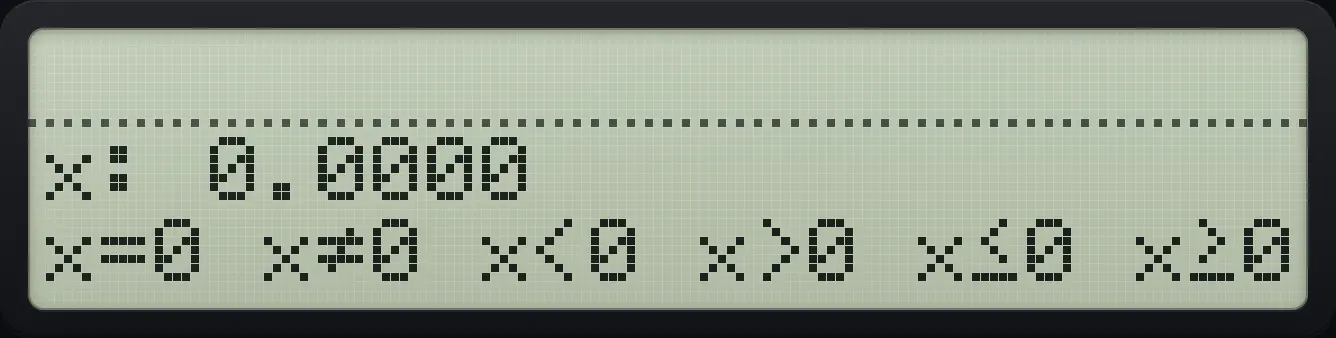
A test line (such as X<0?) makes the next line run only if the test is true. If it is false, the next line is skipped. The test menus are X?0 and X?Y on PGM.FCN page 2. Each has six comparisons: =, ≠, <, >, ≤, ≥.
Absolute value with a test
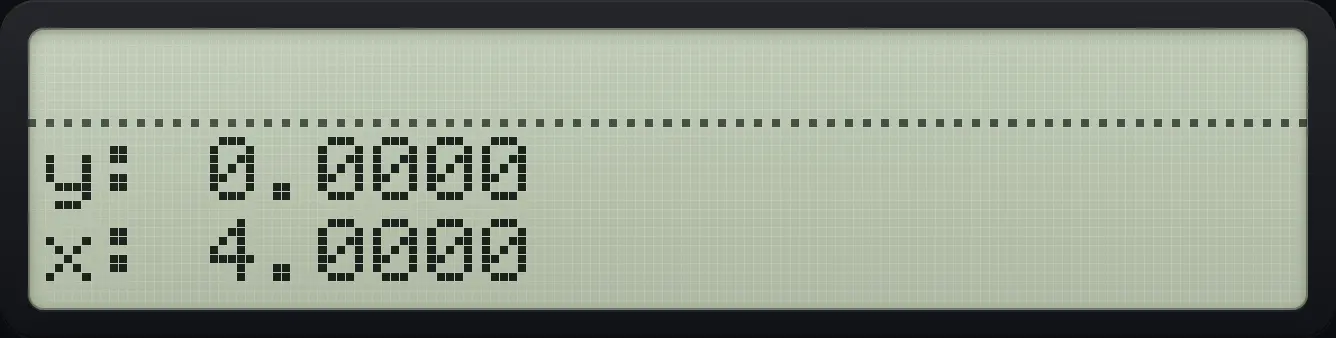
Record AV: if X < 0 then change its sign.
⇧PRGMR/S⇧PGM.FCN3Σ+⇧ALPHAENTERΣ+Σ+LNLNENTER⇧PGM.FCN3▼Σ+√x+/−⇧PGM.FCN31/x⇧PRGMR/SEXITEXITTry it on −4.
4+/−XEQ⇧ALPHAENTERΣ+Σ+LNLNENTER
4.0000Test from the keyboard
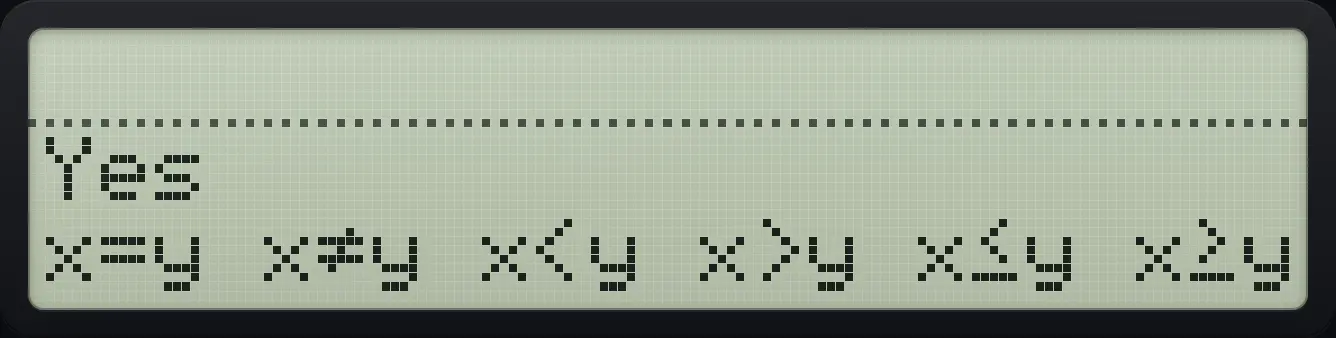
From the keyboard a test answers Yes or No: is 5 less than 3? (Y=5, X=3, X<Y? is the third key of X?Y).
5ENTER3⇧PGM.FCN3▼1/x√x
Yes16.6Subroutines and local labels#
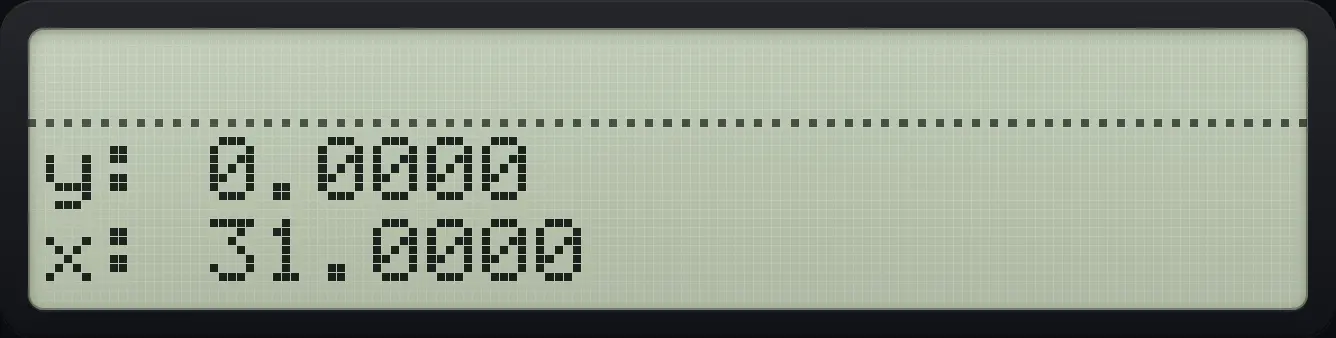
XEQ with a two-digit number calls a local label in the same program; RTN returns to the line after the call. GTO with a label jumps without returning. GTO then . and three digits moves the pointer to a line number; GTO . . goes to the end.
Call a local subroutine
Record SB: call 05, add 1, return; label 05 multiplies by 10.
⇧PRGMR/S⇧PGM.FCN3Σ+⇧ALPHAENTERLN1/xΣ+1/xENTERXEQ051+⇧PGM.FCN31/x⇧PGM.FCN3Σ+0510×⇧PGM.FCN31/x⇧PRGMR/SEXITEXITRun with 3: (3 × 10) + 1.
3XEQ⇧ALPHAENTERLN1/xΣ+1/xENTER
31.000016.7Ask for input and show results#
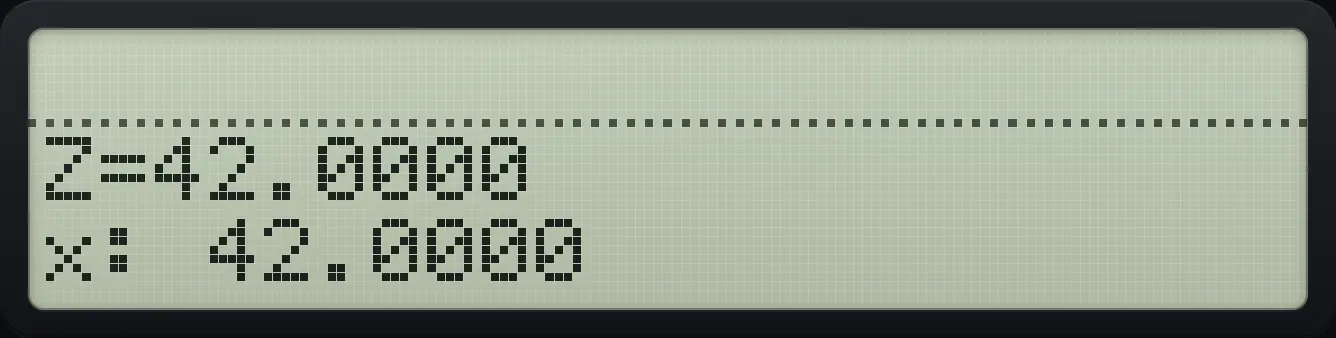
INPUT asks for a variable: the screen shows the name and its current value, for example R?0.0000. Type the value and press R/S to continue. VIEW shows name=value. AVIEW shows text from the ALPHA register. PROMPT shows the ALPHA text and stops; press R/S to continue.
Ask for a radius
Record IN: INPUT R, then compute the circle area.
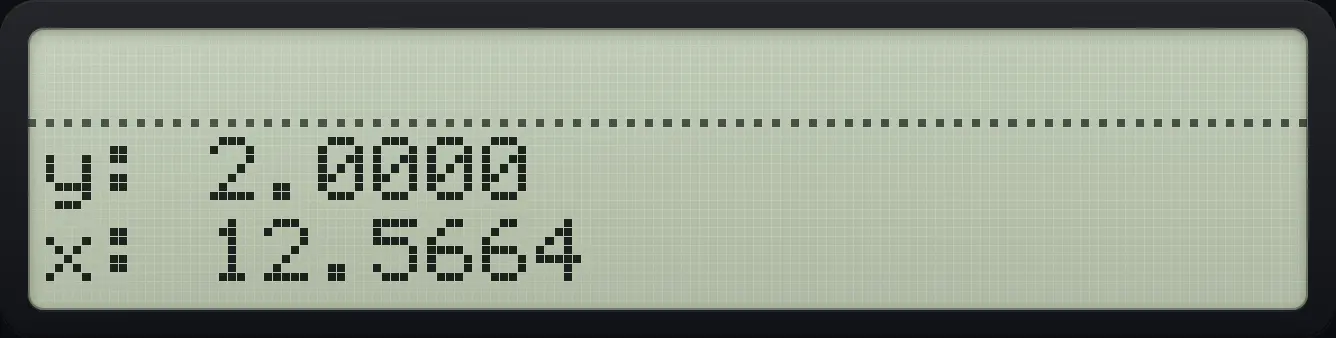
⇧PRGMR/S⇧PGM.FCN3Σ+⇧ALPHAENTER1/xLOGLOGΣ+ENTER⇧PGM.FCN3√x⇧ALPHAENTERLNΣ+ENTERRCL⇧ALPHAENTERLNΣ+ENTER⇧x²√x⇧πR↓×⇧PGM.FCN31/x⇧PRGMR/SEXITEXITRun it: the program stops and asks for R.
XEQ⇧ALPHAENTER1/xLOGLOGΣ+ENTER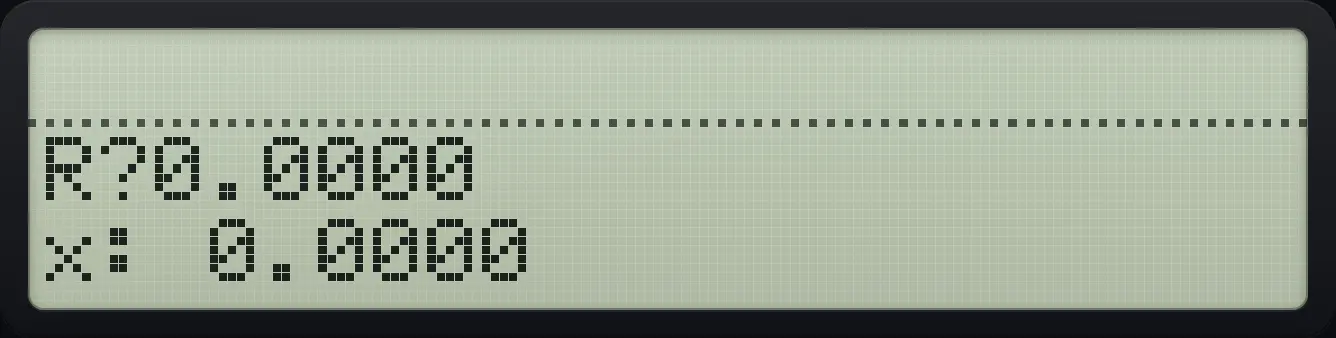
Type 2 and press R/S.
2R/S
12.5664Show a variable
Record VW: store 42 in Z and VIEW it.
⇧PRGMR/S⇧PGM.FCN3Σ+⇧ALPHAENTERLNLNXEQΣ+ENTER42STO⇧ALPHAENTERXEQLOGENTER⇧PGM.FCN3LOG⇧ALPHAENTERXEQLOGENTER⇧PGM.FCN31/x⇧PRGMR/SEXITEXITRun it.
XEQ⇧ALPHAENTERLNLNXEQΣ+ENTER
Z=42.0000Prompt with a message
Record PR: type HELLO in ALPHA, then PROMPT, then 7.
⇧PRGMR/S⇧PGM.FCN3Σ+⇧ALPHAENTERLOG√xLNΣ+ENTER⇧ALPHAENTER1/x√xΣ+LN√x√x√x√xLOG1/xENTER⇧PGM.FCN3▼√x7⇧PRGMR/SEXITEXITRun it; it shows HELLO and waits.
XEQ⇧ALPHAENTERLOG√xLNΣ+ENTER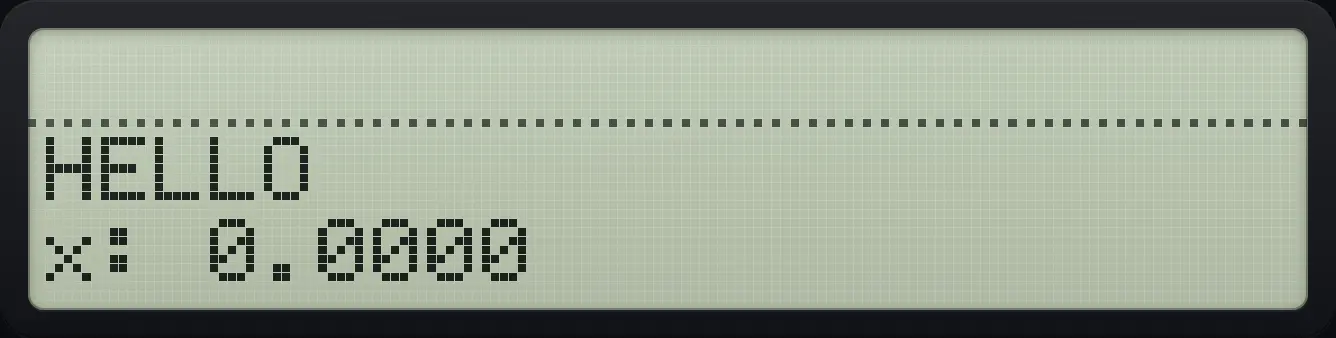
Press R/S to continue.
R/S
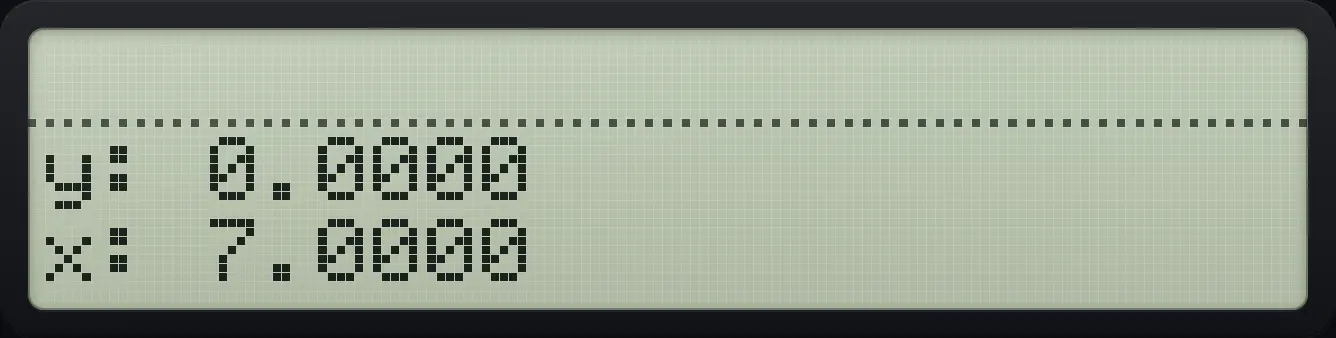
x: 7.0000Show text with AVIEW
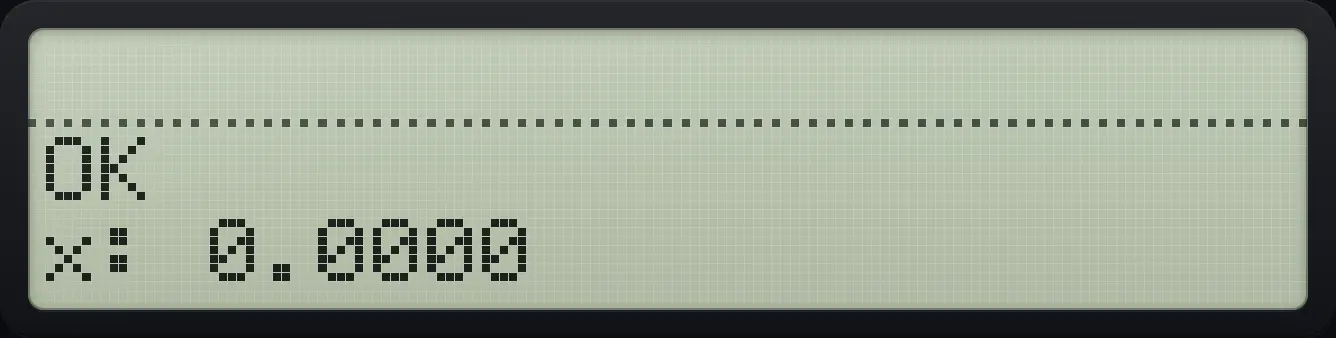
Record AW: HELLO text then AVIEW.
⇧PRGMR/S⇧PGM.FCN3Σ+⇧ALPHAENTERΣ+Σ+XEQΣ+ENTER⇧ALPHAENTERLOG1/x√x1/xENTER⇧PGM.FCN3LN⇧PRGMR/SEXITEXITXEQ⇧ALPHAENTERΣ+Σ+XEQΣ+ENTER
OK16.8Flags in a program#
Set a flag and branch on it
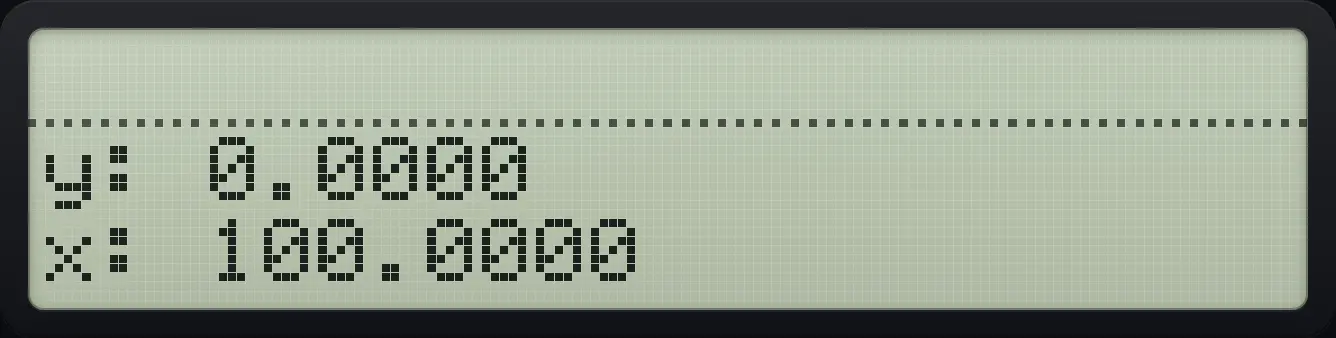
Record FL: set flag 01, then if it is set run the next line (100).
⇧PRGMR/S⇧PGM.FCN3Σ+⇧ALPHAENTER1/xΣ+√x√xENTER⇧FLAGS6Σ+01⇧FLAGS6√x01100⇧PRGMR/SEXITEXITRun it.
XEQ⇧ALPHAENTER1/xΣ+√x√xENTER
100.000016.9Stop, step and interrupt#
Press R/S in PRGM mode to record a STOP line. When it runs, the program stops there and R/S resumes it. Outside PRGM mode, shift ▼ (SST) runs one program line at a time. A program that loops forever stops itself with the message Interrupted after about a million steps.
Stop and resume
Record ST: double X, stop, then add 3.
⇧PRGMR/S⇧PGM.FCN3Σ+⇧ALPHAENTERLN1/xLN√xENTER2×R/S3+⇧PRGMR/SEXITEXITRun it with 5. It stops with 10 in X.
5XEQ⇧ALPHAENTERLN1/xLN√xENTER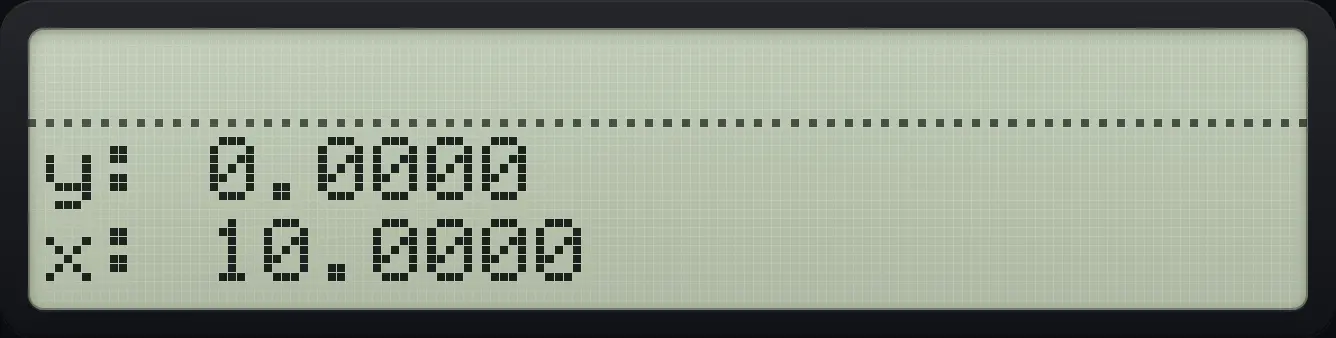
Press R/S to resume: 13.
R/S
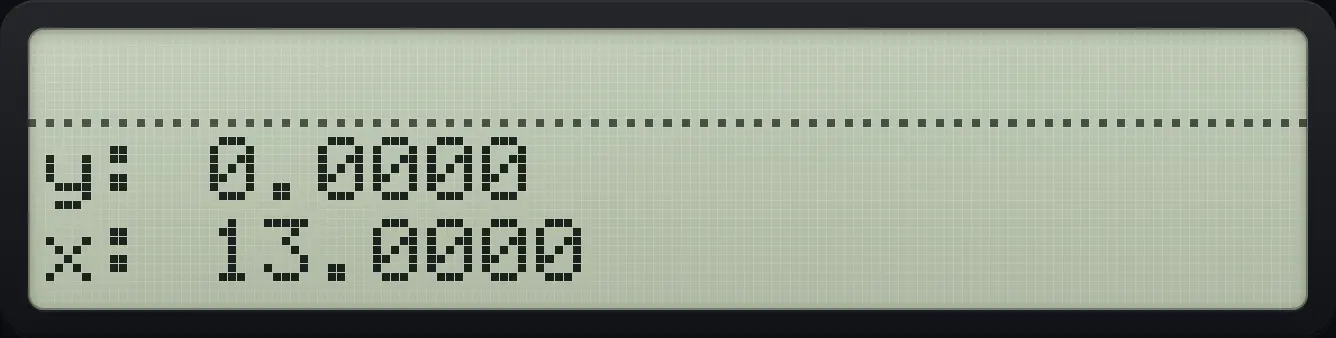
13.0000An endless loop is interrupted
Record IL: label 01 then GTO 01.
⇧PRGMR/S⇧PGM.FCN3Σ+⇧ALPHAENTER1/xLOG√x√xENTER⇧PGM.FCN3Σ+01⇧GTOXEQ01⇧PRGMR/SEXITEXITRun it.
XEQ⇧ALPHAENTER1/xLOG√x√xENTER
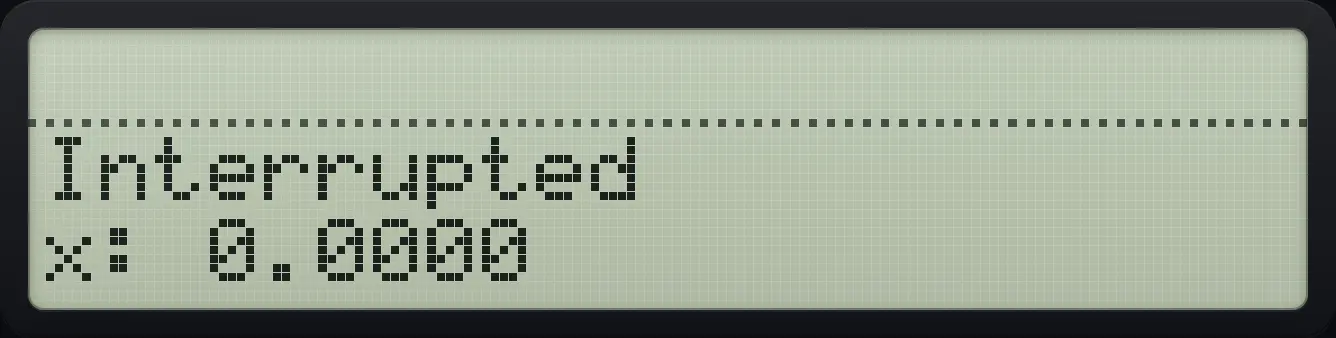
Interrupted16.10Delete a program#
Use CLP in the CLEAR menu (second key) and choose the label name. It removes that program up to the next global label. Deleting a single line in PRGM mode is done with ←.
Delete a program by name
Record CIRC, then CLEAR, CLP and its name.
⇧PRGMR/S⇧PGM.FCN3Σ+⇧ALPHAENTERΣ+√x1/xLOGLNΣ+Σ+√xENTER⇧x²√x⇧πR↓×⇧PGM.FCN31/x⇧PRGMR/SEXITEXIT⇧CLEAR←1/xΣ+Try to run it: the label is gone.
EXIT5XEQ⇧ALPHAENTERΣ+√x1/xLOGLNΣ+Σ+√xENTER
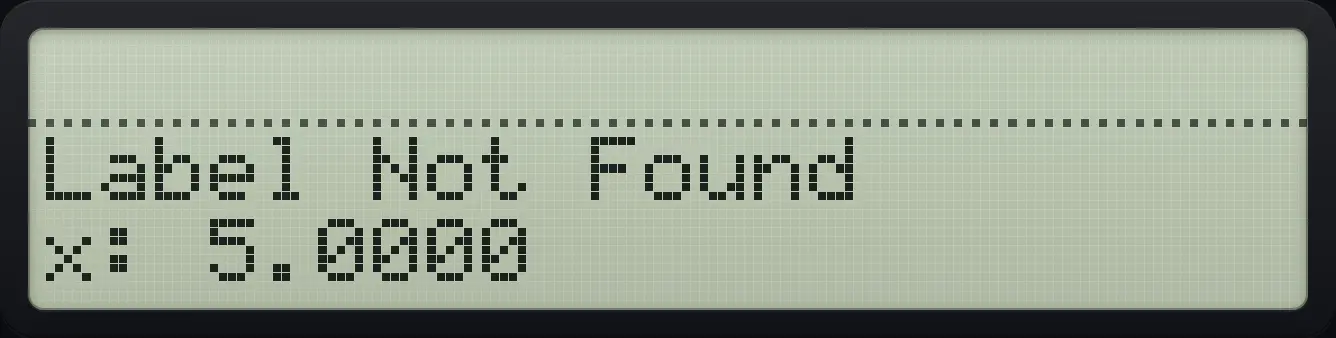
Label Not Found16.11Read and paste a program listing#
The Data and programs sheet shows the program memory as a numbered listing with one instruction per line, for example:
- 01 LBL "CIRC"
- 02 X↑2
- 03 PI
- 04 ×
- 05 RTN
You can copy this text or paste a listing to replace the program memory. Lines it cannot read are reported so you can fix them.
See also Import and export programs
HP-42S is a trademark of HP Inc.. Trident Calculator is an independent product by South View Studios and is not affiliated with, sponsored by or endorsed by HP. The name is used only to describe the kind of calculator this model resembles; Trident's names, keys, display, fonts and software are its own clean-room design.