
RPN Advanced 42 manual · Chapter 6 of 18
Modes and display
Angle units, rectangular or polar complex form, complex or real results, and how many digits the display shows.
6.1The MODES menu#
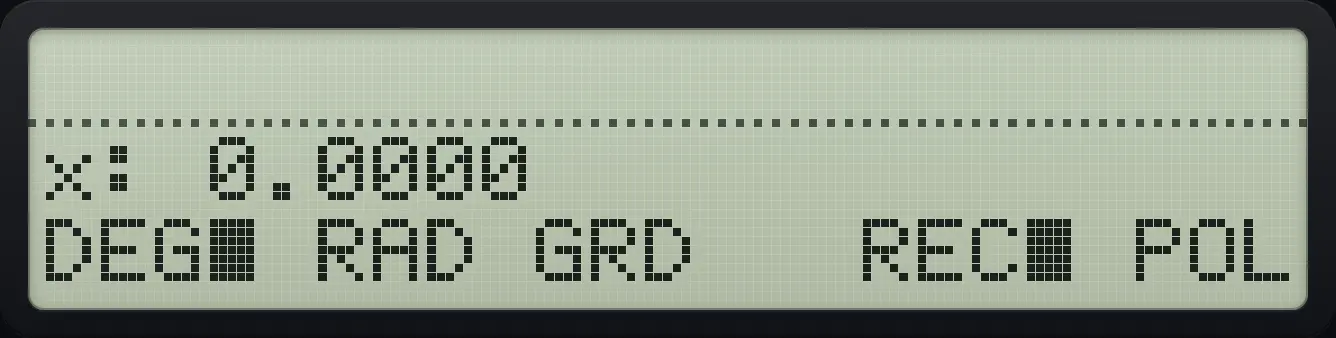
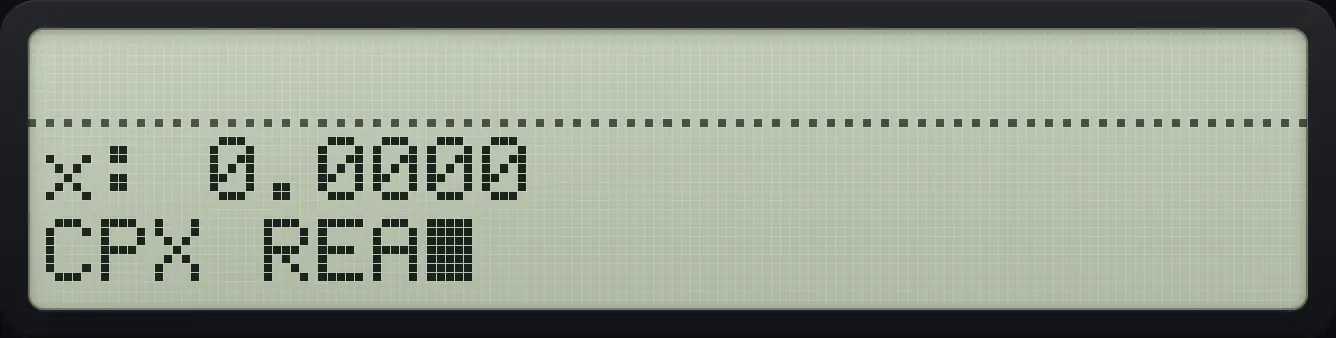
Open MODES with shift +/−. Page 1 picks the angle unit and the complex display form; page 2 picks whether results may be complex. A filled square marks the current choice. Defaults: DEG, rectangular, real results.
| Item | Menu key | What it does |
|---|---|---|
| DEG | Σ+ | Angles in degrees (360 per turn). The default. |
| RAD | 1/x | Angles in radians ( per turn). |
| GRD | √x | Angles in grads (400 per turn). |
| REC | LN | Complex numbers shown as x and y parts. |
| POL | XEQ | Complex numbers shown as radius and angle. |
| CPX (page 2) | Σ+ | Square roots and logarithms of negative numbers give complex answers. |
| RL (page 2) | 1/x | Those give an error instead. The default. |
6.2Set the angle unit#
Switch to grads and take an arctangent
Open MODES and press GRD.
⇧MODES+/−√x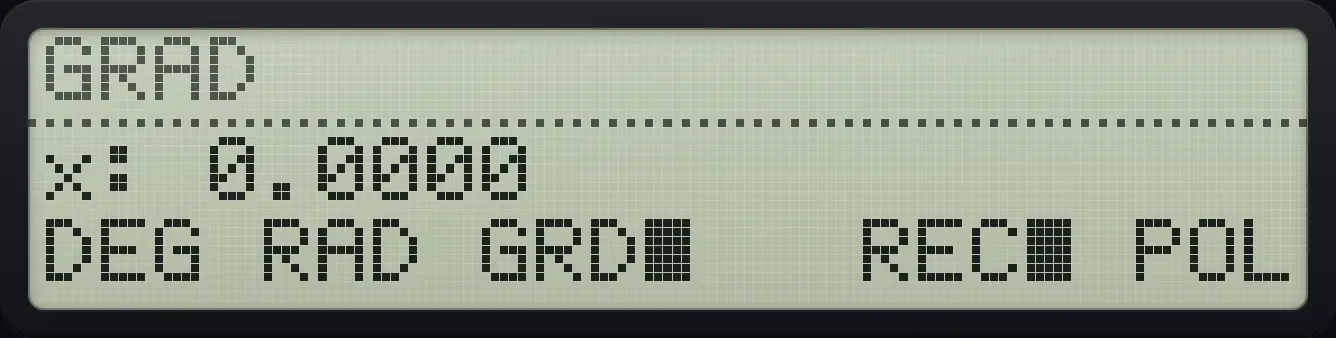
Close the menu, type 1 and press shift TAN.
EXIT1⇧ATANTAN
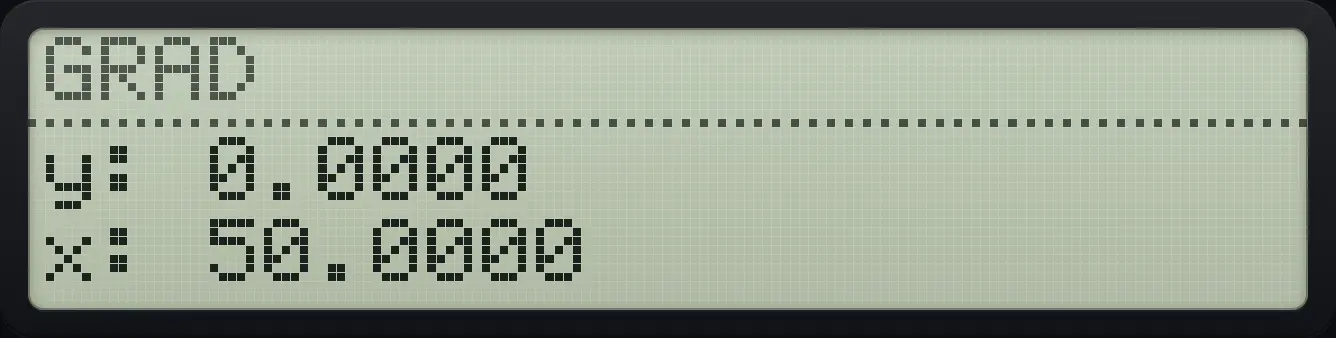
50.0000See also Set degrees or radians
6.3Rectangular or polar form, complex or real results#
Real results only: square root of a negative number
4, +/−, square root gives an error in the default mode.
4+/−√x
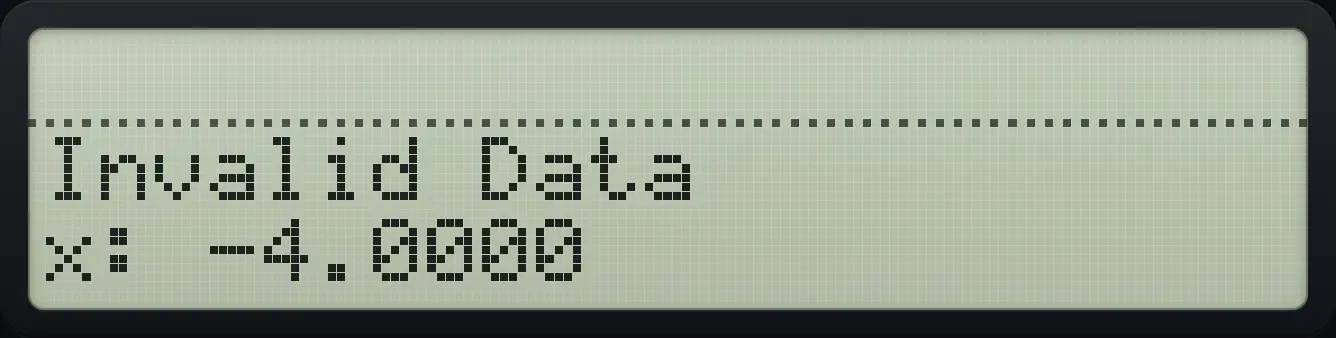
Invalid DataAllow complex results
Open MODES, go to page 2 and choose CPX, then close the menu.
⇧MODES+/−▼Σ+EXITNow the square root of −4 is 2i.
4+/−√x
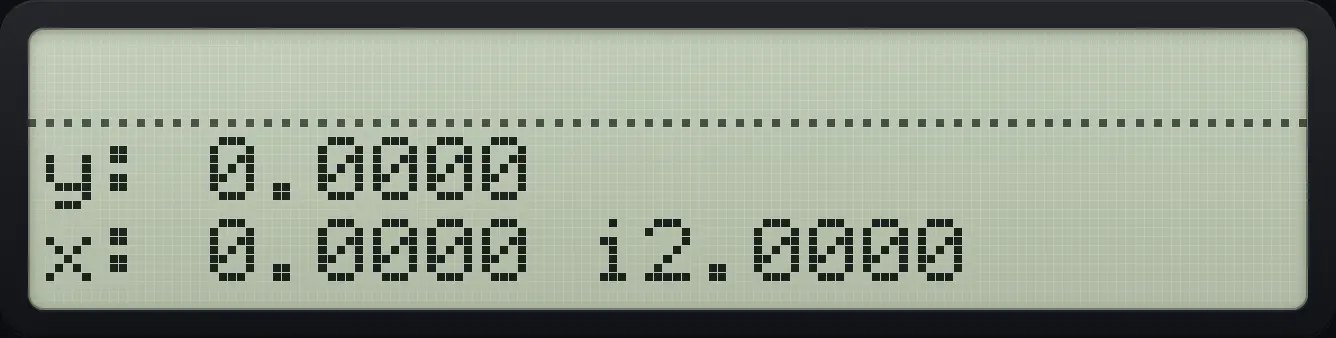
0.0000 i2.00006.4Choose the display format#
Open DISP with shift E. FIX shows a fixed number of decimals, SCI scientific notation with a fixed number of digits, ENG engineering notation (exponent a multiple of 3), and ALL shows every digit that matters. The default is FIX 4. The calculation always keeps 12 digits; only the display changes.
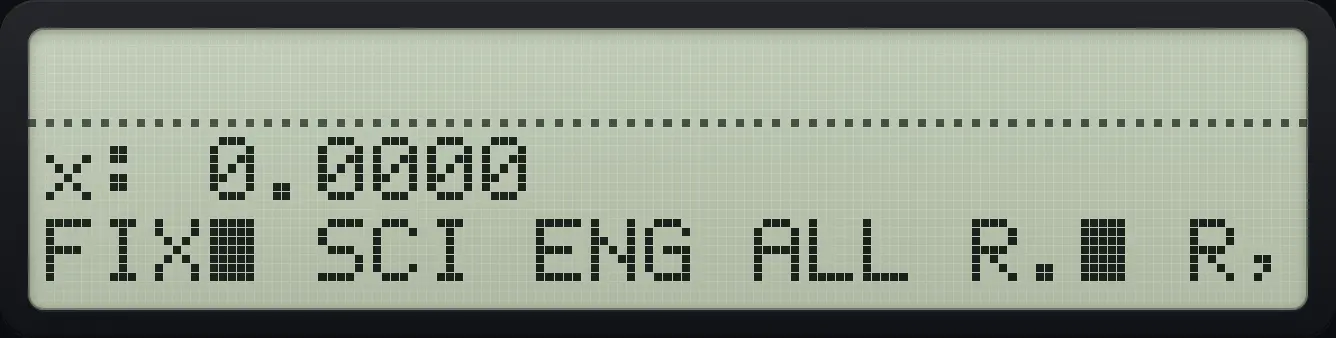
After FIX, SCI or ENG, type the number of digits as two keys, for example 0 3, or one digit then ENTER.
Show 3 decimal places
Open DISP, press FIX, and type 0 3.
⇧DISPEΣ+03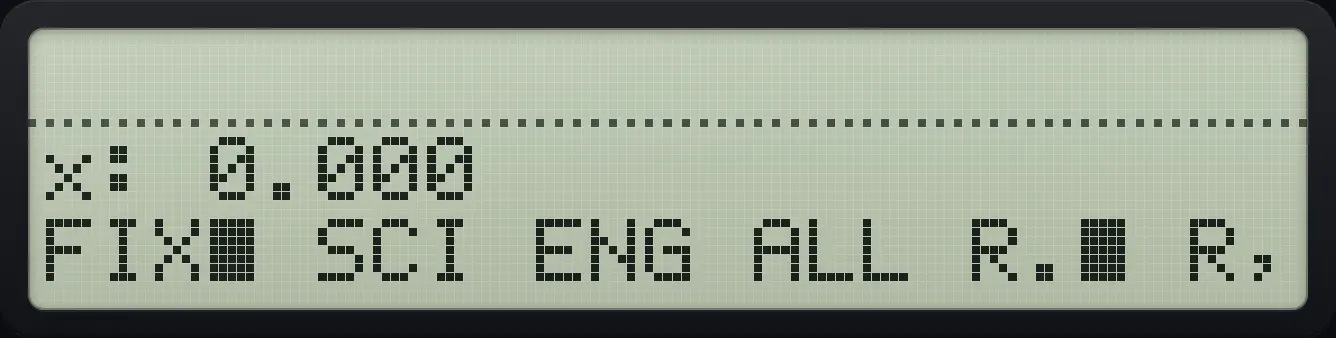
Close the menu and calculate the square root of 2.
EXIT2√x
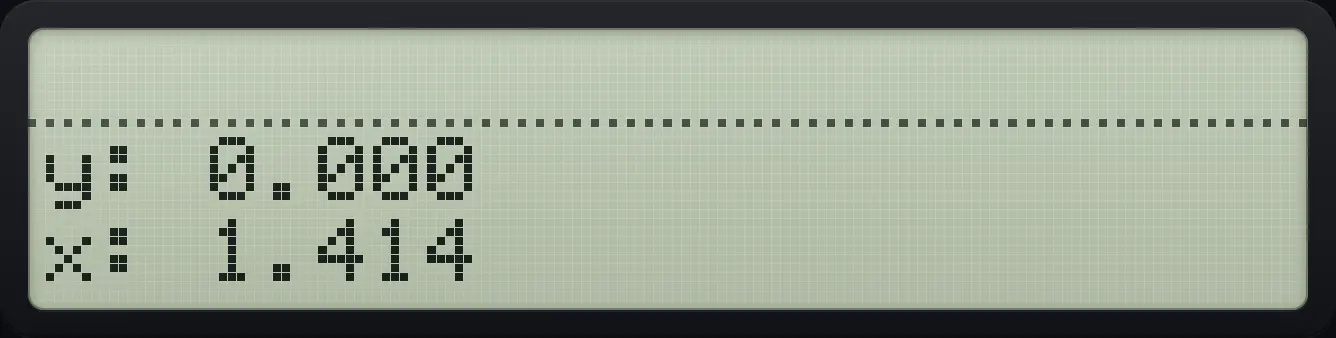
1.414Scientific notation with 3 digits
Open DISP, press SCI, type 0 3.
⇧DISPE1/x03EXITEnter 12345 and press ENTER to finish it.
12345ENTER
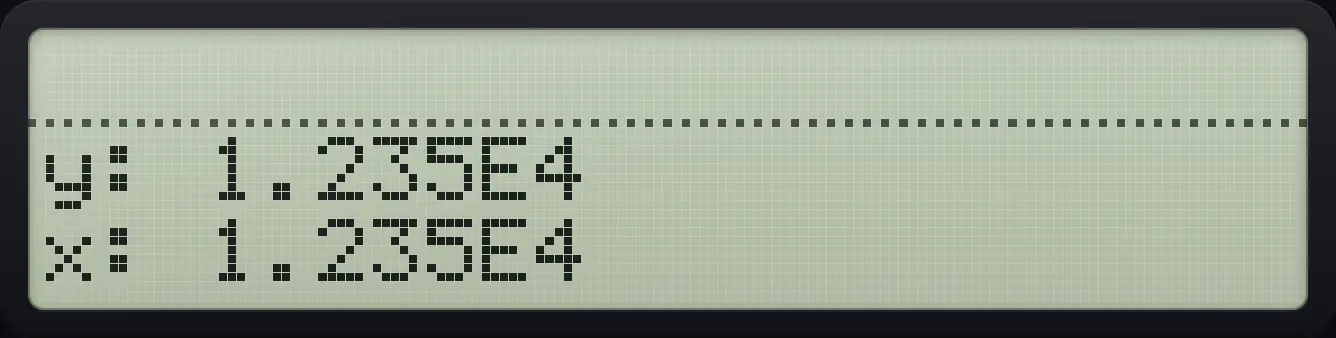
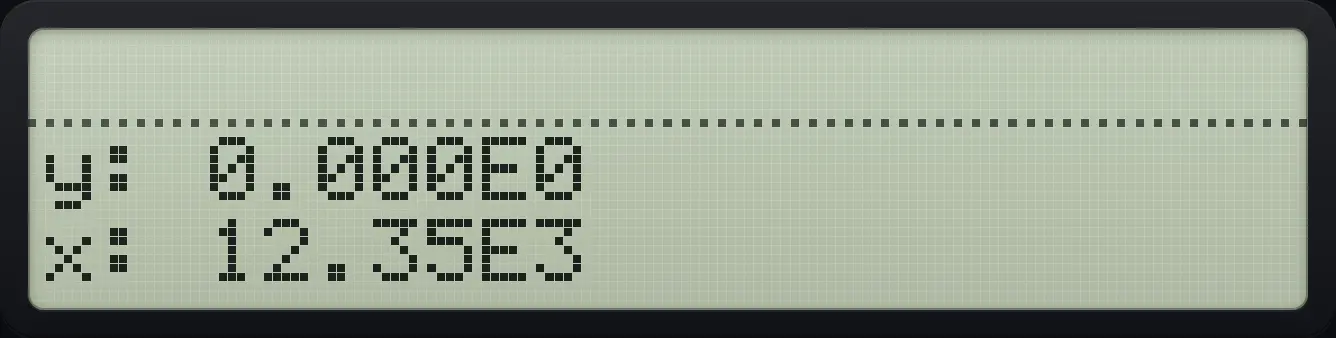
1.235E4Engineering notation
Open DISP, press ENG, type 0 3, close.
⇧DISPE√x03EXITMultiply 12345 by 1.
12345ENTER1×
12.35E3Show every digit with ALL
Open DISP and press ALL (fourth key), close, then calculate 1/3.
⇧DISPELOGEXIT1ENTER3÷
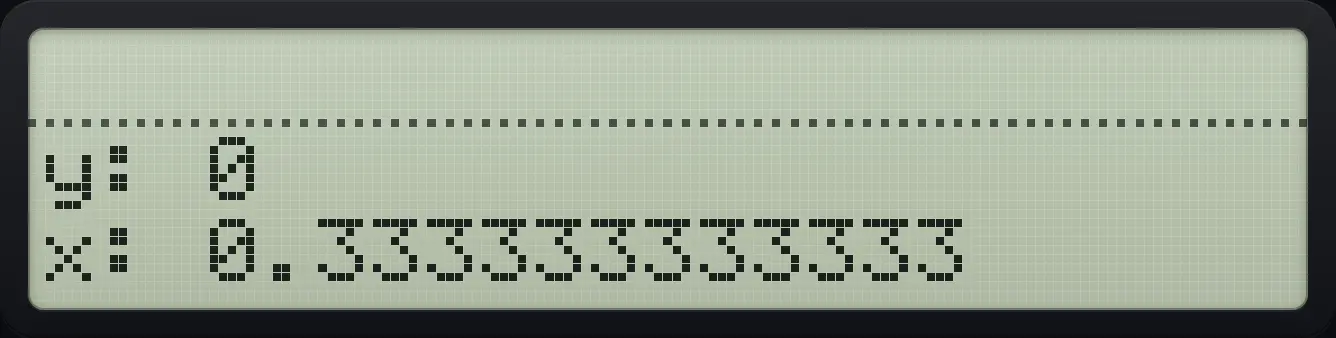
0.333333333333See also Round answers to a set number of decimalsEnter very big and very small numbersShow answers in engineering notation
HP-42S is a trademark of HP Inc.. Trident Calculator is an independent product by South View Studios and is not affiliated with, sponsored by or endorsed by HP. The name is used only to describe the kind of calculator this model resembles; Trident's names, keys, display, fonts and software are its own clean-room design.