
Classic CAS manual · Chapter 3 of 16
Calculations and answers
Arithmetic, exact and decimal answers, negative numbers, scientific notation, the last answer and the history.
3.1Order of operations#
Classic CAS follows the standard order: brackets, powers, multiplication and division, then addition and subtraction. Use brackets to force a different order.
Brackets change the order
Type (2 + 3) × 4 and press enter.
(2+3)×4enter
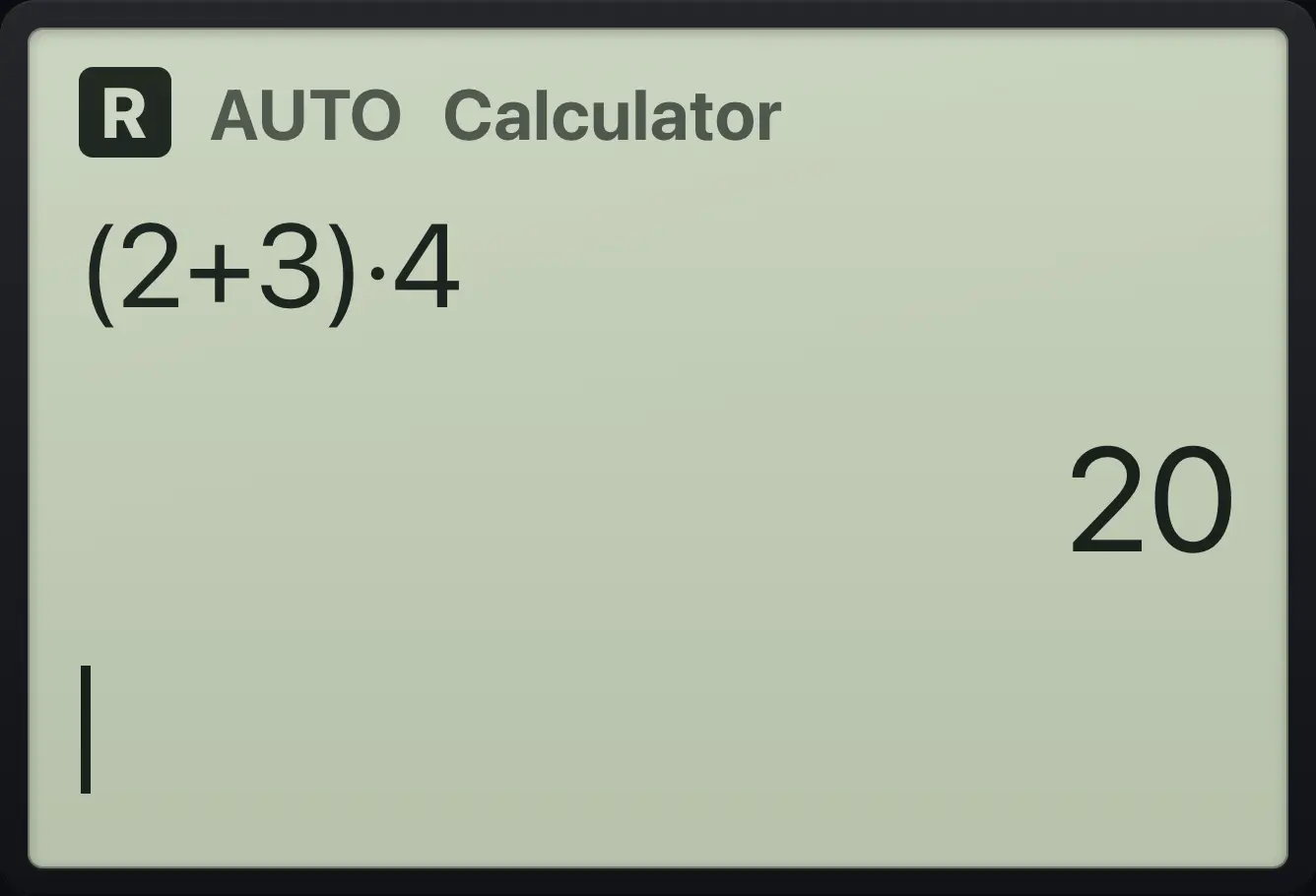
20Powers before negation
Type negative 3, then ^2.
(−)3^2enter
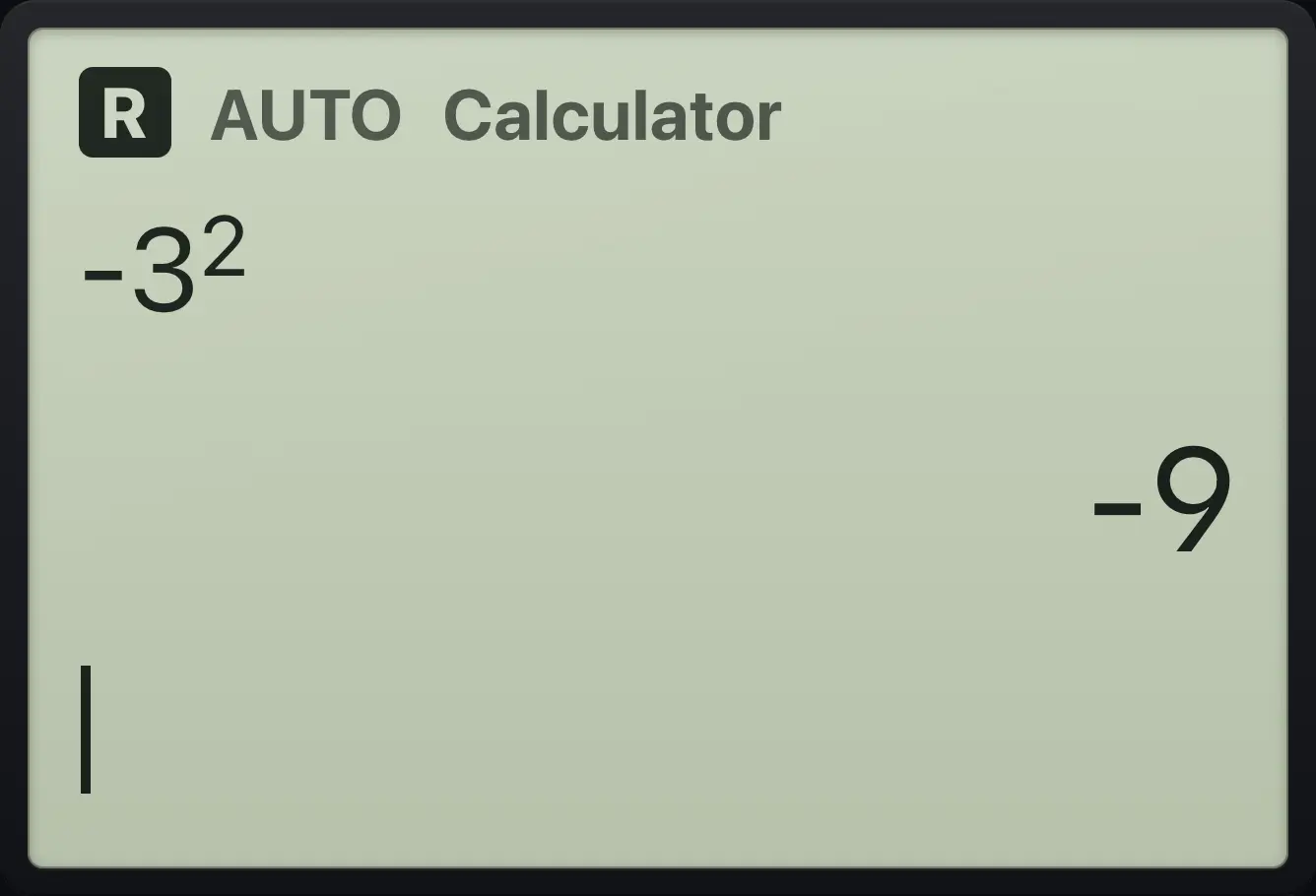
-9The power happens first, so the answer is −9. Write (−3)² with brackets to get 9.
3.2Add fractions and keep exact answers#
Whole numbers and fractions give exact answers. Type a fraction with ÷, or build a stacked fraction with /: type the top, press ▼, type the bottom, then ▶ to leave the fraction.
Add fractions with the divide key
Type 1/3 + 1/4 + 1/5.
1÷3+1÷4+1÷5enter
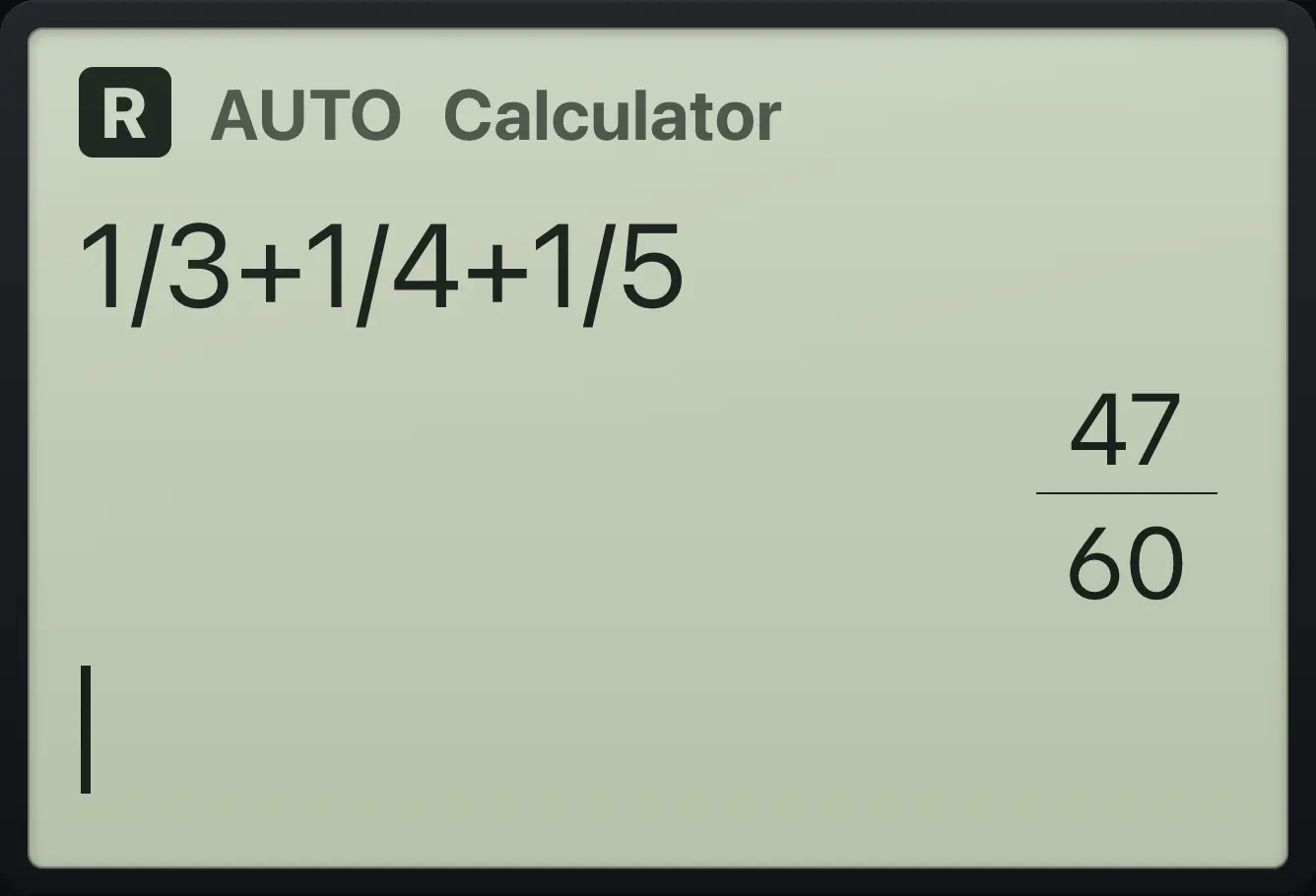
47/60Add fractions with the fraction template
Press frac, type 1, down, 3, right, then +.
/1▼3▶+Build the second fraction and press enter.
/1▼6▶enter
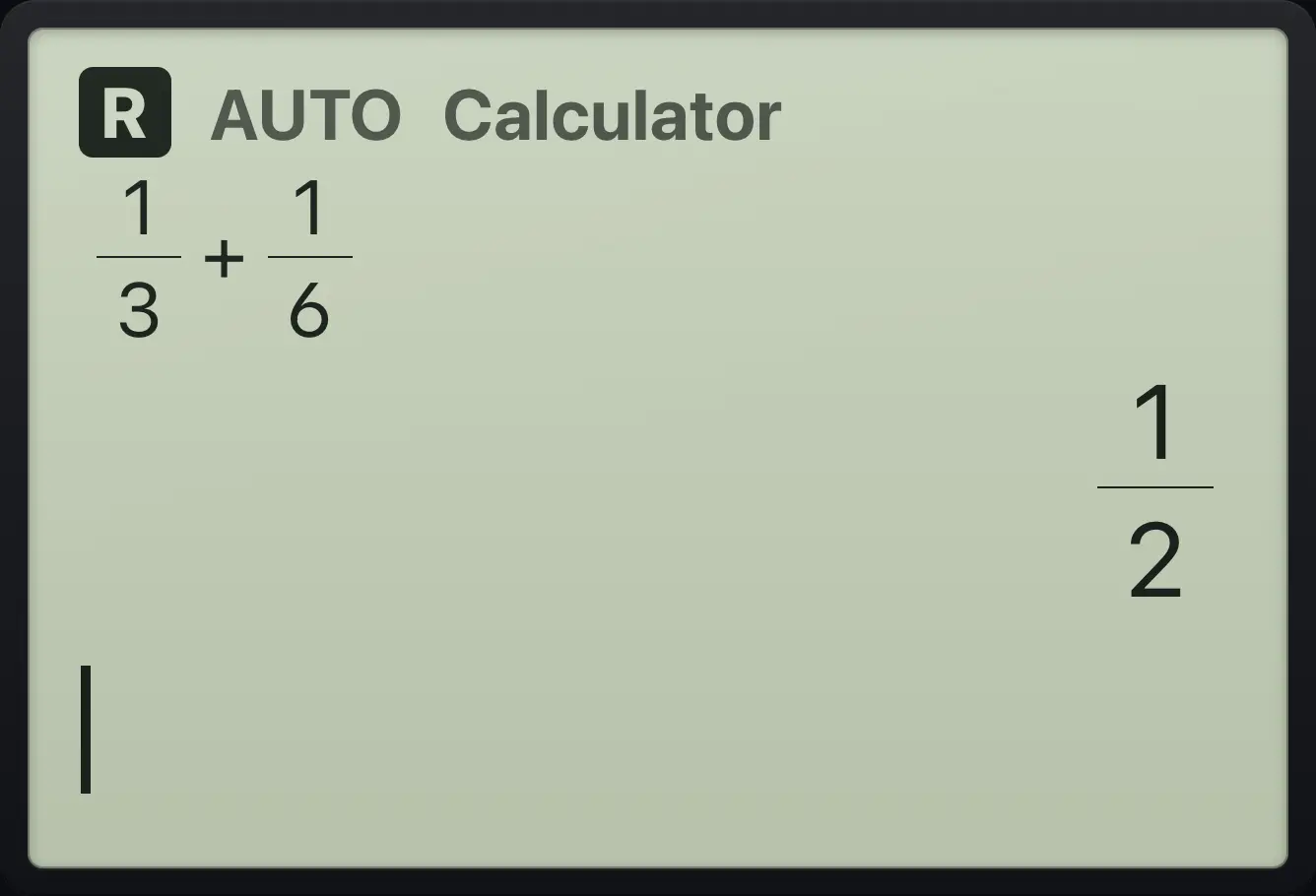
1/2Convert an improper fraction
Use propFrac to write 7/3 as a mixed number.
propfrac(7÷3)enter
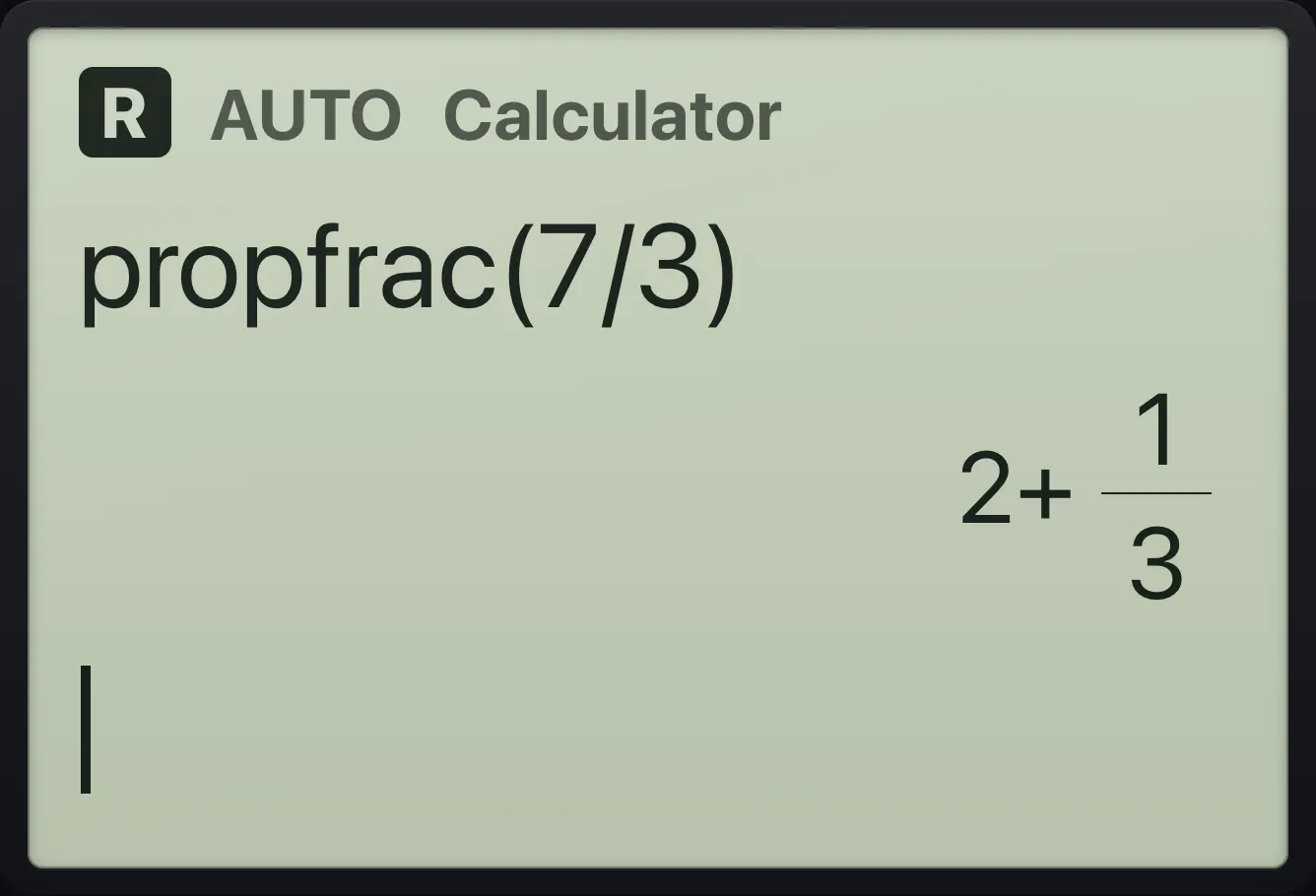
2+1/3Mixed number template
Open templates, choose Mixed number (e), type 1, right, 1, right, 2, right.
templatese1▶1▶2▶enter
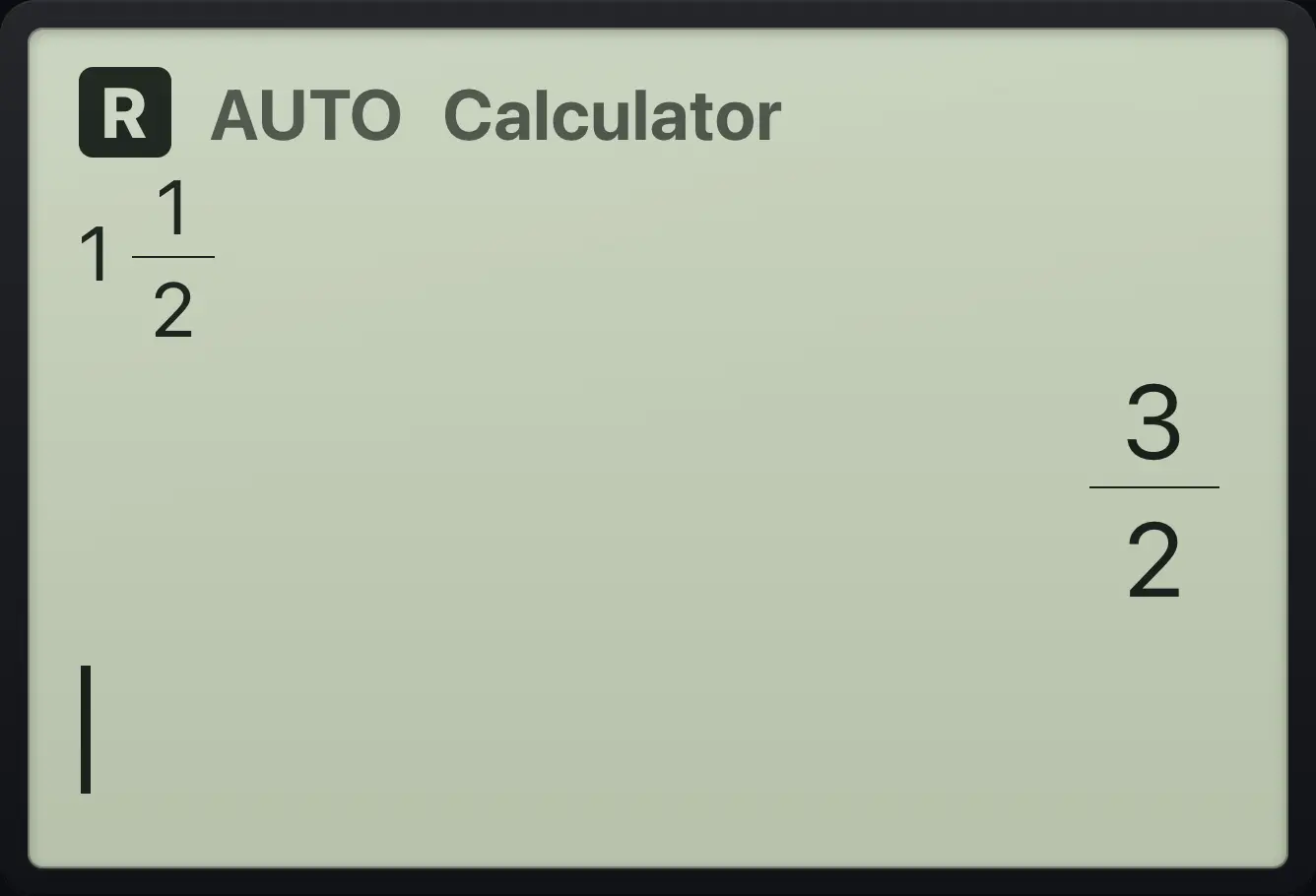
3/23.3Get a decimal answer#
Press ctrl≈enter instead of enter to get a decimal answer once. A number typed with a decimal point already gives a decimal result, and the Approximate setting makes every answer a decimal (see Modes).
Decimal answer for one line
Type 1/3 and press ctrl then enter.
1÷3ctrl≈enter
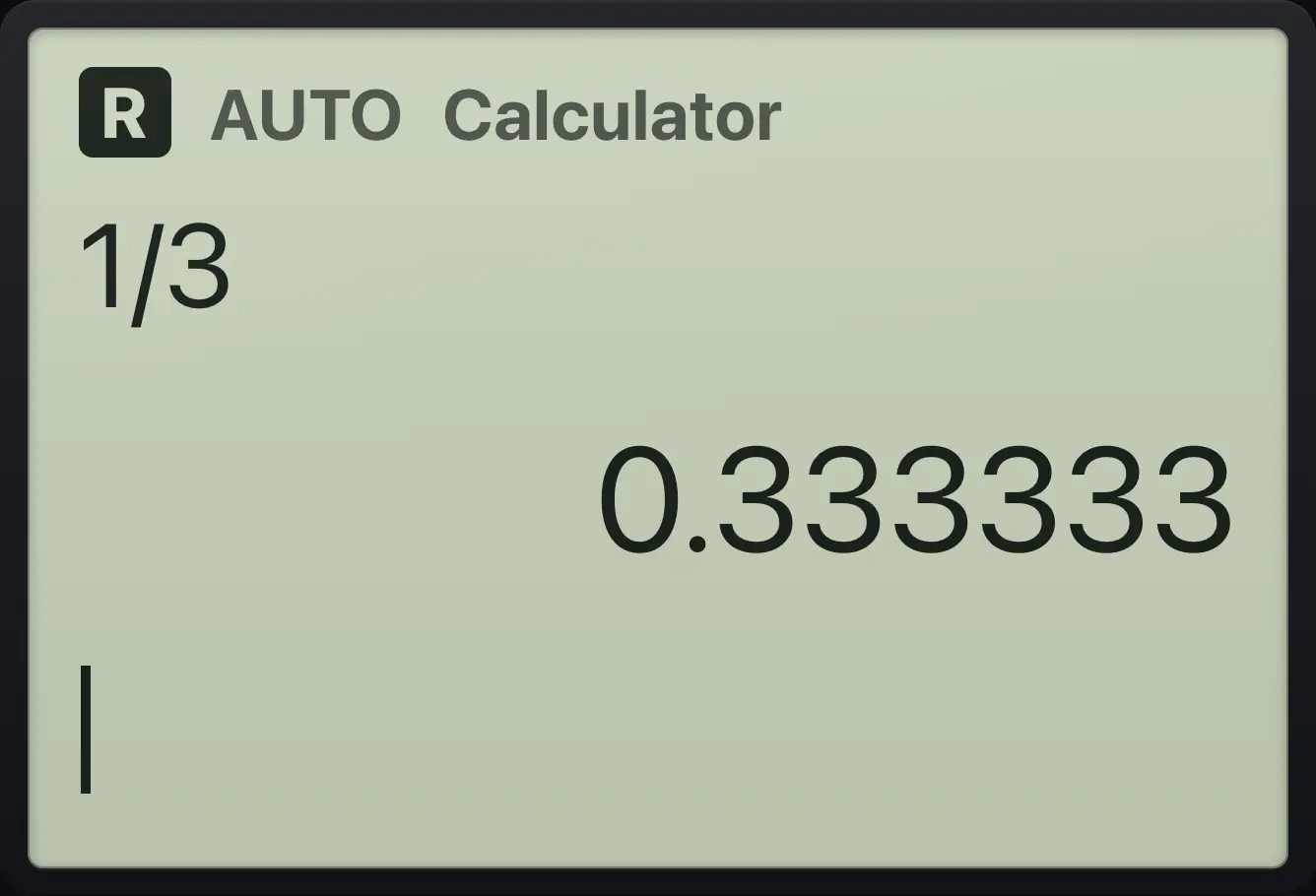
0.333333Square root as a decimal
Type √12 (ctrl sq), press right, then ctrl enter.
ctrl√x²12▶ctrl≈enter
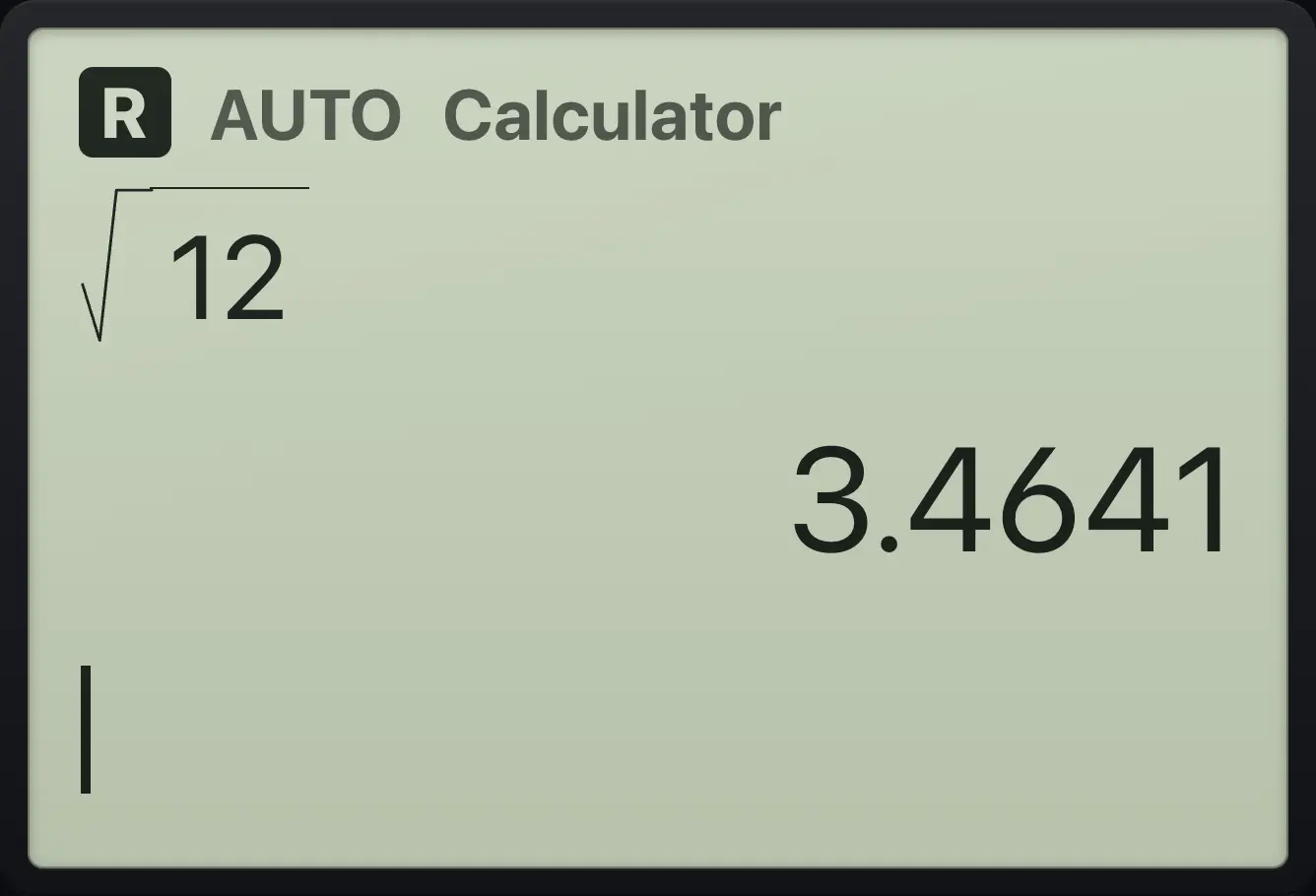
3.4641A decimal input gives a decimal answer
Type 0.5 + 1/4 and press enter.
0.5+1÷4enter
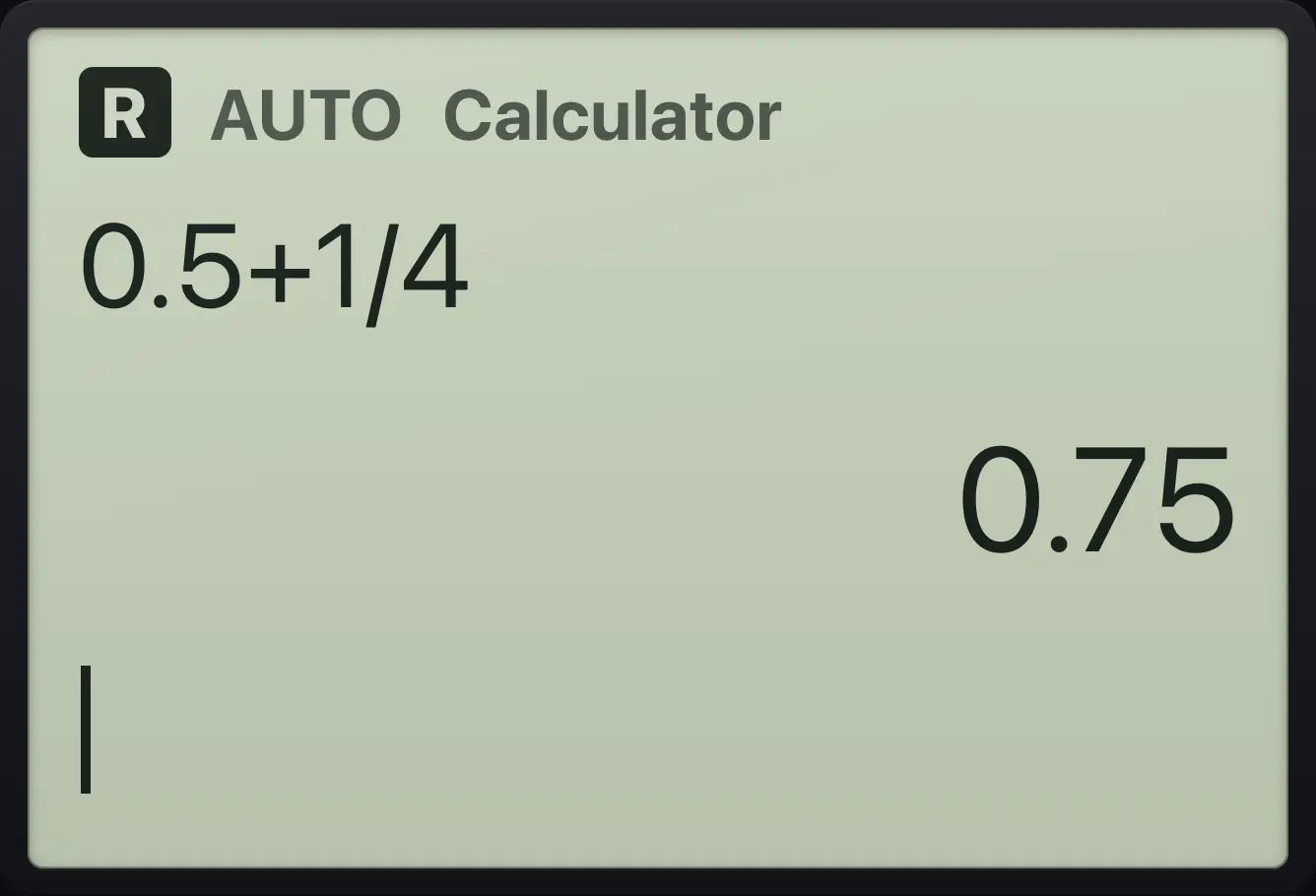
0.75Turn a decimal into a fraction
Use exact( to convert 0.75 to a fraction.
exact(0.75)enter
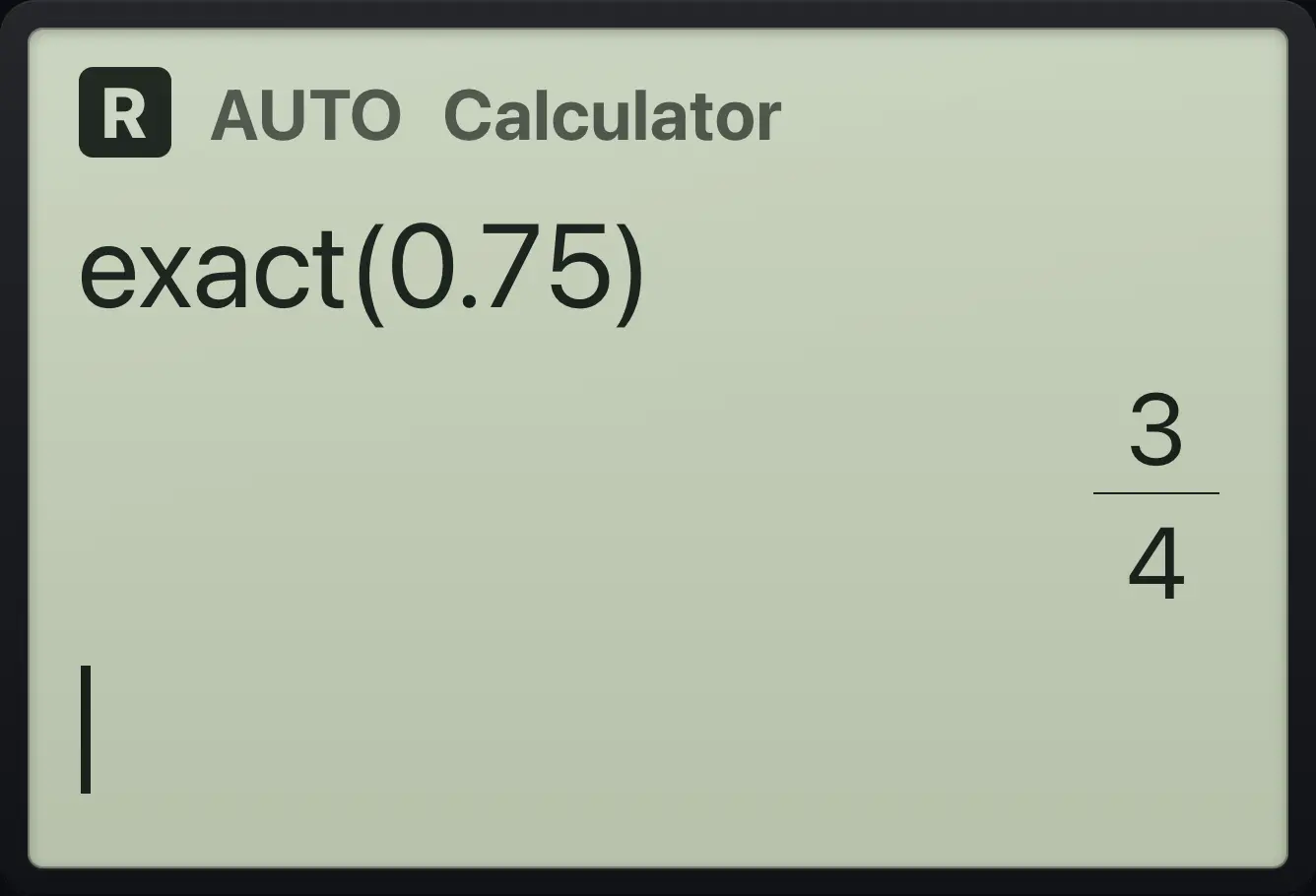
3/43.4Negative numbers versus subtraction#
Use (−) for a negative sign and − for subtraction. They are different keys: − needs a number on its left.
Subtract a negative
Type 5, subtract, negative 3.
5−(−)3enter
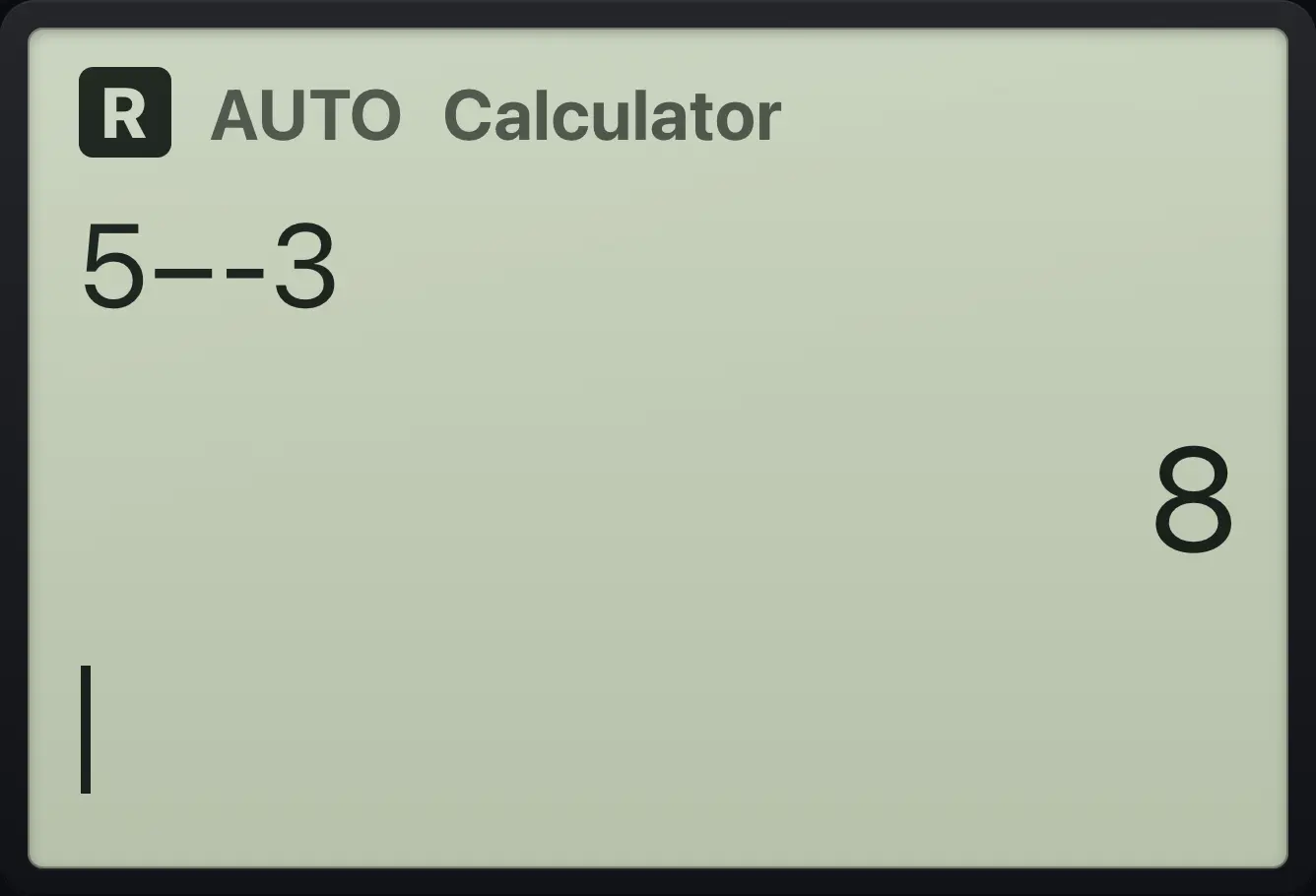
83.5Scientific notation#
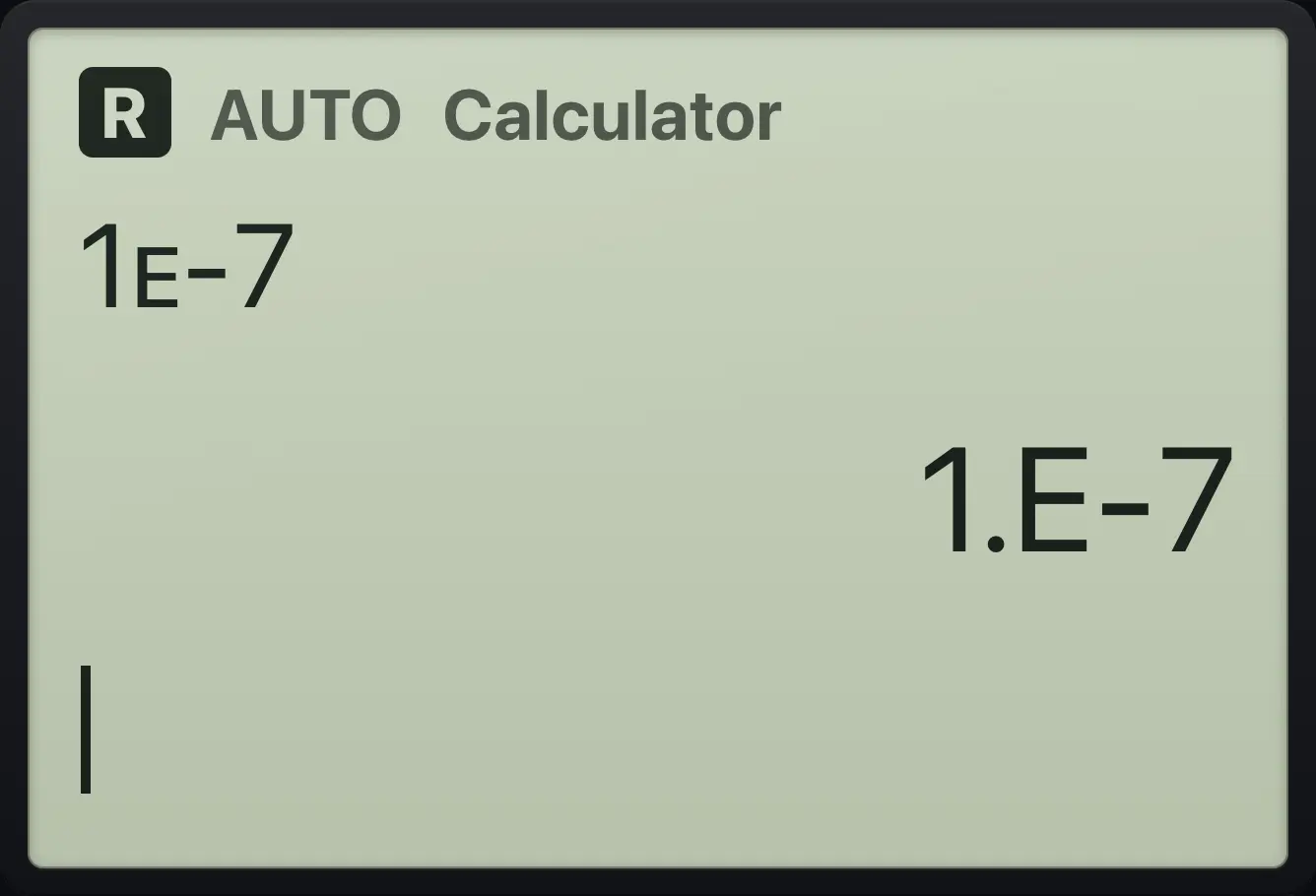
Press EE to type "times ten to the power". Type the mantissa, press EE, then the exponent. Very large or small answers are displayed as 1.E20 style numbers.
Enter 2 × 10³
Type 2, ee, 3 and press enter.
2EE3enter
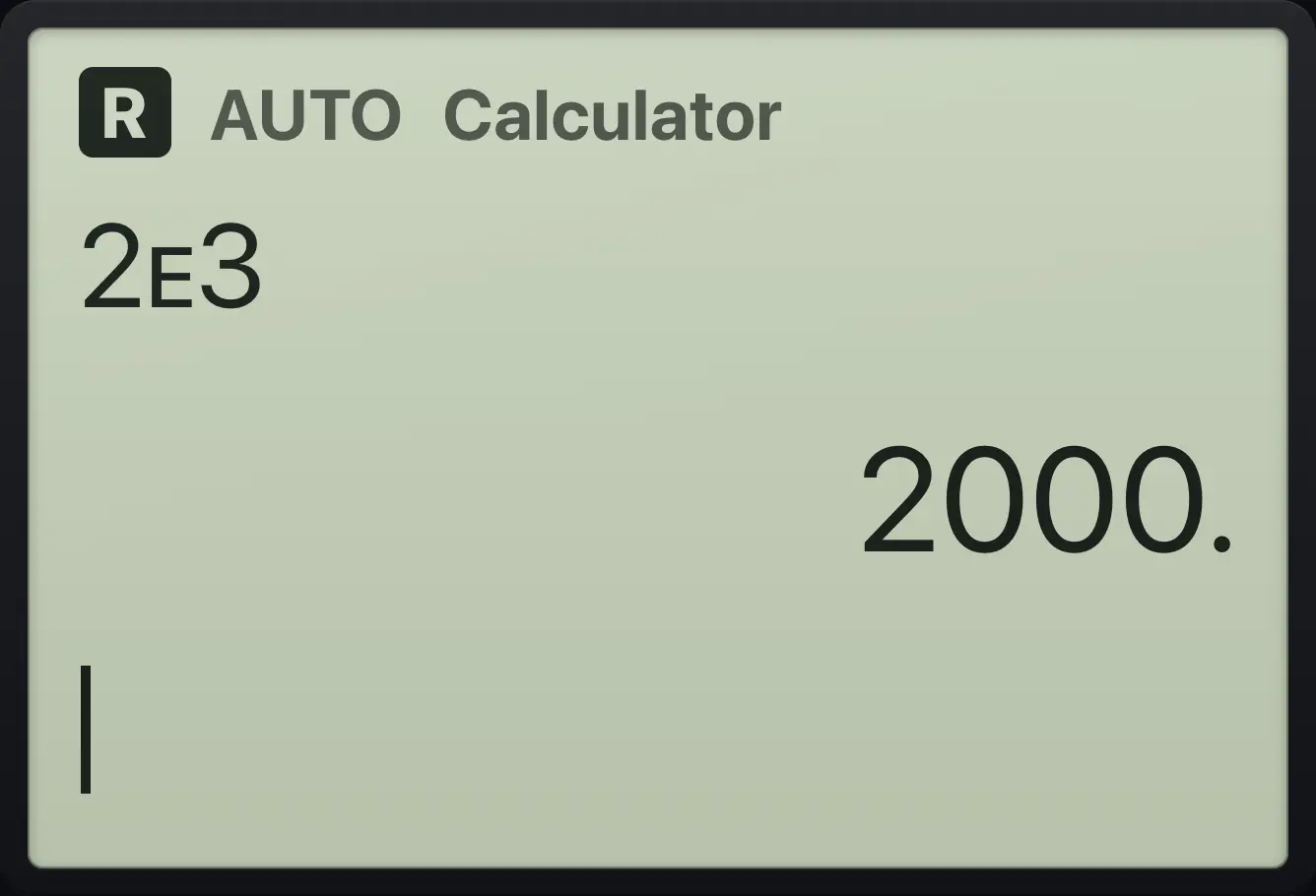
2000.A tiny number
Type 1, ee, negative 7.
1EE(−)7enter
1.E-73.6Use the last answer#
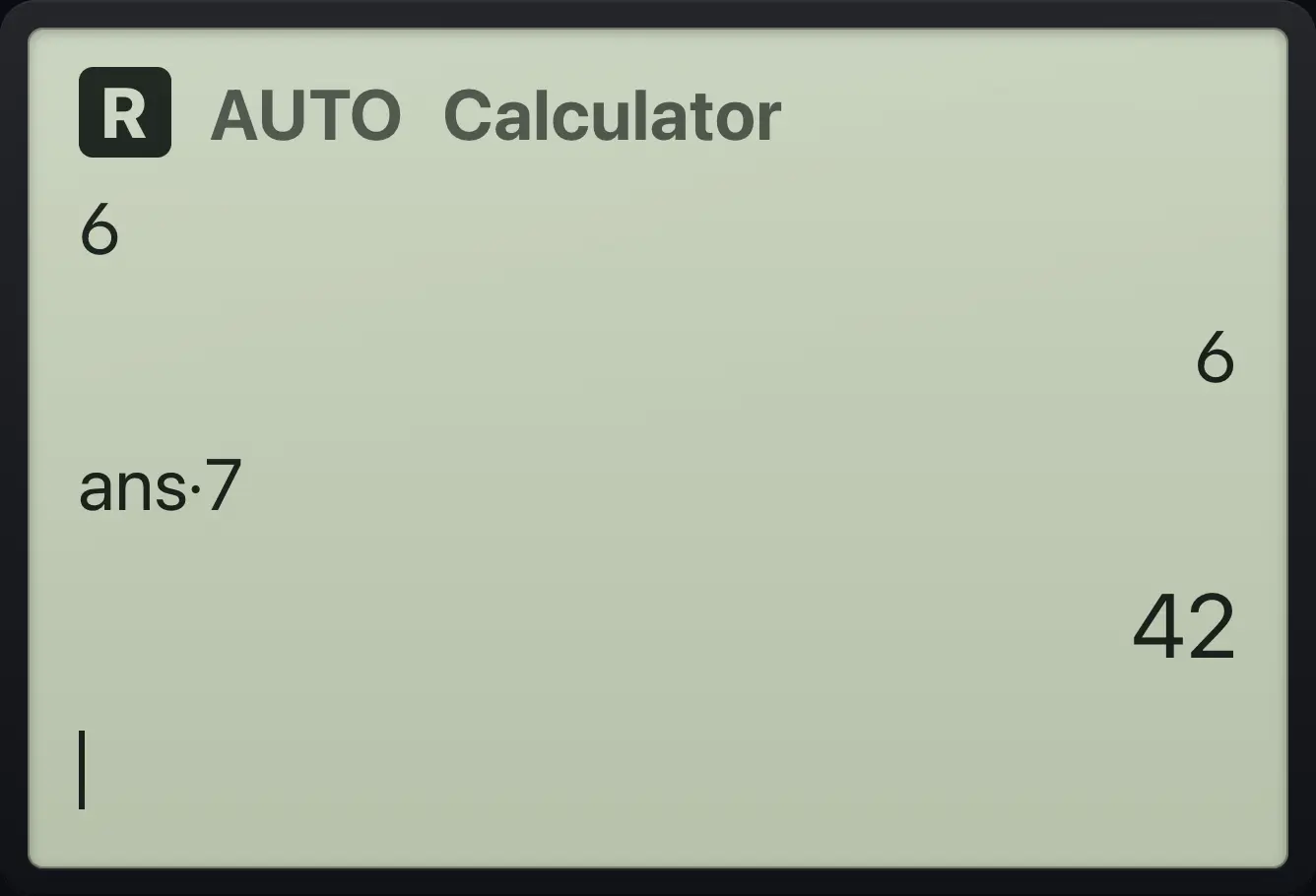
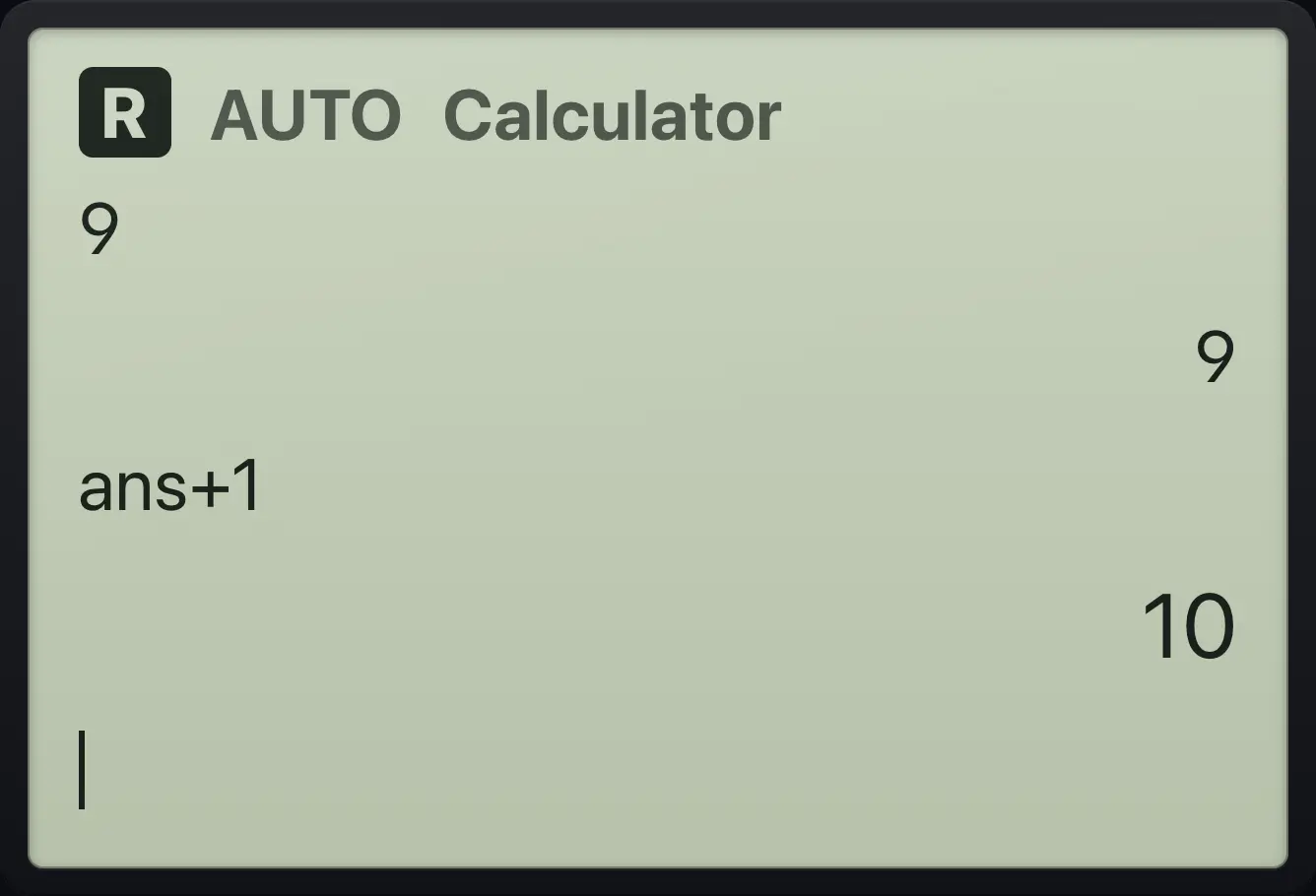
Start a new entry with an operator (+, −, ×, ÷, ^, x² or factorial) and the calculator types ans for you. You can also press ctrlans(−) to type ans anywhere.
Continue from the last answer
Type 6, enter, then × 7 and enter.
6enter×7enter
ans·7 42Place ans inside an expression
Type 9, enter, then ctrl (−), + 1, enter.
9enterctrlans(−)+1enter
ans+1 103.7Reuse and edit earlier lines#
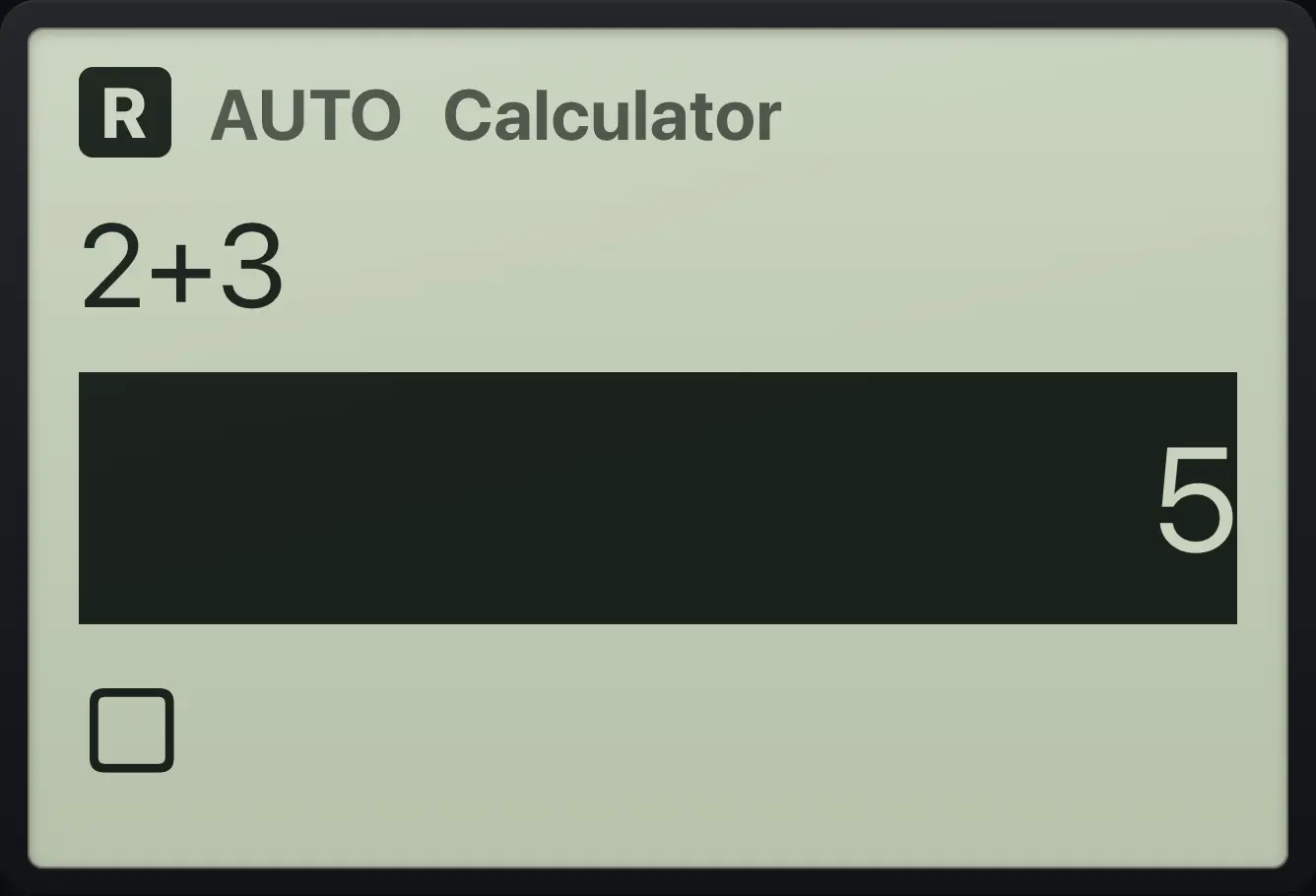
Press ▲ on an empty entry line to select the last answer; press ▲ again to select the entry above it. Press ▲ or ▼ to move around. Press enter to paste the selected entry or answer into the entry line so you can edit it. Press del to delete the selected line, or esc to leave the selection.
Paste an old answer
Type 2+3, enter, press up, enter, then ×2.
2+3enter▲enter×2enter
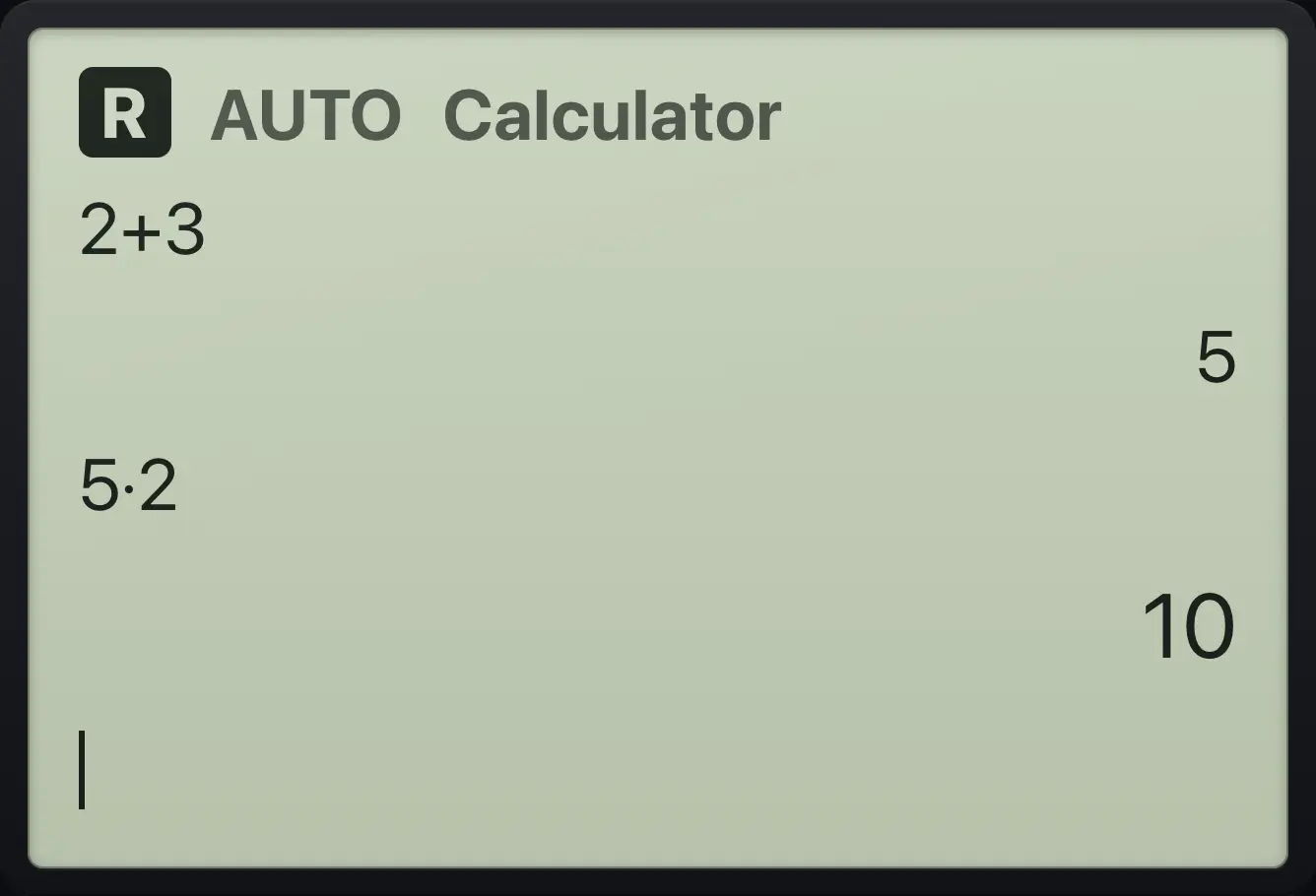
5·2 10Edit an old entry
Press up twice to select the entry, press enter, then add +10.
2+3enter▲▲enter+10enter
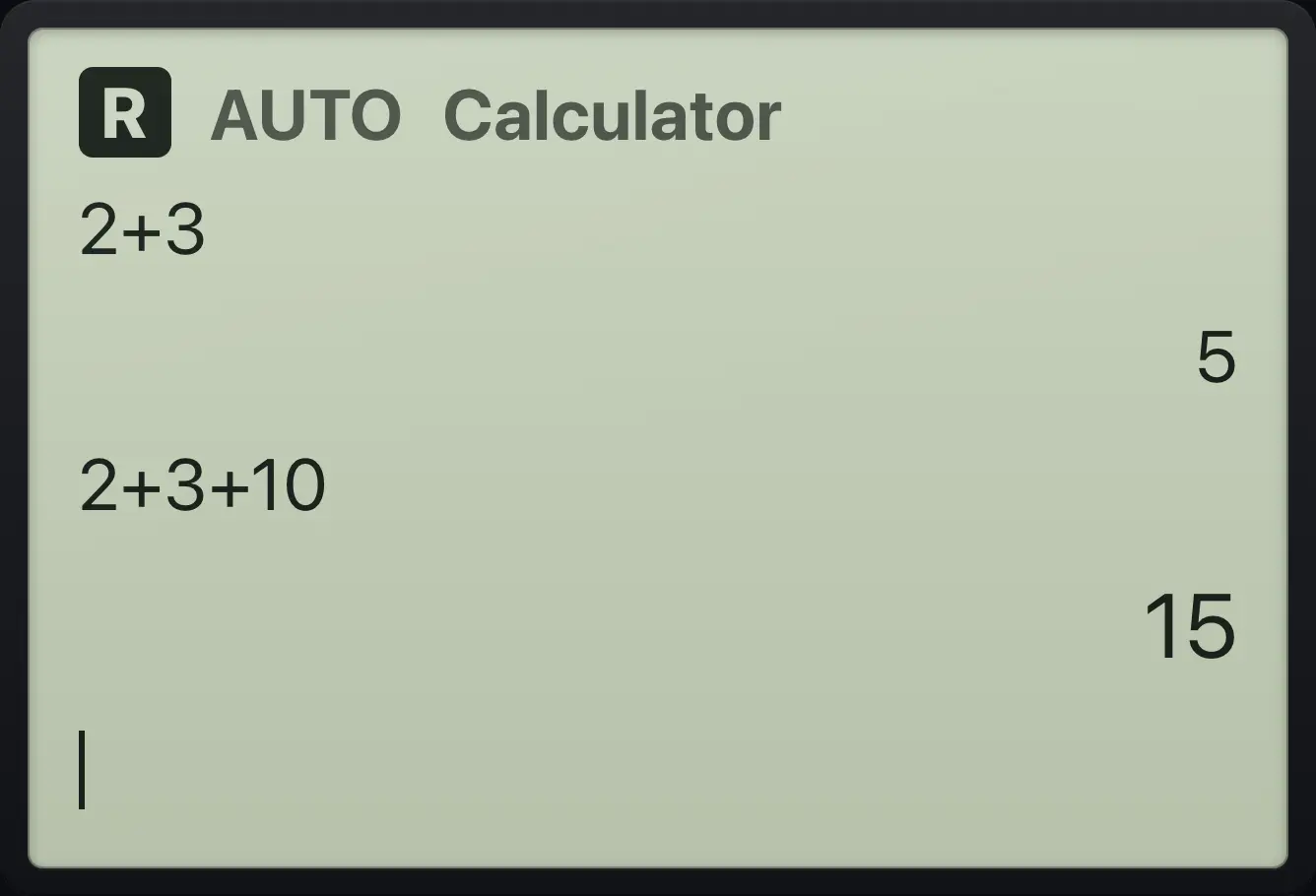
2+3+10 15The history keeps the last 60 lines. Choose Clear History in the Home menu or in the Actions menu to wipe the screen without deleting variables.
TI-Nspire CX CAS is a trademark of Texas Instruments Incorporated. Trident Calculator is an independent product by South View Studios and is not affiliated with, sponsored by or endorsed by Texas Instruments. The name is used only to describe the kind of calculator this model resembles; Trident's names, keys, display, fonts and software are its own clean-room design.