
Classic CAS manual · Chapter 7 of 16
Variables, functions and the with bar
Store values, define your own functions, delete them, and substitute values with the with bar.
7.1Store a value in a variable#
A variable name is one or more letters. Store a value with the assign key := (it types :=), or with the store arrow: type the value, press ctrl→:=, then the name. After that the name stands for the value everywhere.
Store with :=
Type a, press assign, type 5, enter. Then type a², enter.
a:=5enterax²enter
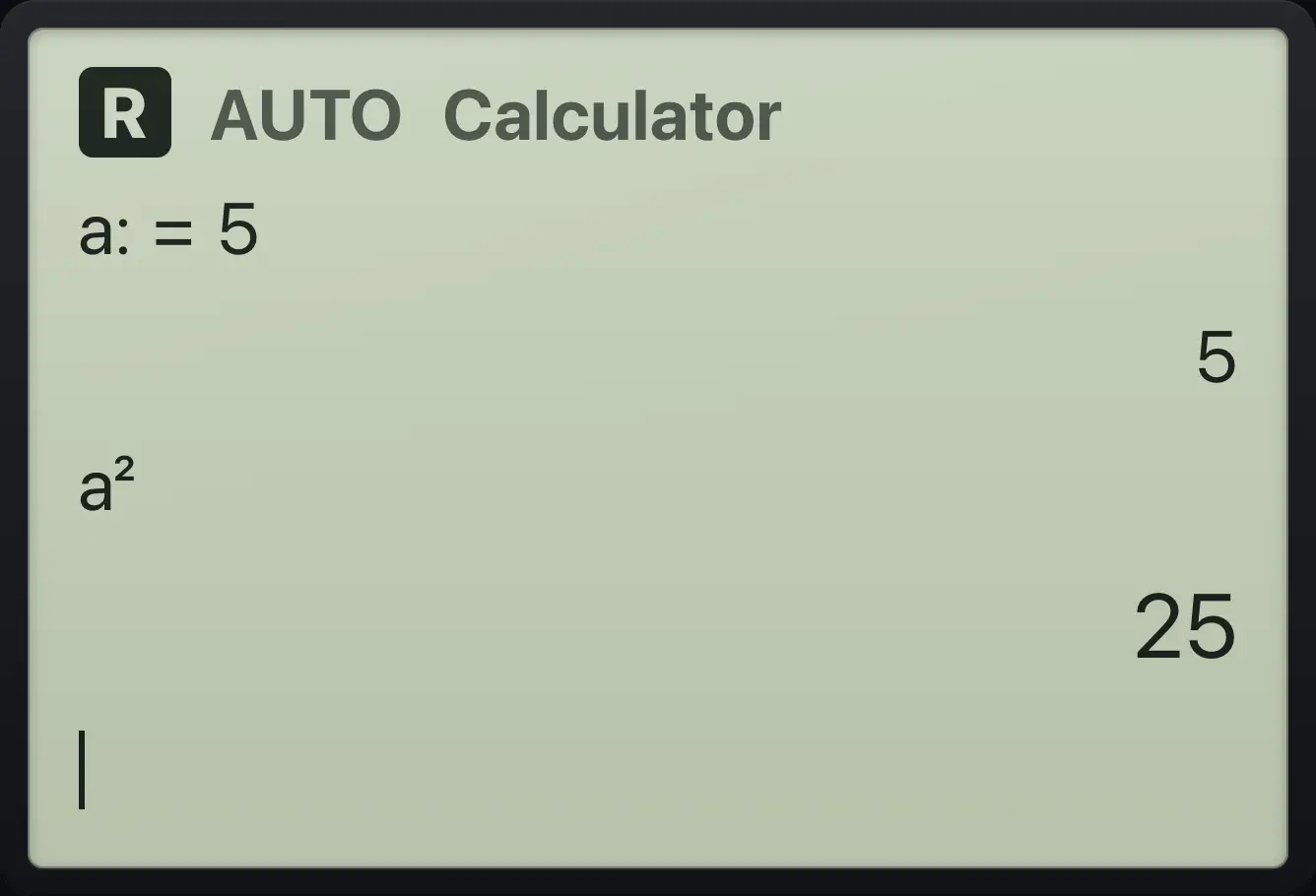
a:=5 25Store with the arrow
Type 3, press ctrl then assign, type c, enter. Then c × 2.
3ctrl→:=centerc×2enter
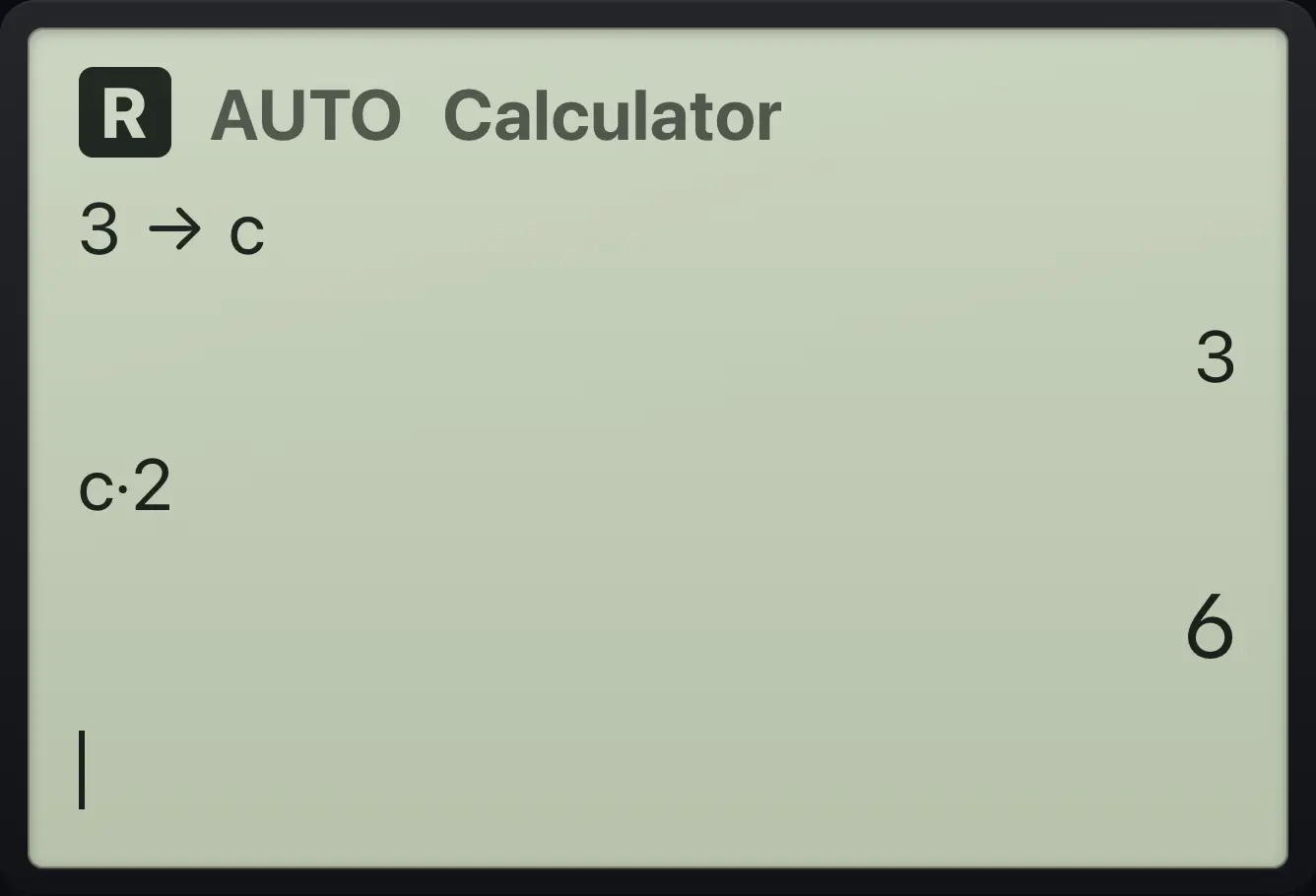
3→c 6Use two variables
Store a and b and add them.
a:=5enter5ctrl→:=bentera+benter
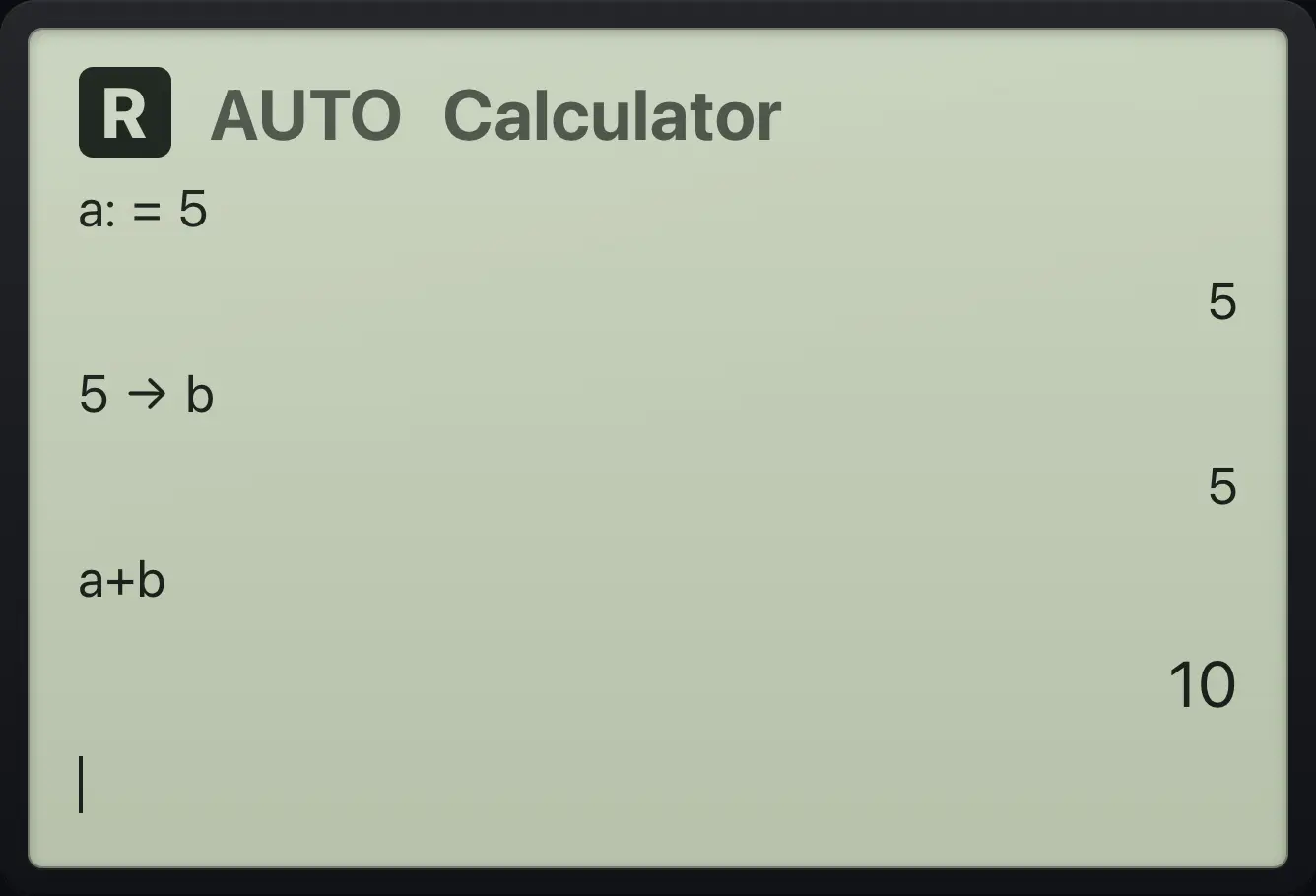
107.2Define your own function#
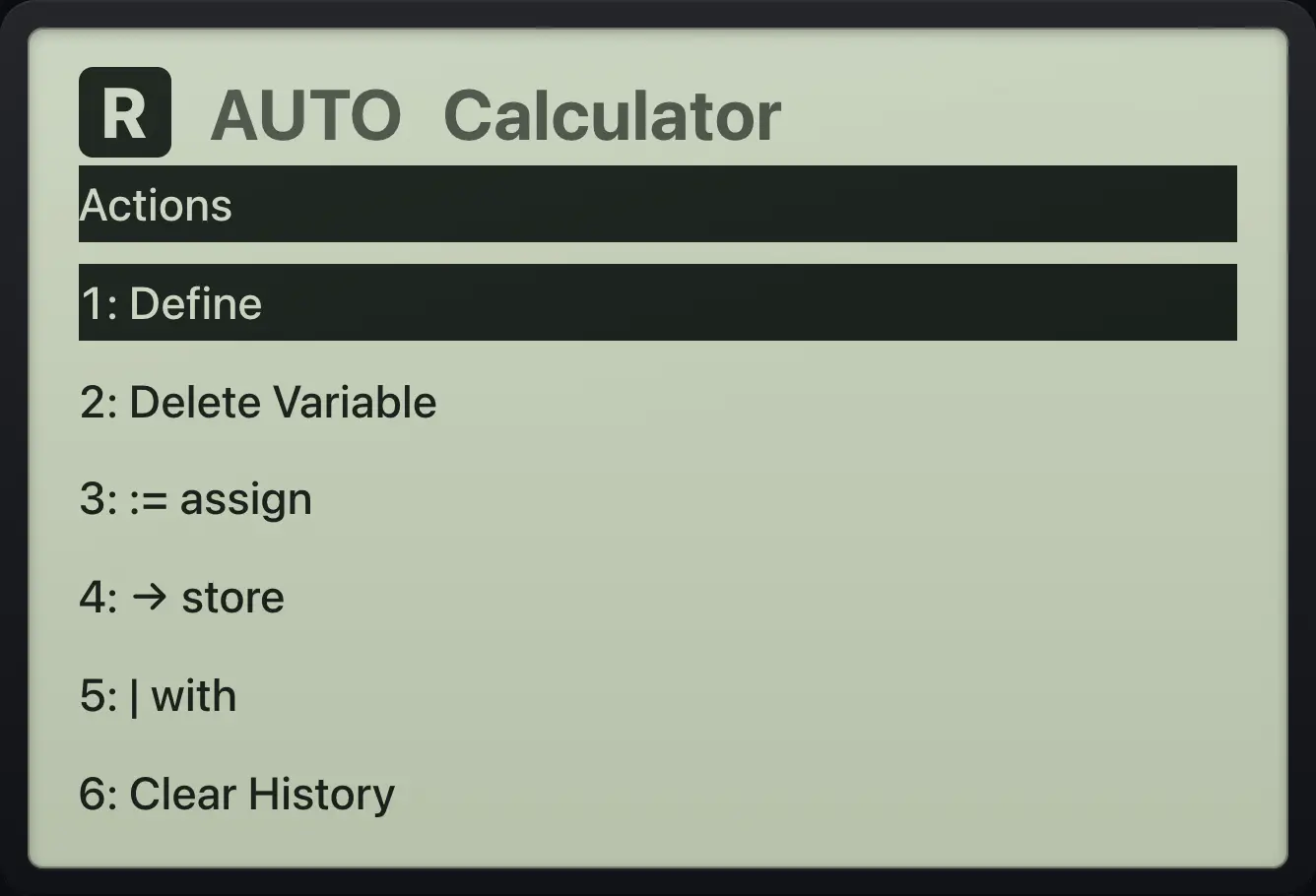
Use Define (menu, 1, 1) to make a function you can reuse. Type Define, the function name with its variable in brackets, an equals sign and the rule. The calculator answers Done. You can then call it with numbers or with symbols.
Define and use f(x)
Press menu, 1, 1. Type f(x)=x²+1 and press enter.
menu11f(x)=x^2▶+1enterType f(3) and press enter.
f(3)enter
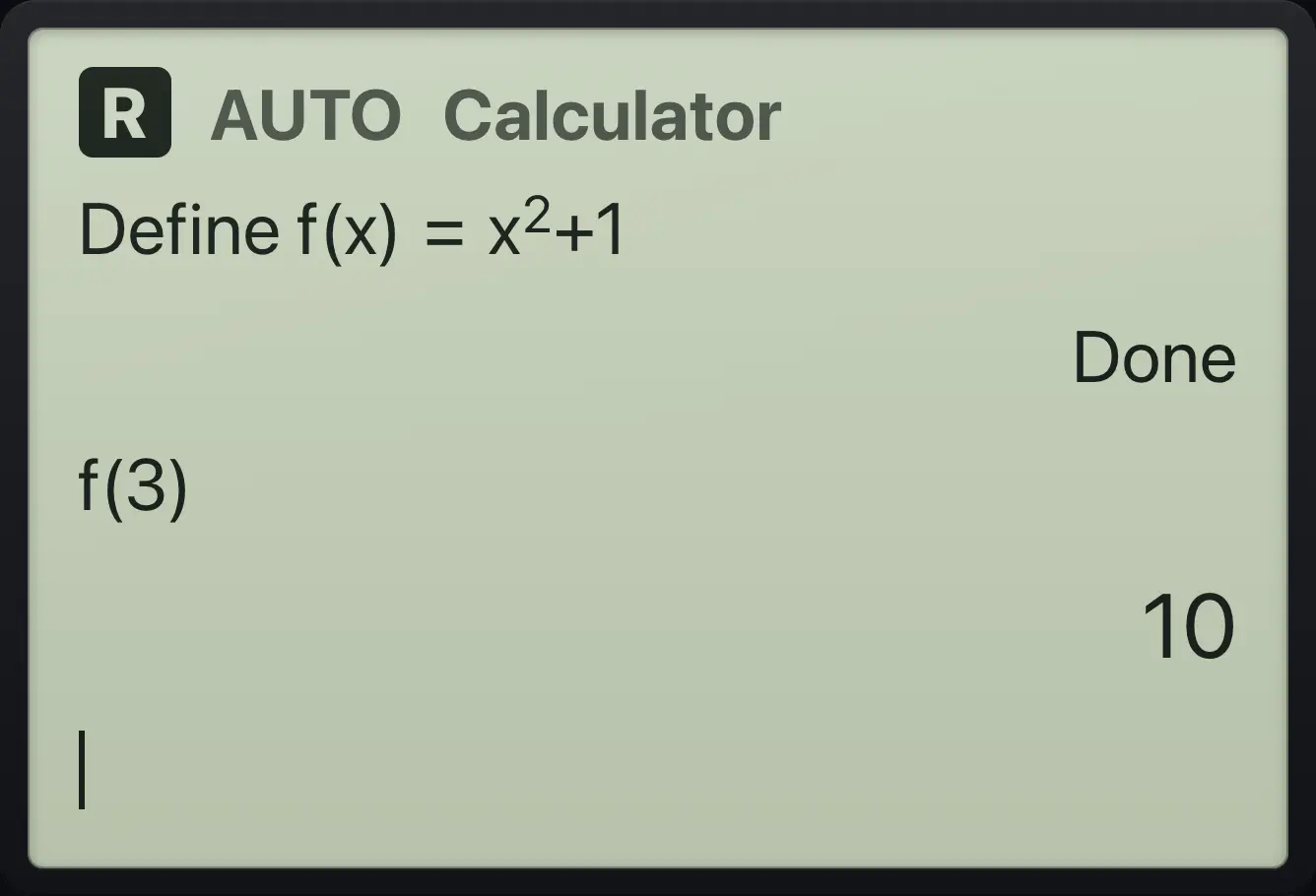
Done 10Call it with a symbol
Define f then type f(a+1).
define␣f(x)=x^2▶+1enterf(a+1)enter
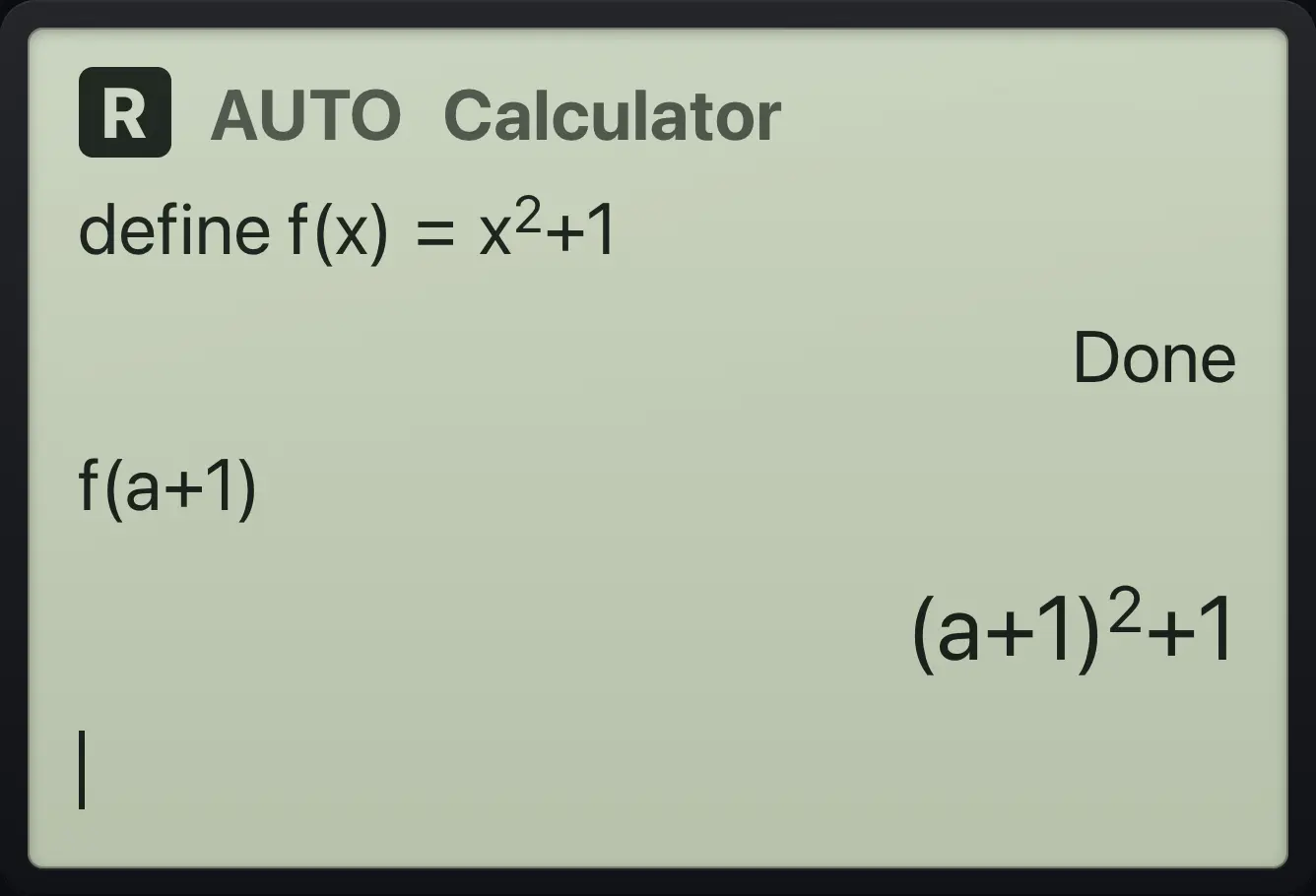
(a+1)^2+1A function with two variables
Define g(x,y)=xy+1 then find g(2,3).
define␣g(x,y)=x×y+1enterg(2,3)enter
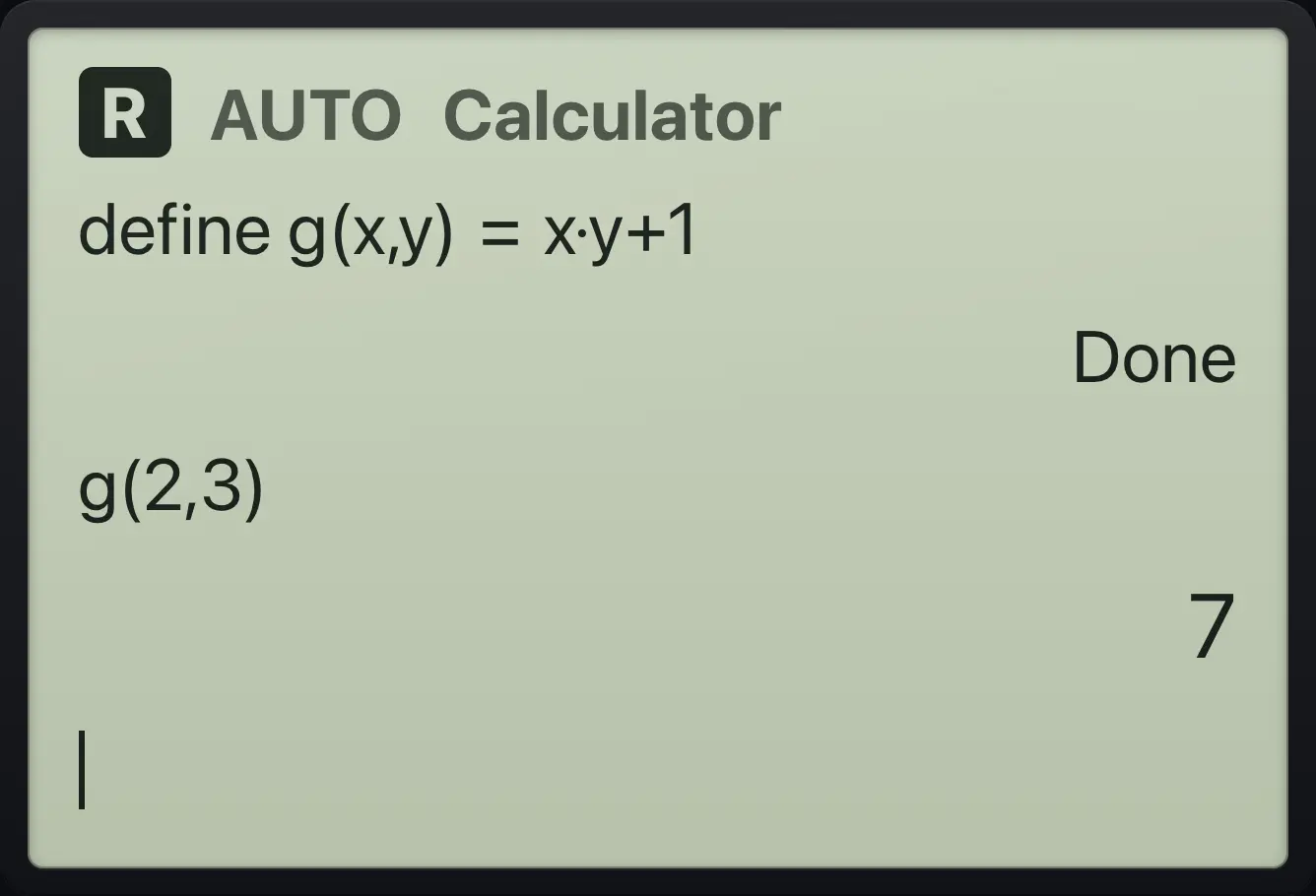
7Differentiate a defined function
Define f(x)=x²+1 then take d(f(x),x).
define␣f(x)=x^2▶+1enterd(f(x),x)enter
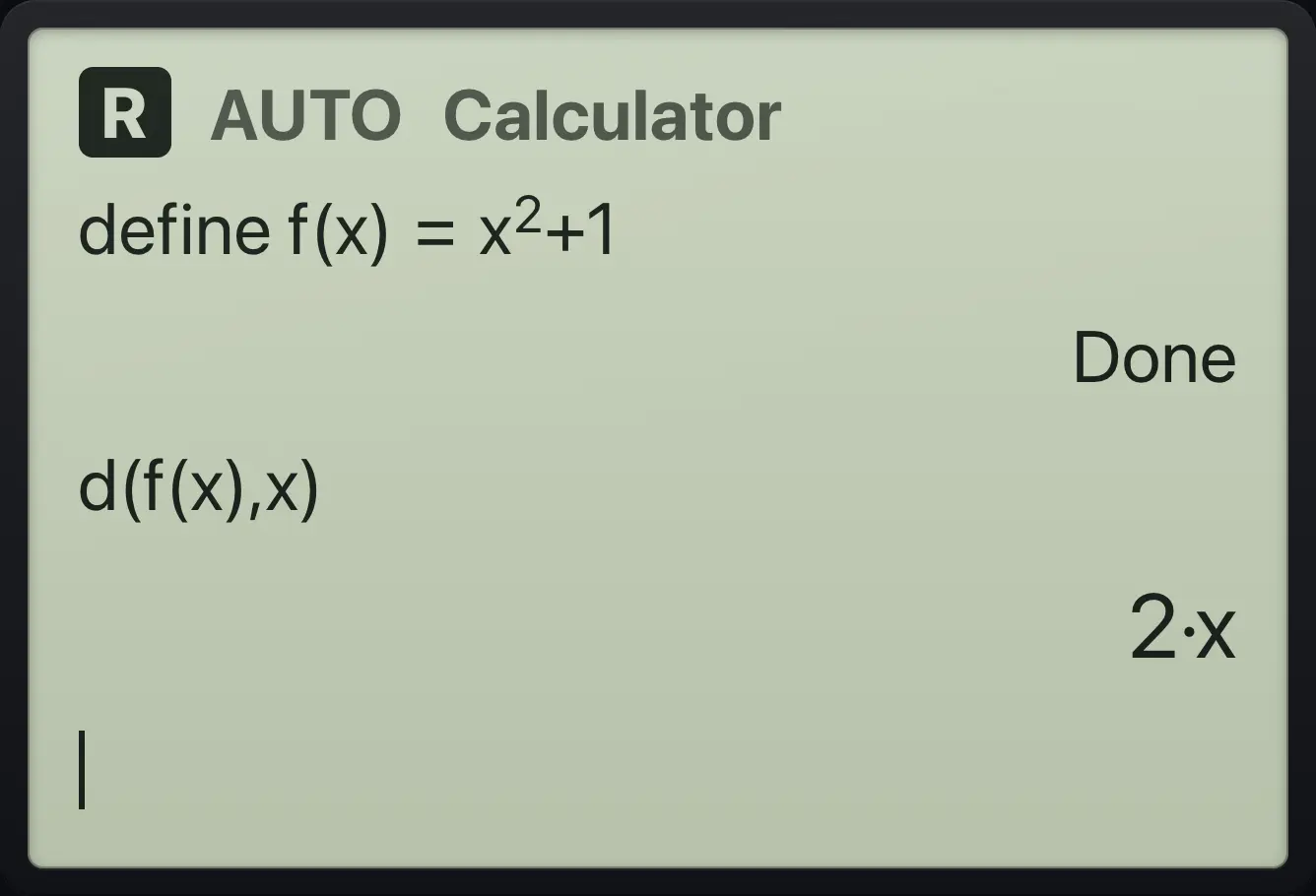
2·xSolve with a defined function
Define f(x)=x²−3x then solve f(x)=4.
define␣f(x)=x^2▶−3xentersolve(f(x)=4,x)enter
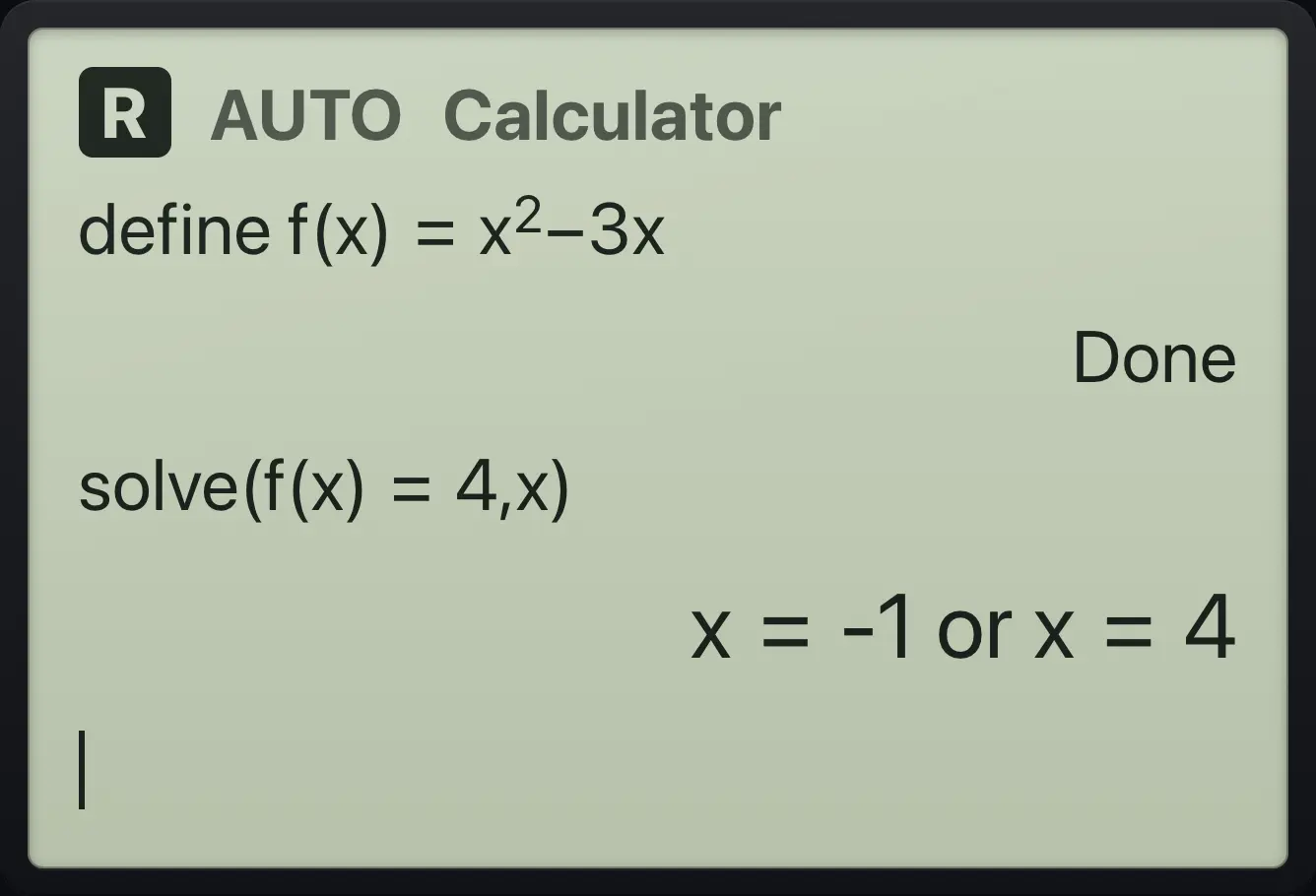
x=-1 or x=4A name of two or more letters followed by a bracket, such as foo(3), is a function call. If no function of that name is defined, it stays as it is. To multiply, type ×: ab·(2). A single letter before a bracket still multiplies: x(x+1) is x·(x+1).
An undefined function stays as it is
Type foo(3).
foo(3)enter
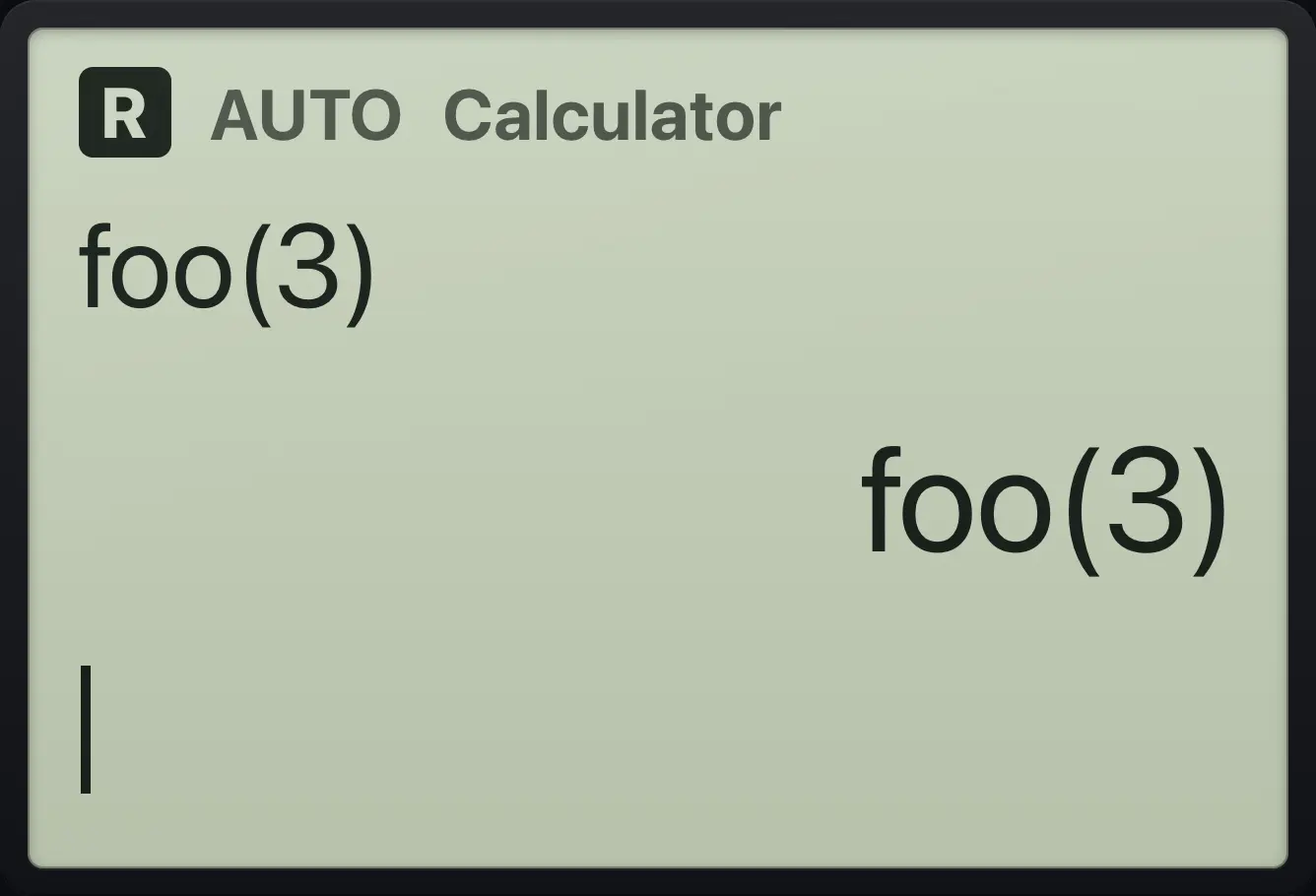
foo(3)7.3Delete a variable#
DelVar (menu, 1, 2) removes one variable. Home, 5 removes all of them. The name then goes back to being an ordinary symbol.
Delete one variable
Store a as 3, then DelVar a.
a:=3enterdelvar␣aenter
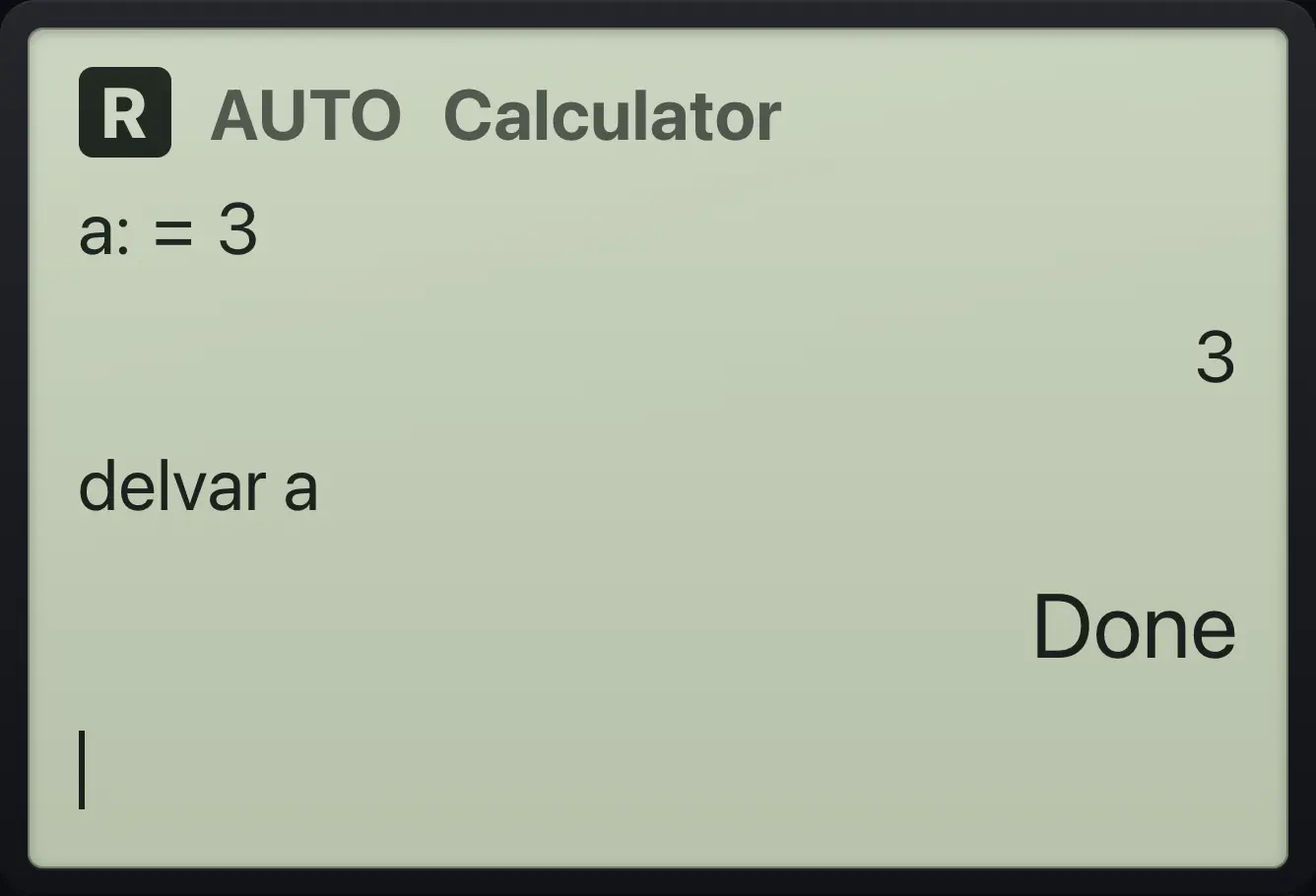
Done7.4Substitute with the with bar#
The with bar (ctrl then ÷) evaluates an expression for particular values without storing them. Write the expression, the bar, then the value as x=3.
Evaluate at x = 3
Type x²+1, ctrl ÷, x = 3.
x^2▶+1ctrl|÷x=3enter
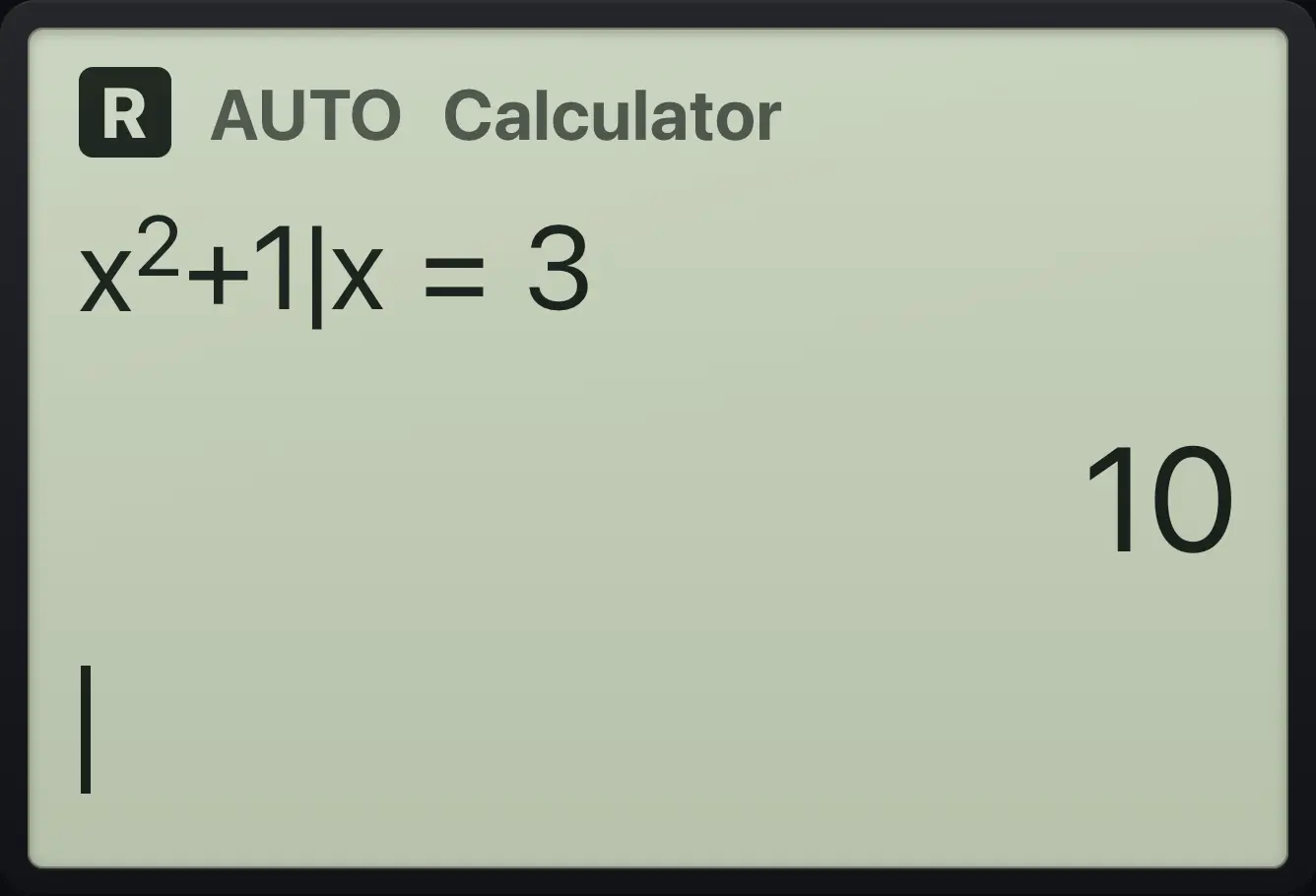
x^2+1|x=3 10Substitute a symbol
Type (x+1)², with bar, x = a.
(x+1)^2▶ctrl|÷x=aenter
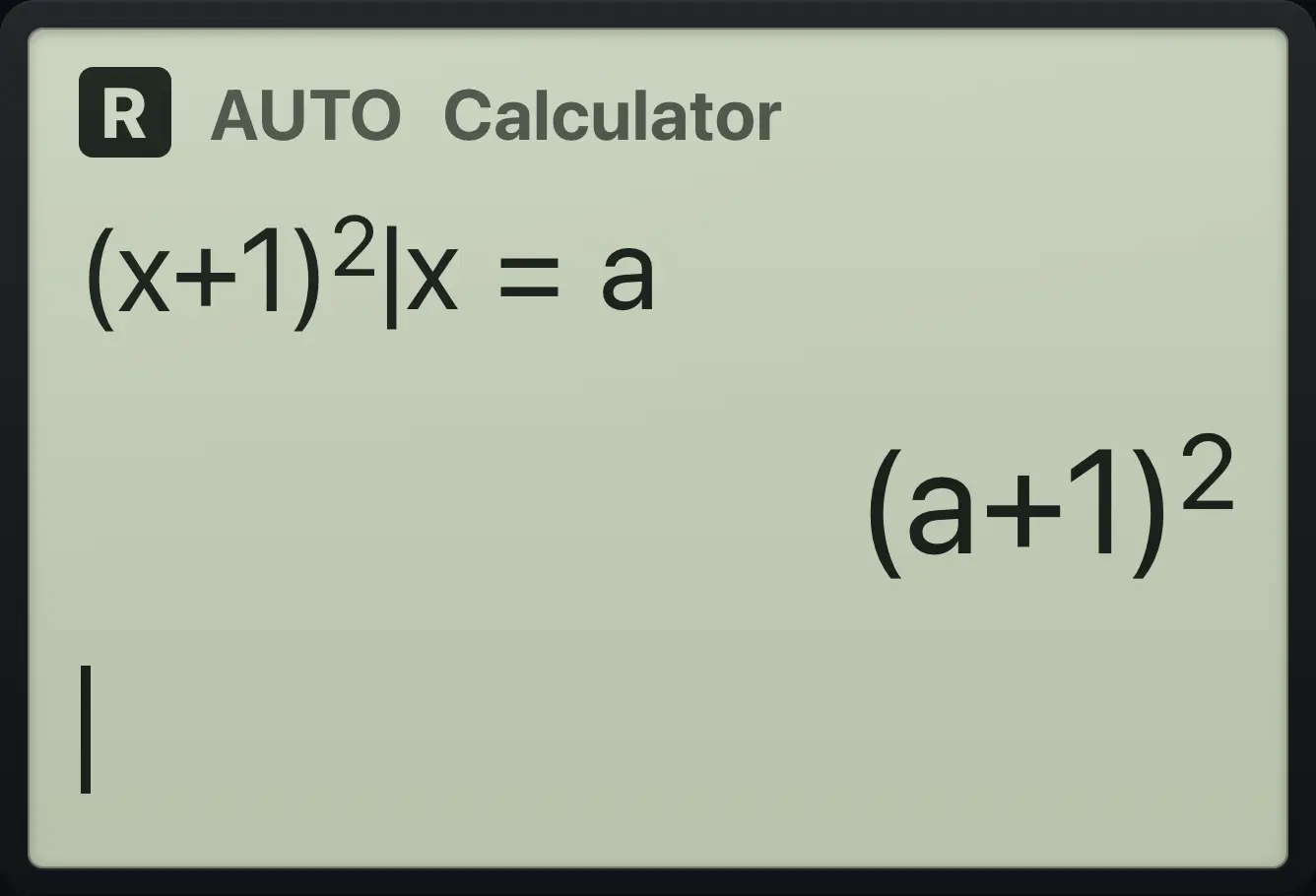
(a+1)^2Substitute an exact angle
Type sin(x) | x = π/6.
sin(x)ctrl|÷x=π÷6enter
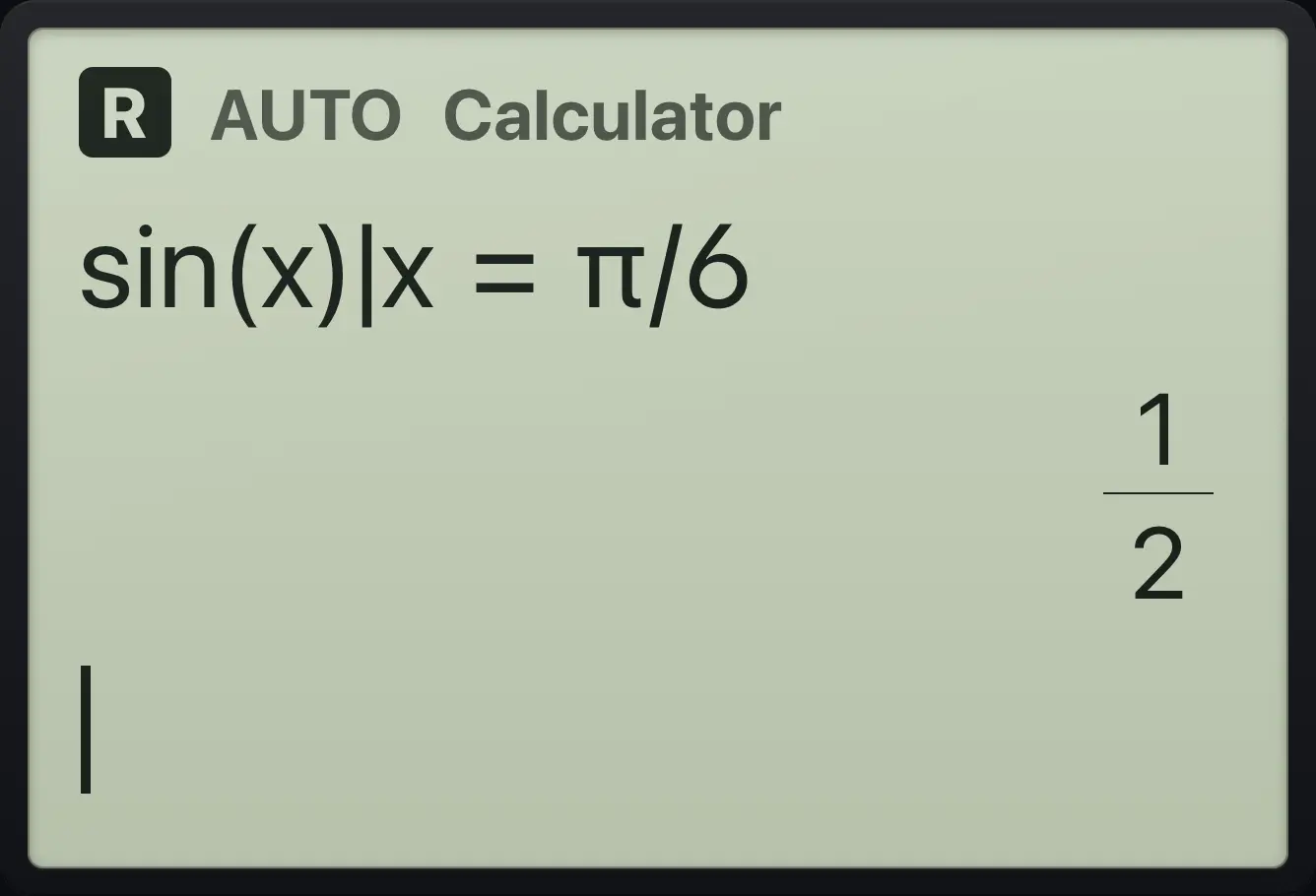
1/2After the bar you can also give a condition such as x>0. A condition keeps only the solutions of solve( (or the zeros of zeros() that satisfy it. Combine a value and a condition with and.
Keep only the positive solution
Type solve(x²=4, x), the with bar, then x > 0.
solve(x^2▶=4,x)ctrl|÷xctrl≠≥▸=40enter
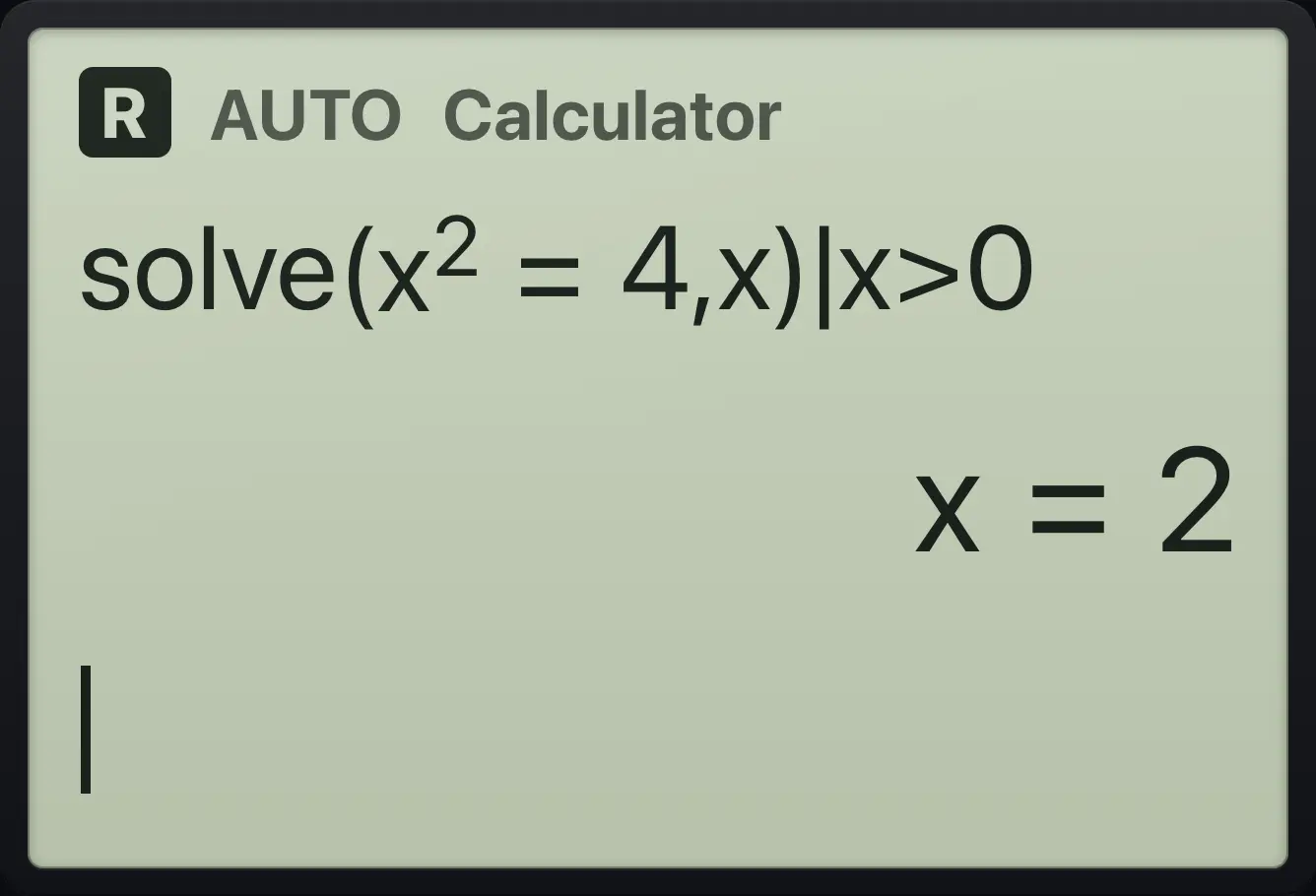
x=2Keep the negative zero
Type zeros(x²−4, x) | x < 0.
zeros(x^2▶−4,x)ctrl|÷xctrl≠≥▸=30enter
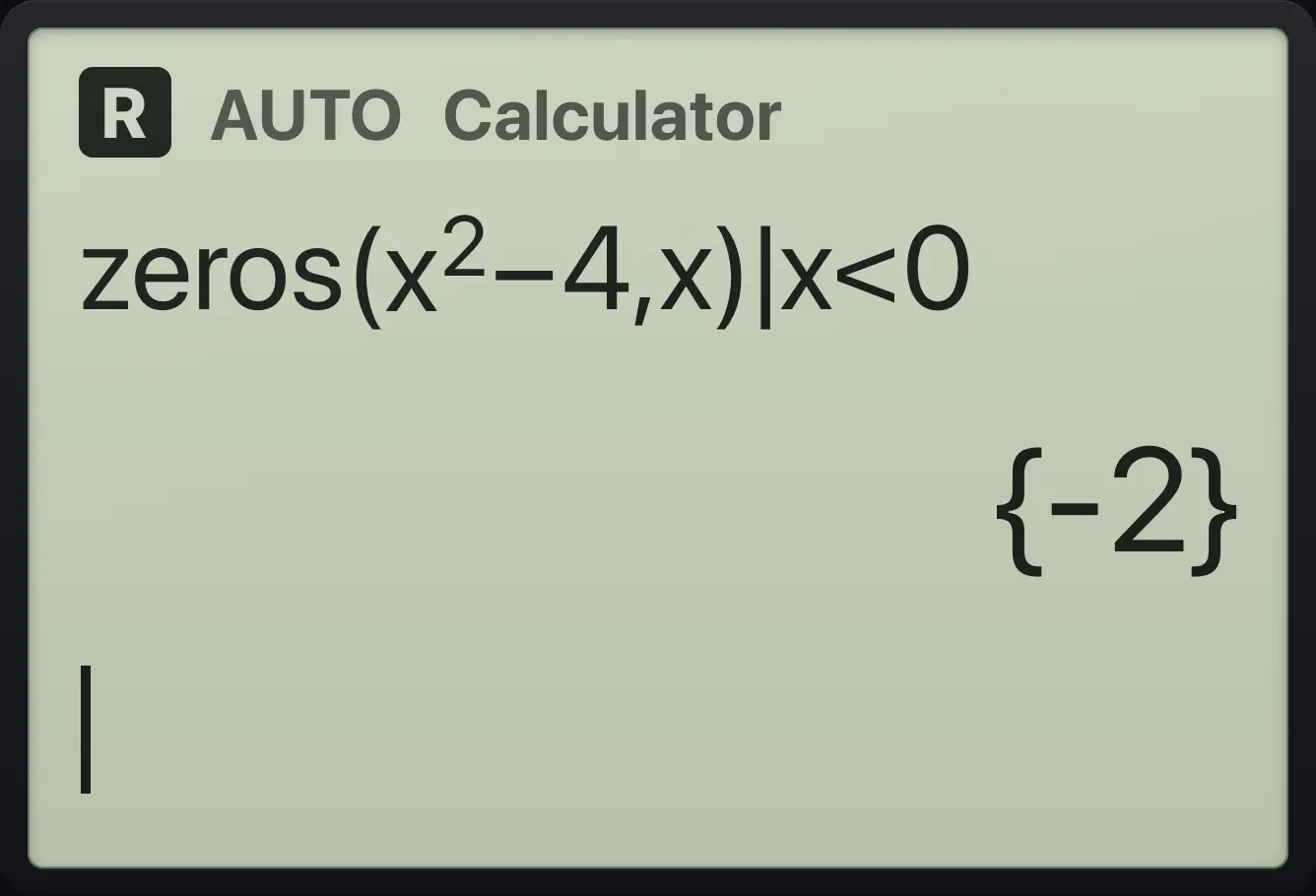
{-2}TI-Nspire CX CAS is a trademark of Texas Instruments Incorporated. Trident Calculator is an independent product by South View Studios and is not affiliated with, sponsored by or endorsed by Texas Instruments. The name is used only to describe the kind of calculator this model resembles; Trident's names, keys, display, fonts and software are its own clean-room design.