
Classic CAS manual · Chapter 1 of 16
Getting started
What Classic CAS is for, the calculator page and graphs page, the ctrl and shift layers, your first calculation, editing, and typing from a laptop keyboard.
1.1What Classic CAS does#
Classic CAS is a computer-algebra calculator. A normal calculator turns every problem into a decimal. This one keeps answers exact: comes back as , comes back as , and letters stay as letters, so it can expand, factor, solve, differentiate and integrate. It also draws graphs.
You work on two pages. The Calculator page is a scrolling list: each line you enter is shown on the left, and its answer on the right. The Graphs page holds up to seven functions and draws them. Press doc to jump between the two pages.
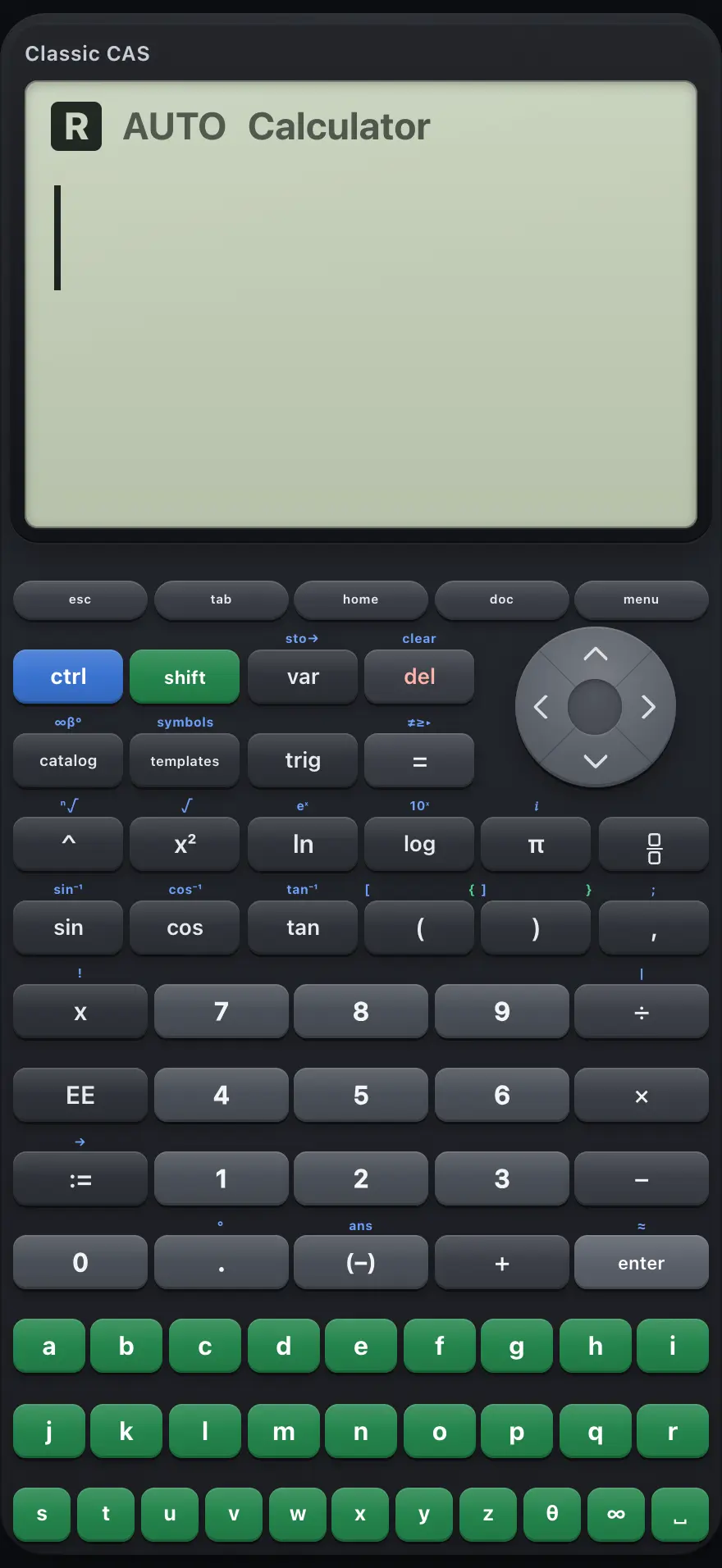
- Calculator page: your entries on the left, exact answers on the right
- esc: close a menu or go back
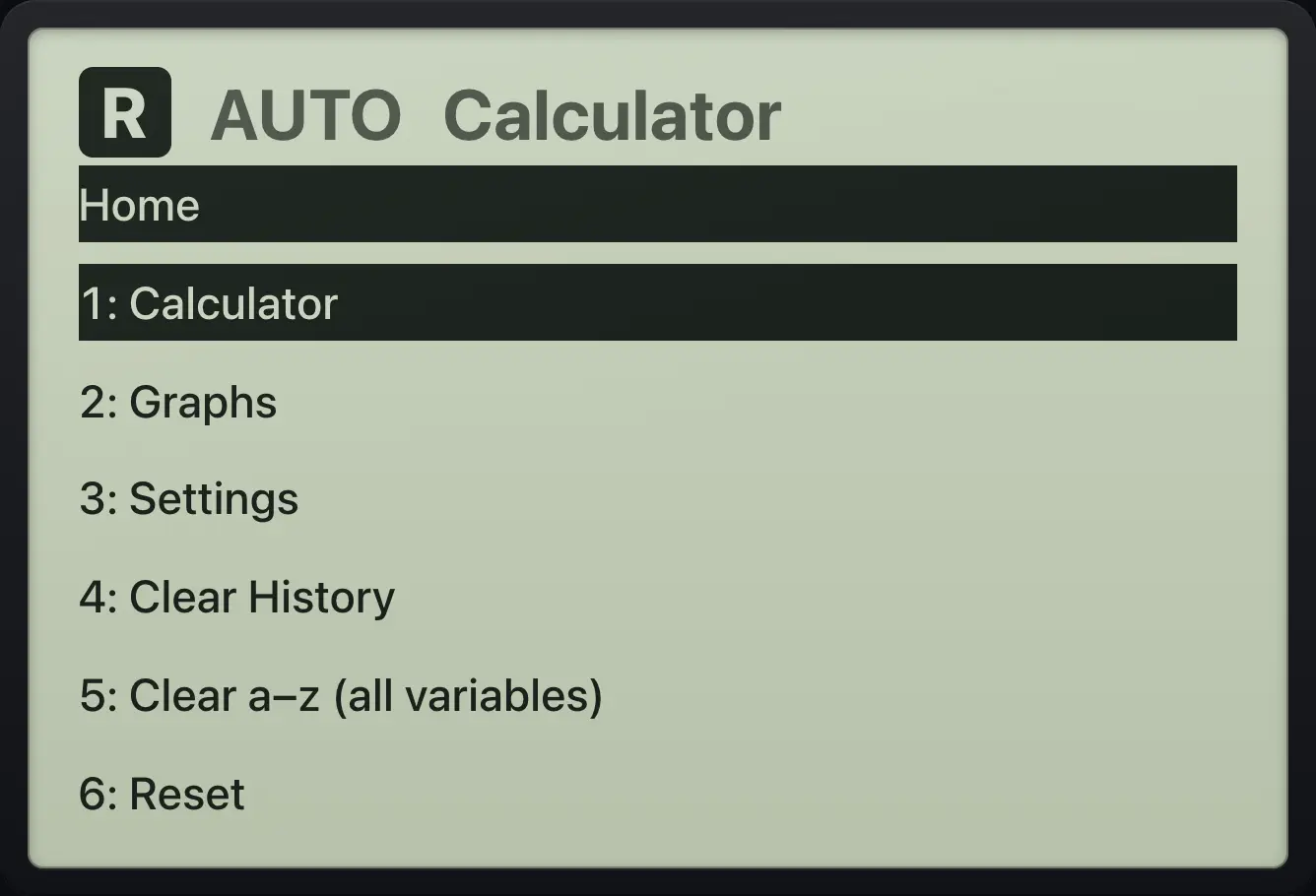
- home: pick a page, open Settings, clear things
- doc: switch between Calculator and Graphs
- menu: tools for the current page
- ctrl: the next key uses its second function
- templates: fraction, root, integral and more
- enter: exact answer. ctrl then enter: decimal answer
1.2The screen and its indicators#
The top of the display shows the current calculation mode (AUTO, EXACT or APPROX), the angle unit (RAD, DEG or GRAD), an a+bi tag when complex results are on, and the page name. When you press ctrl or shift, an indicator lights up until you press the next key.
1.3The ctrl and shift layers#
Many keys do two jobs. The second job is selected by pressing ctrl first, then the key. Press ctrl once; the next key press uses its ctrl function and the layer switches off again. For example ctrl√x² types a square root and ctrl≈enter gives a decimal answer.
shift is a smaller layer: it only changes the bracket keys, giving the curly braces used for lists: shift{( and shift}).
- ctrl second functions
- shift braces
- ( ( [ {
- ) ) ] }
1.4Your first calculation#
Type the calculation the way you would write it and press enter. Multiplication and division happen before addition and subtraction.
Order of operations
Type 2 + 3 × 4 and press enter.
2+3×4enter
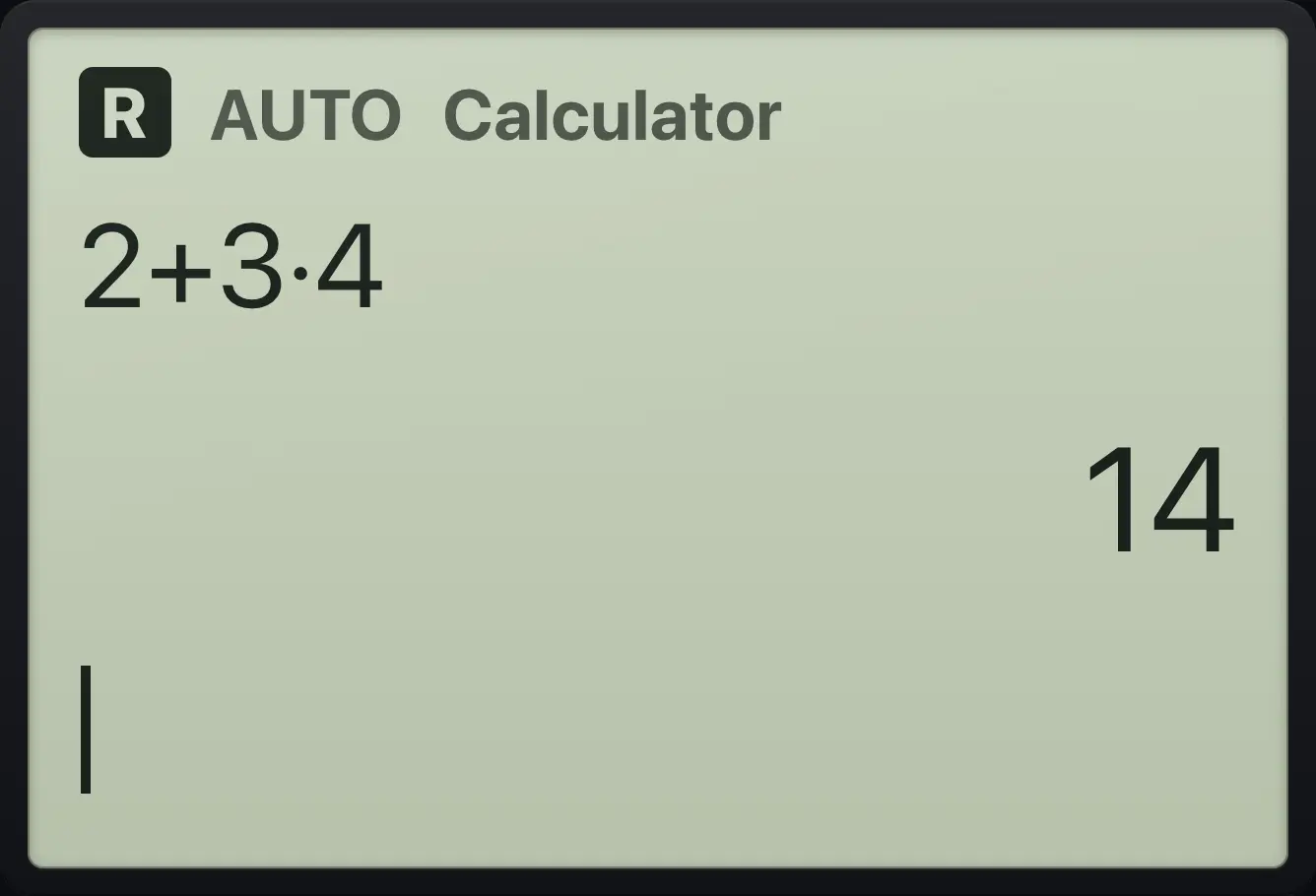
14An exact fraction
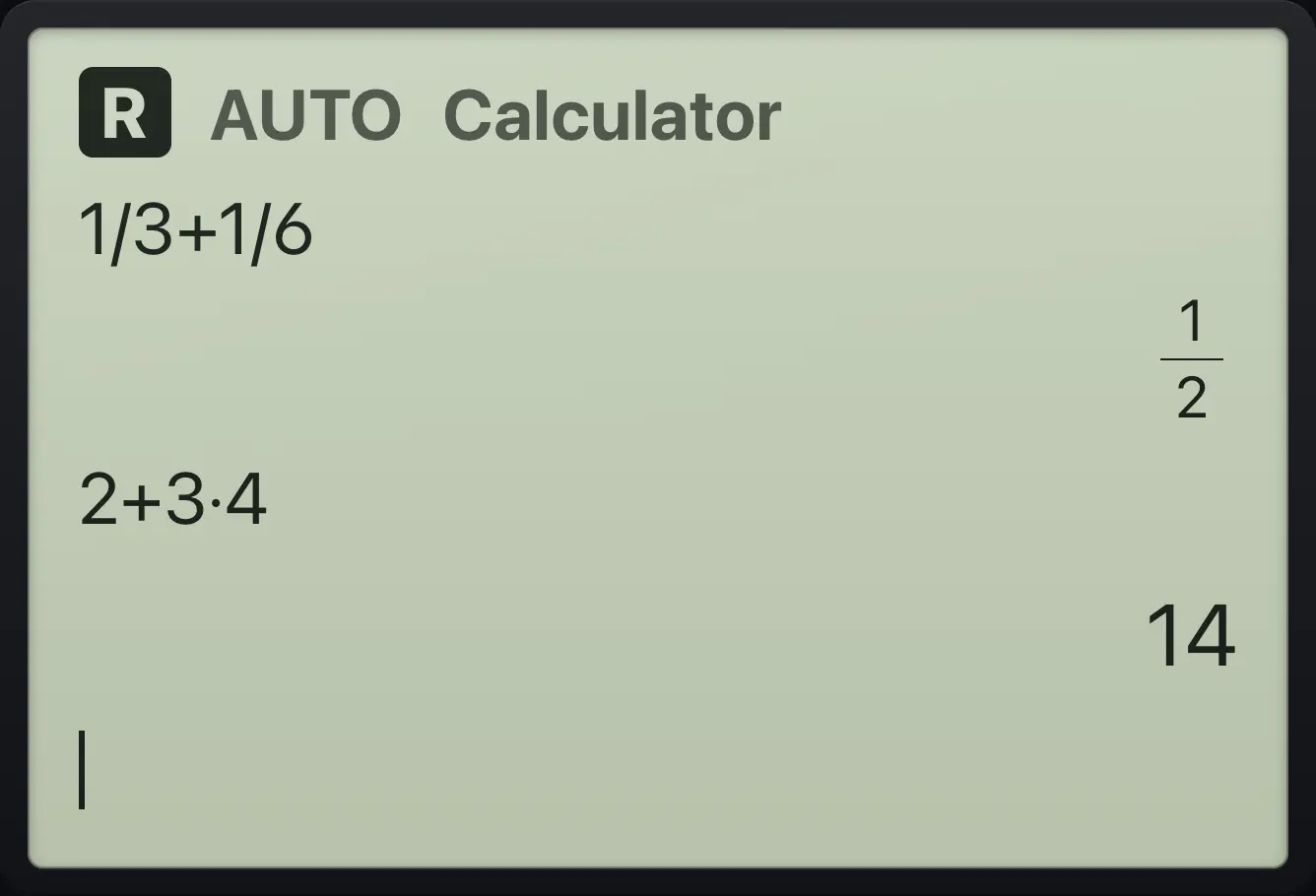
Type 1 ÷ 3 + 1 ÷ 6 and press enter.
1÷3+1÷6enter
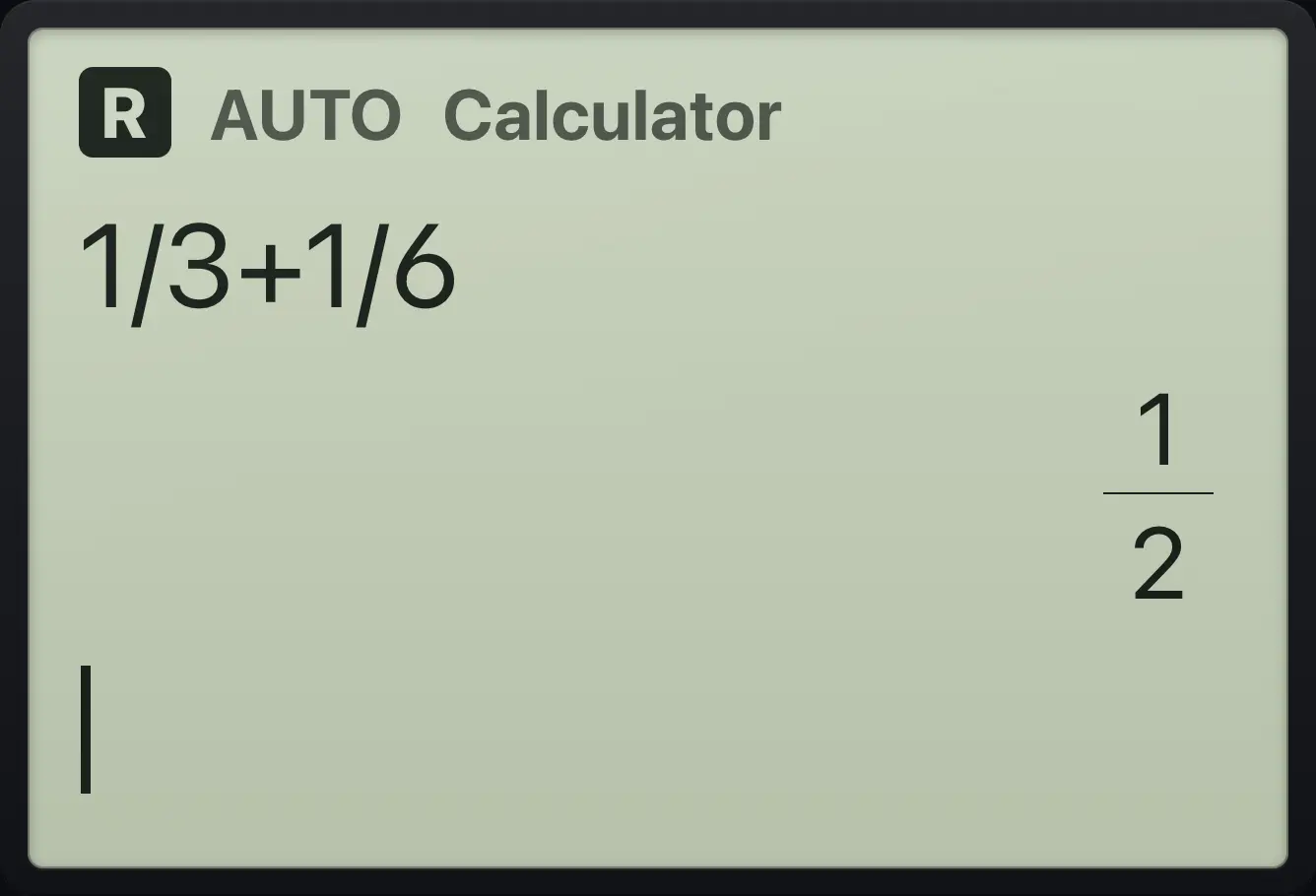
1/21.5Clear and edit an entry#
del removes the character before the cursor. ctrlcleardel clears the whole entry line. Use ◀ and ▶ to move the cursor inside the entry, and ctrl◀ or ctrl▶ to jump to the start or end.
Clear the entry line
Type 99, clear the line with ctrl del, then type 5 + 1 and press enter.
99ctrlcleardel5+1enter
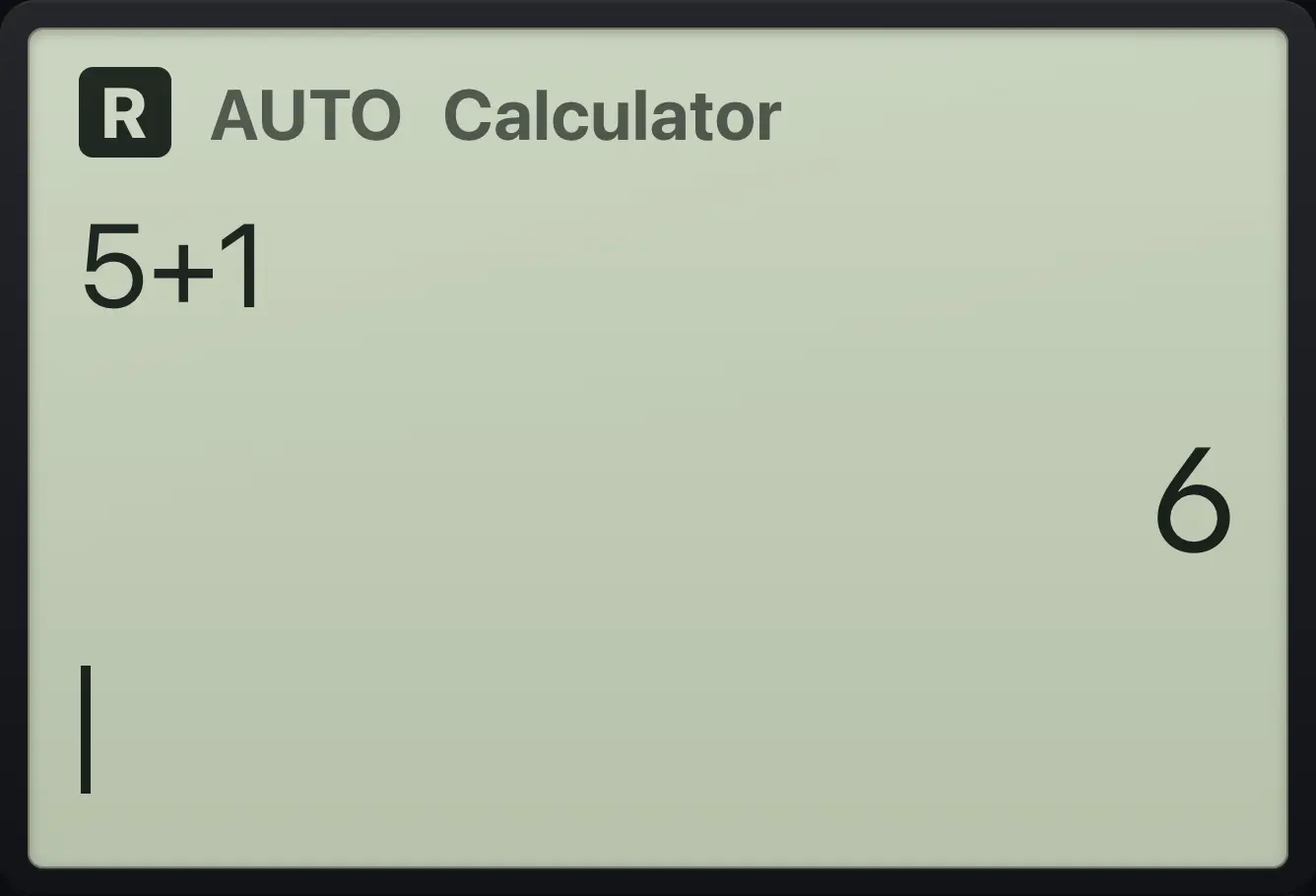
5+1 6Insert a missing digit
Type 13, press left once, type 2, and press enter.
13◀2enter
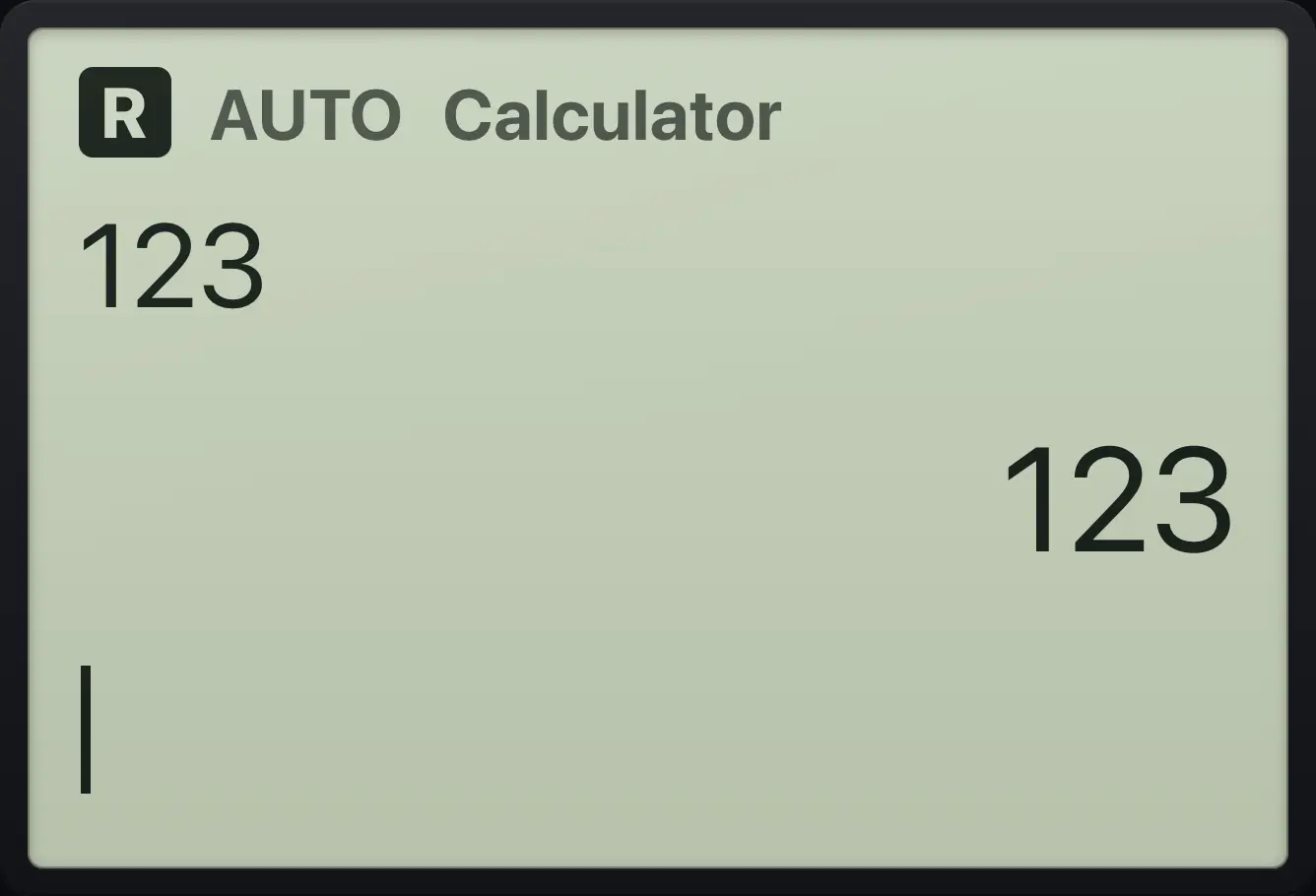
1231.6Return to the calculator page#
If you are lost in a menu, press esc to close it. To return from the graphs page, press doc (or press home and choose Calculator). Neither action erases your history or variables.
1.7Using a laptop keyboard#
On a computer you can type with the physical keyboard. Letters, digits, and the common symbols go straight to the matching keys. Other keys are mapped like this:
| Keyboard | Does this |
|---|---|
| Enter | enter |
| Backspace | del |
| Delete | ctrlcleardel (clear the entry line) |
| Escape | esc |
| Tab | tab |
| + - * / ^ | + − × ÷ ^ |
| ( ) , | ( ) , |
| [ ] | ctrl[( ctrl]) (square brackets) |
| { } | shift{( shift}) (curly braces) |
| ; | ctrl;, |
| | | ctrl|÷ (the with bar) |
| ! | ctrl!x |
| < and > | from the relations menu (ctrl≠≥▸=) |
| = | = |
| : | := (the := sign) |
| ~ or _ | (−) (negative sign) |
| \ | ctrl≈enter (decimal answer) |
| ° | ctrl°. |
| π | π |
| @ | θ |
| # | ctrl𝑖π (the imaginary unit) |
| $ or √ | ctrl√x² (square root) |
| & | ctrlans(−) (last answer) |
| " | templates |
| ? | catalog |
| F1 | menu |
| F2 | templates |
| F3 | catalog |
| F4 | doc |
| F5 | home |
| Home / End | ctrl◀ / ctrl▶ |
| Page Up | ctrl▲ |
| Space | ␣ |
TI-Nspire CX CAS is a trademark of Texas Instruments Incorporated. Trident Calculator is an independent product by South View Studios and is not affiliated with, sponsored by or endorsed by Texas Instruments. The name is used only to describe the kind of calculator this model resembles; Trident's names, keys, display, fonts and software are its own clean-room design.