
Classic CAS manual · Chapter 6 of 16
Menus, templates and catalog
The Menu, Home menu, templates, symbols, relations, trig menu, catalog and variable list: what each one holds and how to choose from it.
6.1How menus work#
A menu lists items with numbers 1 to 9, and then letters A, B, C… Press a number or letter key to choose that item, or use ▲ and ▼ and press enter. esc closes the menu. Choosing a function pastes its name with an opening bracket into your entry.
- menu
- 3 Algebra
- 1 solve(
- type the arguments
6.2The Menu key#
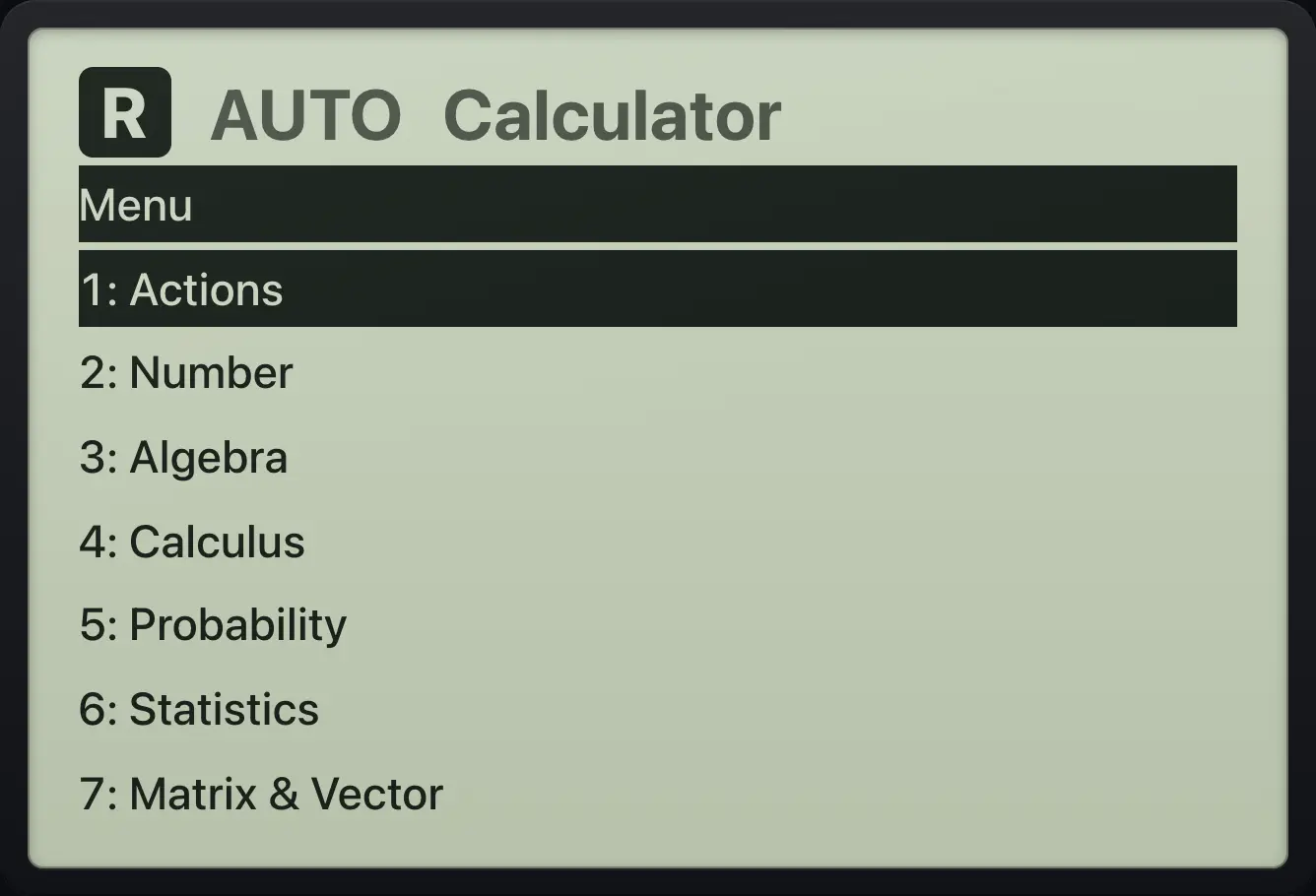
| Item | Name | What it holds |
|---|---|---|
| 1 | Actions | Define, Delete Variable, :=, →, the with bar |, Clear History |
| 2 | Number | approx, exact, factor, propFrac, gcd, lcm, mod, remain, floor, ceiling, round, iPart, fPart, isprime, abs, sign |
| 3 | Algebra | solve, factor, expand, zeros, cSolve, cFactor, cZeros, nSolve, comDenom, propFrac, getNum, getDenom, left, right, polyQuotient, polyRemainder, polyGcd, polyDegree, polyCoeffs |
| 4 | Calculus | Derivative, Integral, Definite integral, Limit, Sum, Product, taylor, nDeriv, nInt, arcLen, tangentLine, normalLine, fMin, fMax, impDif |
| 5 | Probability | Factorial, nCr, nPr, rand, randInt, normCdf, normPdf, invNorm, binomPdf, binomCdf, poissPdf, poissCdf, geomPdf, geomCdf, tCdf, invt |
| 6 | Statistics | mean, median, stDevSamp, stDevPop, varSamp, varPop, sum, product, cumulativeSum, seq, max, min |
| 7 | Matrix & Vector | 2×2 matrix, det, rref, ref, identity, Transpose, dotP, crossP, norm, dim, rowDim, colDim, augment |
| 8 | Complex | 𝑖, real, imag, conj, angle, abs |
| 9 | Settings | Opens the Settings form |
Solve from the Algebra menu
Press menu, 3, 1. Then type the equation and the variable, and close the bracket.
menu31x^2▶−5x+6=0,x)enter
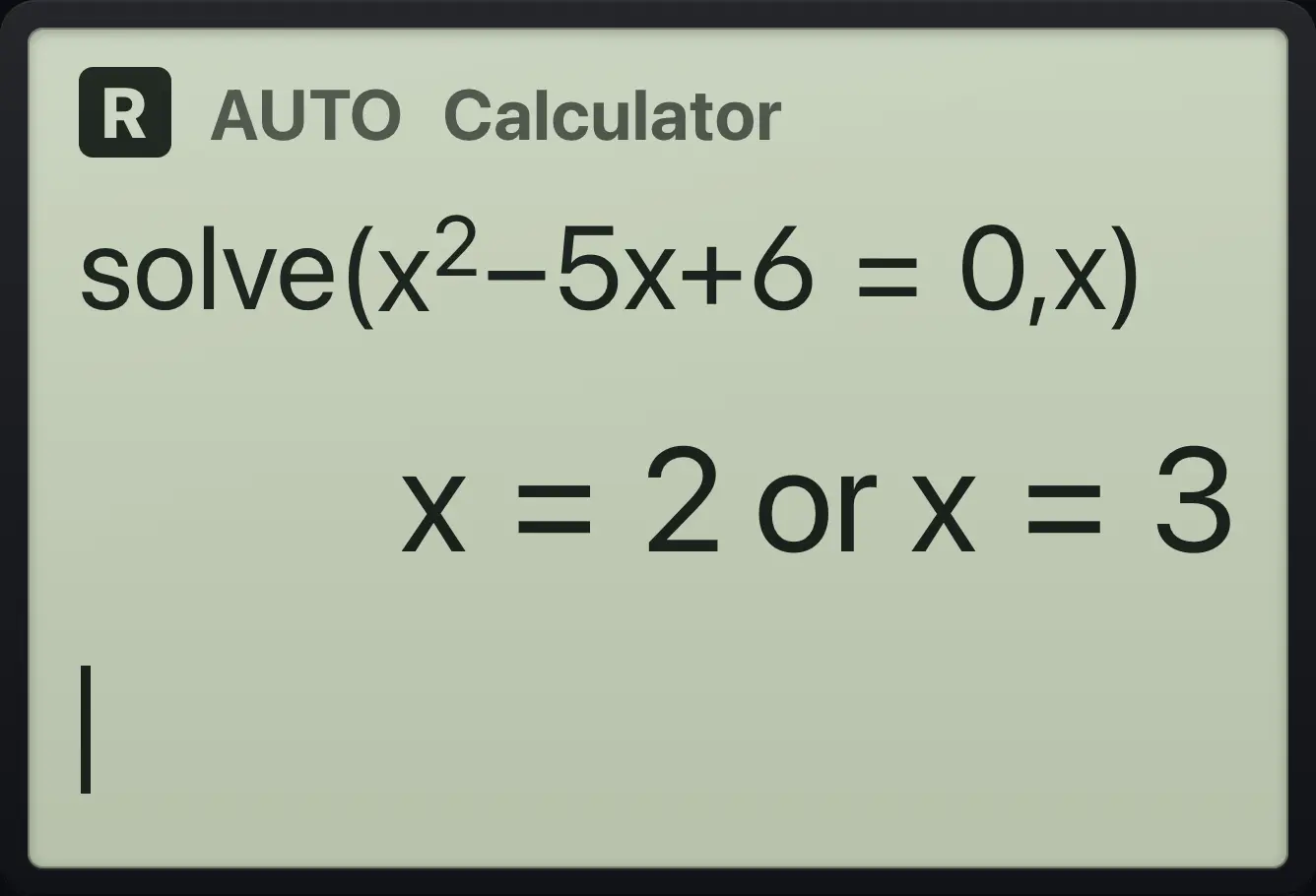
x=2 or x=3Factor from the Algebra menu
Press menu, 3, 2 (factor), type x^3 − x.
menu32x^3▶−x)enter
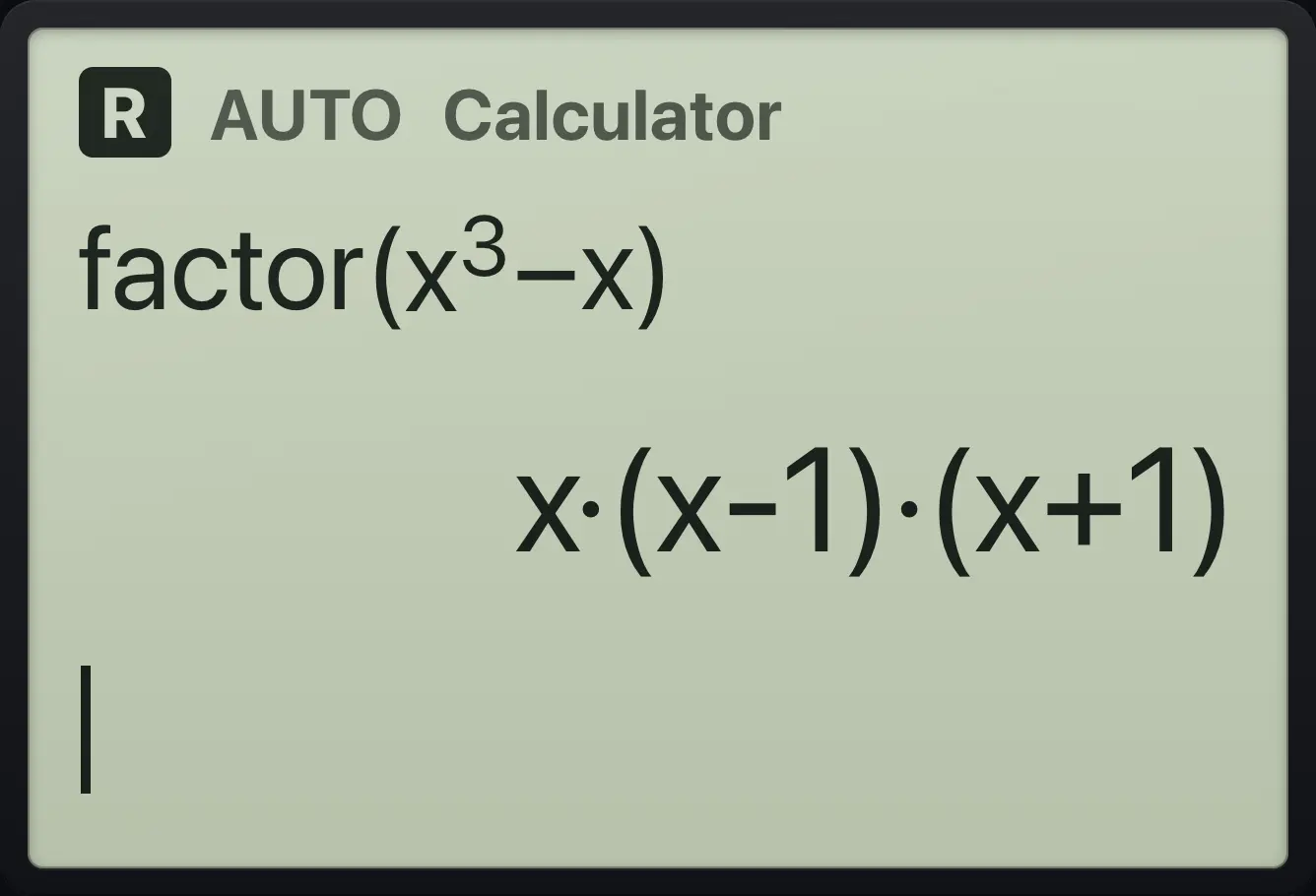
x·(x-1)·(x+1)6.3The Home menu#
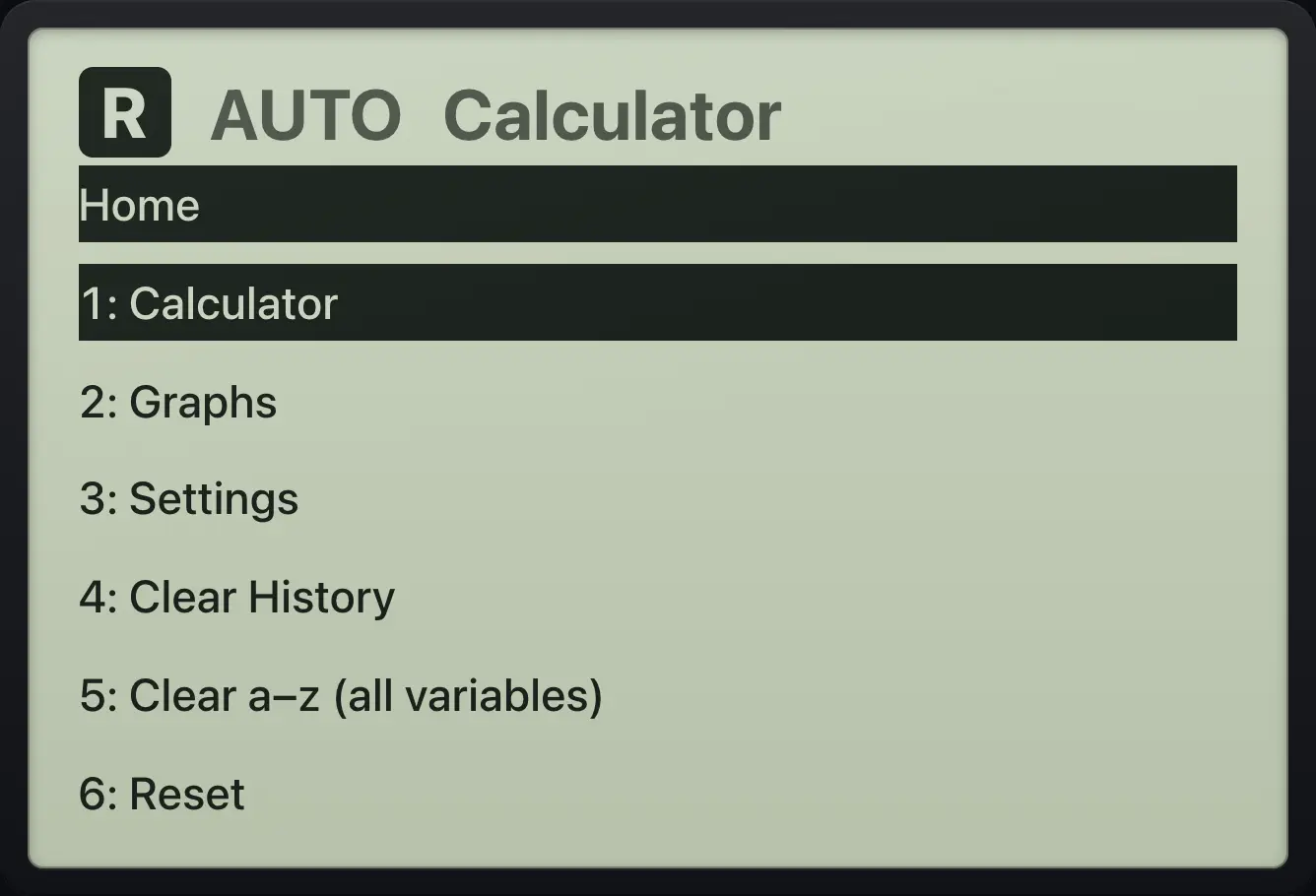
| Item | What it does |
|---|---|
| 1 Calculator | Go to the calculator page. |
| 2 Graphs | Go to the graphs page. |
| 3 Settings | Open the settings form. |
| 4 Clear History | Clear the calculator screen; variables stay. |
| 5 Clear a–z (all variables) | Forget every stored variable and function. |
| 6 Reset | Reset everything: history, variables, settings and graphs. |
6.4Templates: fractions, roots, integrals#
Templates draw maths as you would write it, with boxes for the parts. Type in the first box, then press ▶ (or tab) to move to the next box. ▲ and ▼ also move between boxes.
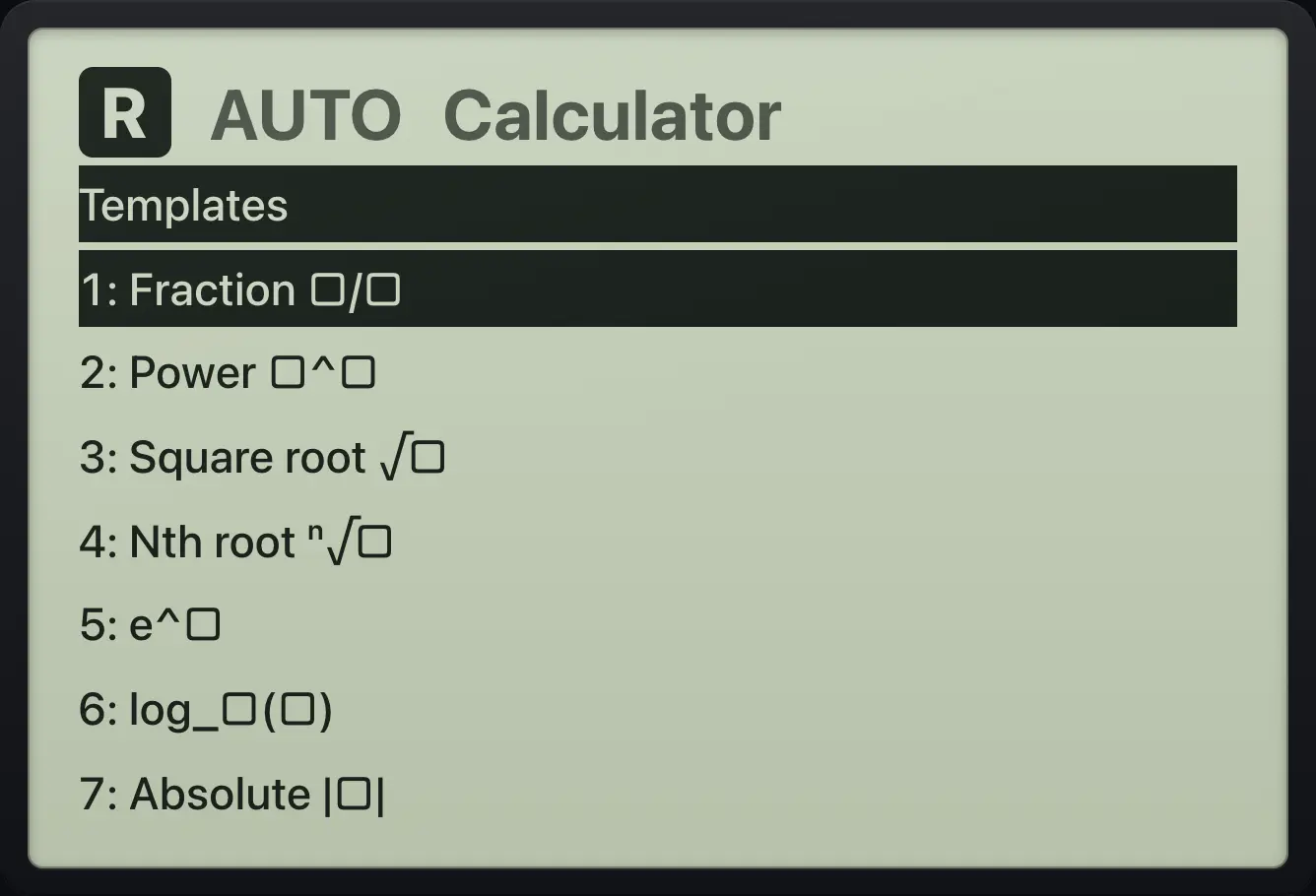
| Item | Template | Boxes to fill, in order |
|---|---|---|
| 1 | Fraction | top, bottom |
| 2 | Power | exponent |
| 3 | Square root | radicand |
| 4 | Nth root | index, radicand |
| 5 | e to a power | exponent |
| 6 | log with a base | base, argument |
| 7 | Absolute value | value |
| 8 | Derivative d/dx | variable, expression |
| 9 | Integral | expression, variable |
| A | Definite integral | lower, upper, expression, variable |
| B | Sum Σ | variable, start, end, expression |
| C | Product Π | variable, start, end, expression |
| D | Limit | variable, target, expression |
| E | Mixed number | whole, numerator, denominator |
Absolute value template
Open templates, choose 7, type negative 7, press enter.
templates7(−)7enter
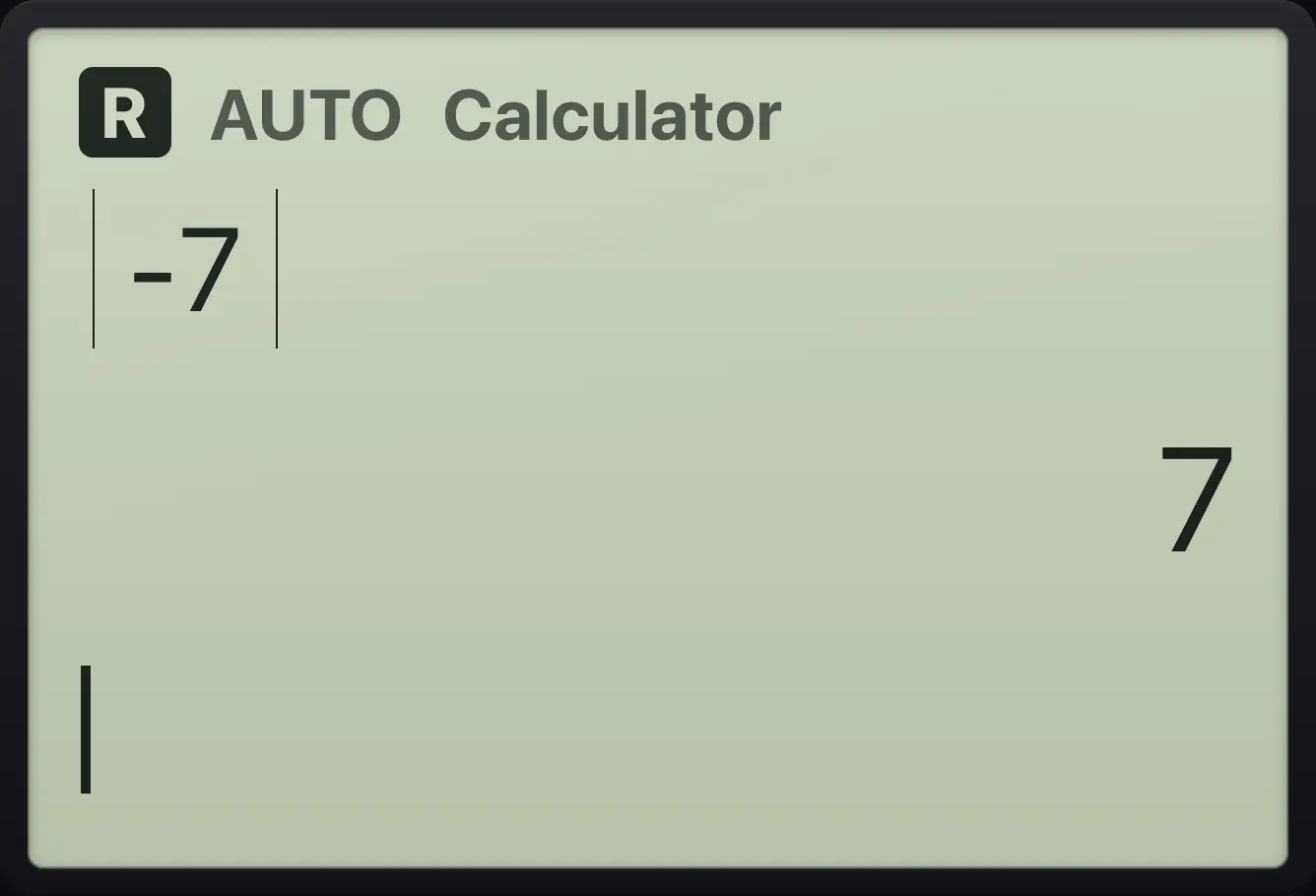
|-7| 76.5Symbols and relations#
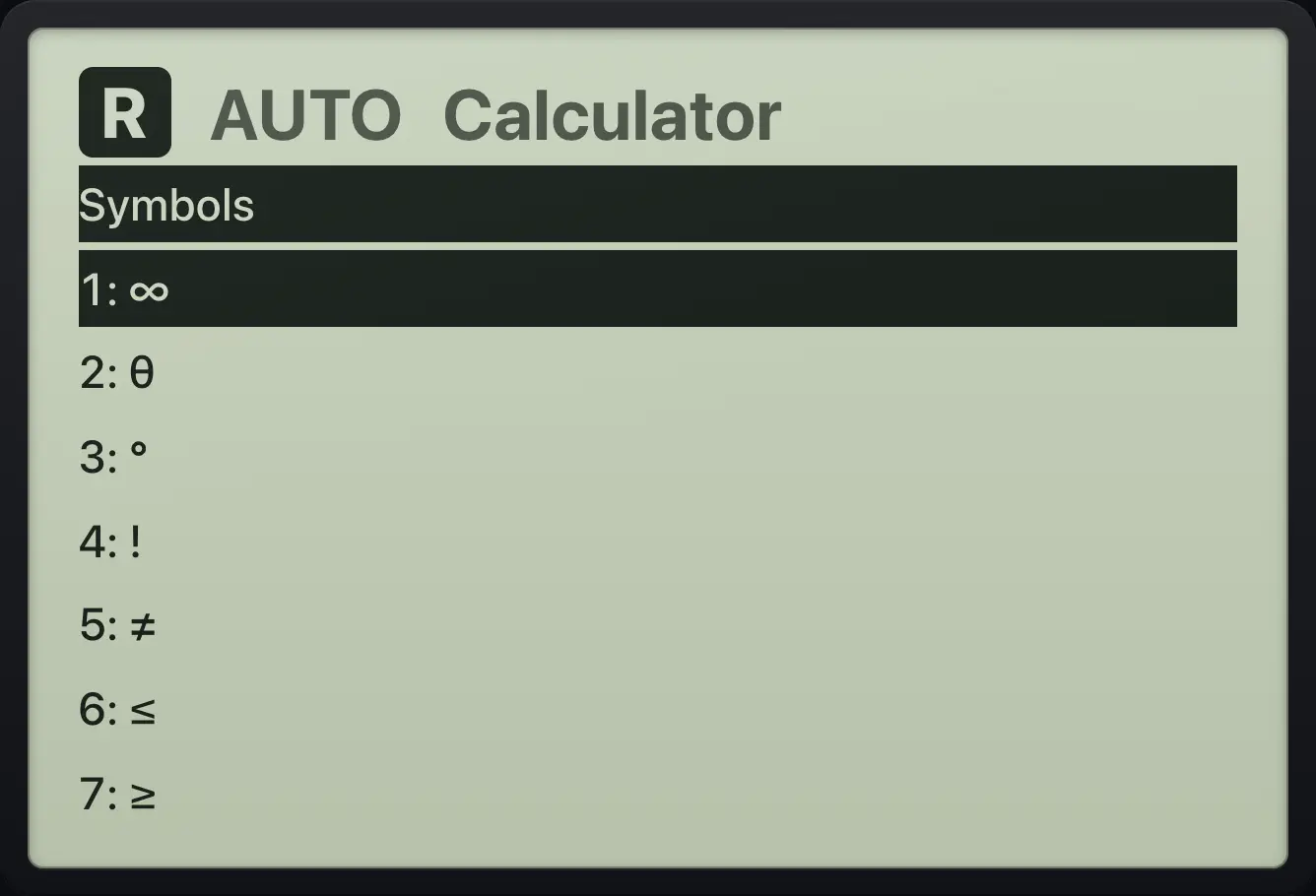
ctrlsymbolstemplates opens a list of symbols: ∞, θ, °, !, ≠, ≤, ≥, |, →, :=, ᵀ and the imaginary unit. ctrl≠≥▸= opens the relations list: =, ≠, <, >, ≤, ≥, | and :=. These are the only ways to type the signs < > ≤ ≥ ≠.
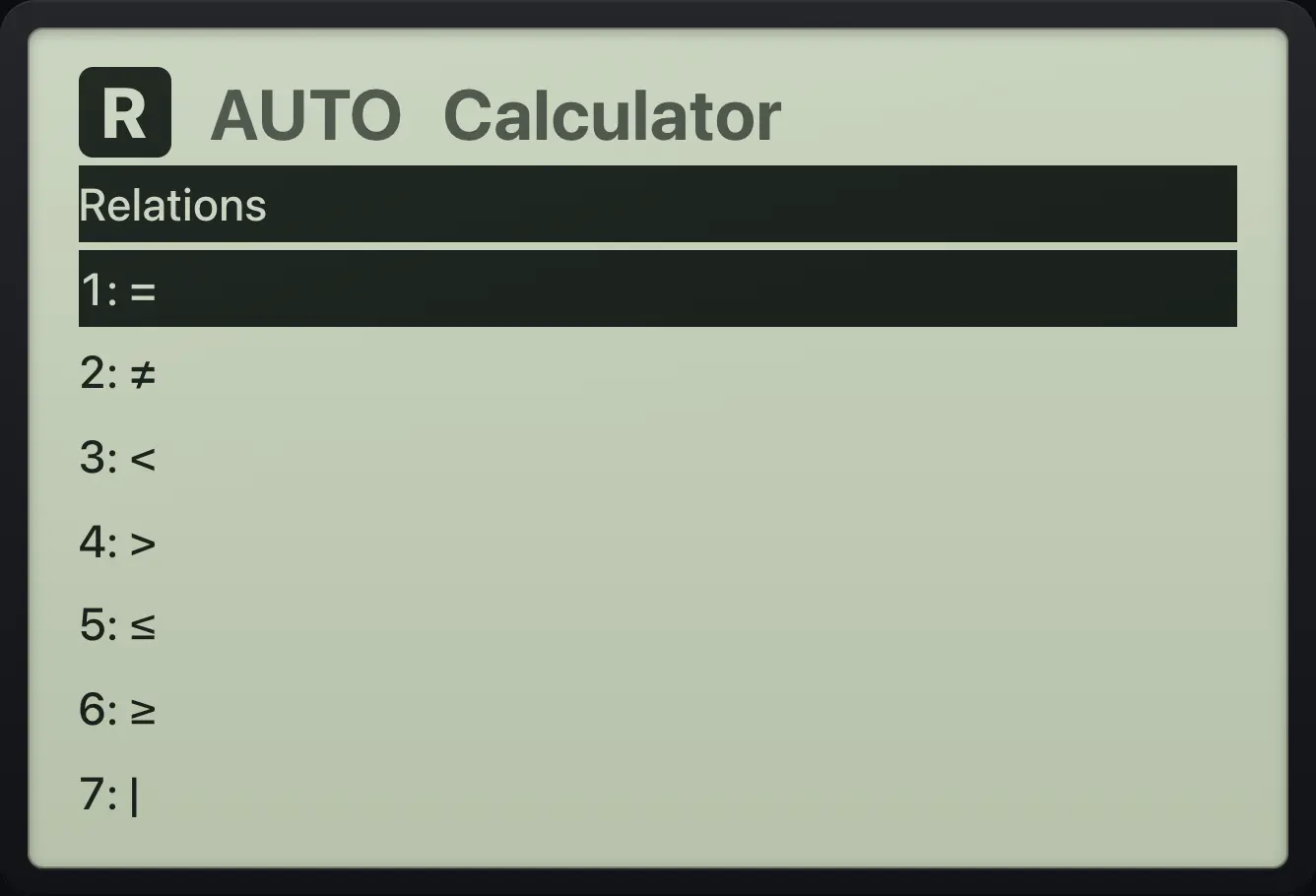
Compare two numbers
Type 3, open relations (ctrl =), choose > (item 4), type 2.
3ctrl≠≥▸=42enter
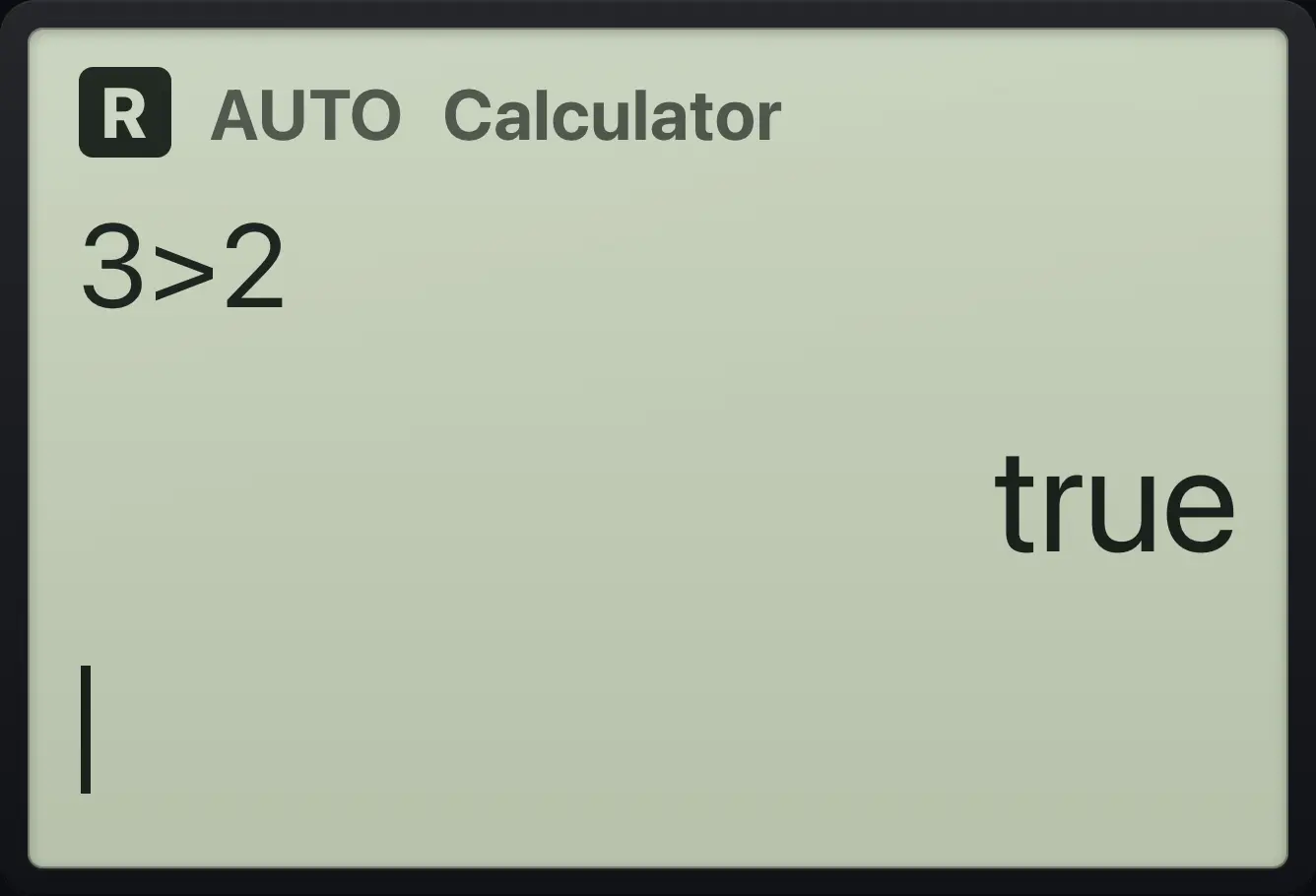
trueA false statement
Type 3 = 4.
3=4enter
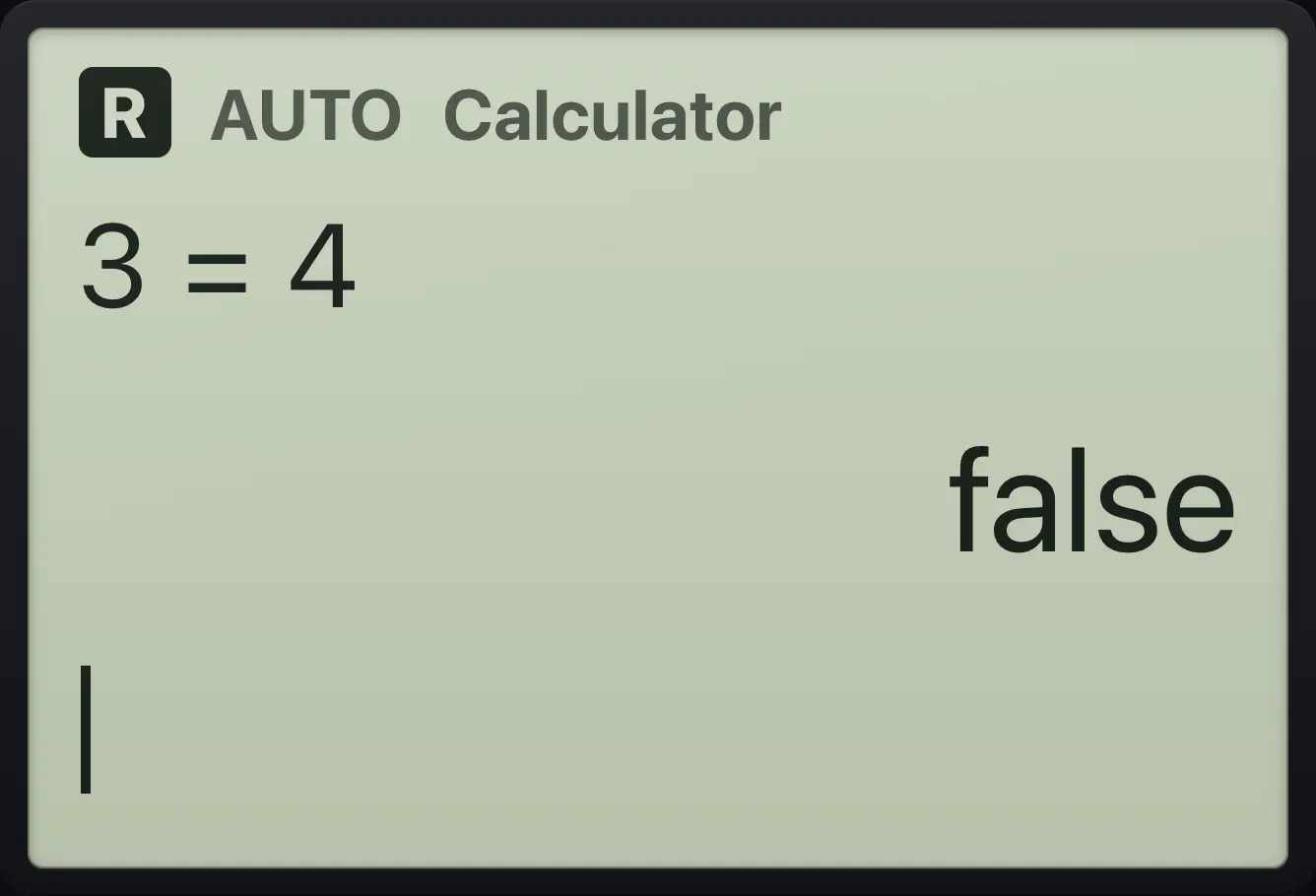
false6.6The catalog#
catalog lists every function name alphabetically. Press a letter key to jump to the first name starting with that letter, then press enter to paste it.
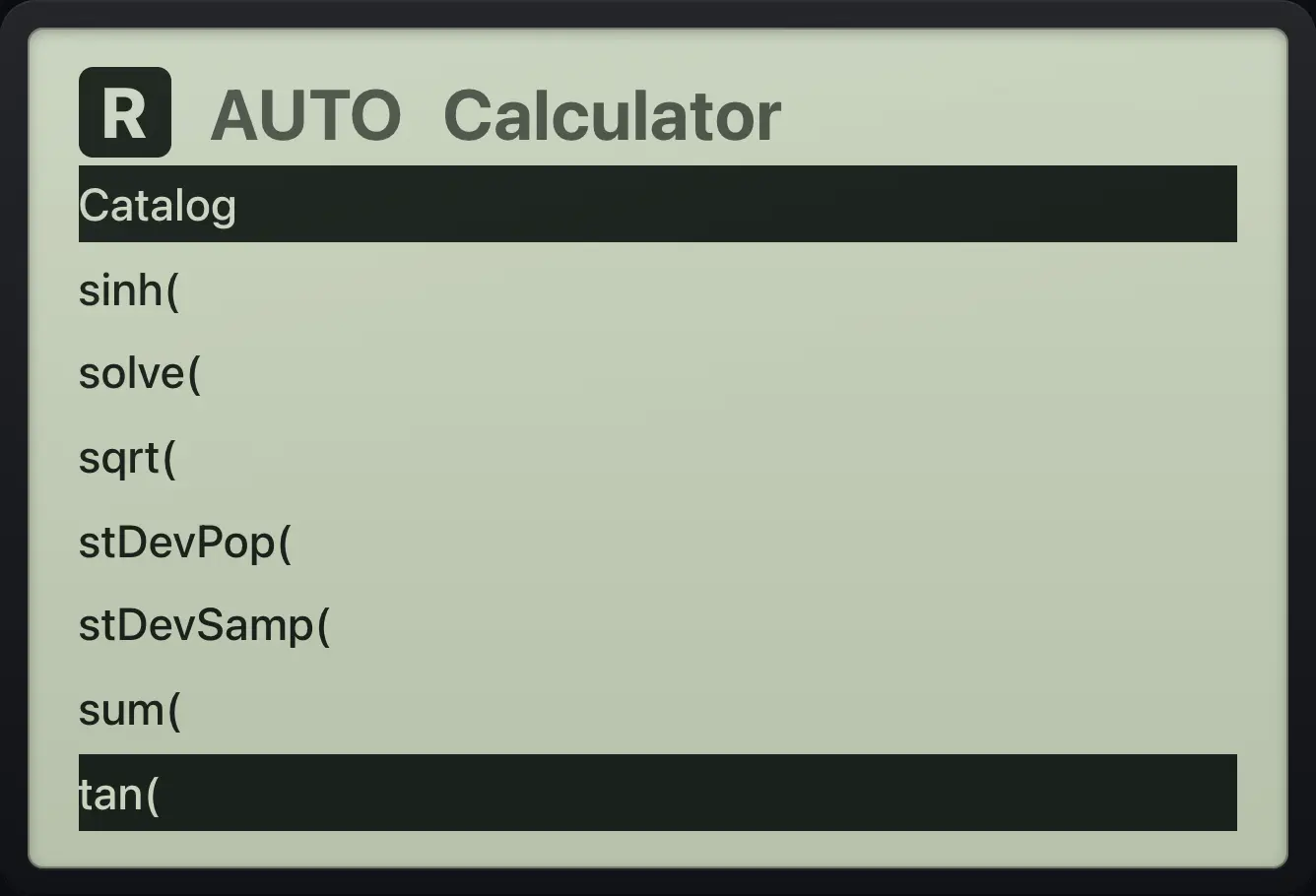
Paste factor( from the catalog
Press catalog, press f, press enter, then type the expression.
catalogfenterx^2▶−1)enter
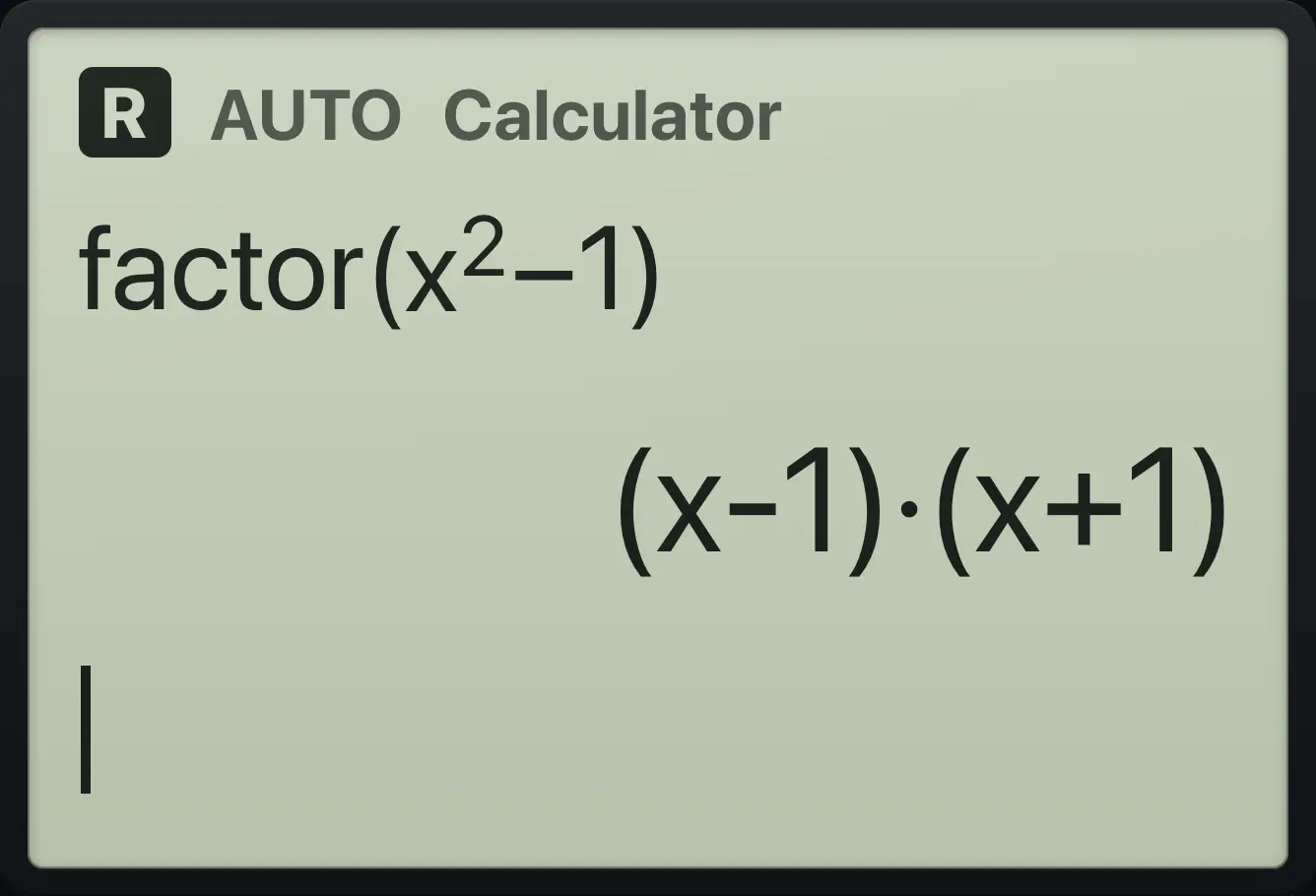
(x-1)·(x+1)6.7The variable list#
var shows the variables you have stored and the functions you have defined. Choose one to paste its name.
Paste a variable
Store 4 in q, then press var, enter, and add 1.
q:=4entervarenter+1enter
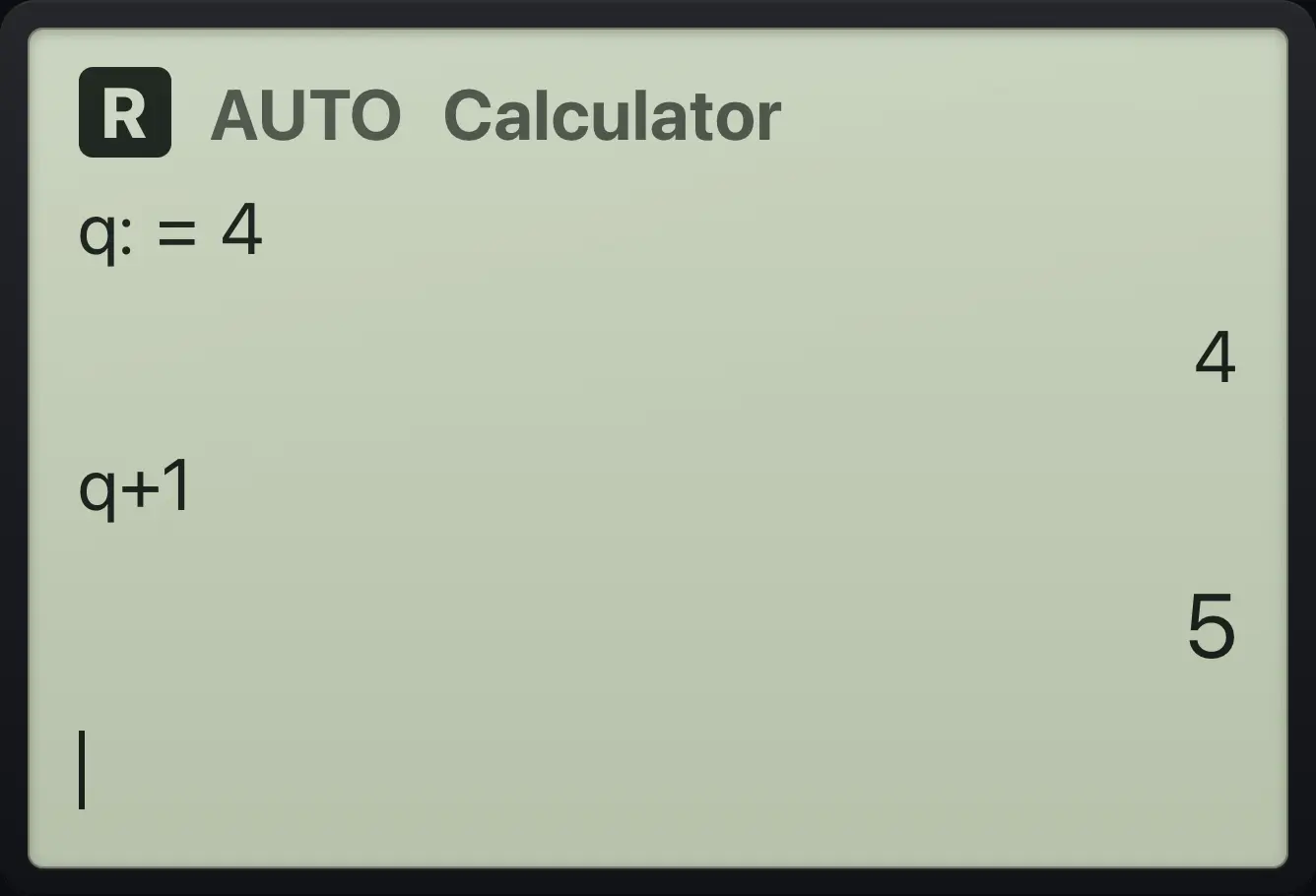
q+1 5TI-Nspire CX CAS is a trademark of Texas Instruments Incorporated. Trident Calculator is an independent product by South View Studios and is not affiliated with, sponsored by or endorsed by Texas Instruments. The name is used only to describe the kind of calculator this model resembles; Trident's names, keys, display, fonts and software are its own clean-room design.