
Classic CAS manual · Chapter 5 of 16
Modes and settings
Calculation mode, angle unit, display digits and real or complex results.
5.1Open the settings#
Open Settings with menu then 9, or from the Home menu with home then 3. The form lists four settings; use ▲ and ▼ to pick one, ◀ and ▶ to change it, and enter to move on. When you press enter on the last setting, the form closes and the choices take effect.
![The Settings form with the defaults: Auto, Radian, Float 6, Real. The display shows: Settings / Calculation Mode: [Auto] Exact Approximate / Angle: [Radian] Degree Gradian / Display Digits: Float Float 1 Float 2 Float 3 Float 4 Float 5 [Float 6] Float 7 Float 8 Float 9 Float 10 Float 11 Float 12 Fix 0 Fix 1 Fix 2 Fix 3 Fix 4 Fix 5 Fix 6 Fix 7 Fix 8 Fix 9 Fix 10 Fix 11 Fix 12 / Real or Complex: [Real] Rectangular.](/trident/app/help/manual/img/37db8dfcs.webp)
| Setting | Choices | Default |
|---|---|---|
| Calculation Mode | Auto, Exact, Approximate | Auto |
| Angle | Radian, Degree, Gradian | Radian |
| Display Digits | Float, Float 1 to Float 12, Fix 0 to Fix 12 | Float 6 |
| Real or Complex | Real, Rectangular | Real |
- menu 9
- ▼ / ▲ pick a setting
- ◀ / ▶ change it
- enter on each line to finish
5.2Calculation mode: Auto, Exact, Approximate#
Auto keeps exact answers unless a decimal appears in your input. Exact always shows exact forms, even for decimal input. Approximate turns every answer into a decimal. The indicator at the top of the screen shows the current mode.
Approximate mode
Open Settings, press right twice to choose Approximate, and press enter four times.
menu9▶▶enterenterenterenterType 1/3 and press enter.
1÷3enter
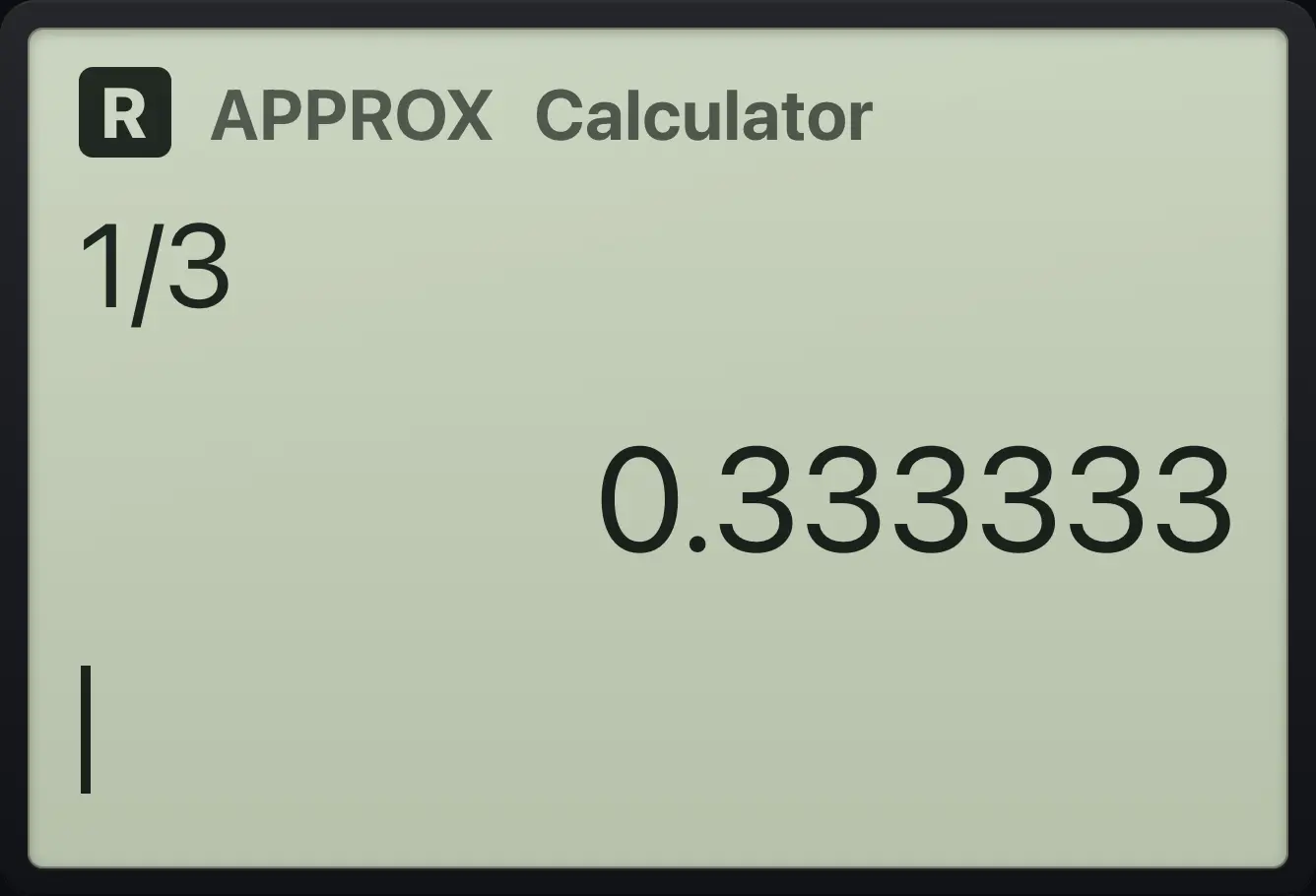
0.333333Exact mode
Open Settings, press right once to choose Exact, and press enter four times.
menu9▶enterenterenterenterType 0.5 + 1/4.
0.5+1÷4enter
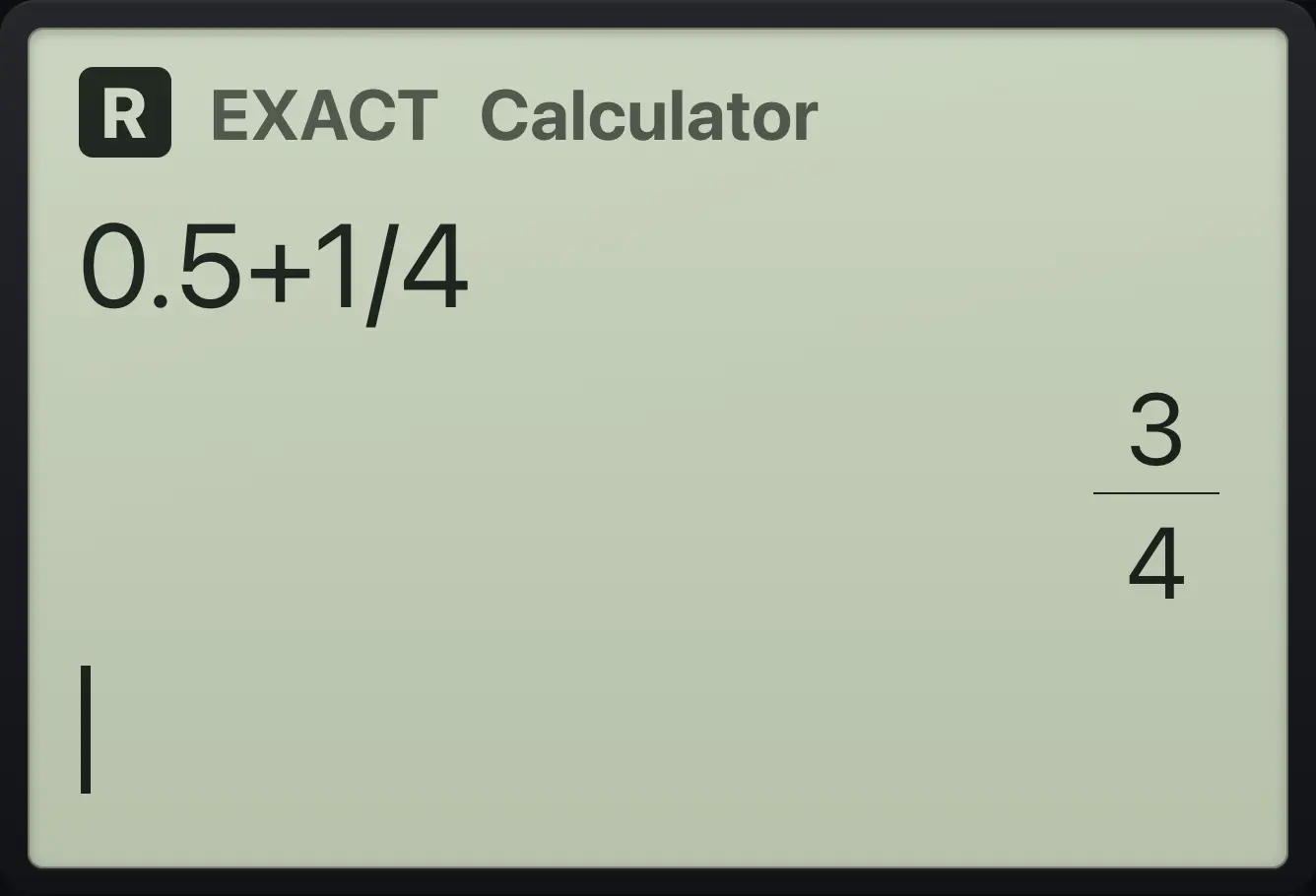
3/4Solve in Approximate mode
Switch to Approximate.
menu9▶▶enterenterenterenterSolve x² = 2.
solve(x^2▶=2,x)enter
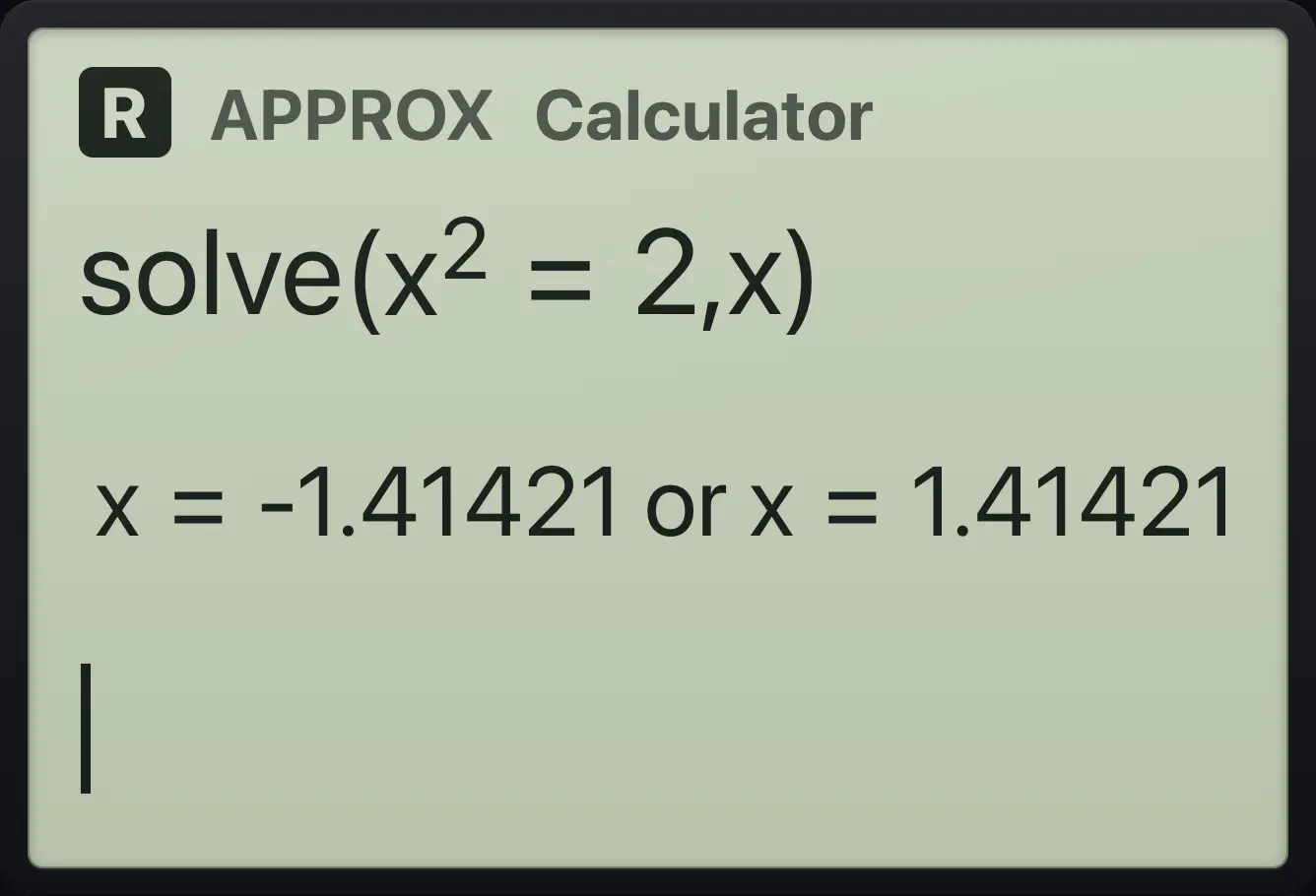
x=-1.41421 or x=1.414215.3Angle unit#
Radian is the default. Degree and Gradian change how sin, cos and tan read their angle, and how the inverse functions answer. Use ctrl°. to type a degree sign when you only need degrees once.
Degree mode
Open Settings, press down, right, then enter three times.
menu9▼▶enterenterenterType sin(30).
sin(30)enter
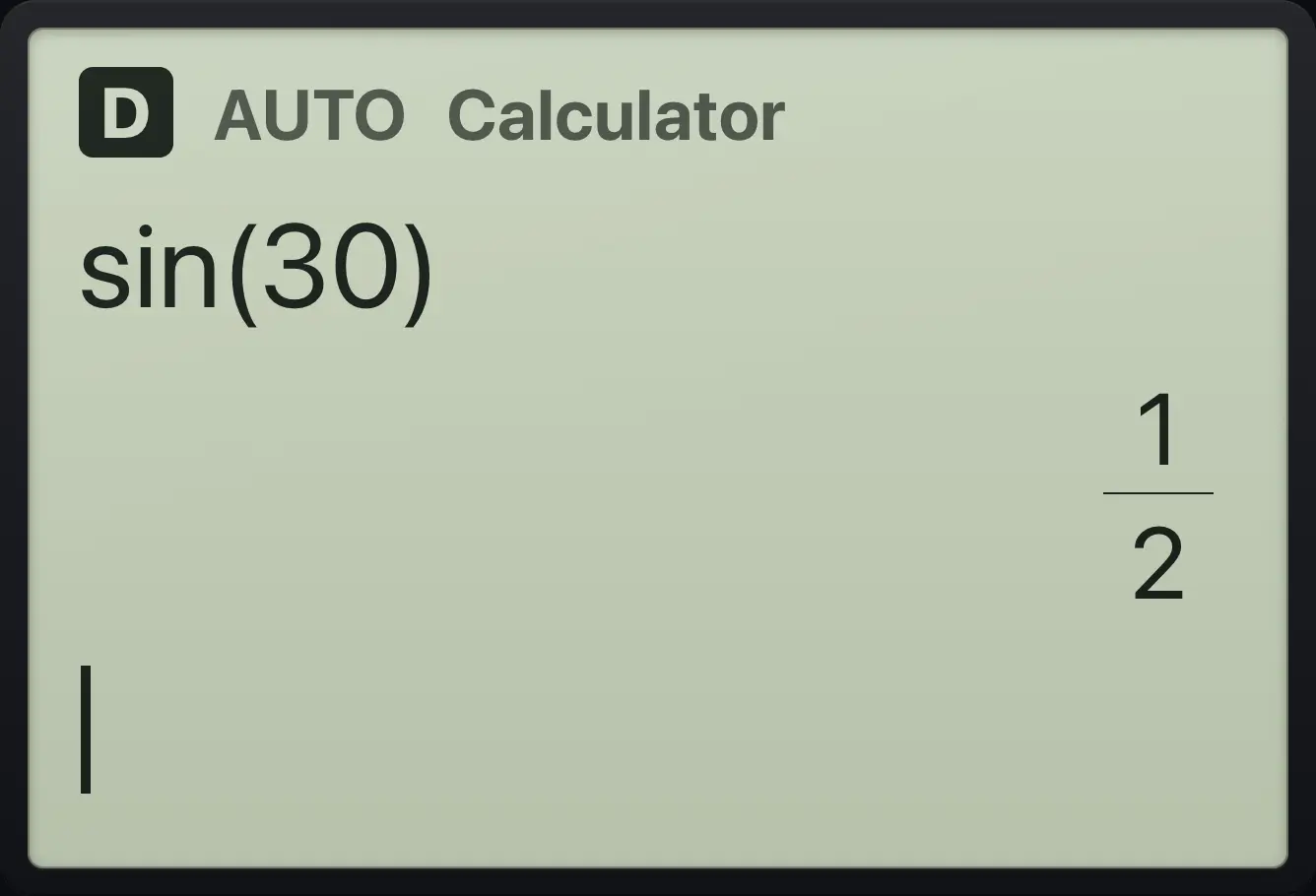
1/2Gradian mode
Open Settings, press down, right, right, then enter three times.
menu9▼▶▶enterenterenterType sin(100) and press ctrl enter.
sin(100)ctrl≈enter
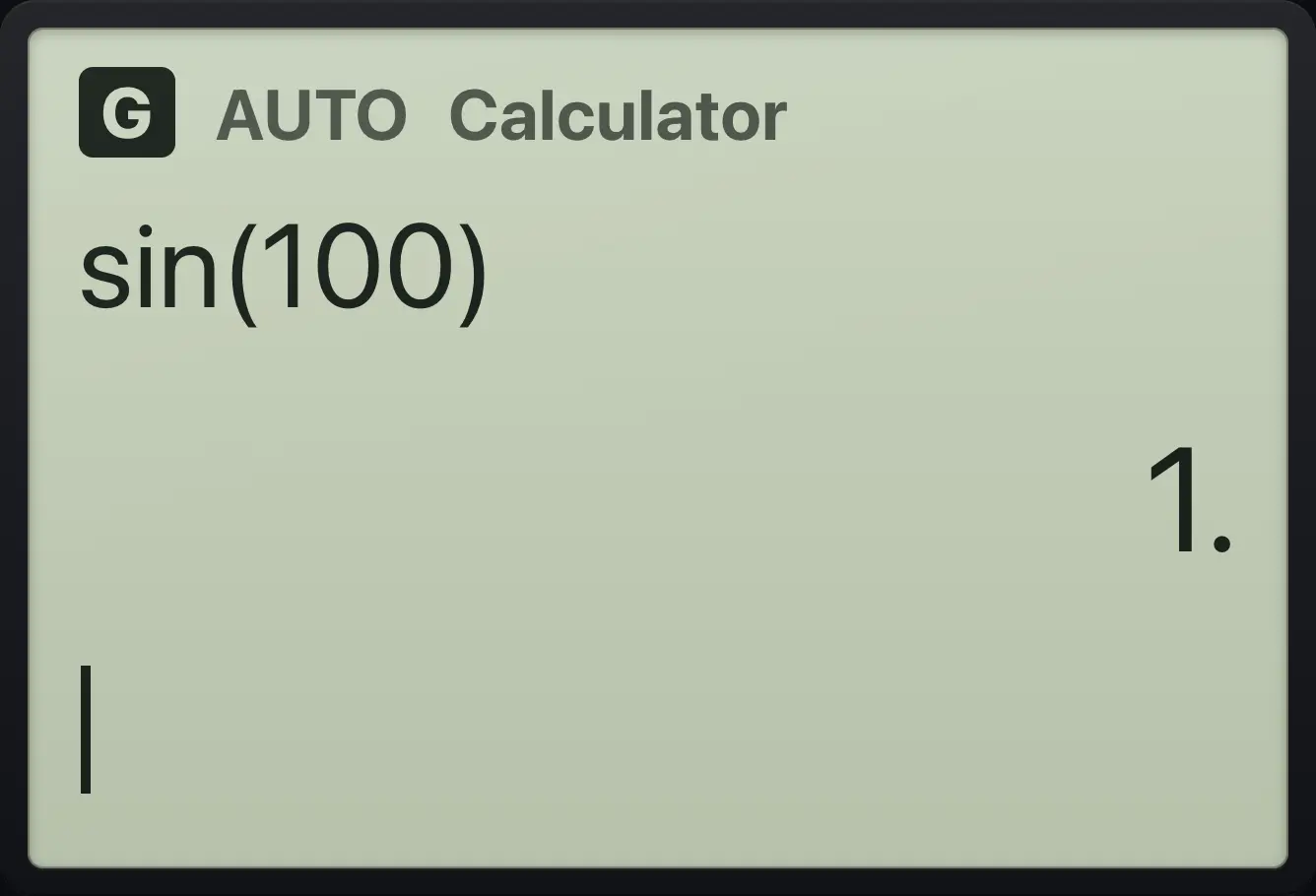
1.5.4Display digits#
Float shows as many digits as needed up to the chosen count (Float alone means up to 12). Fix n always shows exactly n decimals. This only changes how decimal answers are shown, not how they are calculated.
Fix 2
Open Settings, press down twice, then right nine times to reach Fix 2, then enter twice.
menu9▼▼▶▶▶▶▶▶▶▶▶enterenterType π and press ctrl enter.
πctrl≈enter
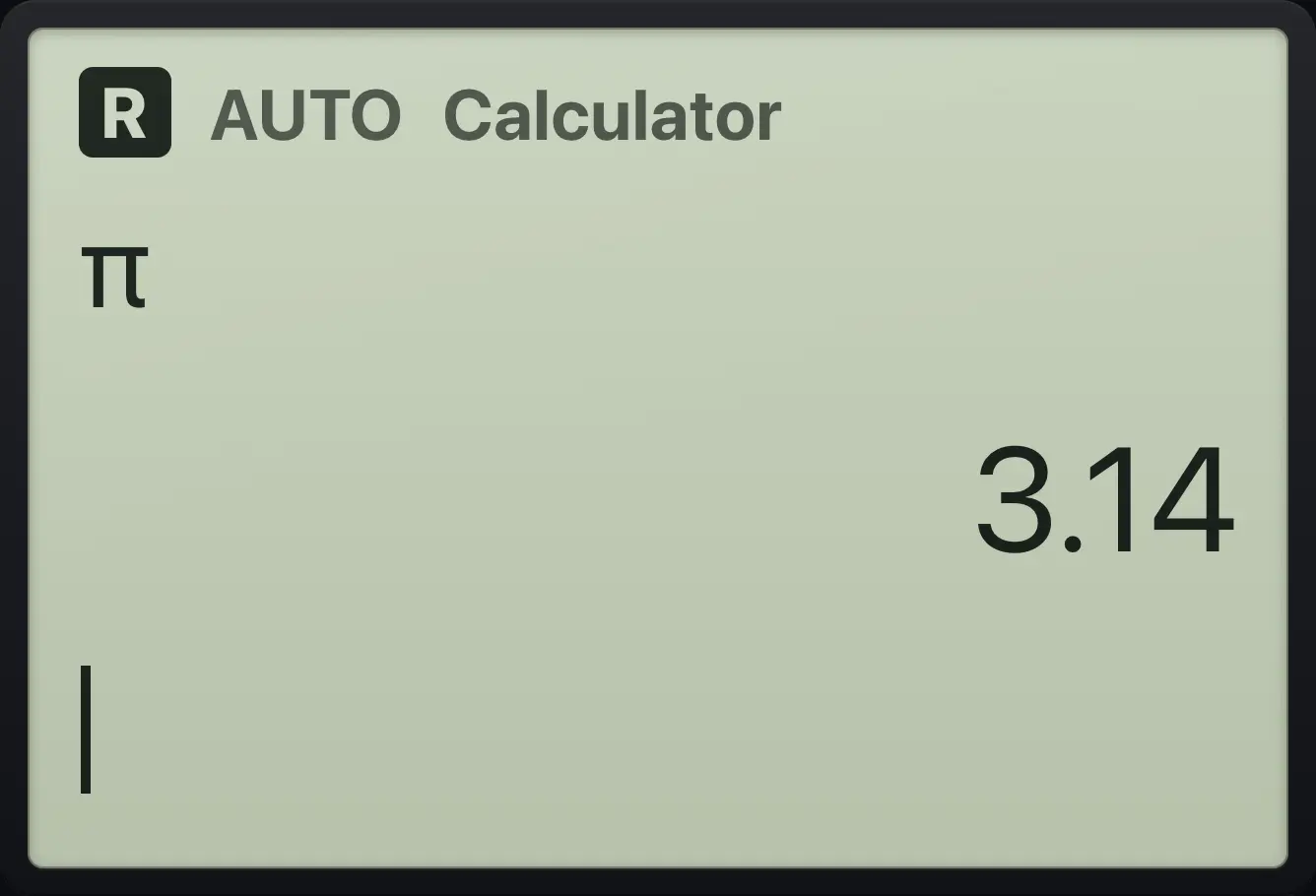
3.14Float 10
Open Settings, press down twice, right four times, then enter twice.
menu9▼▼▶▶▶▶enterenterType π and press ctrl enter.
πctrl≈enter
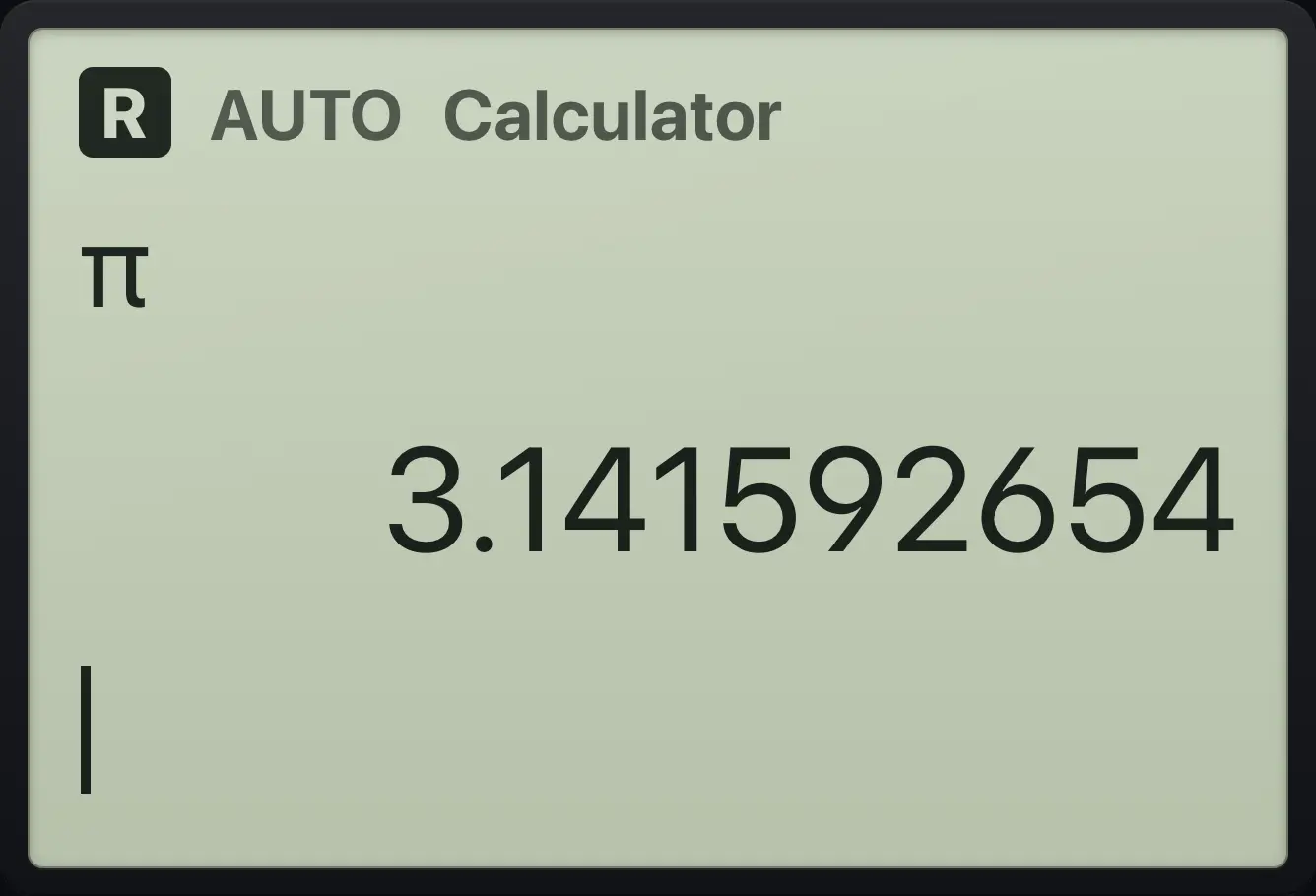
3.1415926545.5Real or complex results#
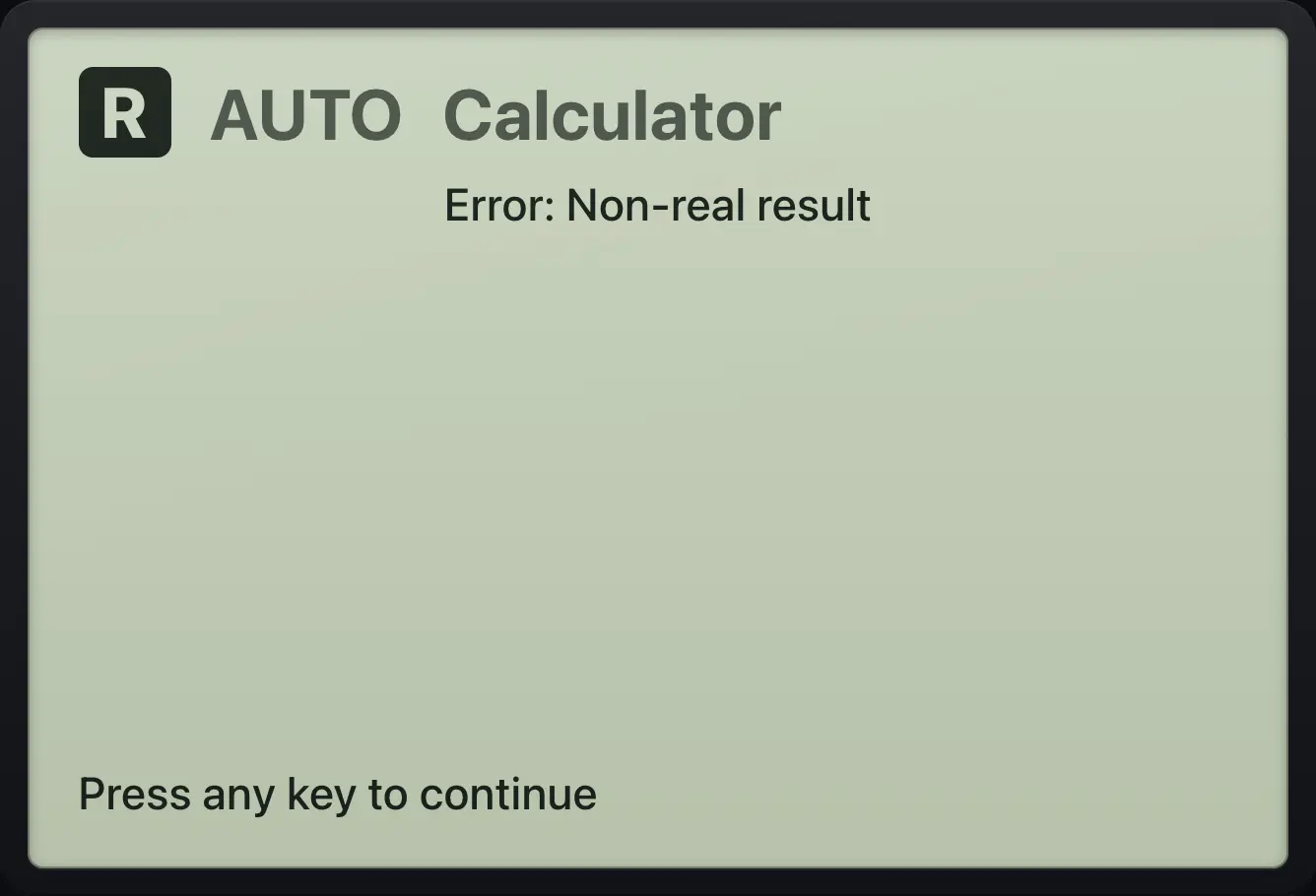
In Real mode, the square root of a negative number is an error. In Rectangular mode, answers can have the form . The tag a+bi appears at the top of the screen.
Rectangular mode
Open Settings, press down three times, right once, then enter.
menu9▼▼▼▶enterType √(−4).
ctrl√x²((−)4)▶enter
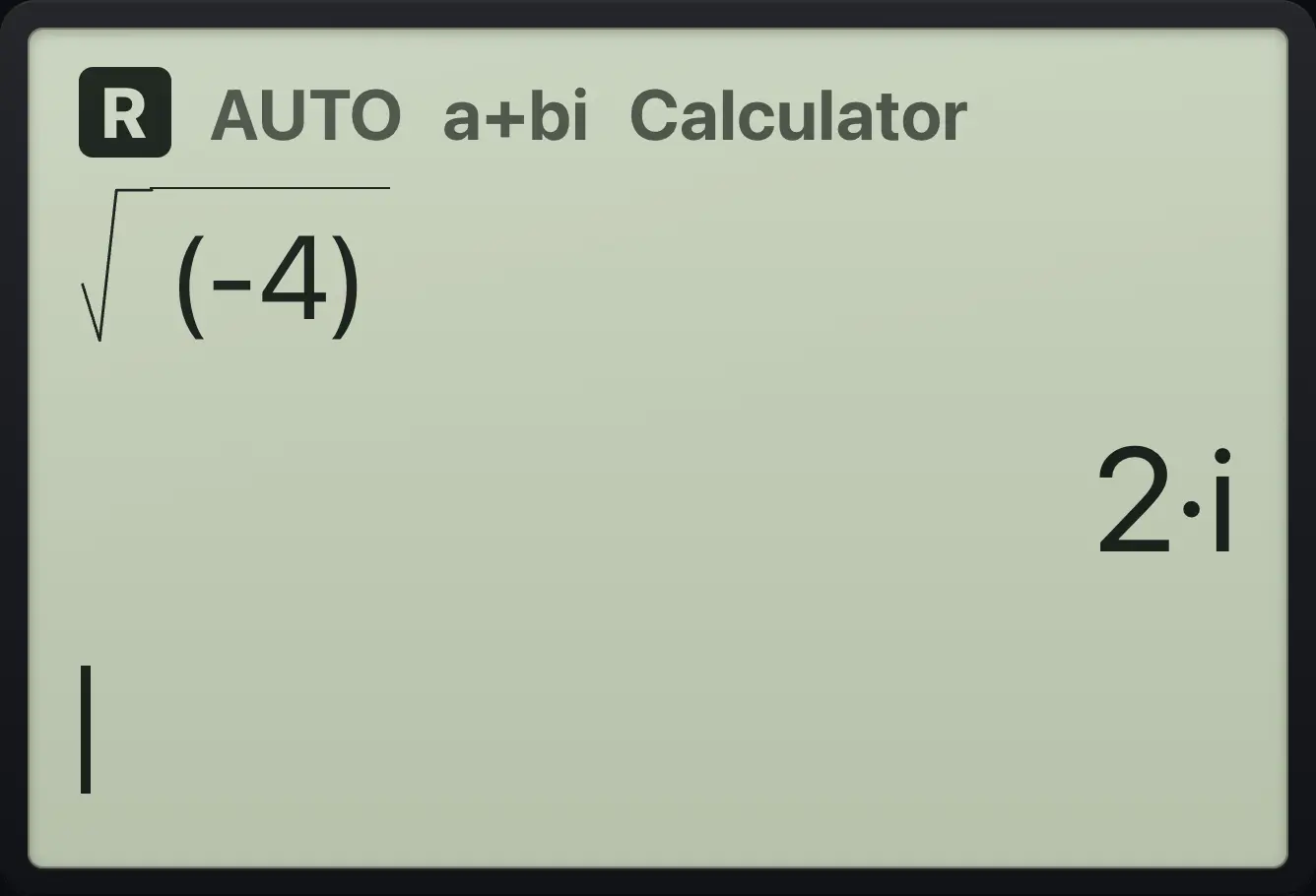
2·iTI-Nspire CX CAS is a trademark of Texas Instruments Incorporated. Trident Calculator is an independent product by South View Studios and is not affiliated with, sponsored by or endorsed by Texas Instruments. The name is used only to describe the kind of calculator this model resembles; Trident's names, keys, display, fonts and software are its own clean-room design.