
Classic Scientific 30 manual · Chapter 3 of 13
Calculations and history
Arithmetic, order of operations, powers, percent, scientific notation, the last answer and history.
3.1Order of operations and brackets#
The calculator follows the usual rules: brackets first, then powers, then multiplication and division, then addition and subtraction. Use ( and ) to force a different order. A closing bracket is optional at the very end of a line.
Use brackets to change the order
Add first by putting the sum in brackets, then square the result.
(3+4)x²enter
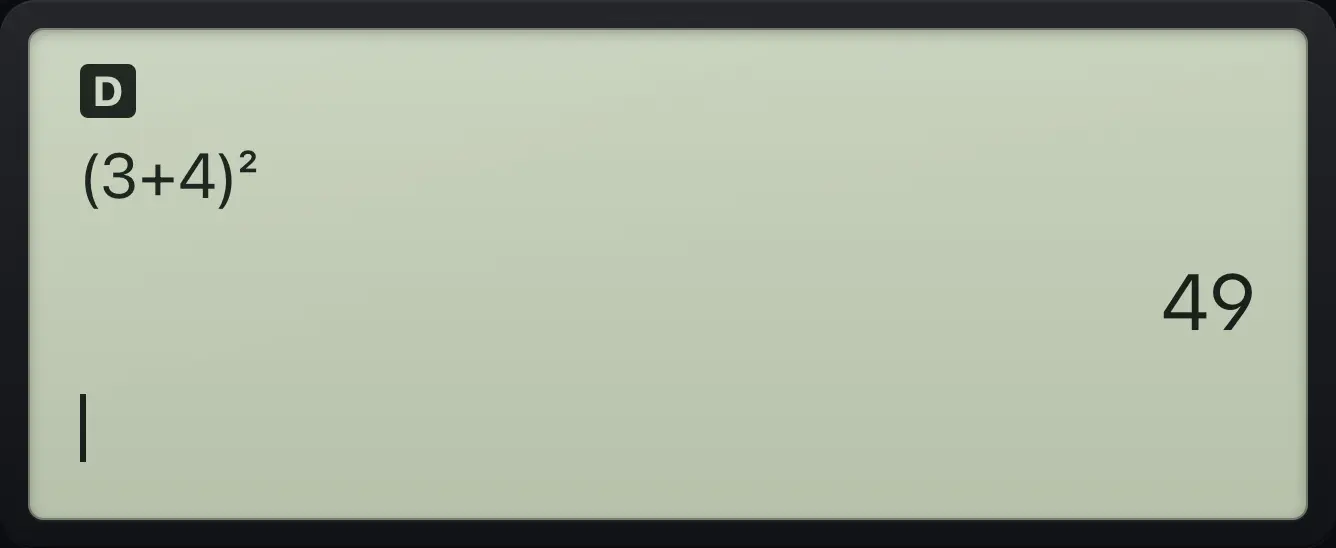
(3+4)² 49A negative number squared
Without brackets only the 3 is squared and then made negative.
(−)3x²enter
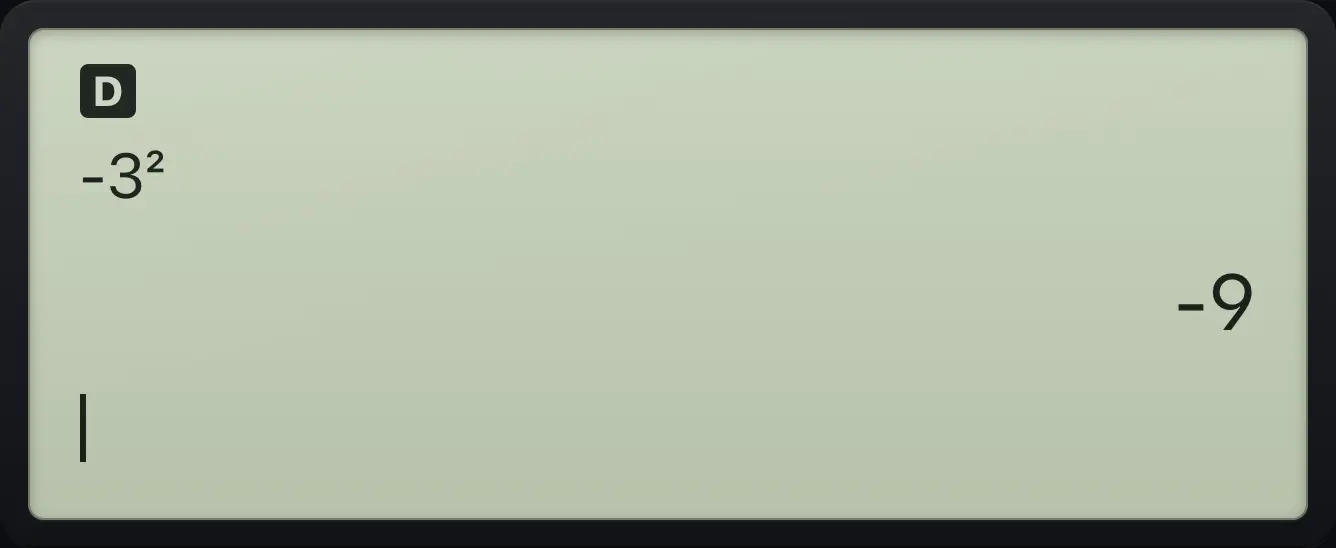
-3² -9Bracket a negative base
With brackets the whole negative number is squared.
((−)3)x²enter
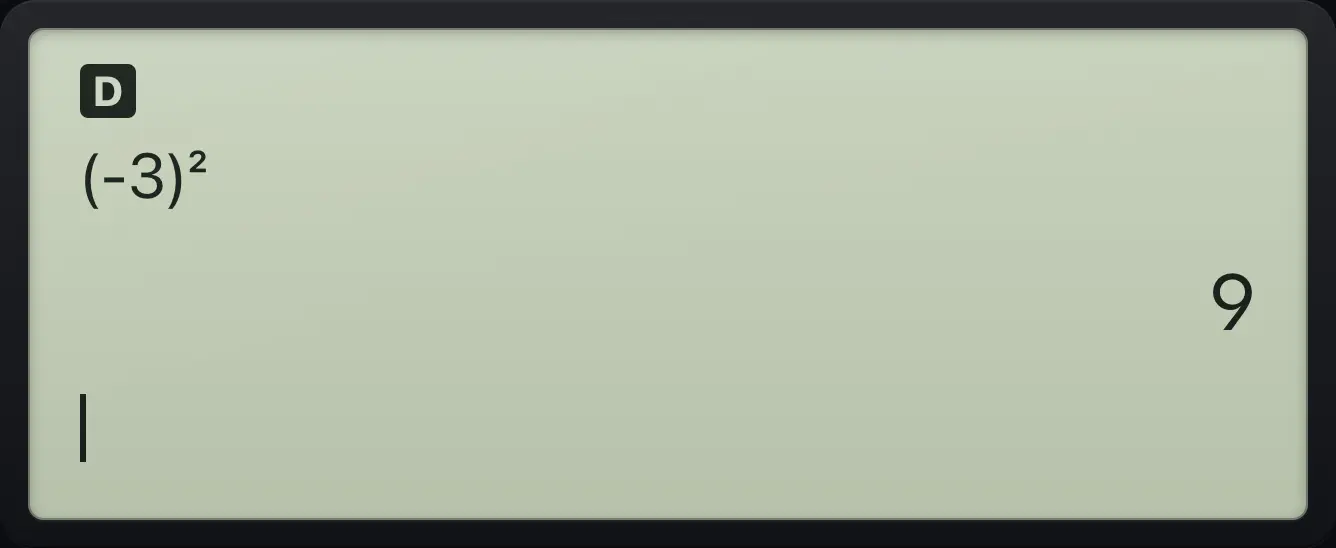
(-3)² 9See also Use brackets to control the order
3.2Square, cube, reciprocal and other powers#
Use x² for a square, 2ndx³) for a cube and x⁻¹ for a reciprocal. For any other power, press ^: a box appears for the exponent. Type the exponent and press ▶ to leave the box before you carry on.
Power of ten with a box
Type 2, press the power key, type 10, press the right arrow to leave the exponent, then add 1.
2^10▶+1enter
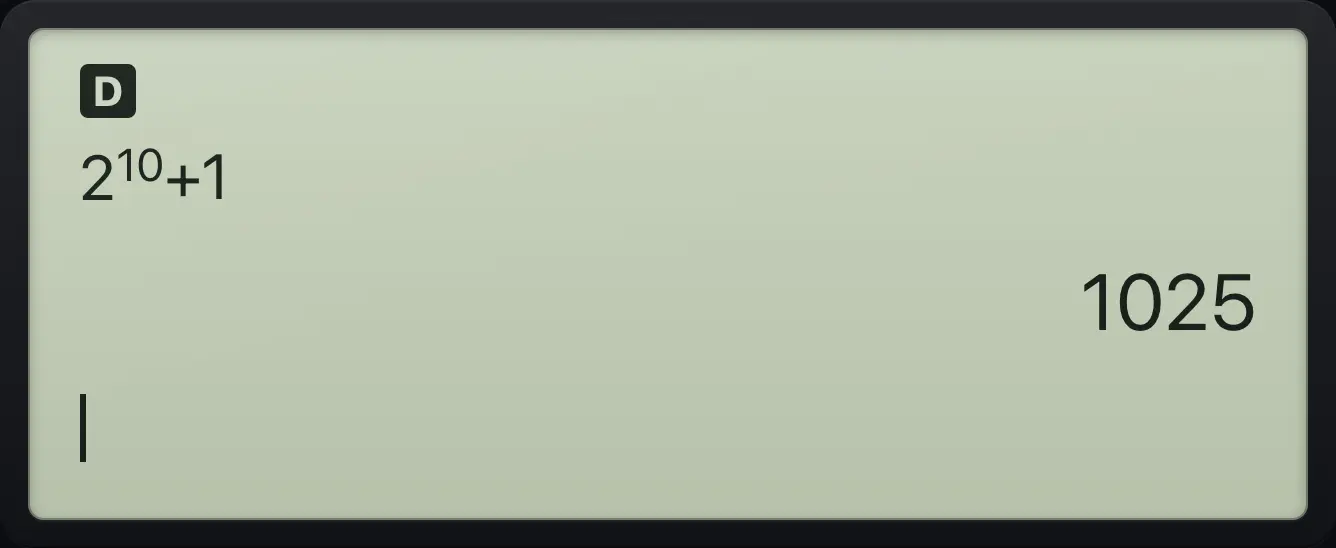
2 to the power 10 plus 1 is 1025.Stacked powers
Powers stack from the top down, so 2^3^2 means 2^(3^2).
2^3▶^2enter
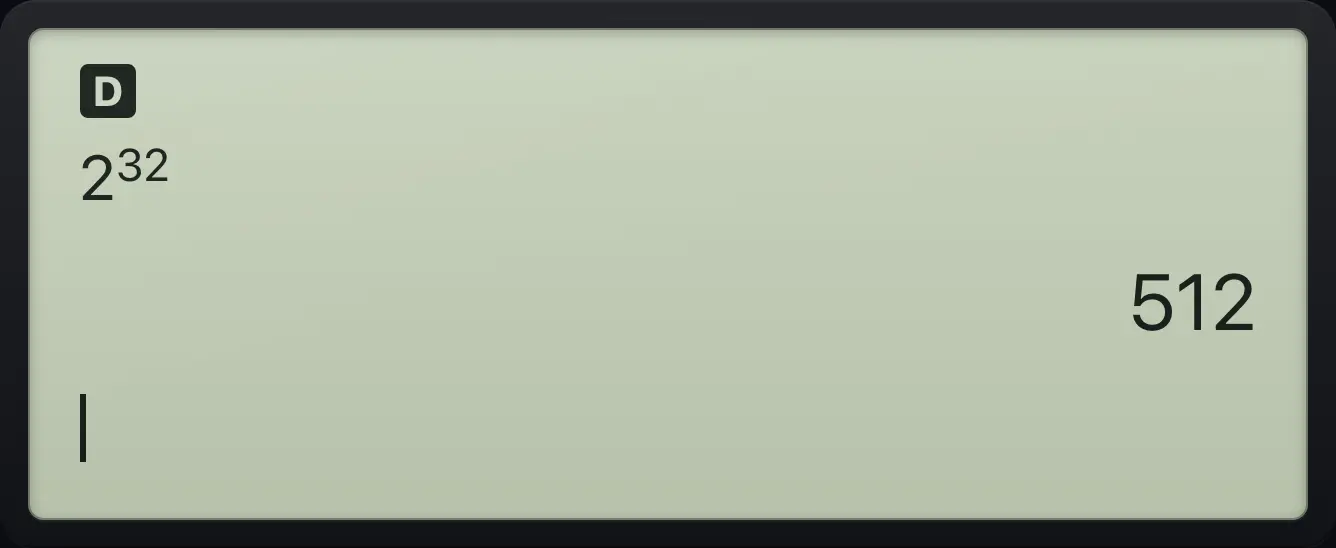
2^3^2 512Cube a number
Type 6 then 2nd and the right bracket key (x³).
62ndx³)enter
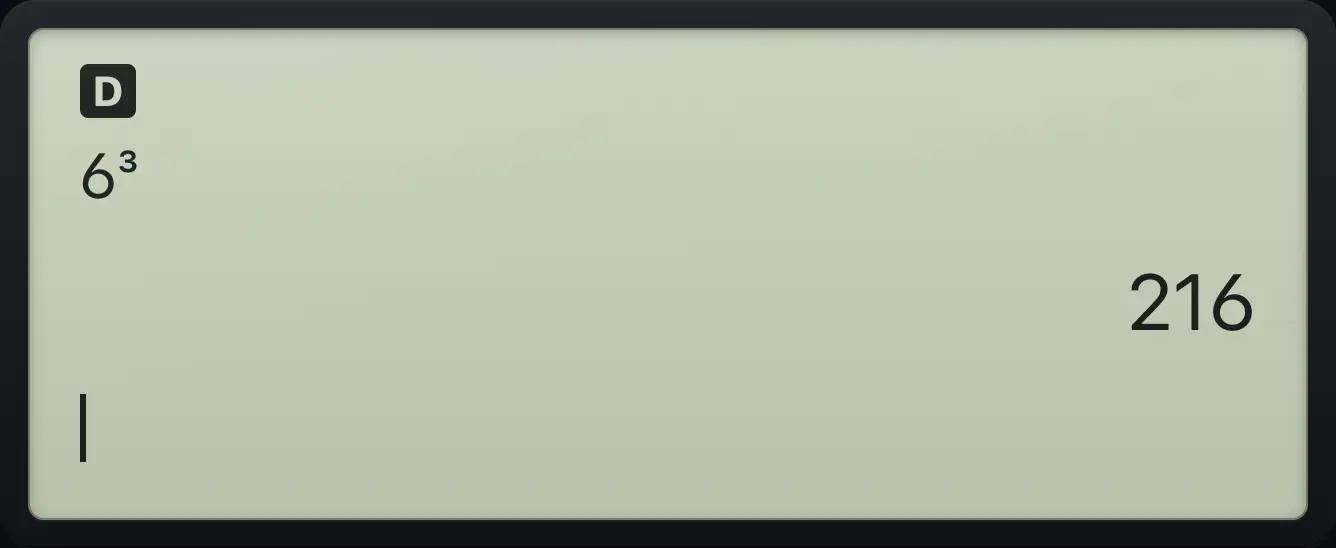
6³ 216Reciprocal
The reciprocal of 4 is shown as a fraction.
4x⁻¹enter
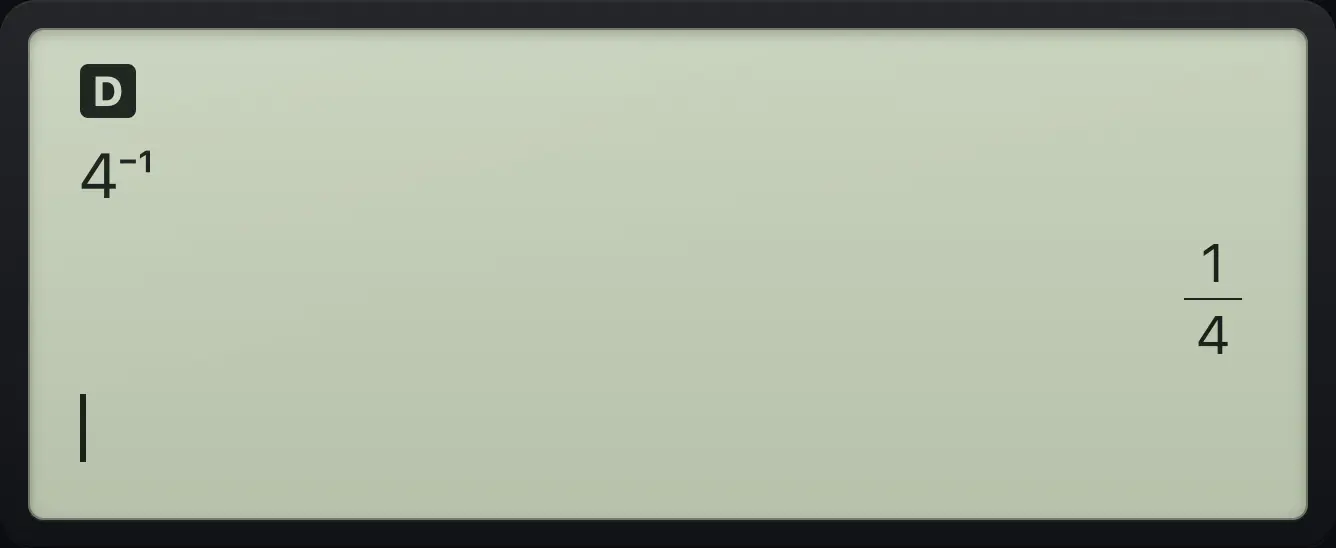
4⁻¹ 1/4See also Powers and exponents
3.3Work with percent#
The percent key 2nd%( divides the number before it by 100. To find a percent of something, multiply.
Find 15% of 200
Type 200 times 15 then the percent sign.
200×152nd%(enter
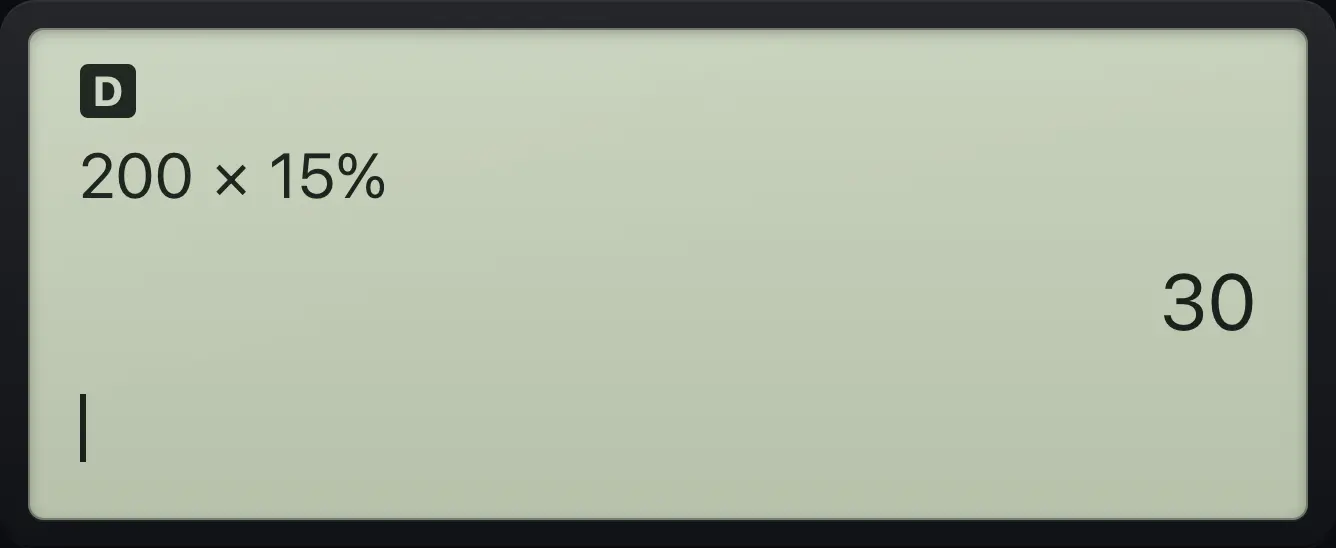
200×15% 30Percent on its own
5% is five hundredths.
52nd%(enter
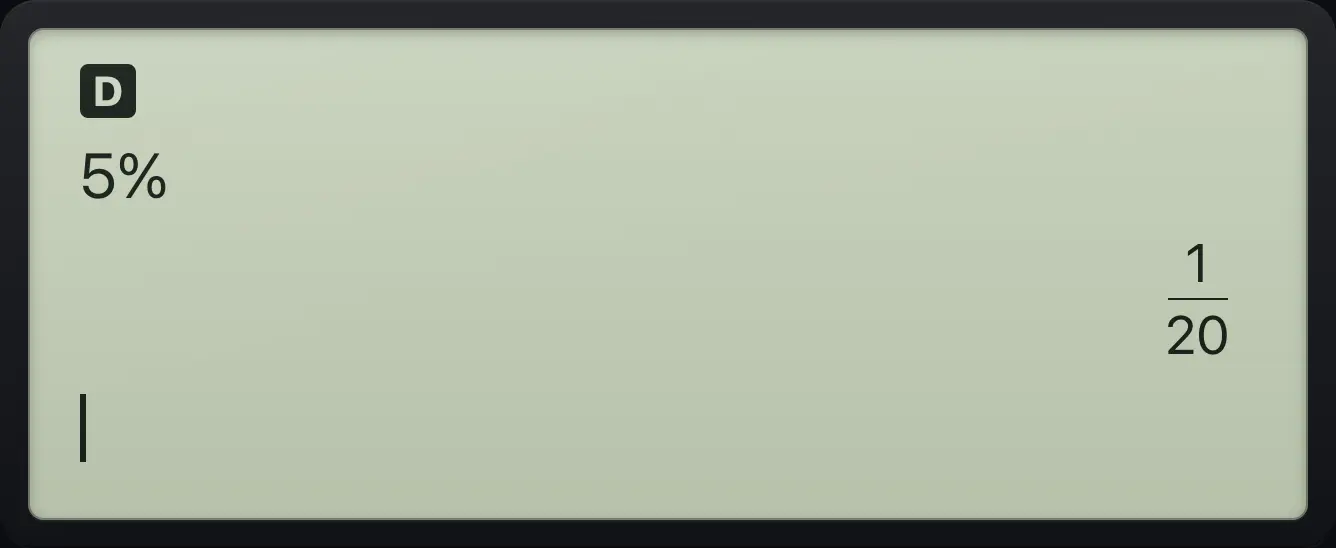
5% 1/20See also Find a percentage of a number
3.4Enter numbers in scientific notation#
Press ×10ⁿ for "times ten to the power". A box opens for the exponent. Use (−) inside the box for a negative exponent. Very large or very small answers switch to scientific notation by themselves.
Avogadro style number
Type 6.02, the EE key, then 23.
6.02×10ⁿ23enter
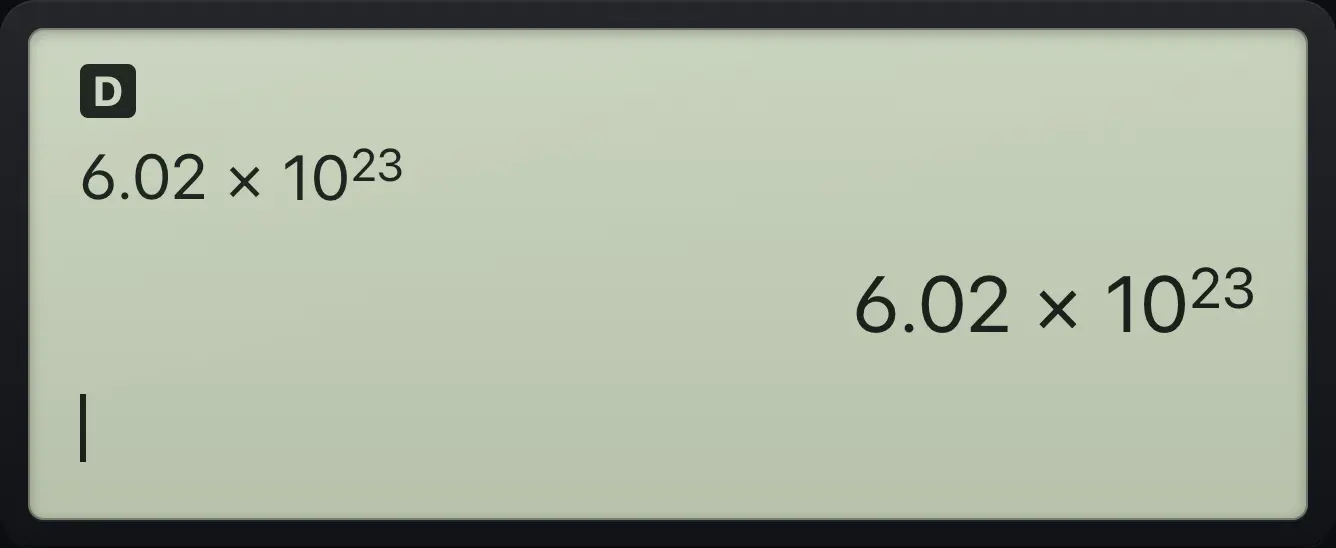
6.02ᴇ23 6.02E23A negative exponent
2 times ten to the minus 3 is a small fraction, shown exactly.
2×10ⁿ(−)3enter
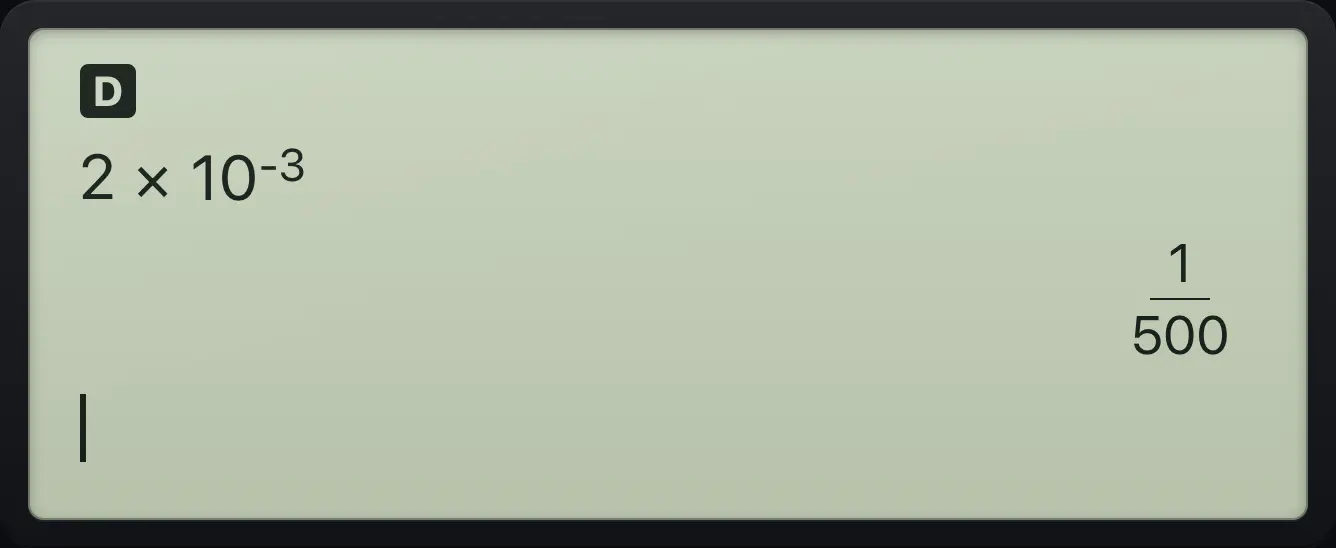
2ᴇ-3 1/500A big product
A product with more than ten digits switches to scientific notation.
1234567890×1000enter
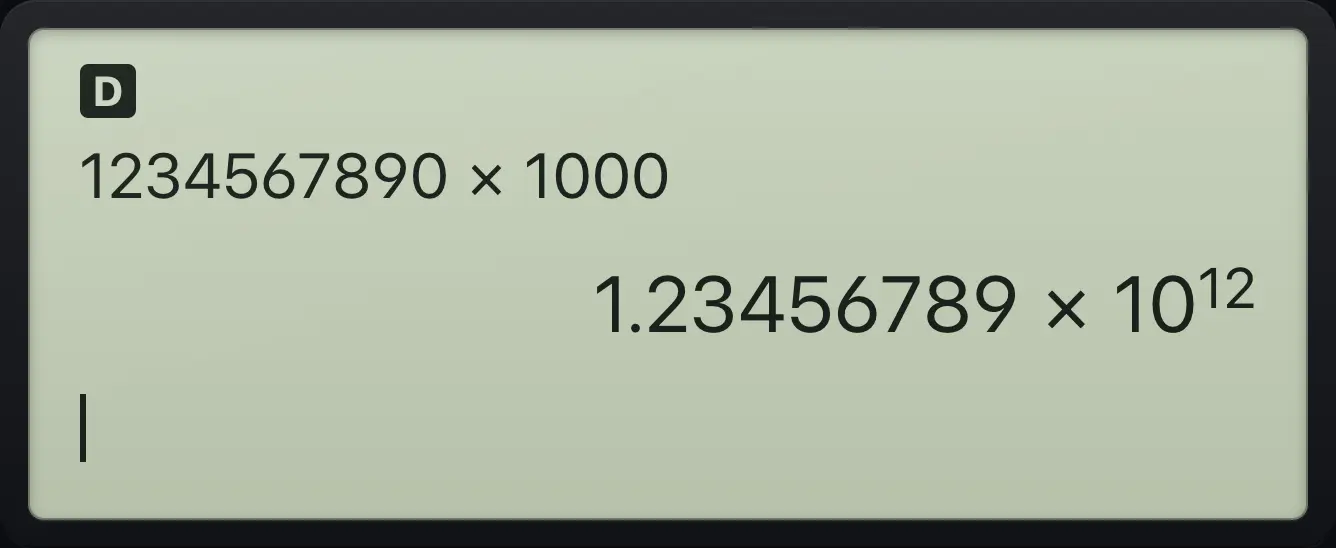
1.23456789E12See also Enter very big and very small numbersShow answers in engineering notation
3.5Use the last answer (Ans)#
Start a new line with an operator such as +, −, ×, ÷, a power, x², x³ or x⁻¹ and the calculator puts Ans (the last answer) in front for you. You can also paste it anywhere with 2ndans(−).
Keep going from the last answer
Work out 2 + 3. Then press times and 4: Ans is added for you.
2+3enter×4enter
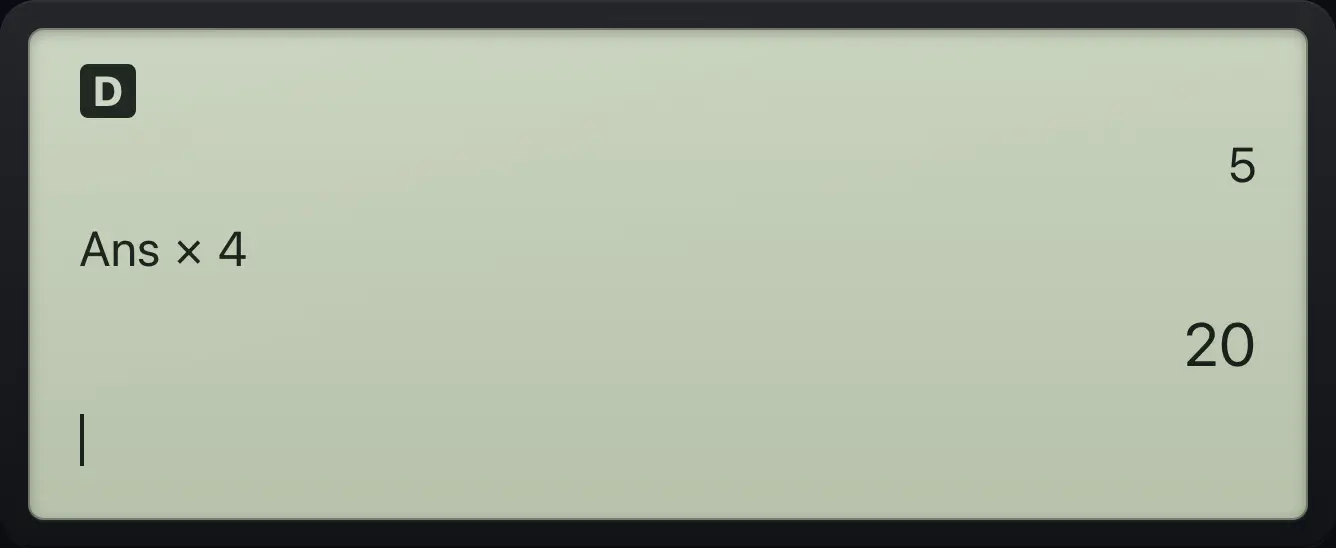
Ans×4 20Paste Ans in the middle
Work out 2 + 3, then use 2nd and (−) to put Ans into a new sum.
2+3enter2ndans(−)+1enter
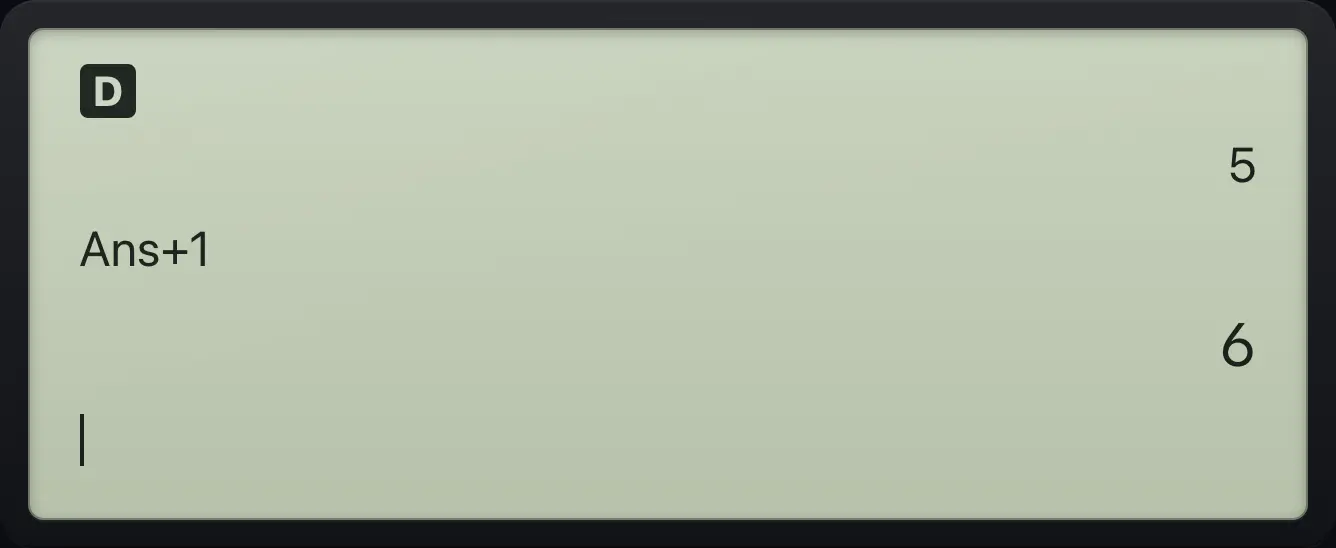
Ans+1 6Square the last answer
After 2 + 3 press the square key. The new line starts with Ans.
2+3enterx²enter
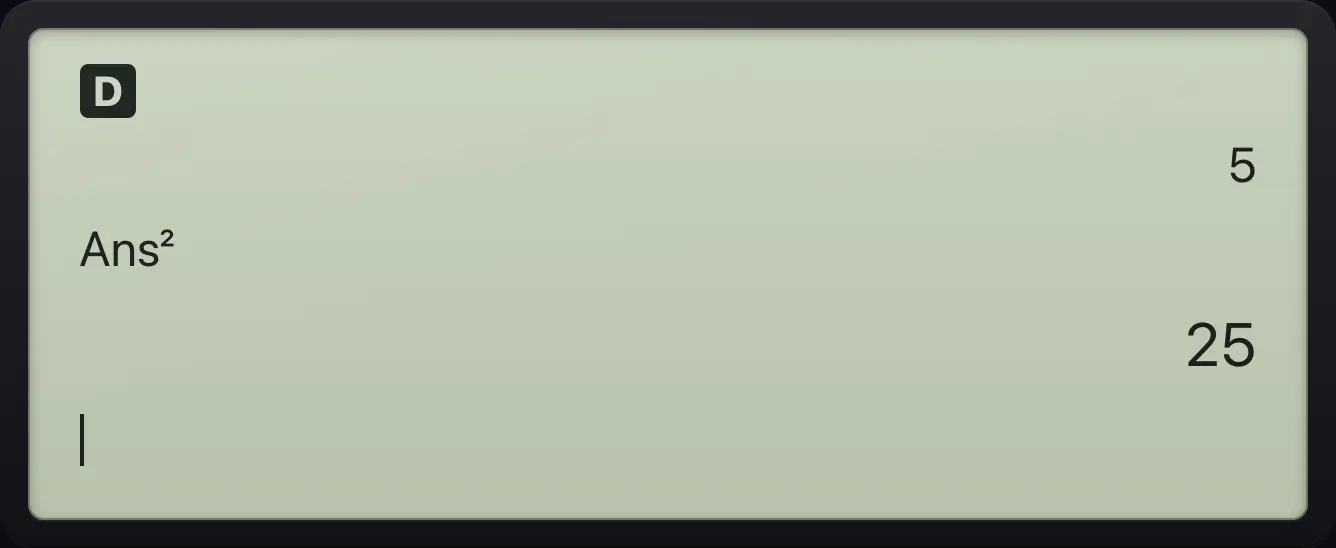
Ans² 25Repeat the last entry
Pressing enter on an empty line repeats the previous entry.
2+3enterenter
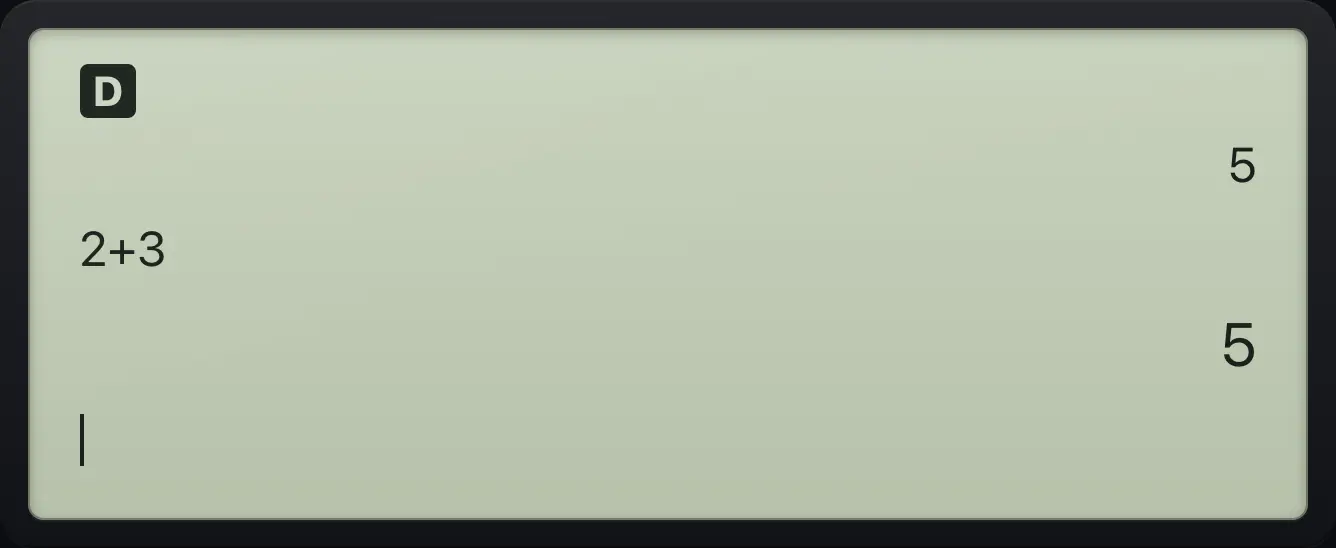
2+3See also Reuse the last answer
3.6Look back at earlier entries (history)#
Press ▲ on an empty line to highlight the most recent earlier entry. Keep pressing ▲ to go further back and ▼ to come forward. Press enter to copy the highlighted entry to the entry line, where you can edit it and run it again. clear leaves history without copying.
Bring back an old entry
Do two sums. Then press up twice and enter to copy the first sum back.
1+1enter2+2enter▲▲enter
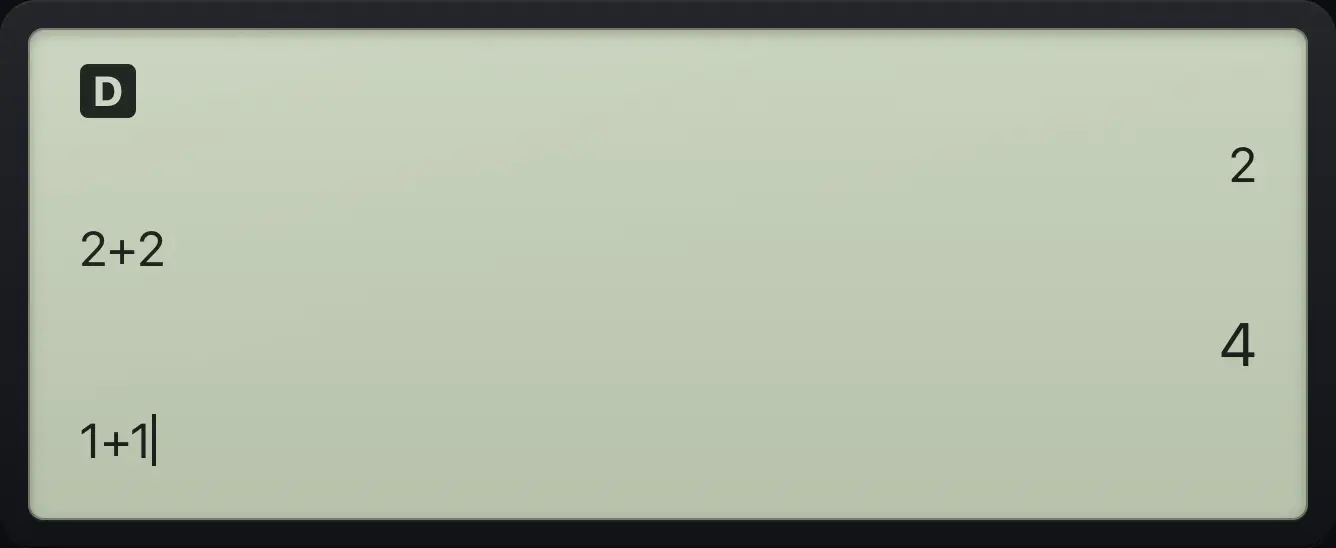
1+1See also See your past calculations in HistoryReuse an earlier result
TI-30XS MultiView is a trademark of Texas Instruments Incorporated. Trident Calculator is an independent product by South View Studios and is not affiliated with, sponsored by or endorsed by Texas Instruments. The name is used only to describe the kind of calculator this model resembles; Trident's names, keys, display, fonts and software are its own clean-room design.