
Classic Financial II manual · Chapter 5 of 16
How worksheets work
Move through worksheet lines, store typed values, compute lines and clear a worksheet.
5.1Move through a worksheet and enter a value#
A worksheet is a list of lines. Open one with its key, then use ↓ and ↑ to move; the list wraps around at the ends. To change a line, type a number and press ENTER. The label stays on the left and the stored value on the right.
- Open with its key
- ↓ to a line
- type a value
- ENTER
- CPT to solve
- 2NDQUITCPT to quit
Enter a cash flow
Open the cash-flow worksheet, type 100, make it negative and store it.
CF100+/-ENTER
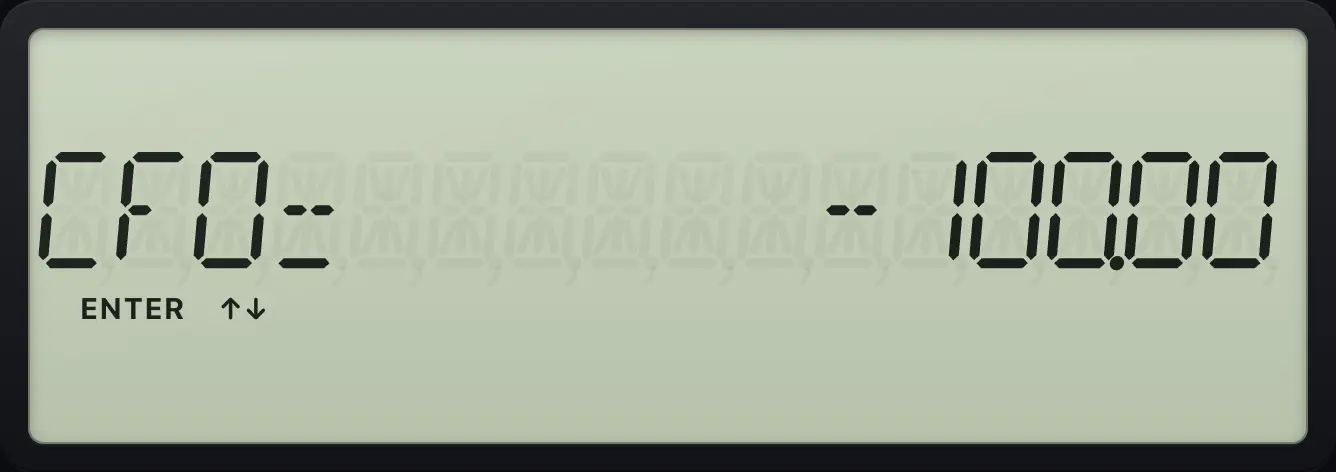
CF0= -100.00Wrap around
Press up on the first line to jump to the last line of the worksheet.
2NDMEM0↑
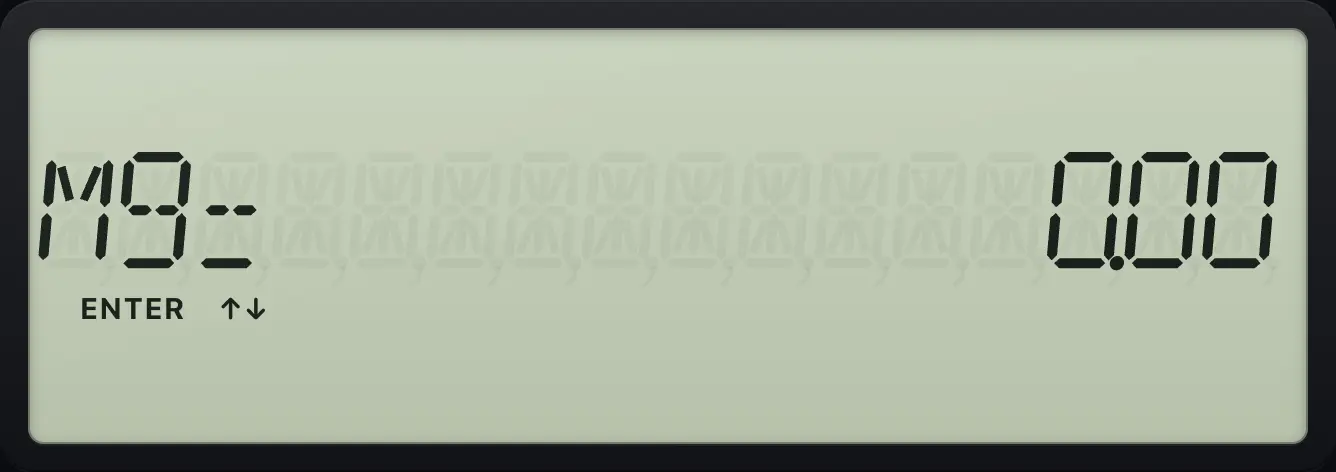
M9= 0.005.2Compute a line (CPT) and the star#
Lines that can be solved show the COMPUTE indicator. Move to such a line and press CPT. A star (✱) beside the value means it was computed. Typing a new value in a line removes the star.
5.3Clear a worksheet#
CE/C on a line restores that line to its stored value. 2NDCLR WORKCE/C (CLR WORK) clears every line of the open worksheet.
Clear a cash-flow sheet
Enter a cash flow, then clear the worksheet with 2ND CE/C.
CF100+/-ENTER2NDCLR WORKCE/C
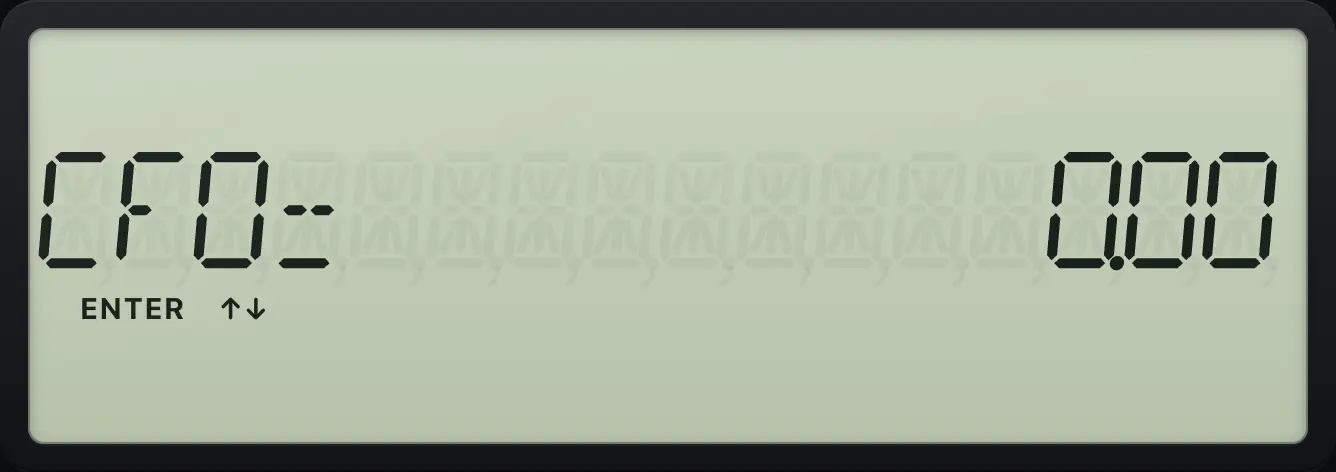
CF0= 0.00BA II Plus is a trademark of Texas Instruments Incorporated. Trident Calculator is an independent product by South View Studios and is not affiliated with, sponsored by or endorsed by Texas Instruments. The name is used only to describe the kind of calculator this model resembles; Trident's names, keys, display, fonts and software are its own clean-room design.