
Classic Financial II manual · Chapter 1 of 16
Getting started
The display, the 2ND key, a first calculation, clearing and editing, leaving a worksheet and using a laptop keyboard.
1.1What this calculator is for#
Classic Financial II answers money questions: what is the monthly payment on a loan, what will savings grow to, is an investment worth its price, how much interest is in a payment, how long between two dates. The keys in the top rows solve loans and savings directly. Everything else lives in worksheets, which are lists of labelled values that you step through with the up and down arrows.
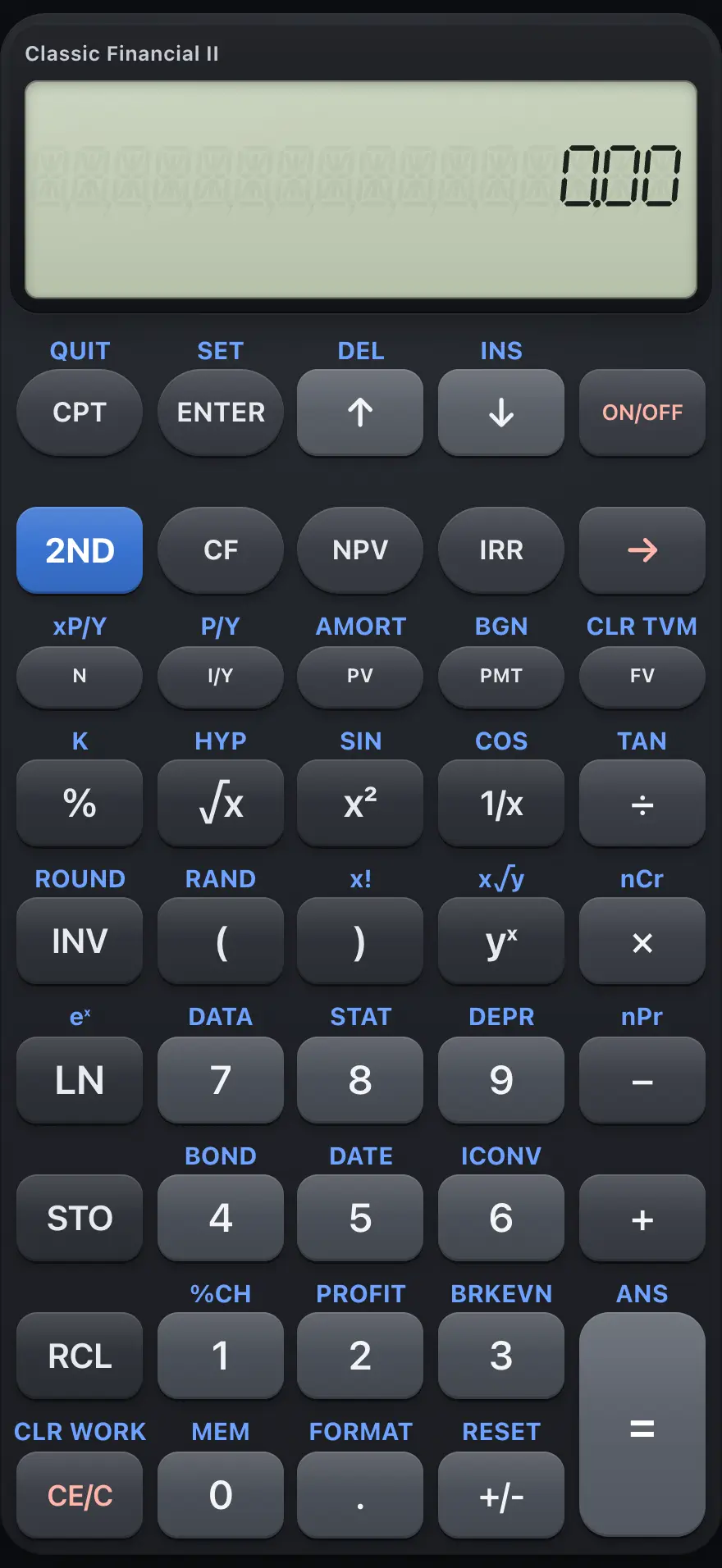
- One-line display with a label such as PMT= and the value
- 2ND: use the function printed above a key
- CPT: compute the value on screen (2ND CPT is QUIT)
- ENTER: store a value in a worksheet line
- N, I/Y, PV, PMT, FV: the time-value-of-money keys
- CF, NPV, IRR: cash-flow worksheets
- Up and down arrows: move through a worksheet
- CE/C: clear the entry or the error
- =: finish a calculation (2ND = is ANS)
See also Time value of money: the five money keysCalculate a monthly loan payment
1.2The display and its indicators#
The display is a single line. In a worksheet it starts with a label such as N= or PMT= followed by the value. The small indicators describe the state of the calculator.
| Indicator | Meaning |
|---|---|
| 2ND | The 2ND key was pressed; the next key uses its upper legend. It lasts for one key. |
| INV, HYP | The next function is an inverse or hyperbolic version. |
| COMPUTE | CPT was pressed, or the current worksheet line can be computed. |
| ENTER | The current worksheet line accepts a typed value and ENTER. |
| SET | The current line is a choice (such as END or BGN). Press 2ND ENTER to change it. |
| ↑↓ | The worksheet has more lines. Use the arrow keys. |
| DEL INS | On a cash flow or data point you can delete or insert an entry. |
| ✱ | The shown value was computed, not typed. |
| BGN | Payments are at the beginning of each period. |
| DEG or RAD | The angle unit for the trig keys. |
1.3The 2ND key#
Press 2ND once and then a key to use the function printed above that key. 2NDAMORTPV opens AMORT, 2NDCLR TVMFV clears the TVM values, and so on. The shift lasts one key only. Pressing 2ND twice cancels it.
- PV AMORT
- PMT BGN
- I/Y P/Y
- 4 BOND
- 5 DATE
- 6 ICONV
- 7 DATA
- 8 STAT
- 9 DEPR
- 1 %CH
- 2 PROFIT
- 3 BRKEVN
- 0 MEM
- . FORMAT
1.4Your first calculation#
In the plain calculator, type a number, an operator, another number, then press =. ENTER also works as equals when no worksheet is open.
Add and multiply
Type 2 + 3 × 4 and press =. The calculator works from left to right (the chain method), so it adds first.
2+3×4=

20.00A negative number
Type the number, then press +/- to make it negative.
5+/-+3=
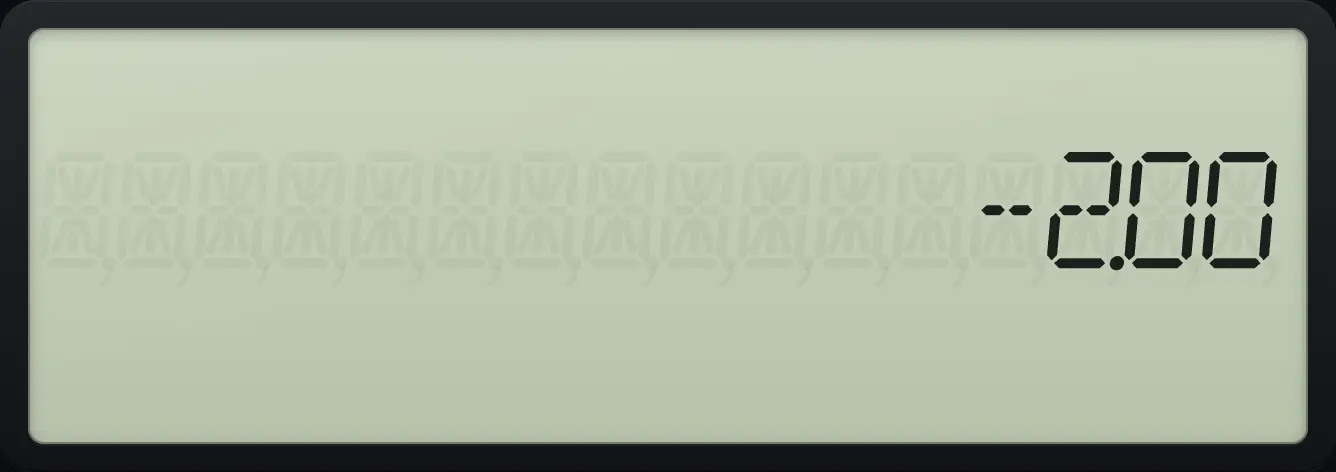
-2.00See also Do basic arithmetic
1.5Clear and edit a number#
→ removes the last digit you typed. CE/C clears the number you are typing, and pressing it again clears everything pending. ON/OFF clears an error and returns to the plain calculator.
Remove a wrong digit
Type 1 2 3 then press the back arrow to delete the 3.
123→
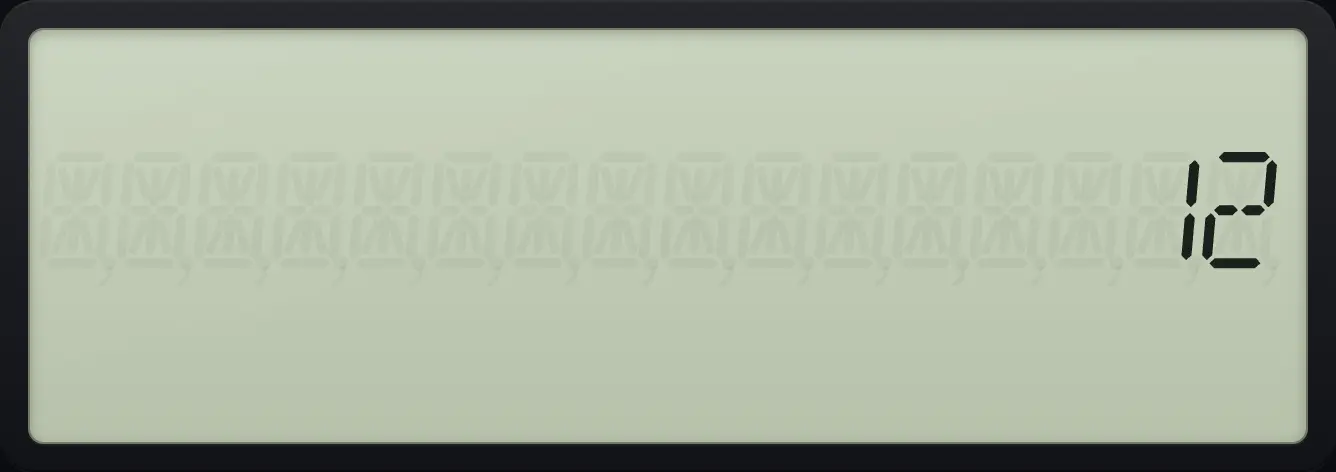
12Clear the entry and carry on
After 2 + 3, CE/C clears the 3. Type 4 instead.
2+3CE/C4=
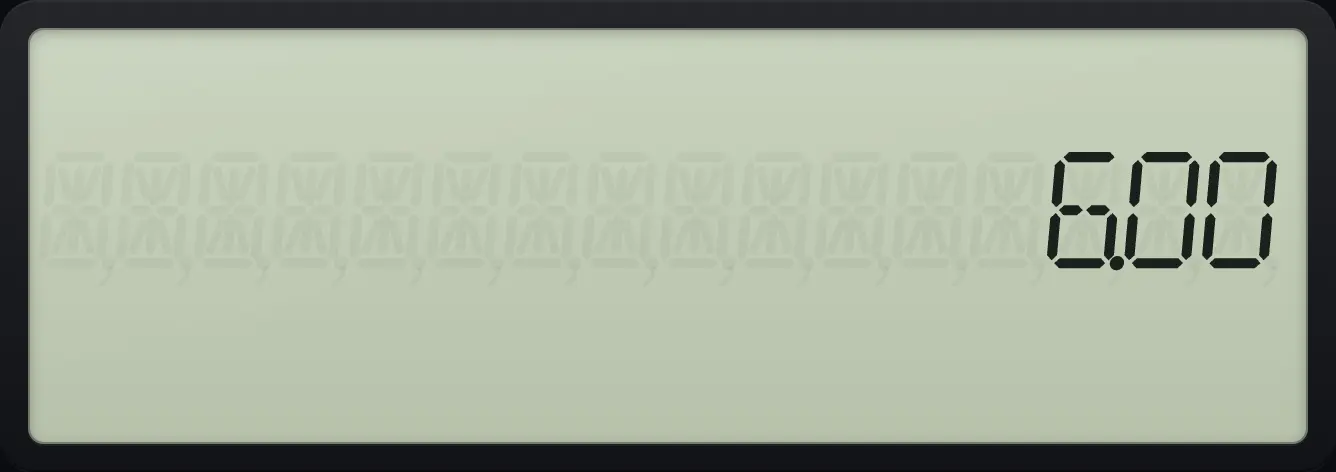
6.001.6Leave a worksheet and return to the calculator#
Press 2NDQUITCPT (QUIT) to leave any worksheet and go back to the plain calculator. Your entered values stay stored. ON/OFF does the same and also clears an error.
1.7Use a laptop keyboard#
On a computer you can type. Digits type themselves. These keys do the rest.
| Computer key | Calculator key |
|---|---|
| Enter | ENTER |
| = | = |
| Backspace | → |
| Escape or Delete | CE/C |
| Up and Down arrows | ↑ ↓ |
| + - * x / | + − × × ÷ |
| ^ | yˣ |
| ( and ) | ( ) |
| . or , | . |
| % | % |
| c | CPT |
| s | 2ND |
| n y p m f | N I/Y PV PMT FV |
| i | INV |
| r q l | √x x² LN |
| ! | Factorial 2NDx!) |
| _ or ` or ~ | +/- |
| a | 2NDANS= (ANS) |
| Q | 2NDQUITCPT (QUIT) |
| t and T | STO and RCL |
See also Type with your computer keyboard
BA II Plus is a trademark of Texas Instruments Incorporated. Trident Calculator is an independent product by South View Studios and is not affiliated with, sponsored by or endorsed by Texas Instruments. The name is used only to describe the kind of calculator this model resembles; Trident's names, keys, display, fonts and software are its own clean-room design.