
Natural Color Graphing manual · Chapter 1 of 18
Getting started
The screen, the MAIN MENU, the F keys, the SHIFT and ALPHA layers, your first calculation and editing.
1.1The screen and its parts#
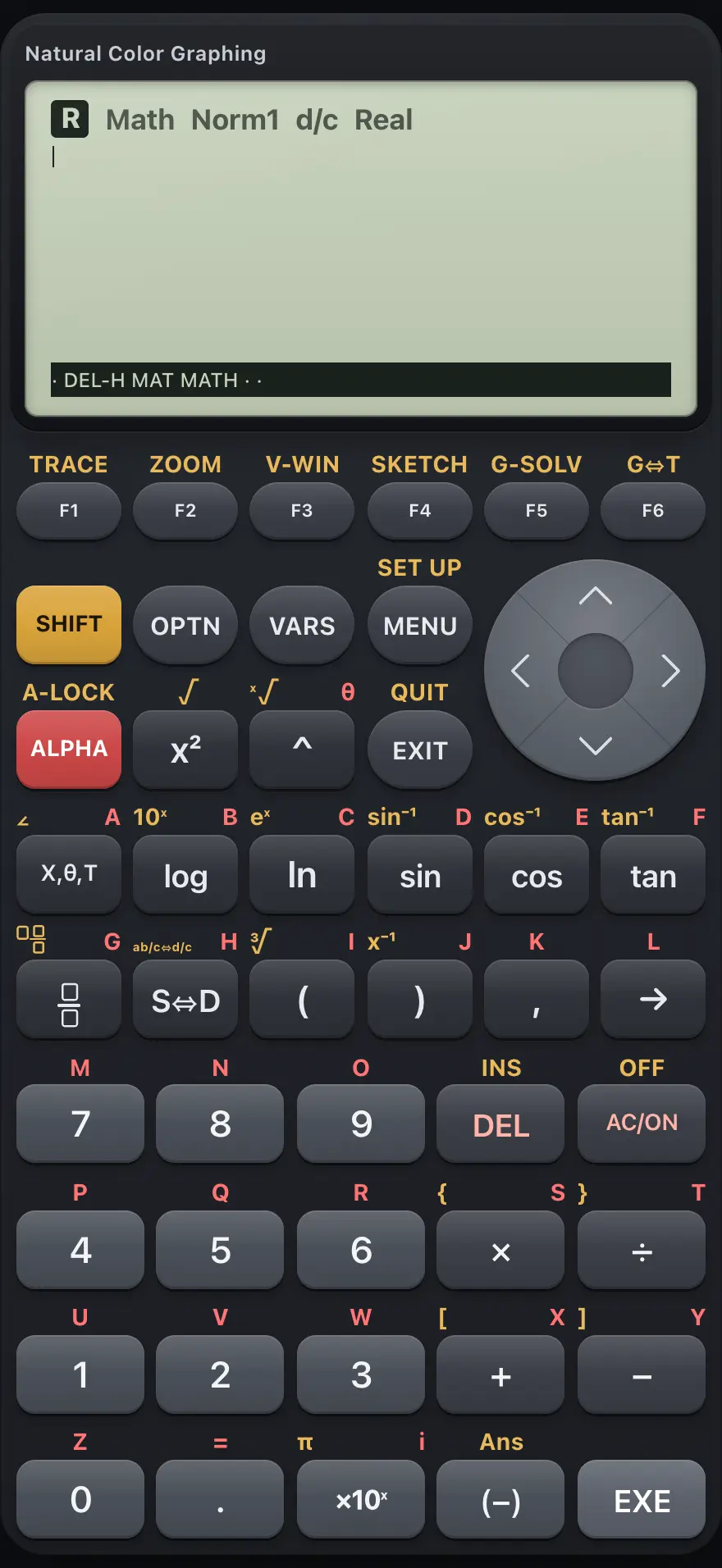
- Display: entries and answers, with the F-key bar along the bottom
- F1 to F6: run the labels shown on the bottom bar
- SHIFT: gold functions
- ALPHA: red letters
- OPTN: option menus
- MENU: the MAIN MENU
- EXIT: back out
- X,θ,T: the variable of the current app
- EXE: calculate or confirm
Run-Matrix shows your earlier entries and answers, with the entry line at the bottom. A status line records the settings in force. The bottom bar shows up to six labels that line up with the F keys.
| Indicator | What it tells you |
|---|---|
| Math or Line | Natural math input, or plain one-line input. |
| Norm1, Norm2, Fix, Sci | The display format for decimal numbers. |
| d/c or ab/c | Improper or mixed fractions. |
| Real, a+bi or r∠θ | The complex mode. |
| Rad, Deg or Gra | The angle unit. It starts as radians. |
| SHIFT, ALPHA, A-LOCK | A layer is active for the next key, or locked on. |
1.2The MAIN MENU and its apps#
Press MENU to open the MAIN MENU. Move with the arrow keys and press EXE, or press an app's number.
| Number | App | Use it for |
|---|---|---|
| 1 | Run-Matrix | Calculations, matrices, lists, complex numbers. |
| 2 | Statistics | Lists of data, statistics, regression, statistical graphs, distributions, tests and intervals. |
| 3 | Graph | Graph functions Y=, r=, parametric and X=; trace, zoom, solve. |
| 4 | Table | Tables of values of the same functions. |
| 5 | Equation | Simultaneous equations, polynomials and a solver. |
| 6 | Recursion | Listed but not available in this model. |
![The MAIN MENU The display shows: MAIN MENU / [1 Run-Mat] 2 Stat 3 Graph / 4 Table 5 Equa 6 Recur / Run-Matrix.](/trident/app/help/manual/img/9156148bs.webp)
Open an app with its number
Press MENU, then 4 for Table.
MENU4
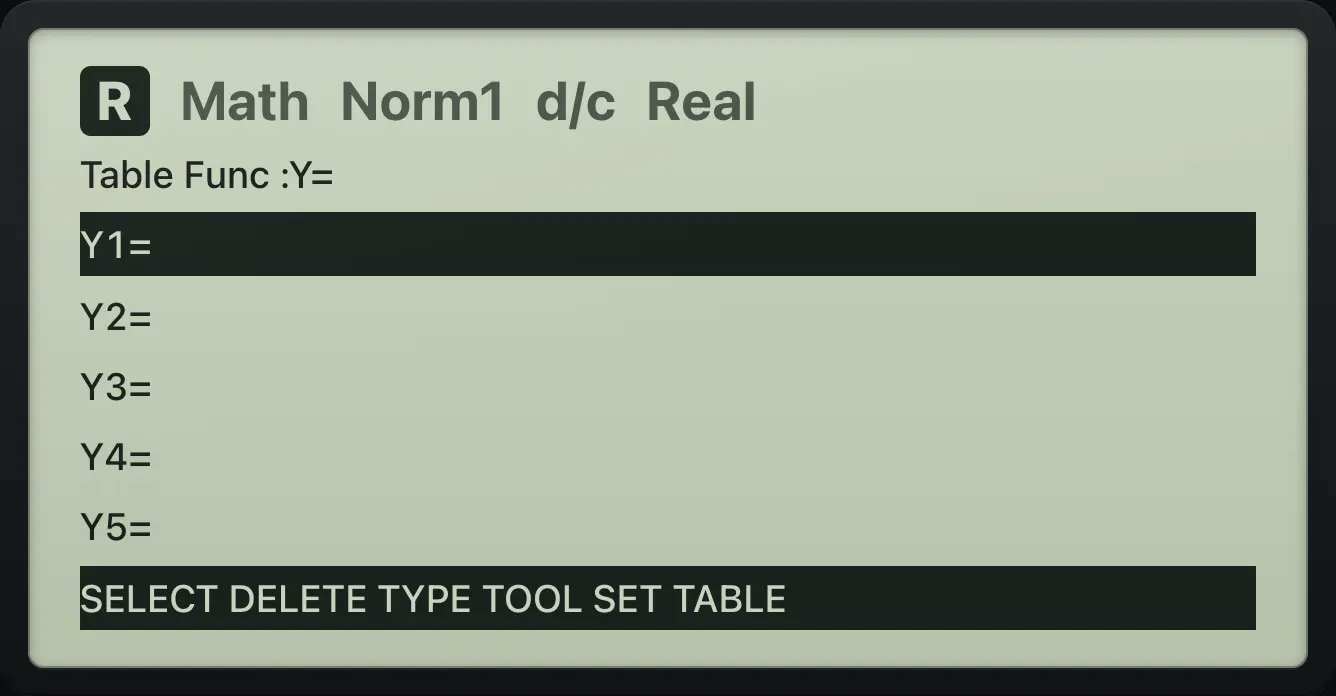
Table FuncMove with the arrows
Press MENU, then the right arrow.
MENU▶
![Result of the example "Move with the arrows" The display shows: MAIN MENU / 1 Run-Mat [2 Stat] 3 Graph / 4 Table 5 Equa 6 Recur / Statistics.](/trident/app/help/manual/img/fb170e3ds.webp)
Statistics1.3The F keys and the soft-key bar#
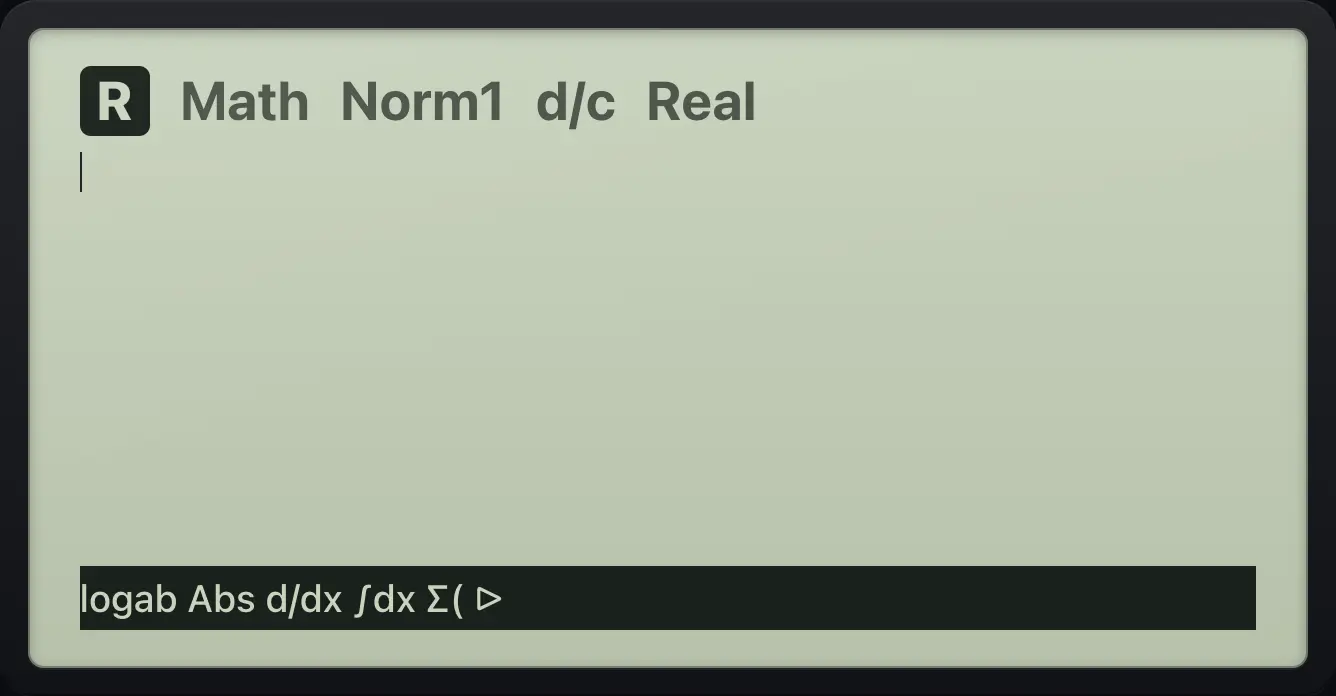
The six keys F1 to F6 do whatever the bar at the bottom of the screen says. The bar changes with the app and with what you are doing. Some labels open another bar; press EXIT to go back one bar. A label with ▷ means there is a second page: press F6 to see it.
With SHIFT the F keys run the gold commands printed above them: TRACE, ZOOM, V-WIN, SKETCH, G-SOLV and G⇔T. These are used in the Graph app.
1.4The SHIFT and ALPHA layers#
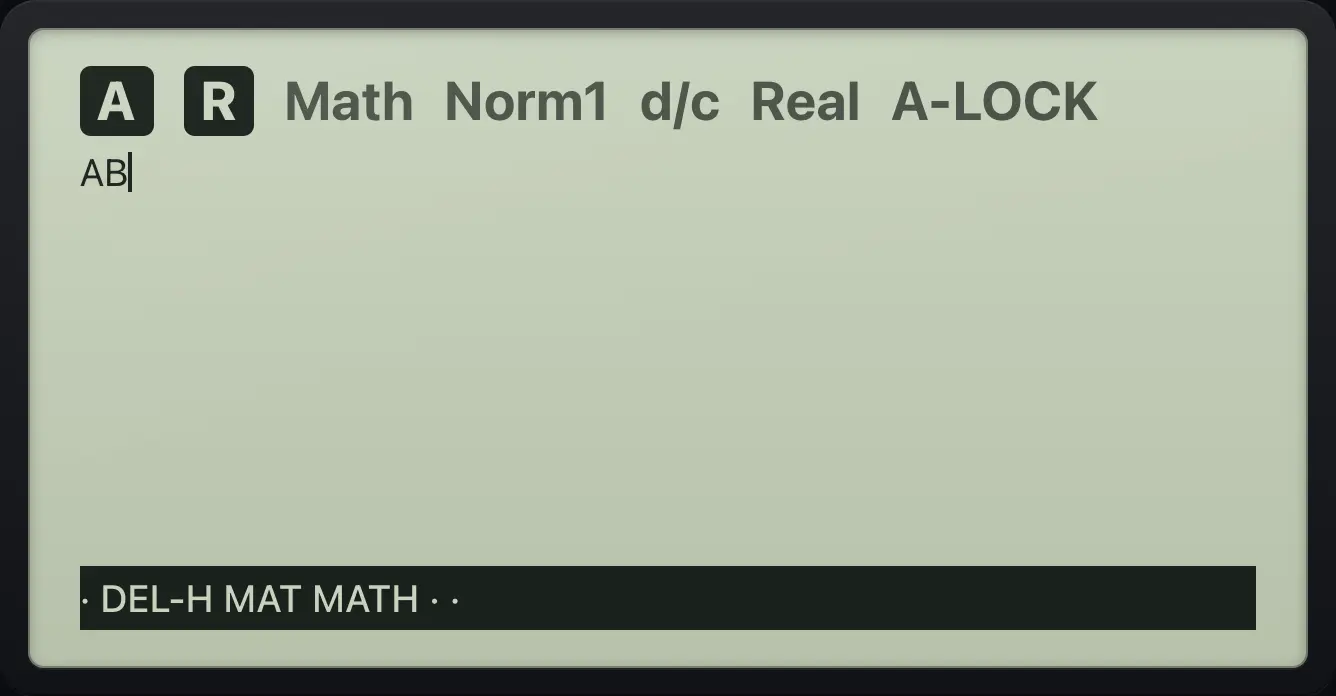
The gold label above a key is used after SHIFT. The red label above a key is used after ALPHA and types a variable letter A to Z, θ, an equals sign, or i. Each press lasts for one key. SHIFTA-LOCKALPHA turns on A-LOCK, which keeps the letter layer on until you press ALPHA again.
Use the SHIFT layer
SHIFT then the x² key gives a square root template; type 8 and press EXE.
SHIFT√x²8EXE
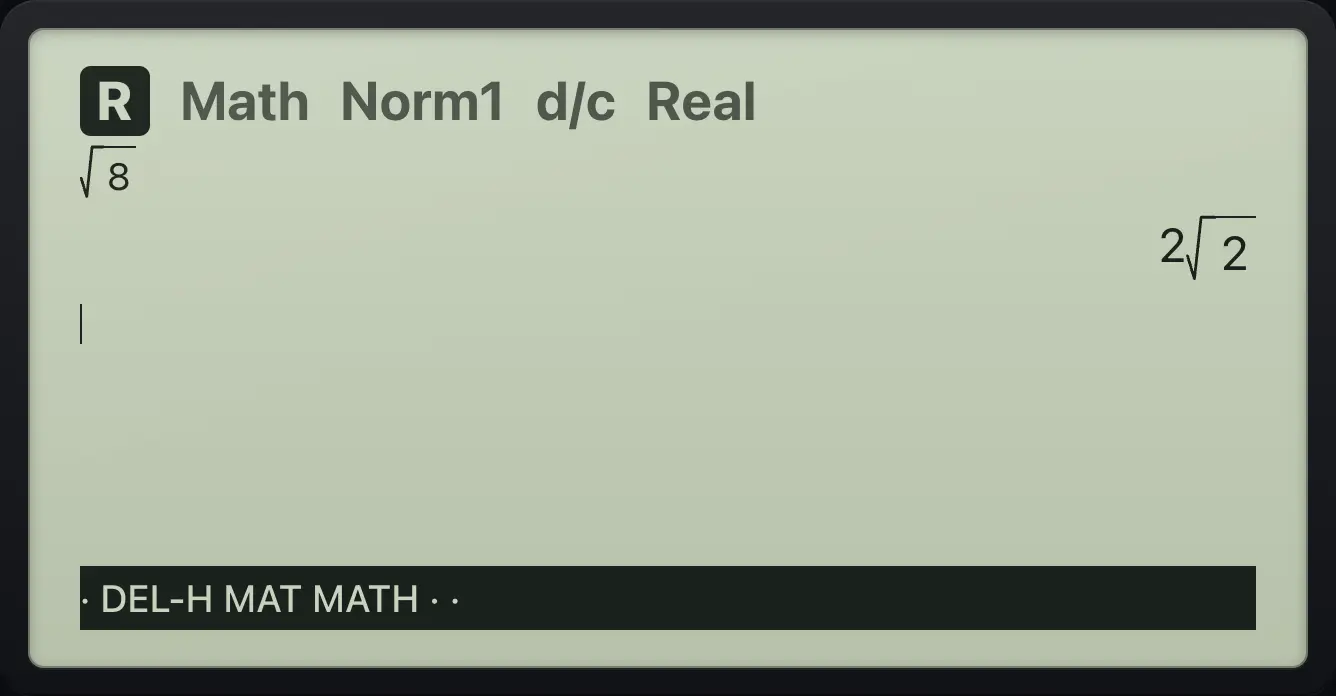
2√2Lock the letter layer
Press SHIFT ALPHA to lock, then type two letters.
SHIFTA-LOCKALPHAX,θ,Tlog
AB1.5Your first calculation#
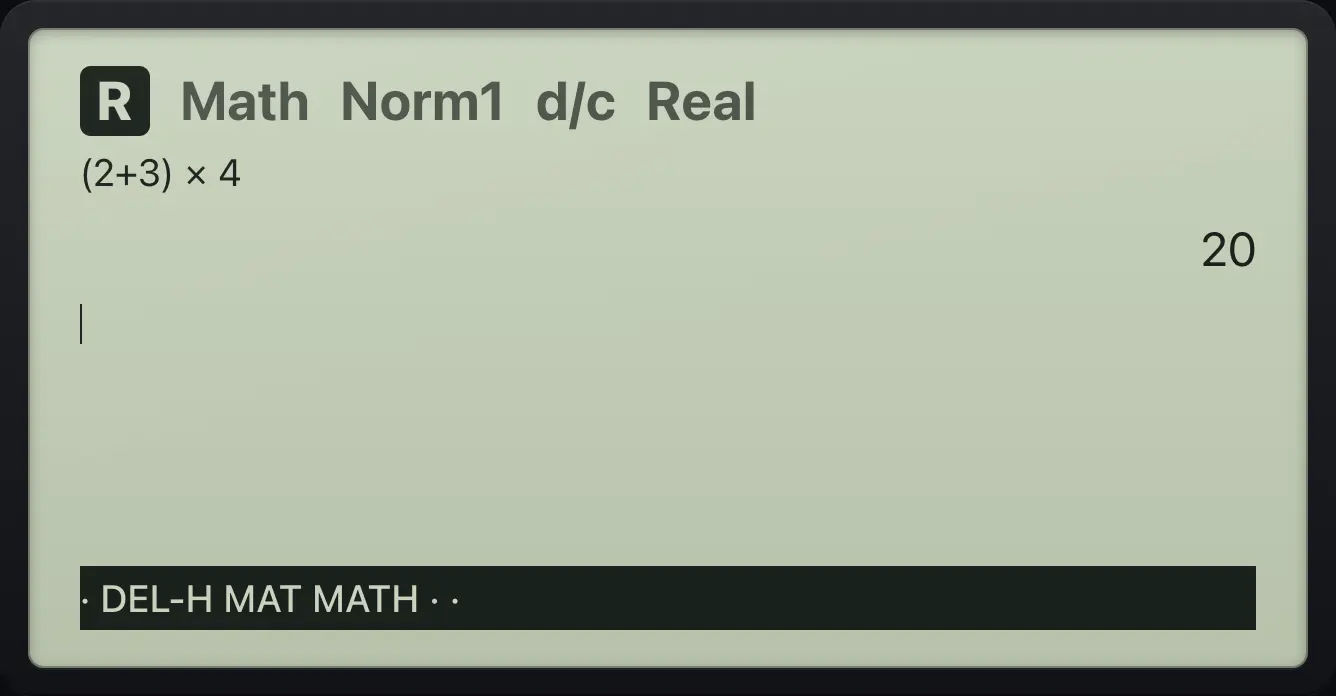
Type the calculation as you would write it and press EXE. The calculator follows the usual order of operations. Answers appear on the right, and exact answers (fractions, roots, π) are kept.
Brackets and order
Type (2 + 3) × 4 and press EXE.
(2+3)×4EXE
20See also Calculations in Run-Matrix: Order of operations and negatives
1.6Clear, delete, edit and recall#
- AC/ON clears the entry line.
- DEL deletes the character before the cursor.
- ◀ and ▶ move the cursor. Inside a fraction, power or root, ▲ and ▼ move between boxes and ▶ steps out.
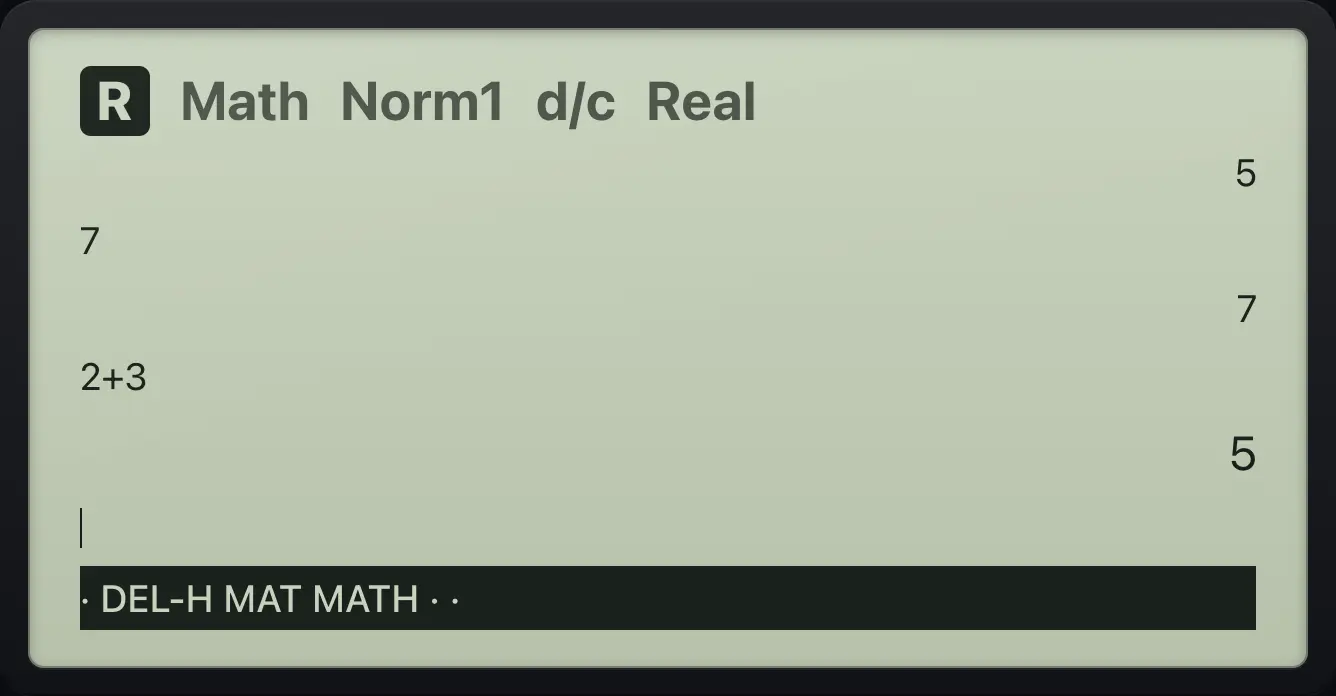
- On an empty line, ▲ brings back the previous entries one at a time so you can edit and run them again.
- Start a line with an operator and the previous answer is inserted as Ans.
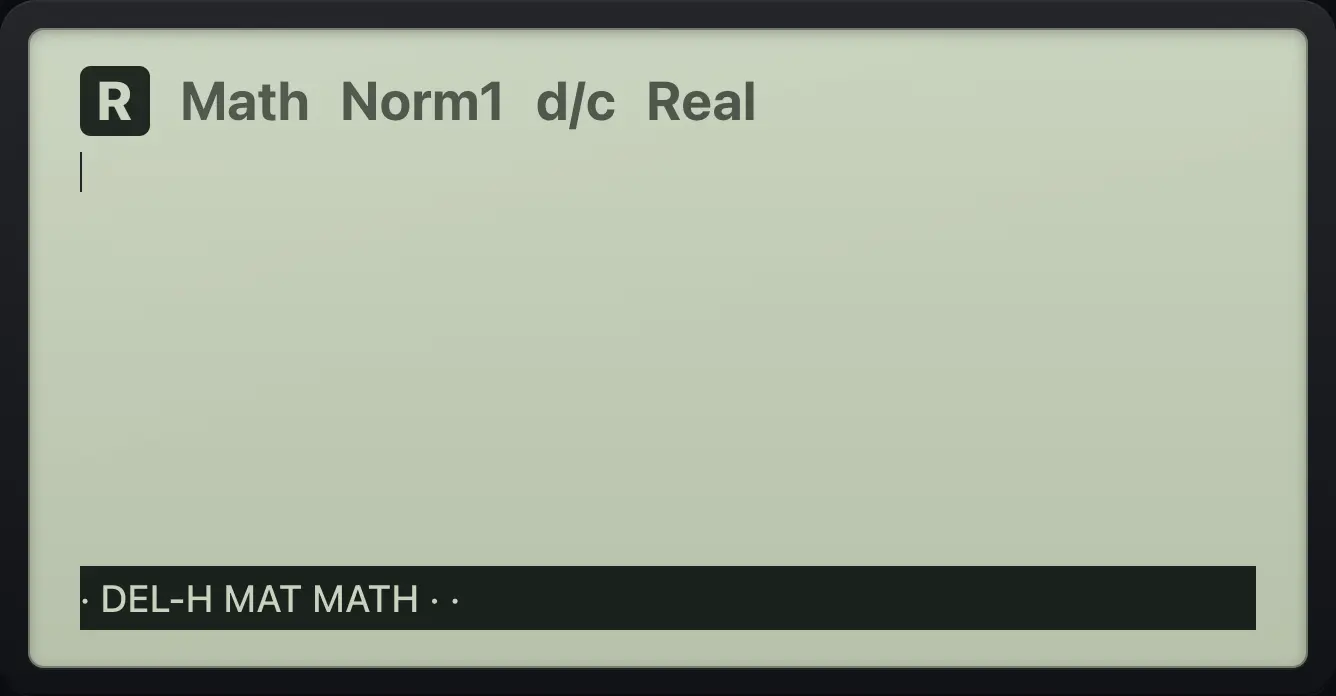
- F2 (DEL-H) in the Run-Matrix bar clears the whole history.
Delete a digit
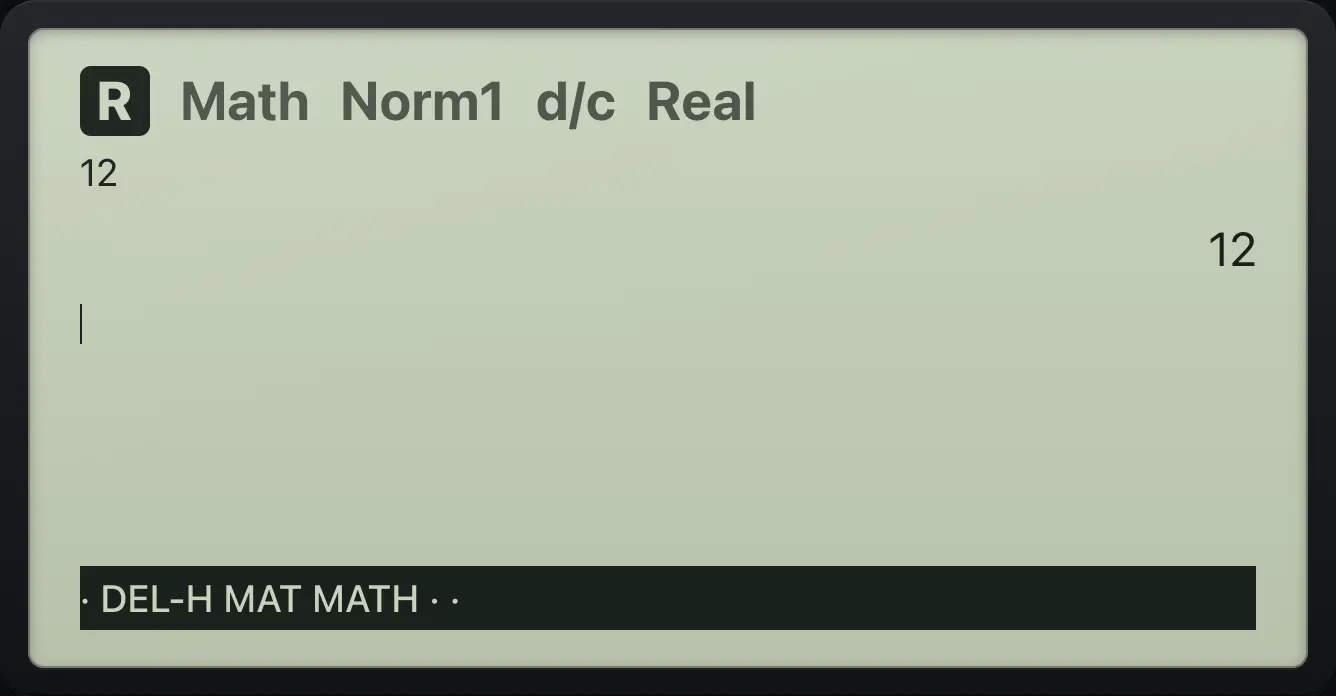
Type 123, delete the 3, press EXE.
123DELEXE
12Recall an entry
Calculate 2 + 3 and 7, then go up twice and run again.
2+3EXE7EXE▲▲EXE
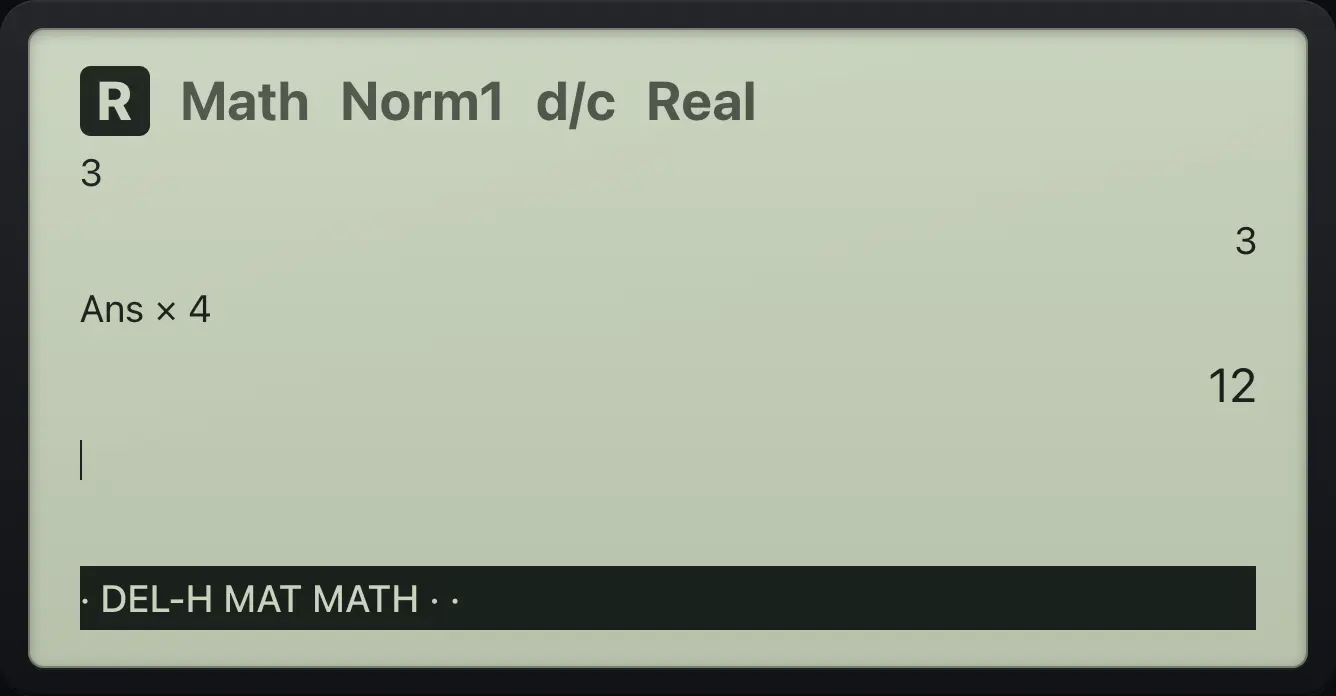
5Continue from the last answer
Calculate 3, then multiply by 4.
3EXE×4EXE
12Clear the history
Calculate 5, then F2 (DEL-H).
5EXEF2
DEL-H1.7Use a laptop keyboard#
| Computer key | Calculator key |
|---|---|
| Enter | EXE |
| Backspace or Delete | DEL |
| Escape | EXIT |
| Home | AC/ON |
| + - * : | + − × ÷ |
| / | / (fraction template) |
| ^ | ^ (power template) |
| ( ) , . | ( ) , . |
| x or X | X,θ,T |
| s c t | sin cos tan |
| l L | ln log |
| q r | x² SHIFT√x² (square root) |
| e | ×10ˣ |
| p | SHIFTπ×10ˣ (π) |
| n a | (−) SHIFTAns(−) (Ans) |
| = | ALPHA=. (equals sign) |
| > | → |
| m o v | MENU OPTN VARS |
| d or Tab | S⇔D |
| S A | SHIFT ALPHA |
| F1 to F6 | F1 to F6 |
| Arrow keys | ▲ ▼ ◀ ▶ |
fx-CG50 is a trademark of Casio Computer Co., Ltd.. Trident Calculator is an independent product by South View Studios and is not affiliated with, sponsored by or endorsed by Casio. The name is used only to describe the kind of calculator this model resembles; Trident's names, keys, display, fonts and software are its own clean-room design.