
Classic Financial II manual · Chapter 3 of 16
Everyday calculations
Chain and AOS arithmetic, brackets, percent, roots, powers, logarithms, factorials, trig and the last answer.
3.1Chain and AOS calculation methods#
The calculator starts in Chain mode: each operator finishes the previous operation first, so 2 + 3 × 4 gives 20. In AOS mode (algebraic operating system) multiplication and powers come before addition, so the same entry gives 14. Change it in FORMAT; see Modes and settings.
Chain method (start setting)
2 + 3 × 4 is worked left to right.
2+3×4=
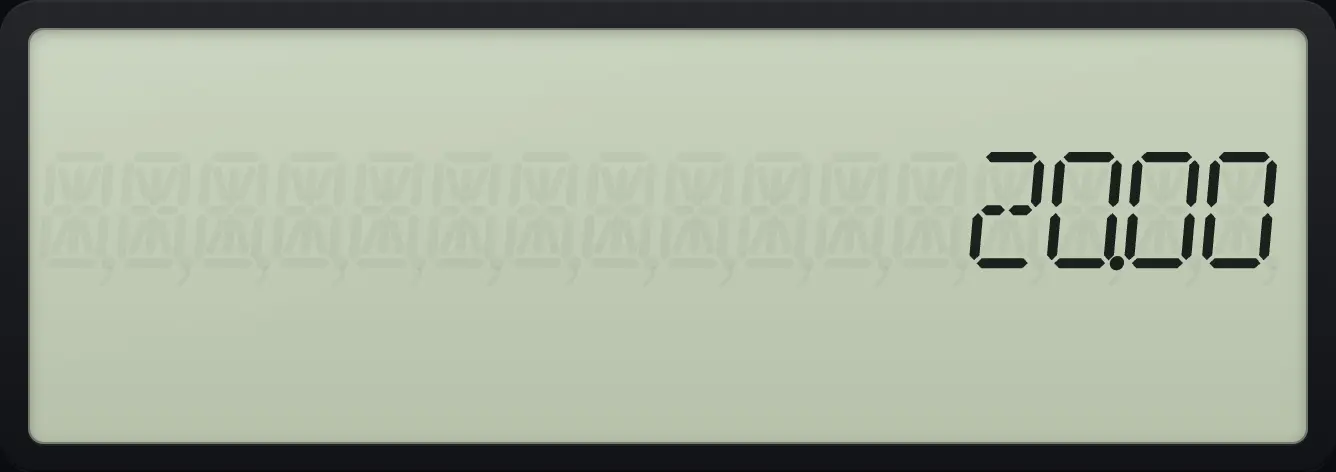
20.00AOS method
Switch to AOS in FORMAT, leave, then enter the same sum.
2NDFORMAT.↓↓↓↓2NDSETENTER2NDQUITCPT2+3×4=

14.00Brackets work in both methods
Brackets always make the inner sum first.
2×(3+4)=

14.00See also Use brackets to control the order
3.2Percent#
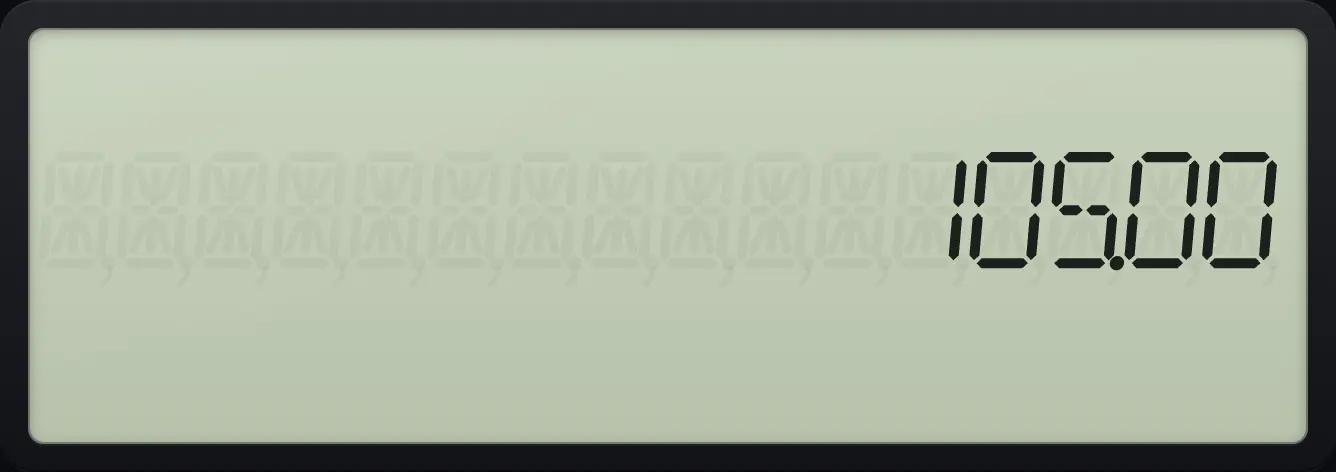
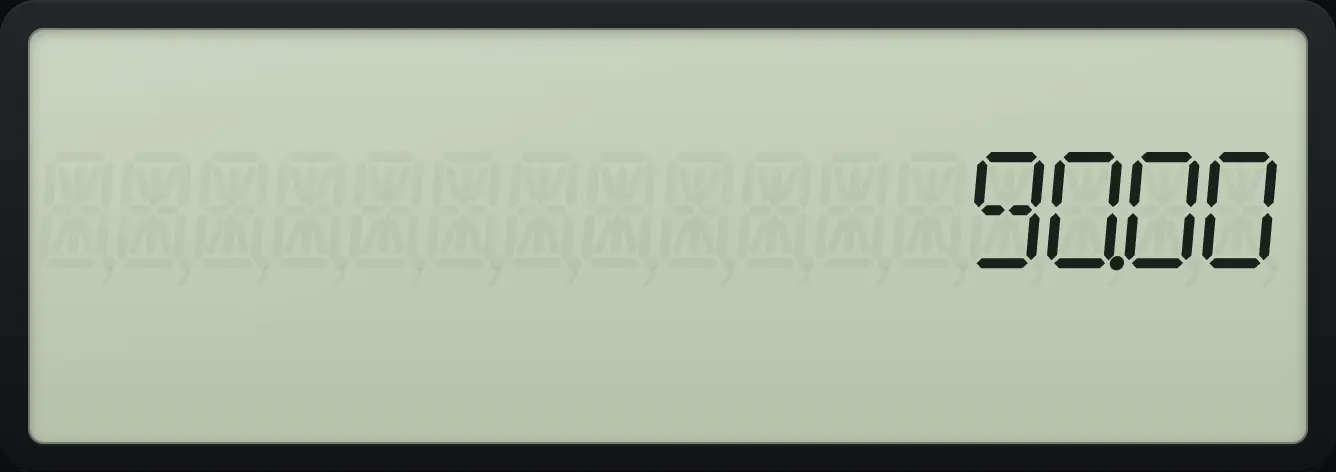
On its own, % divides the number by 100. After a plus or minus, it takes that percent of the number before it, so you can add a sales tax or take off a discount.
Add 5% to 100
Type 100 + 5 %, then press equals.
100+5%=
105.00Take 10% off 100
Type 100 − 10 %, then equals.
100−10%=
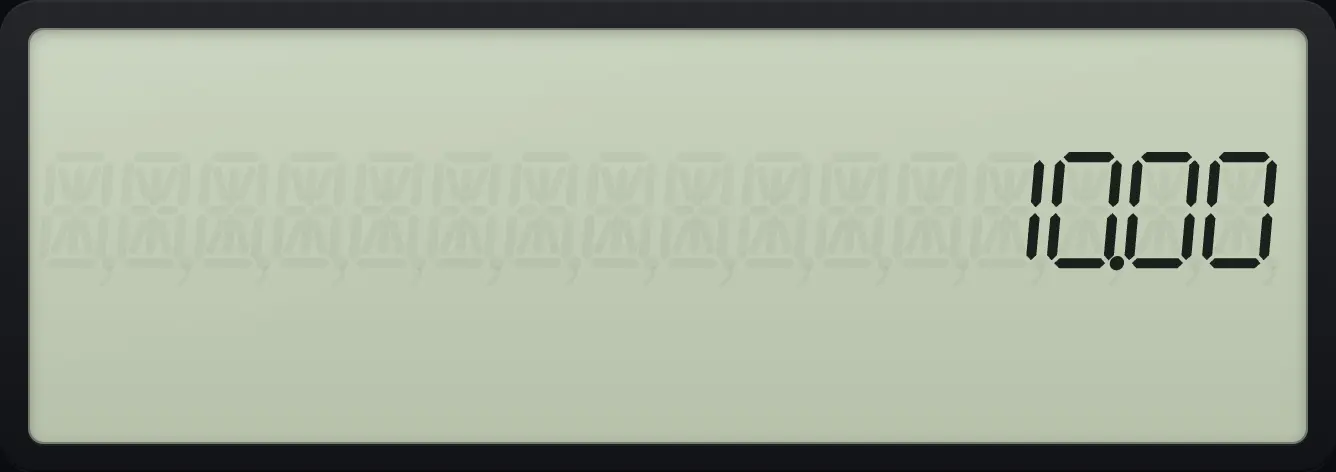
90.005% of 200
After a multiply, % just divides by 100.
200×5%=
10.00See also Find a percentage of a number
3.3Squares, roots, powers and reciprocals#
Press x² to square, √x for a square root and 1/x for the reciprocal. For other powers type the base, press yˣ, then the exponent. For the x-th root press 2NDx√yyˣ: type the number, the root key, then the root number.
Square
12 squared.
12x²
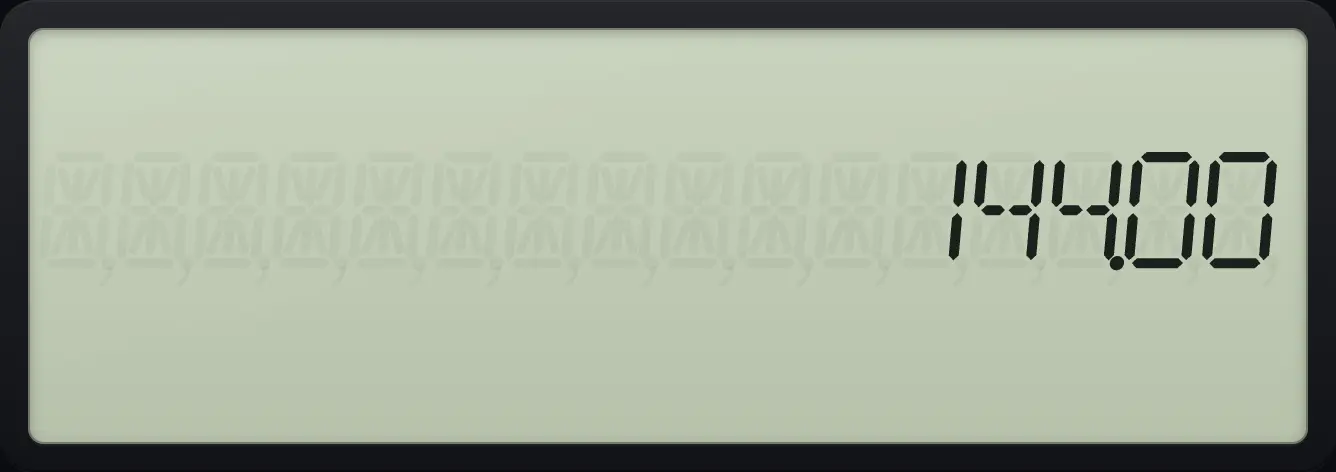
144.00Power
2 to the power 10.
2yˣ10=
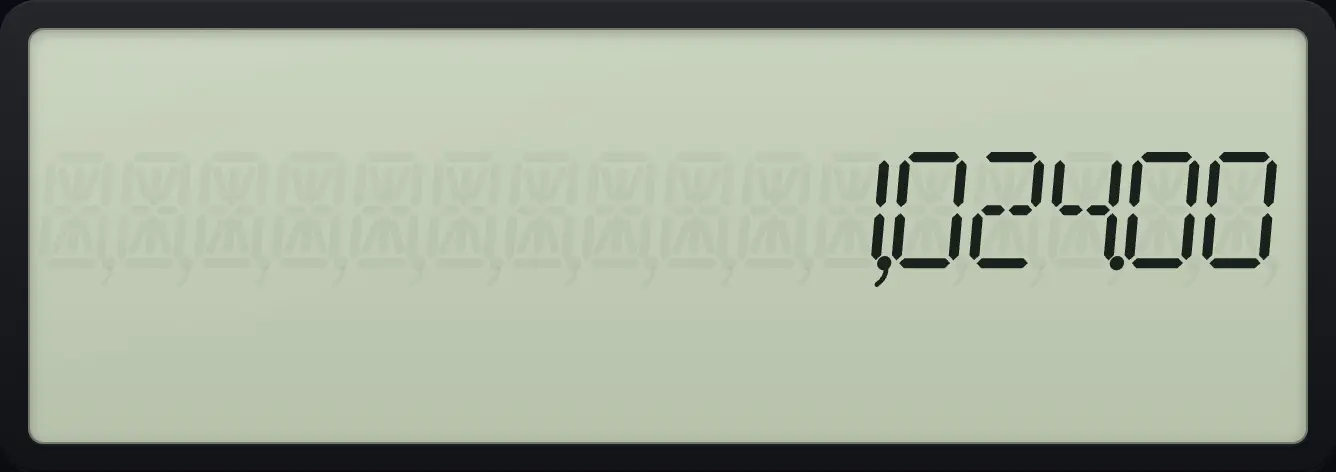
1,024.00Cube root
27, then the root key, then 3.
272NDx√yyˣ3=
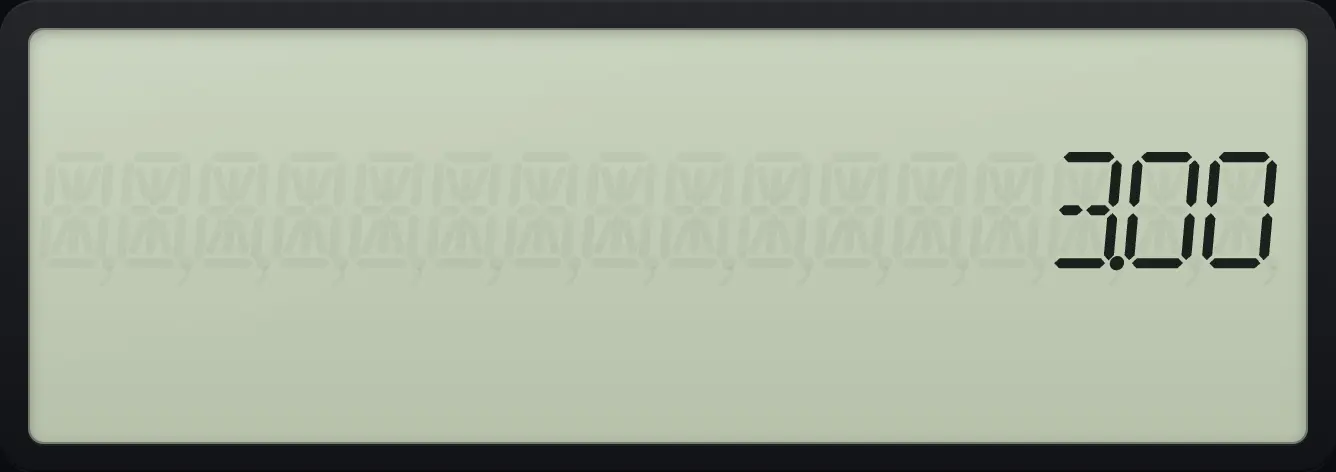
3.00Square root
The square root of 2, rounded to two decimals.
2√x
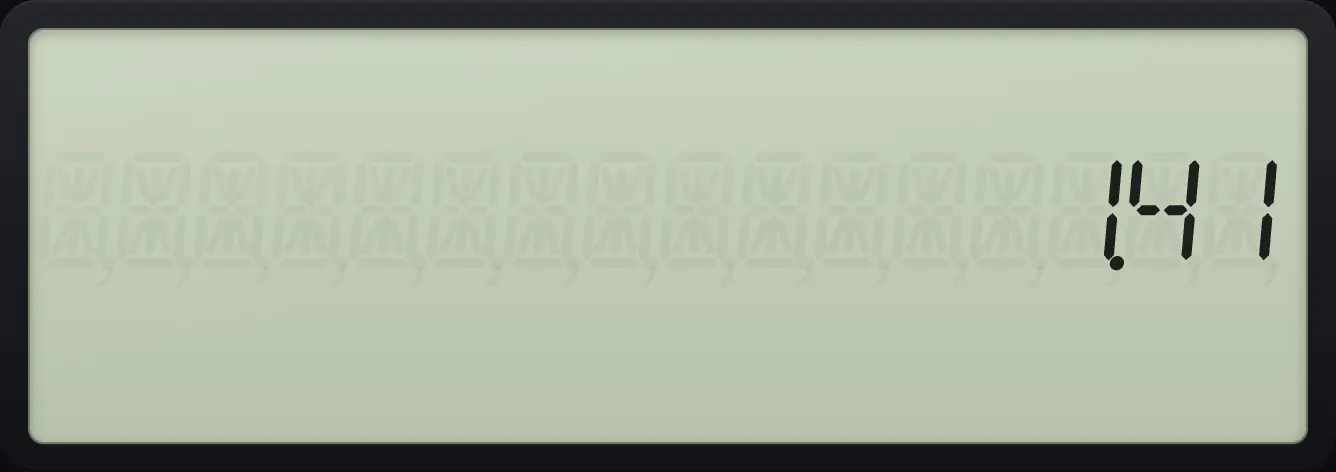
1.41Reciprocal
1/8 shows as 0.13 with two decimals.
81/x
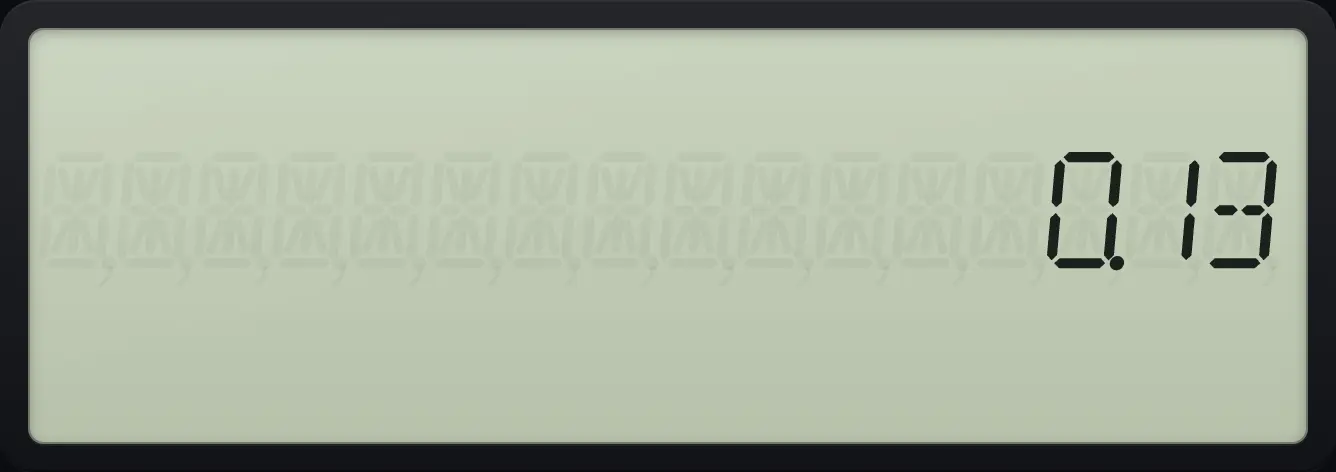
0.13See also Powers and exponentsFind a square rootCube roots and other roots
3.4Natural logarithm and e to a power#
LN gives the natural logarithm. 2NDeˣLN gives e to the power of the displayed number. Pressing INV first with LN also gives e to a power.
ln of 10
Show nine decimals first, then take ln of 10.
2NDFORMAT.9ENTER2NDQUITCPT10LN
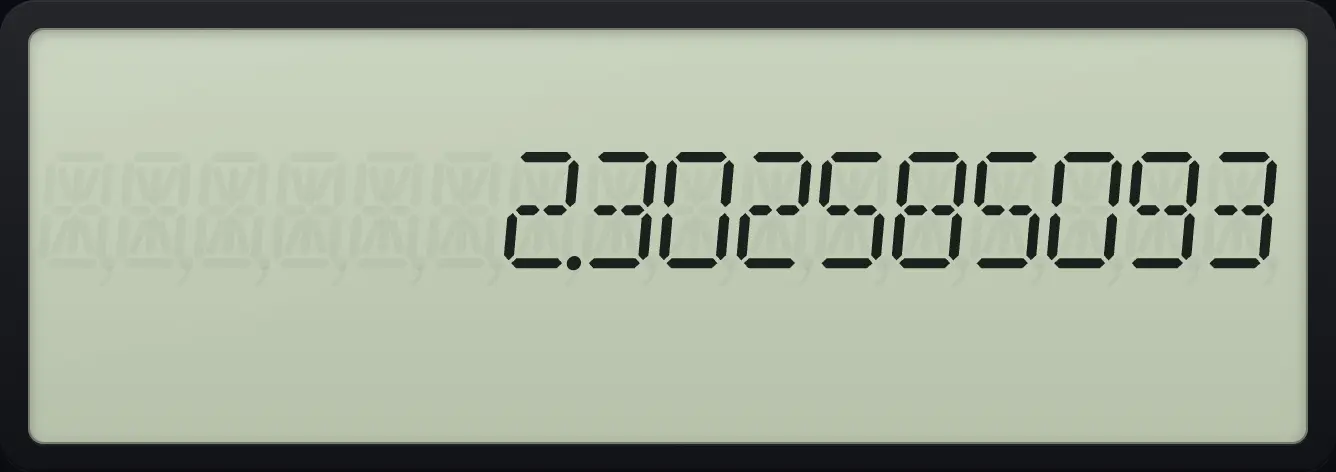
2.302585093e to the power 1
The number e.
2NDFORMAT.9ENTER2NDQUITCPT12NDeˣLN
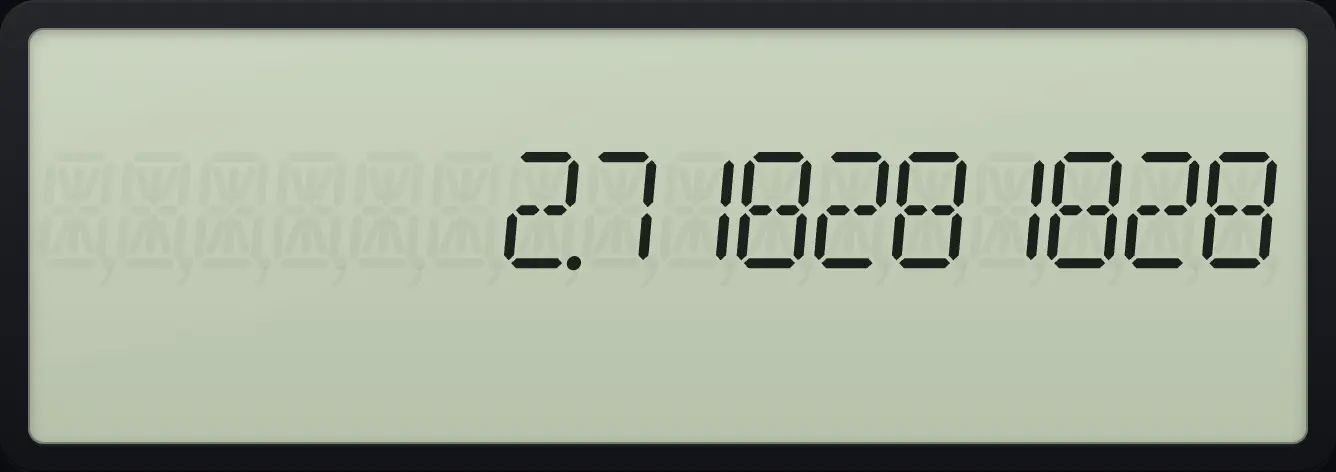
2.718281828See also Natural logs and the number e
3.5Factorials, permutations and combinations#
Factorial is 2NDx!). For permutations and combinations type n, press 2NDnPr− (nPr) or 2NDnCr× (nCr), type r and press equals. Factorials work for whole numbers up to 69.
Factorial
5 factorial.
52NDx!)
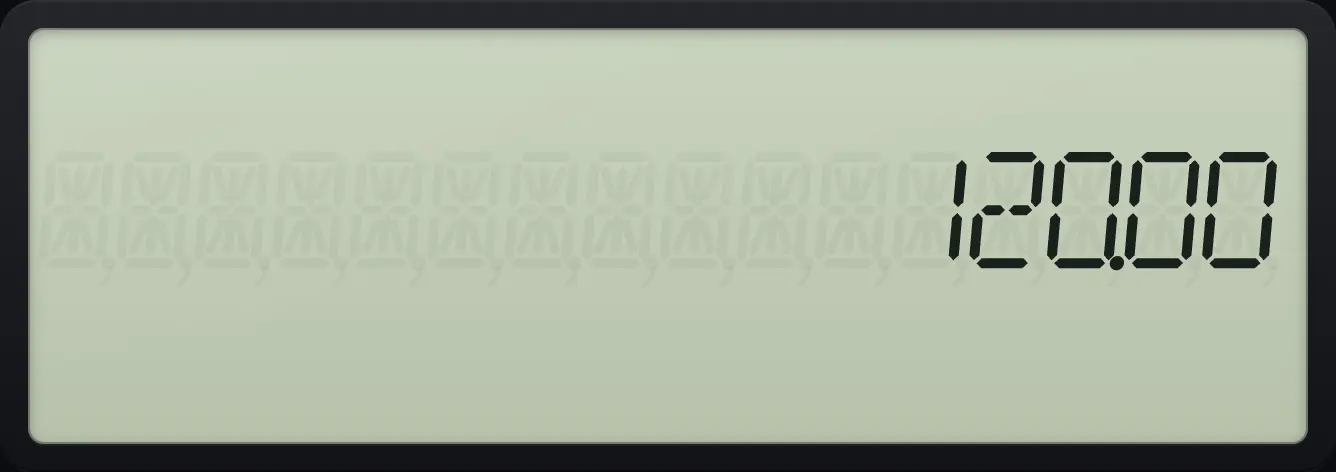
120.00Permutations
Arrange 2 of 5.
52NDnPr−2=
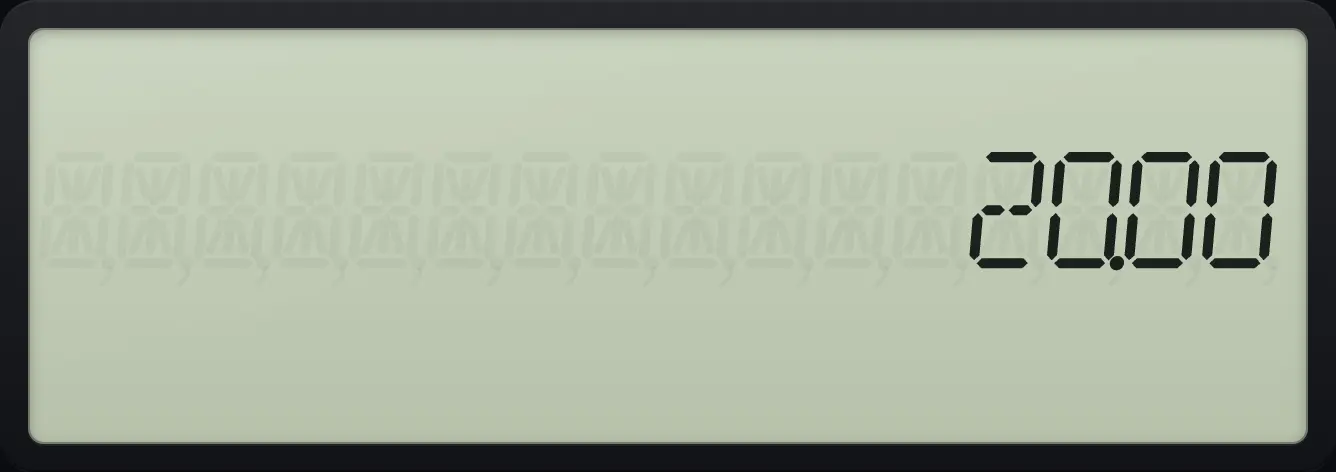
20.00Combinations
Choose 5 of 52 cards.
522NDnCr×5=
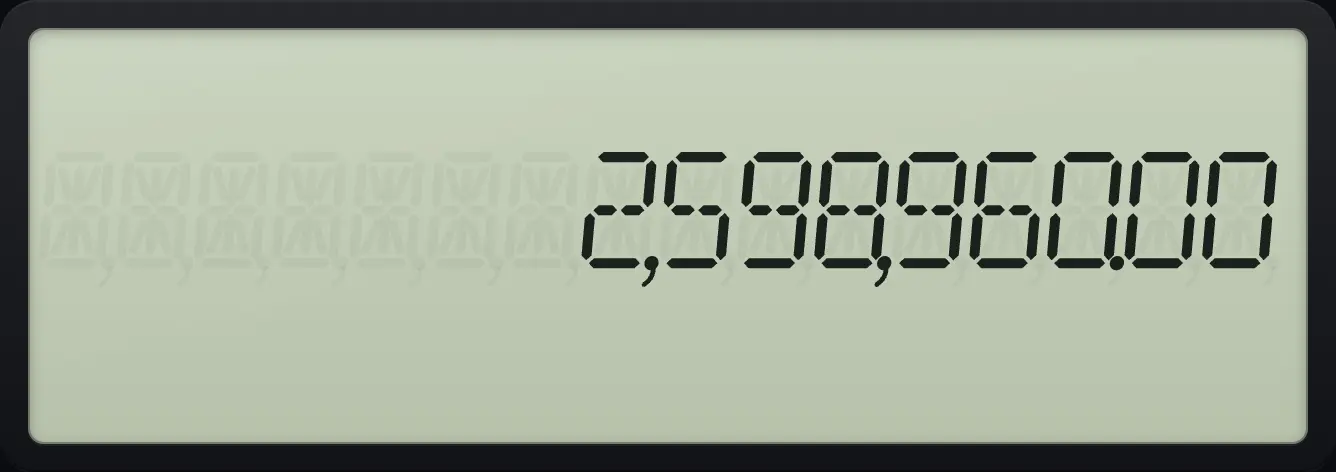
2,598,960.00See also Count arrangements and selections (nPr and nCr)Calculate a factorial
3.6Trigonometry and angle units#
Type the angle, then press the shifted trig key: 2NDSINx² is SIN, 2NDCOS1/x COS, 2NDTAN÷ TAN. Press INV first for the inverse. Press 2NDHYP√x (HYP) first for the hyperbolic versions. The angle unit is set in FORMAT (degrees at the start).
Sine of 30 degrees
Type 30 and press SIN.
302NDSINx²
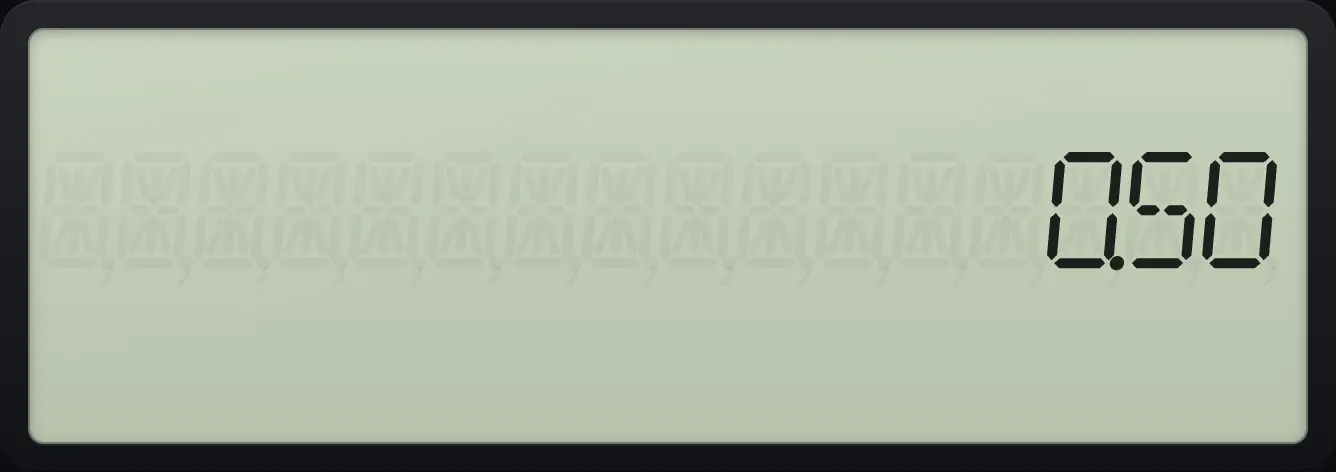
0.50Inverse sine
INV then SIN of 0.5 gives 30 degrees.
.5INV2NDSINx²
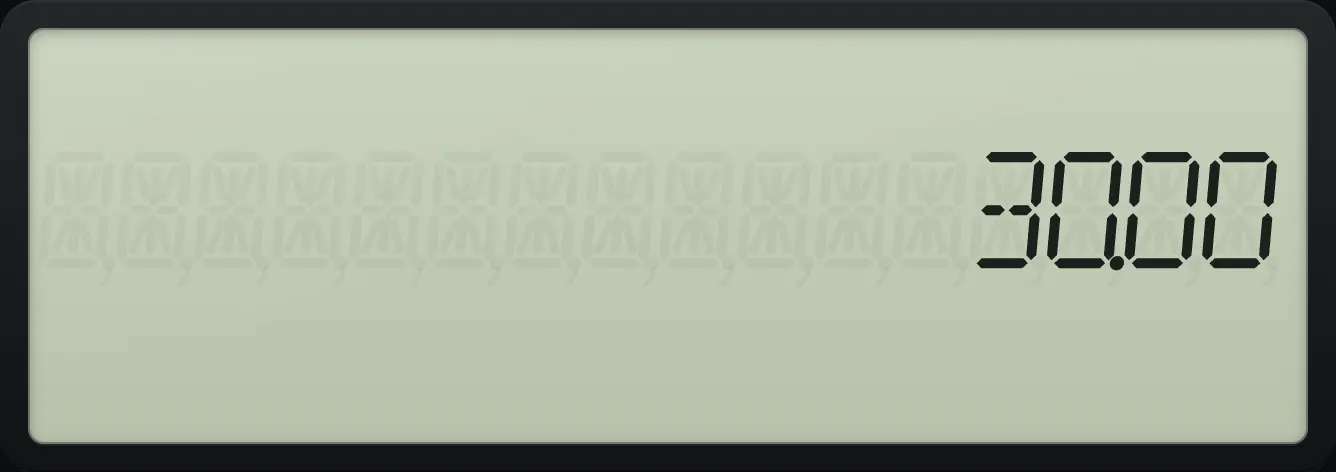
30.00Inverse tangent
INV then TAN of 1 gives 45.
1INV2NDTAN÷
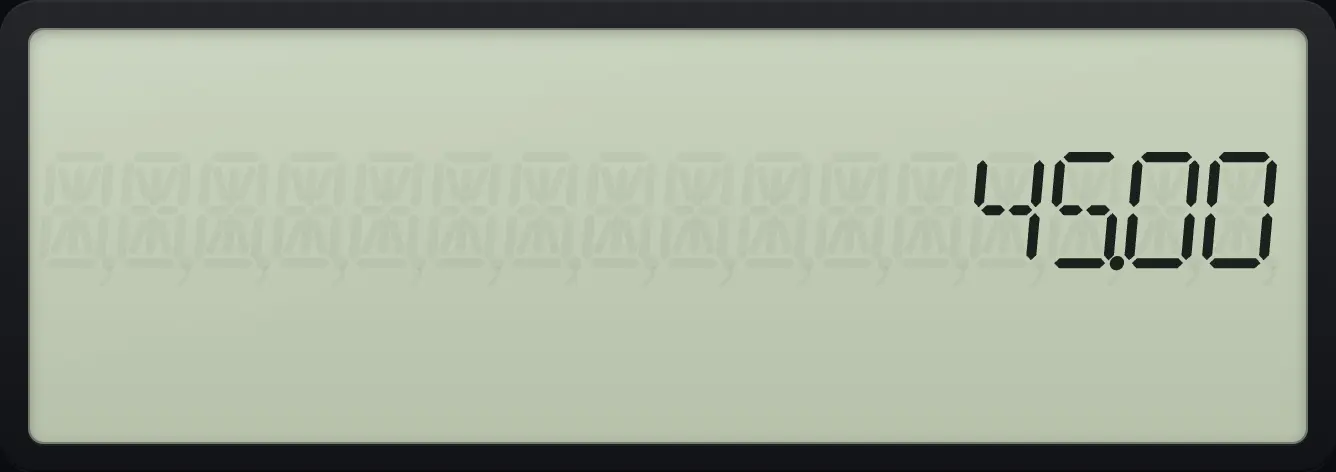
45.00Sine in radians
Switch FORMAT to RAD, show nine decimals, then sin 1.
2NDFORMAT.↓2NDSETENTER2NDQUITCPT2NDFORMAT.9ENTER2NDQUITCPT12NDSINx²
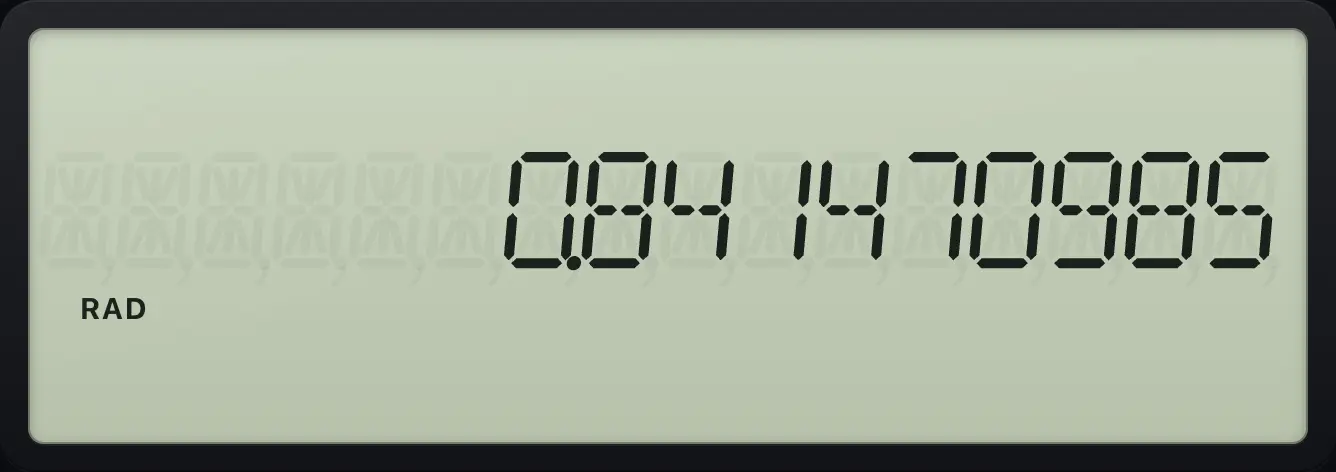
0.841470985Hyperbolic sine
Press HYP, then SIN.
2NDFORMAT.9ENTER2NDQUITCPT12NDHYP√x2NDSINx²
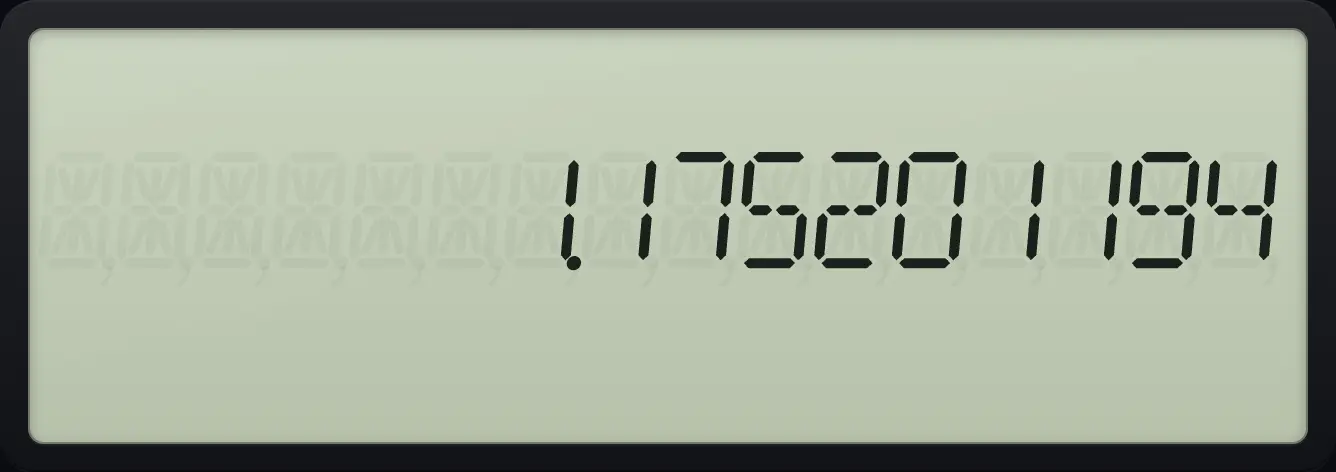
1.175201194See also Find sine, cosine and tangentSet degrees or radians
3.7Round, random numbers and the last answer#
2NDROUNDINV (ROUND) rounds the displayed number to the number of decimals in FORMAT, and keeps the rounded value. 2NDRAND( (RAND) shows a random number between 0 and 1. 2NDANS= (ANS) recalls the last answer. 2NDK% (K) repeats the last operation and number every time you press equals.
Recall the last answer
Work out 2 + 3, then use ANS in a new sum.
2+3=×2NDANS==
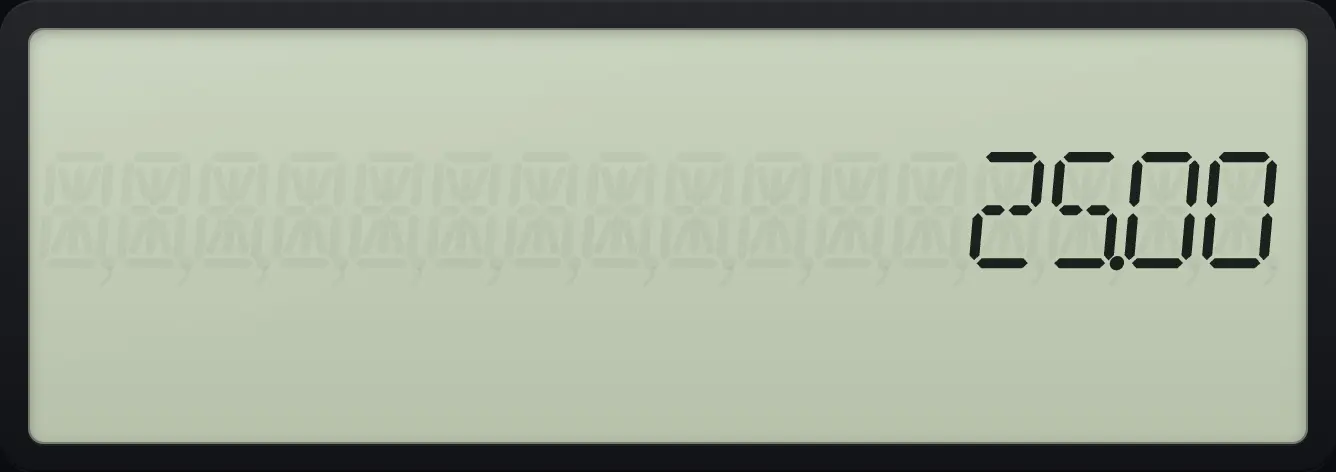
25.00K constant
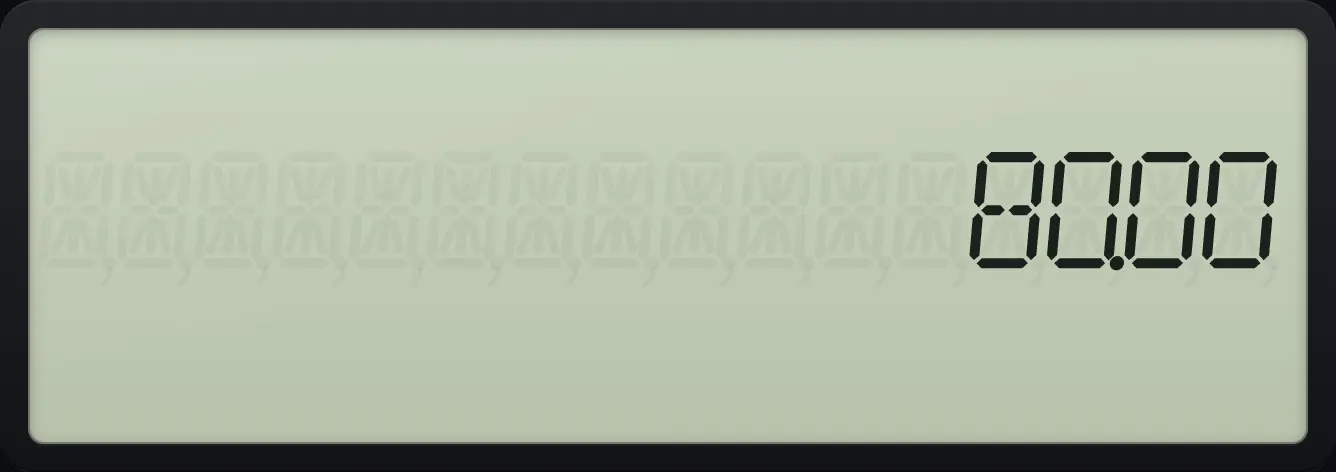
After 2 + 3 = 5, press × 4, then 2ND % (K), then = again.
2+3=×42NDK%=
80.00BA II Plus is a trademark of Texas Instruments Incorporated. Trident Calculator is an independent product by South View Studios and is not affiliated with, sponsored by or endorsed by Texas Instruments. The name is used only to describe the kind of calculator this model resembles; Trident's names, keys, display, fonts and software are its own clean-room design.