
RPN Power 48 manual · Chapter 5 of 19
Everyday calculations
Arithmetic, negative numbers, powers, roots, percent, constants and display of results.
5.1Add, subtract, multiply and divide#
The two operands are on levels 2 and 1. Level 2 is the first number, level 1 the second: 10 ENTER 4 − gives 6 and 20 ENTER 5 ÷ gives 4.
Divide 20 by 5
Type 20, ENTER, 5, then divide.
20ENTER5÷
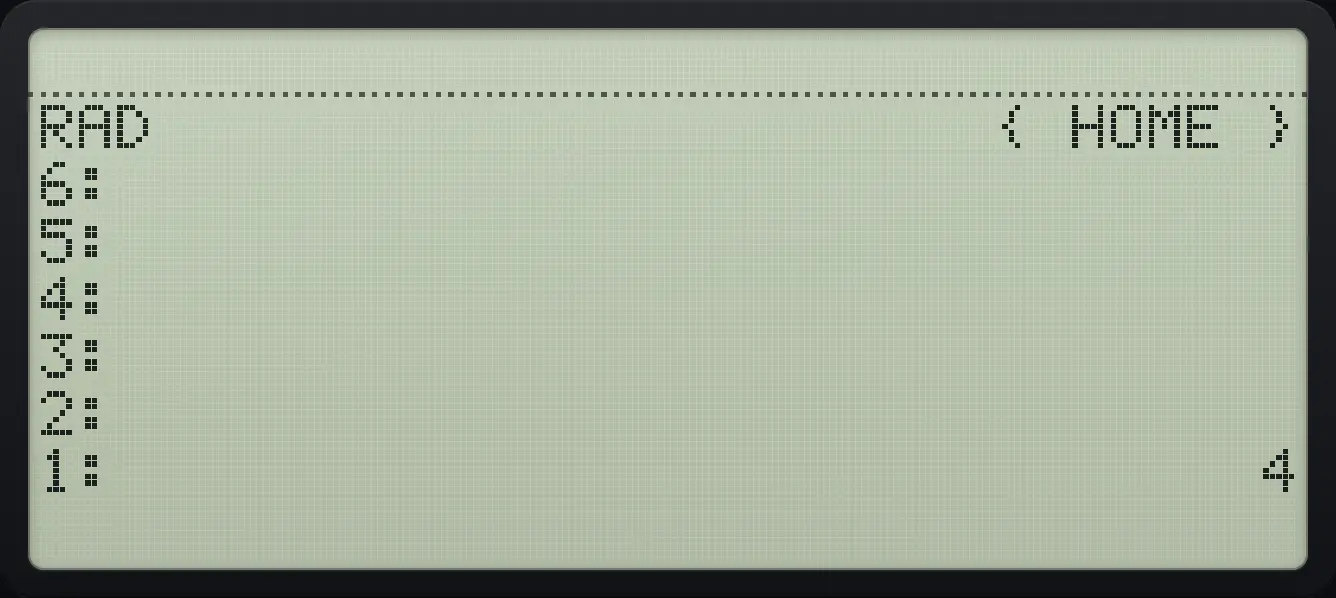
1: 4Subtract: 10 minus 4
Type 10, ENTER, 4, then subtract.
10ENTER4−
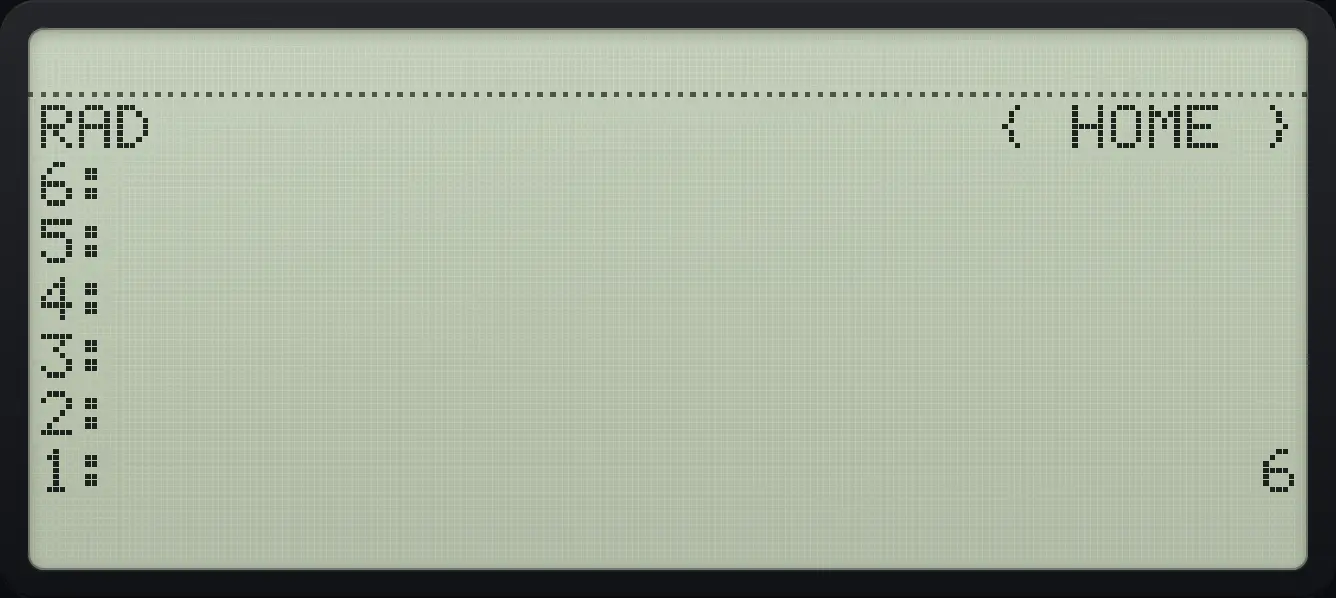
1: 6One third
Divide 1 by 3. Results show 12 digits.
1ENTER3÷
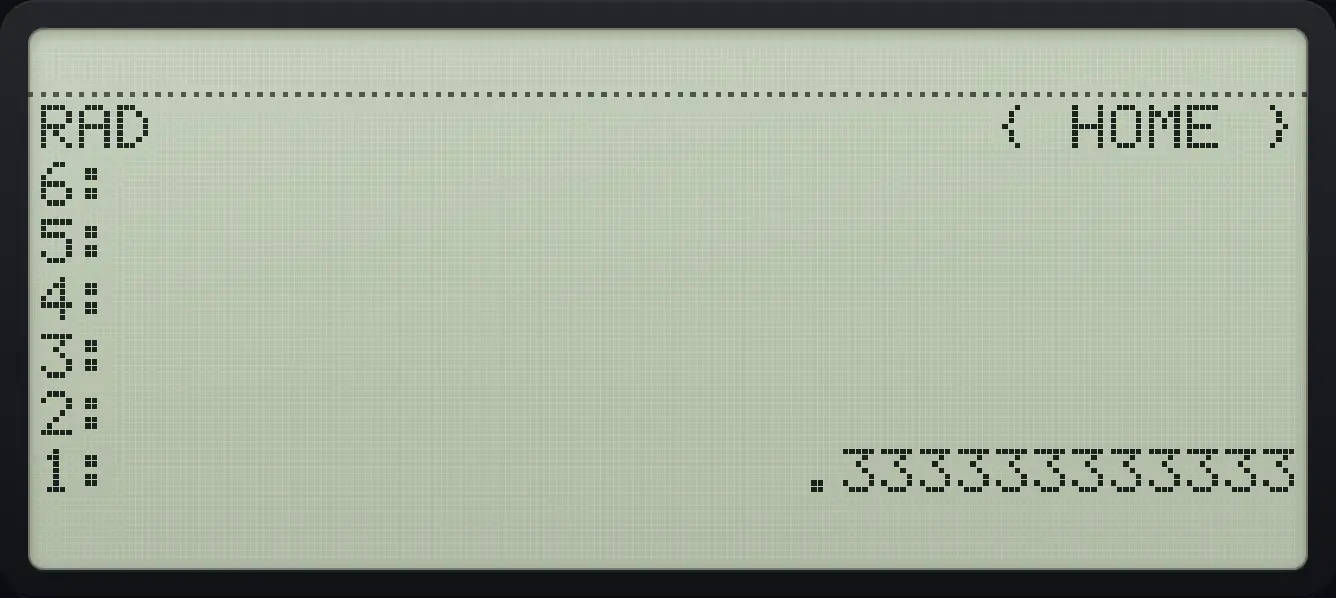
.3333333333335.2Negative numbers and changing the sign#
Type the digits, then press +/− to make the number negative. When there is no command line, +/− changes the sign of level 1.
Enter a negative number and add
Type 5, +/−, ENTER, 3 and +.
5+/−ENTER3+
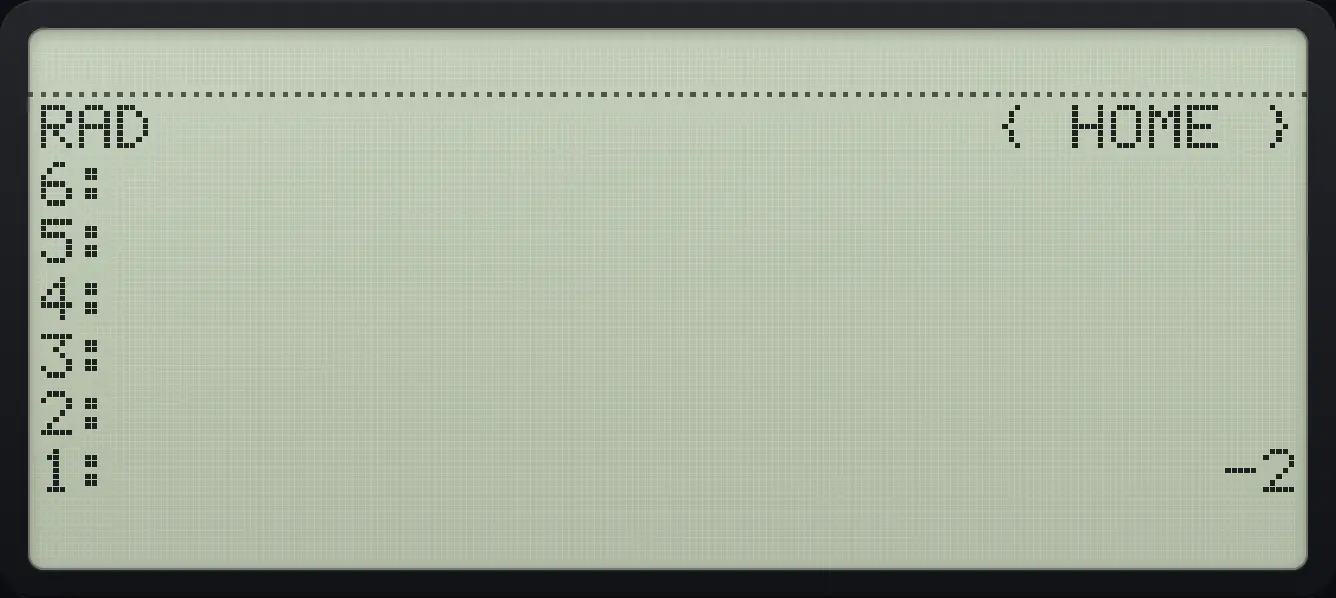
1: -2Change the sign of a result
Subtract 3 from 8, then press +/−.
8ENTER3−+/−
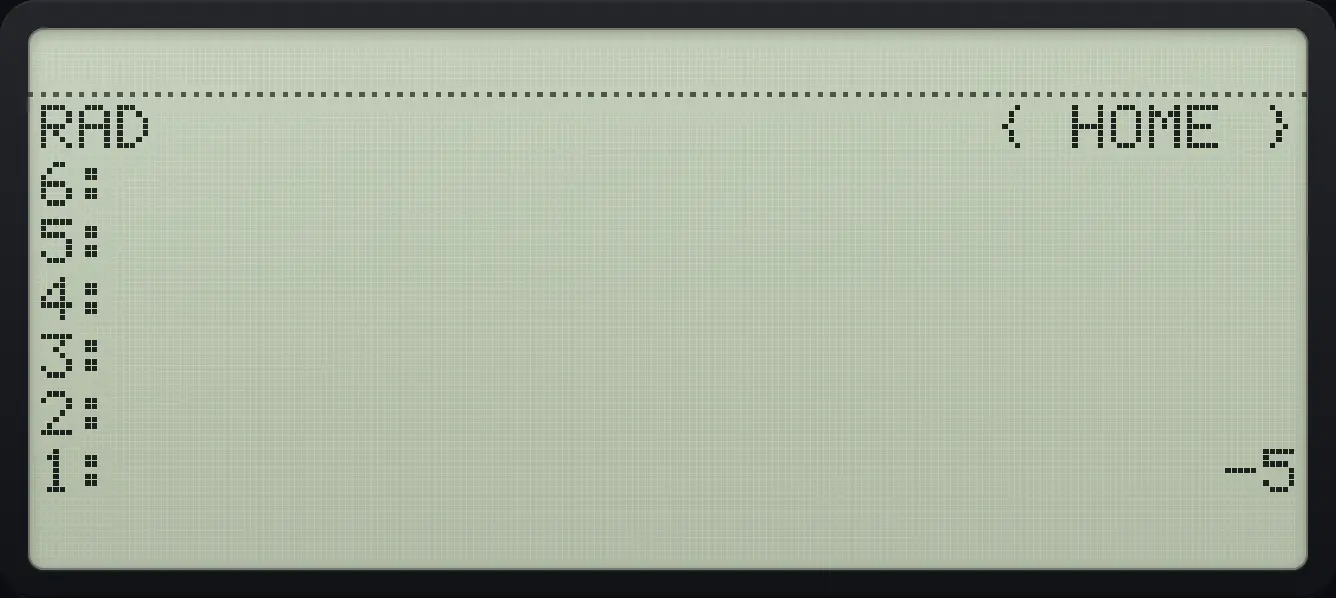
1: -55.3Square, square root, power, reciprocal and roots#
√x takes the square root, left shift √x squares, yˣ raises level 2 to the power in level 1, left shift ÷ is the reciprocal and right shift √x is XROOT, which takes the x-th root.
2 to the power 10
Type 2, ENTER, 10, press the power key.
2ENTER10yˣ
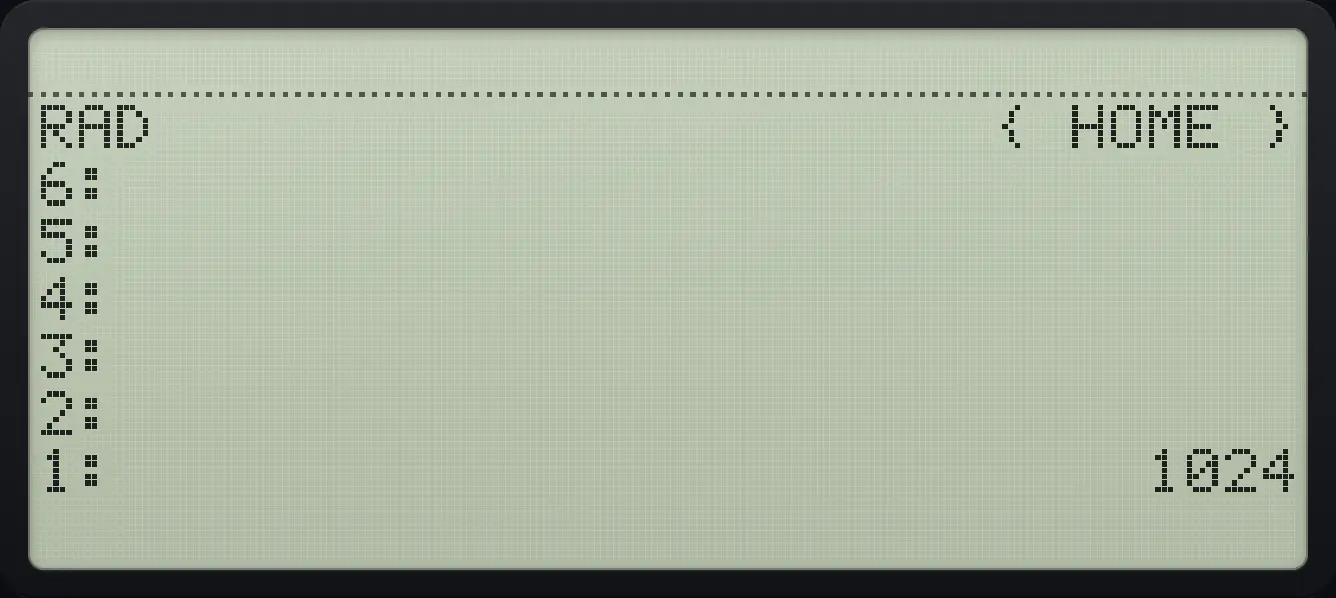
1: 1024Square root of 144
Type 144 and press the root key.
144√x
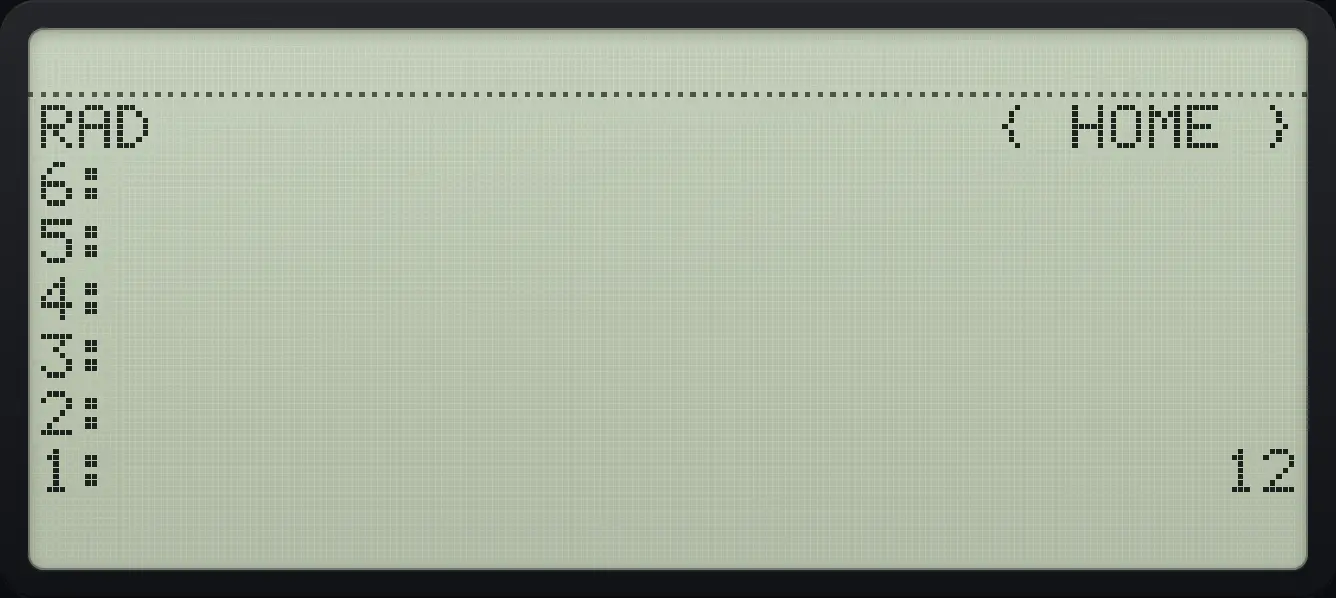
1: 12Square of 5
Type 5, left shift, root key.
5◀x²√x
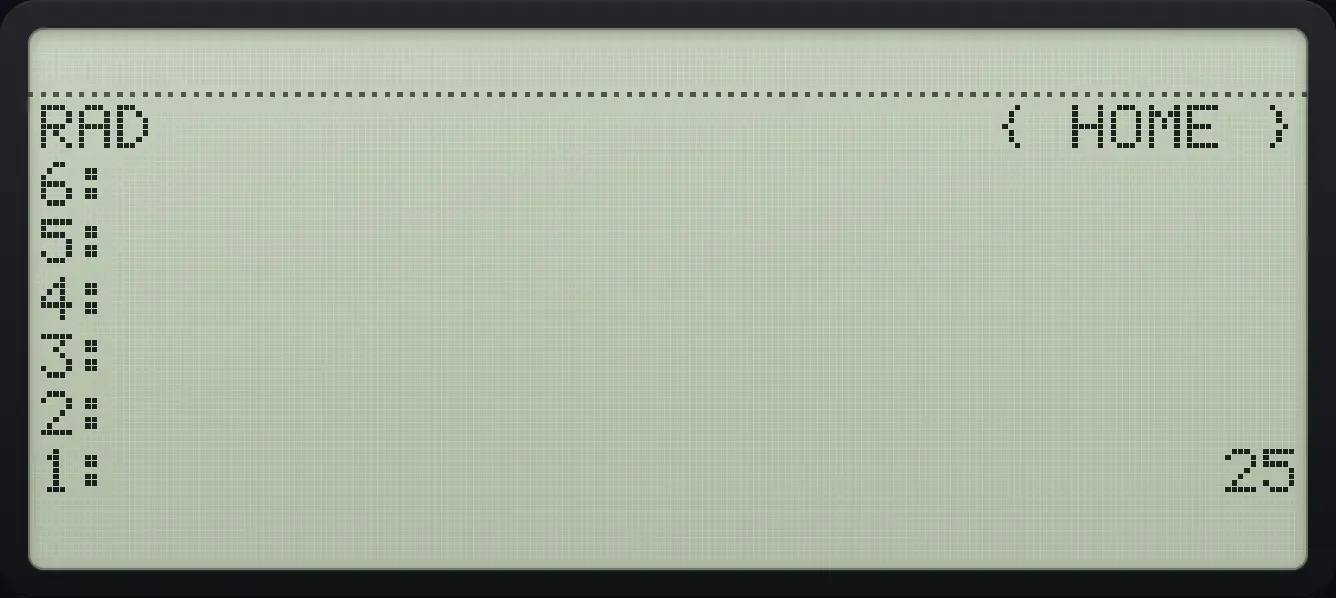
1: 25Reciprocal of 2
Type 2, left shift, divide.
2◀1/x÷
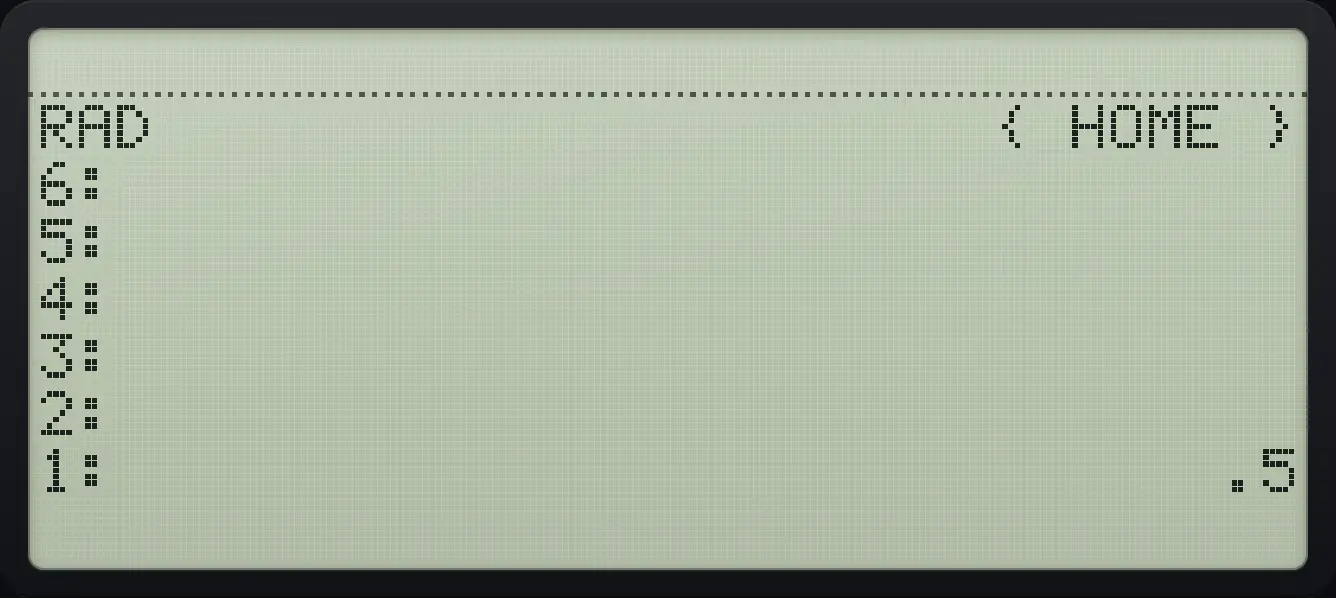
1: .5Cube root of 27
Type 27, ENTER, 3 and press right shift root key (XROOT).
27ENTER3▶ˣ√y√x
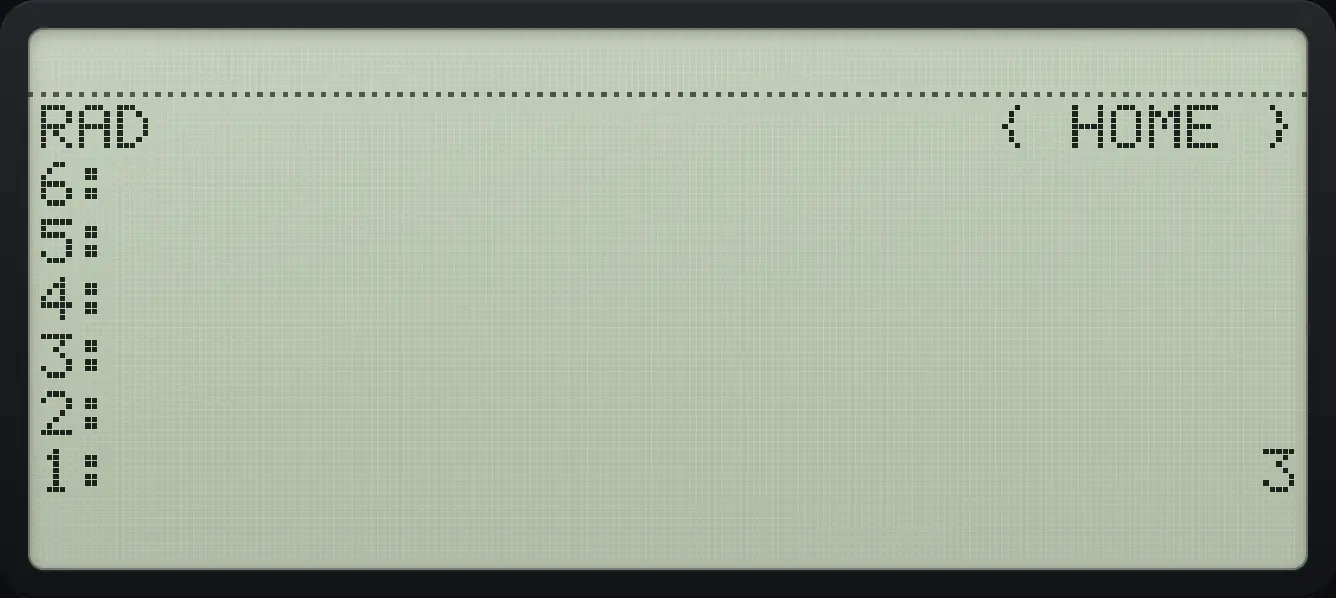
1: 35.4Calculate a percentage#
Right shift × is %: level 1 percent of level 2. Both numbers are used up and only the percentage is left, so copy the base number with ENTER first if you still need it. The MTH menu also has %T (what percent one number is of another) and %CH (percent change from one number to another).
15 percent of 200
Type 200, ENTER, 15, then right shift multiply.
200ENTER15▶%×
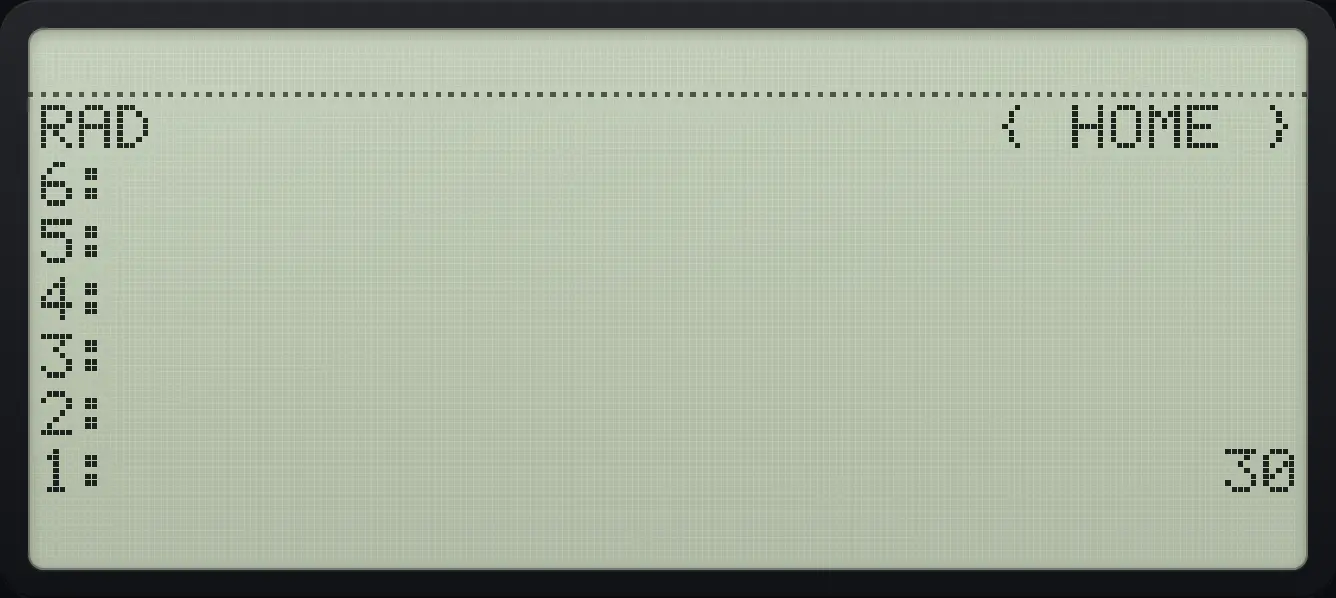
1: 30Add 15 percent
Copy the 200 first with ENTER, take the percentage of the copy, then add.
200ENTERENTER15▶%×+
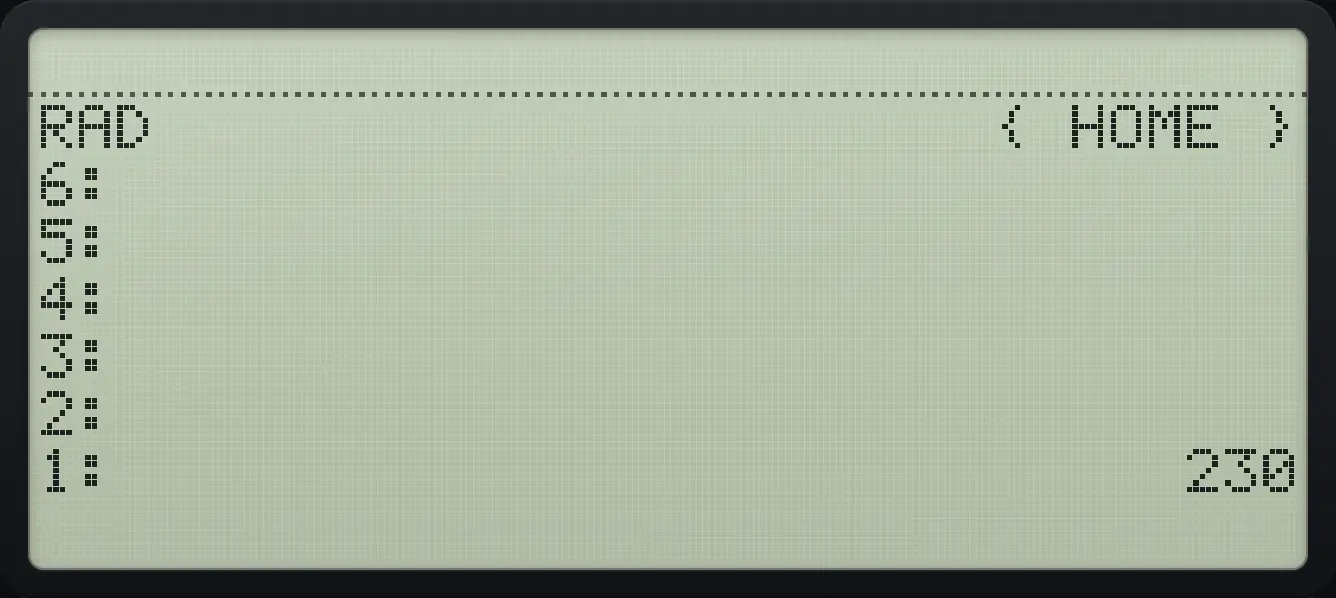
1: 230What percent is 30 of 200?
Open MTH, go to page 2 and press %T (fifth key).
200ENTER30◀MTHAPPSNXTF5
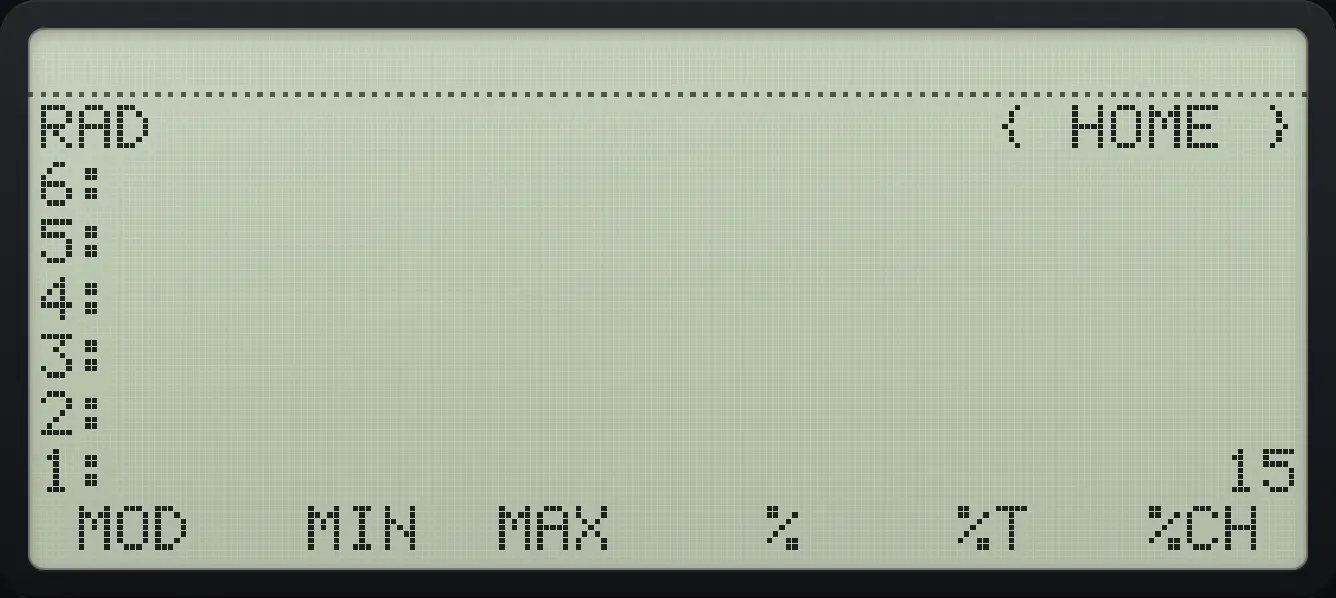
1: 15Percent change from 50 to 60
Press %CH (sixth key on MTH page 2).
50ENTER60◀MTHAPPSNXTF6
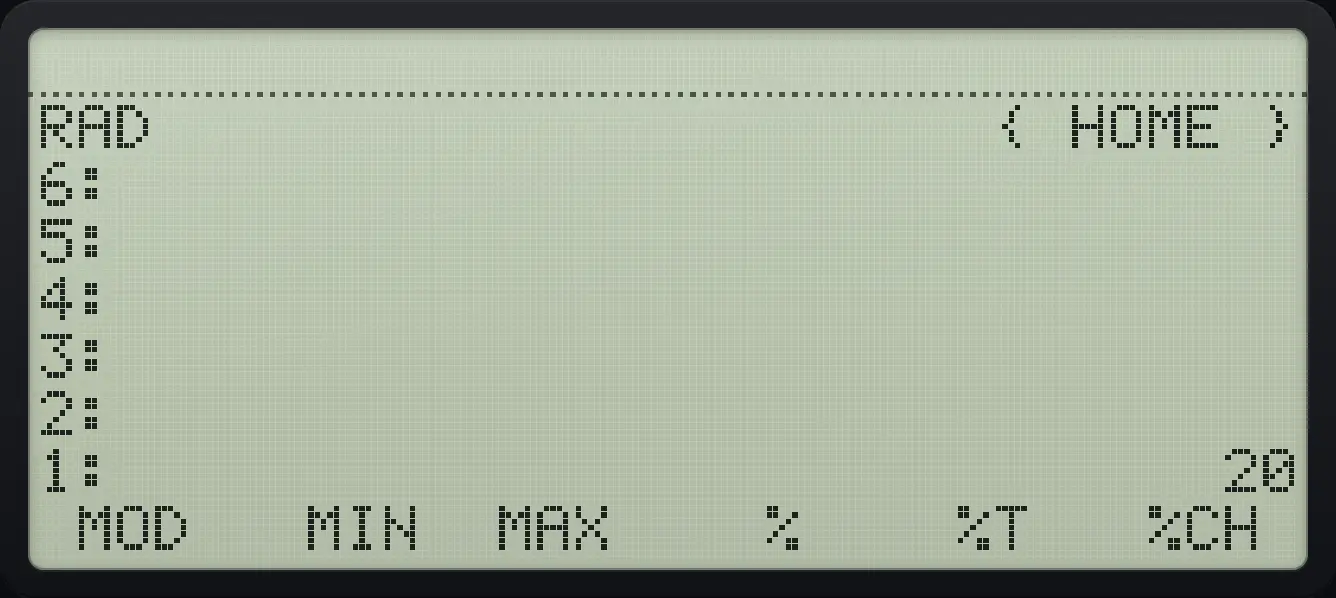
1: 205.5Pi, e and i#
Right shift TAN puts on the stack, right shift 2 puts e, and left shift 2 puts the imaginary unit i. Pi and e stay symbolic (shown as π and e) until you convert them. Left shift EVAL (→NUM) turns them into decimal numbers.
The value of pi
Press right shift TAN, then left shift EVAL.
▶πTAN◀→NUMEVAL
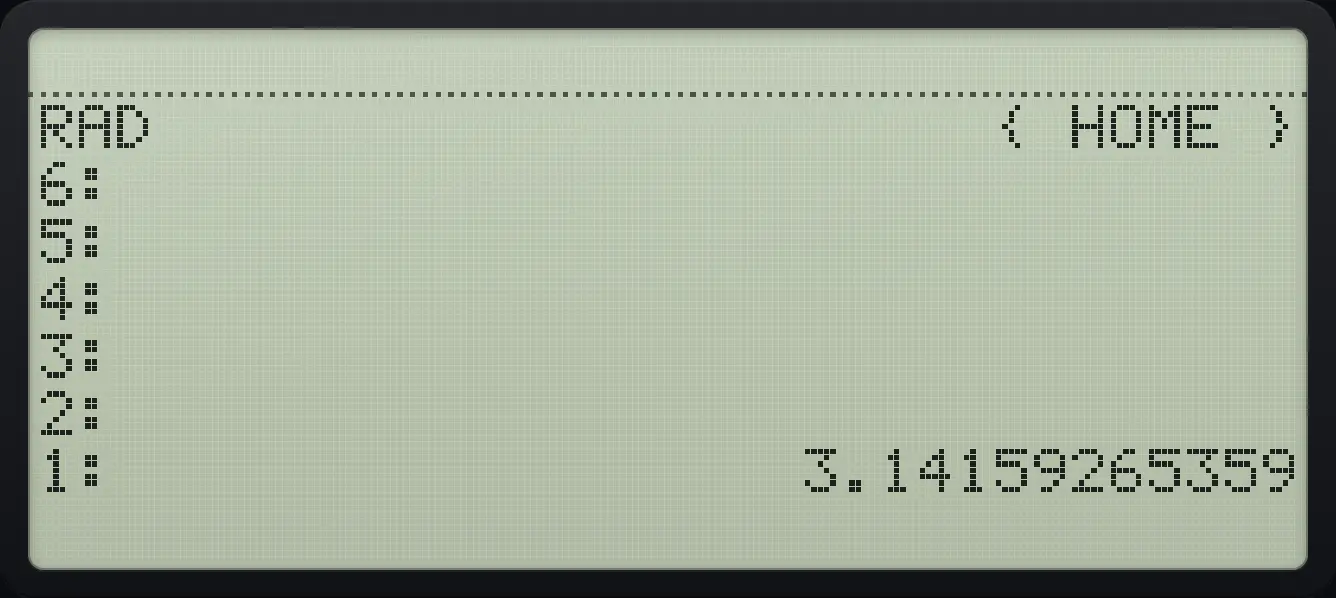
1: 3.14159265359Area of a circle of radius 5
Type 5, square it, push pi and multiply, then convert to a number.
5◀x²√x▶πTAN×◀→NUMEVAL
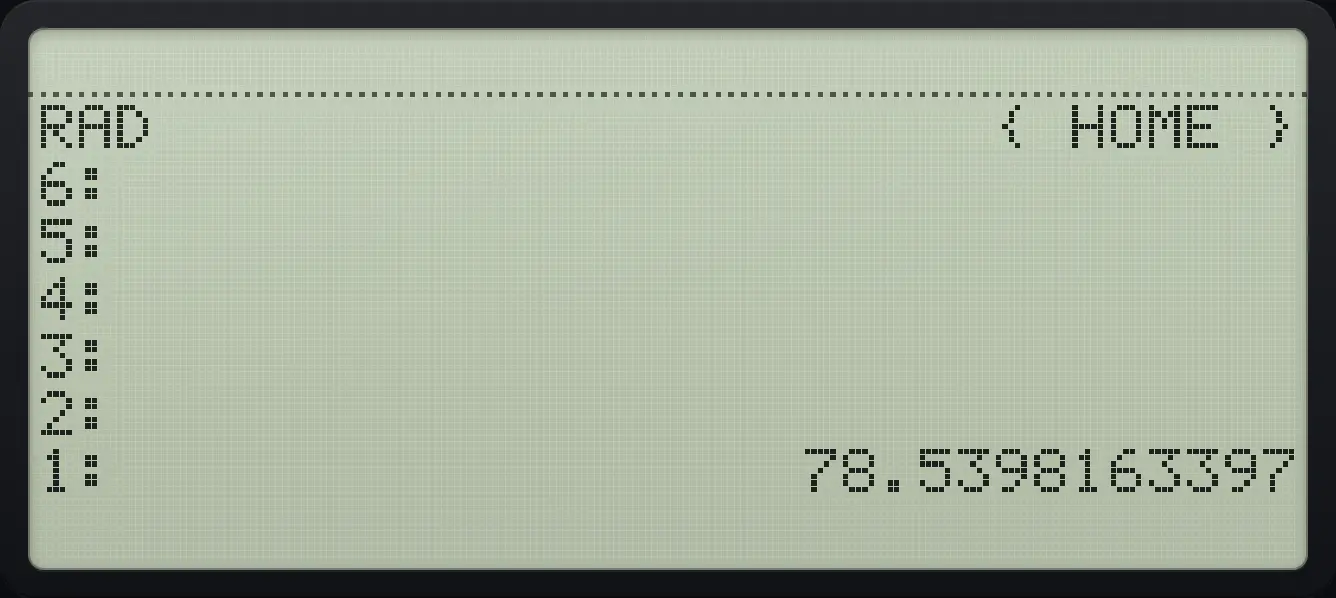
1: 78.53981633975.6Evaluate and approximate#
EVAL runs the object on level 1: it evaluates an expression, runs a program, and looks up a name. →NUM (left shift EVAL) evaluates and converts to decimals.
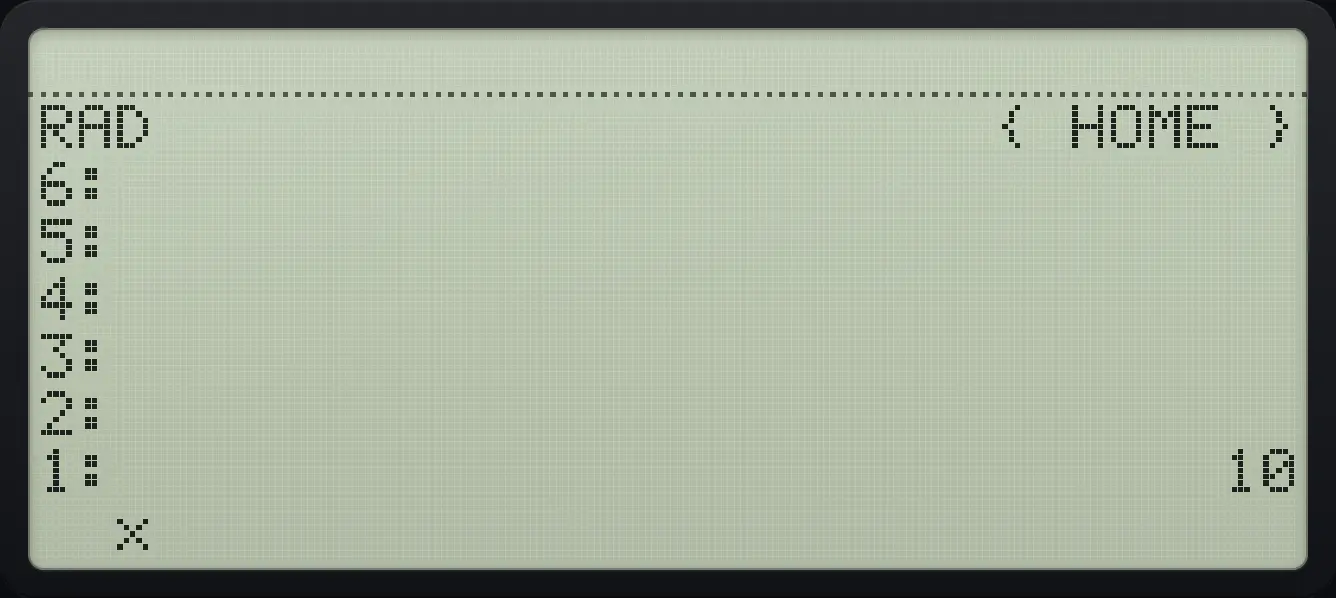
Evaluate an expression with a stored variable
Store 3 in x.
3'αα◀1/x÷αENTERSTO▶Type the expression x squared plus 1 and press EVAL.
'αα◀1/x÷αTyˣ2+1ENTEREVAL
1: 105.7Look back at earlier calculations#
The app records calculations in the History panel, with what you entered and the top of the stack. For reuse inside the calculator, use HIST, LASTARG and UNDO.
See also See your past calculations in HistoryReuse an earlier result
HP 48 and HP 50g is a trademark of HP Inc.. Trident Calculator is an independent product by South View Studios and is not affiliated with, sponsored by or endorsed by HP. The name is used only to describe the kind of calculator this model resembles; Trident's names, keys, display, fonts and software are its own clean-room design.