
RPN Power 48 manual · Chapter 1 of 19
Getting started
The screen, the left and right shift keys, alpha letters, the command line, your first calculation and using a laptop keyboard.
1.1What this calculator is for#
RPN Power 48 is a calculator for students and engineers who like to see every step. You type an object, press ENTER, and it joins a stack that can grow as tall as you need. A command such as + takes its inputs from the top of the stack and leaves its result there.
Besides ordinary numbers it works with complex numbers, vectors, matrices, lists, strings and algebraic expressions, and you can write your own programs.
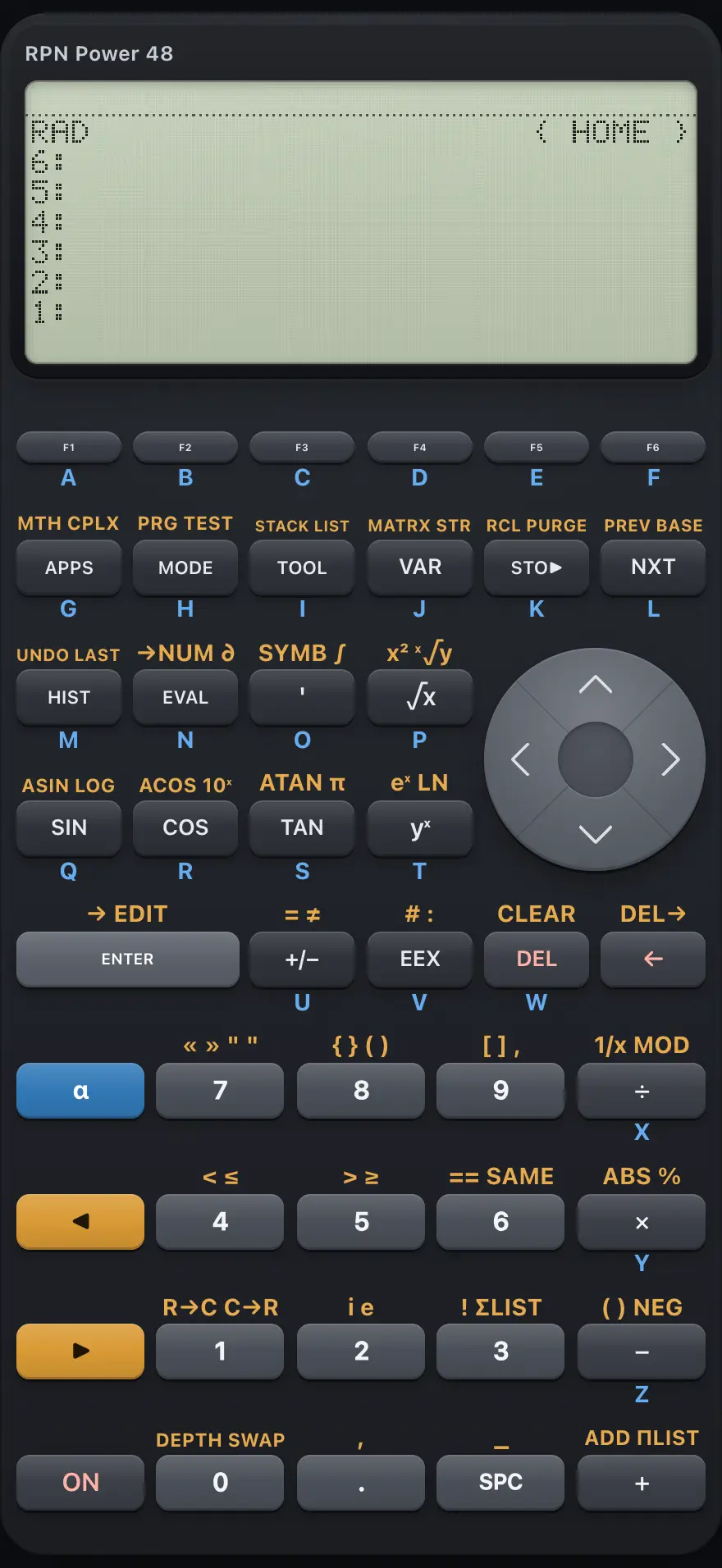
- Status line, numbered stack levels, command line and the six menu labels
- Soft keys F1 to F6: pick the labels shown at the bottom of the screen
- APPS lists all the menus; MODE, TOOL and VAR open common ones
- Left shift: the next key does the function printed on its left
- Right shift: the next key does the function printed on its right
- Alpha: types letters (press twice to lock)
- ENTER: puts the command line on the stack, or copies level 1
- ON: cancels what you are typing
1.2Read the screen#
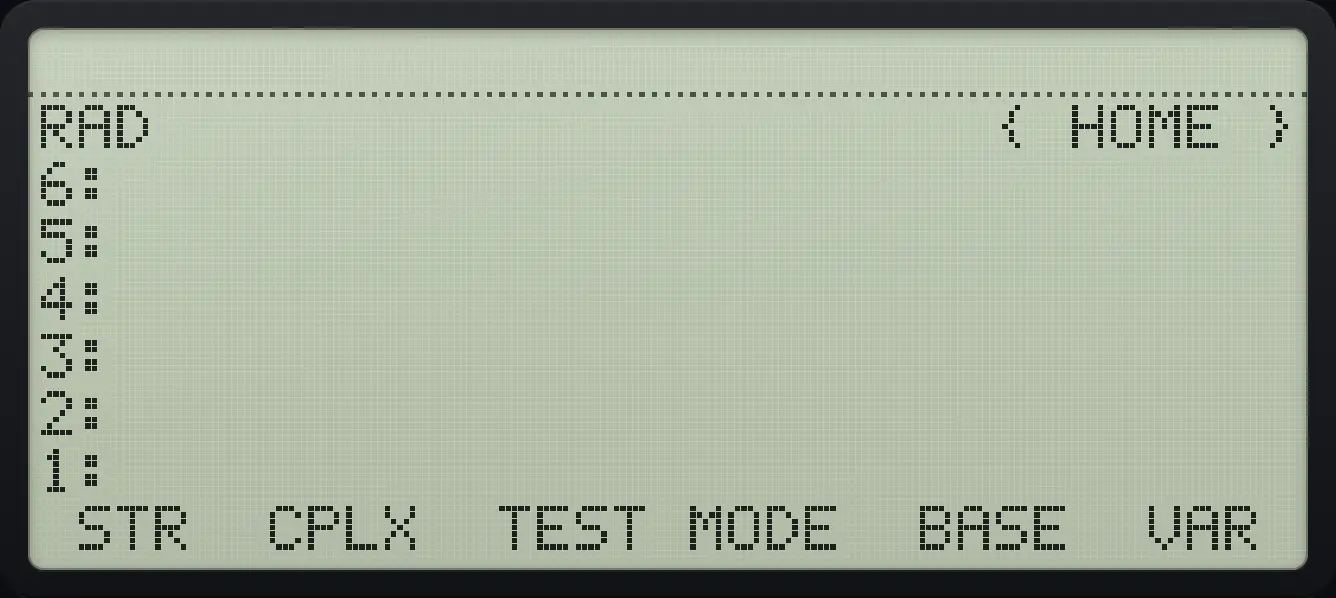
The screen is 33 characters wide and has four parts, from top to bottom.
- The status line. On the left: the angle unit (RAD, DEG or GRAD), then any special modes. On the right: { HOME }, the place where your variables live.
- The stack levels, numbered from the bottom: 1: is the newest object. Long objects are shortened with an ellipsis.
- The command line, when you are typing. It appears below the stack and grows to as many as three rows.
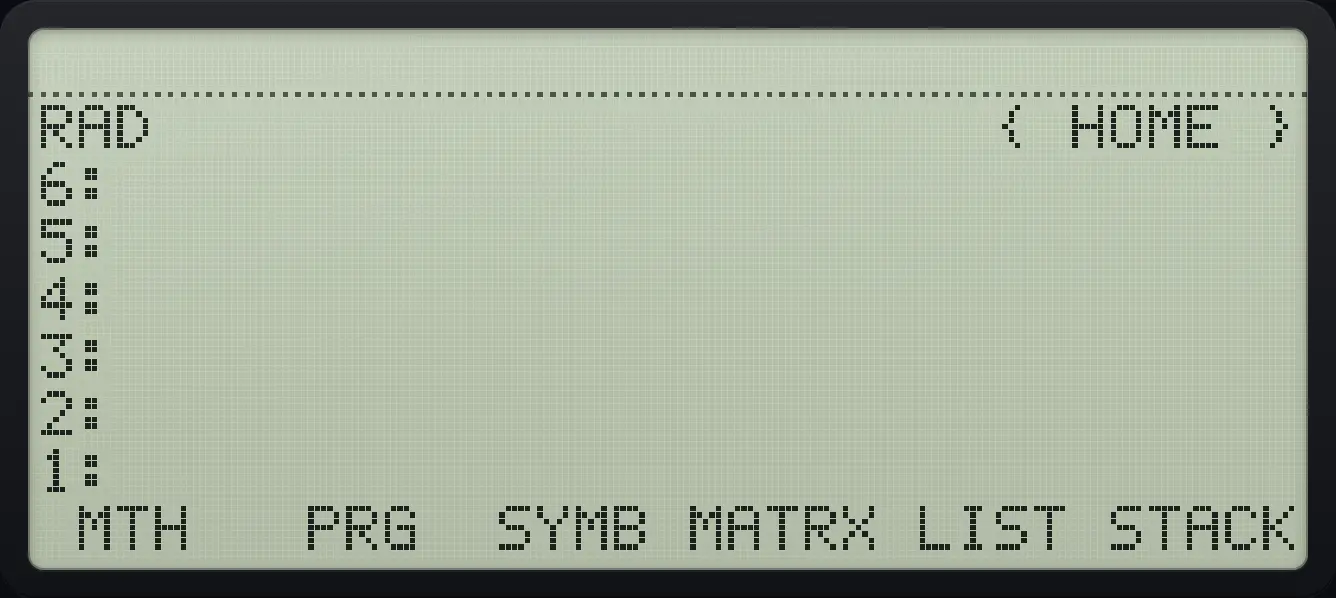
- The menu row: six labels, one above each of the soft keys F1 to F6.
| Status line text | Meaning |
|---|---|
| RAD, DEG, GRAD | The angle unit. RAD is the default. |
| FIX n, SCI n, ENG n | A fixed number of digits is on. Nothing is shown for STD, the default. |
| R∠Z | Complex numbers are shown in polar form. |
| DEC, OCT, BIN | The base used to show binary integers. HEX is the default and is not shown. |
| α | Alpha lock is on: the keys type letters. |
| ◀ or ▶ | A shift key is waiting for the next key. |
1.3Use the shift keys and alpha#
Most keys have extra functions printed on the key face. The two shift keys ◀ and ▶ select the left or right function of the next key: for example ◀x²√x squares and ▶ˣ√y√x takes a root of any index. A shift key applies to one key press only, and pressing it again cancels it.
The α key types letters. Press it once to type one letter, twice to lock letters on (a status line symbol appears), and a third time to turn it off. In alpha mode, the key legend in the bottom corner of each key is the letter it types. Press ◀ before a letter to get lowercase.
Square a number with the left shift
Type 7, press the left shift key, then the square-root key.
7◀x²√x
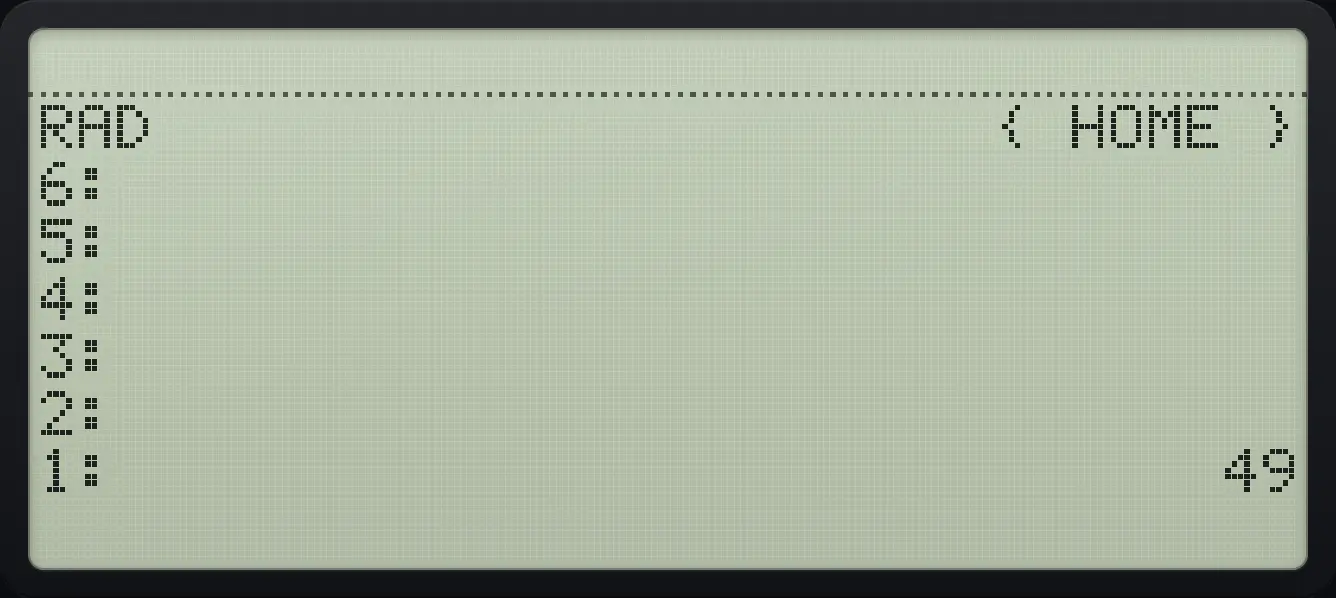
1: 49Type a lowercase name with alpha lock
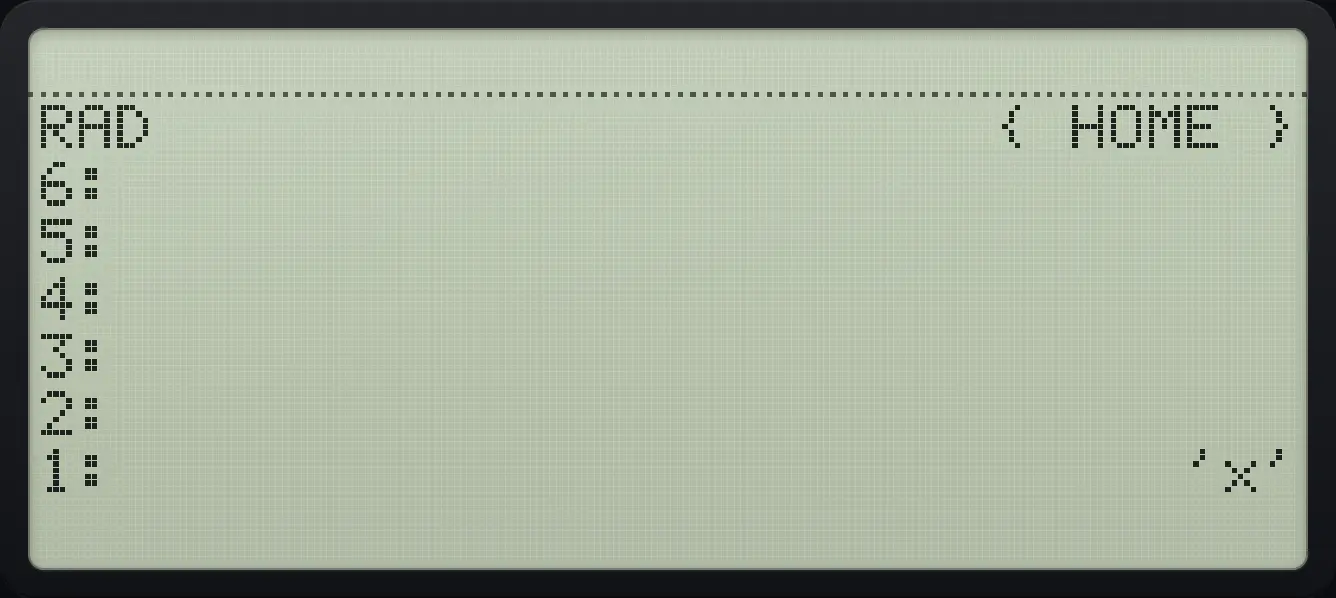
Open quotes, lock alpha, type x, unlock, then press ENTER.
'αα◀1/x÷αENTER
'x'- ◀ left
- ▶ right
- α letters
- ENTER ENTER
1.4Your first calculation#
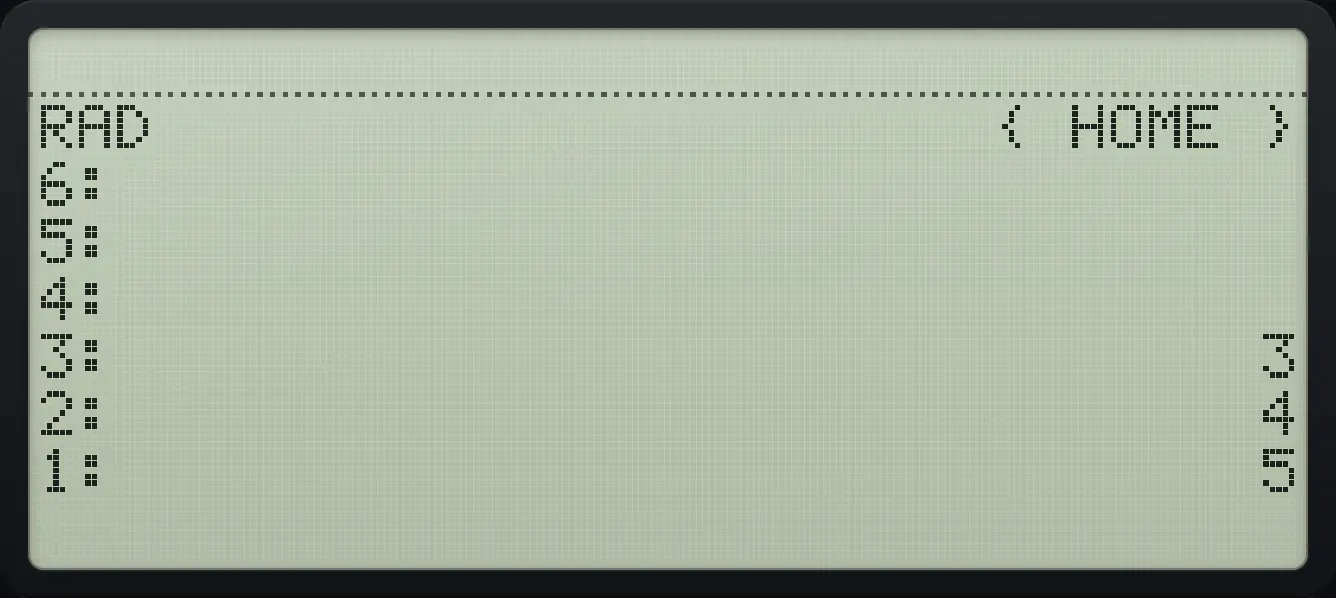
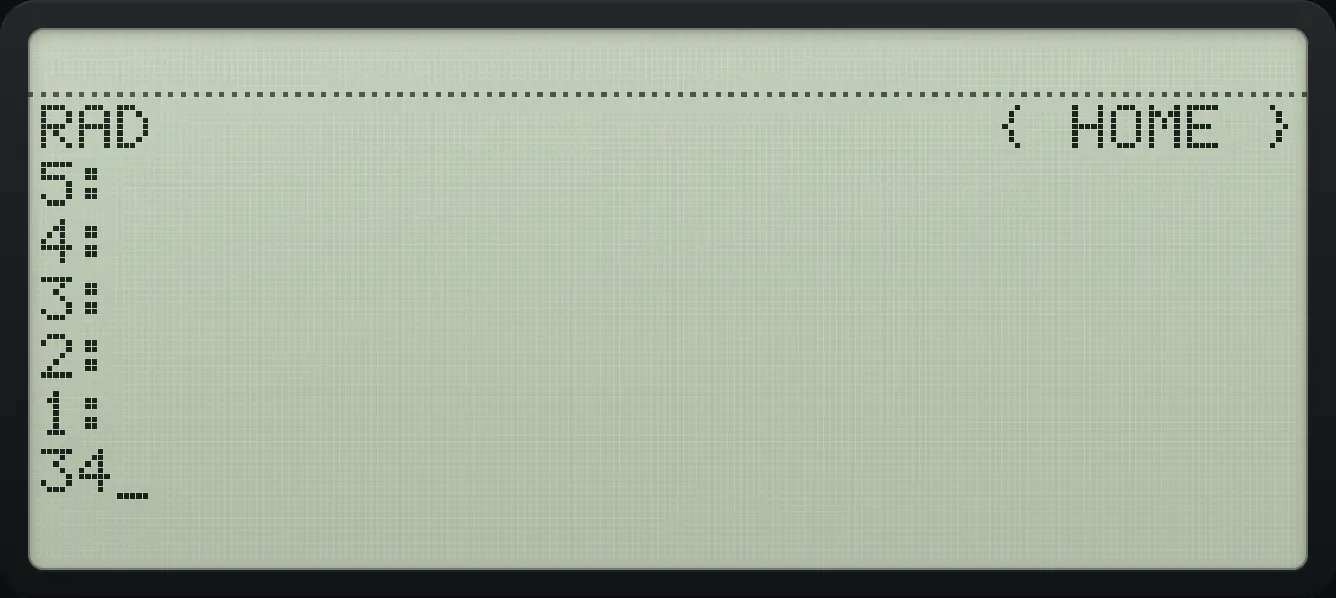
To add 3 and 4, type 3, press ENTER, type 4 and press +. You can also leave out the second ENTER: pressing a command key first enters whatever you are typing.
Calculate (3 + 4) × 5
Type 3, ENTER, 4, then +. Level 1 shows 7.
3ENTER4+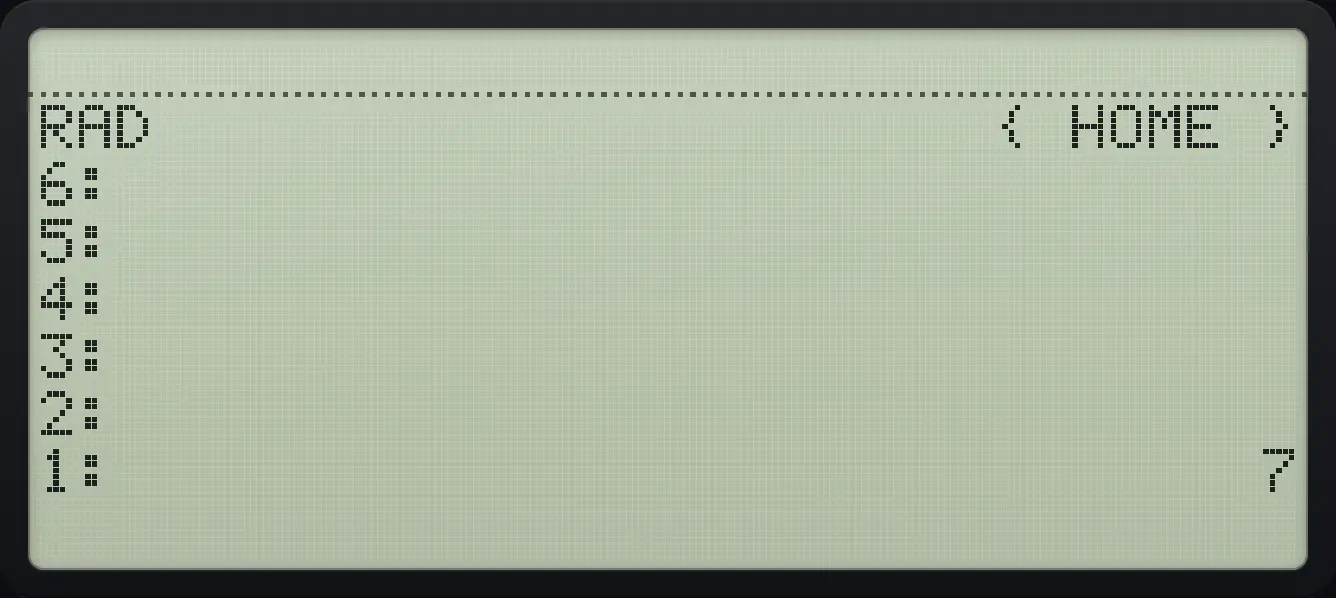
Type 5 and press ×.
5×
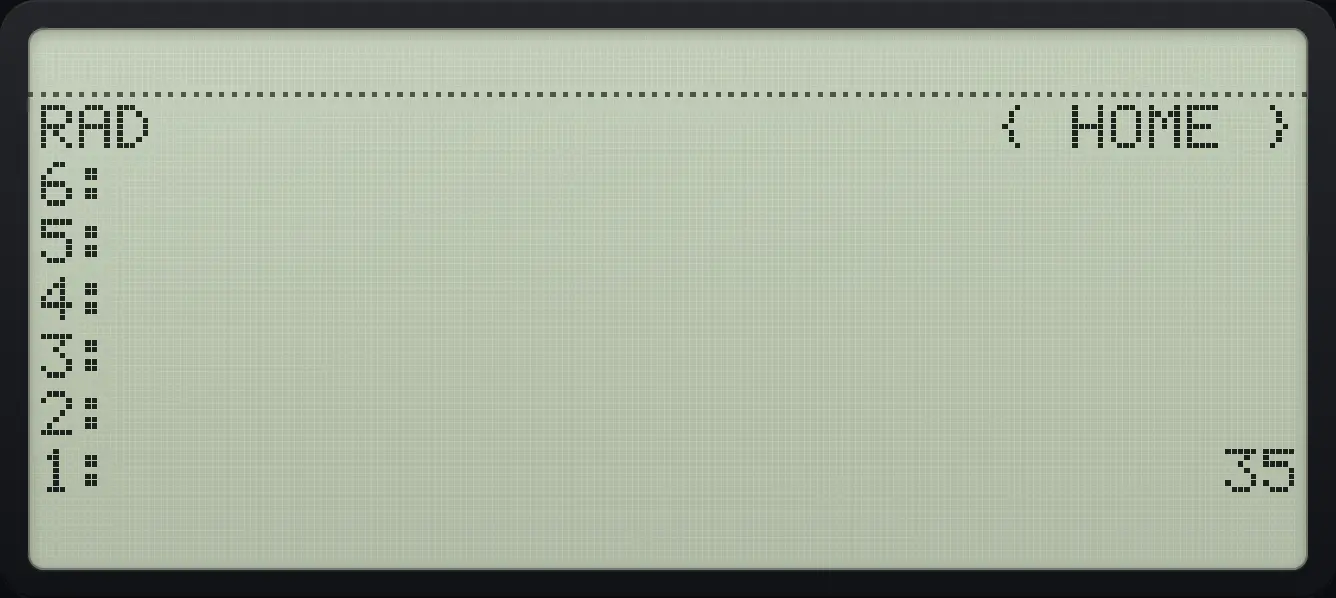
1: 35Two numbers typed on one line need a space between them. Press SPC instead of ENTER.
Use a space instead of ENTER
Type 3, space, 4, space and press add.
3SPC4SPC+
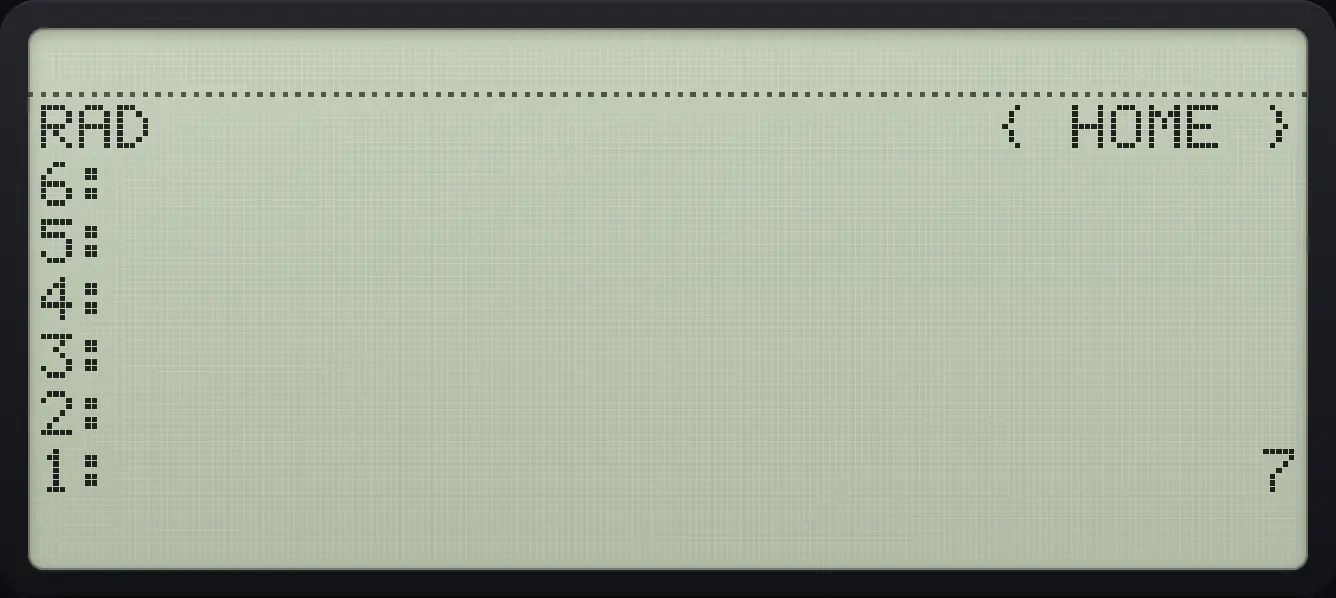
1: 7See also How the RPN stack worksStack commands: DUP, SWAP and DROP
1.5Correct a mistake and clear things#
While you type, ← deletes the character on the left of the cursor and DEL the one on the right. Press ON to cancel the whole command line. When there is no command line, ← drops level 1 from the stack. Left shift DEL clears the whole stack.
Fix a typing mistake
Type 1 2 3, move the cursor left twice, delete the digit to the right.
123◀◀DEL
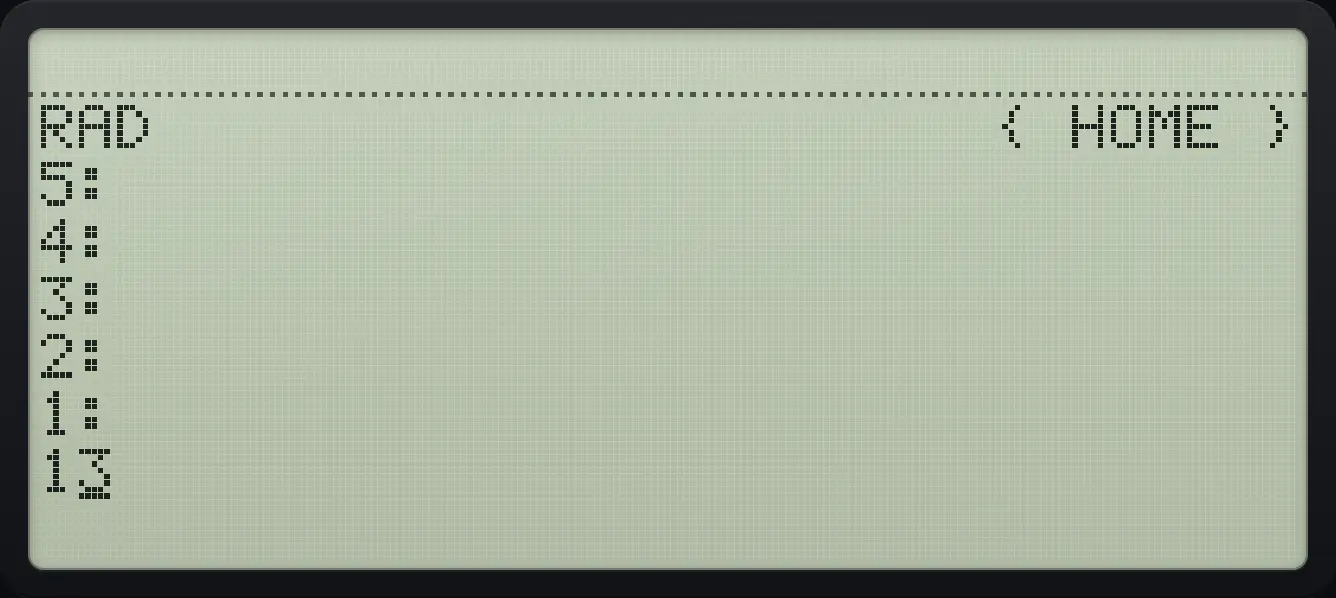
13Drop a number you do not want
Put 8 and 9 on the stack, then press back to drop 9.
8ENTER9ENTER←
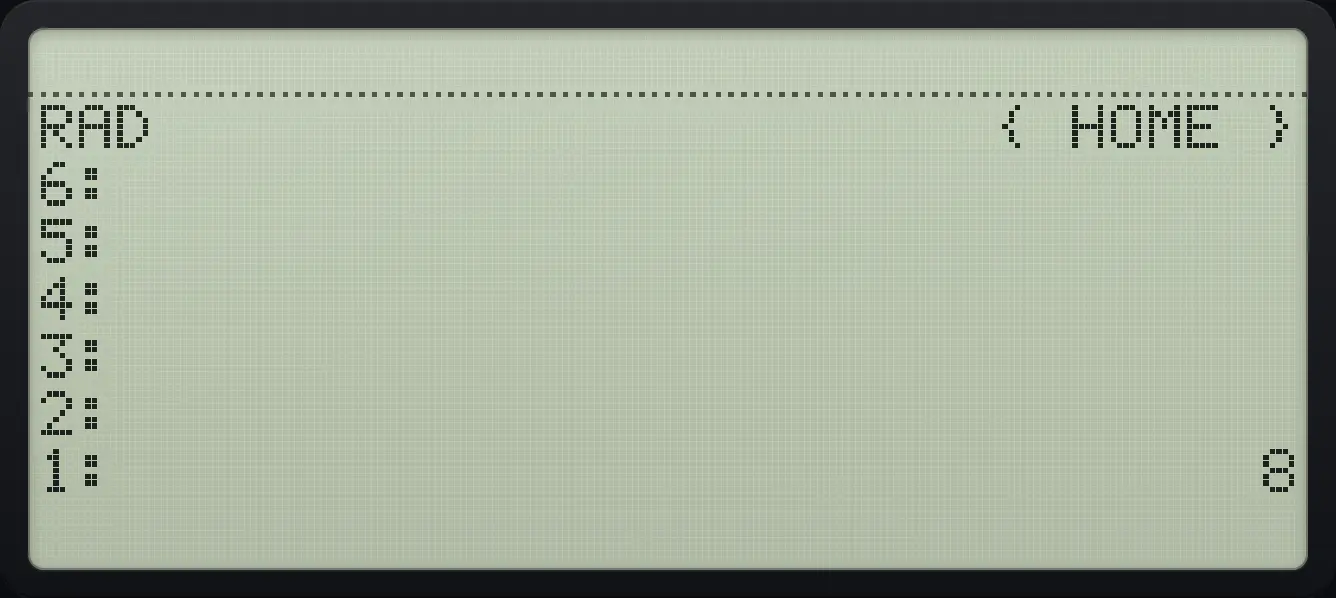
1: 8Clear the whole stack
Enter three numbers, then press left shift and DEL.
1ENTER2ENTER3ENTER◀CLEARDEL
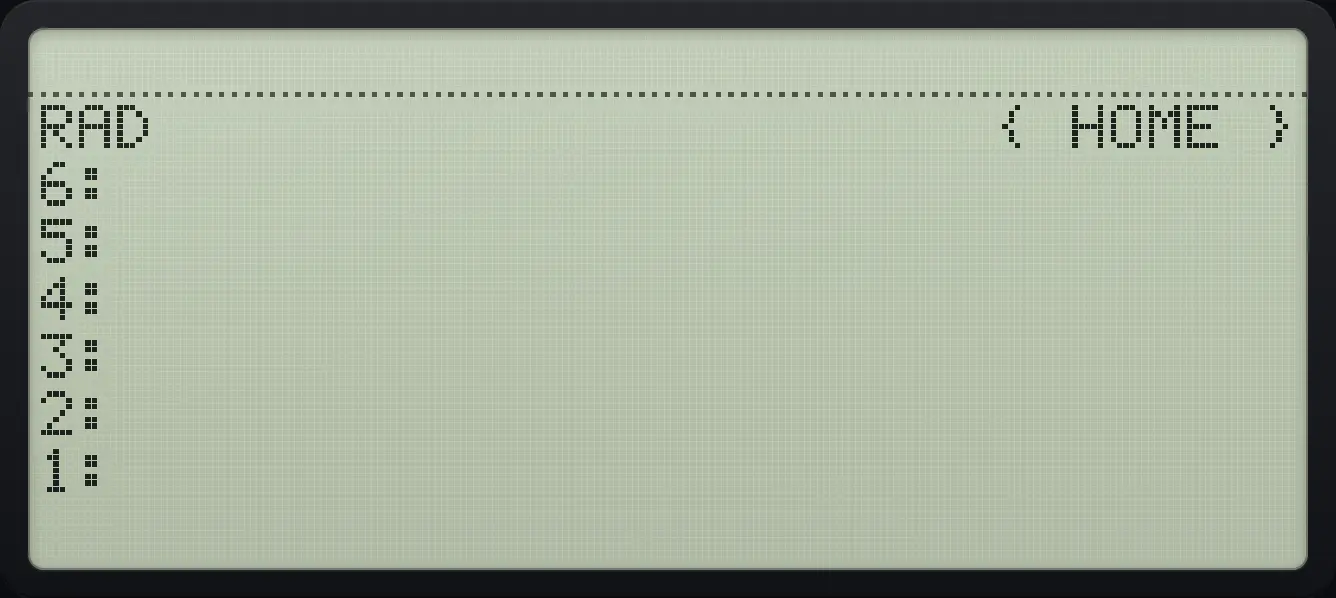
1:1.6Return to the main screen#
The stack is always on screen, so there is nothing to return to. A menu stays on the bottom row until you open another. Press ON to throw away a half-typed command line. Any error message disappears when you press the next key.
1.7Open menus and use the soft keys#
The six keys F1 F2 F3 F4 F5 F6 run the six labels on the bottom row. Press NXT for the next page of six labels, and left shift NXT to go back one page. APPS opens a menu of menus.
| To open | Press |
|---|---|
| MTH (math) | ◀MTHAPPS |
| CPLX (complex) | ▶CPLXAPPS |
| PRG (programming) | ◀PRGMODE |
| TEST (comparison and logic) | ▶TESTMODE |
| STACK | ◀STACKTOOL |
| LIST | ▶LISTTOOL |
| MATRX | ◀MATRXVAR |
| STR (strings) | ▶STRVAR |
| SYMB (algebra) | ◀SYMB' |
| BASE | ▶BASENXT |
| MODE | MODE |
| TOOL | TOOL |
| VAR (your variables) | VAR |
1.8Use a laptop keyboard#
On a computer you can type on the keyboard. Digits and letters go to the command line, and Enter presses ENTER. The letters in a name or string are typed in alpha mode automatically when you press a capital or lowercase letter. These keys are mapped:
| Computer key | Calculator key |
|---|---|
| Escape | ON |
| Enter | ENTER |
| Backspace / Delete | ← / DEL |
| Space | SPC |
| Arrow keys | ◀ ▶ ▲ ▼ |
| Home / End | Cursor to the start or end of the line |
| Page Down / Page Up | NXT / ◀PREVNXT (menu pages) |
| F1 to F6 | The six soft keys |
| ' | ' |
| " | A pair of string quotes |
| ( ) { } [ ] « » | The matching brackets (a closing bracket steps over an automatic one) |
| < > = , # : ! % _ ^ | The same symbols |
| A to Z, a to z | The letter, capital or lowercase |
See also Type with your computer keyboard
HP 48 and HP 50g is a trademark of HP Inc.. Trident Calculator is an independent product by South View Studios and is not affiliated with, sponsored by or endorsed by HP. The name is used only to describe the kind of calculator this model resembles; Trident's names, keys, display, fonts and software are its own clean-room design.