Trident Help

RPN Power 48 manual · Chapter 11 of 19

Lists

Make lists, join and slice them, sort, sum, and generate lists with SEQ.

11.1Make a list#

A list holds any objects, written between braces. Type braces with left shift 8. Or push objects on the stack, type how many, and press →LIST. LIST→ does the reverse. The LIST menu is right shift TOOL.
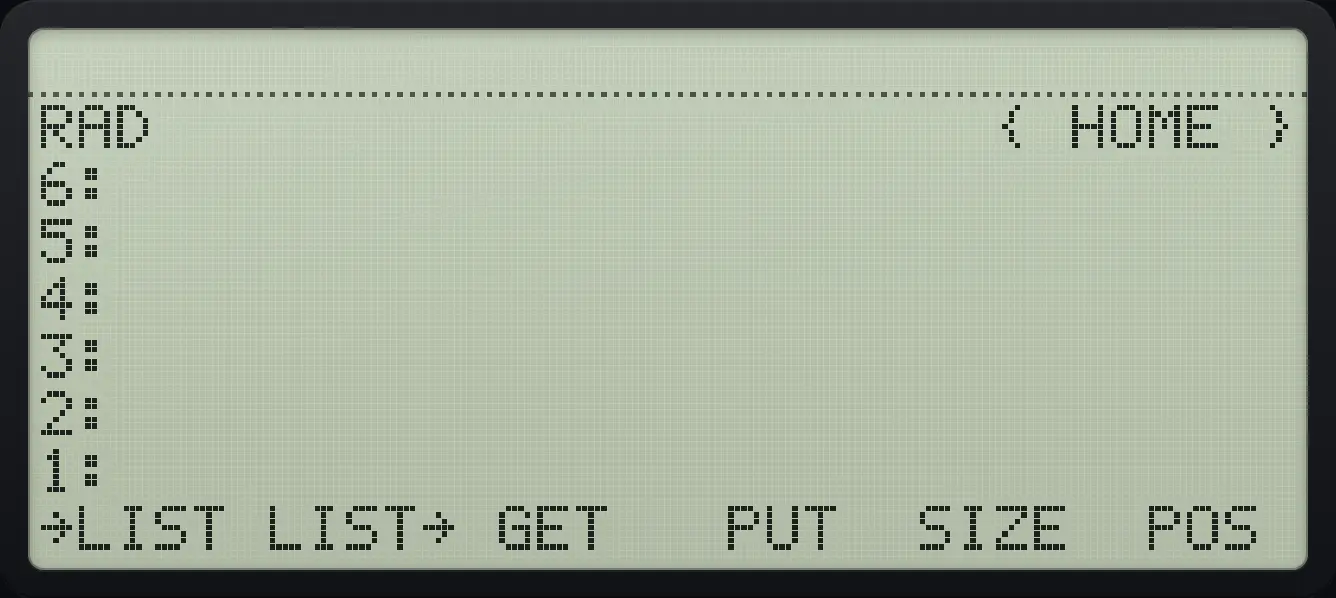
LIST page 1. The display shows: RAD                      { HOME } / 6: / 5: / 4: / 3: / 2: / 1: / →LIST LIST→ GET   PUT  SIZE  POS .
LIST page 1.
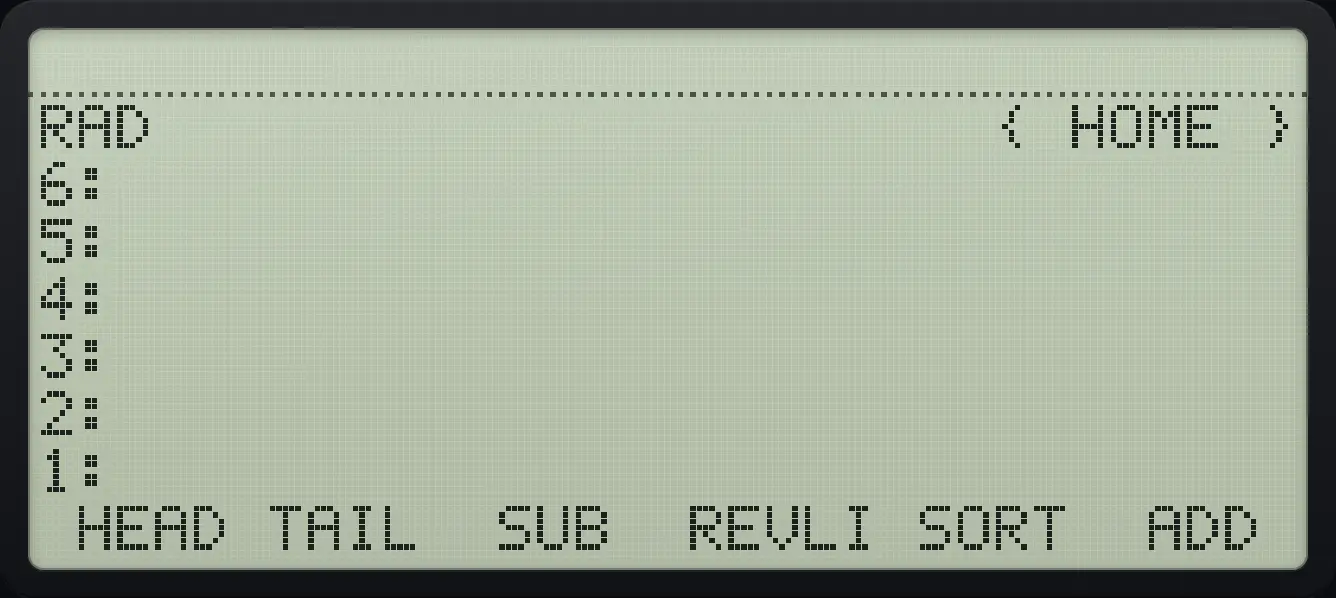
LIST page 2. The display shows: RAD                      { HOME } / 6: / 5: / 4: / 3: / 2: / 1: /  HEAD TAIL  SUB  REVLI SORT  ADD .
LIST page 2.
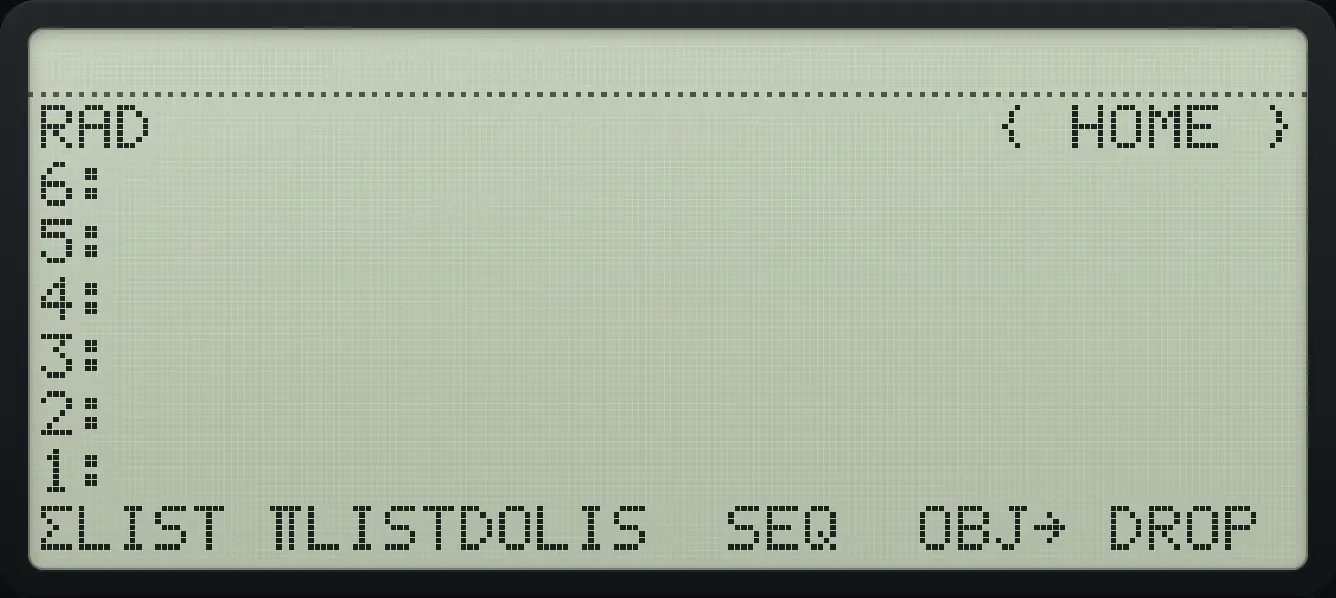
LIST page 3. The display shows: RAD                      { HOME } / 6: / 5: / 4: / 3: / 2: / 1: / ΣLIST ΠLISTDOLIS  SEQ  OBJ→ DROP .
LIST page 3.
Example 11.1

Type a list

  1. Left shift 8, then the numbers.

    ◀{ }81SPC2SPC3ENTER
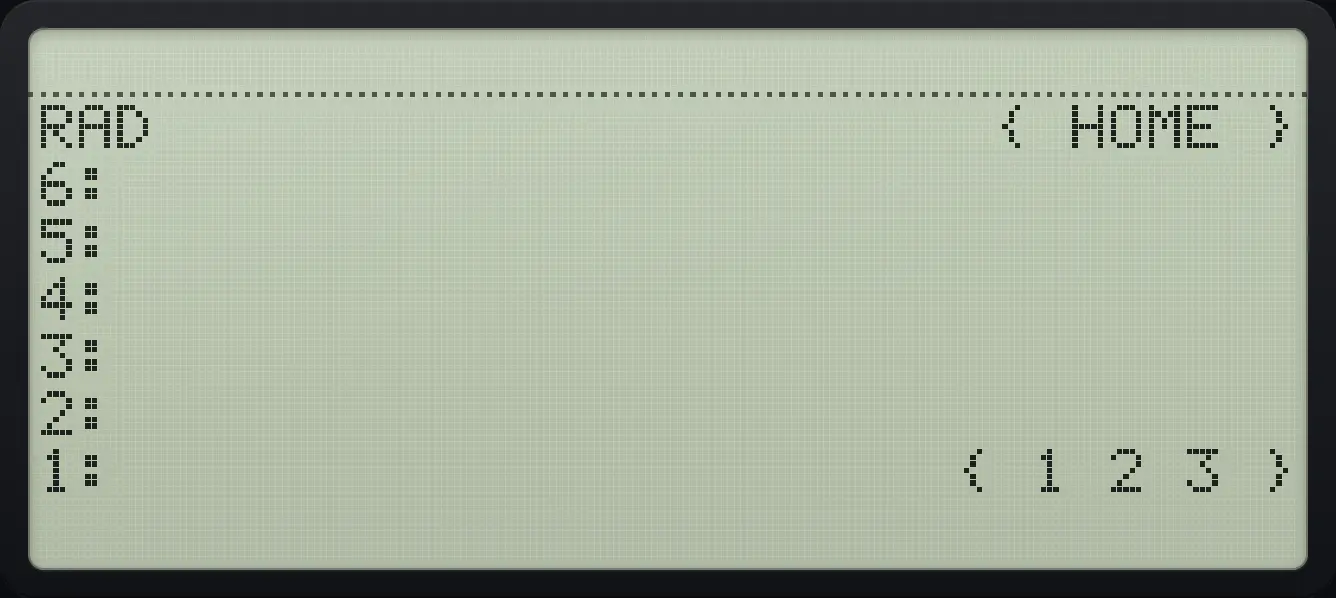
Result of the example "Type a list" The display shows: RAD                      { HOME } / 6: / 5: / 4: / 3: / 2: / 1:                      { 1 2 3 }.
You should see{ 1 2 3 }
Example 11.2

Build a list from the stack

  1. Push 1, 2, 3, type 3 and press →LIST.

    1ENTER2ENTER3ENTER3▶LISTTOOLF1
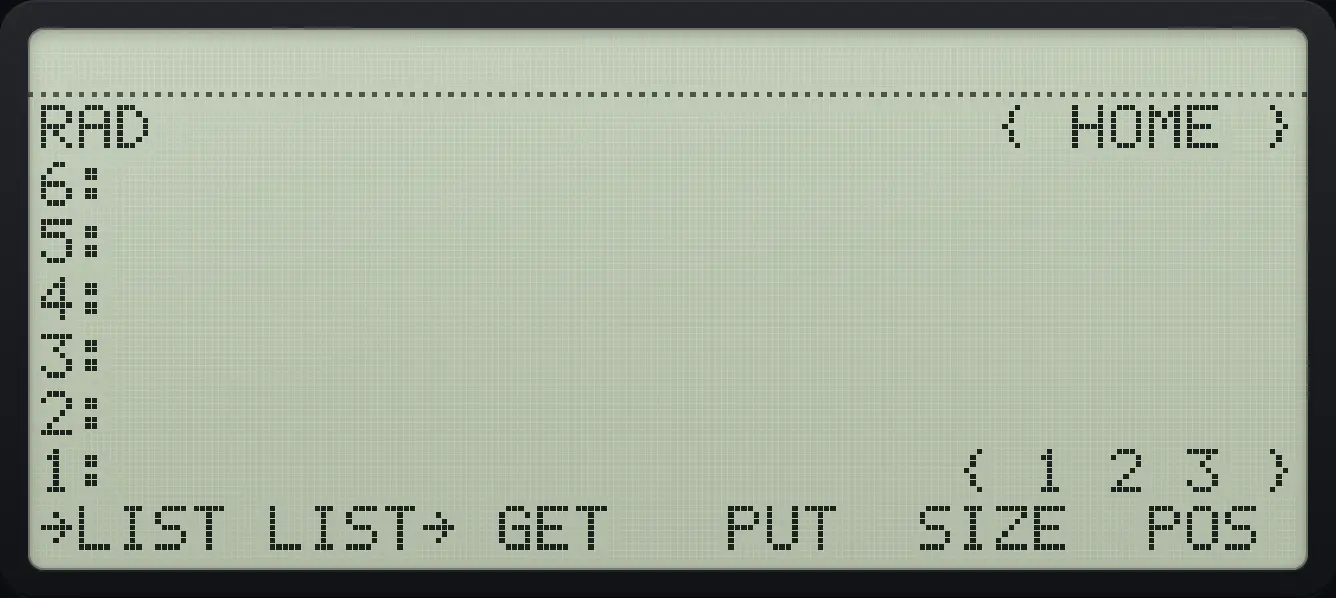
Result of the example "Build a list from the stack" The display shows: RAD                      { HOME } / 6: / 5: / 4: / 3: / 2: / 1:                      { 1 2 3 } / →LIST LIST→ GET   PUT  SIZE  POS .
You should see{ 1 2 3 }
Example 11.3

Explode a list

  1. Press LIST→ (second key): the items and their count arrive.

    ◀{ }81SPC2SPC3ENTER▶LISTTOOLF2
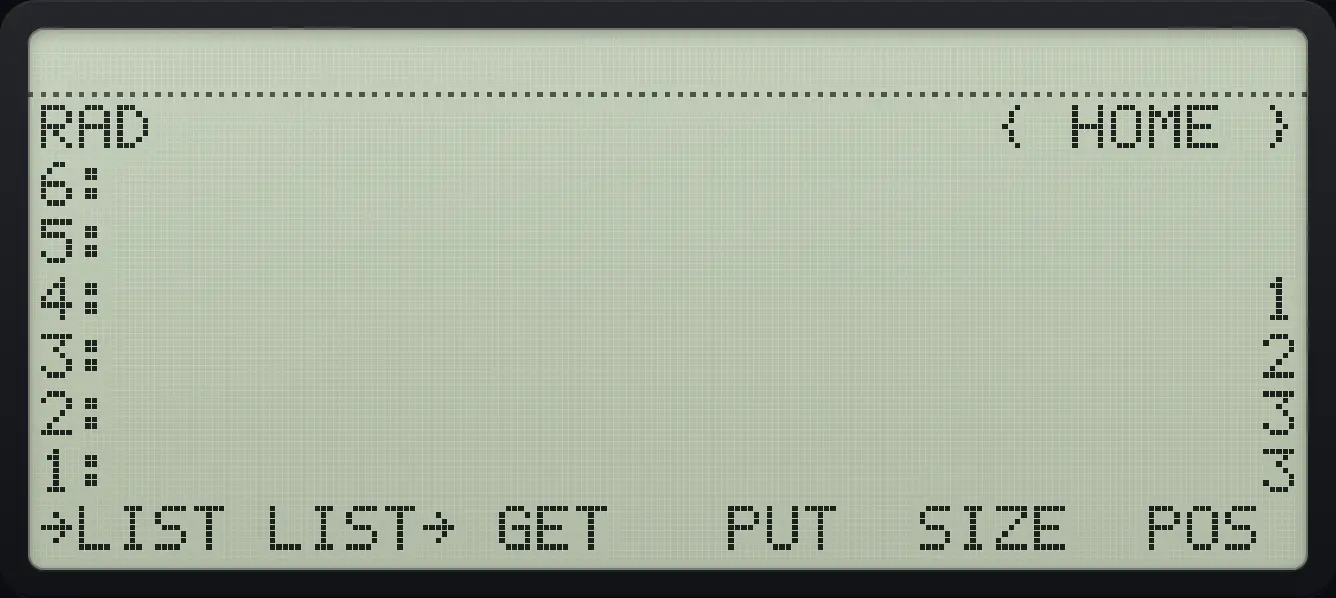
Result of the example "Explode a list" The display shows: RAD                      { HOME } / 6: / 5: / 4:                              1 / 3:                              2 / 2:                              3 / 1:                              3 / →LIST LIST→ GET   PUT  SIZE  POS .
You should see4: 1 3: 2 2: 3 1: 3

11.2Size, get, put, head, tail#

CommandWhat it does
SIZENumber of items.
GETThe item at a position (list, position).
PUTReplace the item at a position (list, position, value).
POSThe position of an item in the list.
HEAD, TAILThe first item, or everything except the first.
SUBA part of the list (list, first, last).
REVLISTReverse the order.
SORTSort ascending.
ADDAdd two lists item by item.
ΣLIST, ΠLISTSum and product of the items.
DOLIST, SEQApply a program to lists, or build a list from a formula.
OBJ→Explode the list onto the stack.
Example 11.4

Size of a list

  1. SIZE is the fifth key of page 1.

    ◀{ }81SPC2SPC3ENTER▶LISTTOOLF5
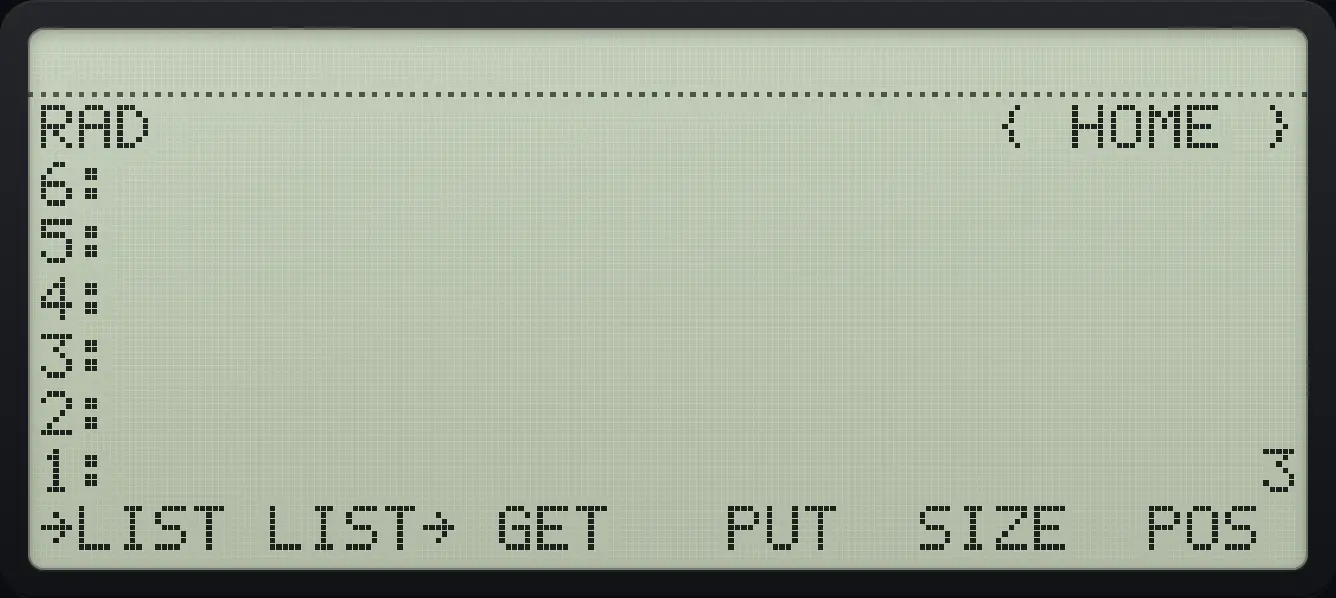
Result of the example "Size of a list" The display shows: RAD                      { HOME } / 6: / 5: / 4: / 3: / 2: / 1:                              3 / →LIST LIST→ GET   PUT  SIZE  POS .
You should see1: 3
Example 11.5

Get the second item

  1. Type the position 2 and press GET (third key).

    ◀{ }81SPC2SPC3ENTER2▶LISTTOOLF3
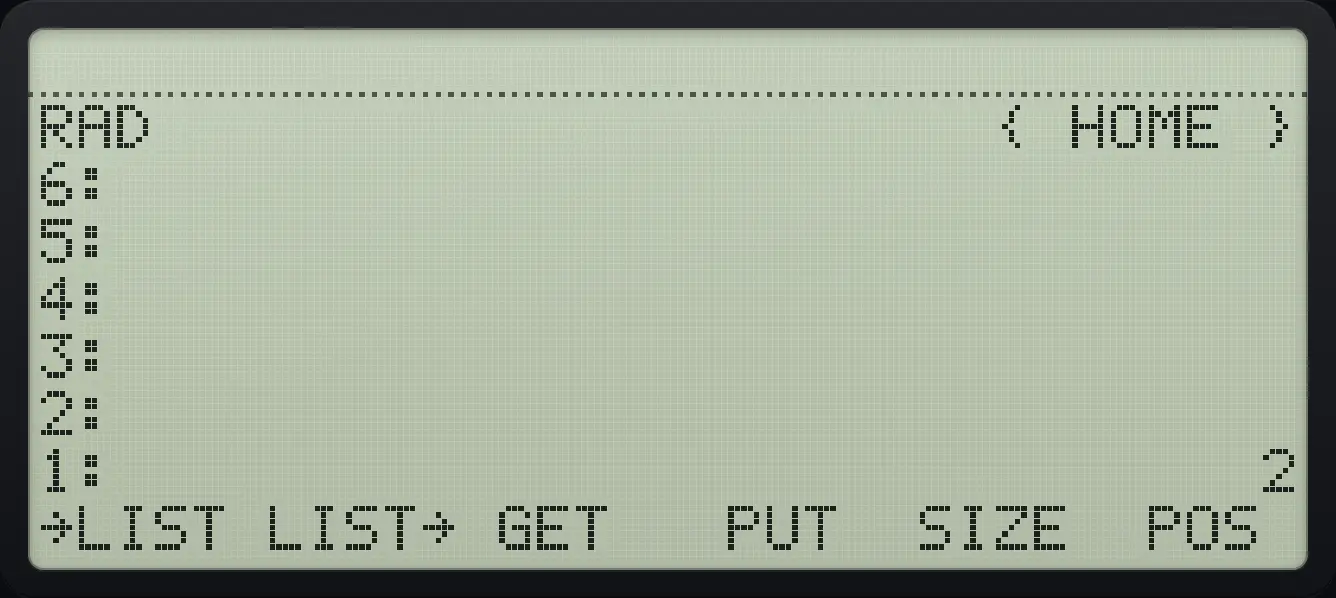
Result of the example "Get the second item" The display shows: RAD                      { HOME } / 6: / 5: / 4: / 3: / 2: / 1:                              2 / →LIST LIST→ GET   PUT  SIZE  POS .
You should see1: 2
Example 11.6

Replace an item

  1. Type position 2, value 9 and press PUT (fourth key).

    ◀{ }81SPC2SPC3ENTER2ENTER9ENTER▶LISTTOOLF4
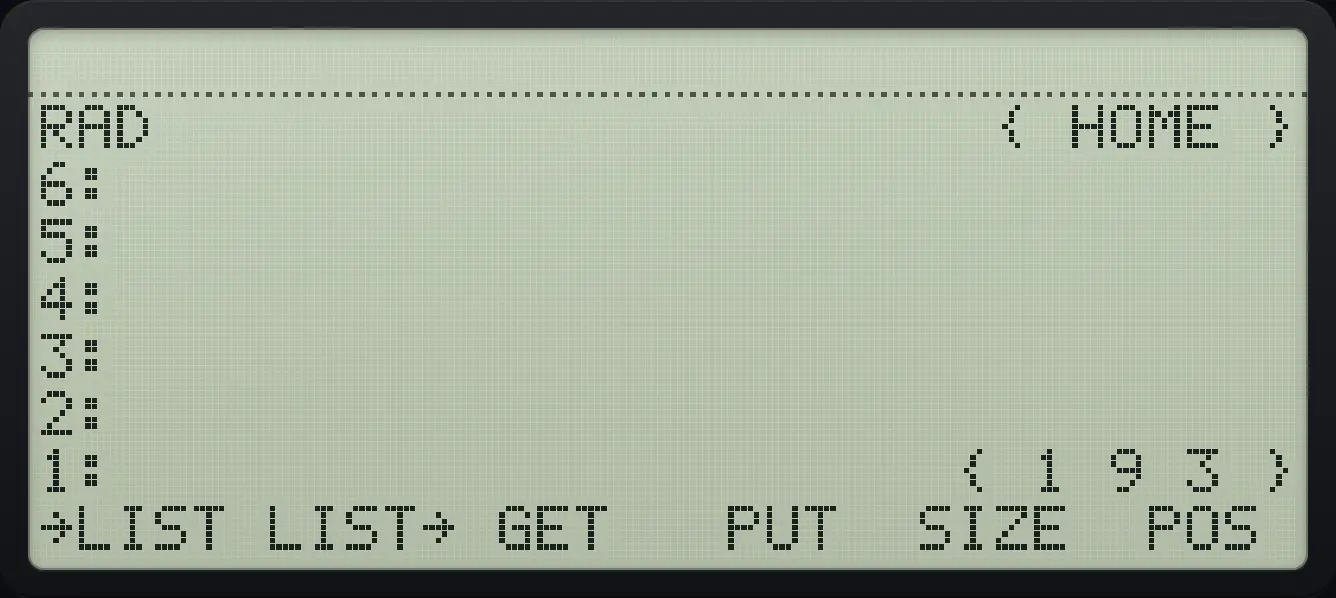
Result of the example "Replace an item" The display shows: RAD                      { HOME } / 6: / 5: / 4: / 3: / 2: / 1:                      { 1 9 3 } / →LIST LIST→ GET   PUT  SIZE  POS .
You should see{ 1 9 3 }
Example 11.7

Head of a list

  1. HEAD is the first key of page 2.

    ◀{ }81SPC2SPC3ENTER▶LISTTOOLNXTF1
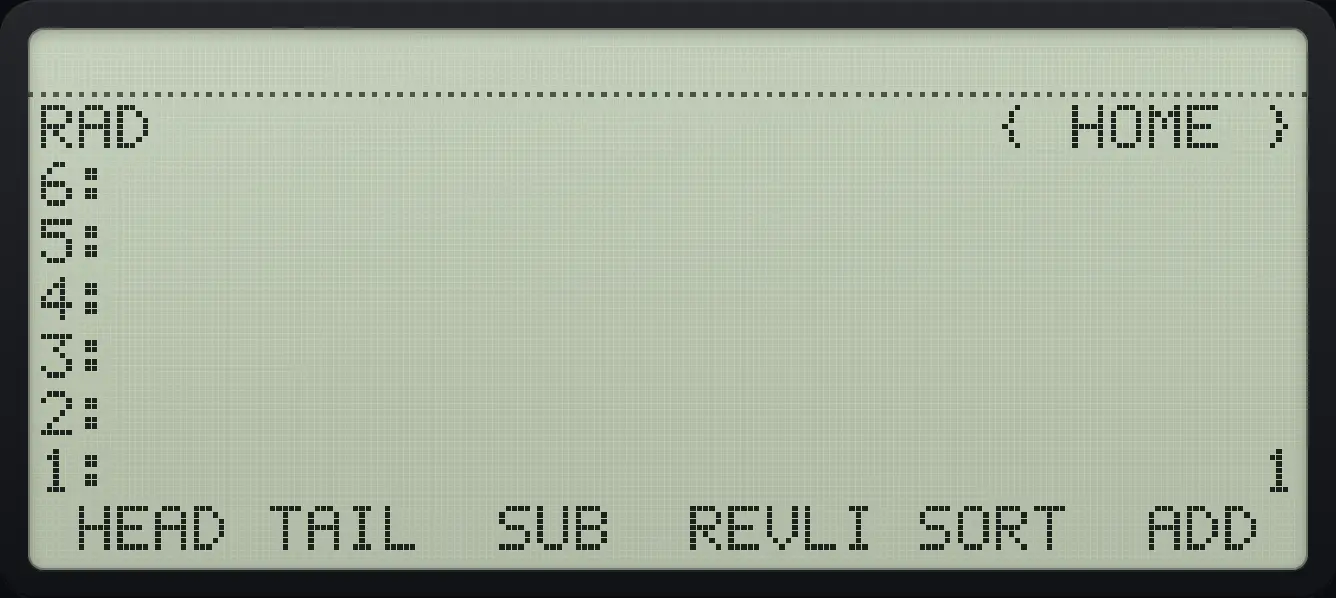
Result of the example "Head of a list" The display shows: RAD                      { HOME } / 6: / 5: / 4: / 3: / 2: / 1:                              1 /  HEAD TAIL  SUB  REVLI SORT  ADD .
You should see1: 1
Example 11.8

Tail of a list

  1. TAIL is the second key.

    ◀{ }81SPC2SPC3ENTER▶LISTTOOLNXTF2
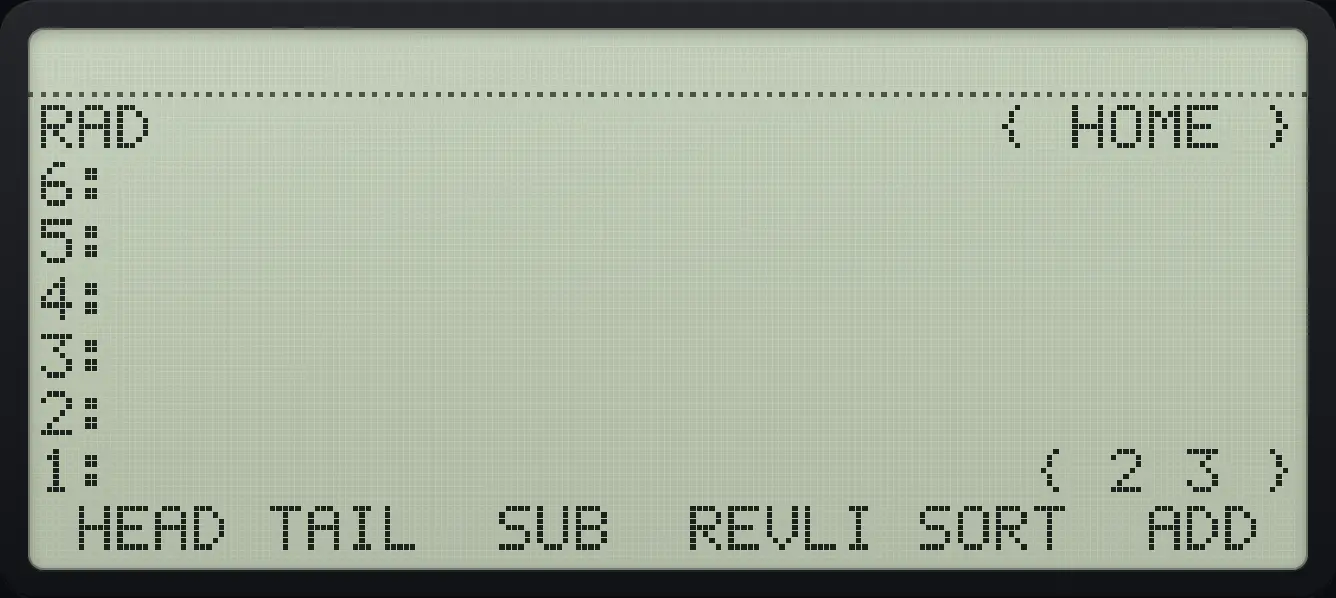
Result of the example "Tail of a list" The display shows: RAD                      { HOME } / 6: / 5: / 4: / 3: / 2: / 1:                        { 2 3 } /  HEAD TAIL  SUB  REVLI SORT  ADD .
You should see{ 2 3 }
Example 11.9

Reverse a list

  1. REVLIST is the fourth key of page 2.

    ◀{ }81SPC2SPC3ENTER▶LISTTOOLNXTF4
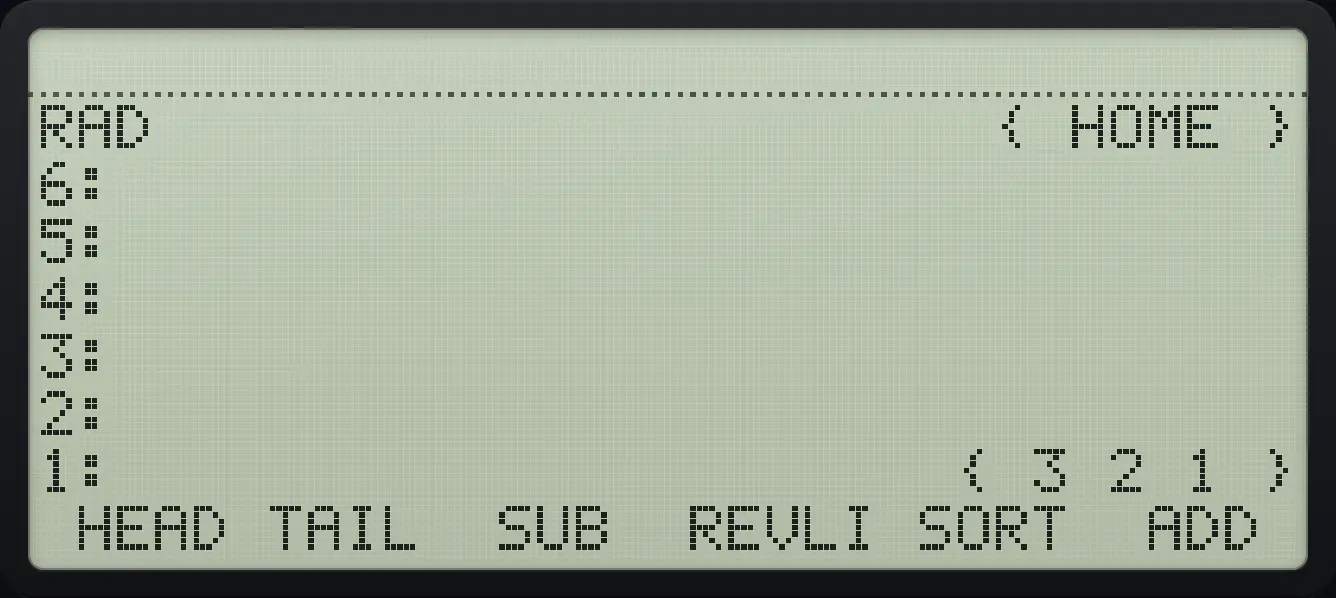
Result of the example "Reverse a list" The display shows: RAD                      { HOME } / 6: / 5: / 4: / 3: / 2: / 1:                      { 3 2 1 } /  HEAD TAIL  SUB  REVLI SORT  ADD .
You should see{ 3 2 1 }
Example 11.10

Sort a list

  1. Make { 3 1 2 } and press SORT.

    ◀{ }83SPC1SPC2ENTER▶LISTTOOLNXTF5
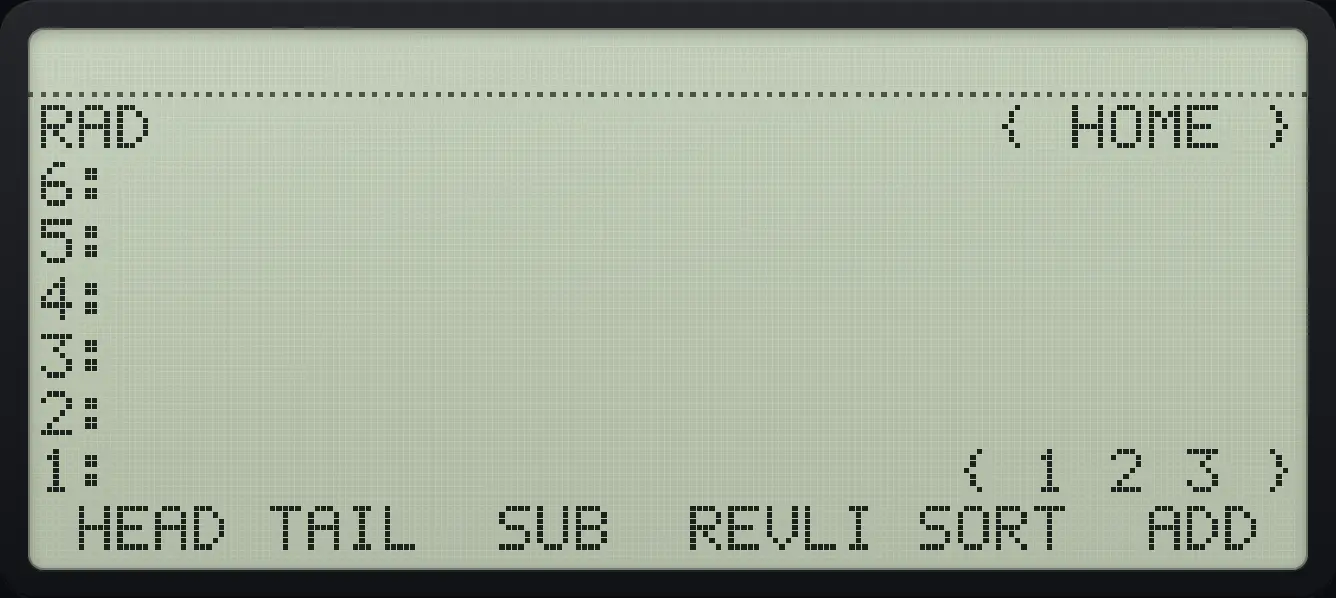
Result of the example "Sort a list" The display shows: RAD                      { HOME } / 6: / 5: / 4: / 3: / 2: / 1:                      { 1 2 3 } /  HEAD TAIL  SUB  REVLI SORT  ADD .
You should see{ 1 2 3 }
Example 11.11

Sum of a list

  1. Right shift 3 is ΣLIST.

    ◀{ }81SPC2SPC3ENTER▶ΣLIST3
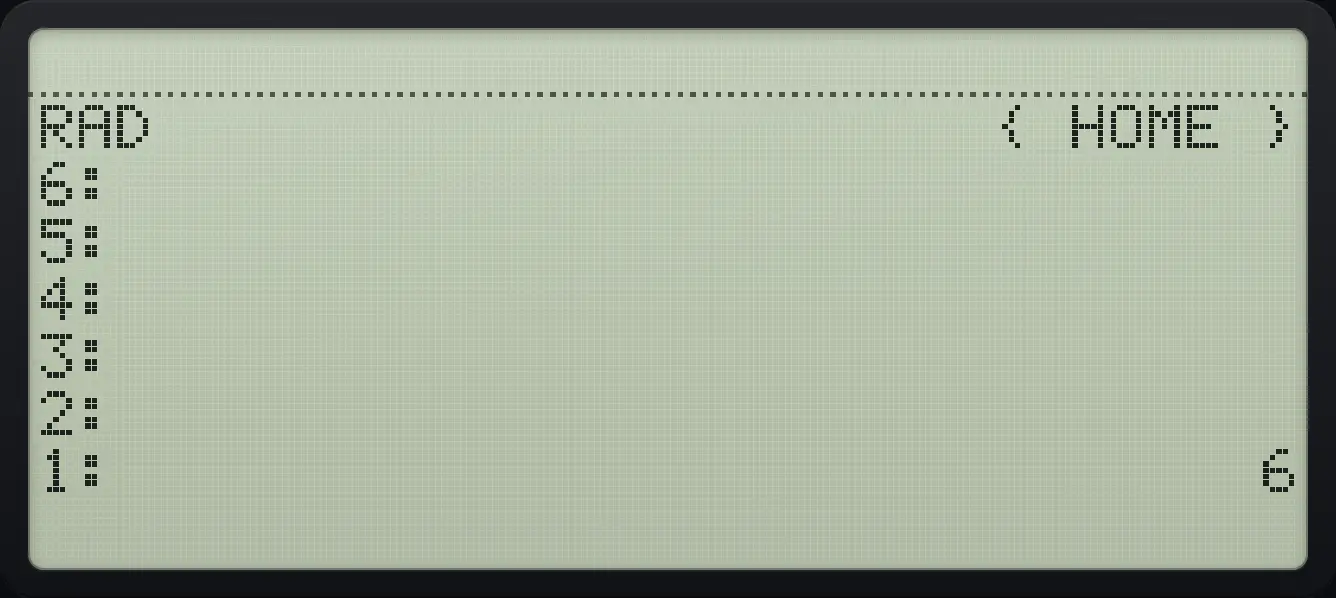
Result of the example "Sum of a list" The display shows: RAD                      { HOME } / 6: / 5: / 4: / 3: / 2: / 1:                              6.
You should see1: 6
Example 11.12

Product of a list

  1. Right shift + is ΠLIST.

    ◀{ }81SPC2SPC3ENTER▶ΠLIST+
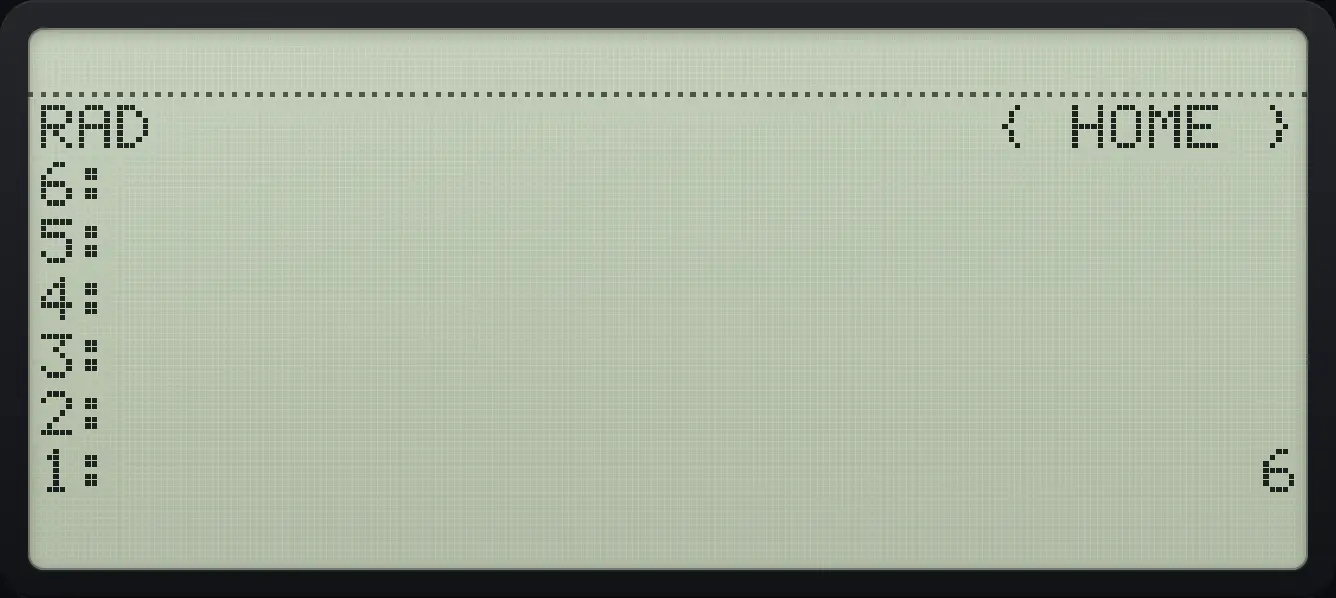
Result of the example "Product of a list" The display shows: RAD                      { HOME } / 6: / 5: / 4: / 3: / 2: / 1:                              6.
You should see1: 6

11.3Arithmetic on lists#

Multiplying a list by a number multiplies each item. Adding two lists with + joins them; ADD (left shift +) adds item by item. Adding a number to a list appends it.

Example 11.13

Scale a list

  1. Multiply { 1 2 3 } by 2.

    ◀{ }81SPC2SPC3ENTER2×
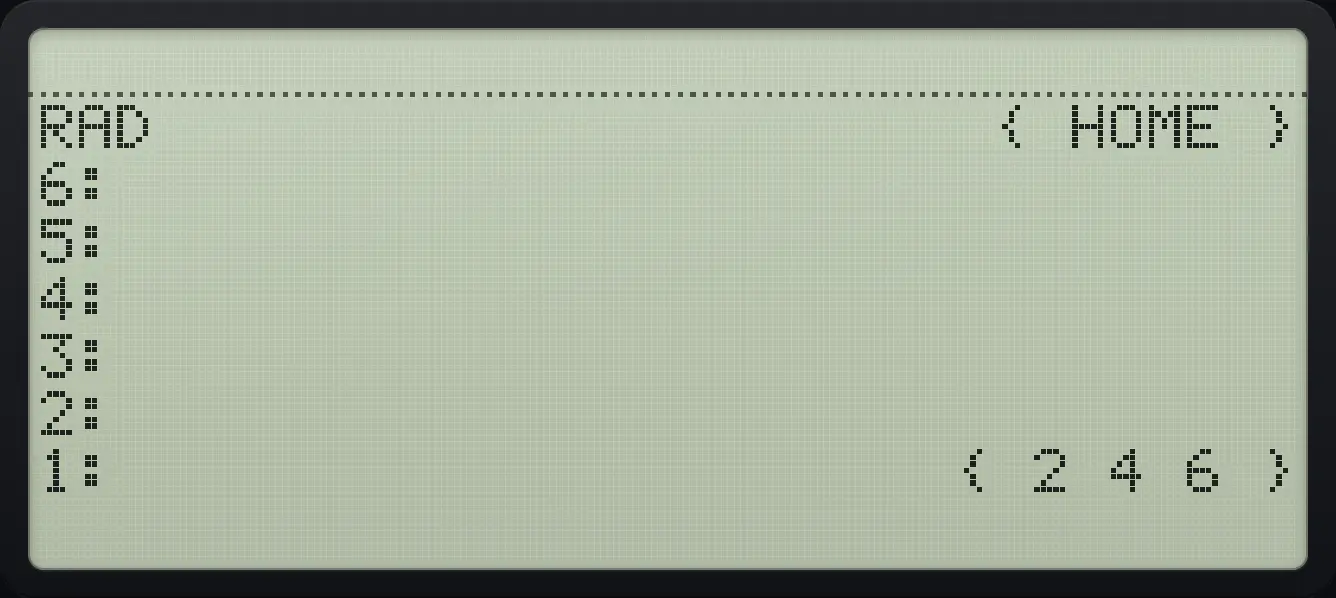
Result of the example "Scale a list" The display shows: RAD                      { HOME } / 6: / 5: / 4: / 3: / 2: / 1:                      { 2 4 6 }.
You should see{ 2 4 6 }
Example 11.14

Join two lists

  1. Add { 1 2 3 } and { 4 5 6 }.

    ◀{ }81SPC2SPC3ENTER◀{ }84SPC5SPC6ENTER+
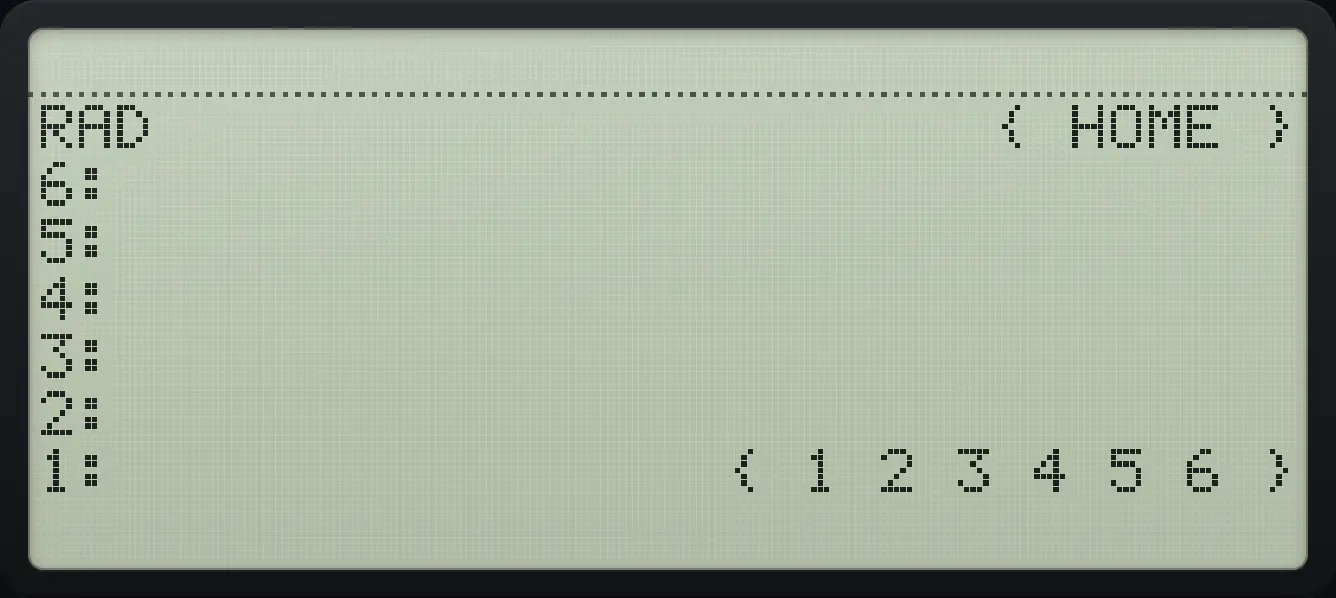
Result of the example "Join two lists" The display shows: RAD                      { HOME } / 6: / 5: / 4: / 3: / 2: / 1:                { 1 2 3 4 5 6 }.
You should see{ 1 2 3 4 5 6 }
Example 11.15

Add two lists item by item

  1. Left shift + (ADD).

    ◀{ }81SPC2SPC3ENTER◀{ }84SPC5SPC6ENTER◀ADD+
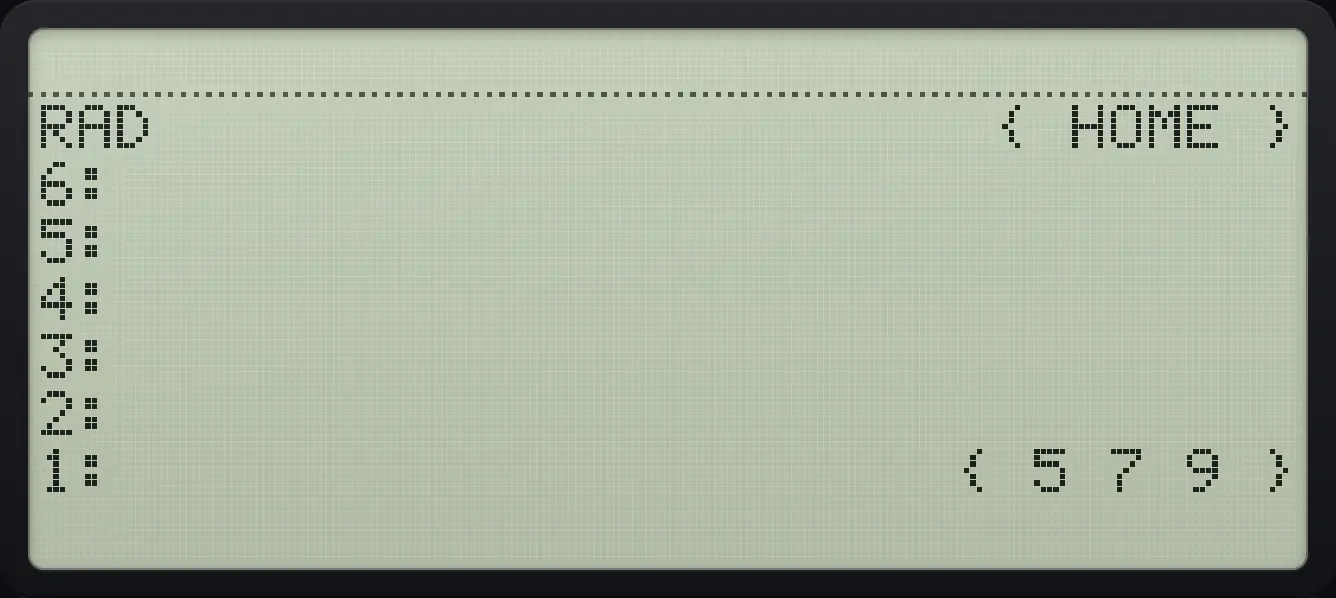
Result of the example "Add two lists item by item" The display shows: RAD                      { HOME } / 6: / 5: / 4: / 3: / 2: / 1:                      { 5 7 9 }.
You should see{ 5 7 9 }

11.4Build a list with SEQ#

SEQ takes an expression, a variable name, a start, an end and a step, and returns the list of values. The squares of 1 to 5:

k2,k=1,2,…,5k^{2},\quad k=1,2,\dots,5
Example 11.16

Squares from 1 to 5

  1. Type the expression, the name k, the start, end and step, then press SEQ (LIST page 3, fourth key).

    'αα◀RCLSTO▶αTyˣ2ENTER'αα◀RCLSTO▶αENTER1ENTER5ENTER1▶LISTTOOLNXTNXTF4
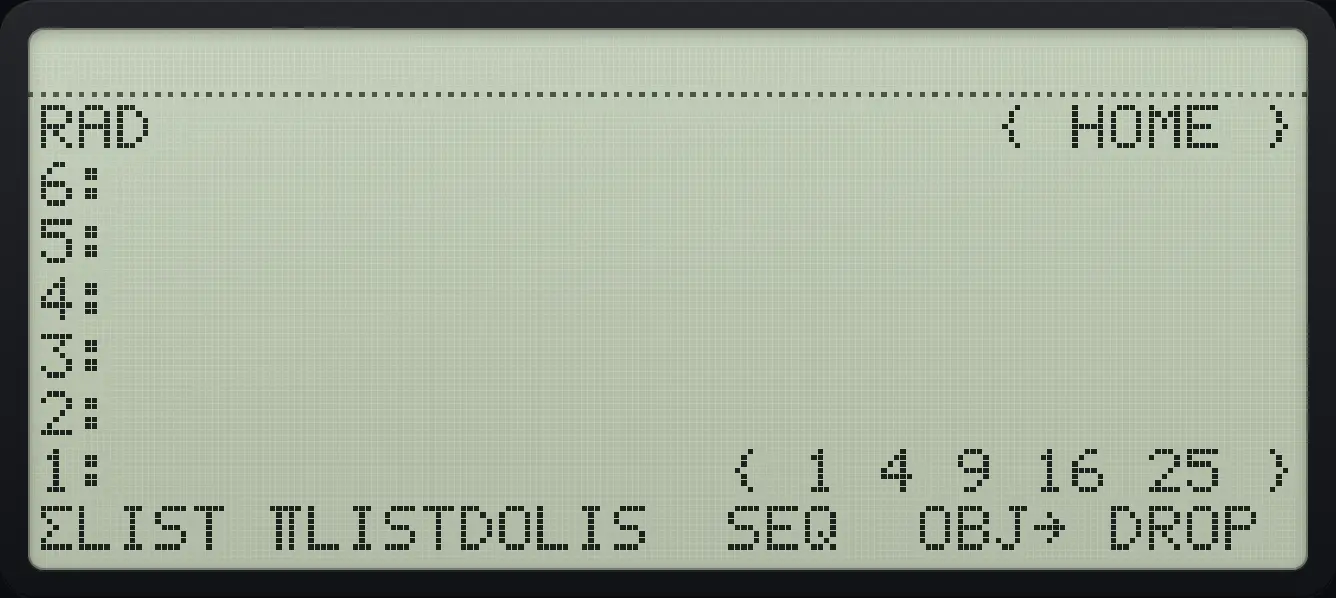
Result of the example "Squares from 1 to 5" The display shows: RAD                      { HOME } / 6: / 5: / 4: / 3: / 2: / 1:                { 1 4 9 16 25 } / ΣLIST ΠLISTDOLIS  SEQ  OBJ→ DROP .
You should see{ 1 4 9 16 25 }

HP 48 and HP 50g is a trademark of HP Inc.. Trident Calculator is an independent product by South View Studios and is not affiliated with, sponsored by or endorsed by HP. The name is used only to describe the kind of calculator this model resembles; Trident's names, keys, display, fonts and software are its own clean-room design.