Trident Help

RPN Power 48 manual · Chapter 3 of 19

The stack

How the RPL stack works: numbered levels, ENTER, SWAP, DROP, ROT, PICK, ROLL, DEPTH, LASTARG, UNDO and how commands use the levels.

3.1Stack levels and what commands do with them#

The stack is a tower of objects. Level 1 is the newest and sits at the bottom of the display; level 2 is just above it, and so on. Unlike a four-register stack, this one is unlimited, so you never lose a number off the top. The screen shows as many levels as fit above the command line.

A command removes the objects it needs from the top levels and pushes its answer. + removes levels 1 and 2 and pushes the sum. A function such as √x takes one object; a command such as XROOT takes two. If the stack has too few objects the command fails with Too Few Arguments and the stack is restored.
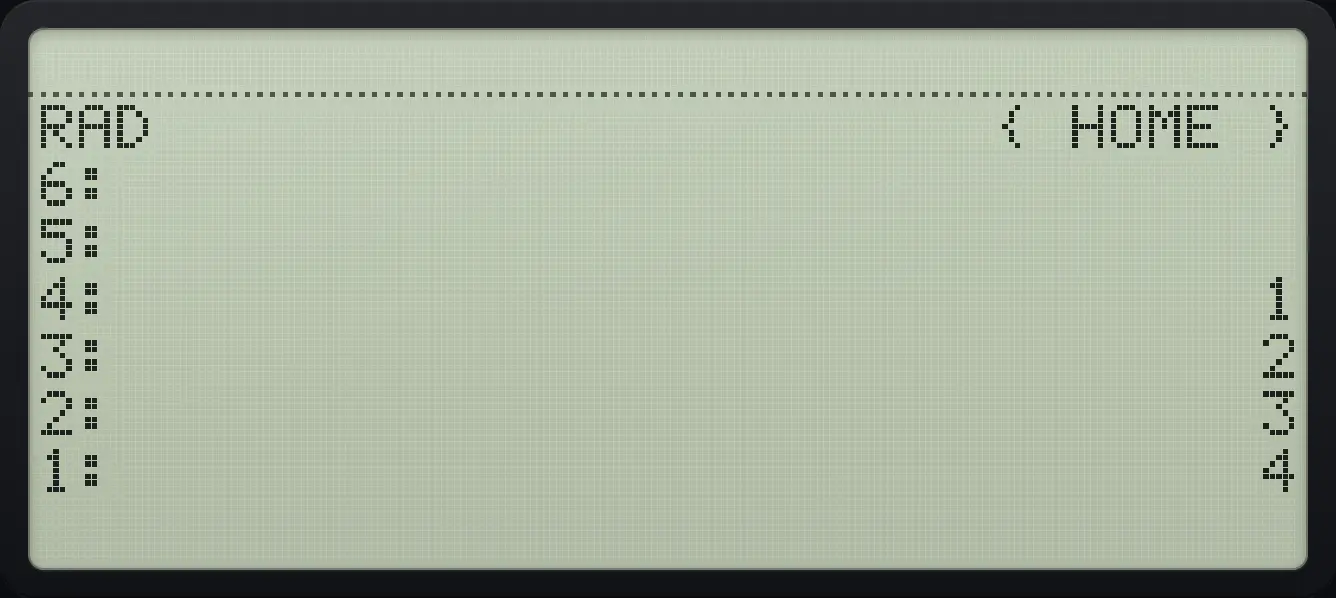
The numbers 1 to 4 on the stack. 4 is the newest, on level 1. The display shows: RAD                      { HOME } / 6: / 5: / 4:                              1 / 3:                              2 / 2:                              3 / 1:                              4.
The numbers 1 to 4 on the stack. 4 is the newest, on level 1.
Pushing numbers. In each column the first value is level 1 (the newest object).

3.2ENTER, space and copying with ENTER#

ENTER takes what you typed on the command line, compiles it into objects and pushes them. A space does the same for separating several objects on one line. There is no hidden stack lift to worry about: a new number never replaces an old one.

ENTER on an empty command line copies level 1 (the DUP command), which is a quick way to square a number or use it twice.

Example 3.1

Square by copying

  1. Type 7, ENTER to push it, ENTER again to copy it, then multiply.

    7ENTERENTER×
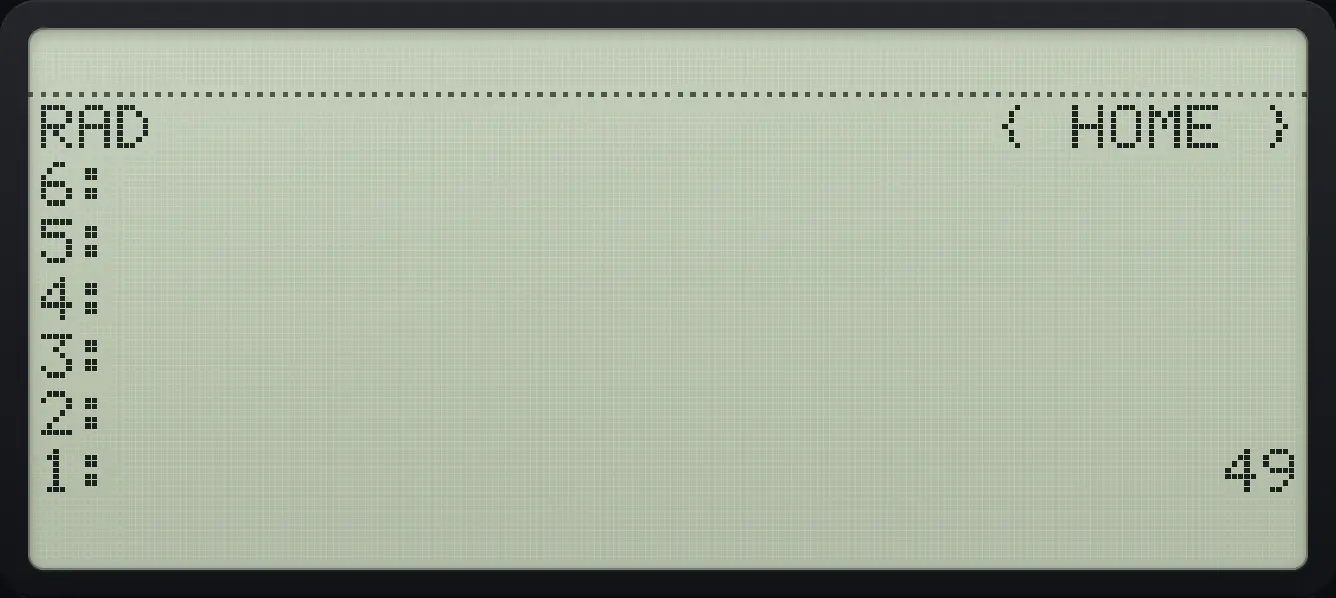
Result of the example "Square by copying" The display shows: RAD                      { HOME } / 6: / 5: / 4: / 3: / 2: / 1:                             49.
You should see1: 49
Example 3.2

Enter several numbers on one line

  1. Type 1 2 3 with spaces, then ENTER: three objects arrive.

    1SPC2SPC3ENTER
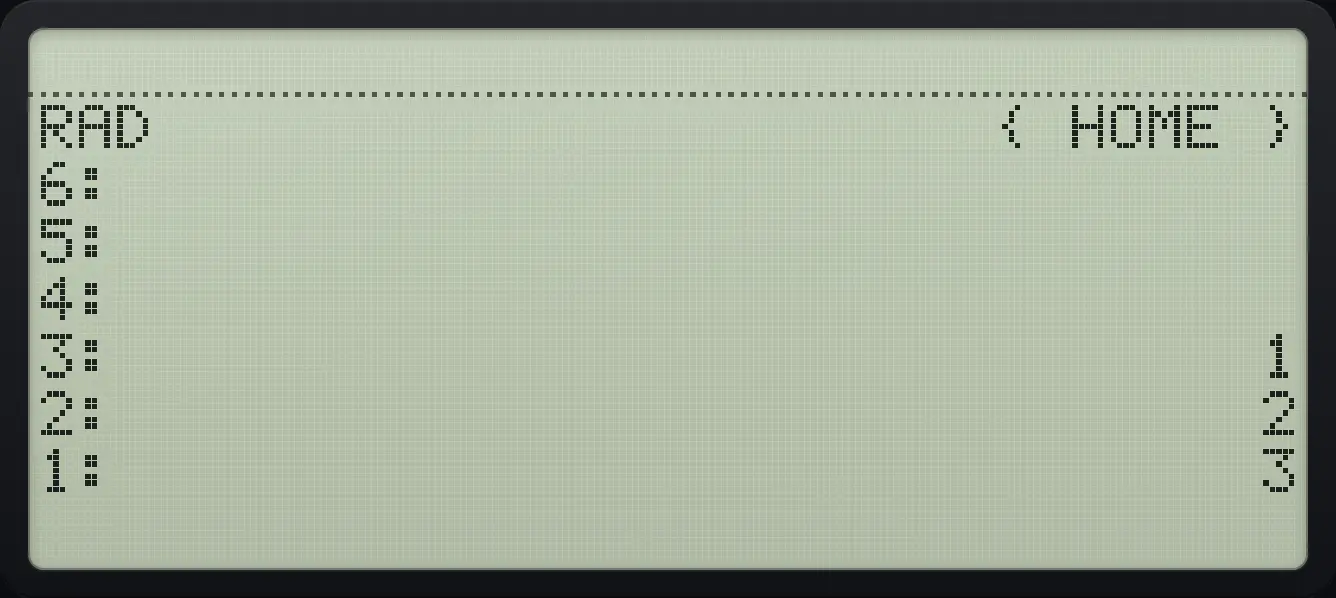
Result of the example "Enter several numbers on one line" The display shows: RAD                      { HOME } / 6: / 5: / 4: / 3:                              1 / 2:                              2 / 1:                              3.
You should see3: 1 2: 2 1: 3
ENTER on an empty line copies level 1.

3.3The STACK menu#

Left shift TOOL opens the STACK menu. It has three pages of six commands.
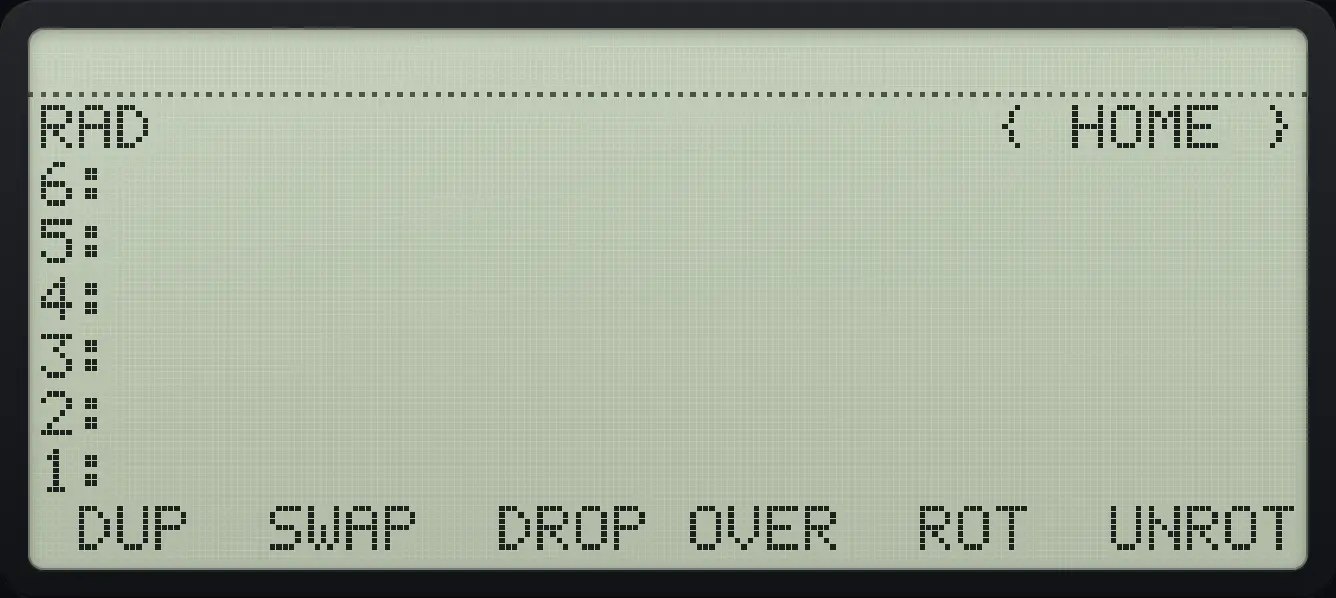
STACK page 1: DUP, SWAP, DROP, OVER, ROT, UNROT. The display shows: RAD                      { HOME } / 6: / 5: / 4: / 3: / 2: / 1: /  DUP  SWAP  DROP OVER  ROT  UNROT.
STACK page 1: DUP, SWAP, DROP, OVER, ROT, UNROT.
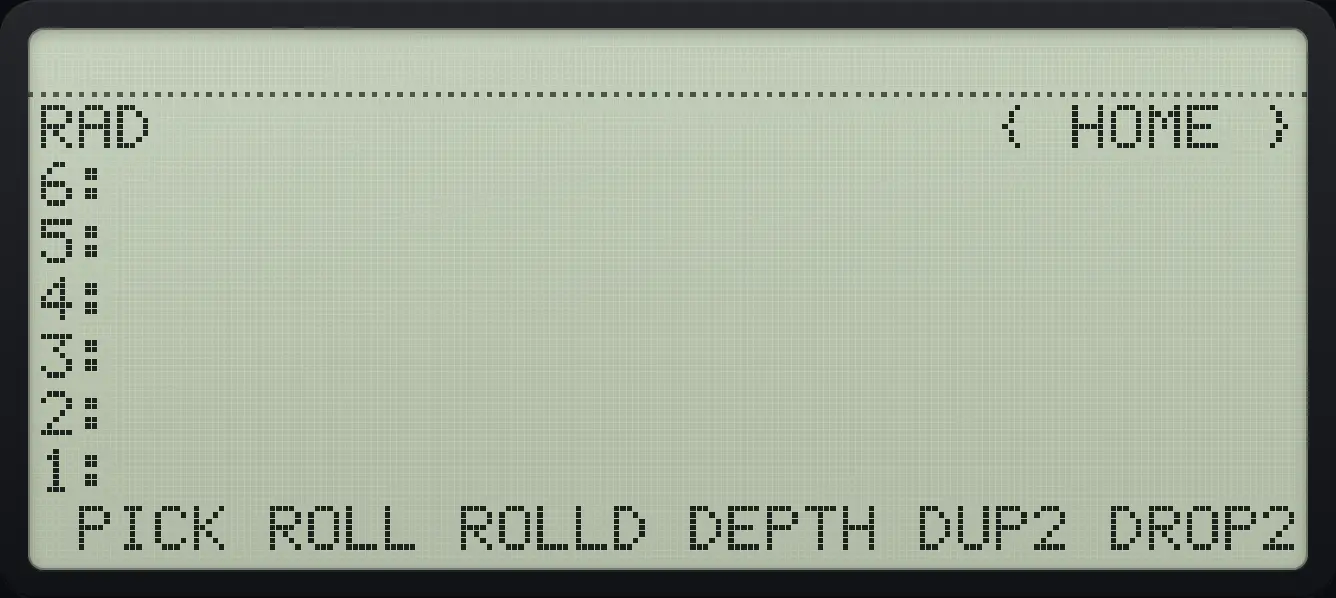
STACK page 2: PICK, ROLL, ROLLD, DEPTH, DUP2, DROP2. The display shows: RAD                      { HOME } / 6: / 5: / 4: / 3: / 2: / 1: /  PICK ROLL ROLLD DEPTH DUP2 DROP2.
STACK page 2: PICK, ROLL, ROLLD, DEPTH, DUP2, DROP2.
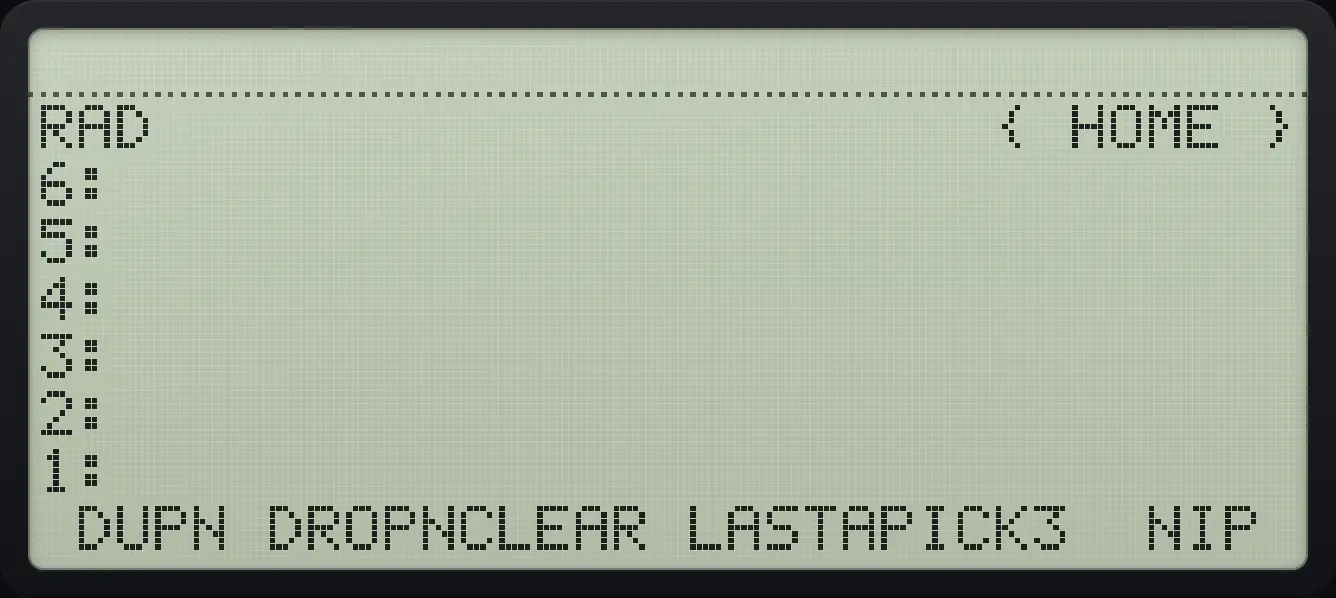
STACK page 3: DUPN, DROPN, CLEAR, LASTARG, PICK3, NIP. The display shows: RAD                      { HOME } / 6: / 5: / 4: / 3: / 2: / 1: /  DUPN DROPNCLEAR LASTAPICK3  NIP .
STACK page 3: DUPN, DROPN, CLEAR, LASTARG, PICK3, NIP.
CommandWhat it doesStack before and after (level 1 last)
DUPCopies level 1.1 2 → 1 2 2
SWAPExchanges levels 1 and 2.1 2 → 2 1
DROPRemoves level 1.1 2 → 1
OVERCopies level 2 to level 1.1 2 → 1 2 1
ROTMoves level 3 to level 1.1 2 3 → 2 3 1
UNROTMoves level 1 to level 3.1 2 3 → 3 1 2
PICKCopies level n to level 1 (n is typed first).1 2 3 2 → 1 2 3 2
ROLLMoves level n to level 1.1 2 3 4 3 → 1 3 4 2
ROLLDMoves level 1 to level n.1 2 3 4 3 → 1 4 2 3
DEPTHPushes the number of objects.1 2 3 → 1 2 3 3
DUP2Copies levels 1 and 2.1 2 → 1 2 1 2
DROP2Removes levels 1 and 2.1 2 3 → 1
DUPNCopies the top n objects.1 2 3 2 → 1 2 3 2 3
DROPNRemoves the top n objects.1 2 3 4 2 → 1 2
CLEAREmpties the stack.1 2 3 → (empty)
LASTARGPuts back the arguments of the last command.—
PICK3Copies level 3 to level 1.1 2 3 → 1 2 3 1
NIPRemoves level 2.1 2 3 → 1 3

3.4Swap, drop, over and rotate#

Example 3.3

Swap levels 1 and 2

  1. Put 1, 2 and 3 on the stack.

    1ENTER2ENTER3ENTER
  2. Open STACK and press SWAP (second key).

    ◀STACKTOOLF2
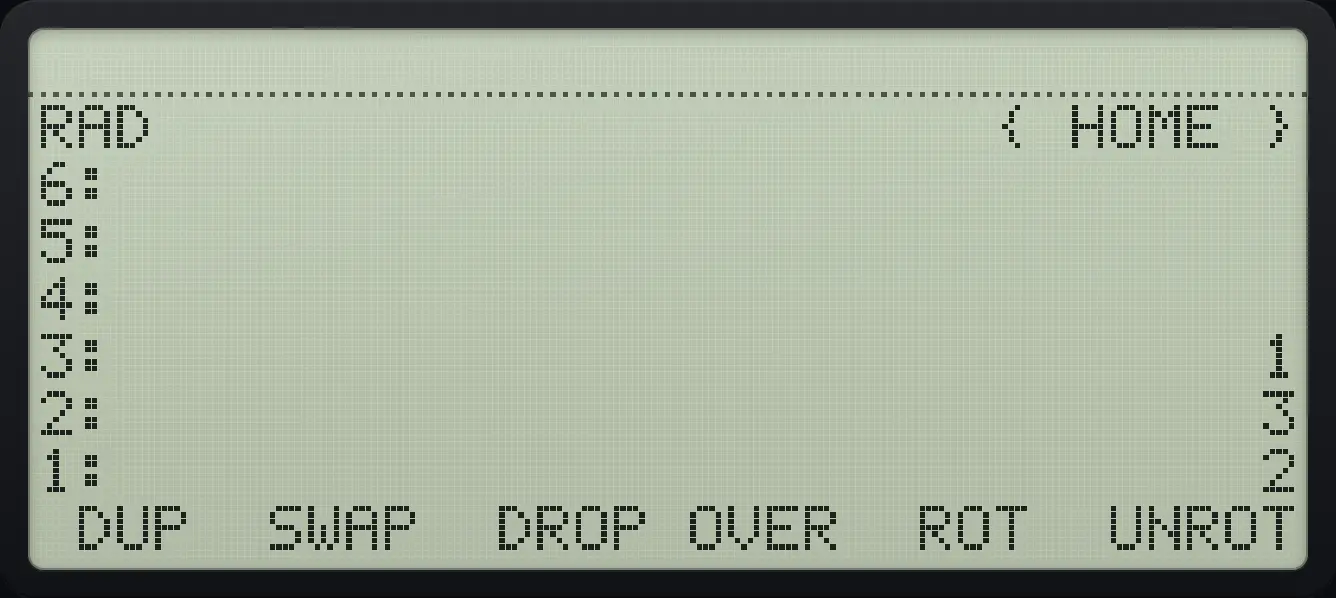
    After step 2: Open STACK and press SWAP (second key). The display shows: RAD                      { HOME } / 6: / 5: / 4: / 3:                              1 / 2:                              3 / 1:                              2 /  DUP  SWAP  DROP OVER  ROT  UNROT.
Result of the example "Swap levels 1 and 2" The display shows: RAD                      { HOME } / 6: / 5: / 4: / 3:                              1 / 2:                              3 / 1:                              2 /  DUP  SWAP  DROP OVER  ROT  UNROT.
You should see3: 1 2: 3 1: 2

The shortcut for SWAP is the right shift on the 0 key.

Example 3.4

Drop the top object

  1. Put 1, 2 and 3 on the stack and press DROP (third key).

    1ENTER2ENTER3ENTER◀STACKTOOLF3
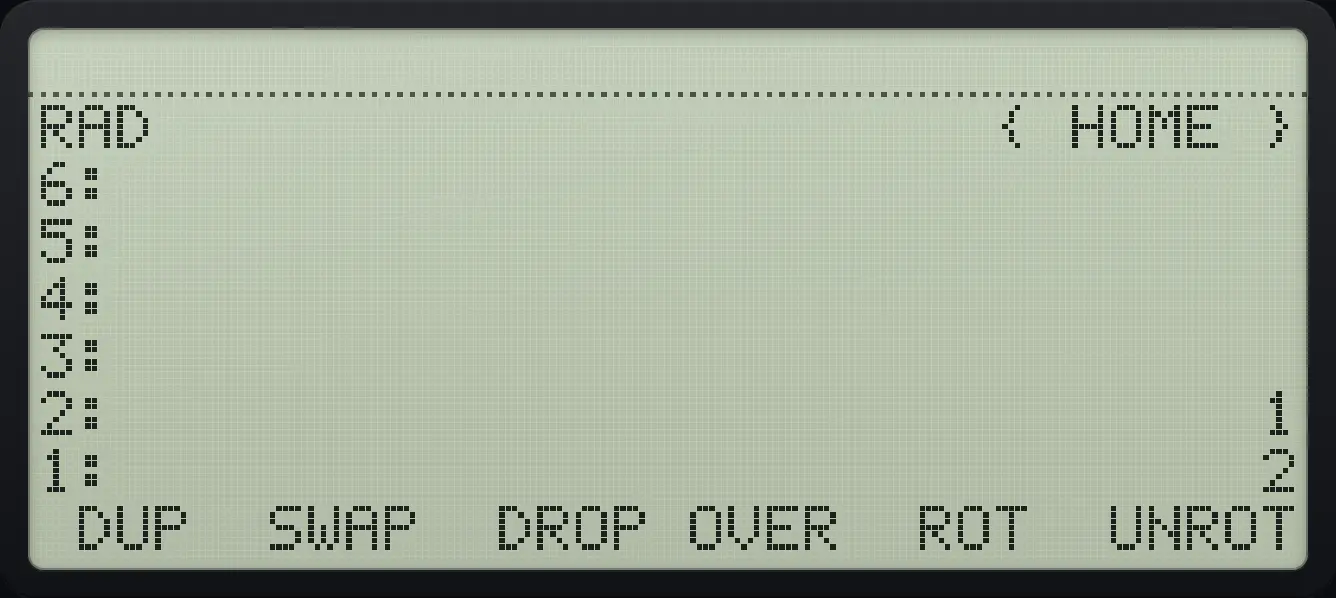
Result of the example "Drop the top object" The display shows: RAD                      { HOME } / 6: / 5: / 4: / 3: / 2:                              1 / 1:                              2 /  DUP  SWAP  DROP OVER  ROT  UNROT.
You should see2: 1 1: 2
Example 3.5

Copy level 2 with OVER

  1. Put 1, 2 on the stack and press OVER (fourth key).

    1ENTER2ENTER◀STACKTOOLF4
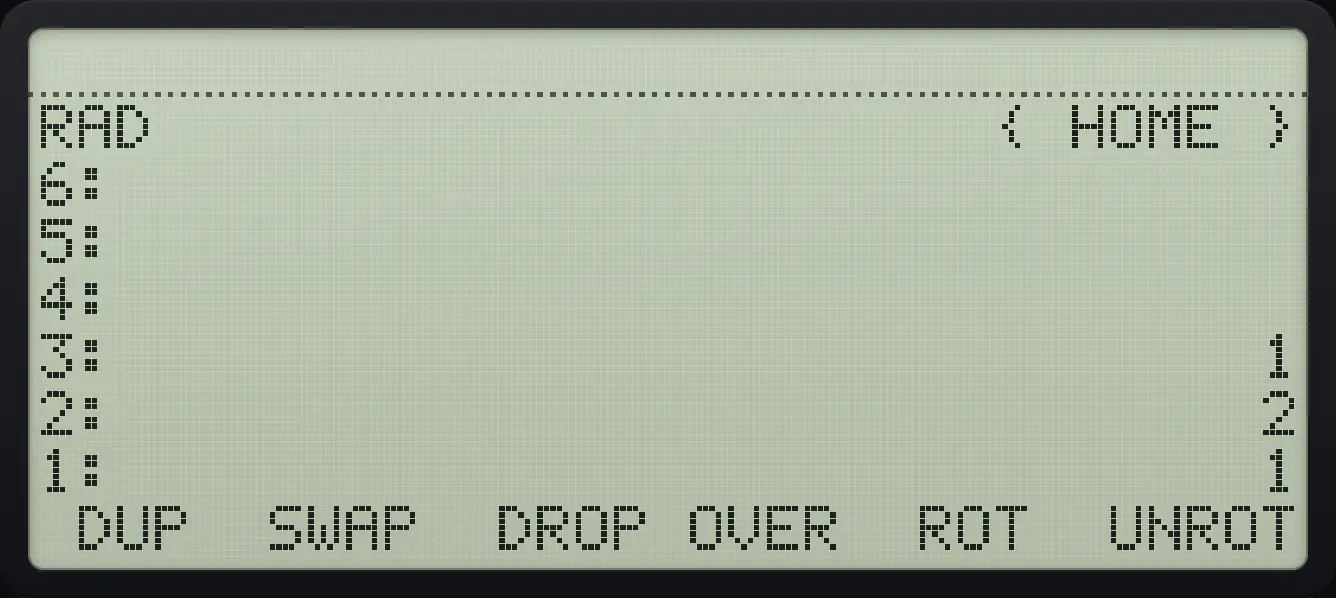
Result of the example "Copy level 2 with OVER" The display shows: RAD                      { HOME } / 6: / 5: / 4: / 3:                              1 / 2:                              2 / 1:                              1 /  DUP  SWAP  DROP OVER  ROT  UNROT.
You should see3: 1 2: 2 1: 1
Example 3.6

Rotate three objects

  1. Put 1, 2, 3 and press ROT (fifth key). Level 3 moves to level 1.

    1ENTER2ENTER3ENTER◀STACKTOOLF5
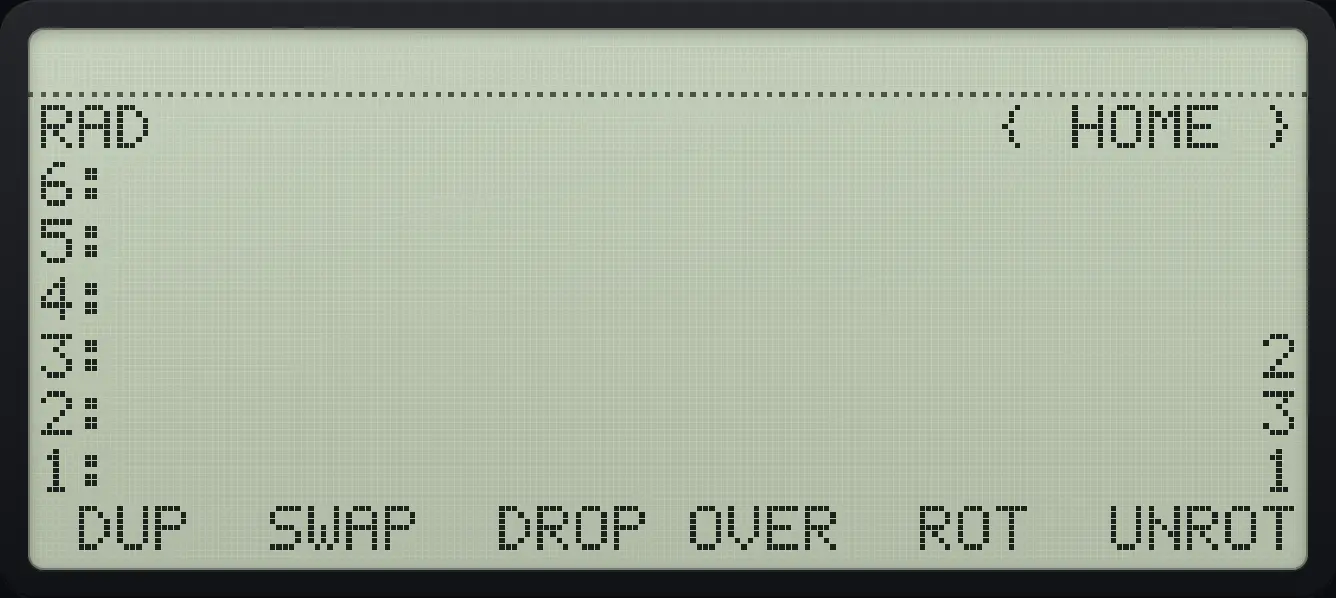
Result of the example "Rotate three objects" The display shows: RAD                      { HOME } / 6: / 5: / 4: / 3:                              2 / 2:                              3 / 1:                              1 /  DUP  SWAP  DROP OVER  ROT  UNROT.
You should see3: 2 2: 3 1: 1
Example 3.7

Rotate the other way

  1. UNROT (sixth key) moves level 1 down to level 3.

    1ENTER2ENTER3ENTER◀STACKTOOLF6
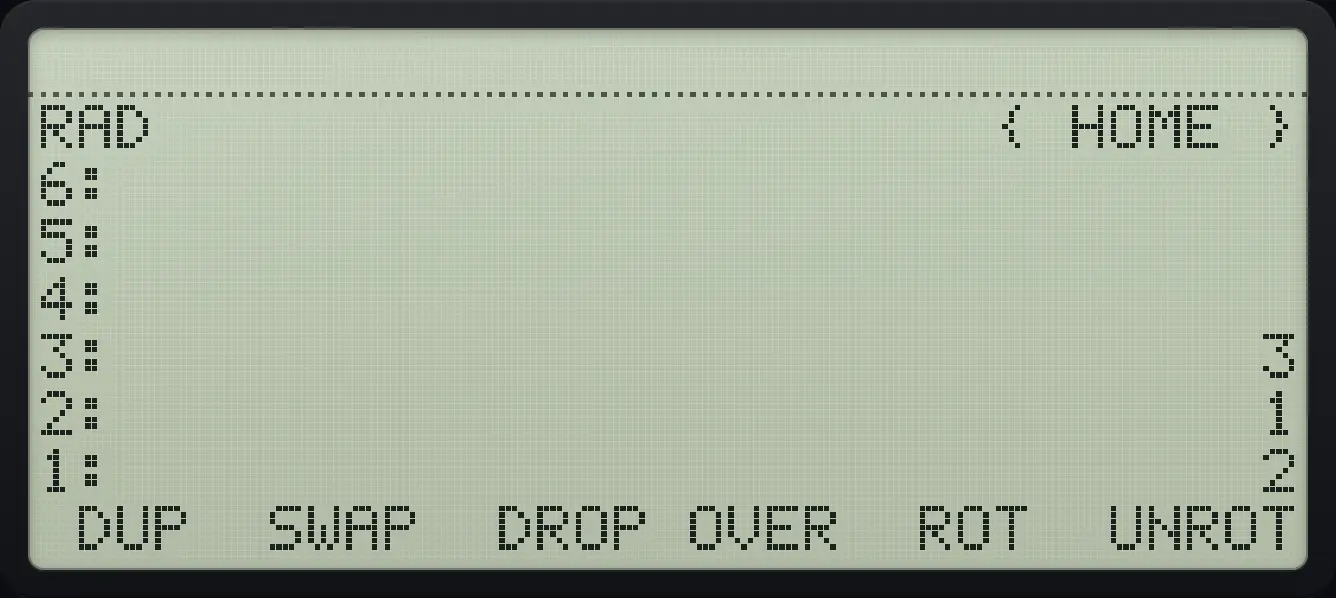
Result of the example "Rotate the other way" The display shows: RAD                      { HOME } / 6: / 5: / 4: / 3:                              3 / 2:                              1 / 1:                              2 /  DUP  SWAP  DROP OVER  ROT  UNROT.
You should see3: 3 2: 1 1: 2
Swap, then rotate. First value is level 1.

3.5Pick, roll, depth and the n commands#

Commands that need a count take it from level 1: type the count and then press the command key.

Example 3.8

Copy an object from deep in the stack

  1. Put 1, 2, 3 on the stack, type 2 and press PICK (STACK page 2, first key).

    1ENTER2ENTER3ENTER2◀STACKTOOLNXTF1
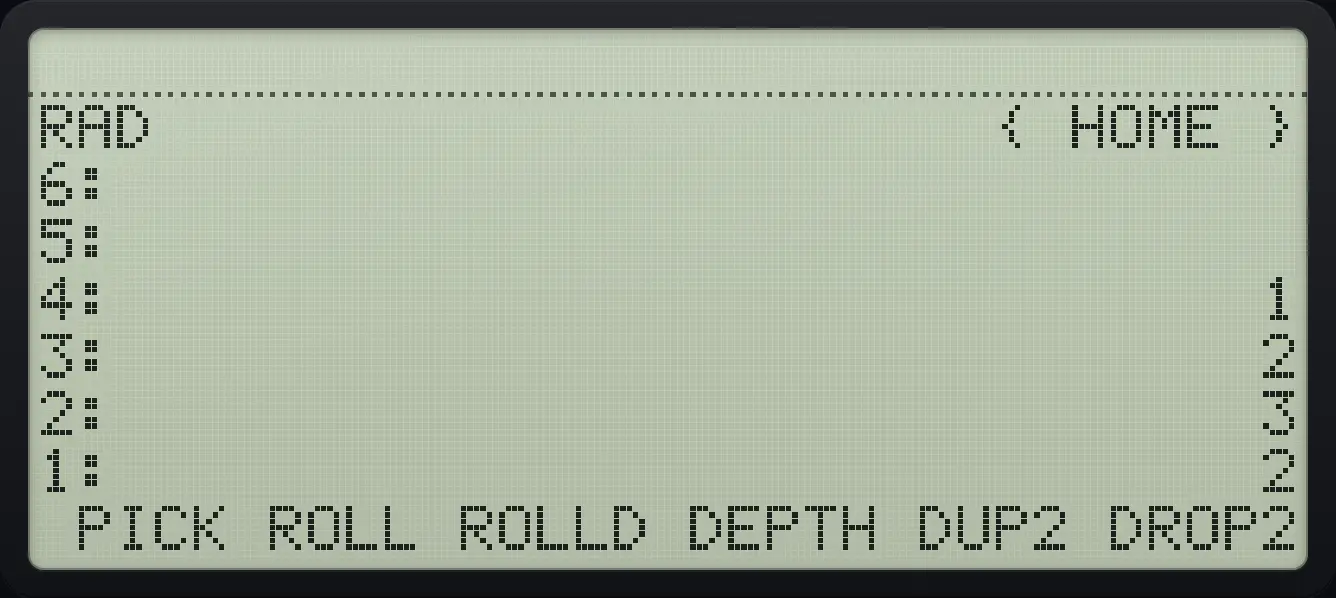
Result of the example "Copy an object from deep in the stack" The display shows: RAD                      { HOME } / 6: / 5: / 4:                              1 / 3:                              2 / 2:                              3 / 1:                              2 /  PICK ROLL ROLLD DEPTH DUP2 DROP2.
You should see1: 2 2: 3
Example 3.9

Roll the third object to the top

  1. Put 1 to 4 on the stack, type 3, press ROLL (page 2, second key).

    1ENTER2ENTER3ENTER4ENTER3◀STACKTOOLNXTF2
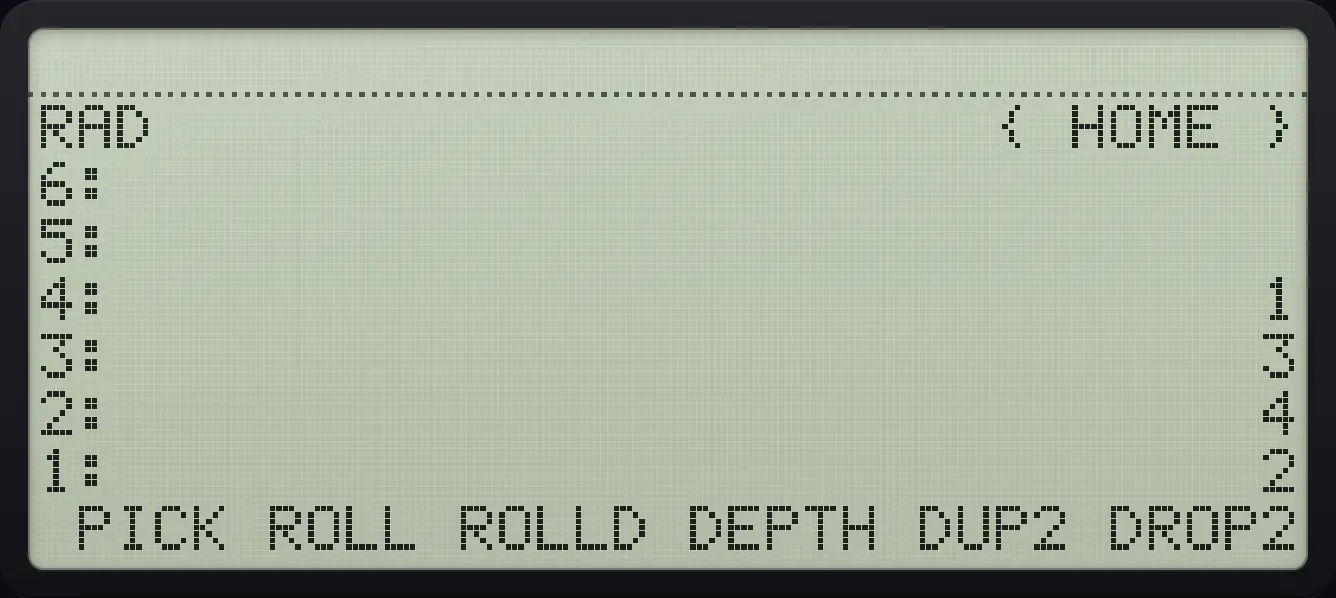
Result of the example "Roll the third object to the top" The display shows: RAD                      { HOME } / 6: / 5: / 4:                              1 / 3:                              3 / 2:                              4 / 1:                              2 /  PICK ROLL ROLLD DEPTH DUP2 DROP2.
You should see1: 2 2: 4 3: 3
Example 3.10

Roll the top object down

  1. Same stack, type 3, press ROLLD (page 2, third key).

    1ENTER2ENTER3ENTER4ENTER3◀STACKTOOLNXTF3
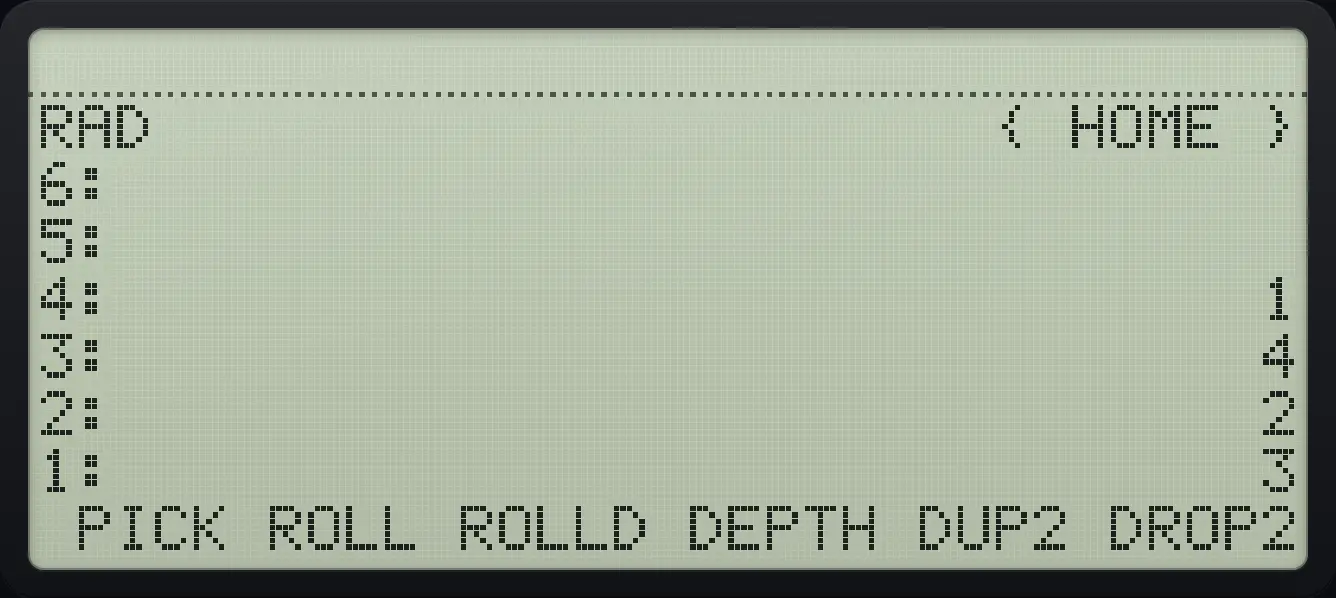
Result of the example "Roll the top object down" The display shows: RAD                      { HOME } / 6: / 5: / 4:                              1 / 3:                              4 / 2:                              2 / 1:                              3 /  PICK ROLL ROLLD DEPTH DUP2 DROP2.
You should see1: 3 2: 2 3: 4
Example 3.11

Count the objects with DEPTH

  1. Left shift 0 is DEPTH.

    1ENTER2ENTER3ENTER◀DEPTH0
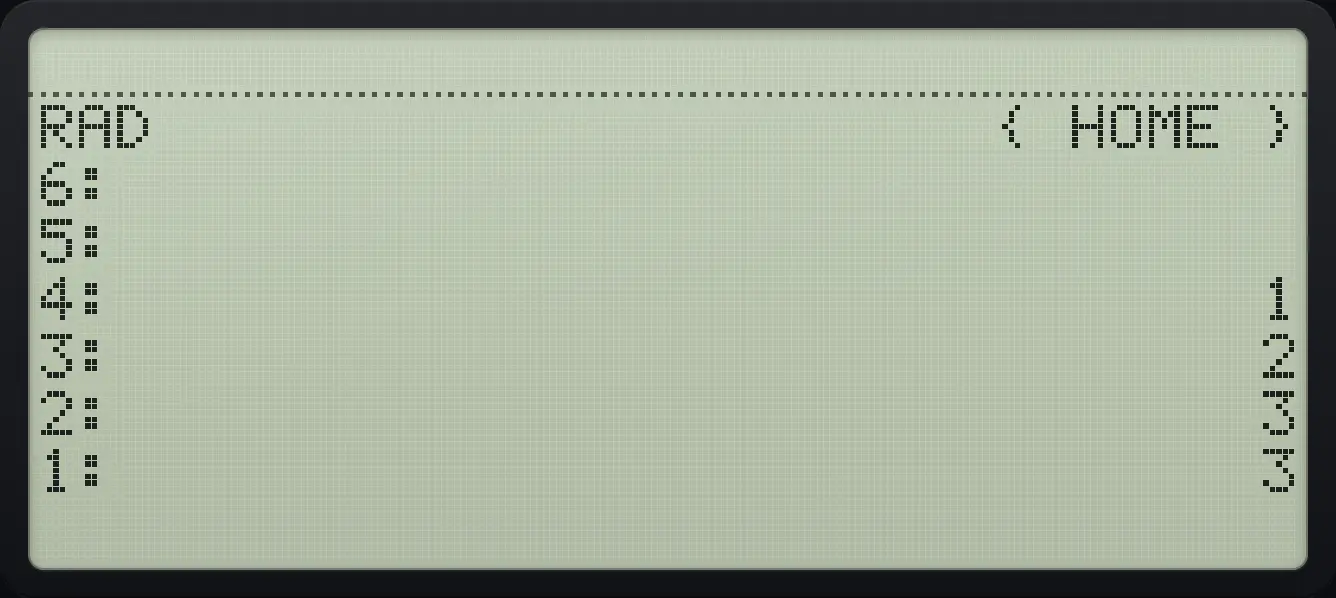
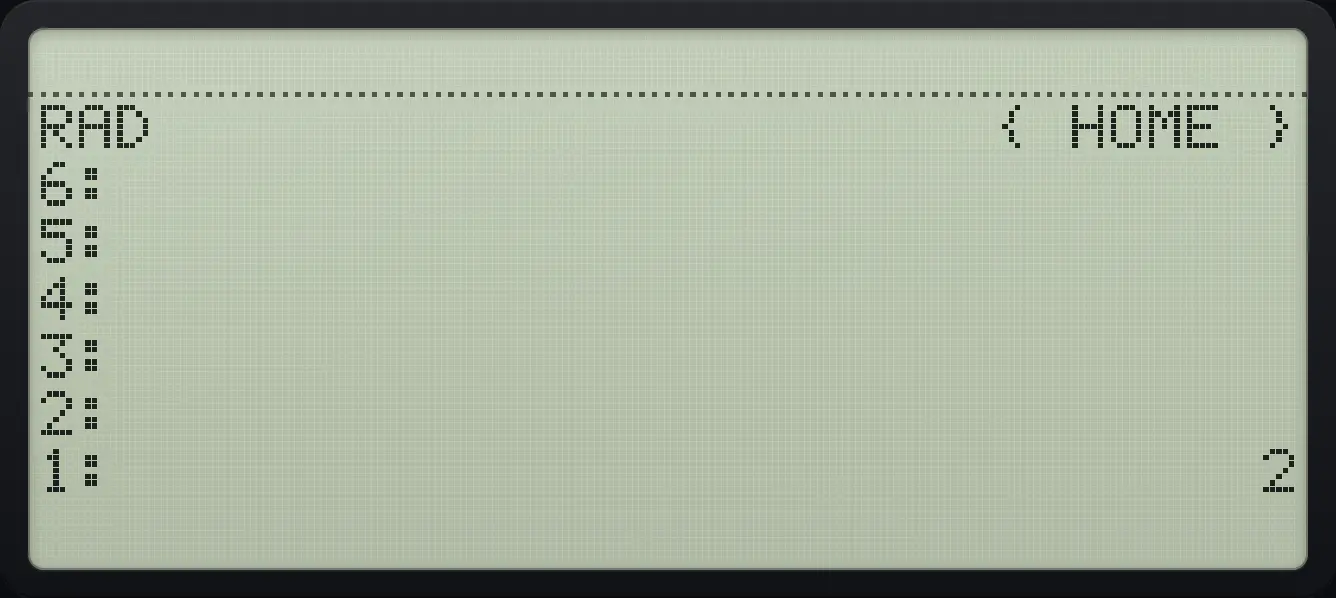
Result of the example "Count the objects with DEPTH" The display shows: RAD                      { HOME } / 6: / 5: / 4:                              1 / 3:                              2 / 2:                              3 / 1:                              3.
You should see1: 3 4: 1
Example 3.12

Copy two objects

  1. DUP2 (page 2, fifth key).

    1ENTER2ENTER◀STACKTOOLNXTF5
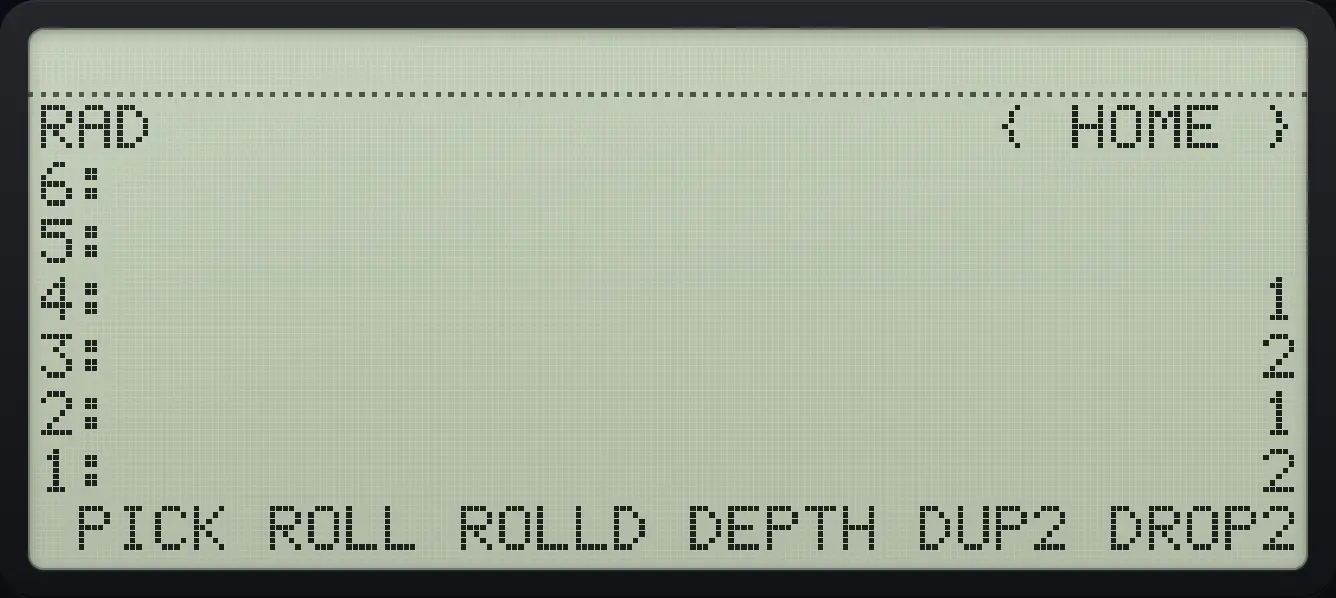
Result of the example "Copy two objects" The display shows: RAD                      { HOME } / 6: / 5: / 4:                              1 / 3:                              2 / 2:                              1 / 1:                              2 /  PICK ROLL ROLLD DEPTH DUP2 DROP2.
You should see4: 1 3: 2 2: 1 1: 2
Example 3.13

Remove two objects

  1. DROP2 (page 2, sixth key).

    1ENTER2ENTER3ENTER◀STACKTOOLNXTF6
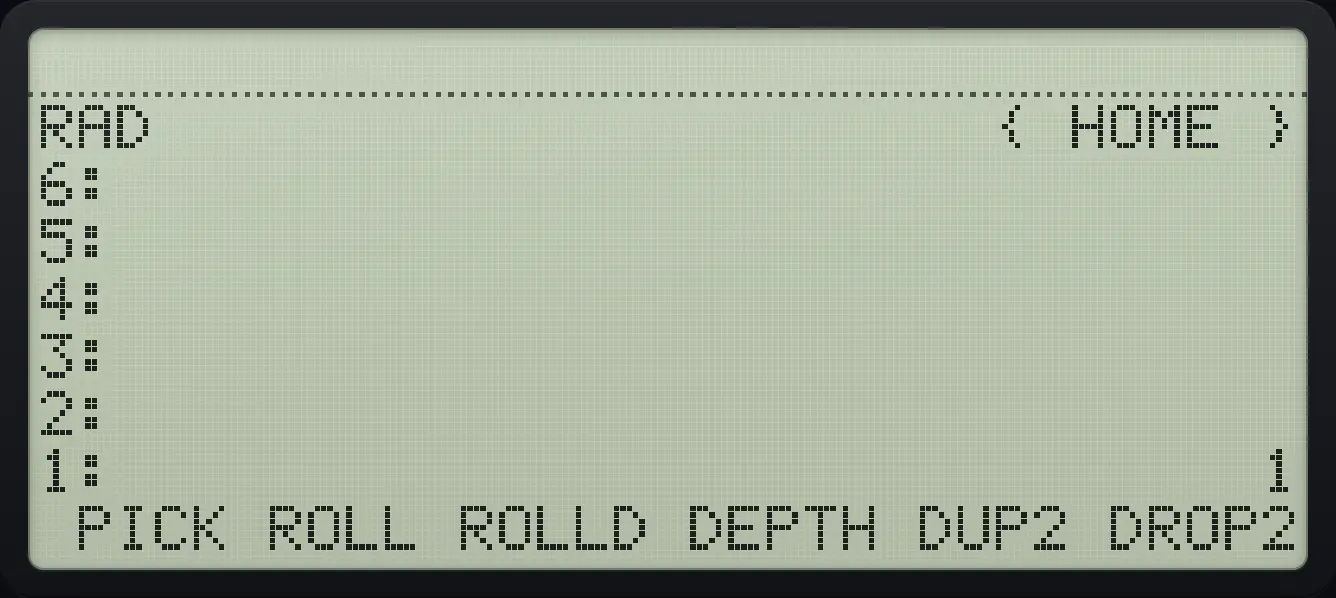
Result of the example "Remove two objects" The display shows: RAD                      { HOME } / 6: / 5: / 4: / 3: / 2: / 1:                              1 /  PICK ROLL ROLLD DEPTH DUP2 DROP2.
You should see1: 1
Example 3.14

Copy the top three objects with DUPN

  1. Type 2 and press DUPN (page 3, first key).

    1ENTER2ENTER3ENTER2◀STACKTOOLNXTNXTF1
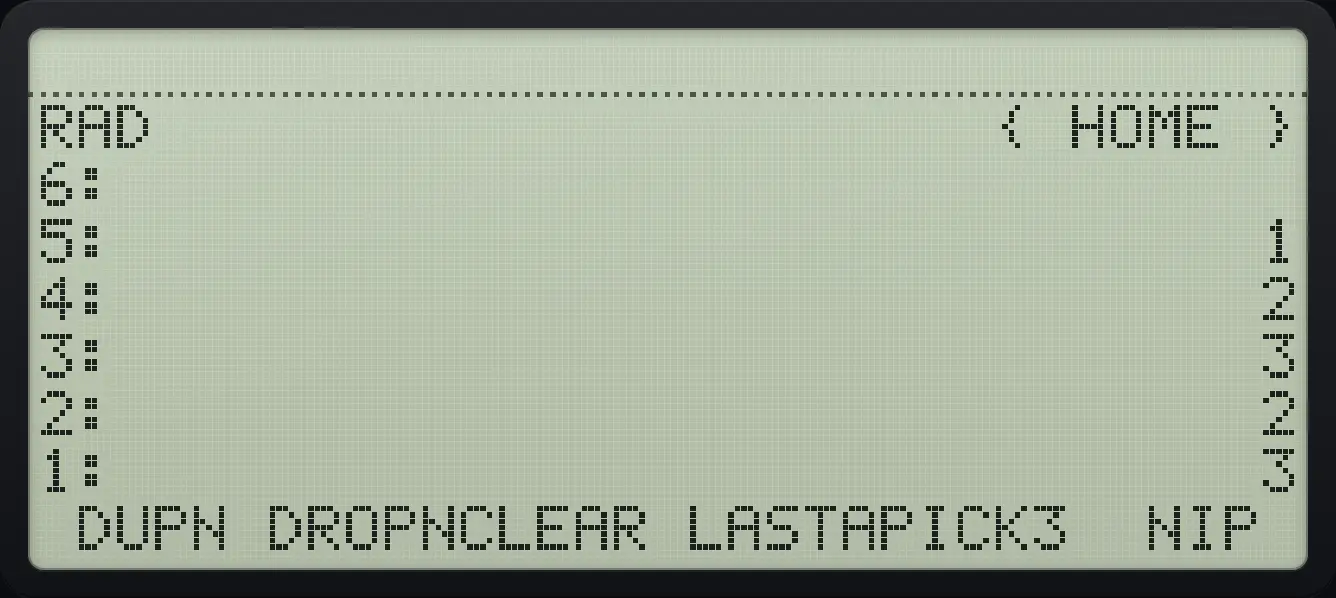
Result of the example "Copy the top three objects with DUPN" The display shows: RAD                      { HOME } / 6: / 5:                              1 / 4:                              2 / 3:                              3 / 2:                              2 / 1:                              3 /  DUPN DROPNCLEAR LASTAPICK3  NIP .
You should see5: 1 2: 2 1: 3

The count is consumed. DUPN 2 copies the top two objects.

Example 3.15

Remove the second object with NIP

  1. NIP is the sixth key on page 3.

    1ENTER2ENTER3ENTER◀STACKTOOLNXTNXTF6
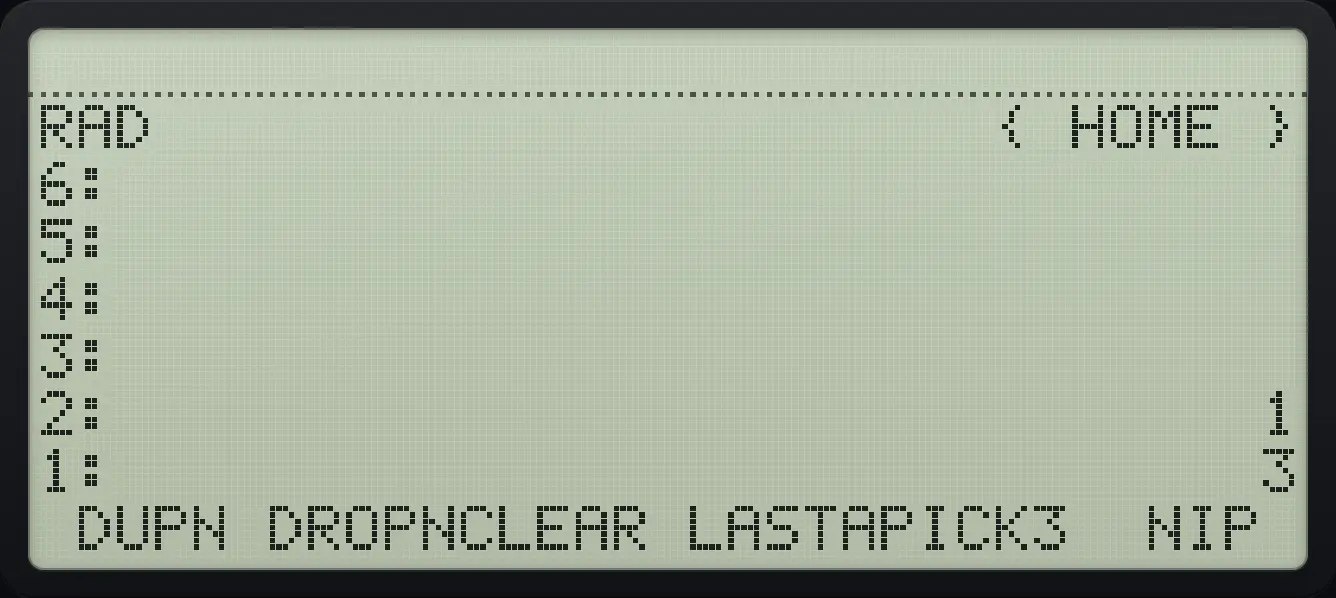
Result of the example "Remove the second object with NIP" The display shows: RAD                      { HOME } / 6: / 5: / 4: / 3: / 2:                              1 / 1:                              3 /  DUPN DROPNCLEAR LASTAPICK3  NIP .
You should see2: 1 1: 3
Example 3.16

Copy level 3 with PICK3

  1. PICK3 is the fifth key on page 3.

    1ENTER2ENTER3ENTER◀STACKTOOLNXTNXTF5
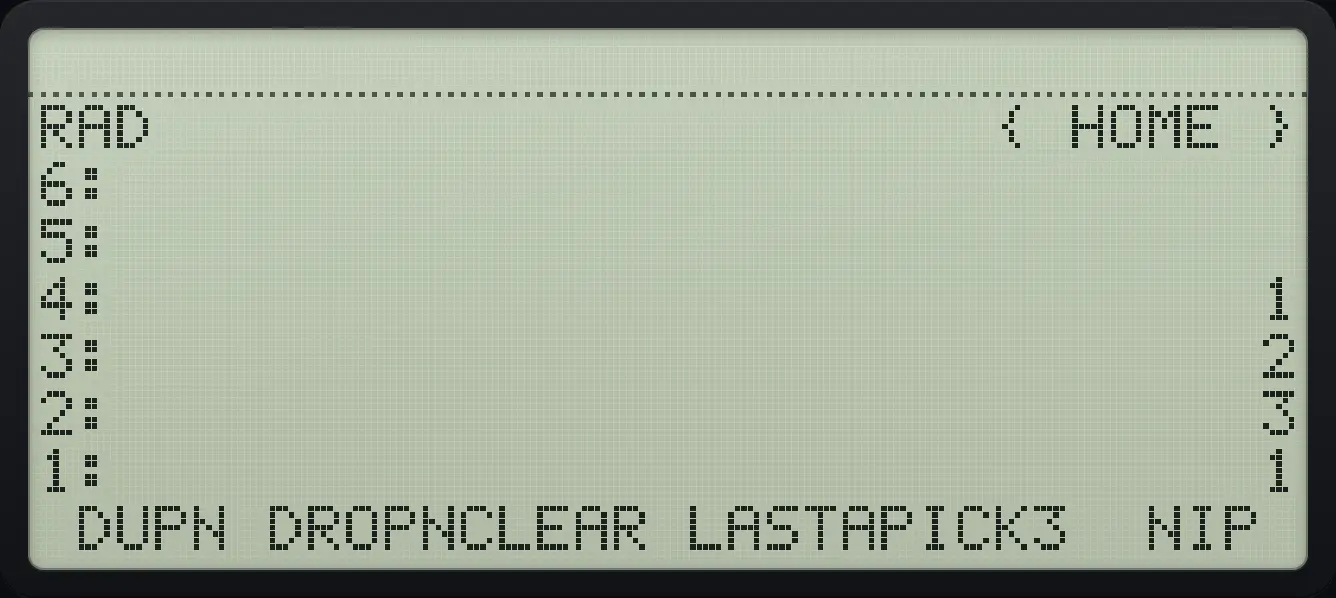
Result of the example "Copy level 3 with PICK3" The display shows: RAD                      { HOME } / 6: / 5: / 4:                              1 / 3:                              2 / 2:                              3 / 1:                              1 /  DUPN DROPNCLEAR LASTAPICK3  NIP .
You should see1: 1 4: 1

3.6Recover from mistakes: LASTARG and UNDO#

Right shift HIST is LASTARG: it pushes back the arguments that the last command used, so you can try another command on them. Left shift HIST is UNDO: it restores the stack as it was before the last action. Press UNDO again to redo.

Example 3.17

Get back the numbers you added

  1. Add 3 and 4, then press LASTARG.

    3ENTER4+▶LASTHIST
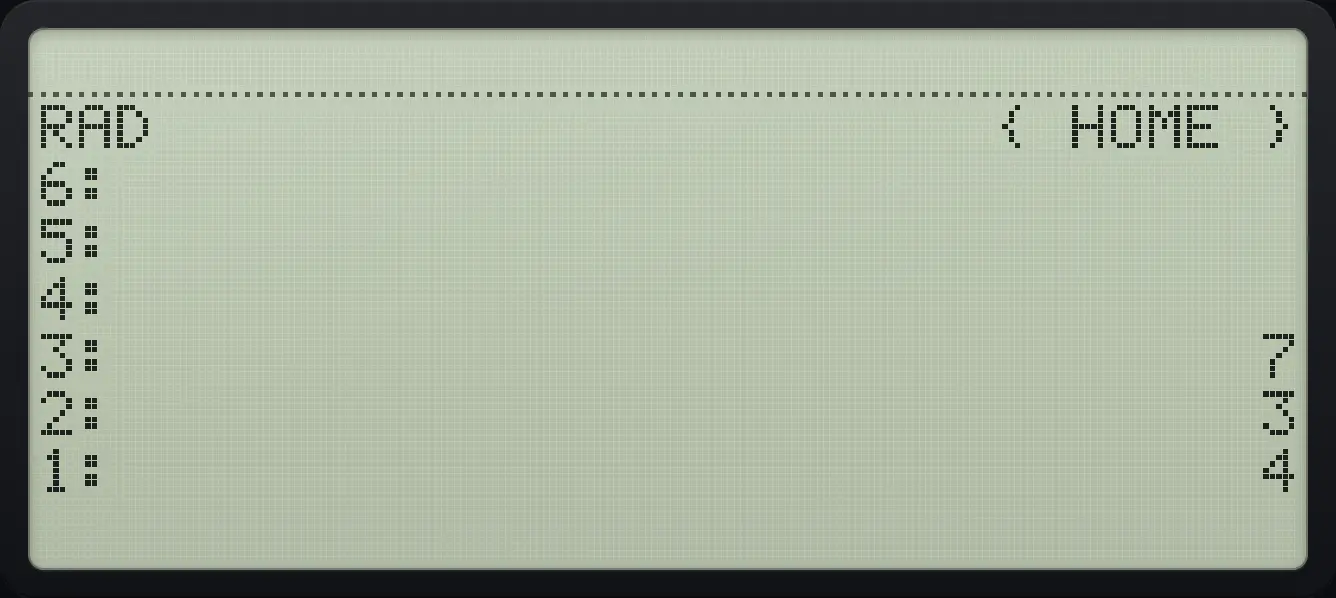
Result of the example "Get back the numbers you added" The display shows: RAD                      { HOME } / 6: / 5: / 4: / 3:                              7 / 2:                              3 / 1:                              4.
You should see3: 7 2: 3 1: 4
Example 3.18

Undo an operation

  1. Add 3 and 4, enter them first so both are on the stack, then undo.

    3ENTER4ENTER+◀UNDOHIST
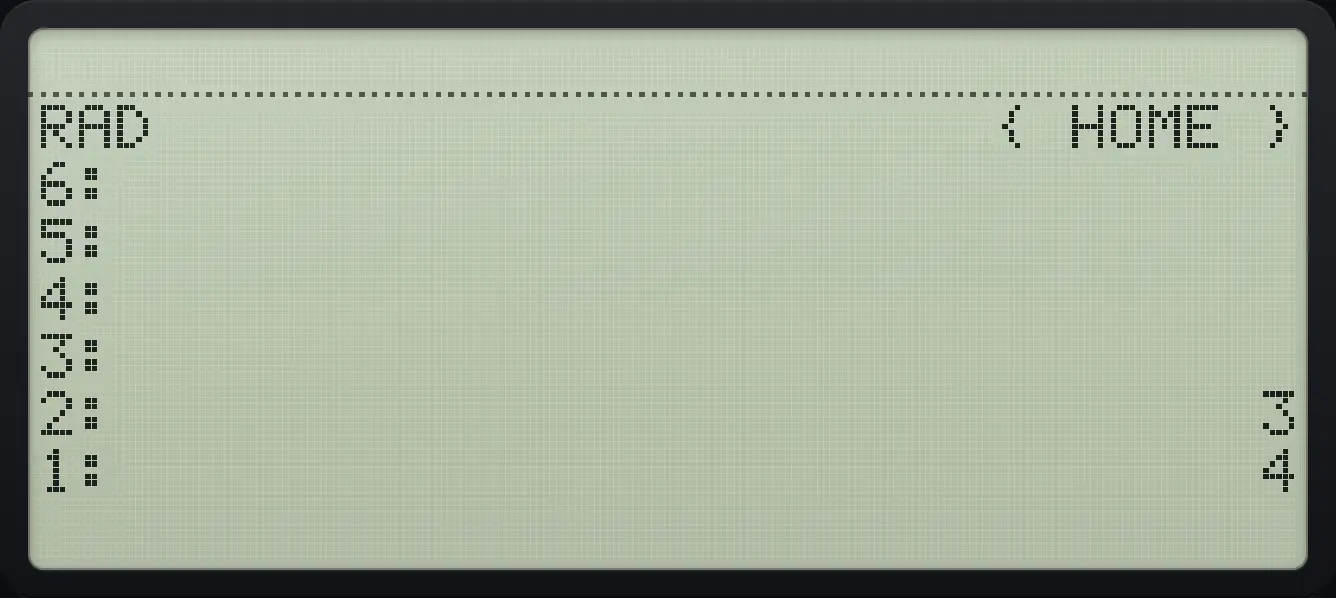
Result of the example "Undo an operation" The display shows: RAD                      { HOME } / 6: / 5: / 4: / 3: / 2:                              3 / 1:                              4.
You should see2: 3 1: 4
Example 3.19

Undo straight after typing

  1. Type 4 and press + without ENTER, then undo. The 4 you typed stays on the stack.

    3ENTER4+◀UNDOHIST
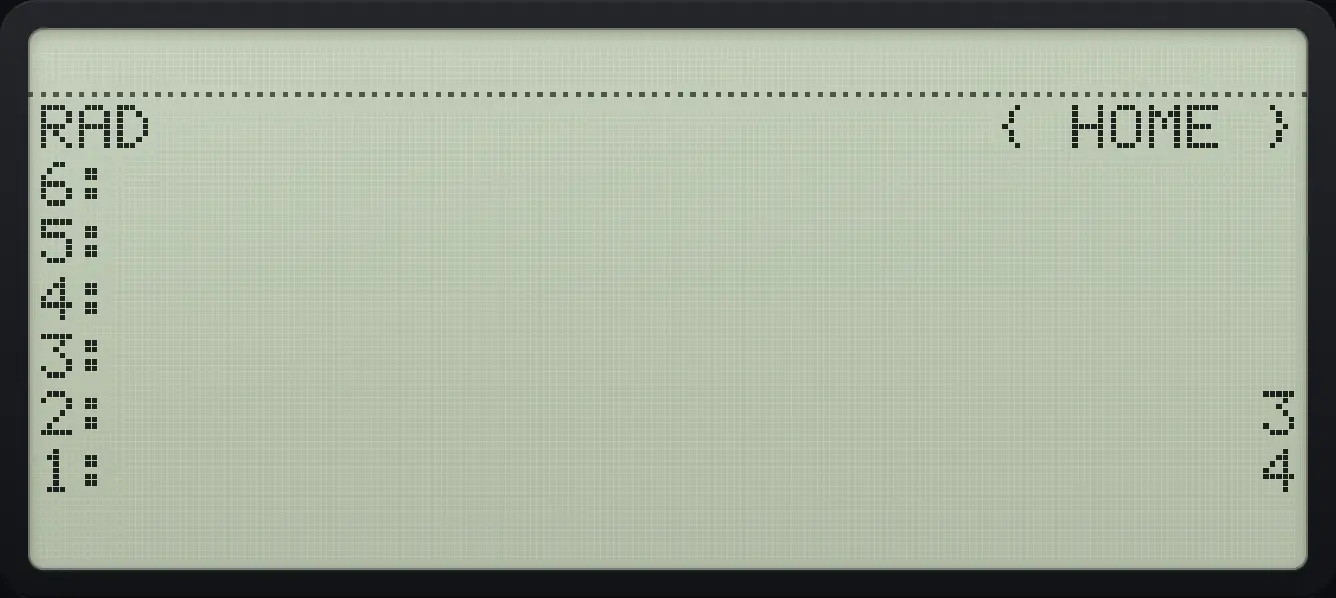
Result of the example "Undo straight after typing" The display shows: RAD                      { HOME } / 6: / 5: / 4: / 3: / 2:                              3 / 1:                              4.
You should see2: 3 1: 4

The plain HIST key brings back your last command lines (up to eight) into the command line so you can edit and run them again.

3.7Plan a longer calculation#

Work from the inside out, and use the unlimited stack to keep every intermediate result. Compare with brackets: to find 122+4\frac{12}{2+4} you add 2 and 4 first, then divide.

122+4=2\frac{12}{2+4}=2
Example 3.20

Calculate 12 divided by (2 + 4)

  1. Push 12 and then 2 and 4.

    12ENTER2ENTER4ENTER
  2. Add the top two, then divide.

    +÷
    After step 2: Add the top two, then divide. The display shows: RAD                      { HOME } / 6: / 5: / 4: / 3: / 2: / 1:                              2.
Result of the example "Calculate 12 divided by (2 + 4)" The display shows: RAD                      { HOME } / 6: / 5: / 4: / 3: / 2: / 1:                              2.
You should see1: 2
Evaluating 12 / (2 + 4). First value is level 1.
Example 3.21

Calculate (2 × 3) + (4 × 5)

2×3+4×5=262\times3+4\times5=26
  1. Multiply each pair, then add.

    2ENTER3×4ENTER5×+
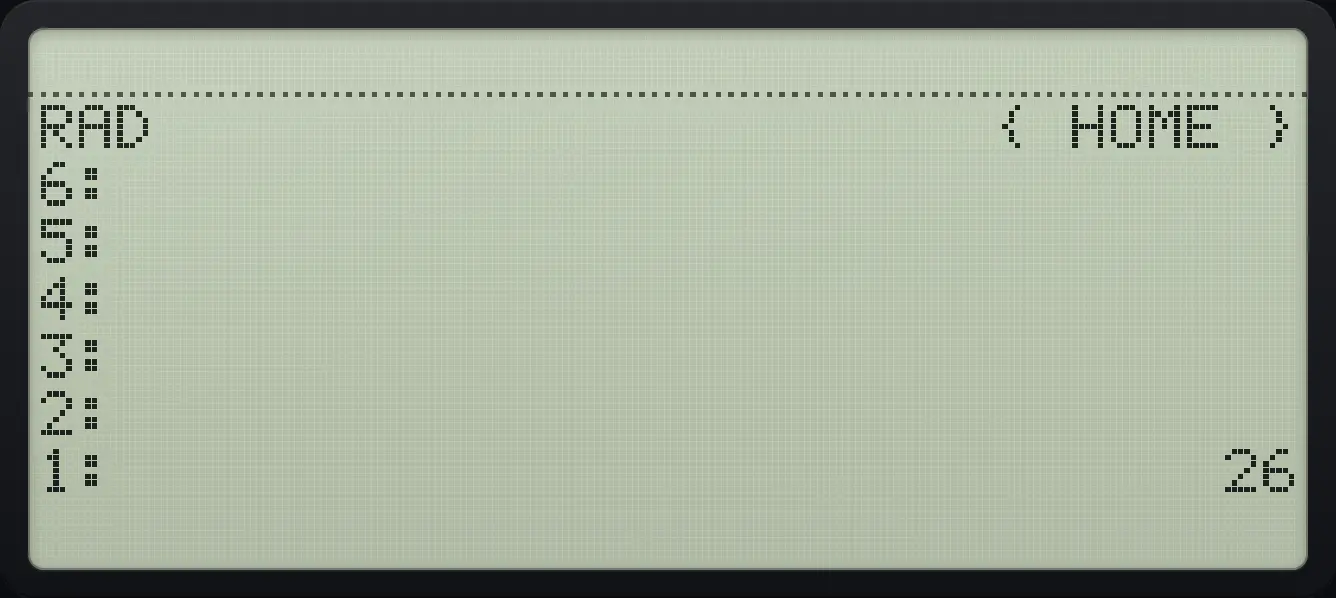
Result of the example "Calculate (2 × 3) + (4 × 5)" The display shows: RAD                      { HOME } / 6: / 5: / 4: / 3: / 2: / 1:                             26.
You should see1: 26

3.8Edit the object on level 1#

Press ▼ when there is no command line, or right shift ENTER (EDIT), to copy level 1 into the command line. Change it with the cursor keys and press ENTER: the edited object replaces the old one.

Example 3.22

Edit a number

  1. Push 5, open it for editing, add a digit and press ENTER.

    5ENTER▶EDITENTER6ENTER
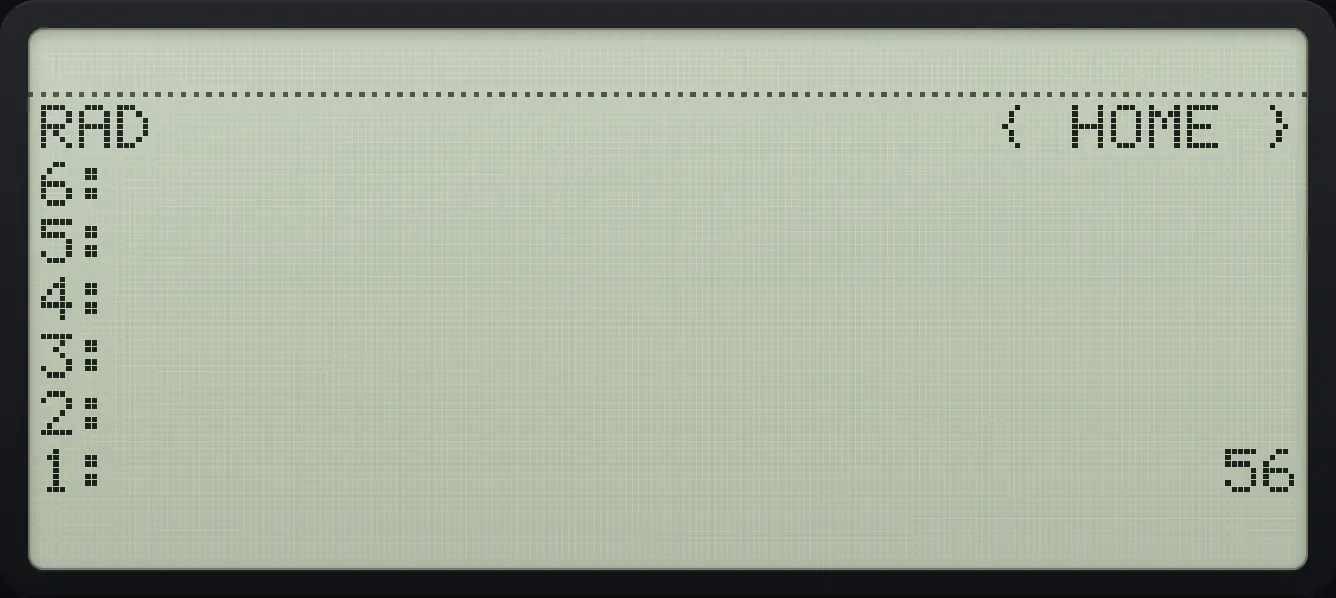
Result of the example "Edit a number" The display shows: RAD                      { HOME } / 6: / 5: / 4: / 3: / 2: / 1:                             56.
You should see1: 56

HP 48 and HP 50g is a trademark of HP Inc.. Trident Calculator is an independent product by South View Studios and is not affiliated with, sponsored by or endorsed by HP. The name is used only to describe the kind of calculator this model resembles; Trident's names, keys, display, fonts and software are its own clean-room design.