
Classic Graphing 84 manual · Chapter 3 of 25
Calculations on the home screen
Arithmetic, order of operations, negative numbers, scientific notation, the last answer and repeating entries.
3.1Order of operations#
The calculator works out brackets first, then powers and roots, then multiplication and division, then addition and subtraction. Use brackets whenever you want a different order.
Powers are worked left to right
Type 2 ^ 3 ^ 2. The calculator reads it as (2^3)^2, so the answer is 64, not 512. Use brackets around 3^2 if you want the other order.
2^3^2enter
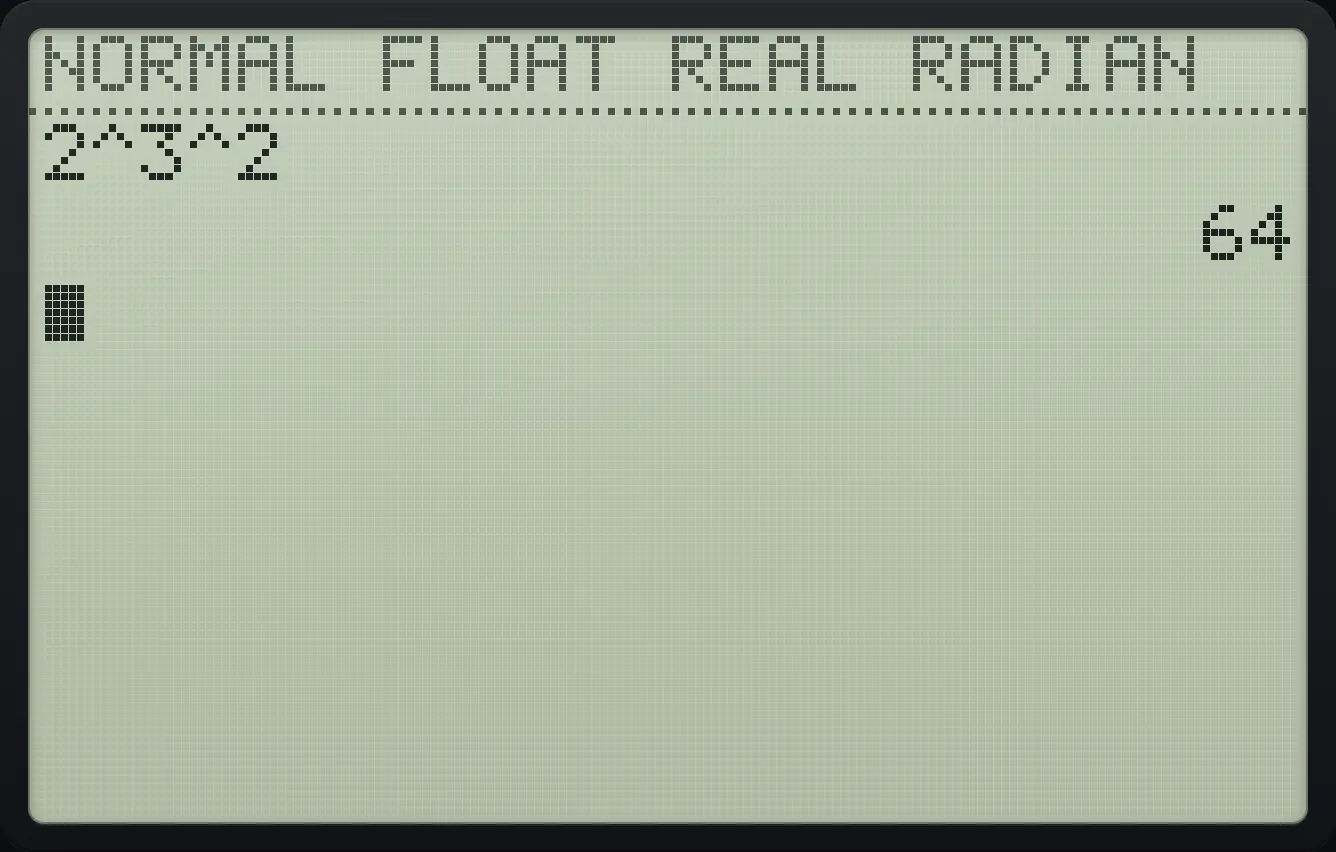
2^3^2 64Divide a sum
Put brackets around a sum you want to divide: (1 + 5) ÷ 3.
(1+5)÷3enter
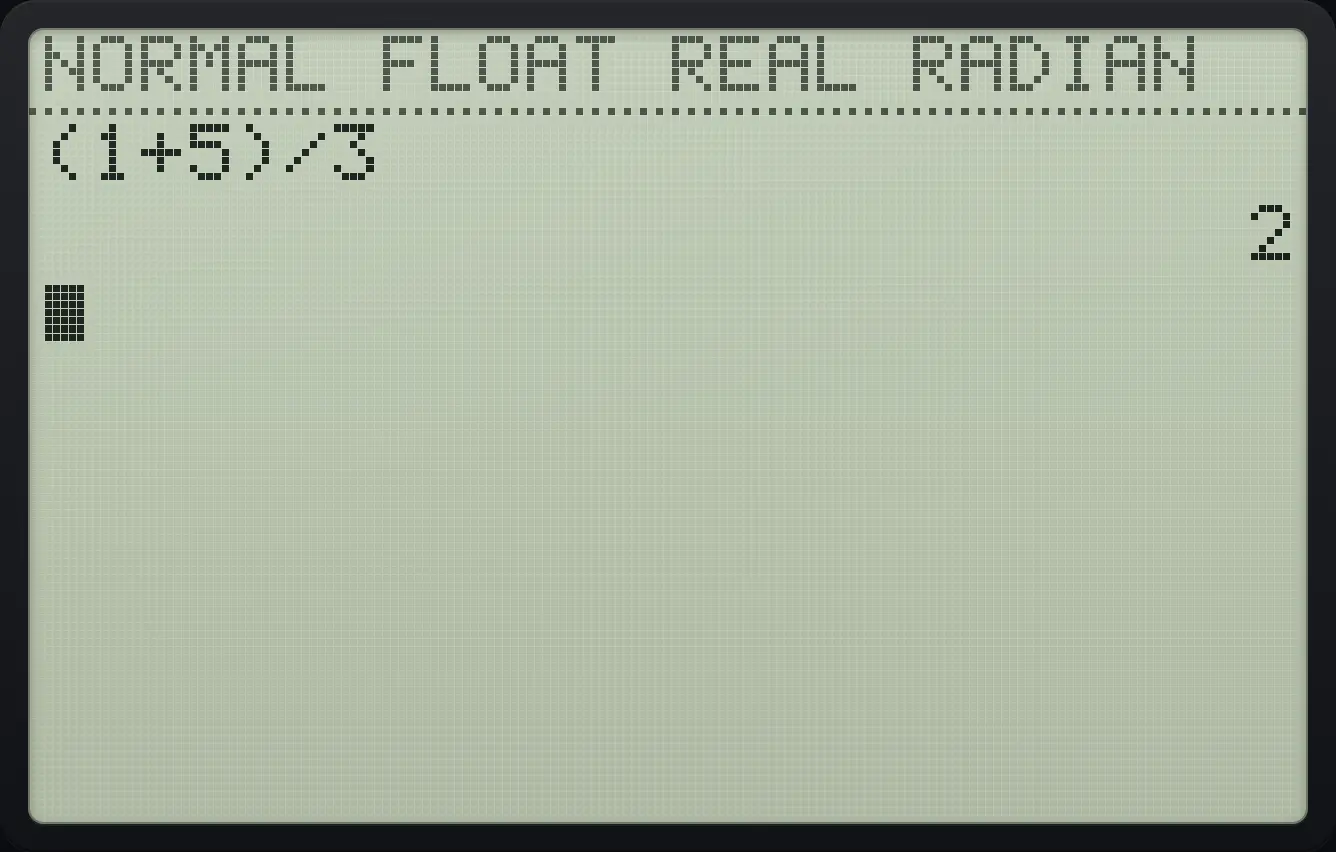
(1+5)/3 2A number next to a bracket, a variable or a constant is multiplied, so 3(4) is 12 and 2π is 6.28…. You do not need to type the times sign.
Multiply without the times key
Type 3(4) and press enter.
3(4)enterThen type 2π and press enter.
22ndπ^enter
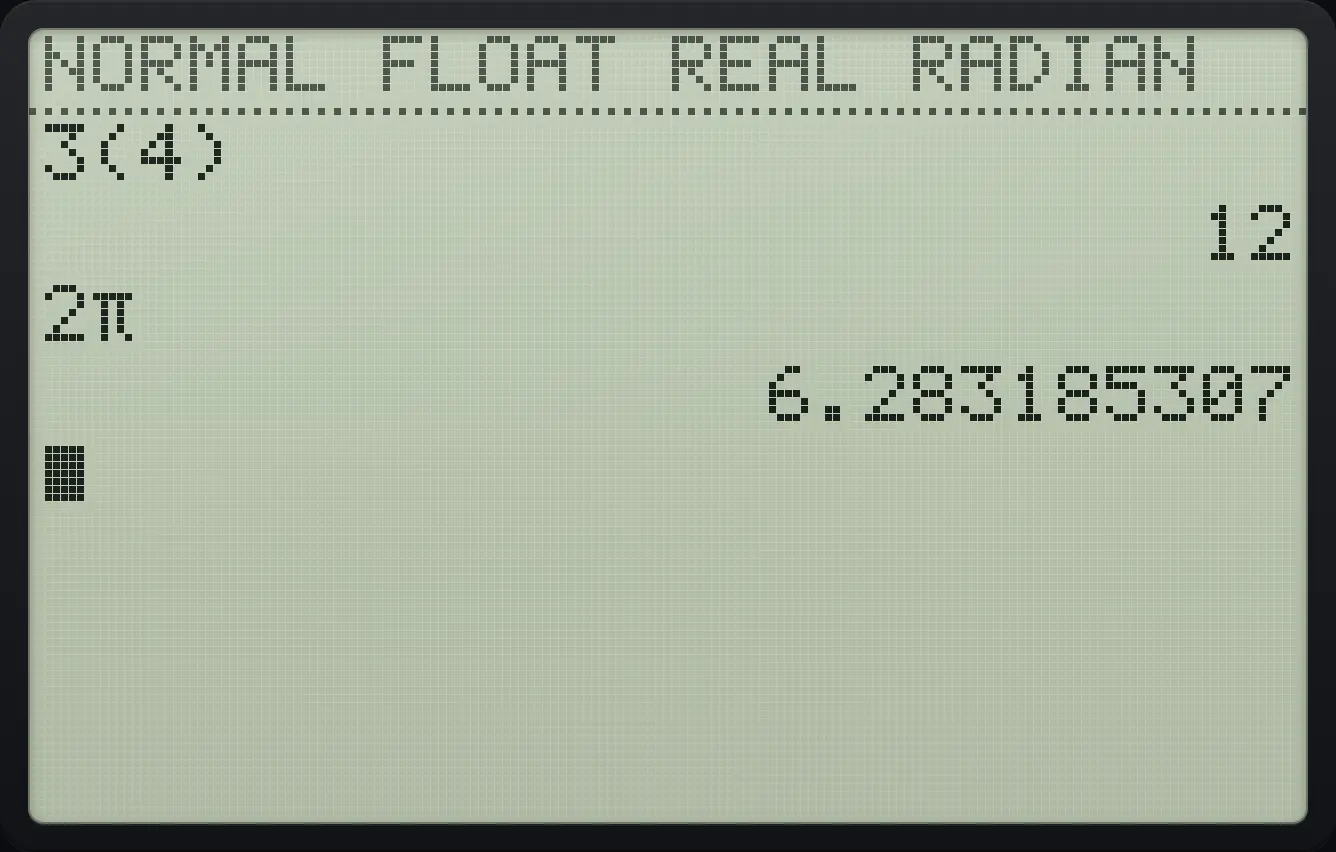
3(4) 12 6.2831853073.2Negative numbers and subtraction#
There are two different keys. − is the subtraction sign between two numbers. (−) is the negative sign in front of one number, and it shows on screen as a small raised minus, like ⁻3. Using the wrong one gives a syntax error.
Subtract to get a negative
Type 2 − 5.
2−5enter
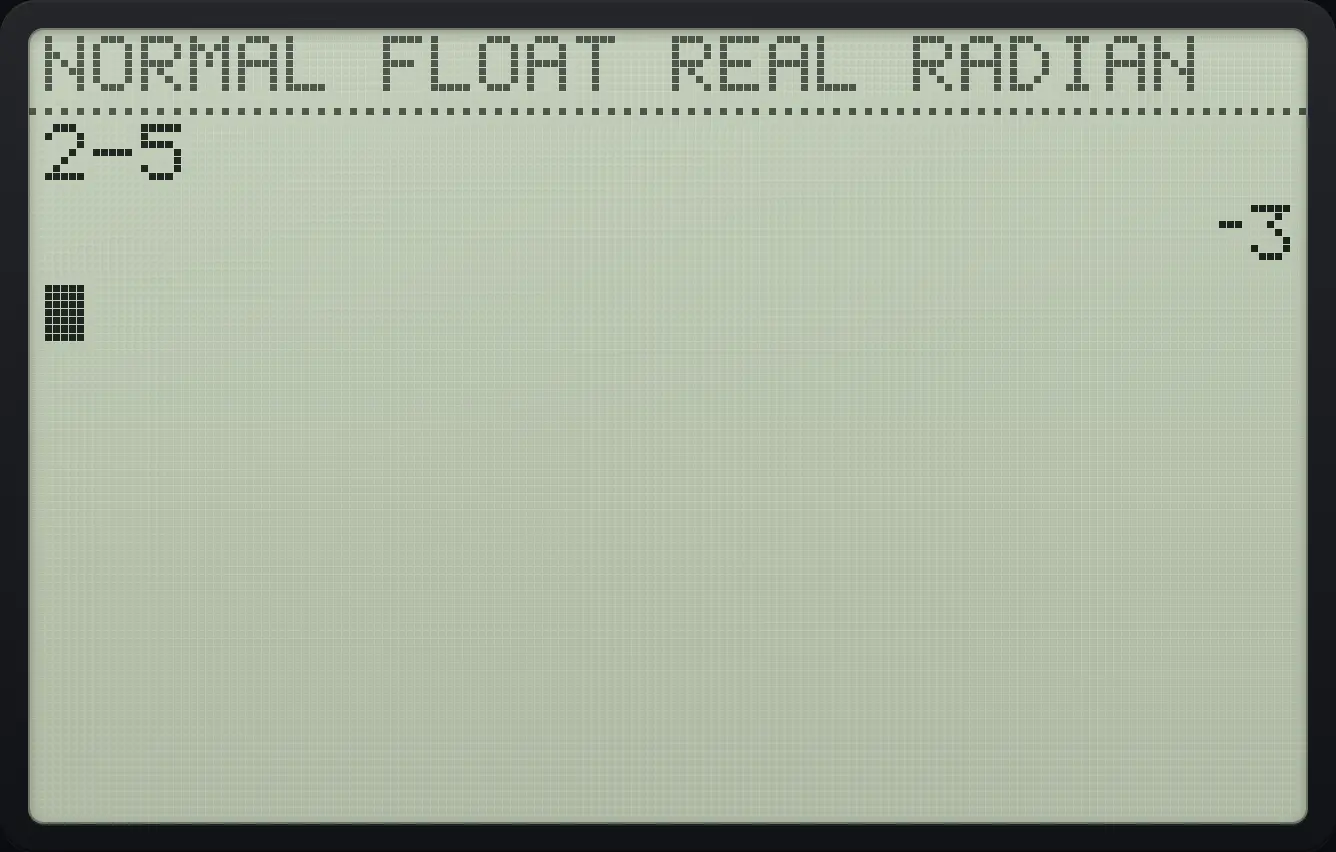
⁻3The sign belongs to the number, but the square comes first
Type (−)2 then the square key. The answer is −4 because the square is worked out before the sign.
(−)2x²enter
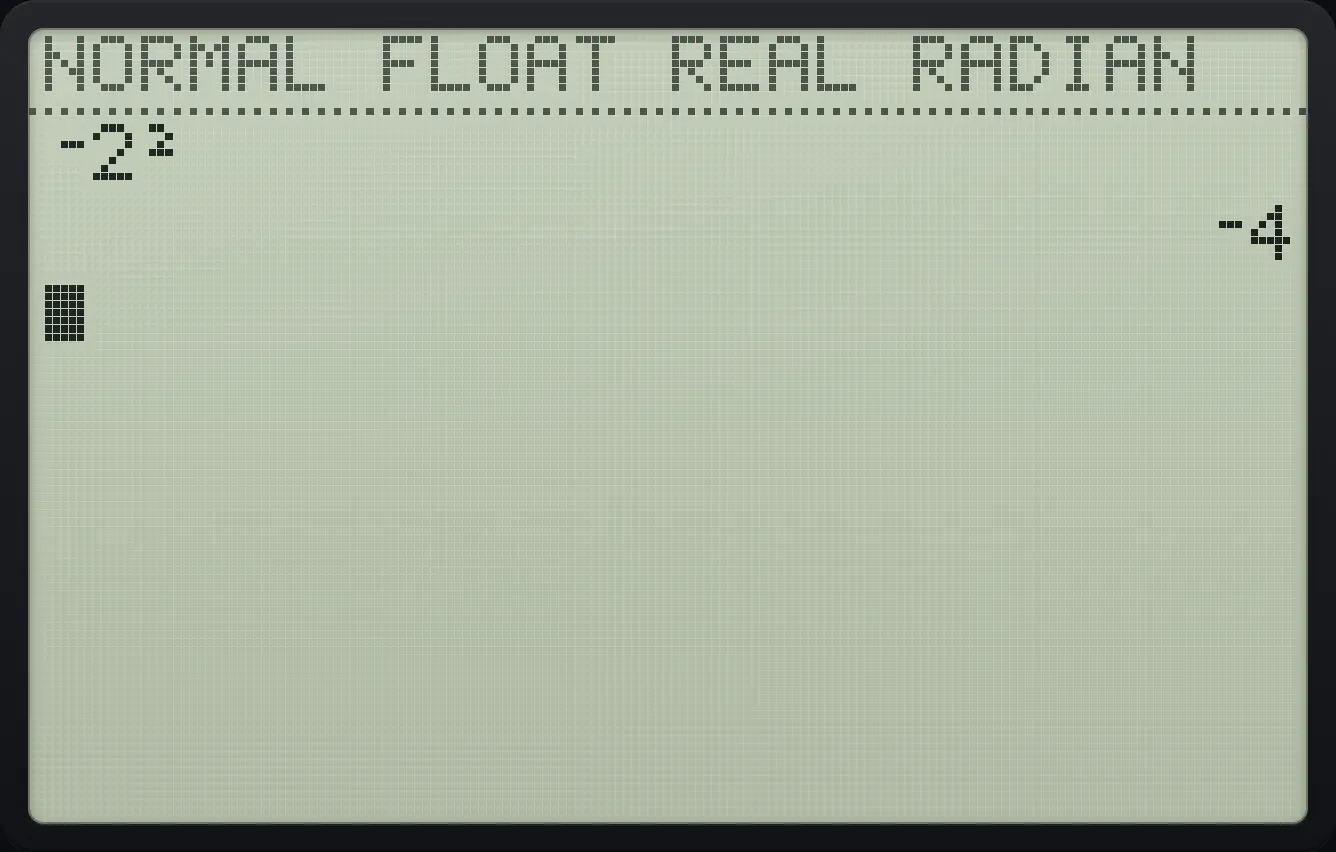
⁻2² ⁻4Square a negative number
Put the negative number in brackets: (−2) squared.
((−)2)x²enter
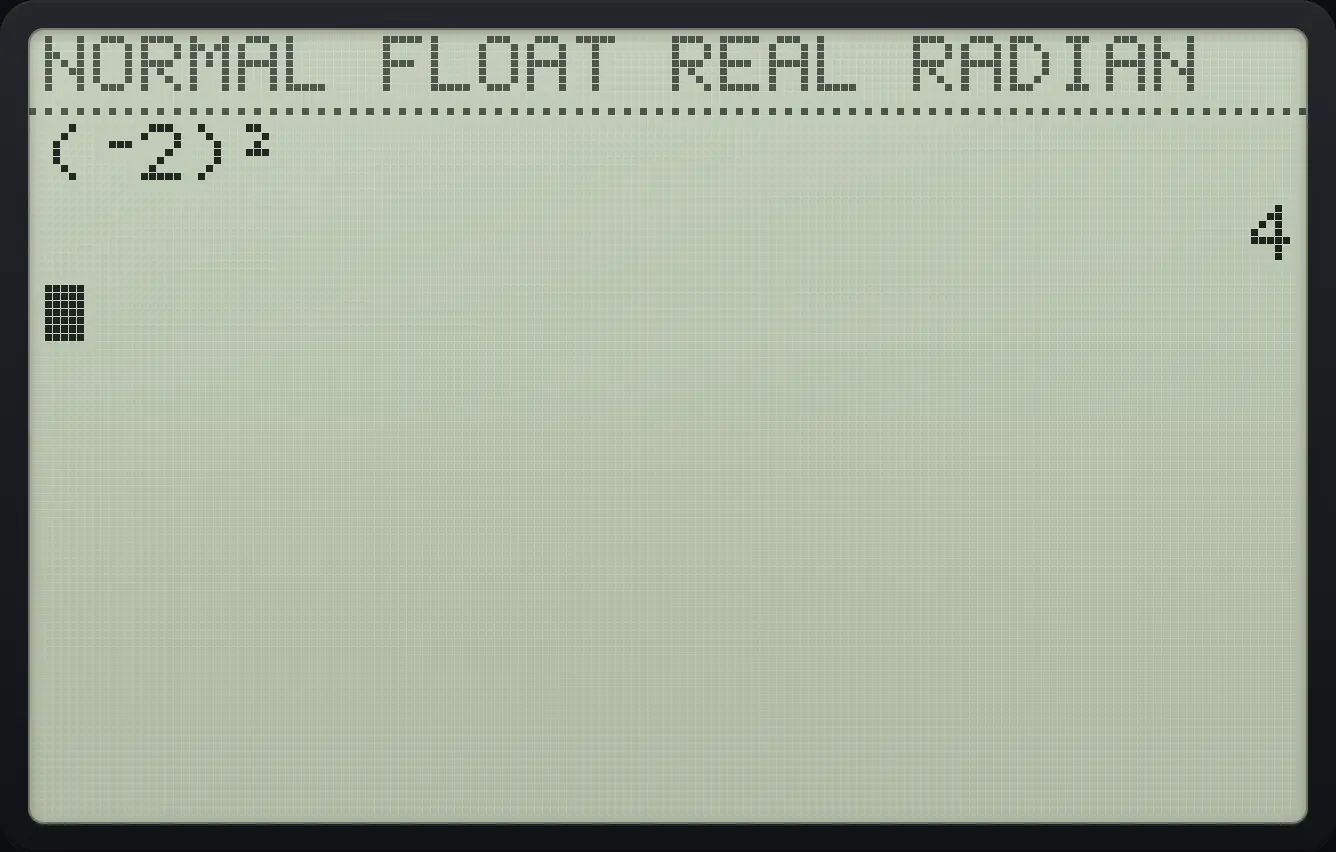
(⁻2)² 43.3Scientific notation and big numbers#
Answers show up to 10 digits. Numbers of 10 digits or more, and numbers smaller than 0.001, switch to scientific notation: 1.23E11 means 1.23 × 10¹¹. To type a number like that yourself, press 2ndEE, (the ᴇ sign) after the first part.
Type a power of ten
Type 1, then 2nd comma, then 12.
12ndEE,12enter
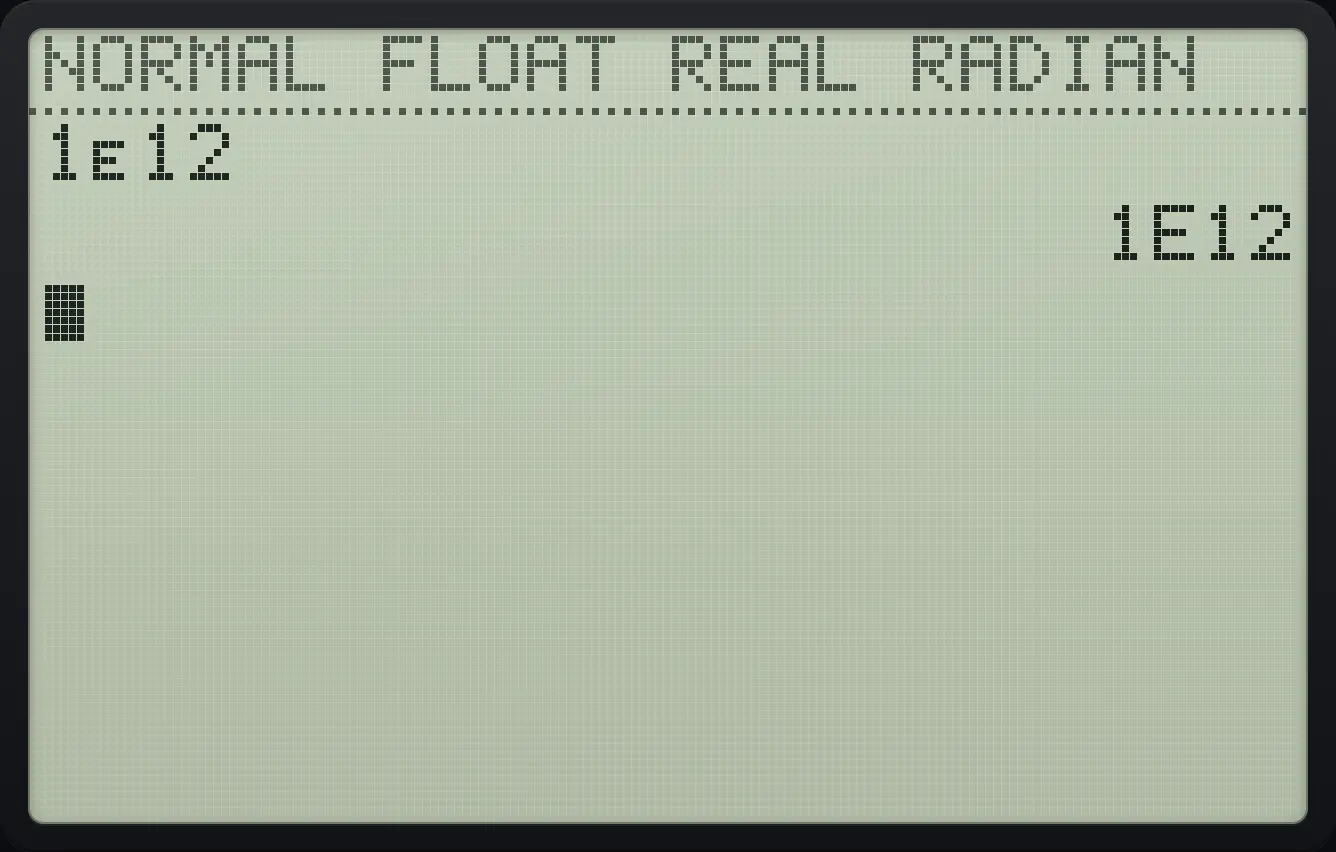
1E12A big product
Multiply 123456789 by 1000.
123456789×1000enter
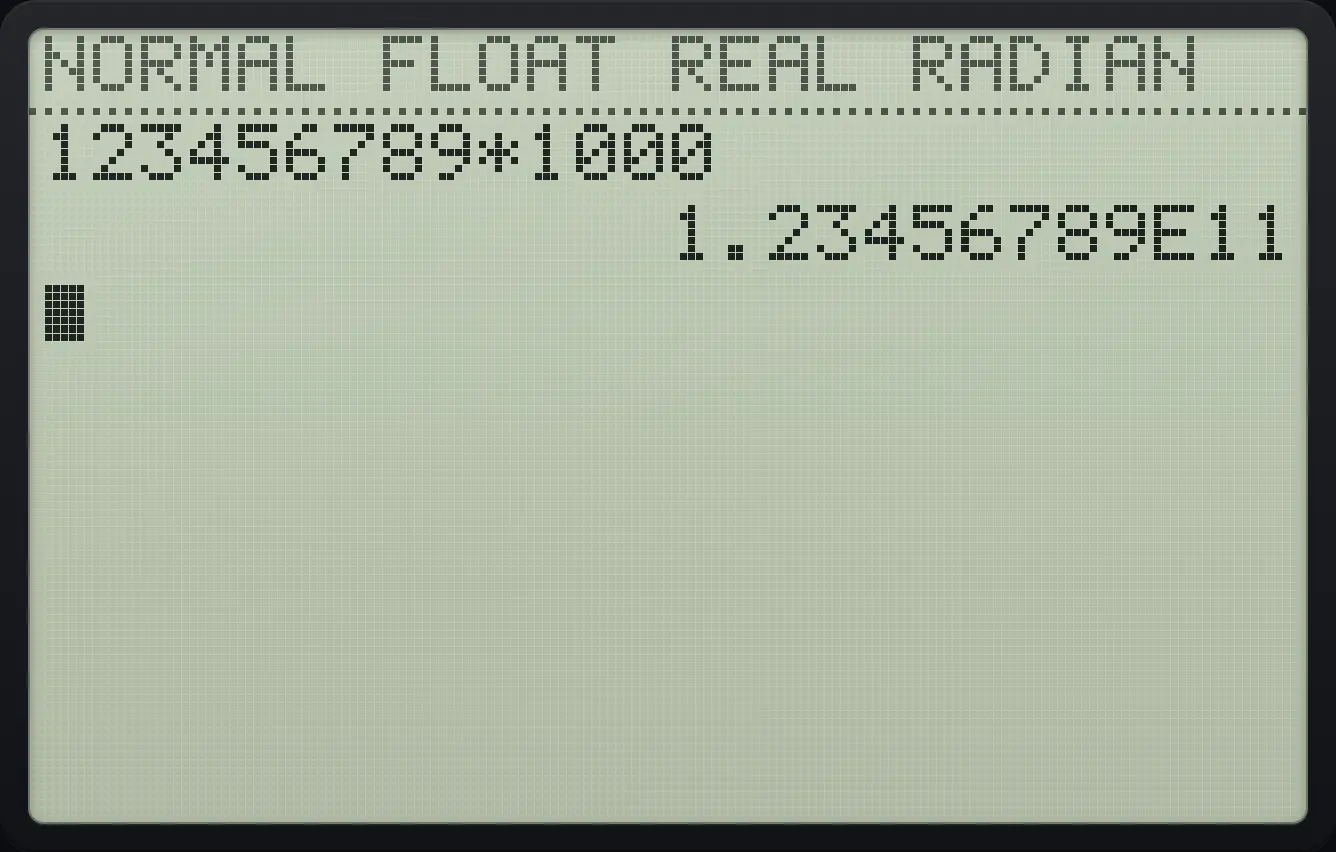
1.23456789E11A tiny number
Type .0001.
.0001enter
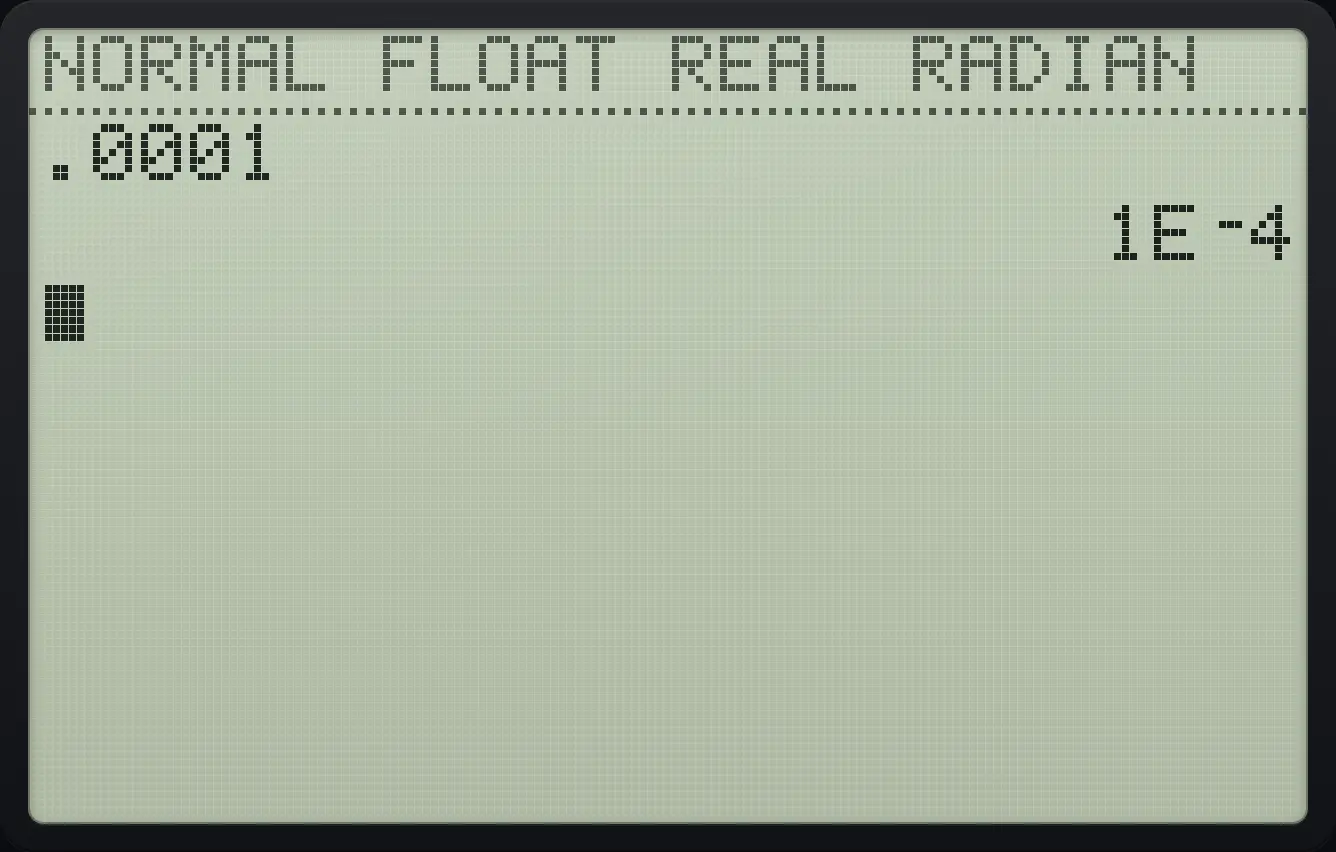
1E⁻4Numbers too large for the calculator (around 10 to the power 100) give an OVERFLOW error. To show every answer in scientific or engineering notation, change the display mode (see the modes chapter).
3.4Decimals and exact arithmetic#
The calculator works in decimal with extra hidden digits and shows 10 significant digits. That means 0.1 + 0.2 is exactly 0.3, and 1/3 × 3 is exactly 1.
No binary rounding errors
Type .1 + .2.
.1+.2enter
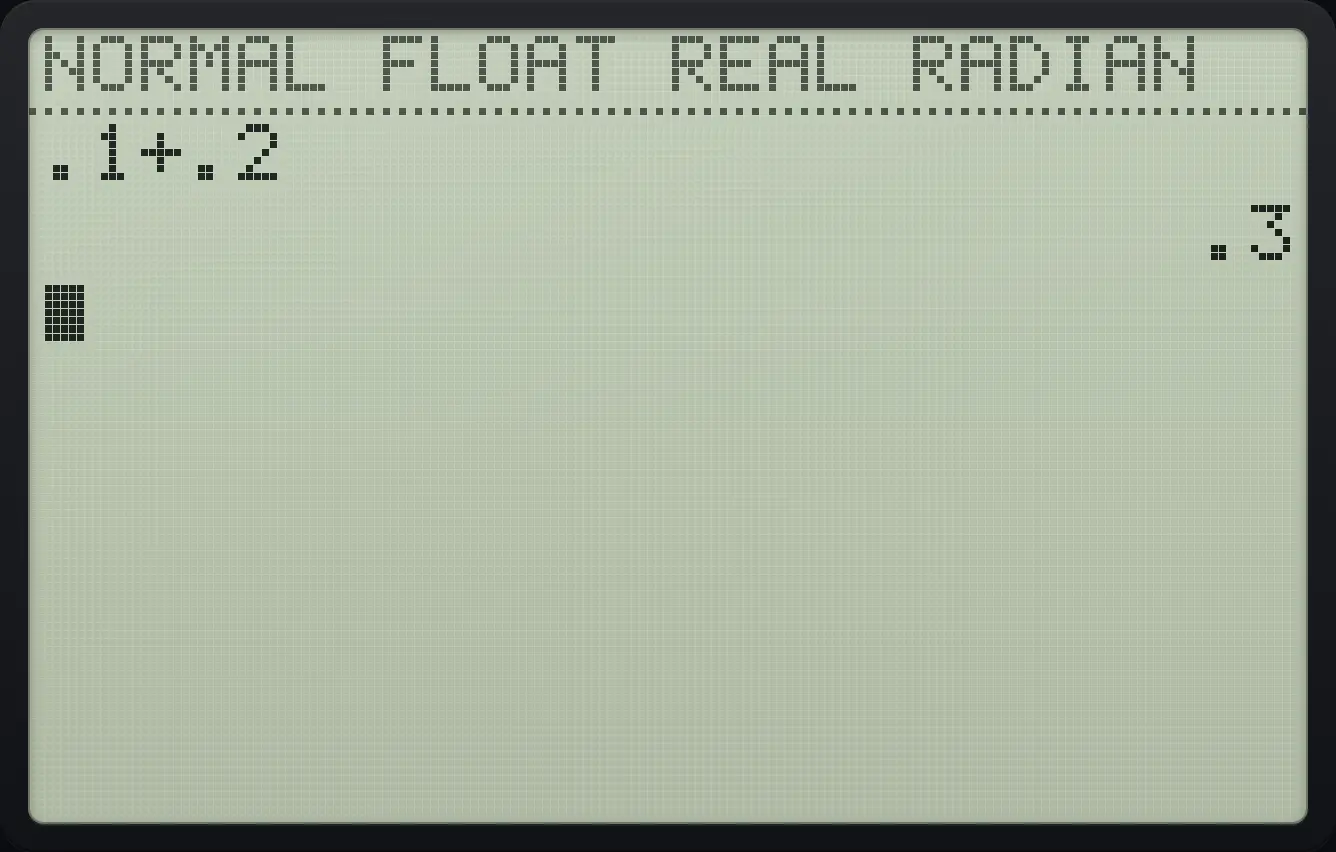
.1+.2 .3A repeating decimal
Type 1 ÷ 3. Ten digits are shown.
1÷3enter
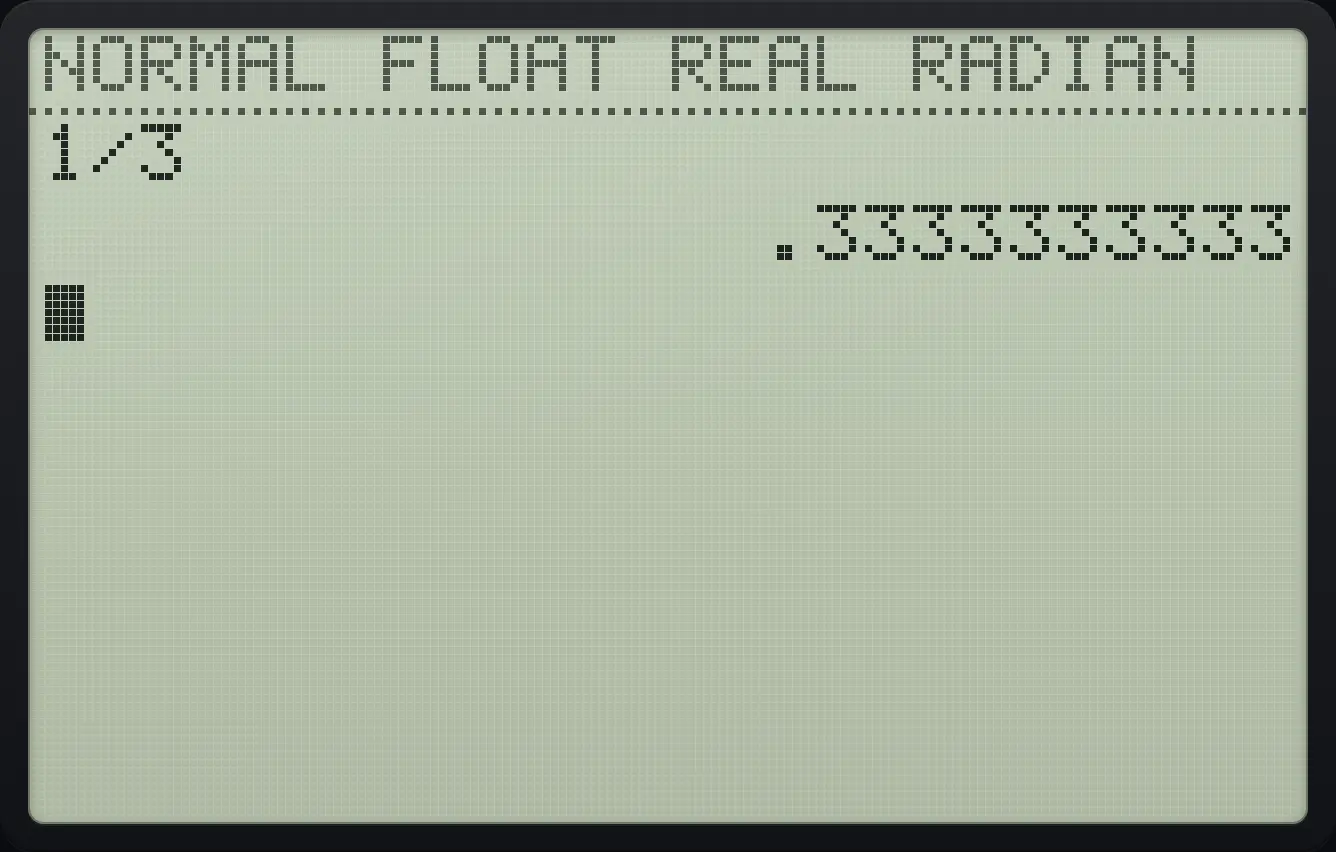
.3333333333Square root
Press 2nd then the x² key to get the square root sign, type 2 and close the bracket.
2nd√x²2)enter
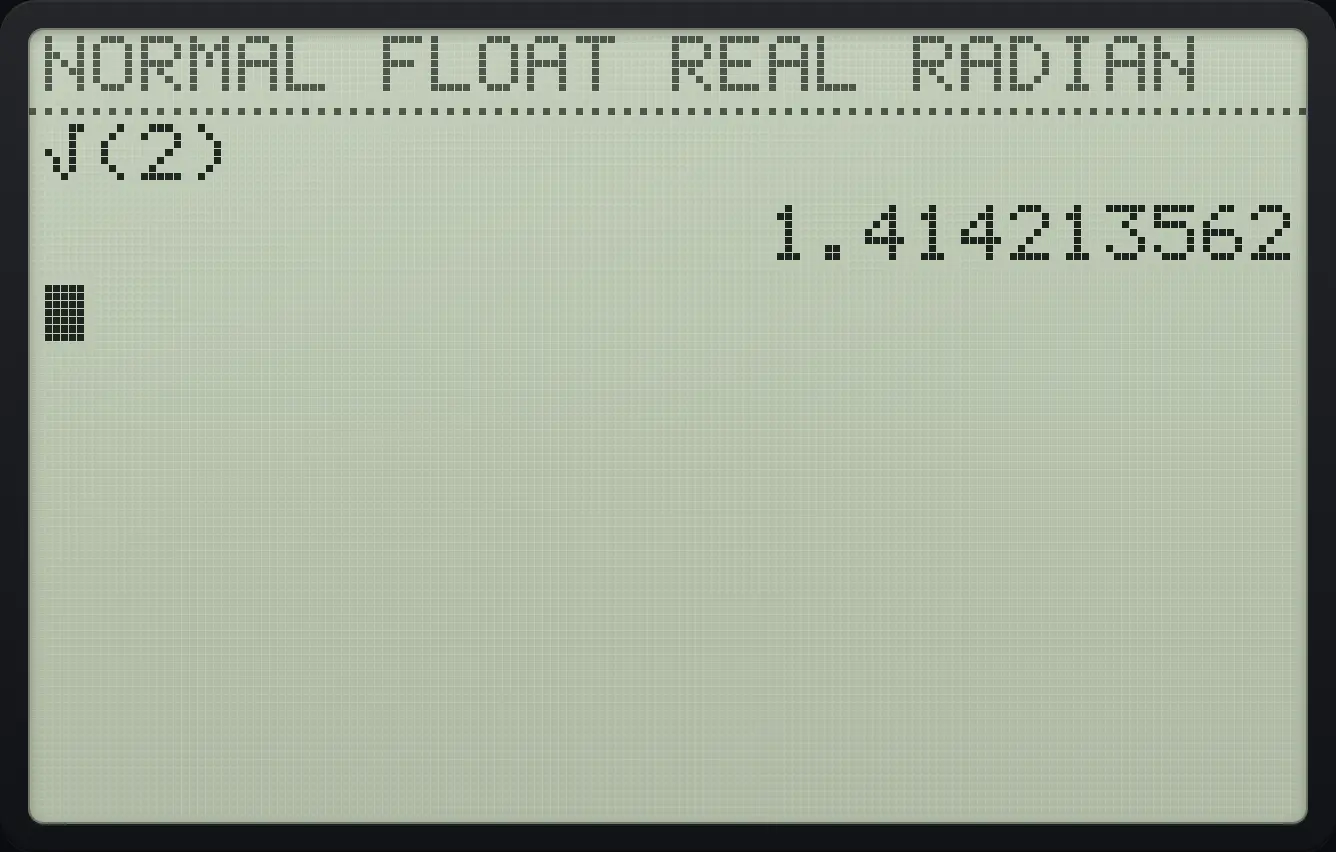
1.4142135623.5Use the last answer (Ans)#
Every answer is remembered as Ans. Press 2ndANS(−) to type Ans in a new calculation. If you start a new line with an operator such as +, ×, ^ or x², the calculator types Ans for you.
Keep working with the last answer
Calculate 4².
4x²enterType + 1 and press enter. Ans is added for you.
+1enterType + 1 again.
+1enter
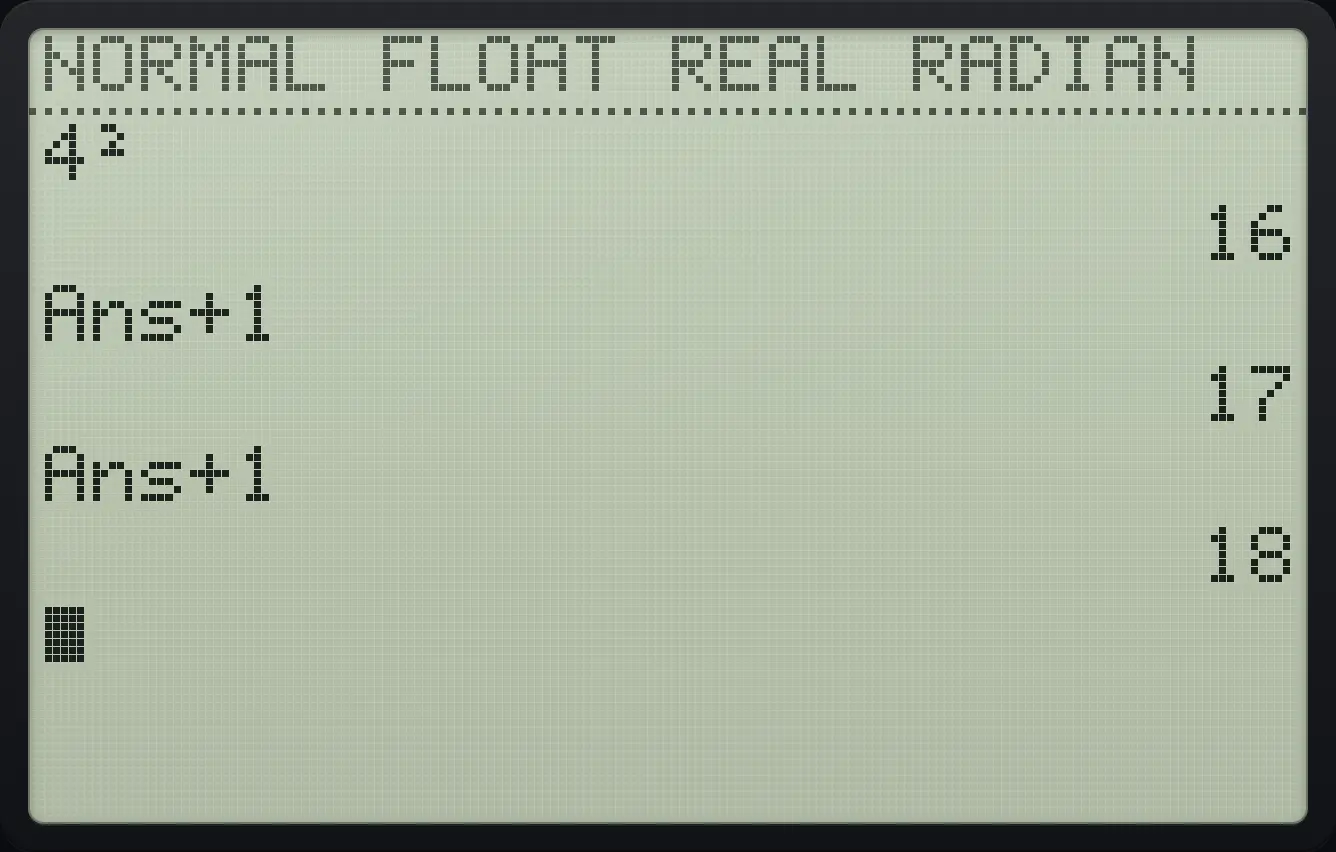
Ans+1 17 18Type Ans yourself
Calculate 7.
7enterPress 2nd then the (−) key for Ans, then the x² key.
2ndANS(−)x²enter
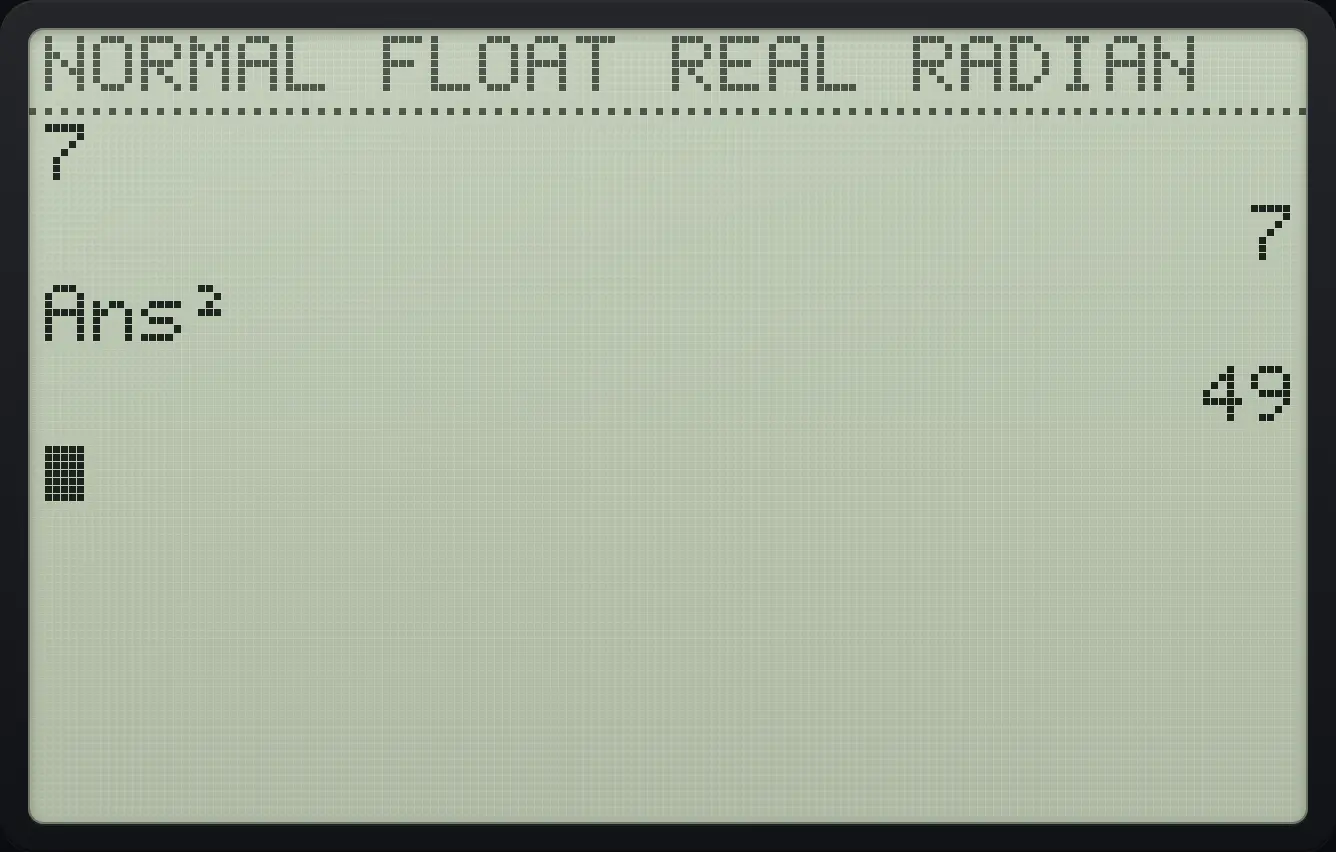
Ans² 493.6Repeat or recall an entry#
Pressing enter on an empty line runs the last entry again. This is handy for repeated steps such as "multiply the last answer by 3". Press 2ndENTRYenter (ENTRY) to bring back earlier entries to edit: once for the last entry, twice for the one before.
Run the same step again
Calculate 2, then Ans × 3.
2enter2ndANS(−)×3enterPress enter on the empty line.
enter
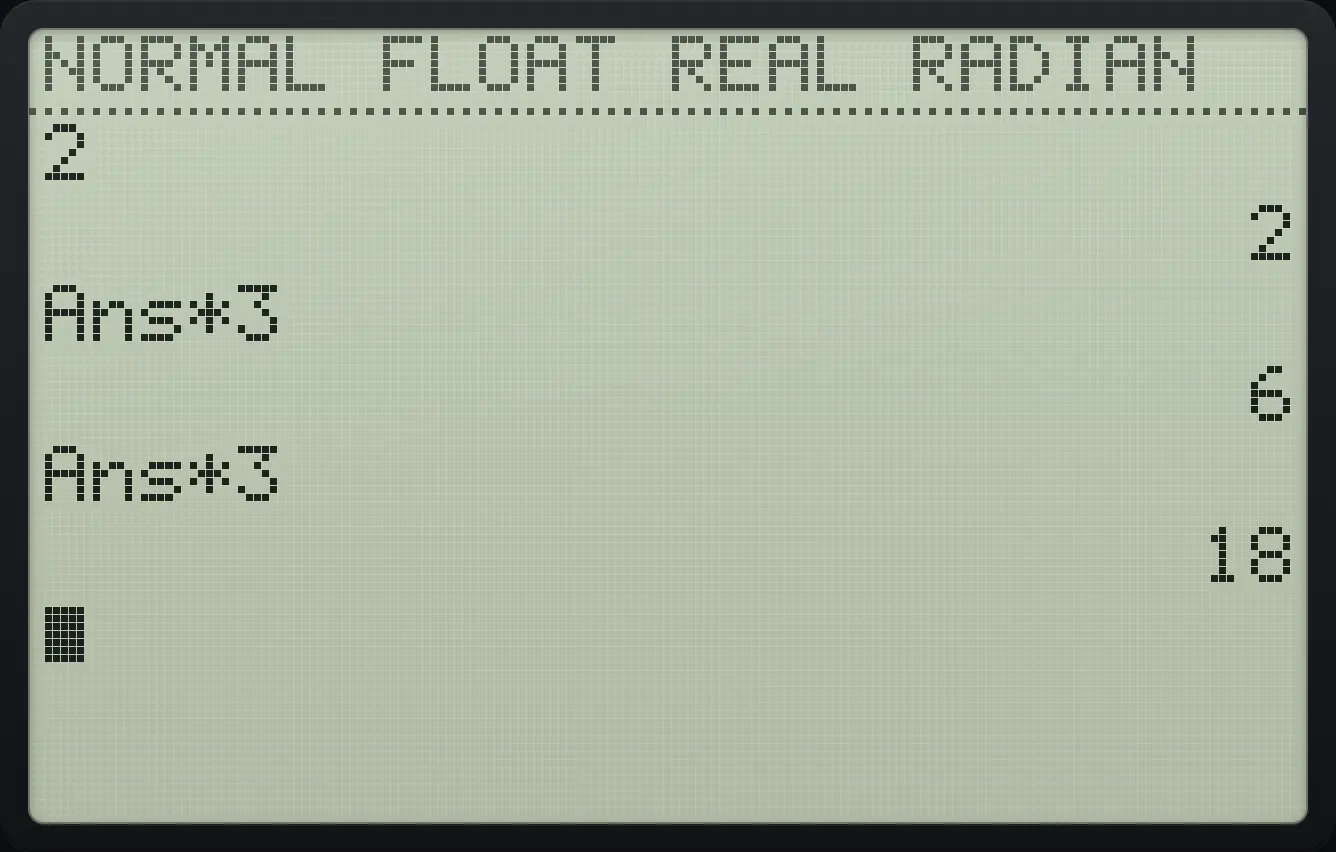
Ans*3 6 18Recall two entries back
Calculate 1 + 1, then 2 + 2.
1+1enter2+2enterPress 2nd enter twice. The older entry returns.
2ndENTRYenter2ndENTRYenter
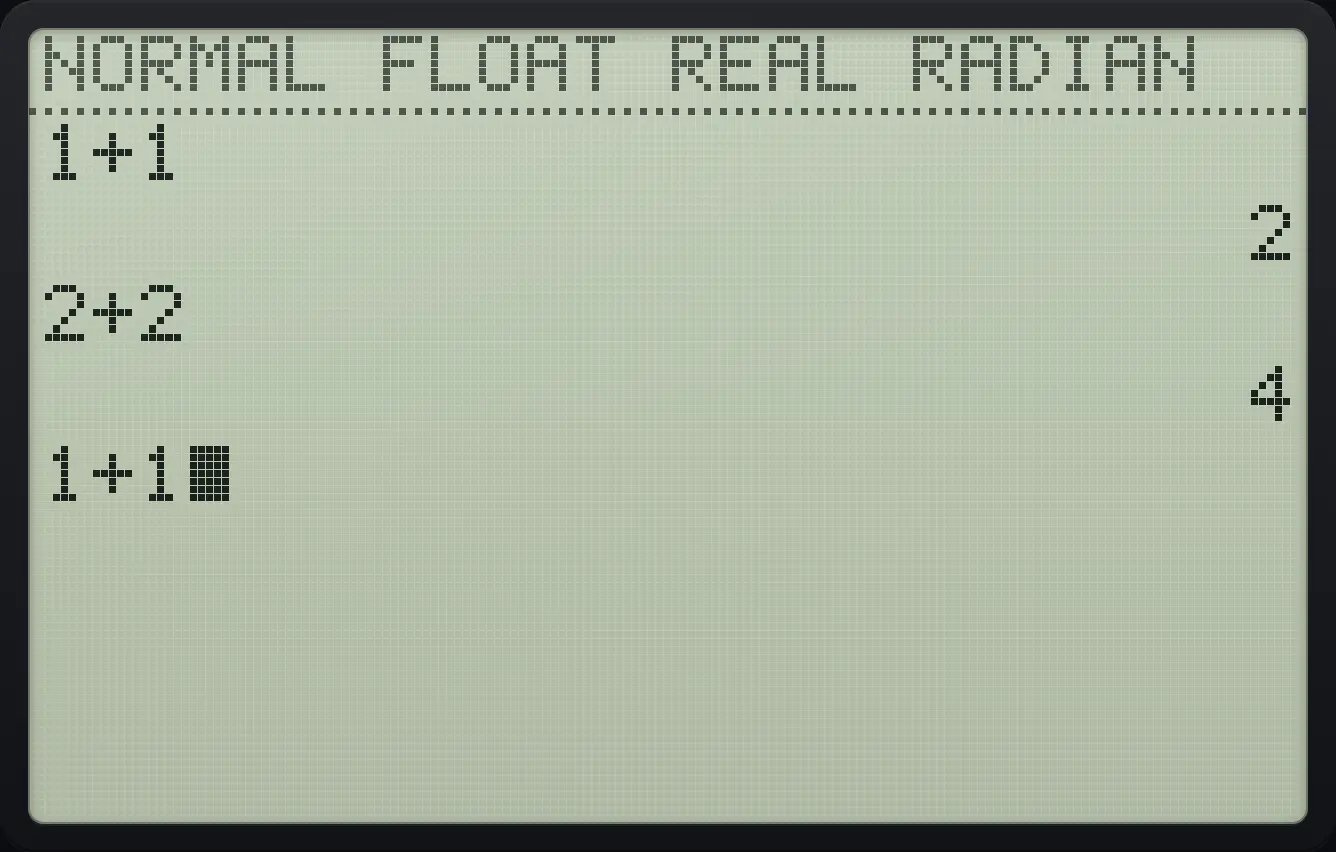
1+1TI-84 Plus CE is a trademark of Texas Instruments Incorporated. Trident Calculator is an independent product by South View Studios and is not affiliated with, sponsored by or endorsed by Texas Instruments. The name is used only to describe the kind of calculator this model resembles; Trident's names, keys, display, fonts and software are its own clean-room design.