
Classic Graphing 84 manual · Chapter 4 of 25
Functions: roots, logs, trig, probability
Powers and roots, logarithms, trigonometry, rounding and number tools, probability, comparisons and logic.
4.1Powers, squares and roots#
| To get | Press | Example |
|---|---|---|
| A square | x² after the number | 5² = 25 |
| Any power | ^ then the exponent | 2^10 = 1024 |
| A reciprocal | x⁻¹ after the number | 2⁻¹ = .5 |
| A square root | 2nd√x² then the number and ) | √(16) = 4 |
| A cube | math then 3 | 2 cubed = 8 |
| A cube root | math then 4 | ³√(27) = 3 |
| An x-th root | the index, math, 5, then the number | 4 ˣ√ 81 = 3 |
Raise to a power
Type 2 ^ 10.
2^10enter
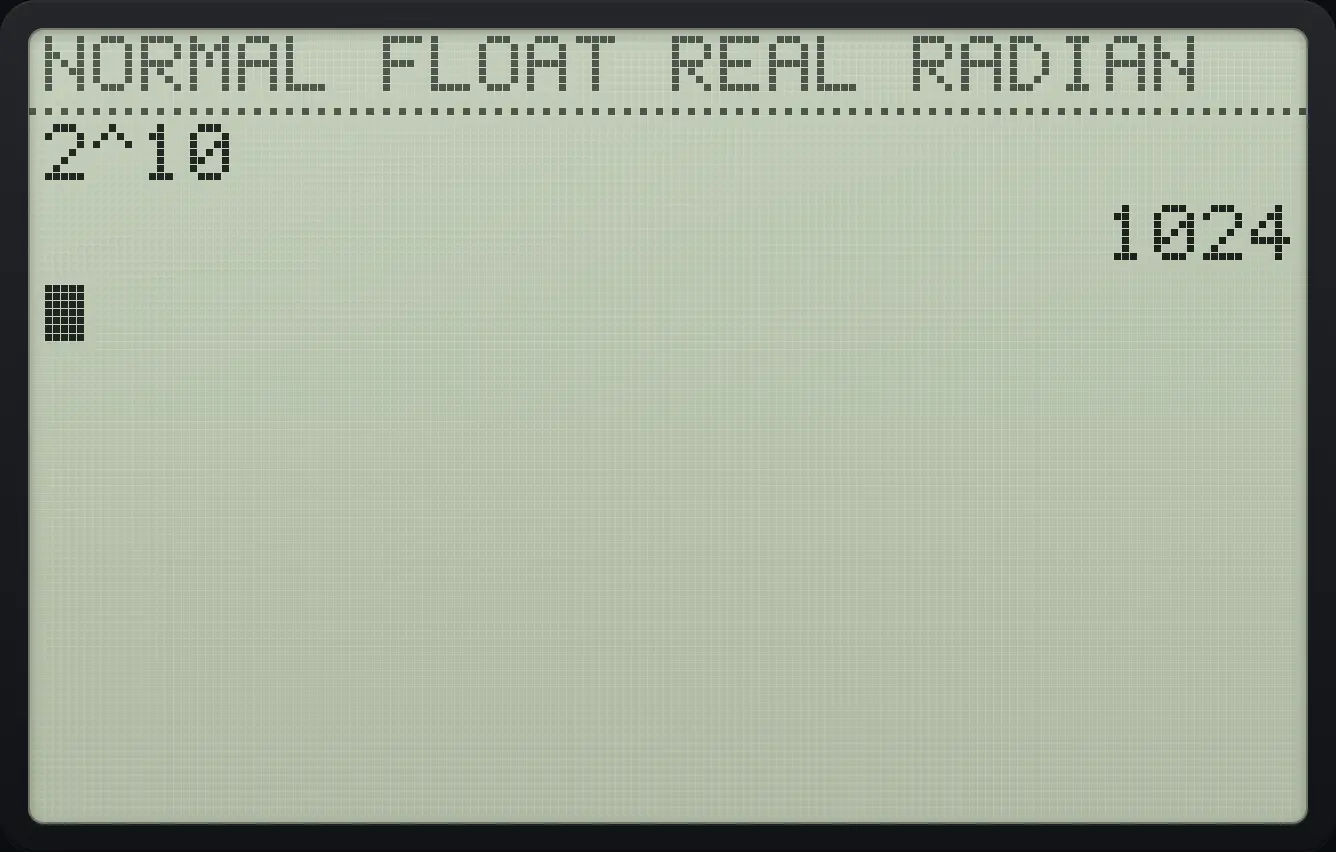
1024Take a reciprocal
Type 2 then the x⁻¹ key.
2x⁻¹enter
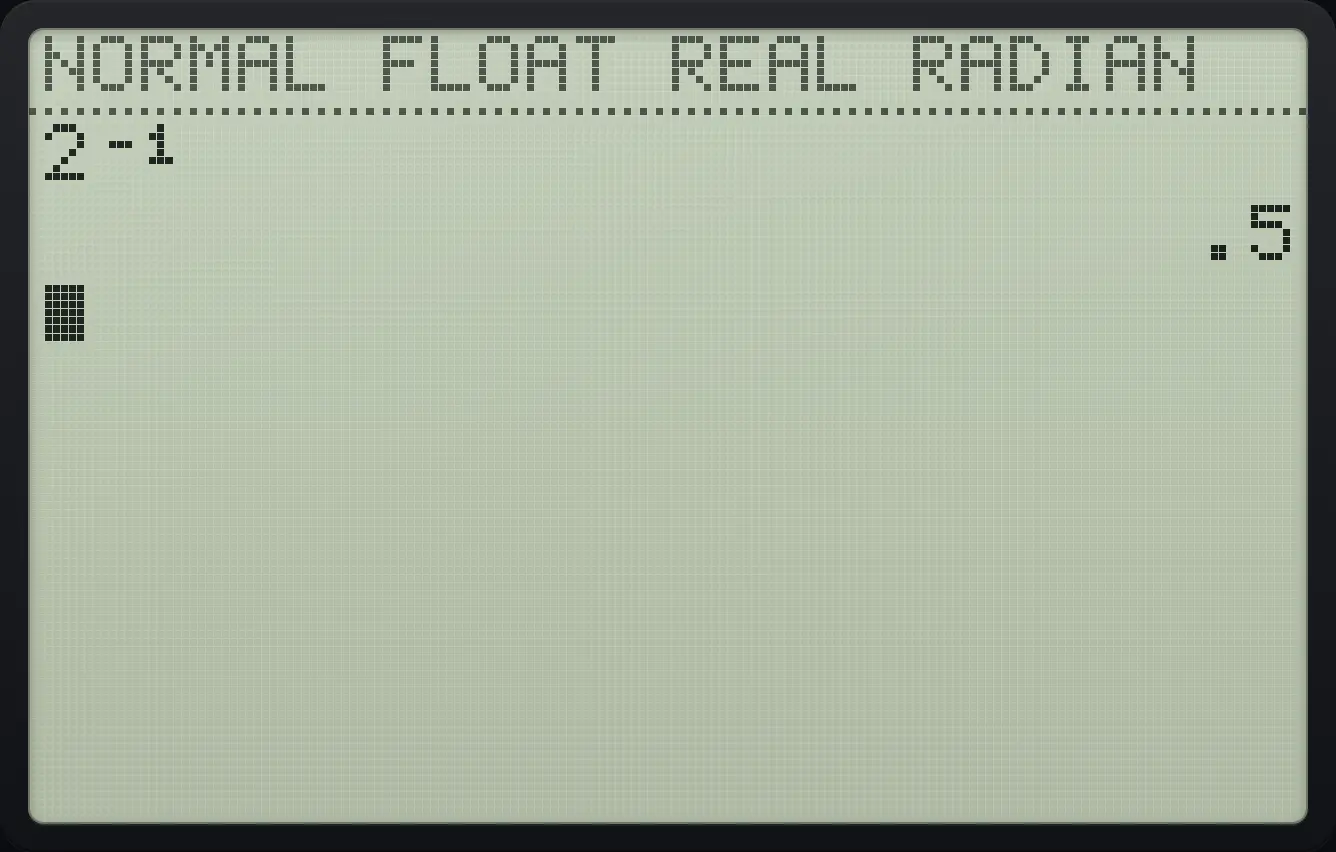
2⁻¹ .5Cube root
Press math, 4, type 27 and close the bracket.
math427)enter
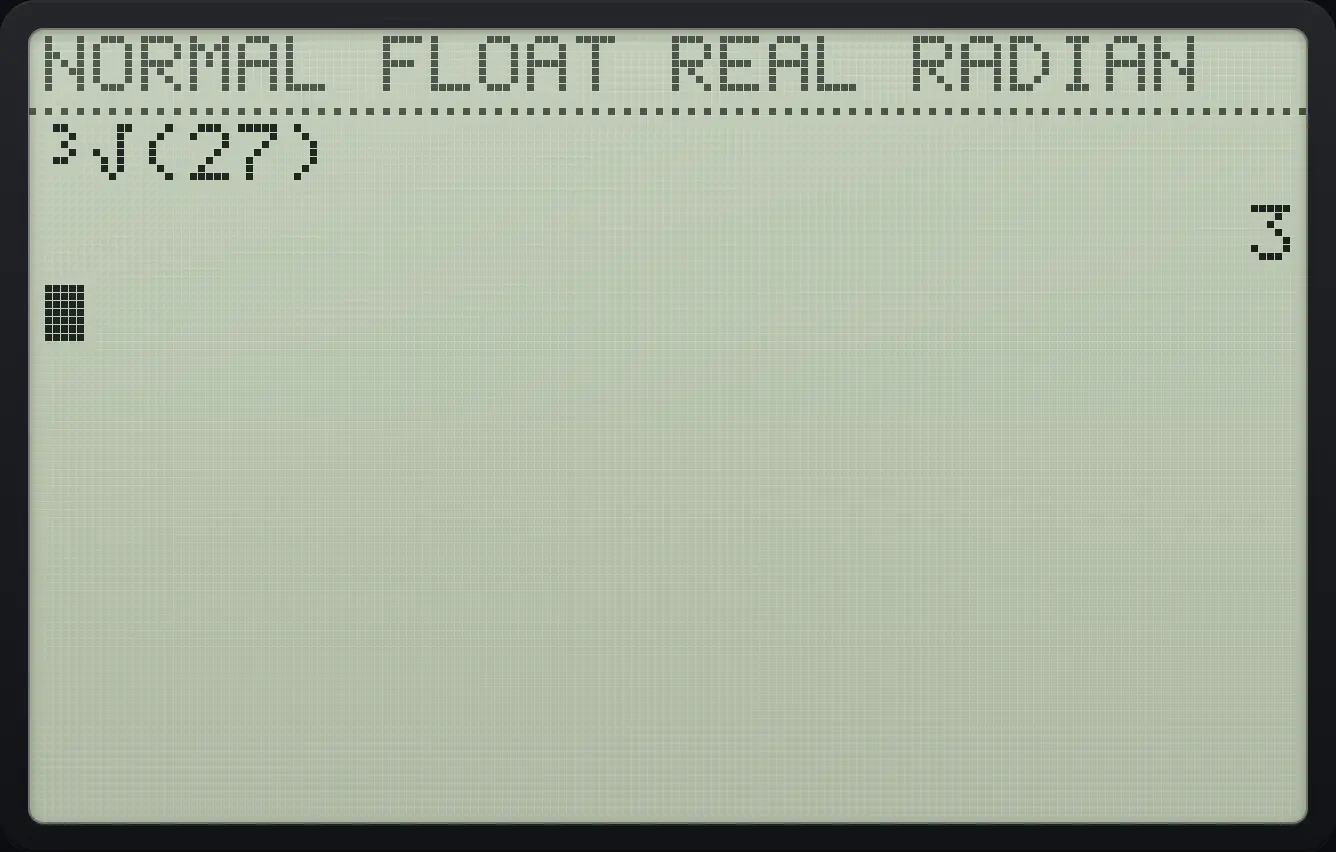
³√(27) 3The fourth root of 81
Type 4, press math then 5, and type 81.
4math581enter
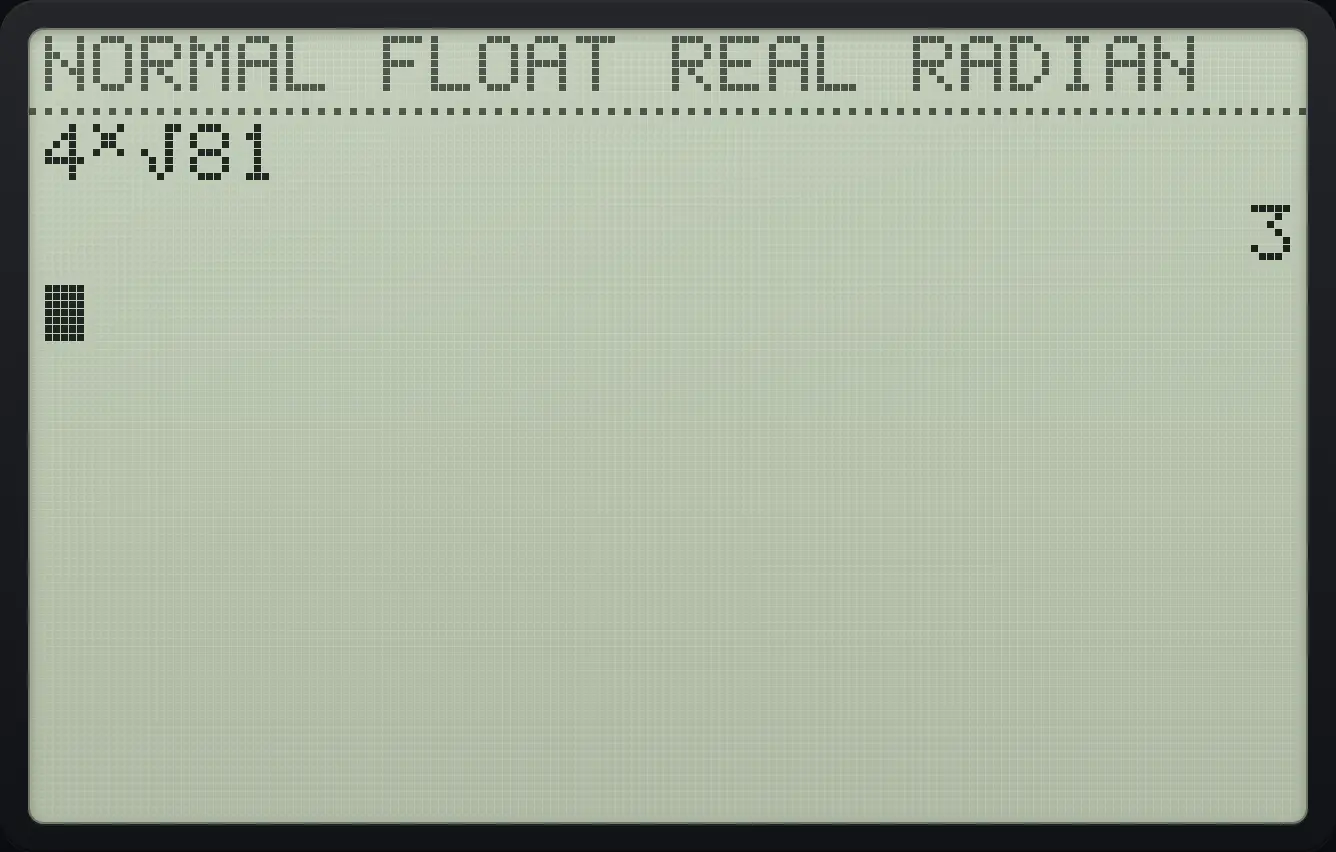
3Cube a number
Type 2, then math and 3 for the cube sign.
2math3enter
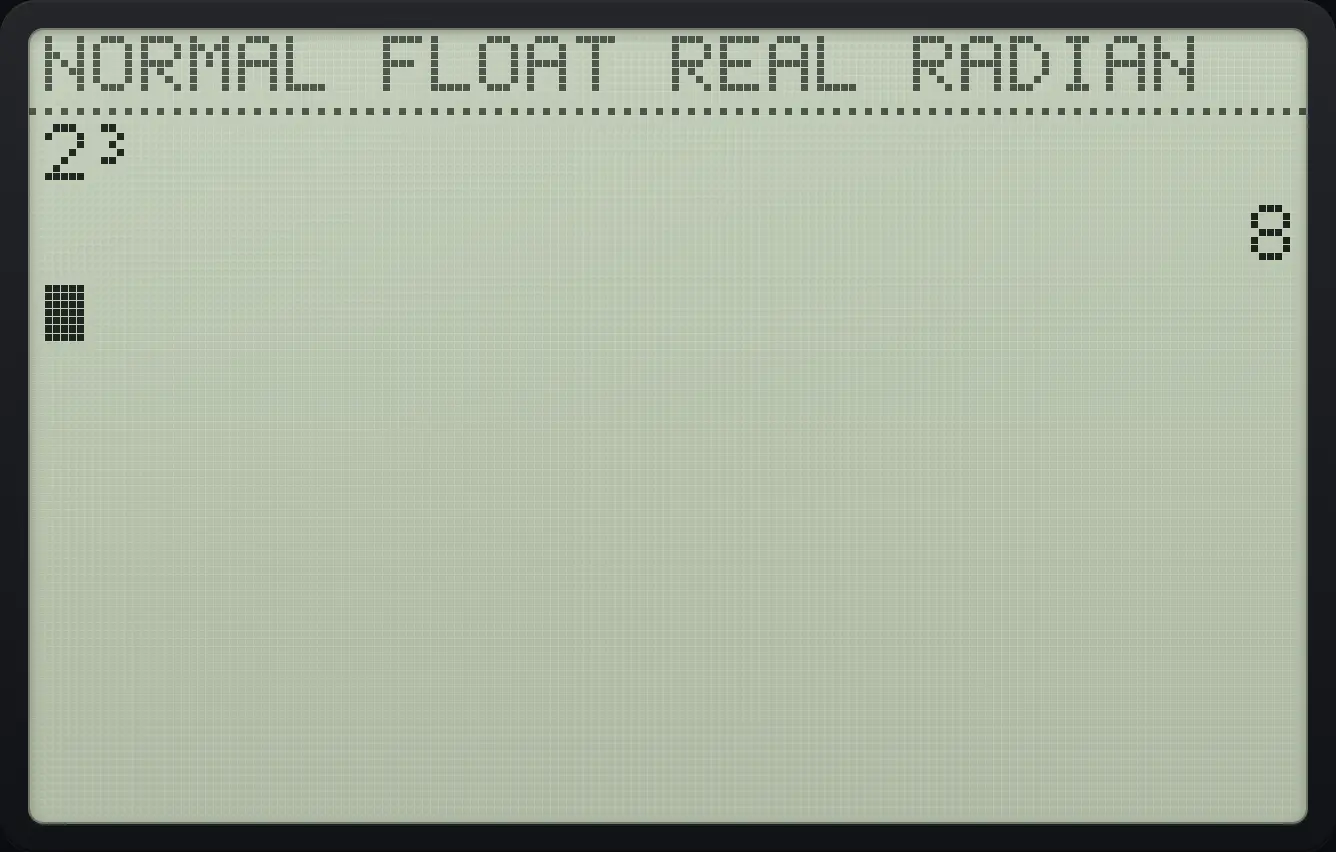
8Fractional exponents also work: 9^.5 is 3. A negative number raised to a fractional power gives the real root when it exists (for example (−8)^(1/3) is −2).
4.2Logarithms and exponentials#
log is the base-10 logarithm and ln is the natural logarithm (base e). Their inverses are above them: 2nd10ˣlog is 10 to a power and 2ndeˣln is e to a power. For any other base use logBASE( in the MATH menu: base after the number.
Base-10 logarithm
Type log(1000).
log1000)enter
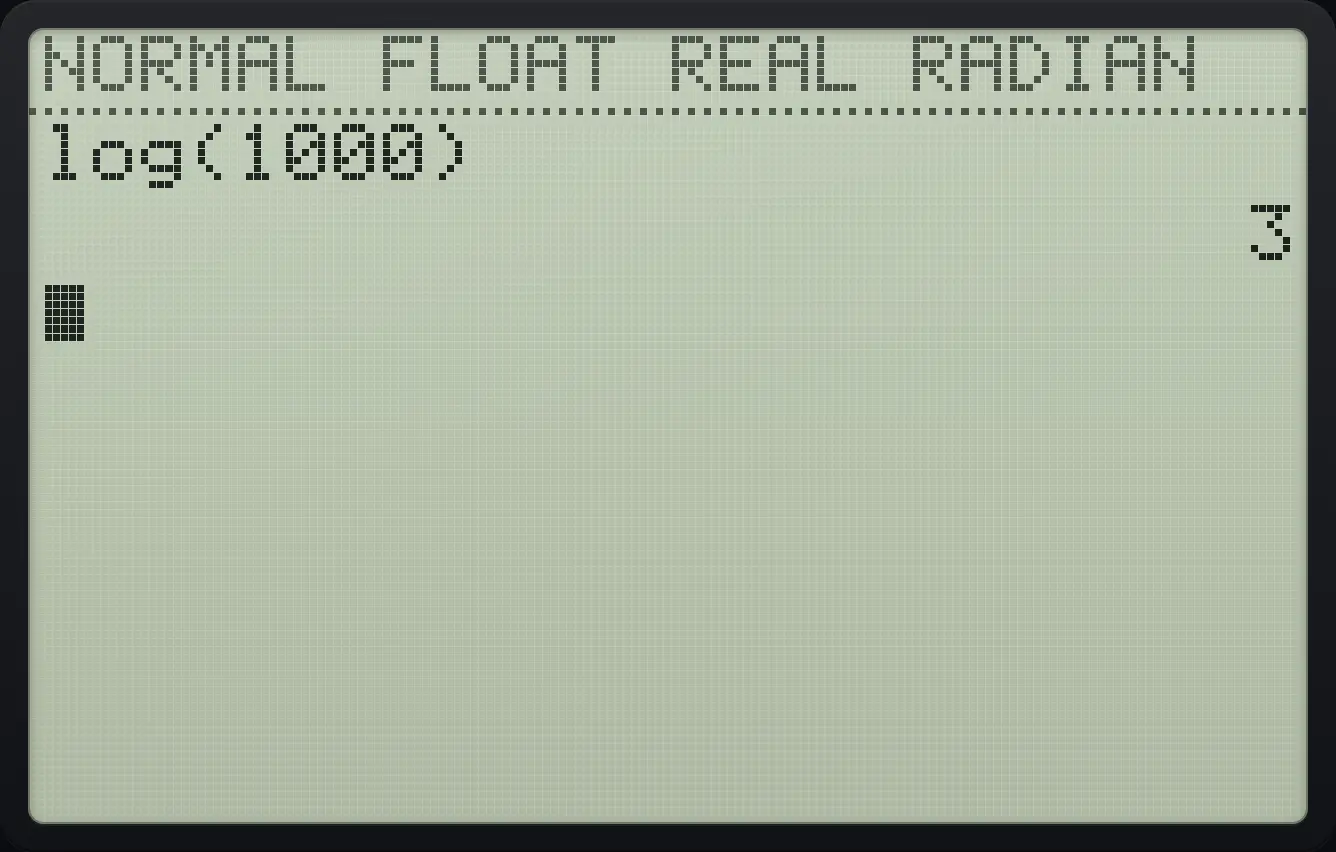
log(1000) 3Natural logarithm of e
Type ln(, then 2nd then the ÷ key for e, then close the bracket.
ln2nde÷)enter
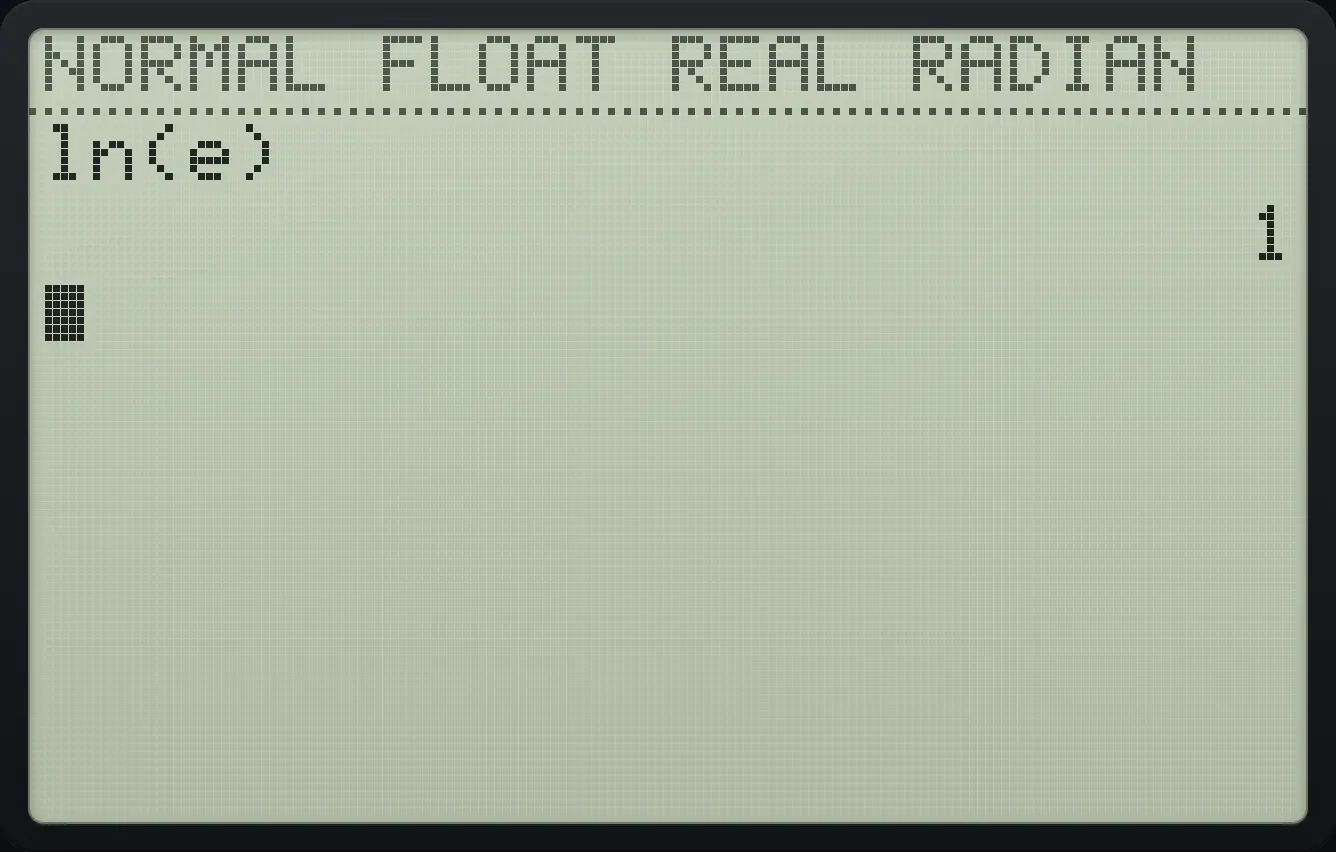
1A logarithm in any base
Press math then alpha math (the letter A) to choose logBASE(. Type the number, a comma, the base and a bracket: log base 2 of 8.
mathalphaAmath8,2)enter
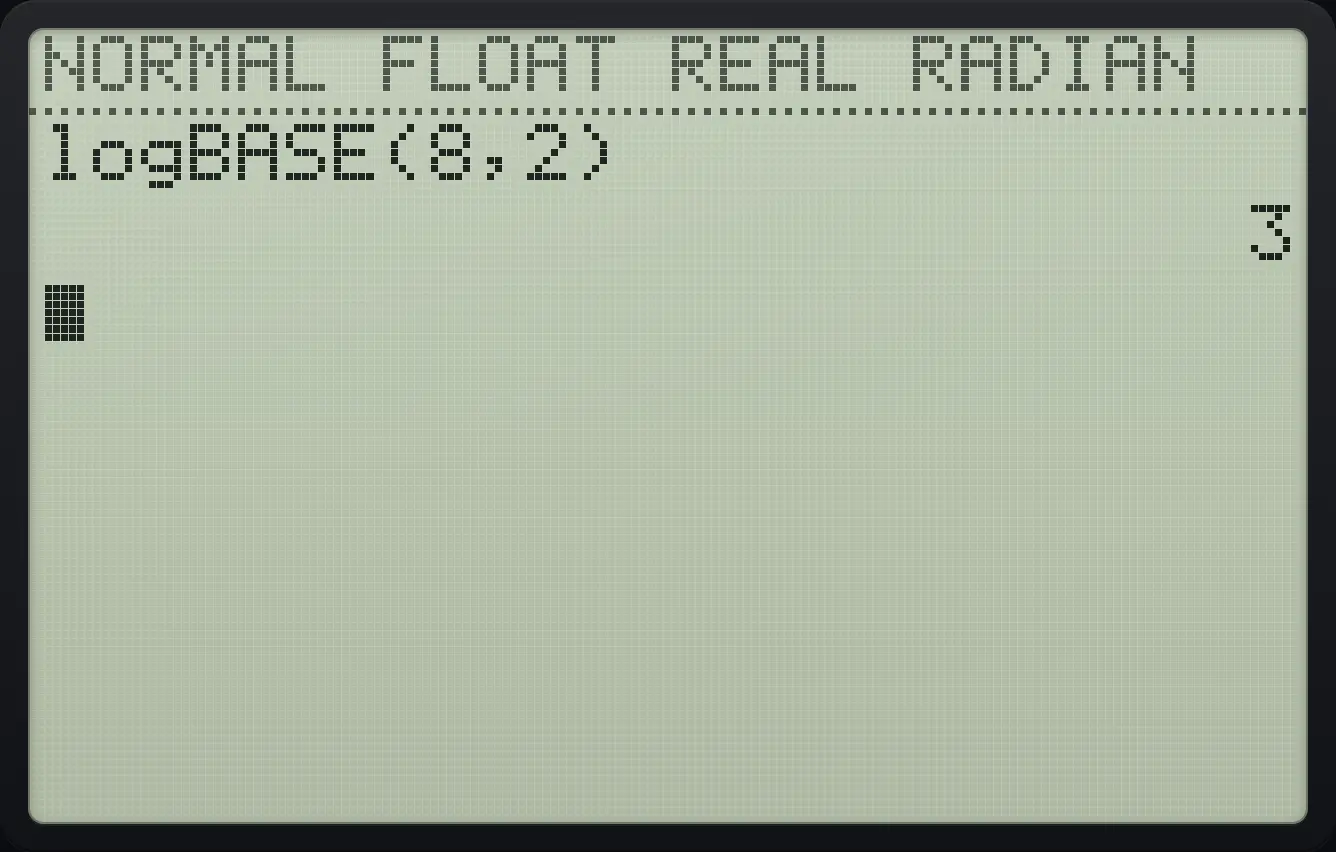
logBASE(8,2) 3Ten to a power
Press 2nd then log, type 2 and close the bracket.
2nd10ˣlog2)enter
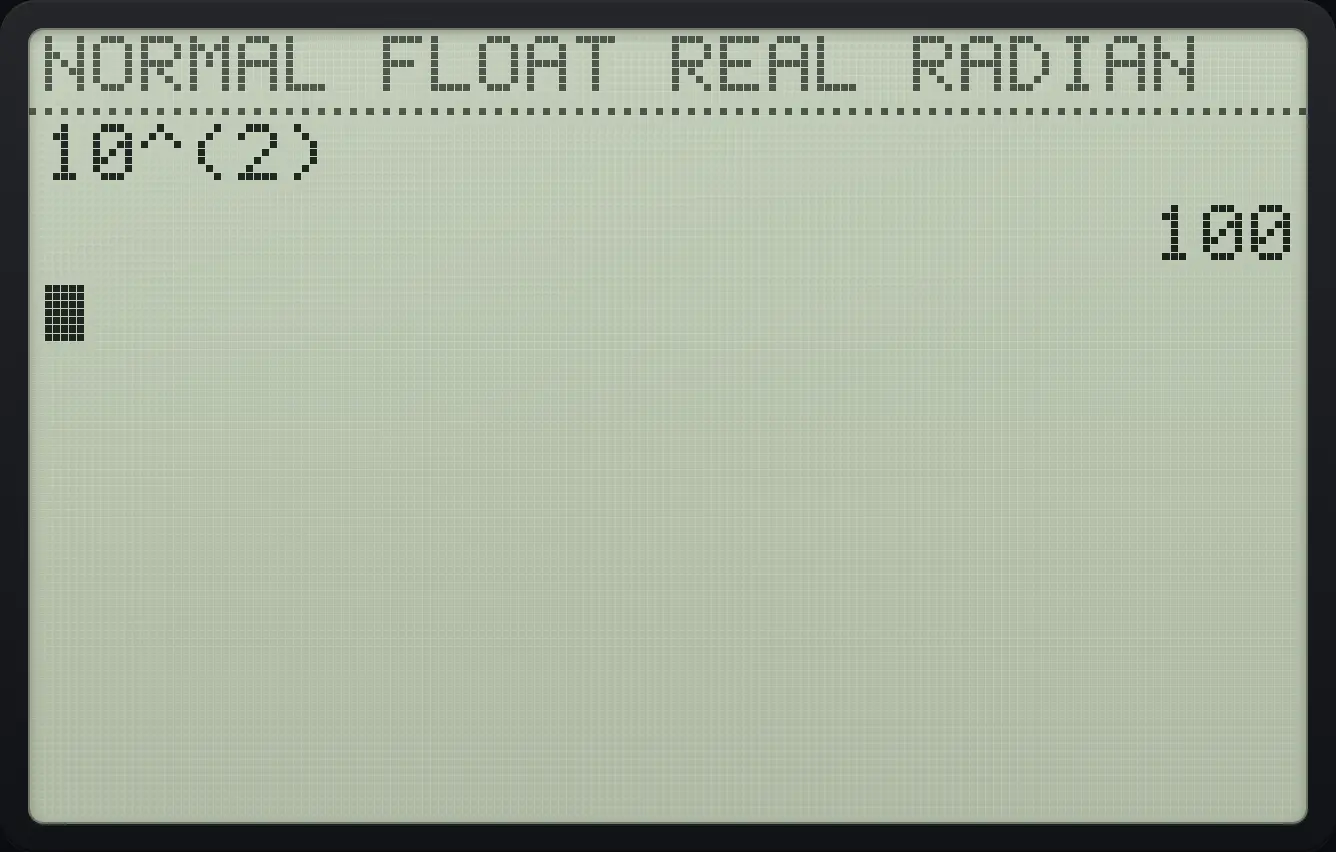
1004.3Trigonometry and angle units#
Sine, cosine and tangent are on sin, cos and tan, and the inverse functions are on the same keys after 2nd. They use the angle unit chosen in MODE: Radian (the default) or Degree. If a trig answer looks wrong, check this setting first. Each key types the function name and an opening bracket; close the bracket yourself.
Sine in radians
Type sin(π/6).
sin2ndπ^÷6)enter
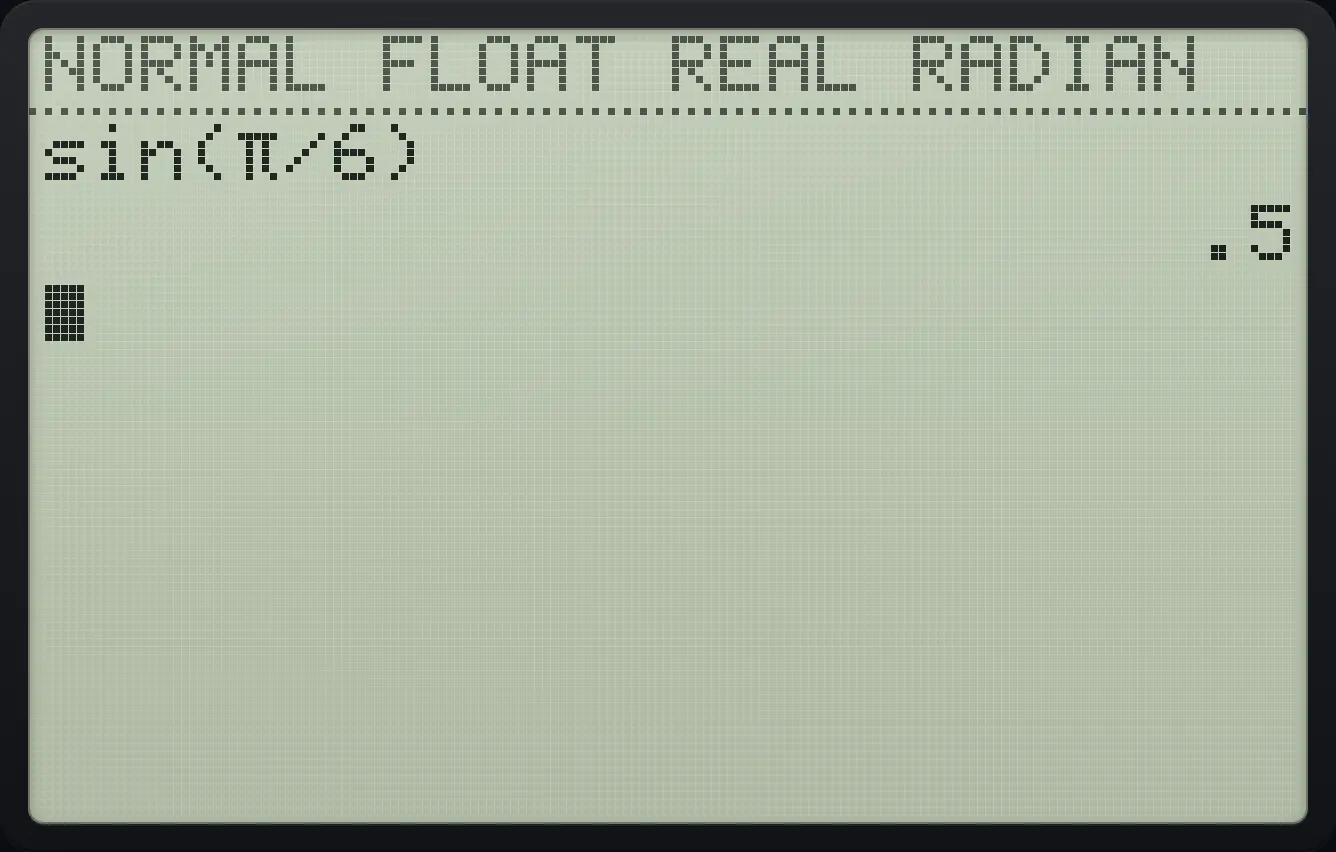
sin(π/6) .5Sine in degrees
Open MODE, move down to the angle row, move right to DEGREE and press enter, then return home.
mode▼▼▶enter2ndQUITmodeType sin(30).
sin30)enter
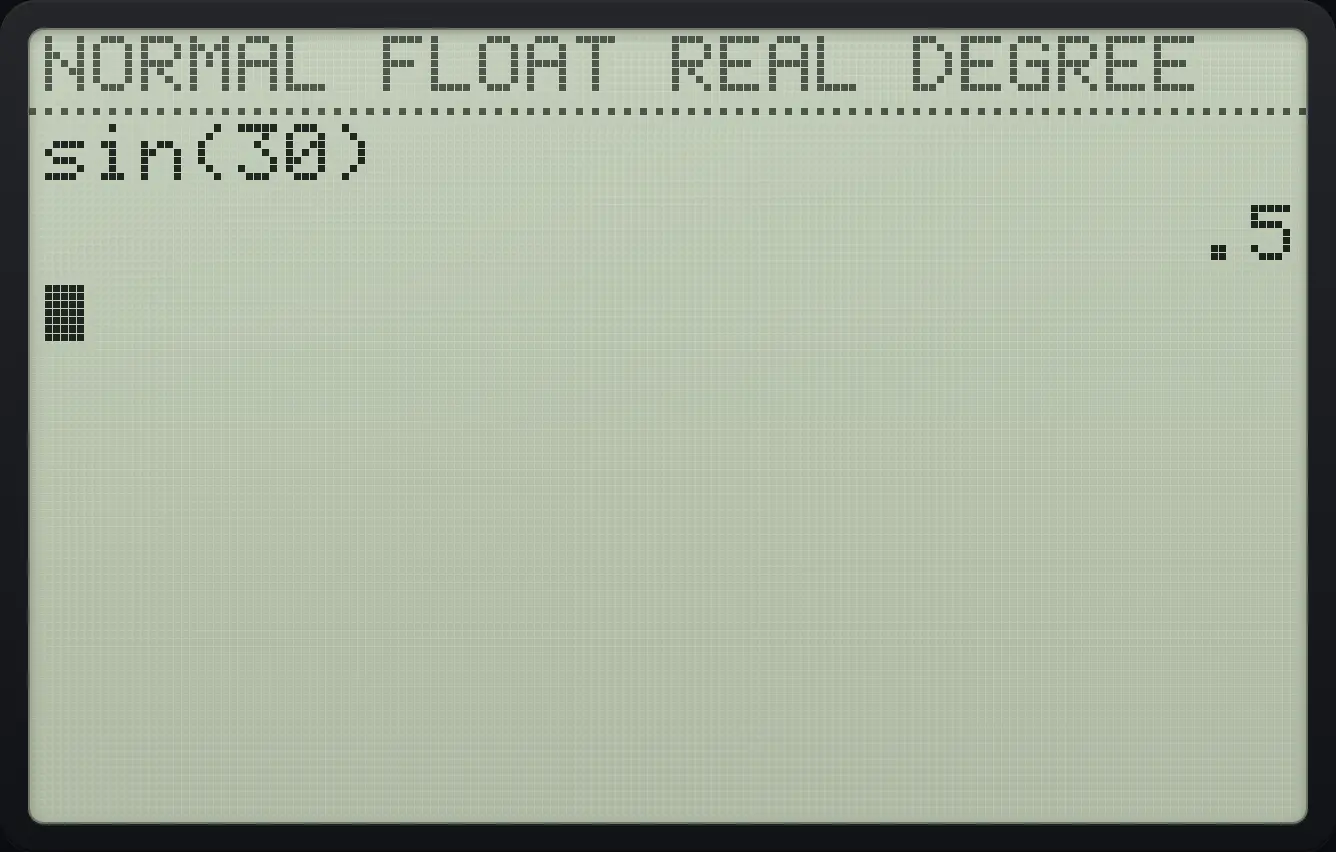
sin(30) .5Inverse sine
Press 2nd then sin and type 1.
2ndsin⁻¹sin1)enter
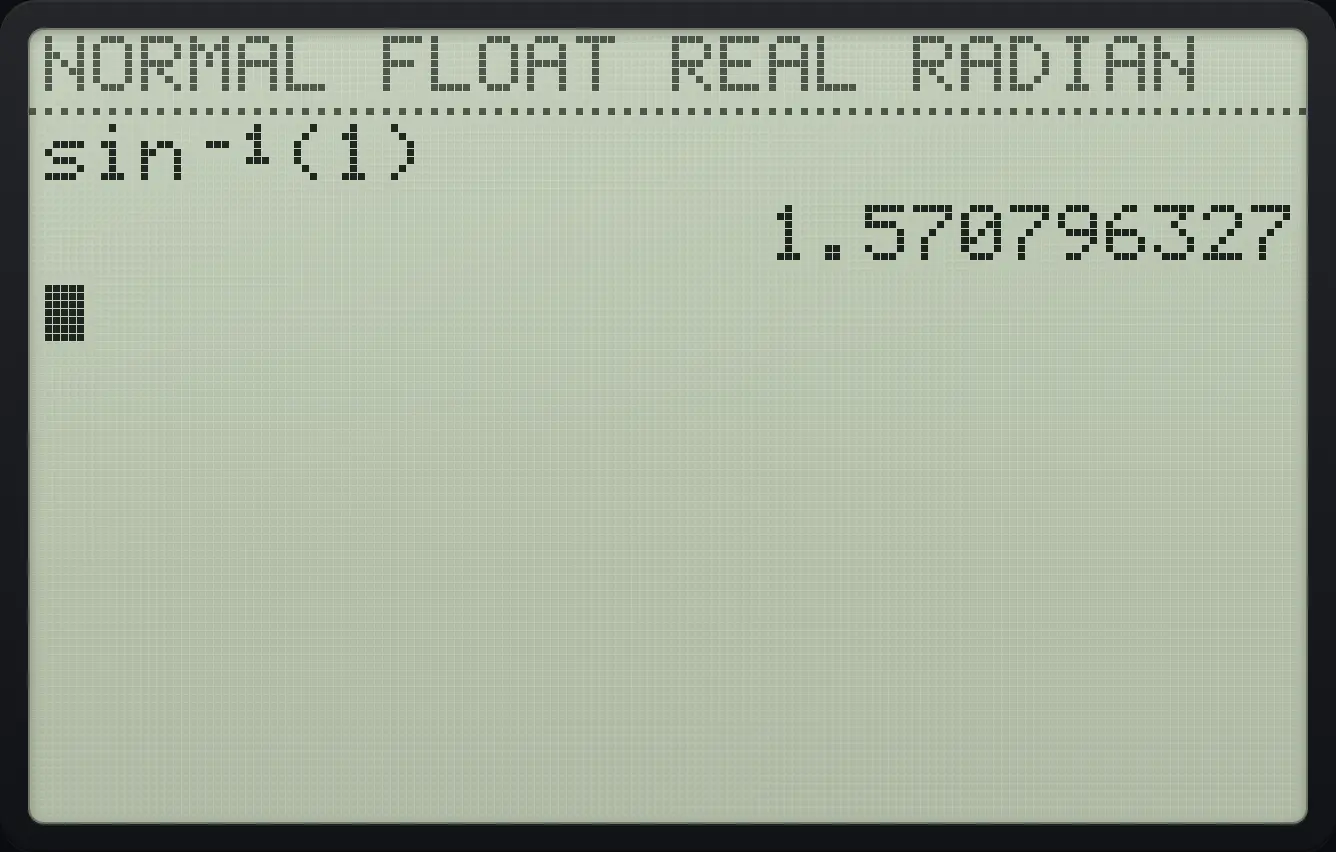
1.570796327Find an angle in degrees
Switch to Degree mode.
mode▼▼▶enter2ndQUITmodeType cos⁻¹(.5).
2ndcos⁻¹cos.5)enter
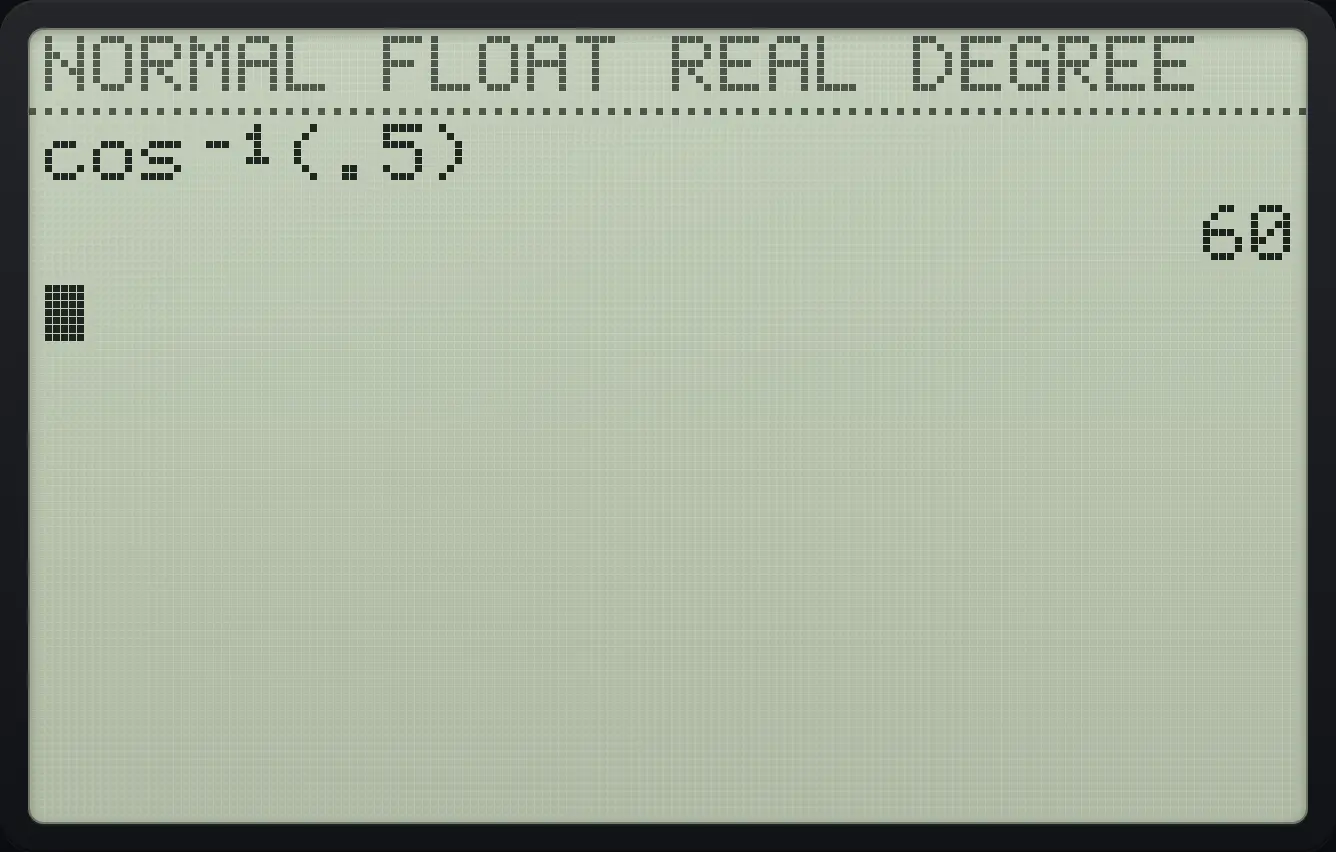
60Mark one angle as degrees without changing the mode
Press 2nd apps then 1 for the degree mark. Type sin(90°).
sin902ndANGLEapps1)enter
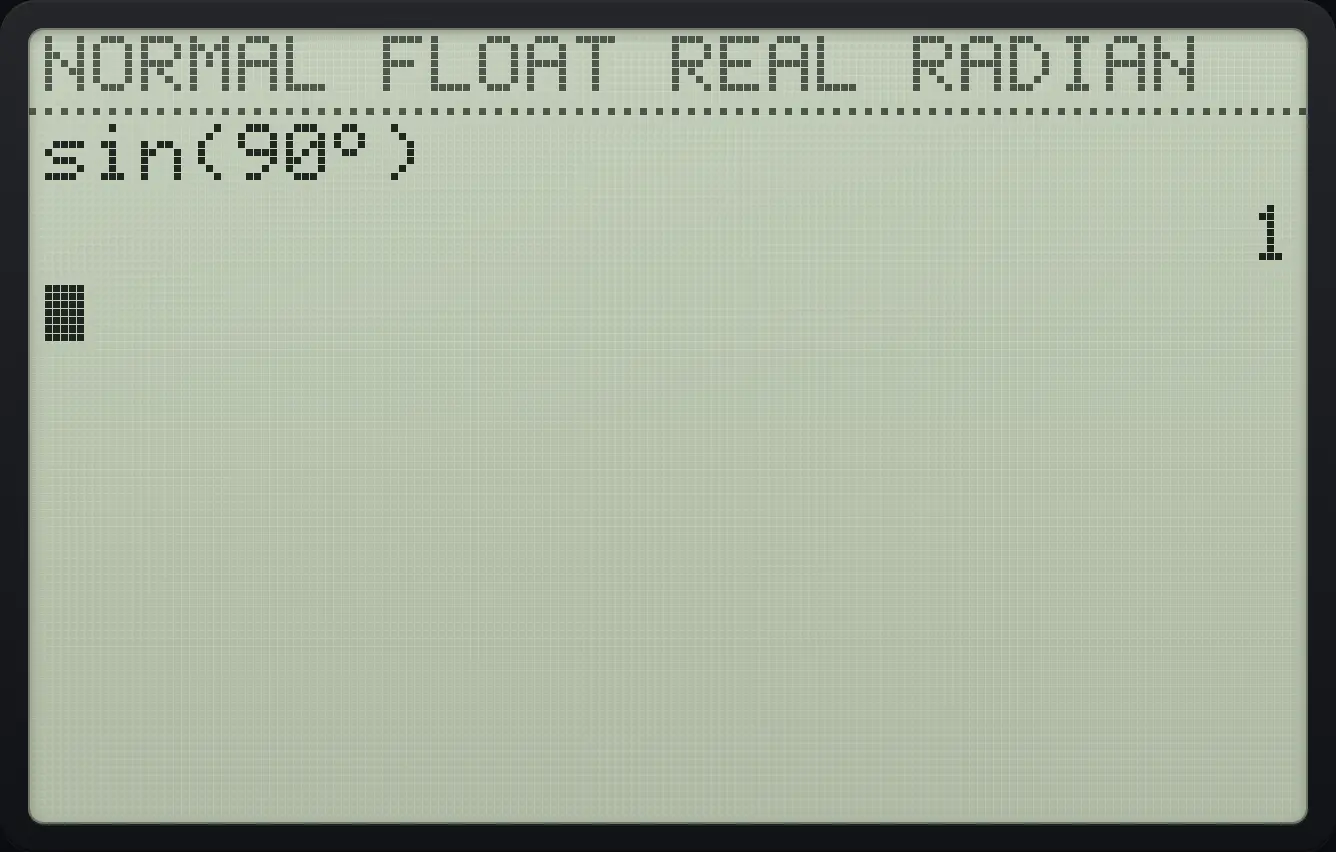
sin(90°) 1See also Find sine, cosine and tangentFind an angle from a ratioModes and settings: Radian or degree
4.4Absolute value, rounding and divisibility (NUM menu)#
Press math then ▶ for the NUM tab.
| Item | What it gives | Example |
|---|---|---|
| 1:abs( | Absolute value | abs(⁻7) = 7 |
| 2:round( | Rounds to a number of decimals | round(π,3) = 3.142 |
| 3:iPart( | Integer part (drops the decimals) | iPart(⁻3.7) = ⁻3 |
| 4:fPart( | Fraction part | fPart(3.25) = .25 |
| 5:int( | Greatest integer not above the number (floor) | int(⁻3.7) = ⁻4 |
| 6:min( | Smaller of two numbers (or of a list) | min(4,9) = 4 |
| 7:max( | Larger of two numbers (or of a list) | max(4,9) = 9 |
| 8:lcm( | Least common multiple | lcm(4,6) = 12 |
| 9:gcd( | Greatest common divisor | gcd(12,18) = 6 |
| 0:remainder( | Remainder after division | remainder(17,5) = 2 |
![The NUM tab of the MATH menu. The display shows: MATH [NUM] CMPLX PROB FRAC / 1:abs( / 2:round( / 3:iPart( / 4:fPart( / 5:int( / 6:min( / 7↓max(.](/trident/app/help/manual/img/fcf9ff25s.webp)
Absolute value
Press math, right, 1 and type −7.
math▶1(−)7)enter
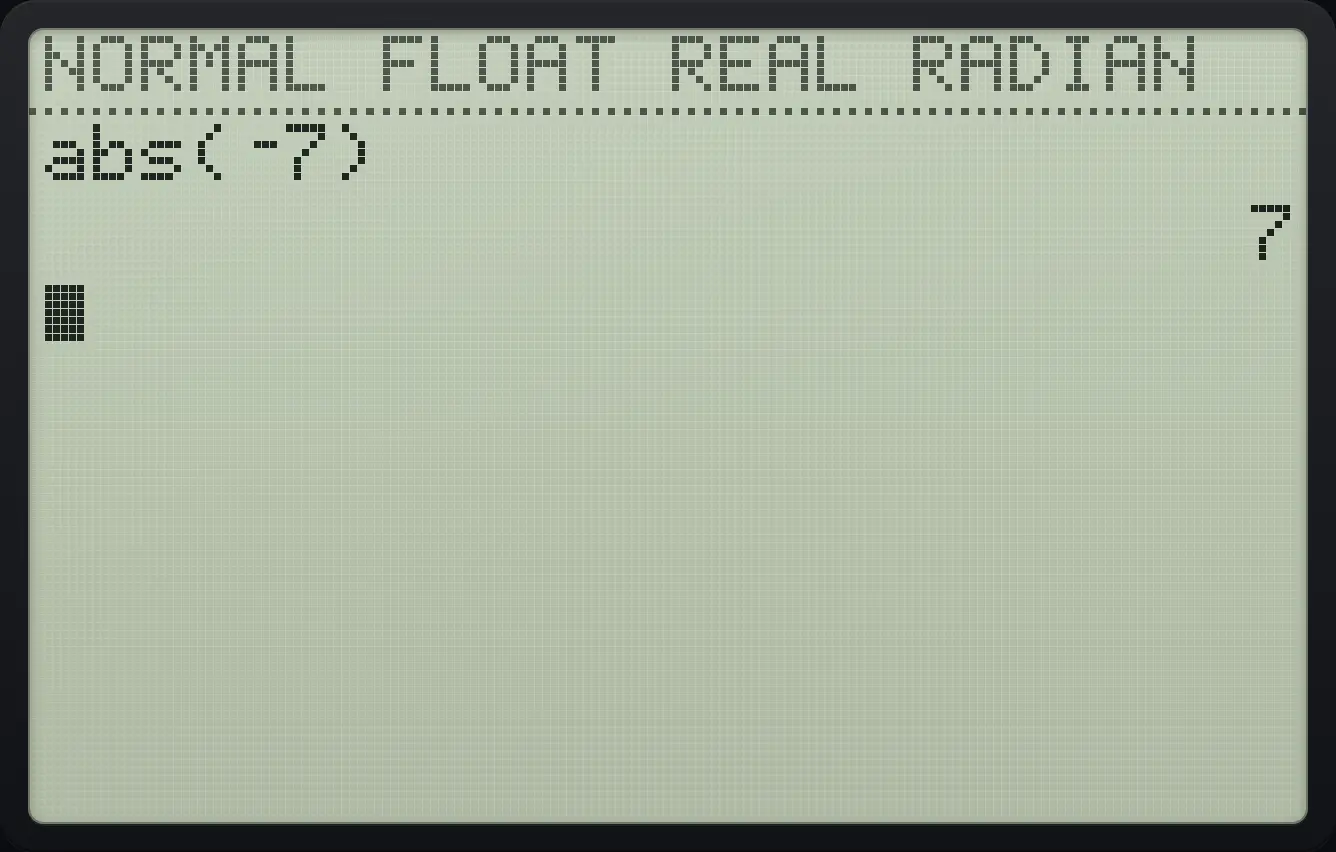
abs(⁻7) 7Round to 3 decimals
Press math, right, 2 and type π, 3.
math▶22ndπ^,3)enter
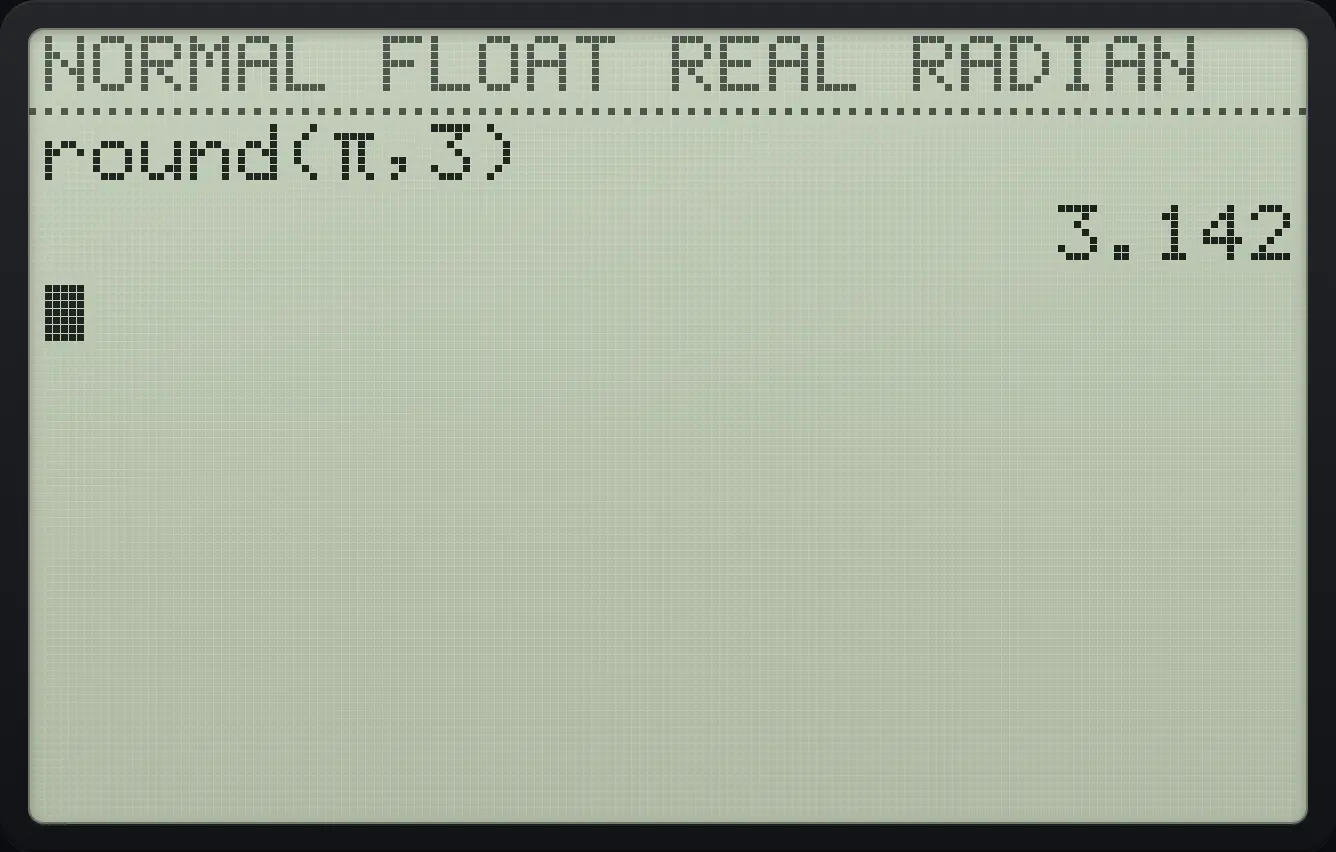
3.142The difference between iPart and int
iPart(−3.7) drops the decimals.
math▶3(−)3.7)enterint(−3.7) rounds down to the lower integer.
math▶5(−)3.7)enter
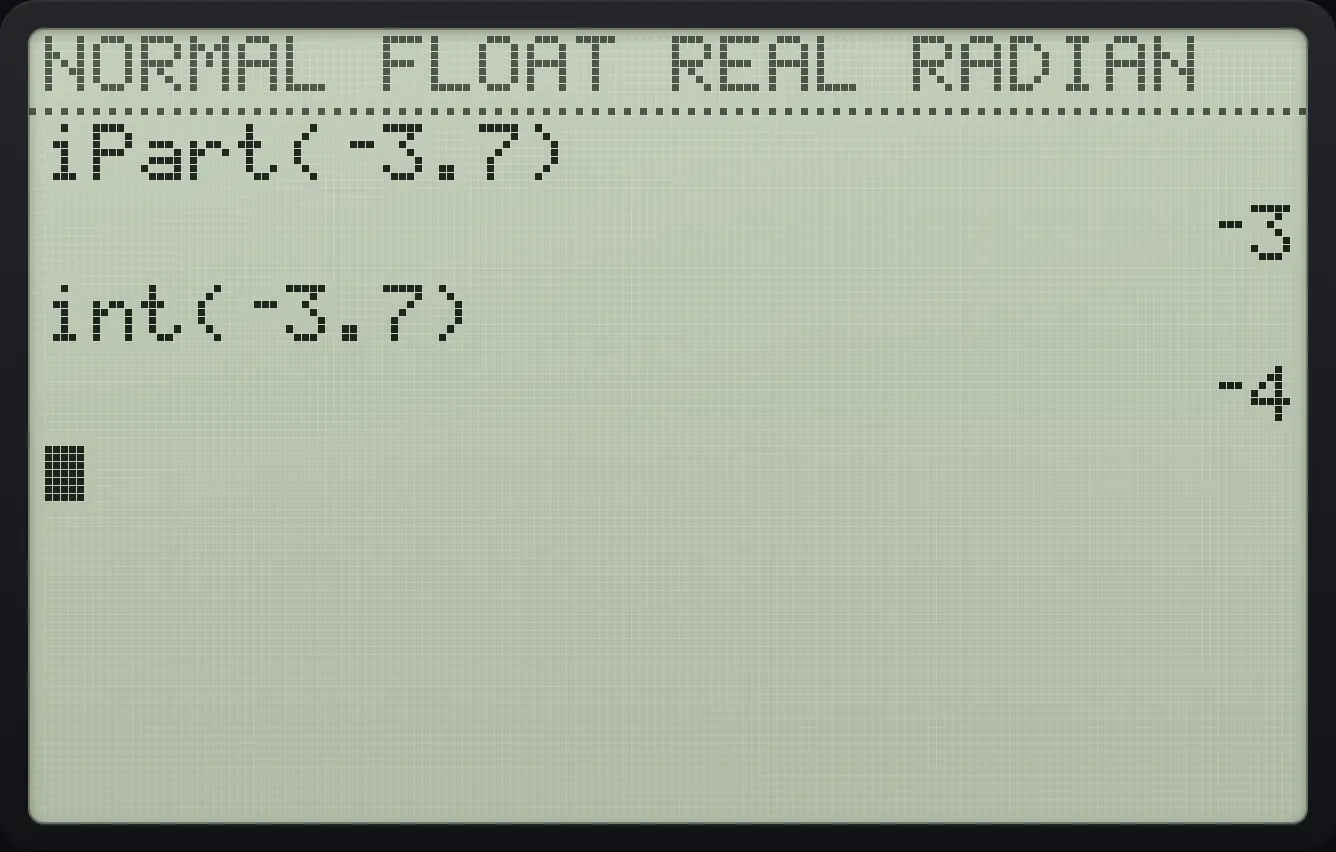
⁻3 ⁻4Greatest common divisor
Press math, right, 9 and type 12, 18.
math▶912,18)enter
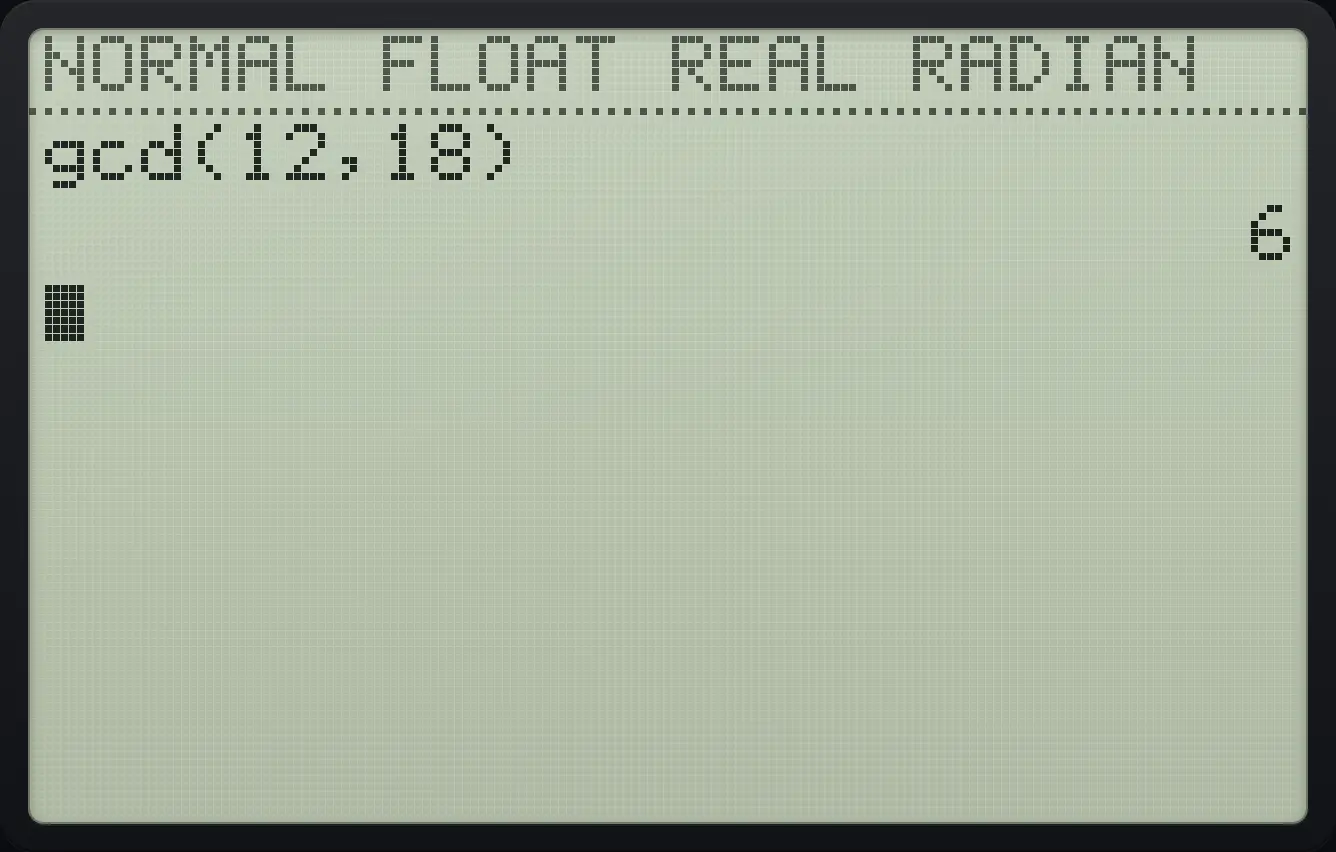
gcd(12,18) 6Remainder
Press math, right, 0 and type 17, 5.
math▶017,5)enter
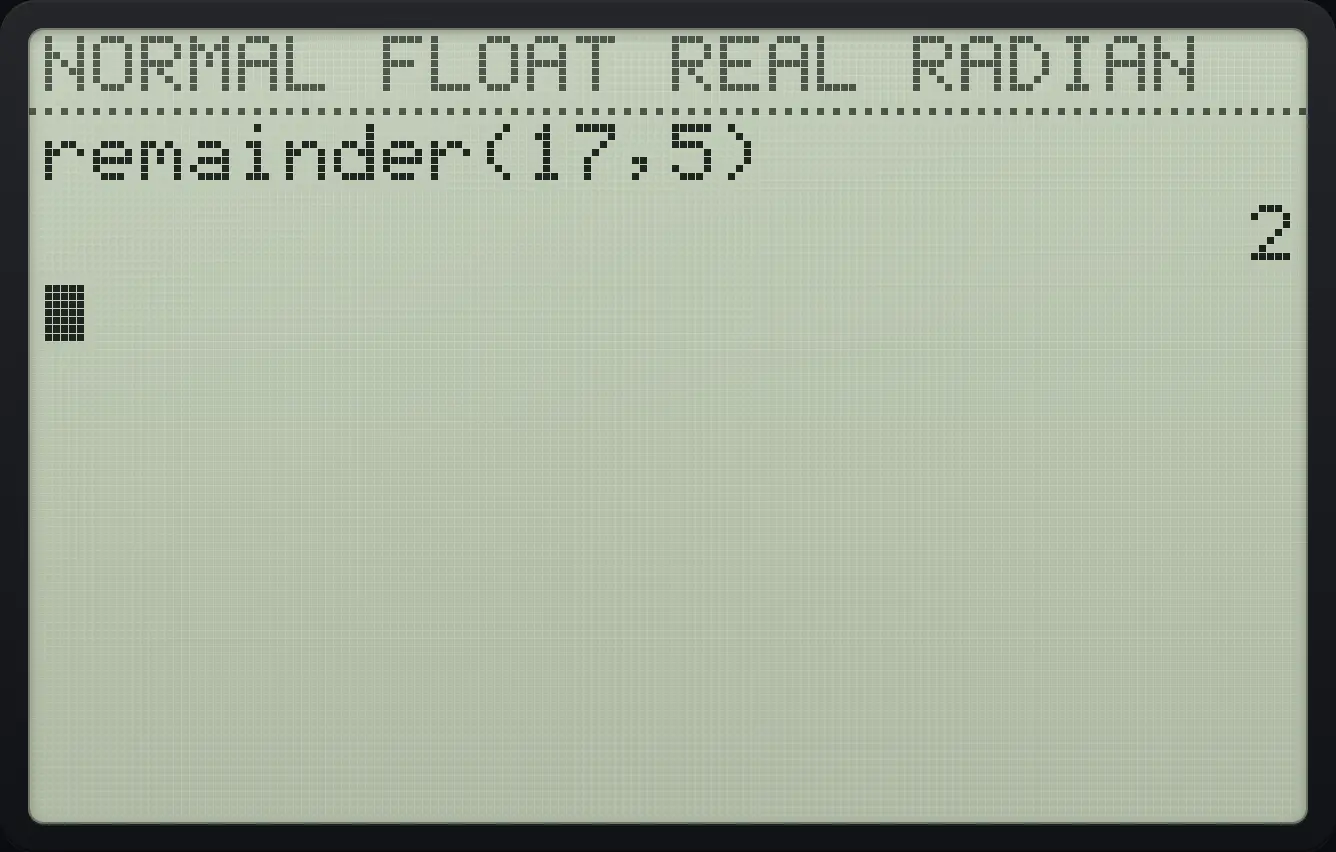
remainder(17,5) 2Least common multiple
Press math, right, 8 and type 4, 6.
math▶84,6)enter
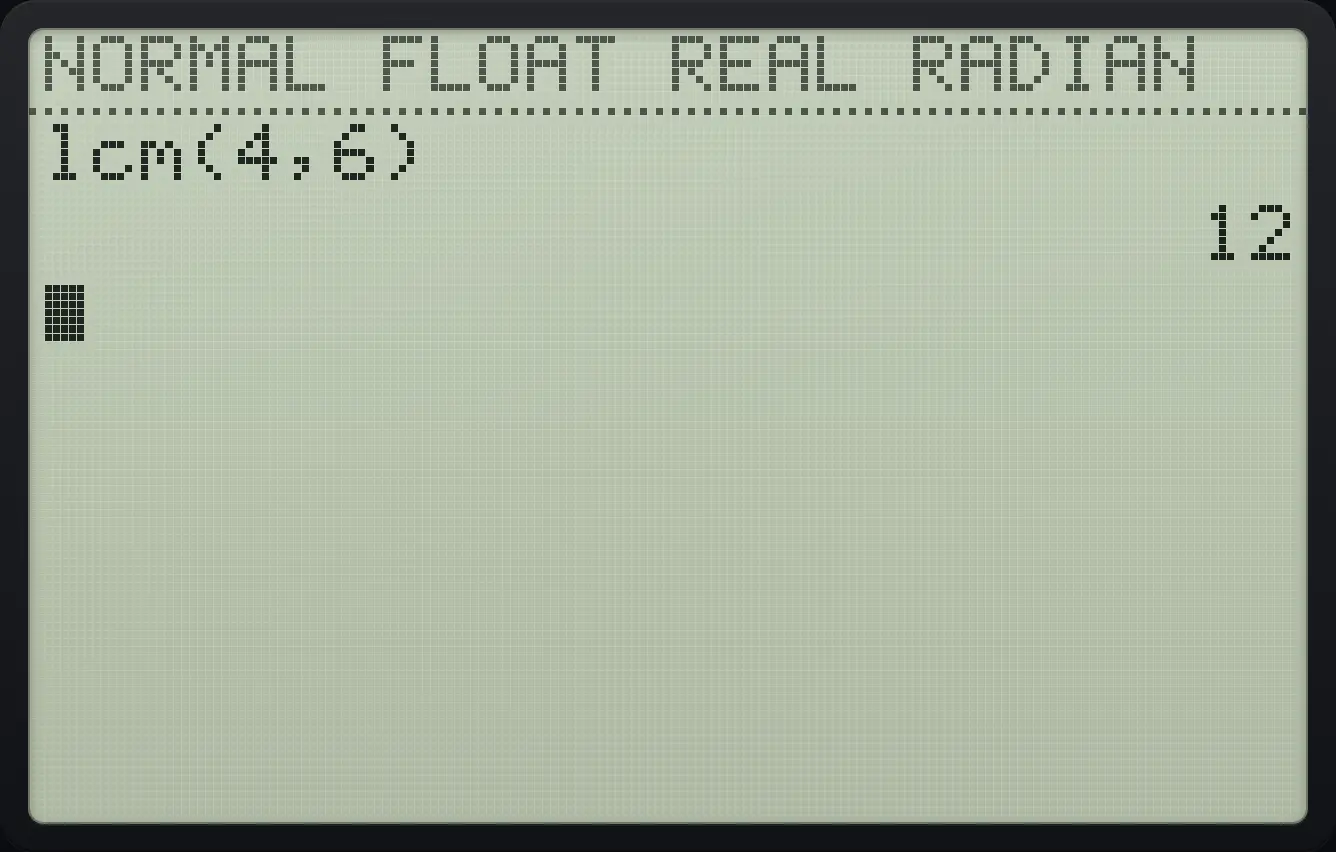
124.5Probability: factorials, permutations, combinations, random numbers#
Press math then ◀ twice (or ▶ three times) for the PROB tab.
![The PROB tab. The display shows: MATH NUM CMPLX [PROB] FRAC / 1:rand / 2:nPr / 3:nCr / 4:! / 5:randInt( / 6:randNorm( / 7:randBin(.](/trident/app/help/manual/img/e428dc4ds.webp)
| Item | What it gives |
|---|---|
| 1:rand | A random number between 0 and 1. Store a number first (for example 7→rand) to start from a fixed seed. |
| 2:nPr | Number of ordered arrangements: 5 nPr 2 = 20. |
| 3:nCr | Number of selections (combinations): 5 nCr 2 = 10. |
| 4:! | Factorial: 5! = 120. |
| 5:randInt( | A random whole number between two limits, with an optional count: randInt(1,6). |
| 6:randNorm( | A random number from a normal distribution: randNorm(mean, sd). |
| 7:randBin( | A random count from a binomial distribution: randBin(trials, p). |
Combinations
Type 5, press math, left, left, 3 for nCr and type 2.
5math◀◀32enter
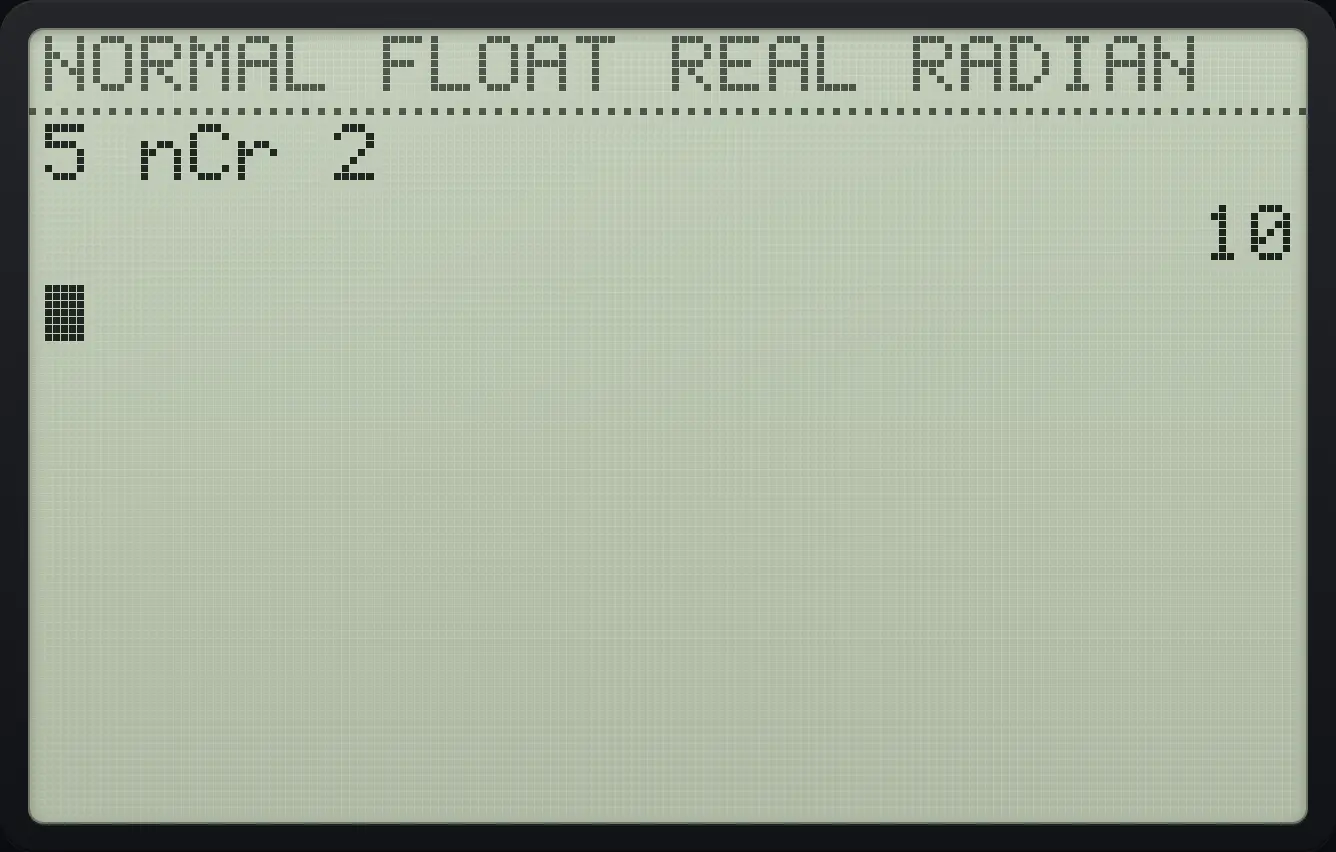
5 nCr 2 10Permutations
Type 5, then the PROB item 2 (nPr) and 2.
5math◀◀22enter
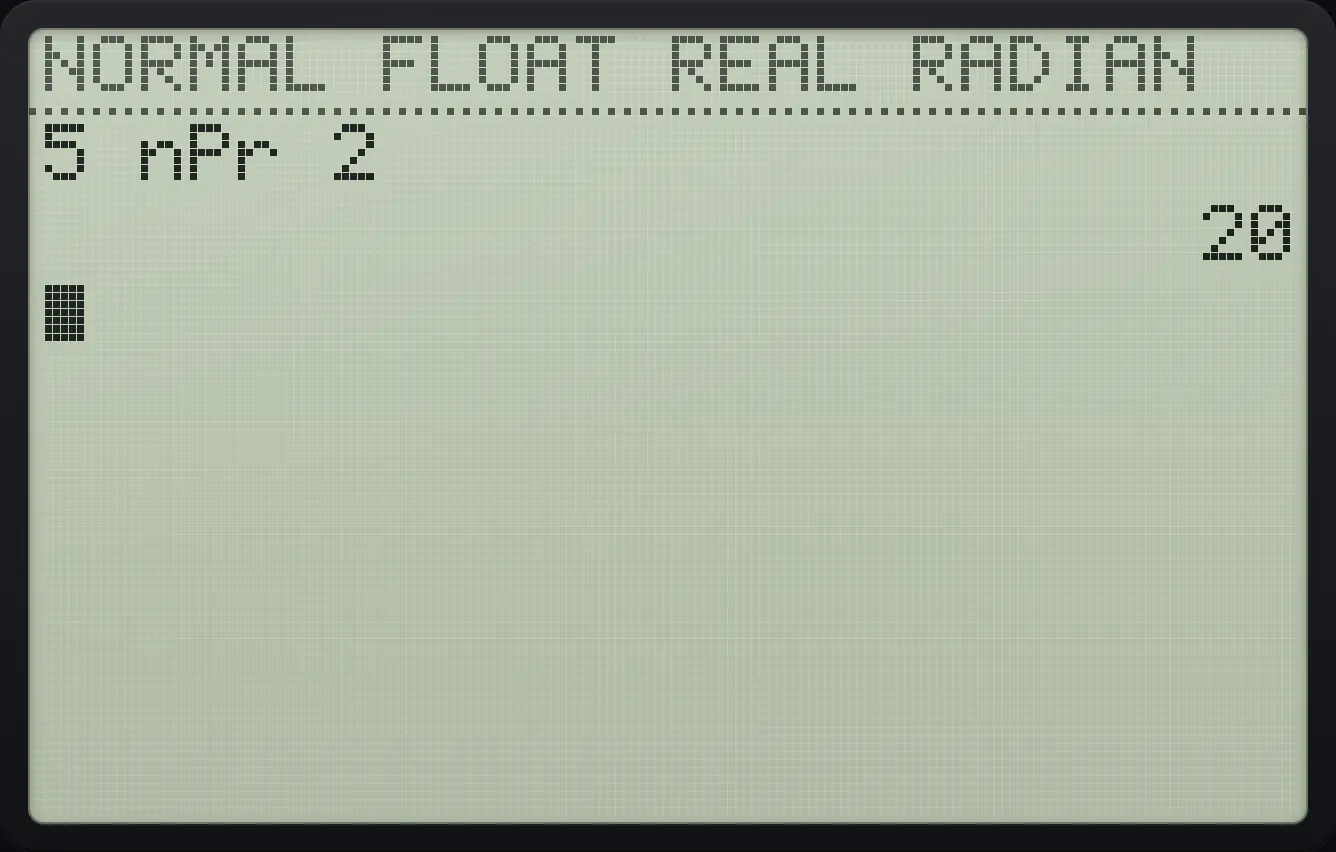
5 nPr 2 20Factorial
Type 5, then PROB item 4.
5math◀◀4enter
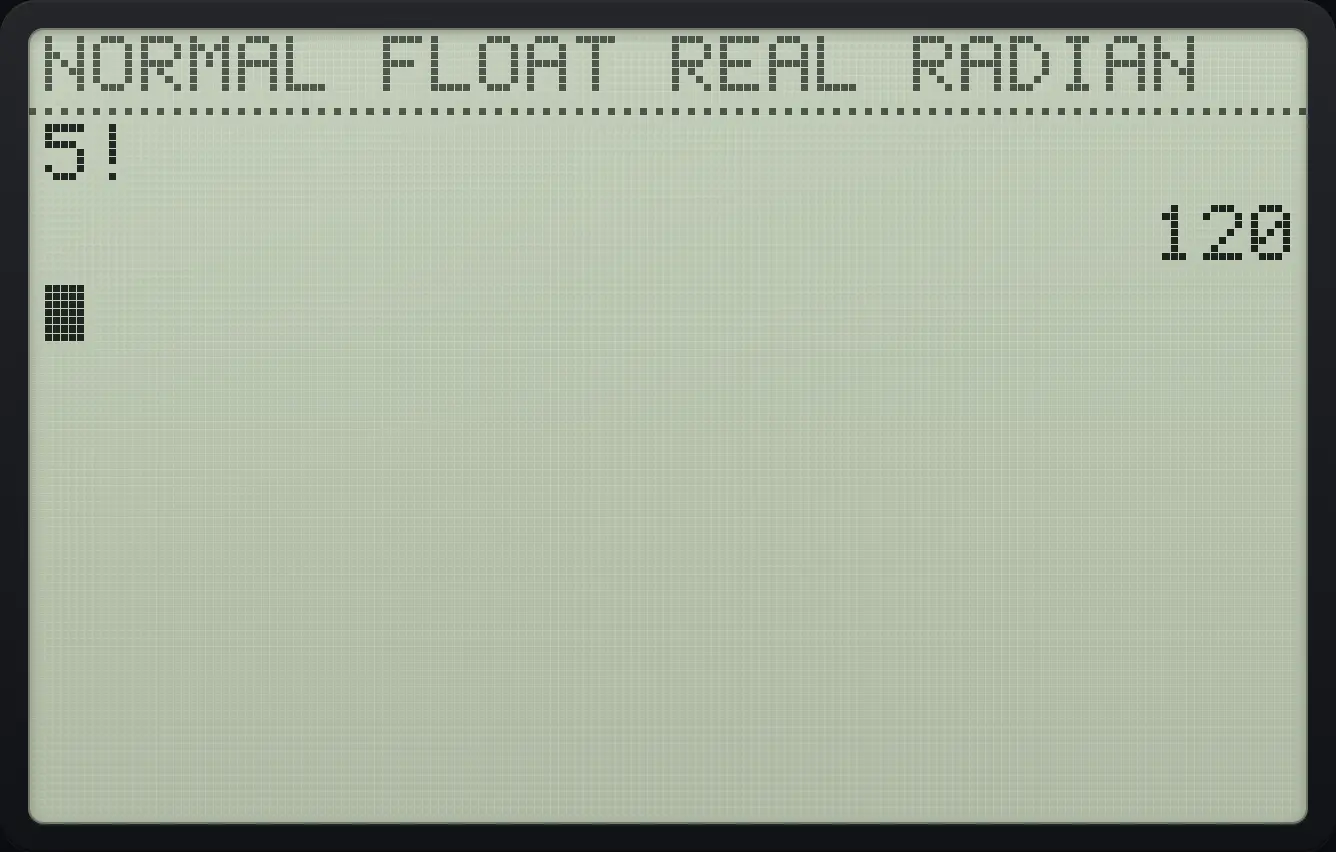
5! 120A random whole number
Choose randInt( and type 4, 4. When both limits are equal the answer is that number, so you can see the pattern of the command.
math◀◀54,4)enter
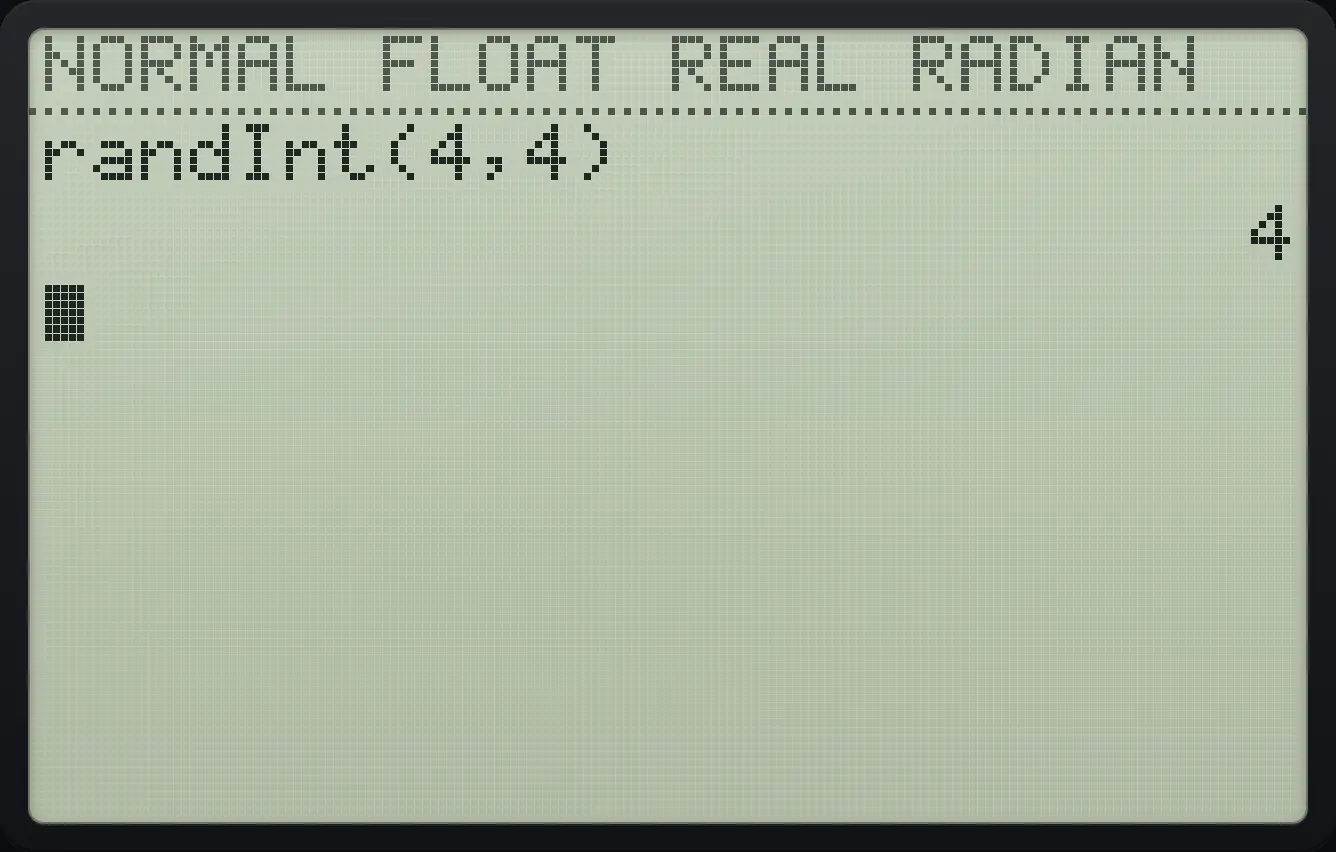
randInt(4,4) 44.6Compare numbers and use logic (TEST menu)#
Press 2ndTESTmath for TEST. A comparison gives 1 when it is true and 0 when it is false. Press ▶ for the LOGIC tab.
| Tab | Items |
|---|---|
| TEST | 1: = 2: ≠ 3: > 4: ≥ 5: < 6: ≤ |
| LOGIC | 1: and 2: or 3: xor 4: not( |
![The TEST menu. The display shows: [TEST] LOGIC / 1:= / 2:≠ / 3:> / 4:≥ / 5:< / 6:≤.](/trident/app/help/manual/img/af77dd7fs.webp)
Is 3 equal to 3?
Type 3, press 2nd math then 1 for the equals sign, type 3.
32ndTESTmath13enter
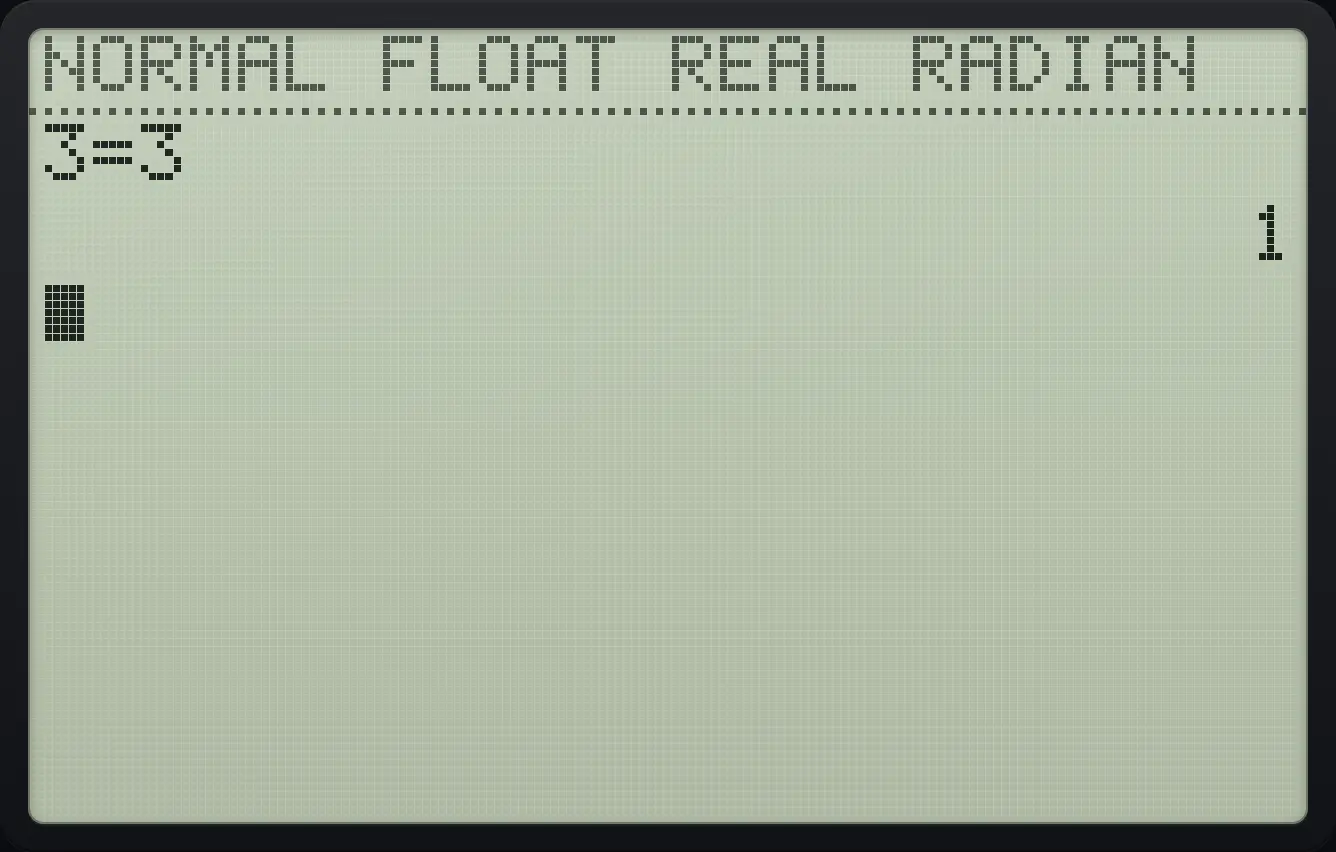
3=3 1Is 2 greater than 3?
Type 2, 2nd math, 3 for >, then 3.
22ndTESTmath33enter
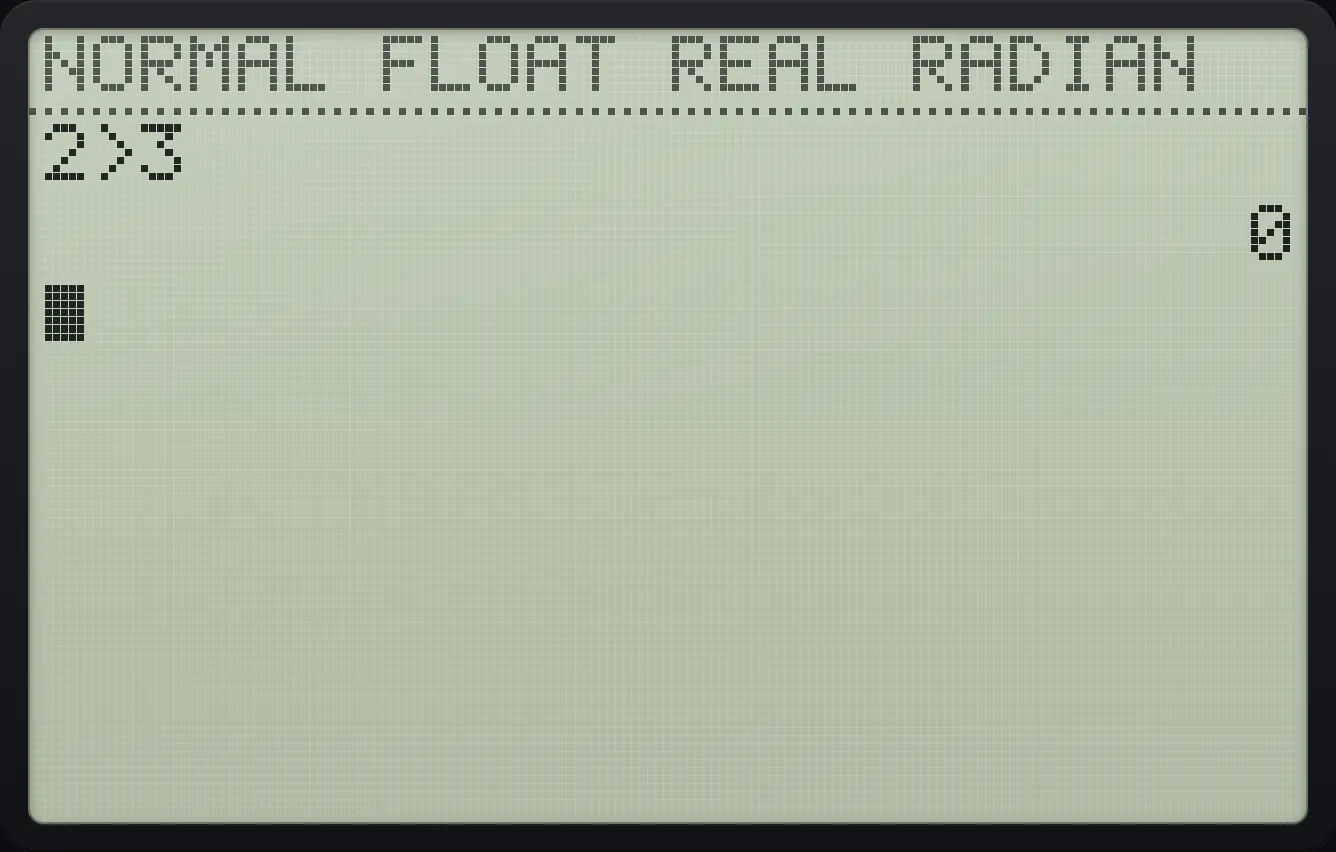
2>3 0Combine with and
Type 1, press 2nd math, right, 1 for and, then 0.
12ndTESTmath▶10enter
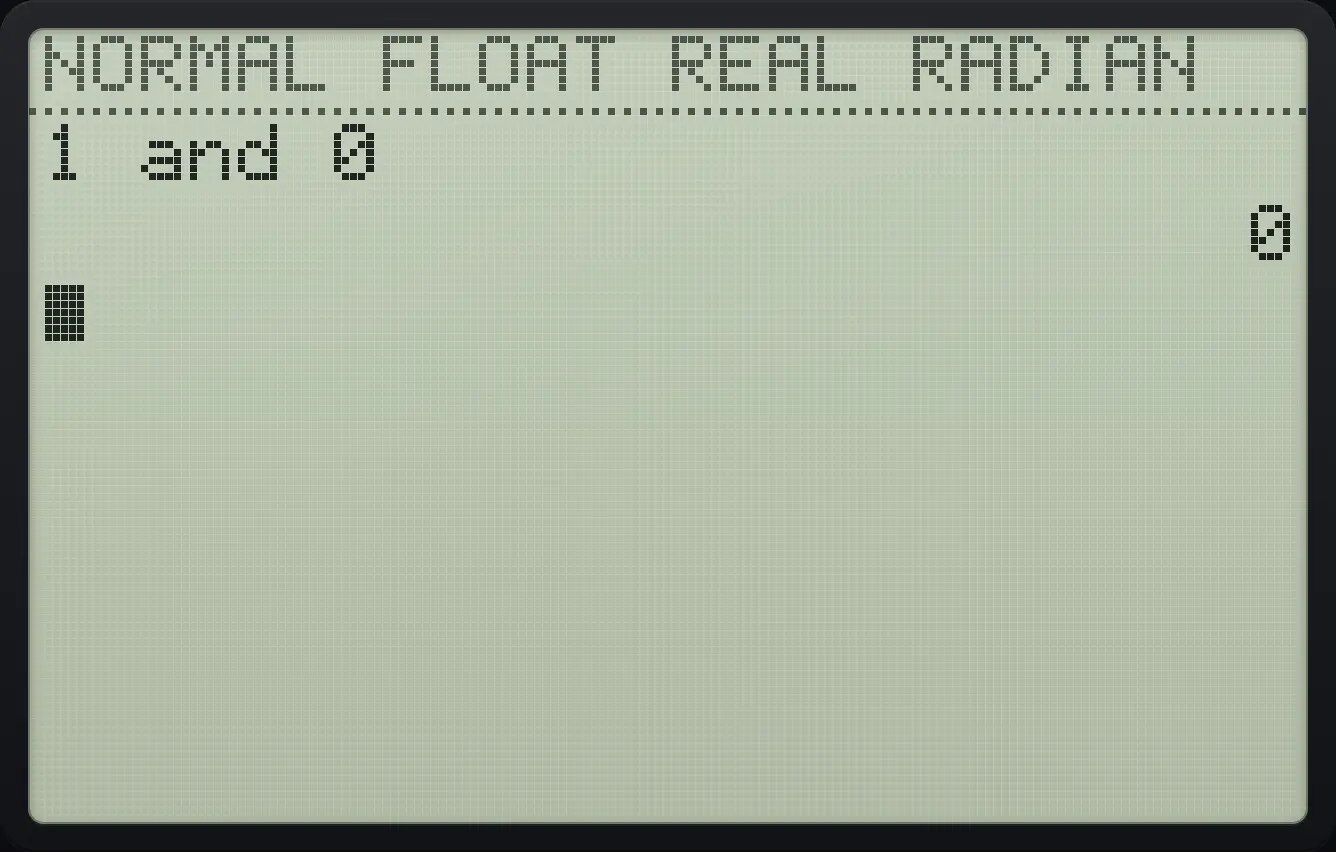
1 and 0 0Not
Press 2nd math, right, 4 for not( and type 0.
2ndTESTmath▶40)enter
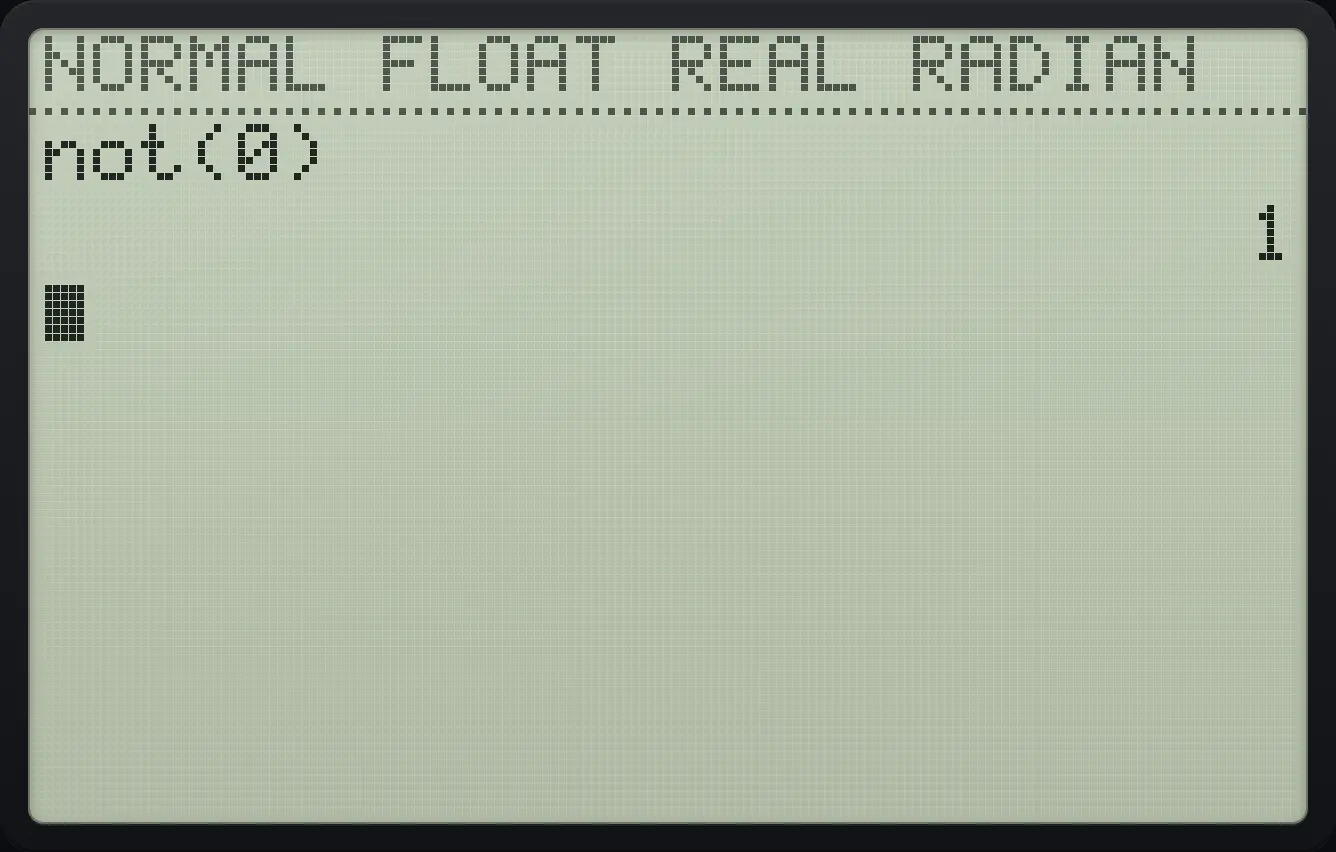
not(0) 14.7Constants: π, e and i#
| Constant | Key | Value |
|---|---|---|
| π | 2ndπ^ | 3.141592654 |
| e | 2nde÷ | 2.718281828 |
| i | 2ndi. | The imaginary unit, √(−1). Needs a complex mode. |
Show π
Press 2nd then the ^ key.
2ndπ^enter
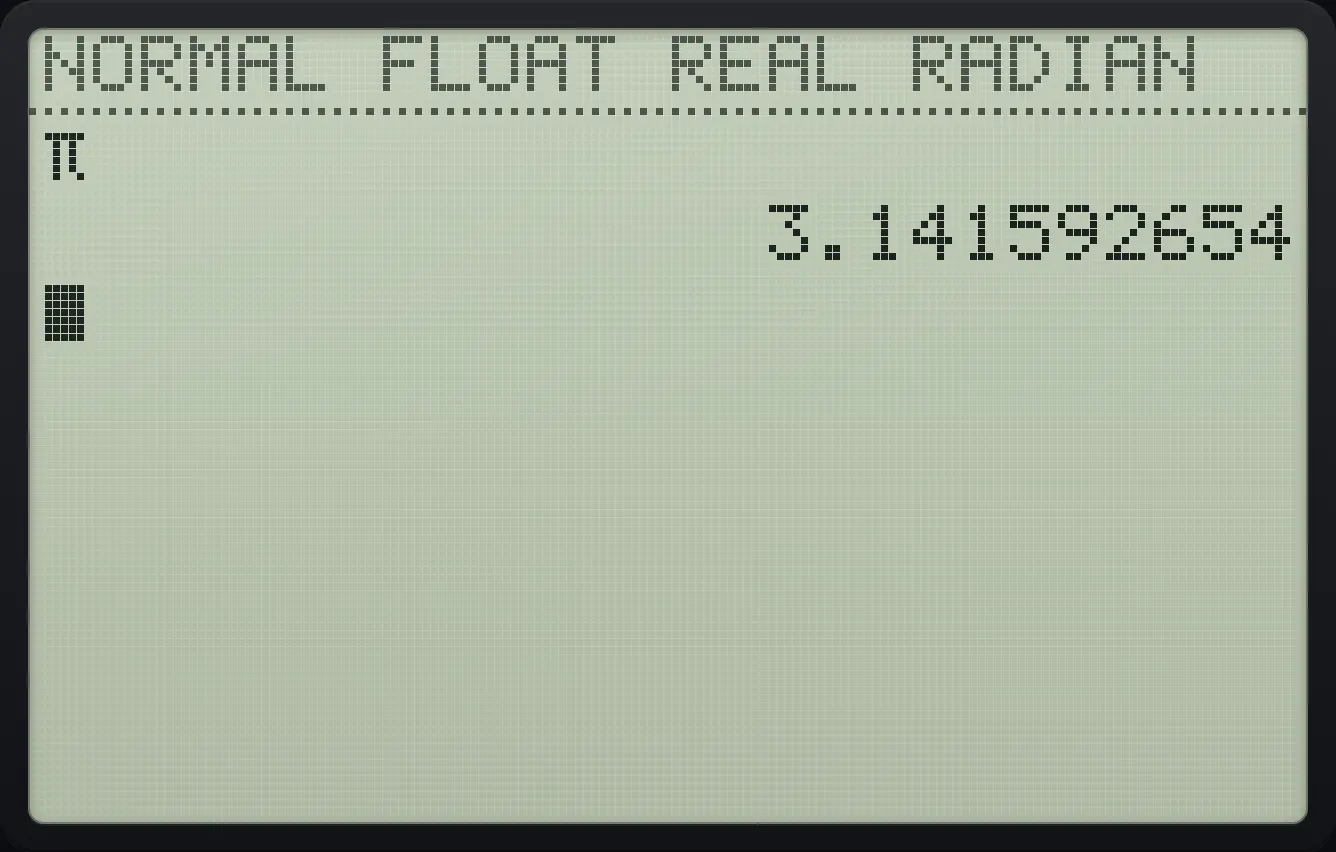
3.141592654Show e
Press 2nd then the ÷ key.
2nde÷enter
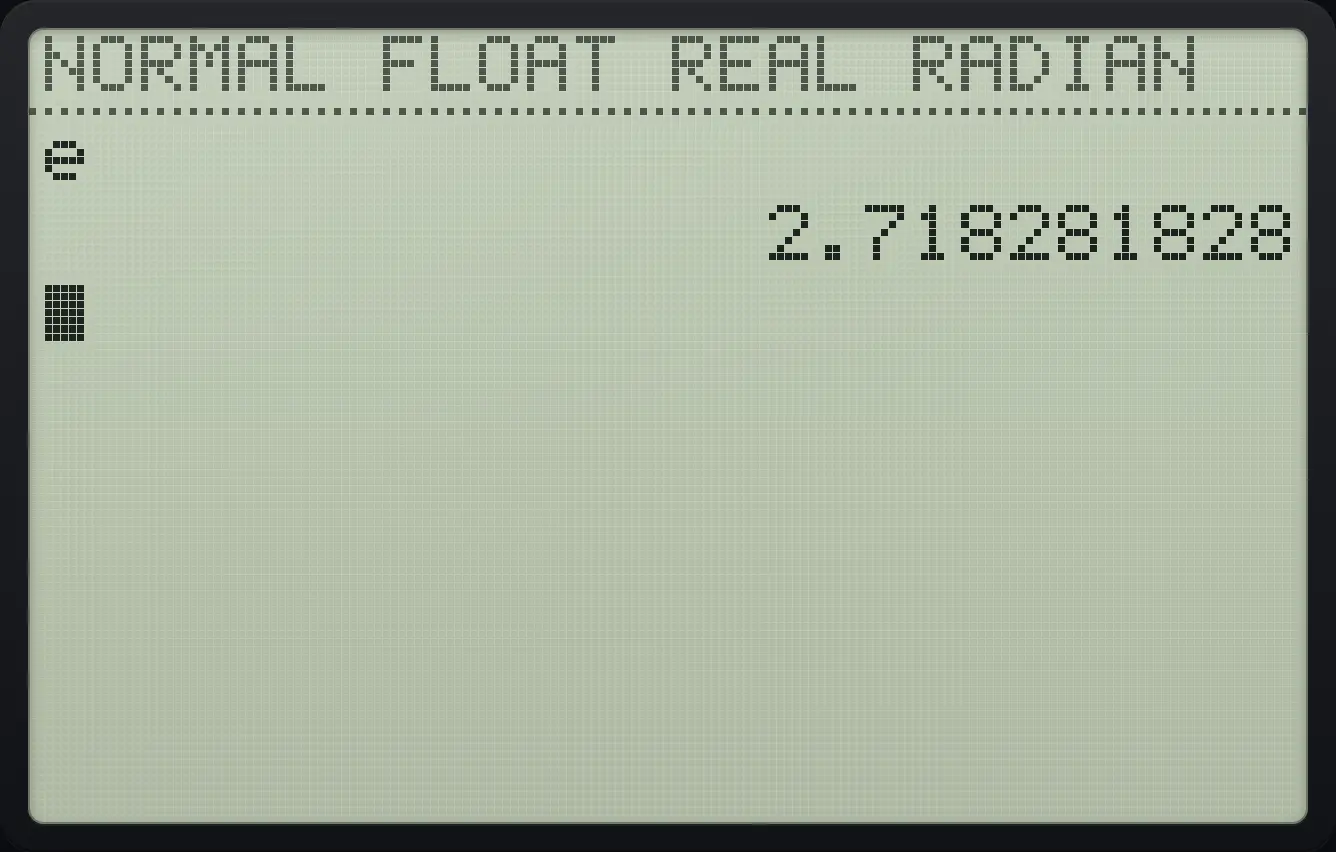
2.718281828TI-84 Plus CE is a trademark of Texas Instruments Incorporated. Trident Calculator is an independent product by South View Studios and is not affiliated with, sponsored by or endorsed by Texas Instruments. The name is used only to describe the kind of calculator this model resembles; Trident's names, keys, display, fonts and software are its own clean-room design.