
Classic Graphing 84 manual · Chapter 6 of 25
Modes and settings
Every setting on the MODE screen: number format, decimals, angle unit, graph type, connected or dot, complex mode, fractions and statistics diagnostics.
6.1The MODE screen#
Press mode to see the settings. The chosen option on each row is in [brackets]. Move between rows with ▲ and ▼, between options with ◀ and ▶, and press enter to choose the option under the cursor. Press 2ndQUITmode to go home.
![The MODE screen with the defaults chosen. The display shows: [NORMAL] SCI ENG / [FLOAT] 0123456789 / [RADIAN] DEGREE / [FUNC] PAR POL / [CONNECTED] DOT / [REAL] a+bi re^θi / FRACTION TYPE: [n/d] Un/d / ANSWERS: [AUTO] DEC FRAC.](/trident/app/help/manual/img/e7ad7a50s.webp)
| Row | Options | Default |
|---|---|---|
| 1 Number format | NORMAL, SCI, ENG | NORMAL |
| 2 Decimals | FLOAT, 0 to 9 | FLOAT |
| 3 Angle unit | RADIAN, DEGREE | RADIAN |
| 4 Graph type | FUNC, PAR, POL | FUNC |
| 5 Line style | CONNECTED, DOT | CONNECTED |
| 6 Complex numbers | REAL, a+bi, re^θi | REAL |
| 7 Fraction type | n/d, Un/d | n/d |
| 8 Answers | AUTO, DEC, FRAC | AUTO |
| 9 Stat diagnostics | OFF, ON | ON |
6.2Normal, scientific and engineering notation#
NORMAL shows numbers the usual way and switches to scientific notation only for very big or small values. SCI always shows one digit before the point, as in 1.234E3. ENG uses powers of ten that are multiples of 3, as in 12.345E3.
Scientific notation
In MODE press right once on the first row (SCI), enter, and return home.
mode▶enter2ndQUITmodeType 1234.
1234enter
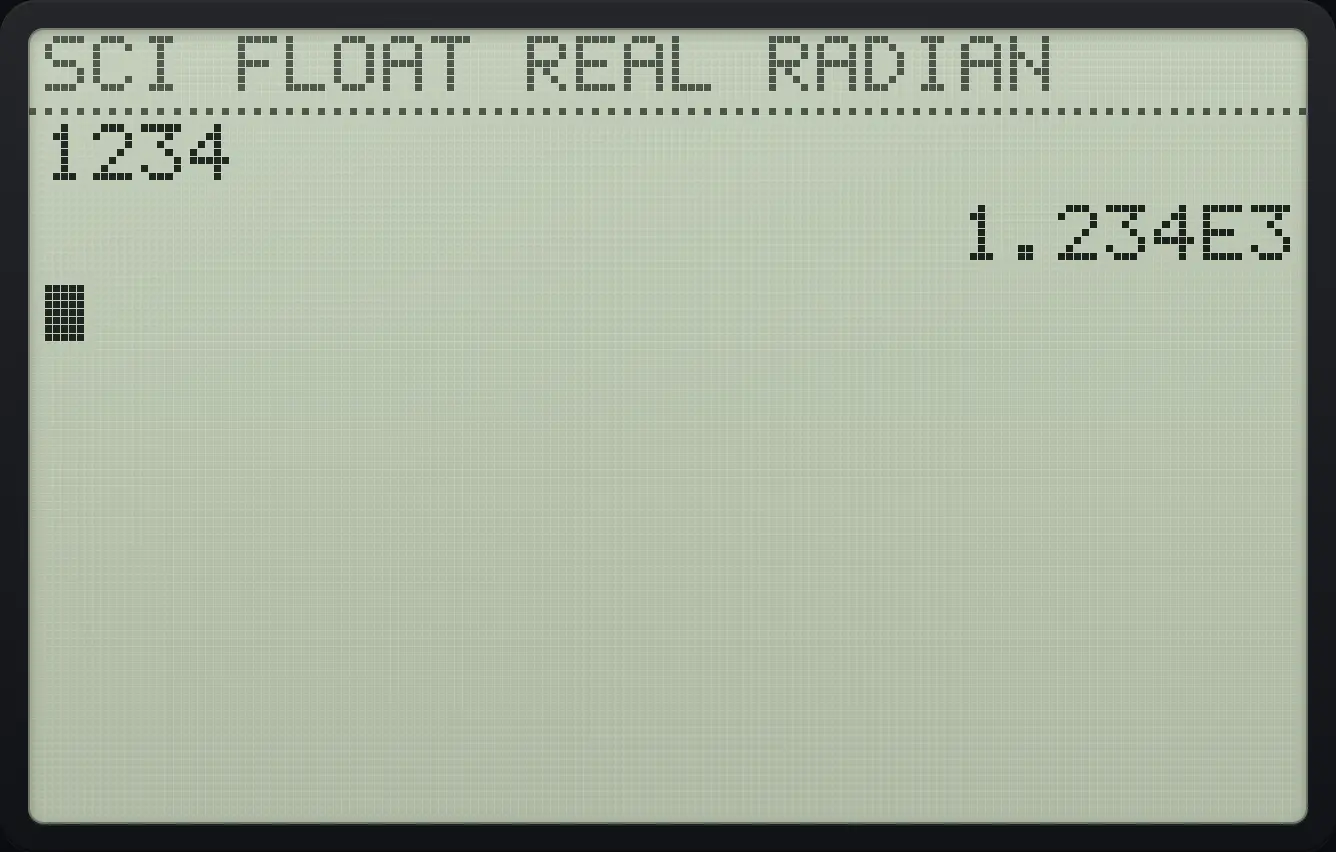
1.234E3Engineering notation
Choose ENG (right twice on the first row).
mode▶▶enter2ndQUITmodeType 12345.
12345enter
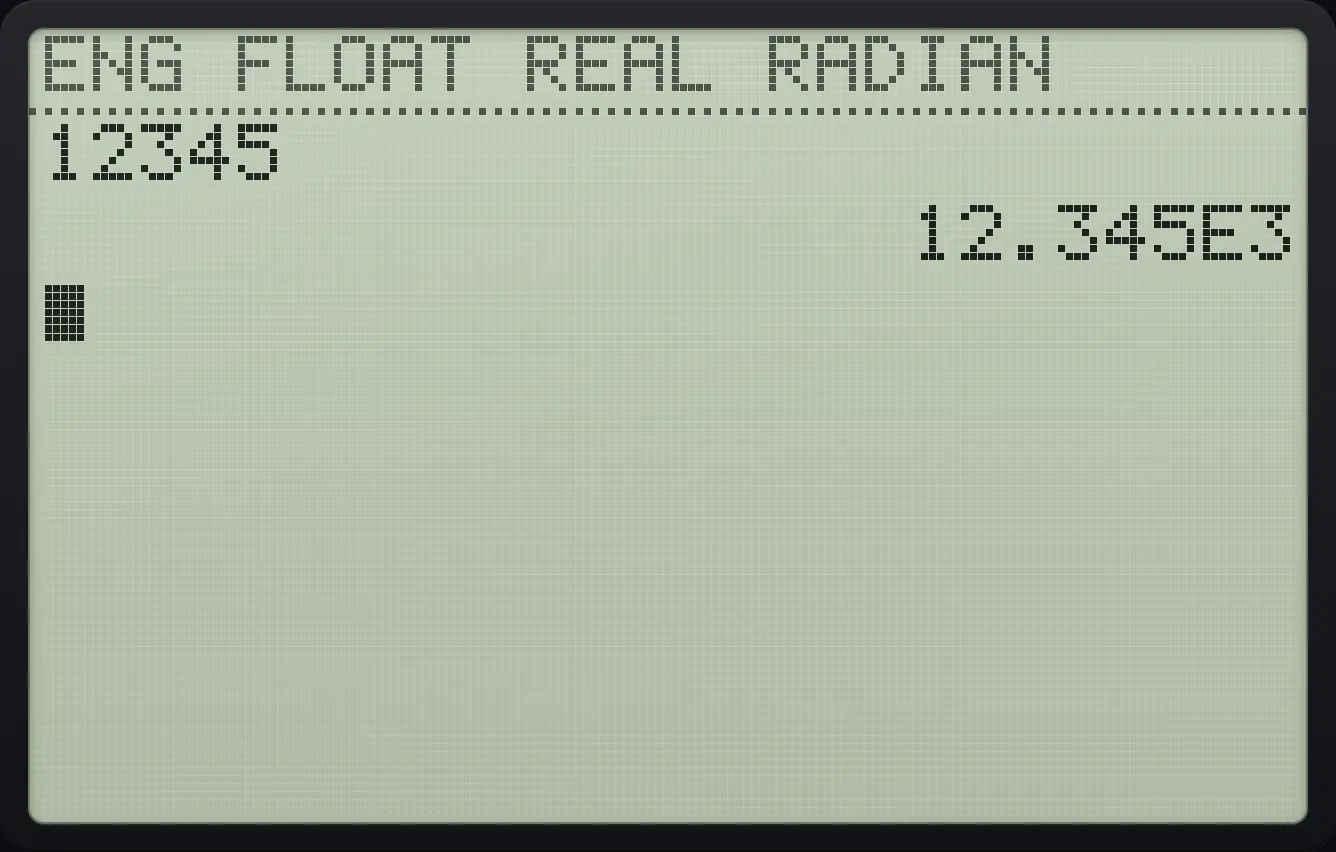
12.345E36.3Fix the number of decimal places#
FLOAT shows as many decimals as are needed (up to 10 digits). Choosing a number from 0 to 9 rounds every answer to that many decimals. The options on the second row are FLOAT, 0, 1, … 9 so 2 decimals is three steps right of FLOAT.
Two decimal places
In MODE move down one row and right 3 times to the 2, enter, go home.
mode▼▶▶▶enter2ndQUITmodeType 1/3.
1÷3enter
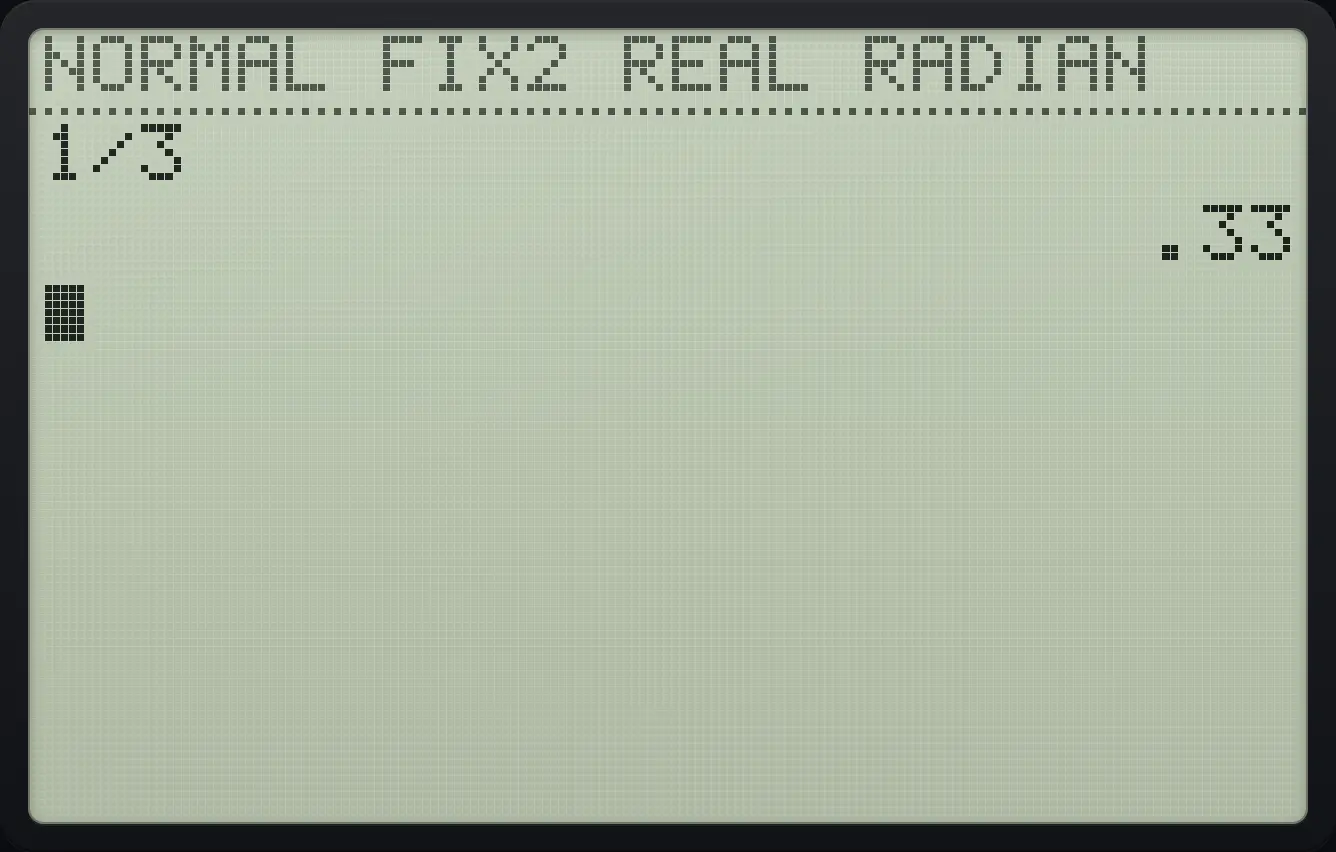
.33Zero decimals rounds to a whole number
Choose 0 on the second row (right once).
mode▼▶enter2ndQUITmodeType 2.5.
2.5enter
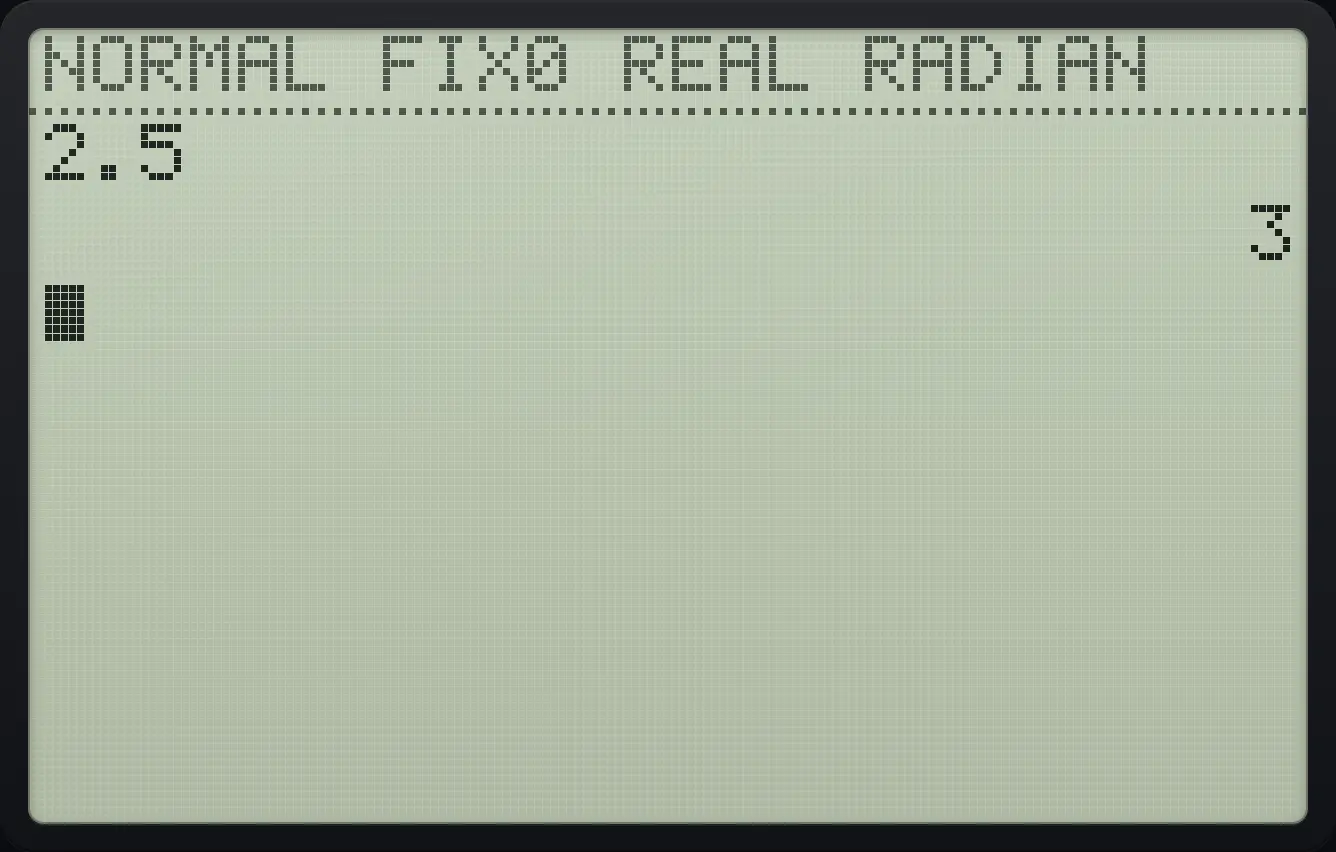
3The indicator strip shows FIX 2 (or the number you chose). Go back to FLOAT to see full precision again.
6.4Radian or degree#
Choose DEGREE when angles are in degrees (triangles, most school problems) and RADIAN for calculus, π and graphs of trig functions. The current unit is always shown in the indicator strip.
Switch to degrees
In MODE move down 2 rows, right once to DEGREE, enter, home.
mode▼▼▶enter2ndQUITmodeType tan(45).
tan45)enter
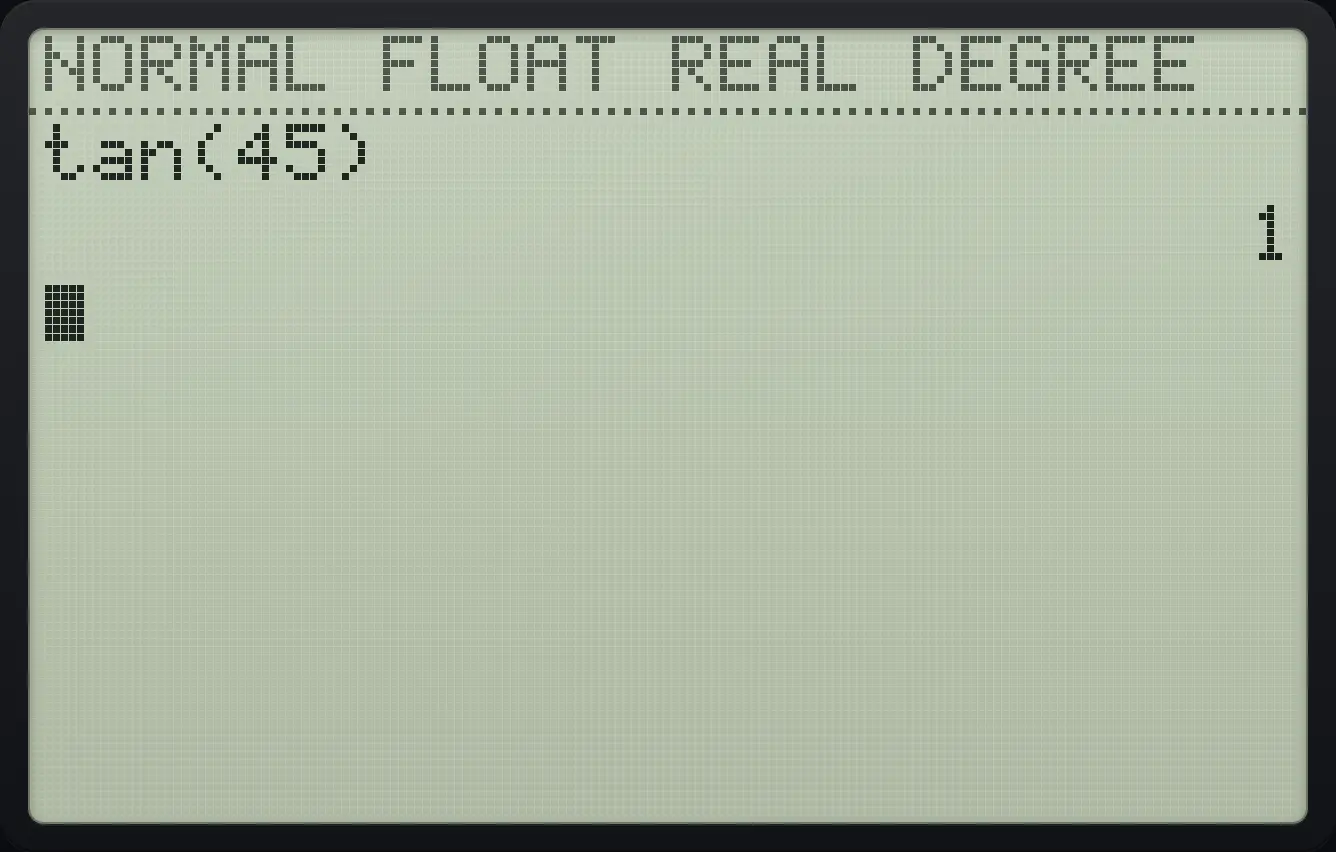
tan(45) 1Radian mode (default)
Type tan(π/4).
tan2ndπ^÷4)enter
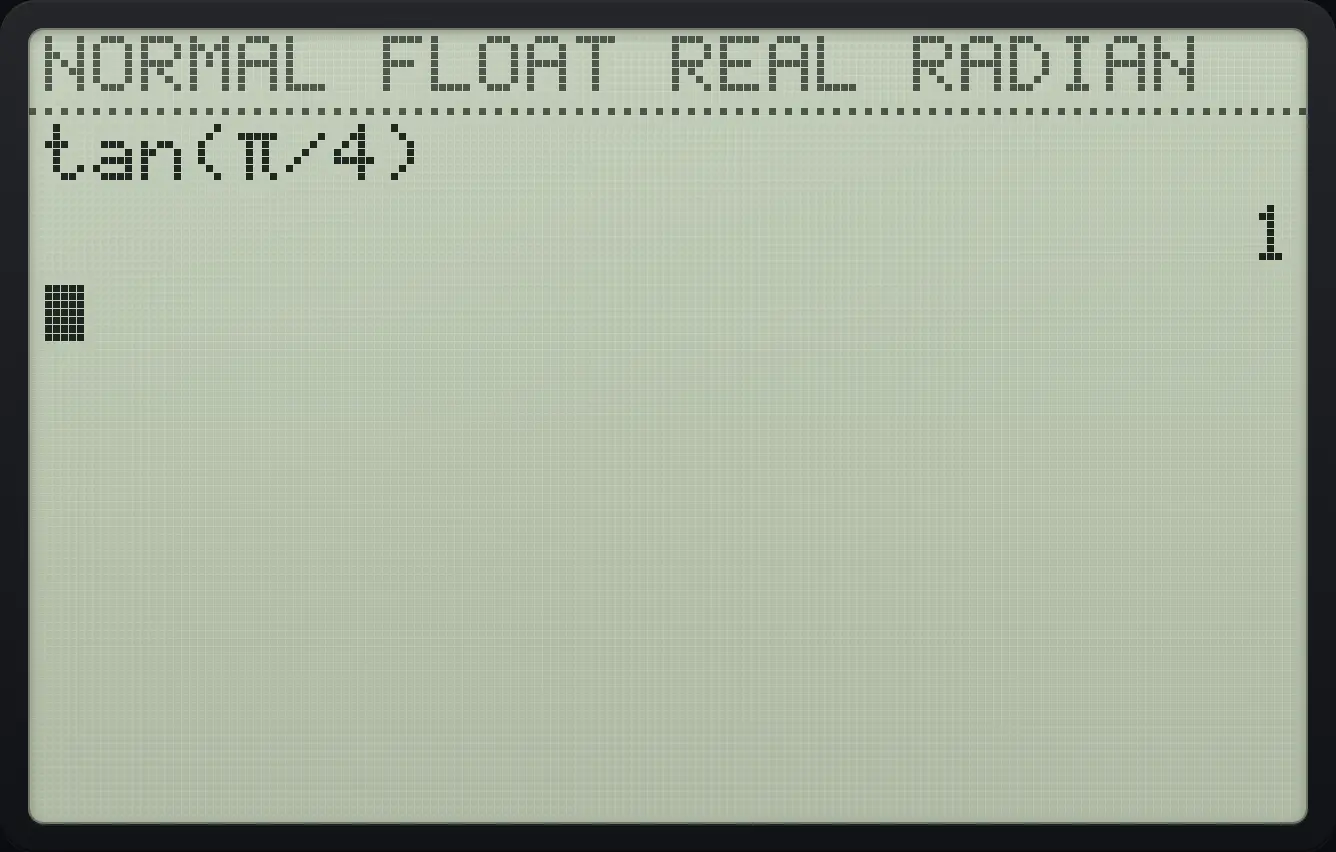
tan(π/4) 16.5Graph type and line style#
FUNC graphs y in terms of x, PAR graphs x and y in terms of t, and POL graphs r in terms of θ. The Y= editor, WINDOW screen and trace all change to match. CONNECTED joins the points of a graph into a curve; DOT draws separate dots.
Parametric mode changes the Y= editor
In MODE move down 3 rows, right once to PAR, enter, and press the Y= key.
mode▼▼▼▶entery=
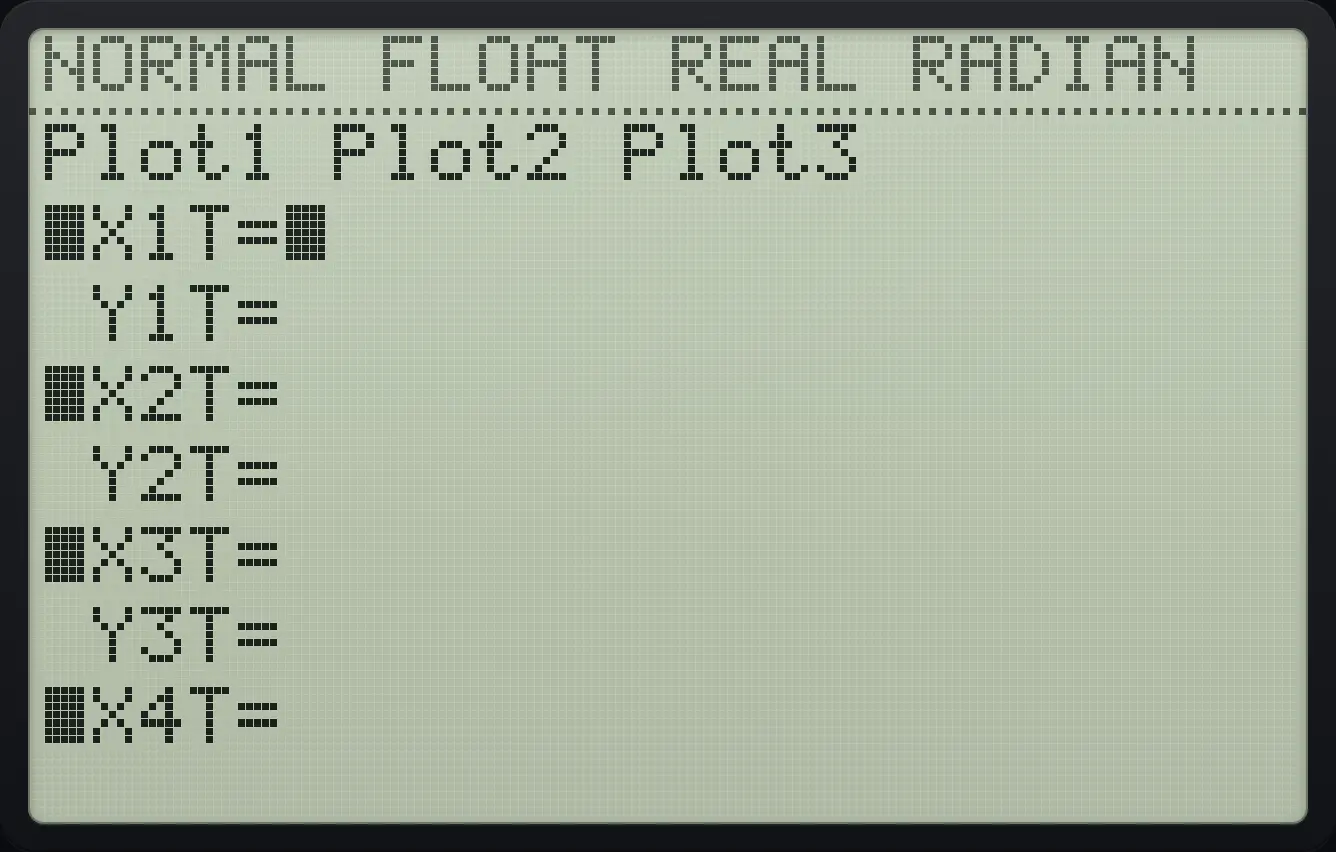
X1T= Y1T=Polar mode
Choose POL (right twice on the fourth row) and open Y=.
mode▼▼▼▶▶entery=
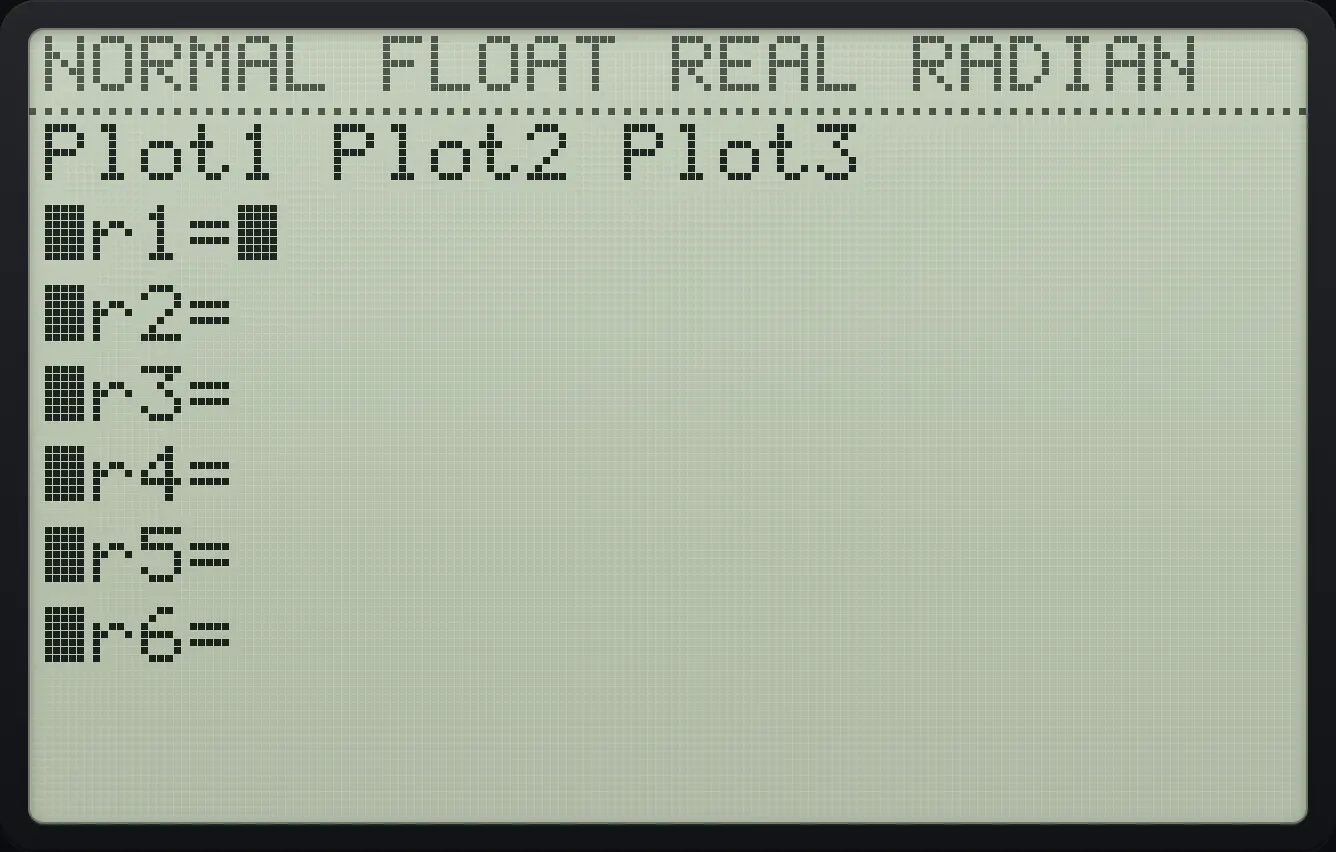
r1=6.6Real or complex results#
In REAL mode a calculation whose answer is not real, such as the square root of −4, gives a NONREAL ANS error. In a+bi mode the answer is shown as 2i. In re^θi mode complex answers are shown in polar form.
Error in real mode
Type √(−4) in REAL mode.
2nd√x²(−)4)enter
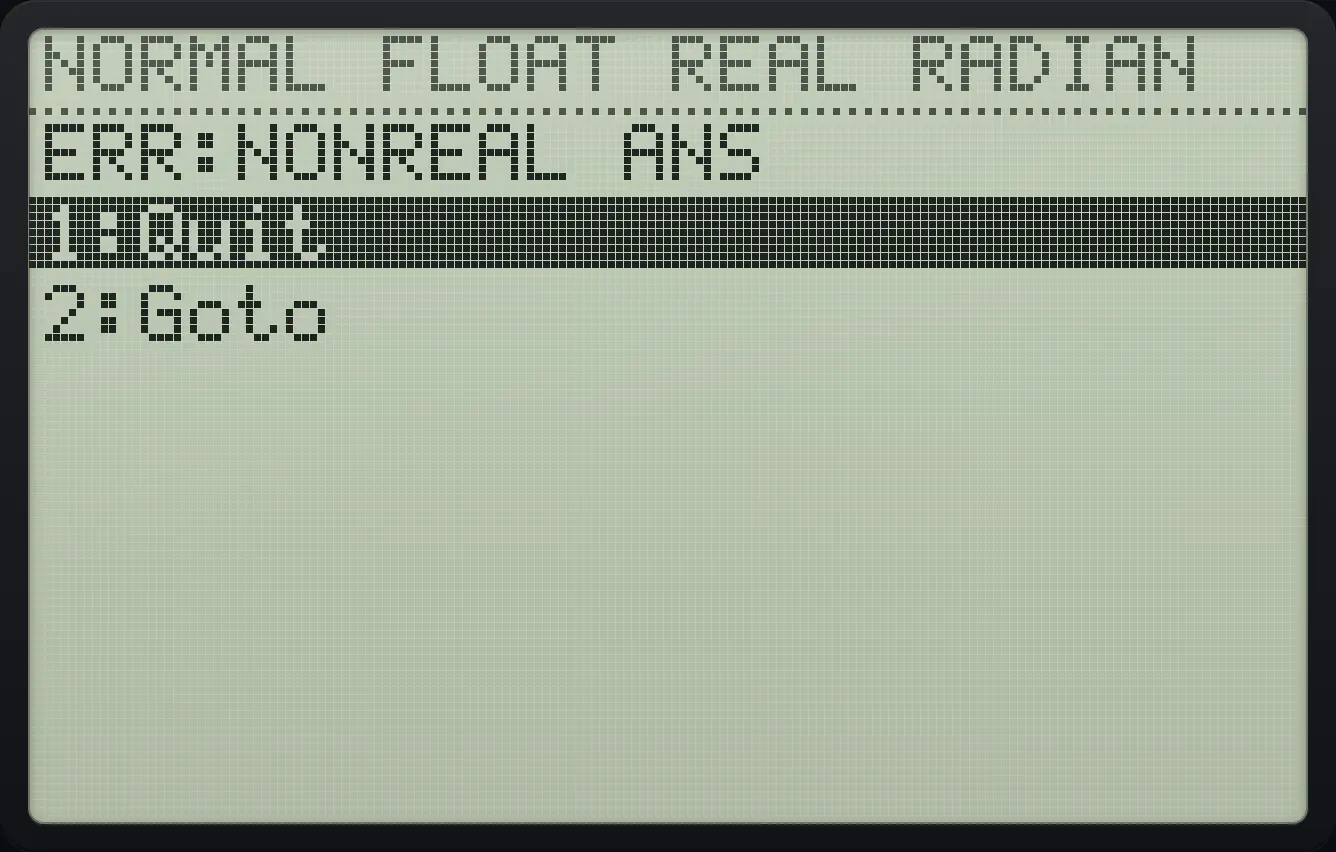
ERR:NONREAL ANSAllow complex answers
In MODE move down 5 rows, right once to a+bi, enter, home.
mode▼▼▼▼▼▶enter2ndQUITmodeType √(−4).
2nd√x²(−)4)enter
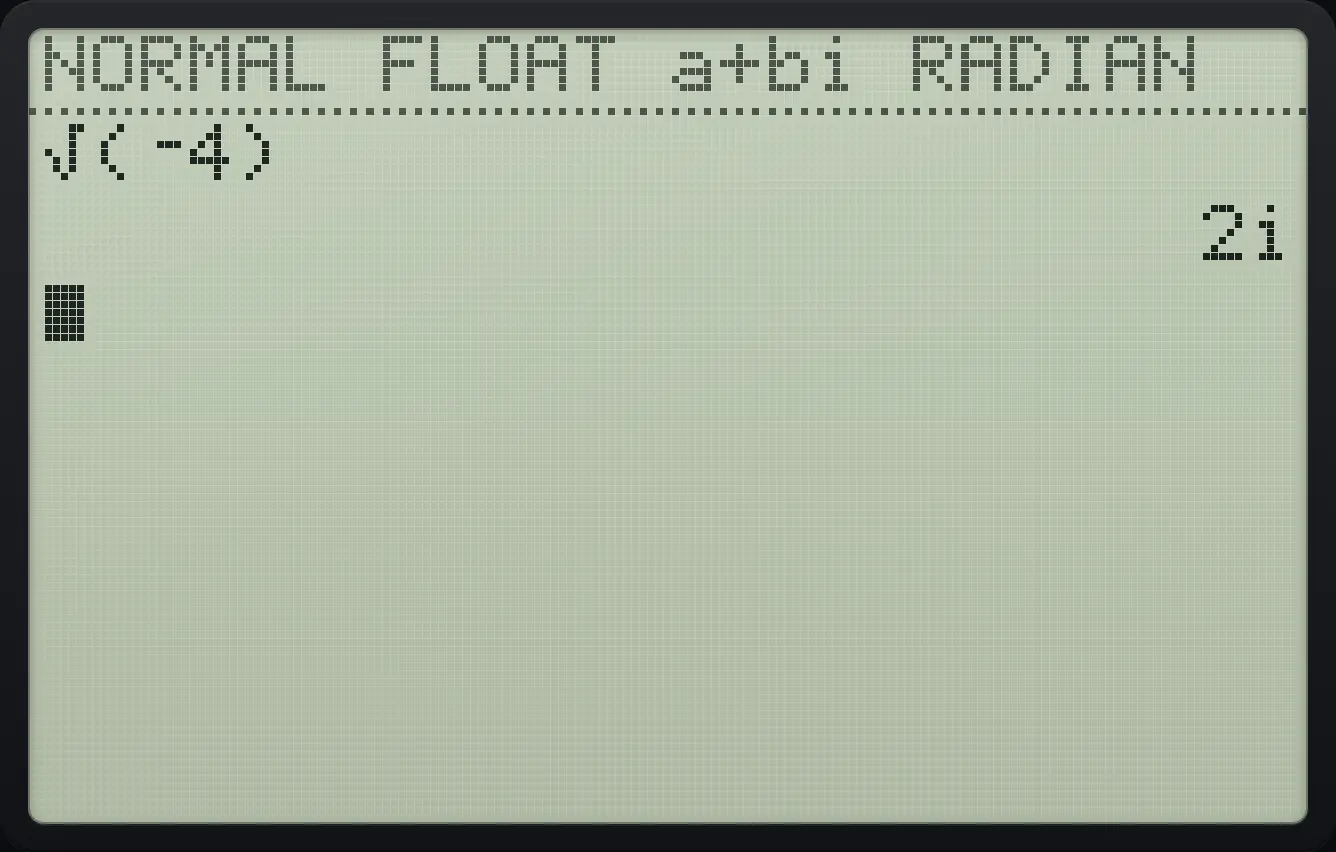
2iPolar form of a complex number
Choose re^θi (right twice on the sixth row).
mode▼▼▼▼▼▶▶enter2ndQUITmodeType 2i using 2nd dot for i.
22ndi.enter
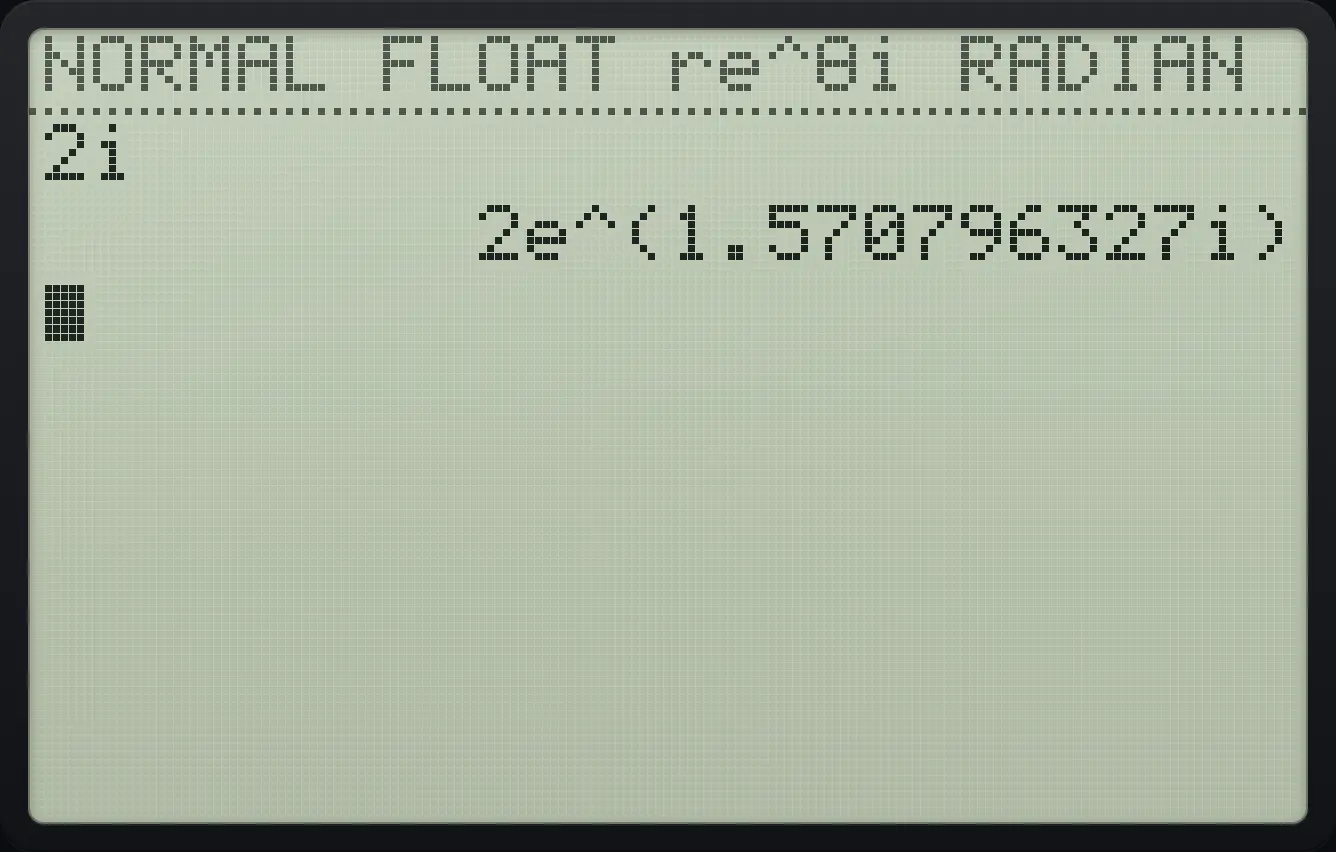
2e^(1.570796327i)See also Complex numbers
6.7Statistics diagnostics#
With STAT DIAGNOSTICS ON, regressions also show r and r² (or R²). Turn them OFF to see only the coefficients. The setting is on the ninth row.
Diagnostics off
In MODE move down 8 rows, press left to OFF and enter.
mode▼▼▼▼▼▼▼▼◀enter
![Result of the example "Diagnostics off" The display shows: [FLOAT] 0123456789 / [RADIAN] DEGREE / [FUNC] PAR POL / [CONNECTED] DOT / [REAL] a+bi re^θi / FRACTION TYPE: [n/d] Un/d / ANSWERS: [AUTO] DEC FRAC / STAT DIAGNOSTICS: [OFF] ON.](/trident/app/help/manual/img/0e435061s.webp)
STAT DIAGNOSTICS: [OFF]TI-84 Plus CE is a trademark of Texas Instruments Incorporated. Trident Calculator is an independent product by South View Studios and is not affiliated with, sponsored by or endorsed by Texas Instruments. The name is used only to describe the kind of calculator this model resembles; Trident's names, keys, display, fonts and software are its own clean-room design.