
Classic Graphing 84 manual · Chapter 11 of 25
Tables of values
Show a table of x and y values for your functions, choose where it starts and its step, or ask for individual values.
11.1Show a table#
Enter functions in Y= and press 2ndTABLEgraph (TABLE). The left column is x, followed by a column for each function that is on. ▼ and ▲ scroll, and ◀ and ▶ move between columns. The line at the bottom shows the full value of the highlighted cell. A value that cannot be computed shows ERROR.
Table of y = x² − 4
Enter Y1 = X²−4 and press 2nd graph.
y=X,T,θ,nx²−4▼2ndTABLEgraph
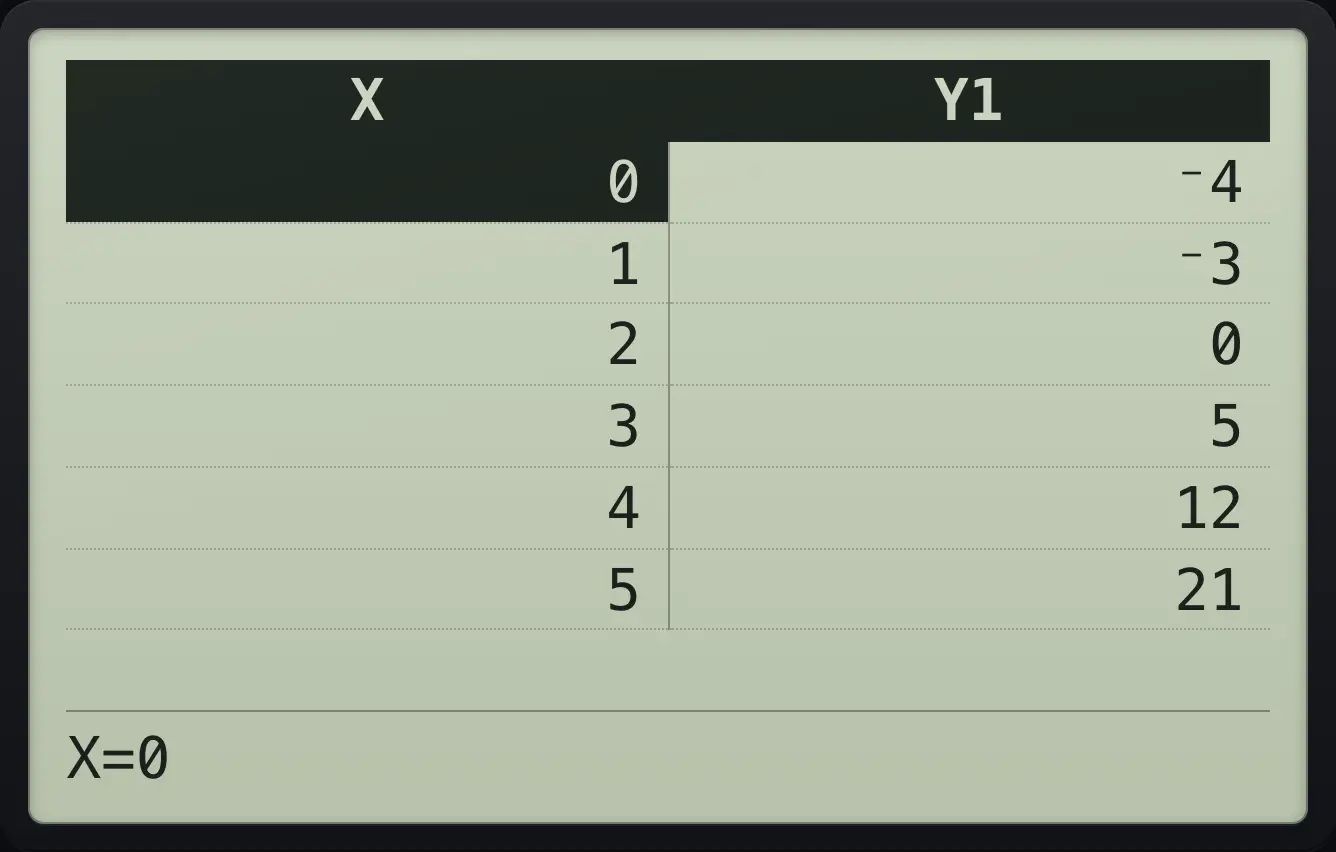
X | Y1 2 | 0 3 | 5Two functions side by side
Enter X and X² and show the table.
y=X,T,θ,n▼X,T,θ,nx²▼2ndTABLEgraph
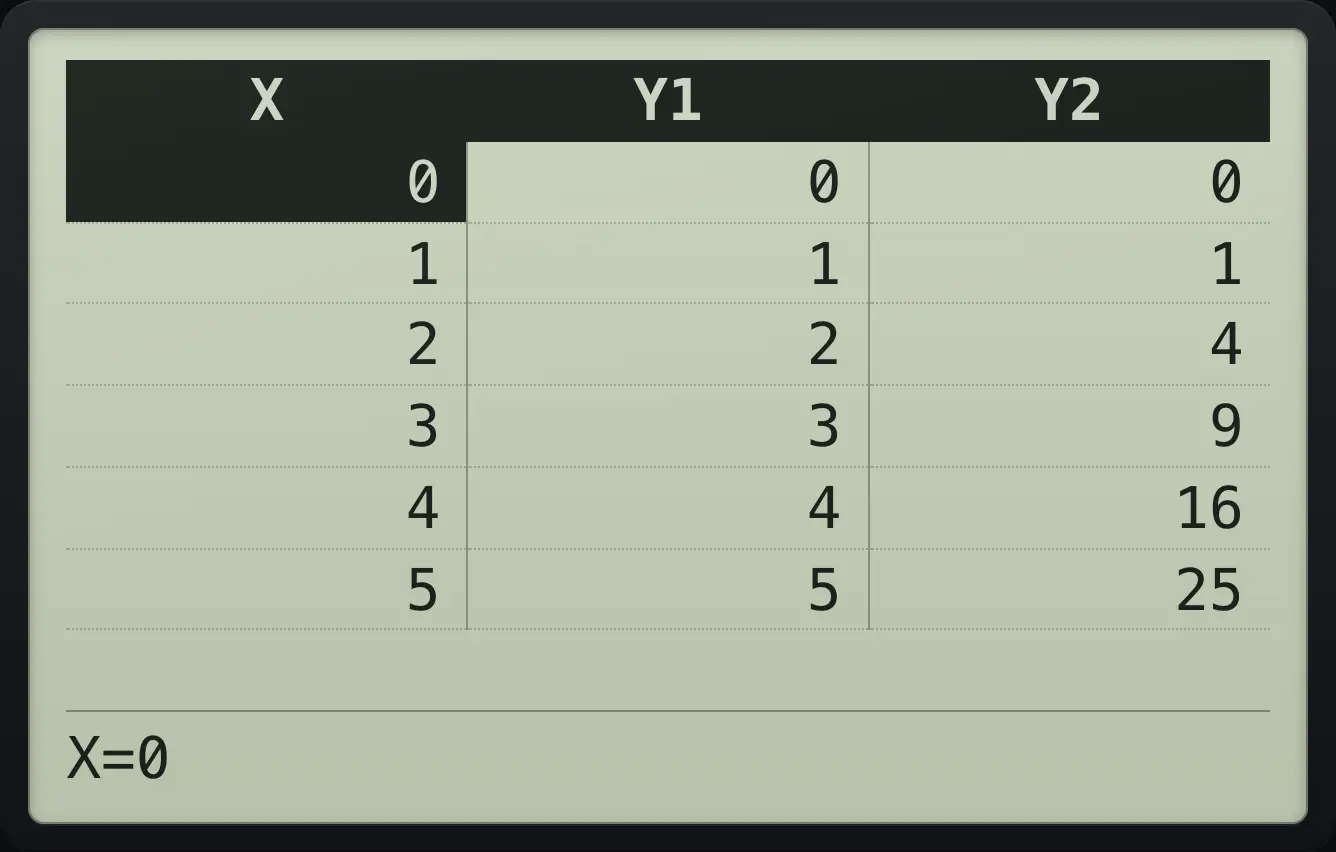
X | Y1 | Y2Undefined values
Enter 1/X. At x = 0 there is no value.
y=1÷X,T,θ,n▼2ndTABLEgraph
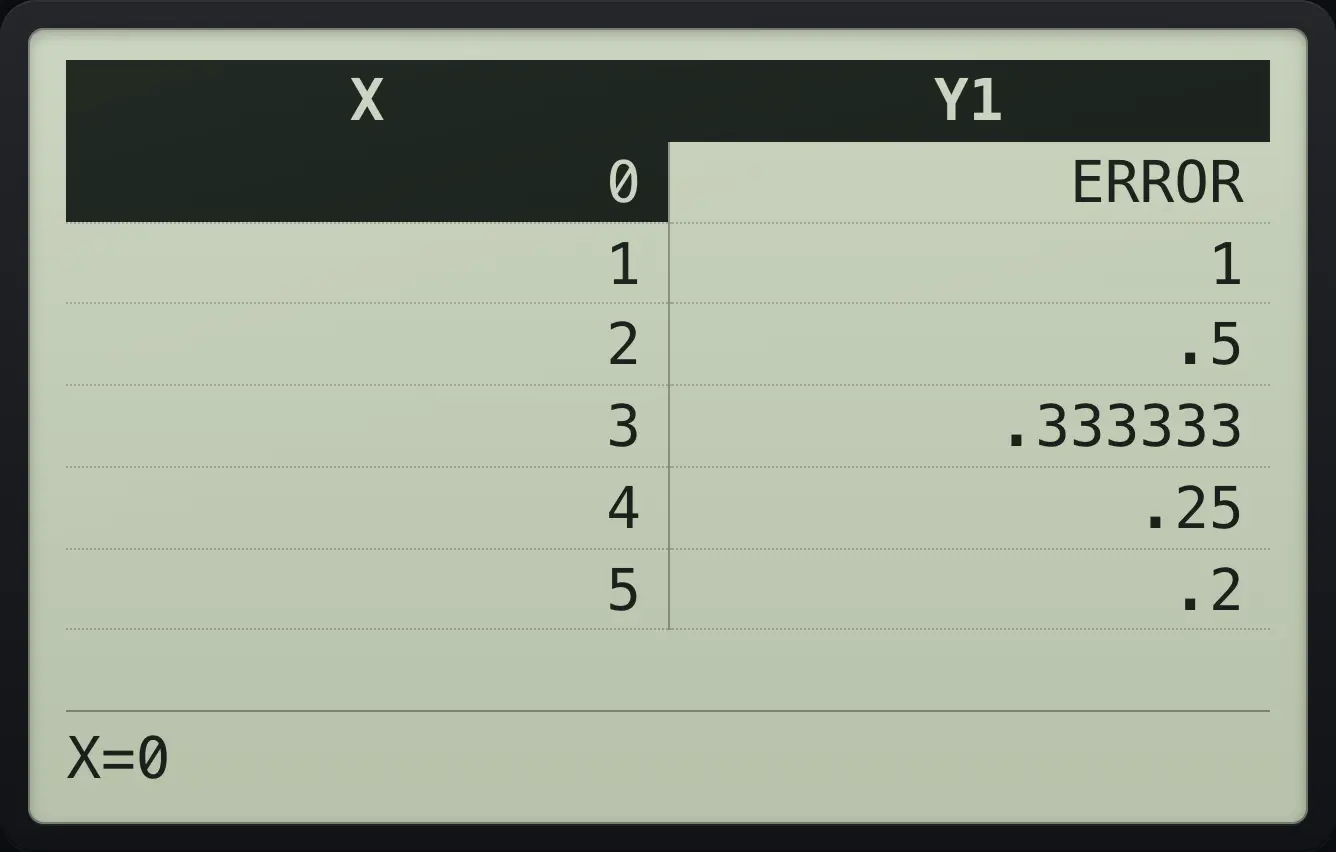
0 | ERRORRead the full value of a cell
Enter 1/(3X), show the table, move right to the Y1 column and down one row.
y=1÷(3X,T,θ,n)▼2ndTABLEgraph▶▼▼
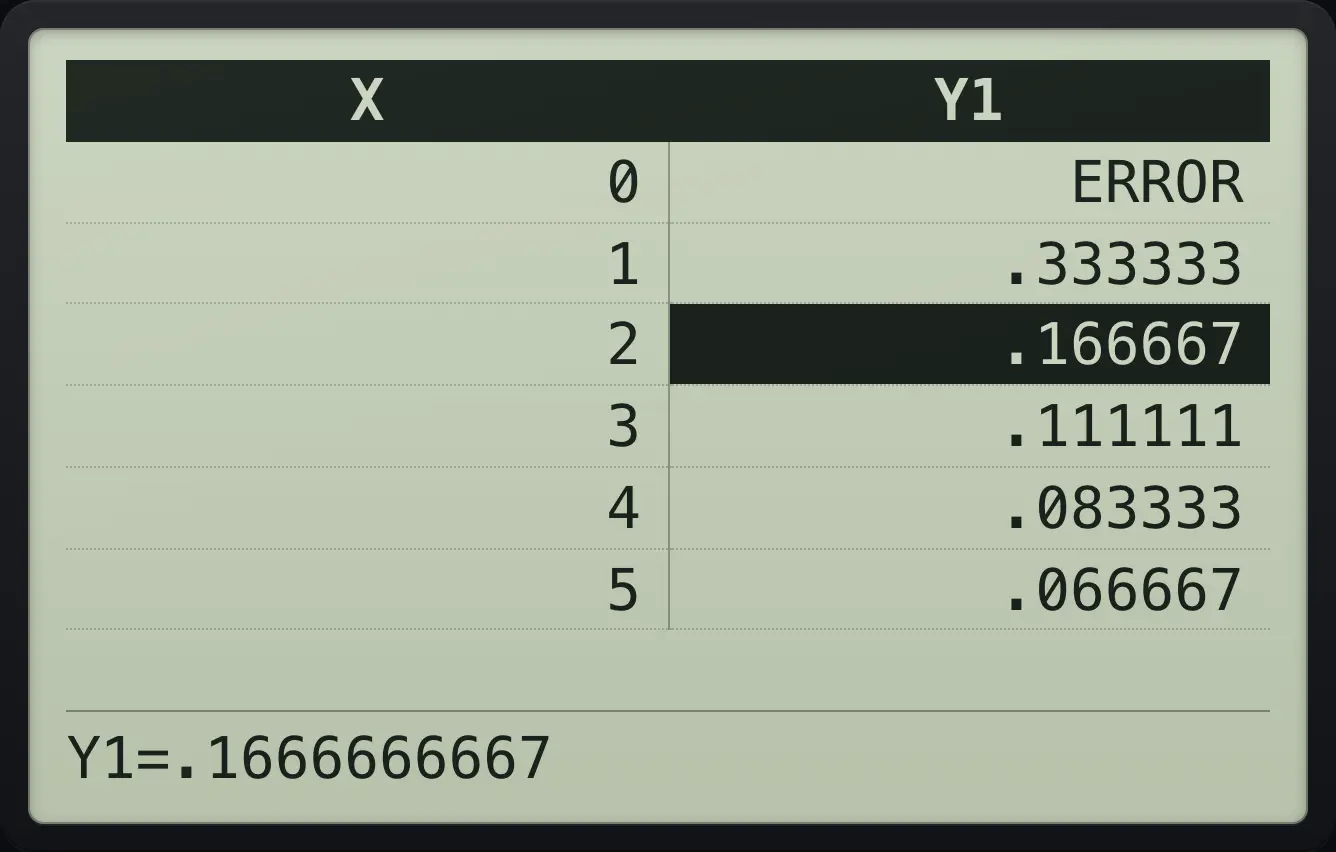
Y1=.166666666711.2Choose the start and step (TBLSET)#
Press 2ndTBLSETwindow for TABLE SETUP. TblStart is the first x, ΔTbl is the step between rows. Indpnt AUTO fills x for you; ASK lets you type each x. Depend AUTO computes y for you; ASK waits until you ask for each y.
![The TABLE SETUP screen. The display shows: TABLE SETUP / TblStart=0 / ΔTbl=1 / Indpnt: [AUTO] ASK / Depend: [AUTO] ASK.](/trident/app/help/manual/img/ba8fa52ds.webp)
Start at −1 with step 0.5
Enter Y1 = 2X, open TABLE SETUP, type −1 for TblStart, down, .5 for ΔTbl.
y=2X,T,θ,n▼2ndTBLSETwindow(−)1▼.5▼Press 2nd graph.
2ndTABLEgraph
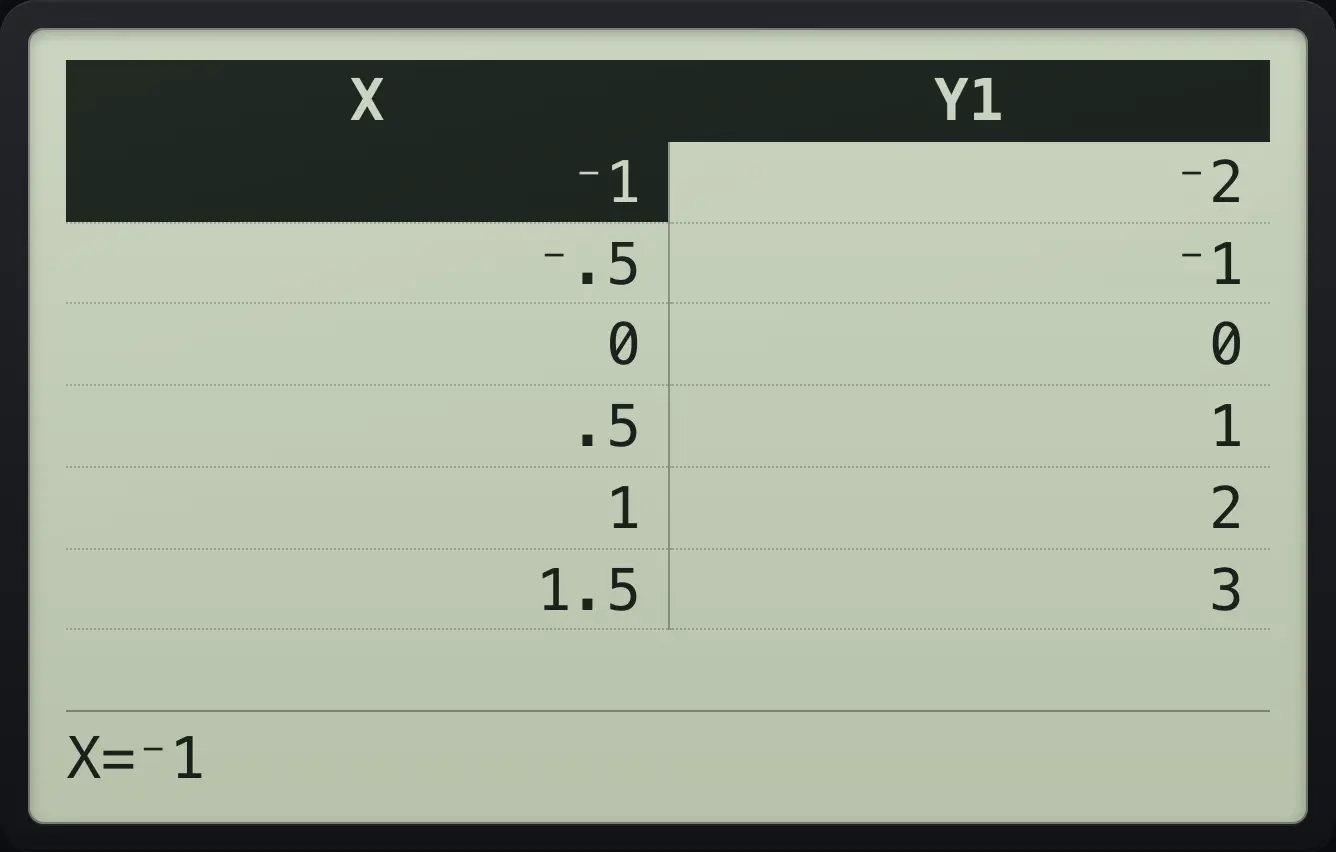
⁻1 | ⁻2 ⁻.5 | ⁻1 0 | 0Ask for your own x values
Enter Y1 = X². In TABLE SETUP move down two rows, choose ASK for Indpnt and press enter.
y=X,T,θ,nx²▼2ndTBLSETwindow▼▼▶enterShow the table, type 7 and press enter.
2ndTABLEgraph7enter
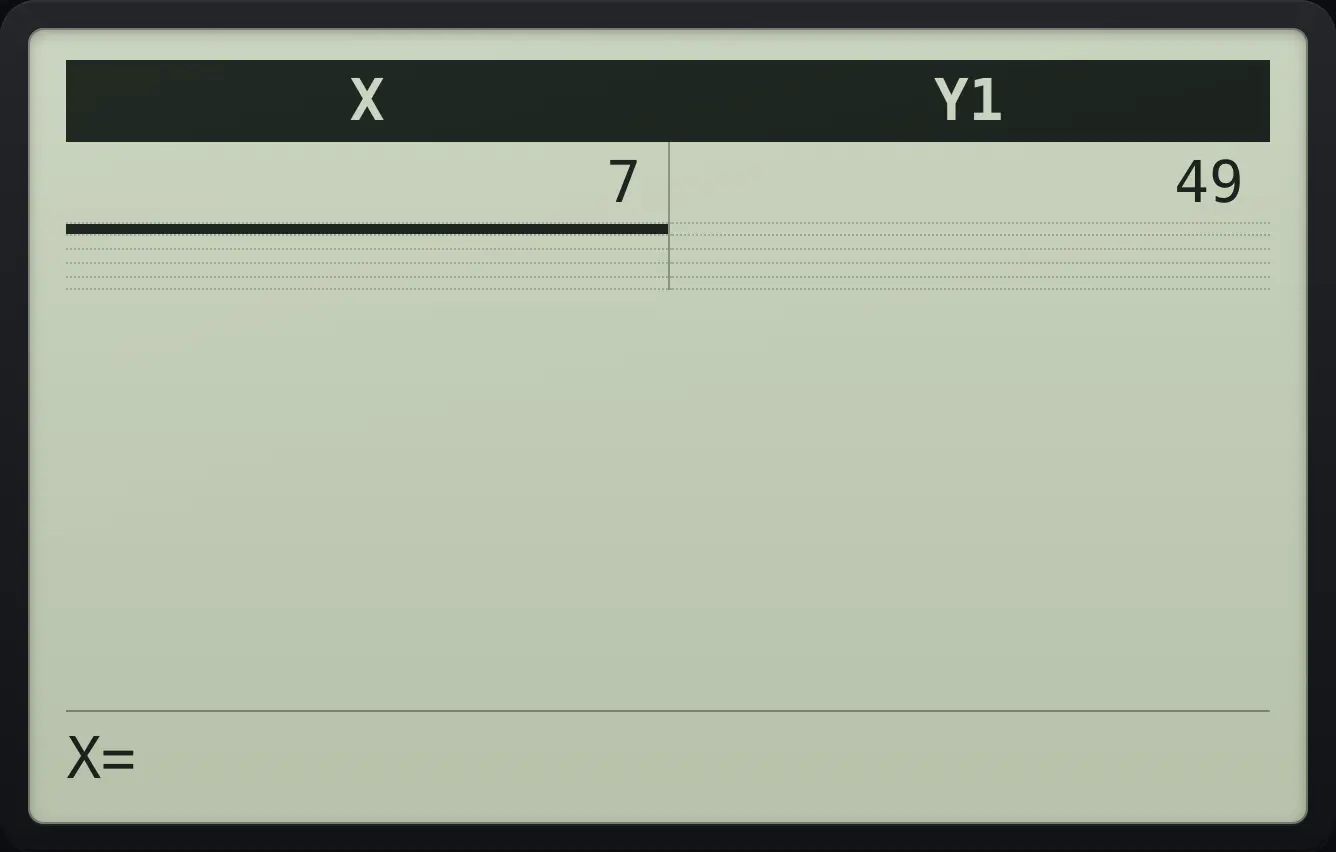
7 | 49Jump the table to an x value
With Indpnt on AUTO, show the table and type 10, enter. The table now starts at 10.
y=X,T,θ,n▼2ndTABLEgraph10enter
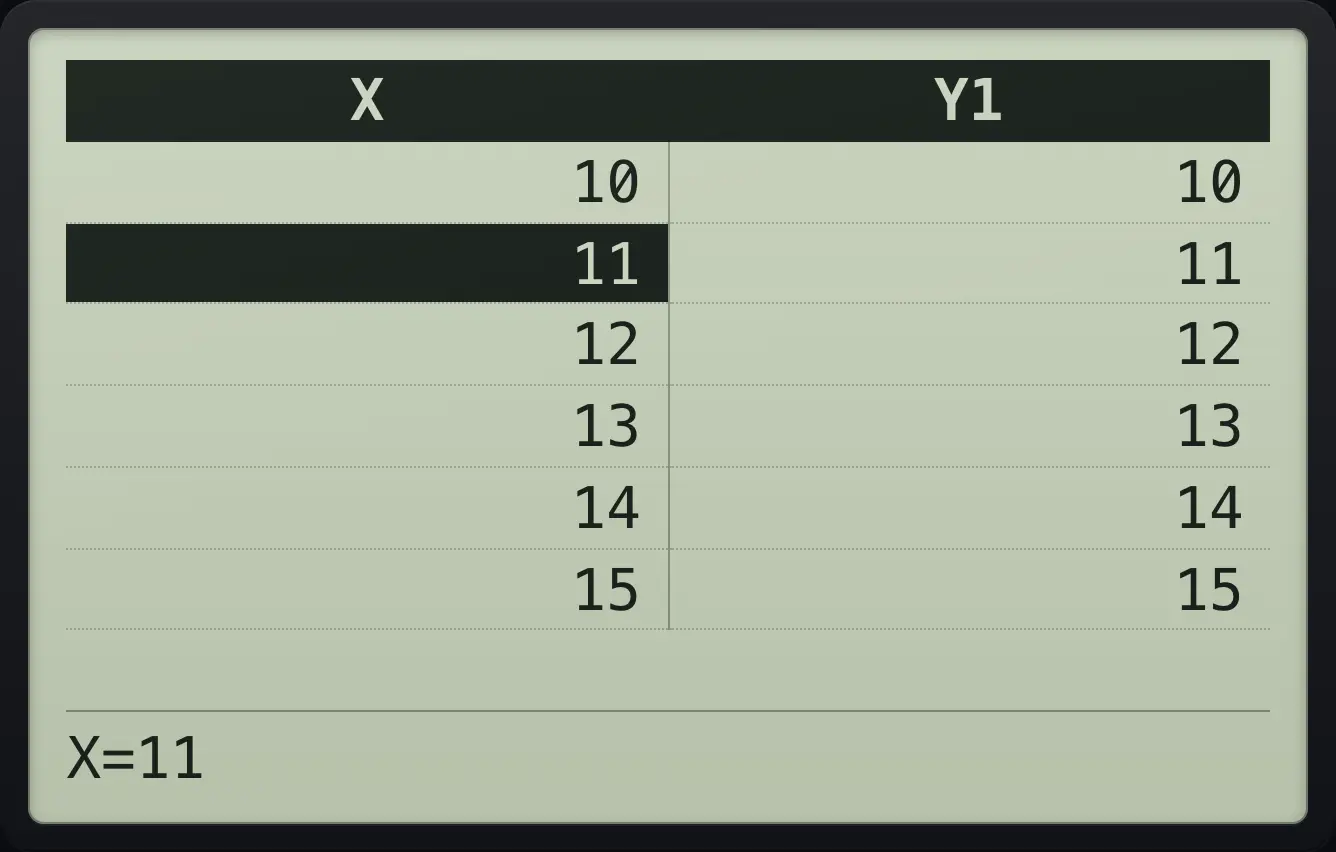
10 | 10TI-84 Plus CE is a trademark of Texas Instruments Incorporated. Trident Calculator is an independent product by South View Studios and is not affiliated with, sponsored by or endorsed by Texas Instruments. The name is used only to describe the kind of calculator this model resembles; Trident's names, keys, display, fonts and software are its own clean-room design.