
Classic Graphing 84 manual · Chapter 1 of 25
Getting started
What the Classic Graphing 84 is for, how the screen and the 2nd and alpha layers work, and how to enter, edit and clear a calculation.
1.1What this calculator does#
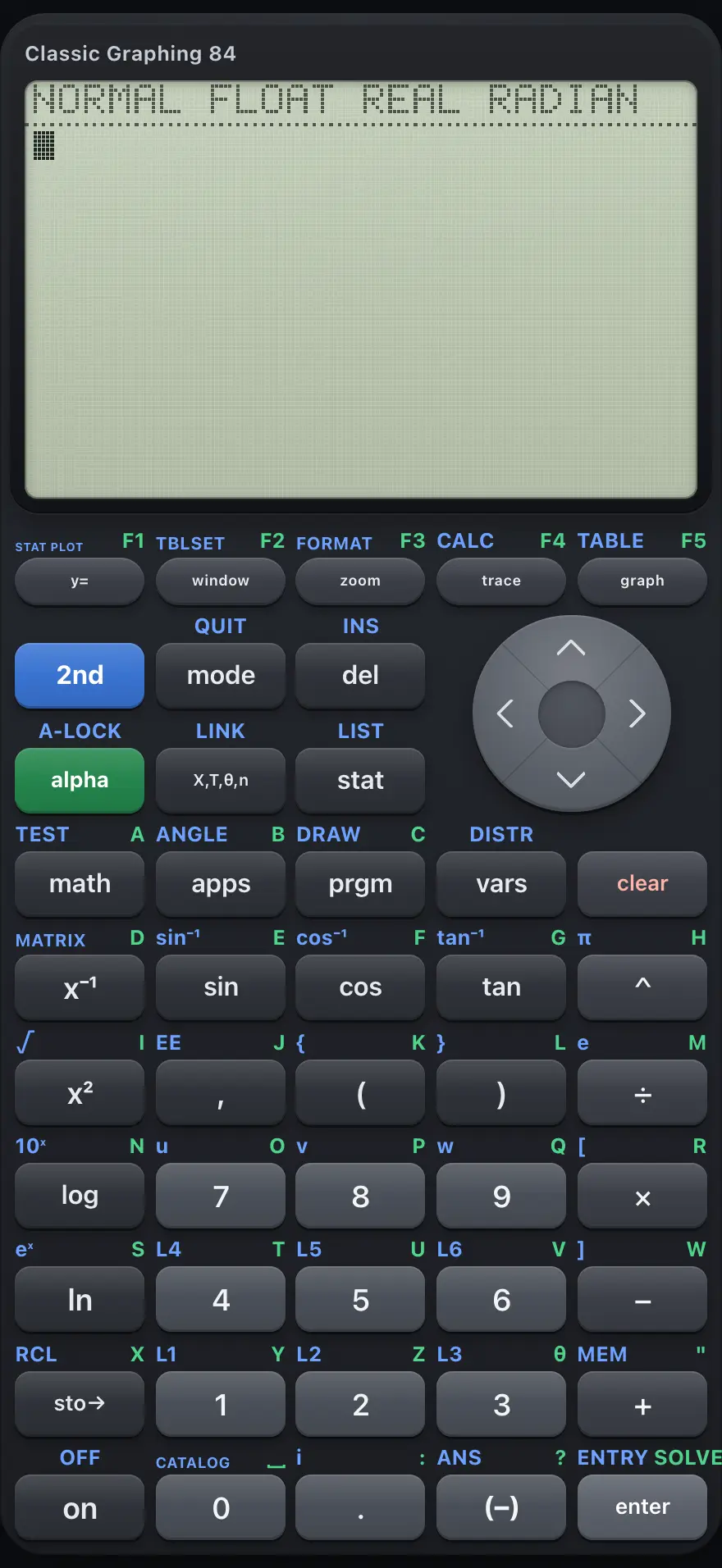
- Screen: 26 characters by 8 lines, with indicators
- 2nd: the blue functions above the keys
- alpha: the green letters; 2nd alpha locks them
- Graphing keys: Y=, WINDOW, ZOOM, TRACE, GRAPH
- Menu keys: MATH, APPS, PRGM, VARS, STAT
- enter: calculate or choose
- (−): negative sign (not the same as subtract)
- clear: erase the line or leave a menu
Classic Graphing 84 is a full graphing calculator. You type expressions on the home screen, draw graphs of functions, parametric and polar equations, study them with tables and the CALCULATE tools, keep data in lists, run statistics and tests, work with matrices and complex numbers, solve equations numerically, and write small programs.
It follows the classic layout of a school graphing calculator: a row of graphing keys at the top, a cursor pad, and menus that you open with keys such as math, stat and prgm. Every number is calculated in decimal, so 0.1 + 0.2 shows exactly 0.3.
1.2The screen and its indicators#
The text screen is 26 characters wide and 8 lines tall. On the home screen you see your earlier entries on the left and their answers on the right, with the line you are typing at the bottom. Graphs, tables, the list editor and the menus use the same screen.
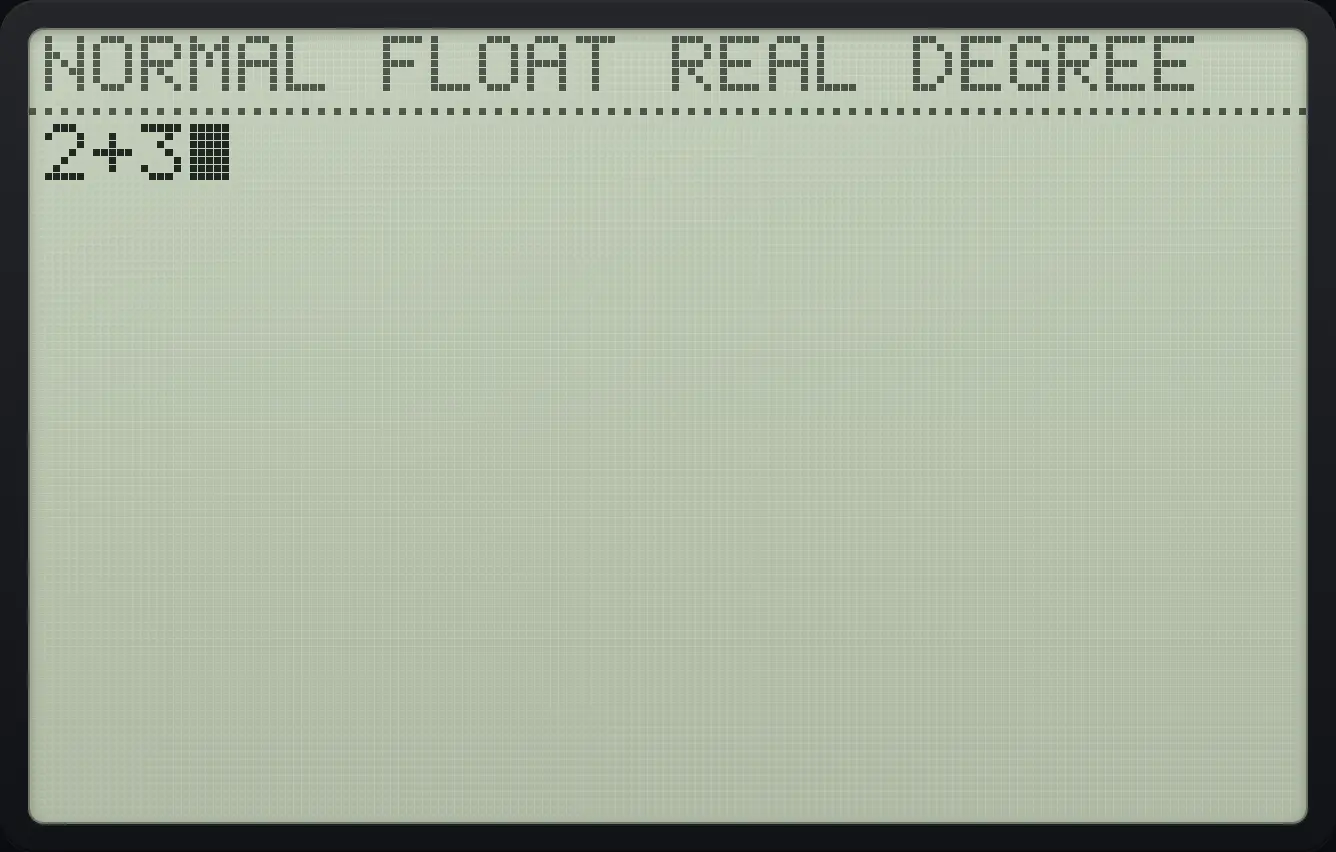
A strip of indicators shows the state of the calculator at all times.
| Indicator | Meaning |
|---|---|
| 2nd | The 2nd key was pressed. The next key uses the legend printed above it. |
| ALPHA | The alpha key was pressed (or alpha lock is on). The next key types a letter. |
| RAD or DEG | The angle unit for trigonometry. See the modes chapter. |
| NORMAL, SCI or ENG | How big and small numbers are displayed. |
| FLOAT or FIX n | Whether the number of decimals is automatic or fixed. |
| REAL, a+bi or re^θi | Whether complex results are allowed and how they are shown. |
The cursor tells you what a key will do. A solid block replaces the character it sits on (the normal mode), an underscore inserts new characters before it, and the 2nd and ALPHA cursors show that the next key is shifted.
1.3The 2nd and alpha layers#
Most keys do three jobs. The main job is printed on the key. The job in blue above the key is used after 2nd. The job in green is used after alpha, and is usually a letter.
- Press 2nd once, then a key, to use its blue legend. For example 2ndsin⁻¹sin is the inverse sine.
- Press alpha once, then a key, to type one letter. For example alphaEsin types E.
- Press 2ndA-LOCKalpha for alpha lock: every key types a letter until you press alpha again.
- Pressing 2nd twice cancels it.
- 2nd blue layer
- alpha green letters
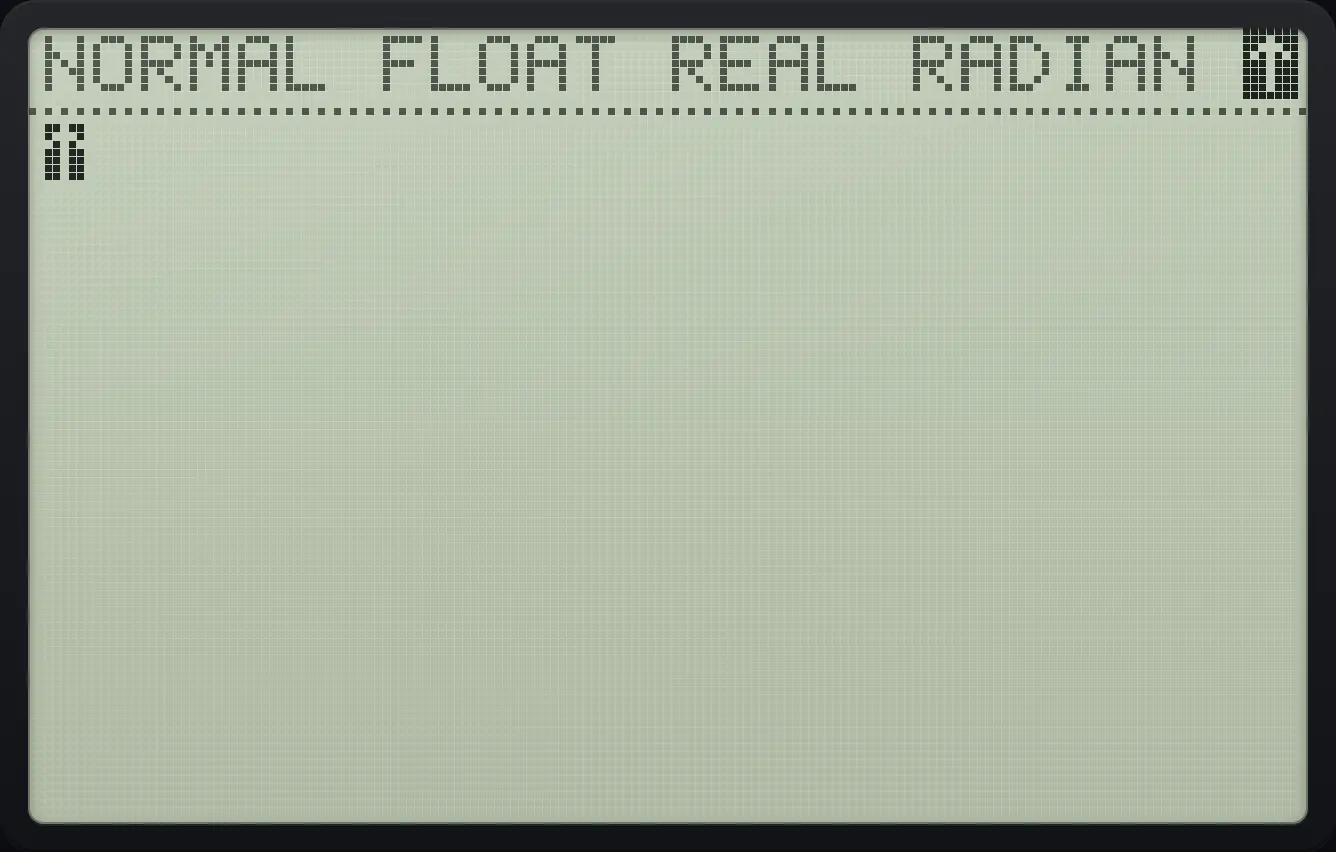
Type a letter with alpha
Press alpha, then the sin key. The letter E appears.
alphaEsin
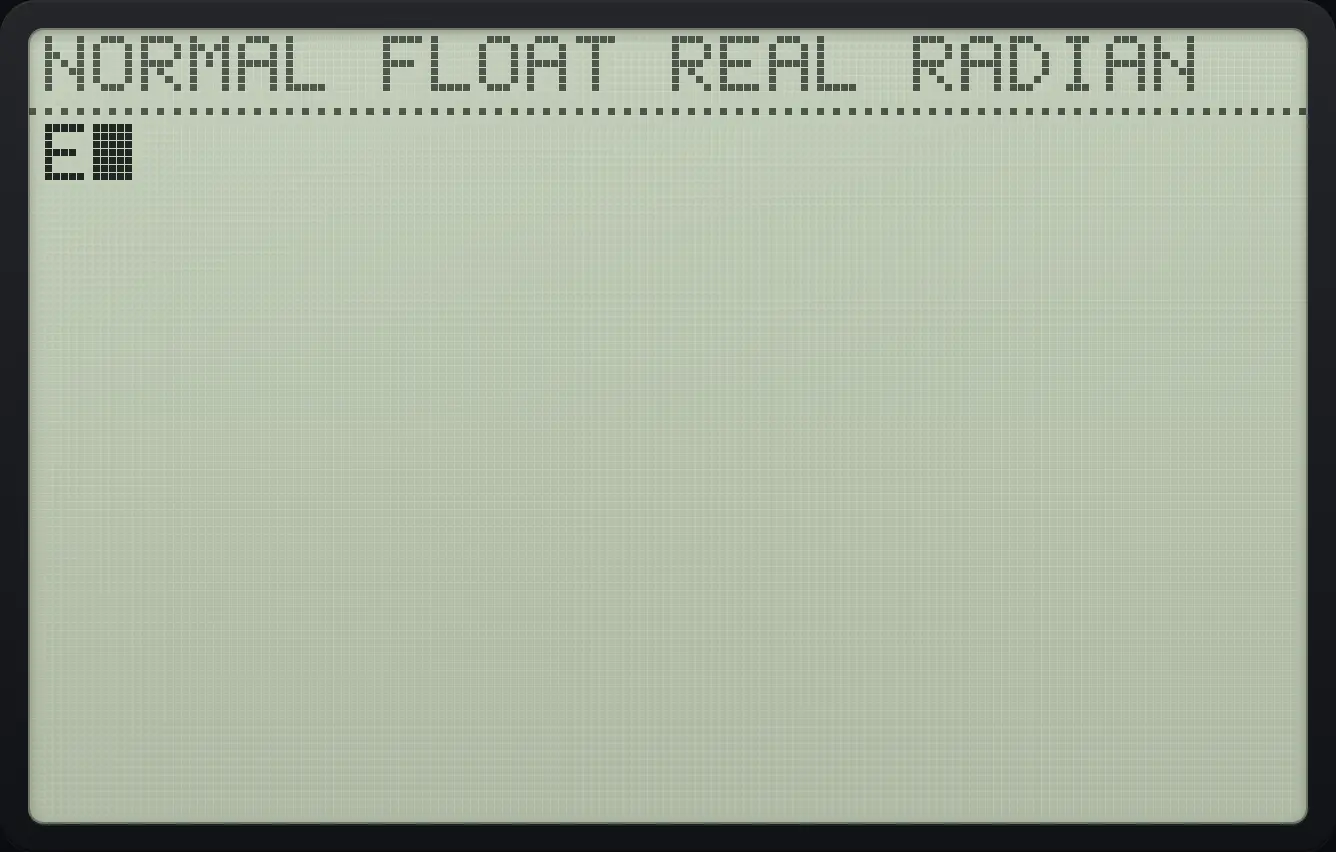
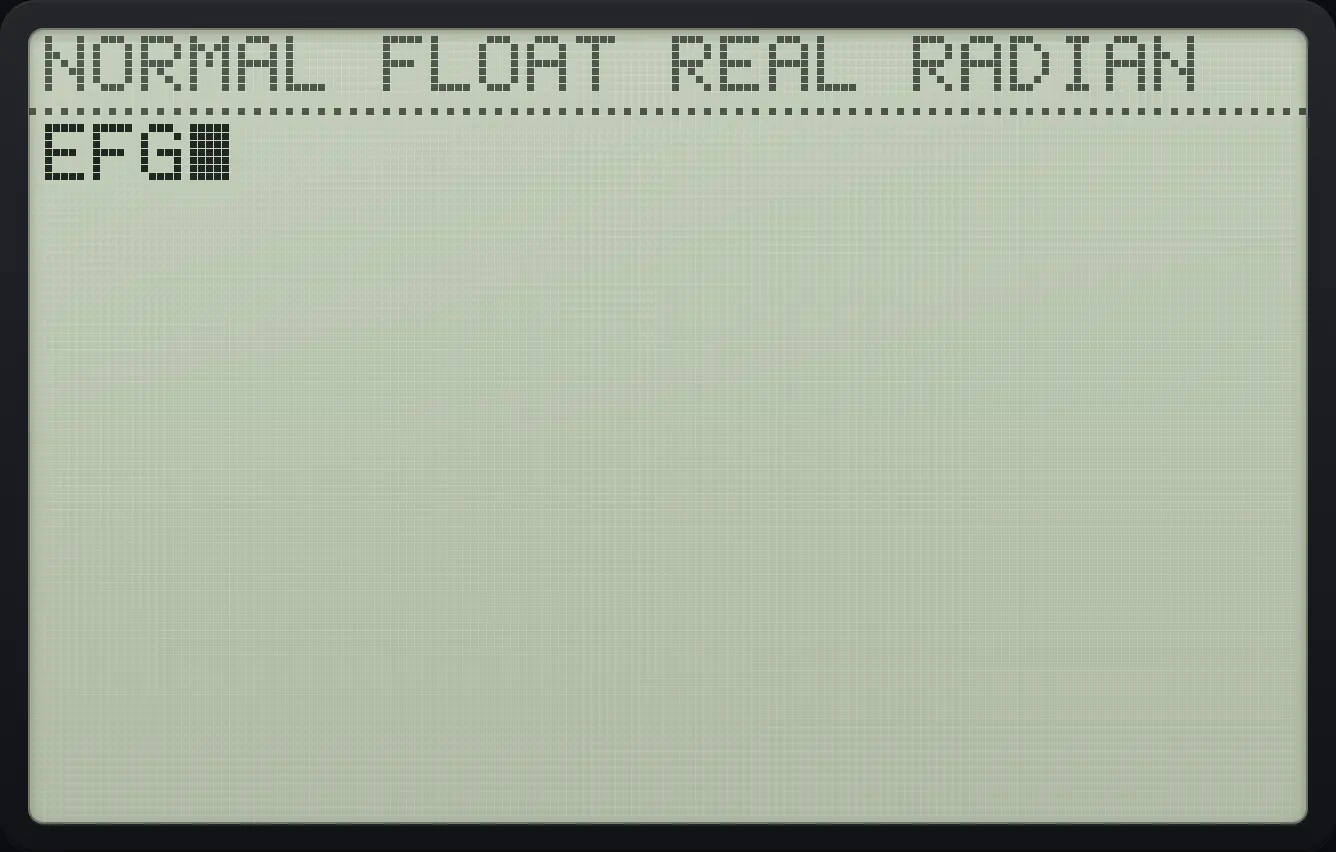
EUse alpha lock for several letters
Press 2nd then alpha to lock, type three letter keys, then press alpha to unlock.
2ndA-LOCKalphasincostanalpha
EFG1.4Your first calculation#
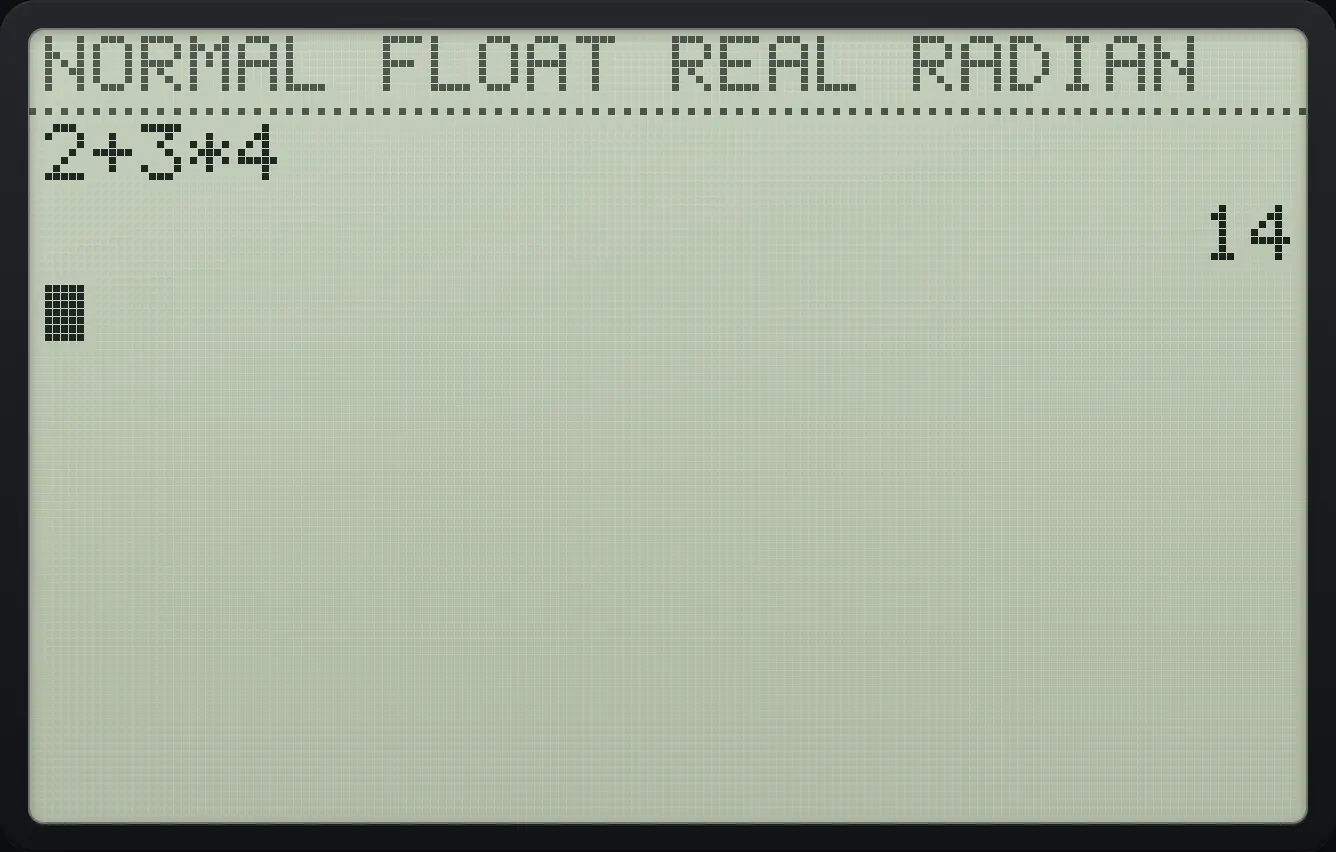
Type the expression the way you would write it, then press enter. The calculator follows the usual order of operations, so multiplication happens before addition.
Add and multiply
Type 2 + 3 × 4 and press enter.
2+3×4enter
14Use brackets to change the order
Type (2 + 3) × 4 and press enter.
(2+3)×4enter
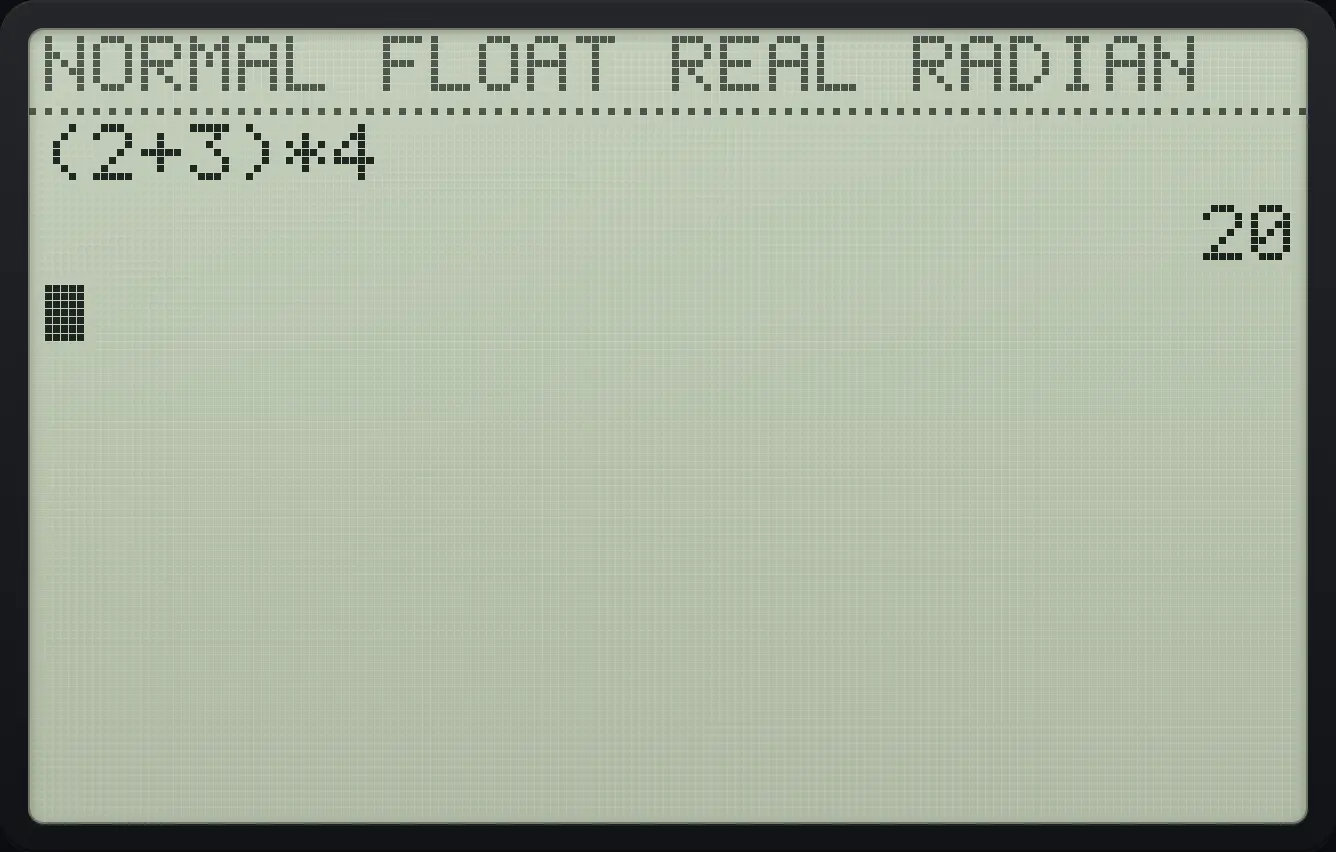
20Your entry stays on the left of the screen and the answer is right-aligned below it. Press enter on an empty line to run the last entry again.
1.5Clear, delete and edit an entry#
Press ◀ and ▶ to move along the line you are typing. Typing normally writes over the character under the cursor. Press 2ndINSdel to switch to insert mode, where new characters are pushed in before the cursor; press it again to go back.
| To do this | Press |
|---|---|
| Delete the character under the cursor | del |
| Insert characters instead of overwriting | 2ndINSdel |
| Jump to the start or end of the line | 2nd◀ or 2nd▶ |
| Clear the line you are typing | clear |
| Clear the whole home screen (line already empty) | clear |
| Bring back the previous entry to edit it | 2ndENTRYenter |
| Leave any screen and return to the home screen | 2ndQUITmode |
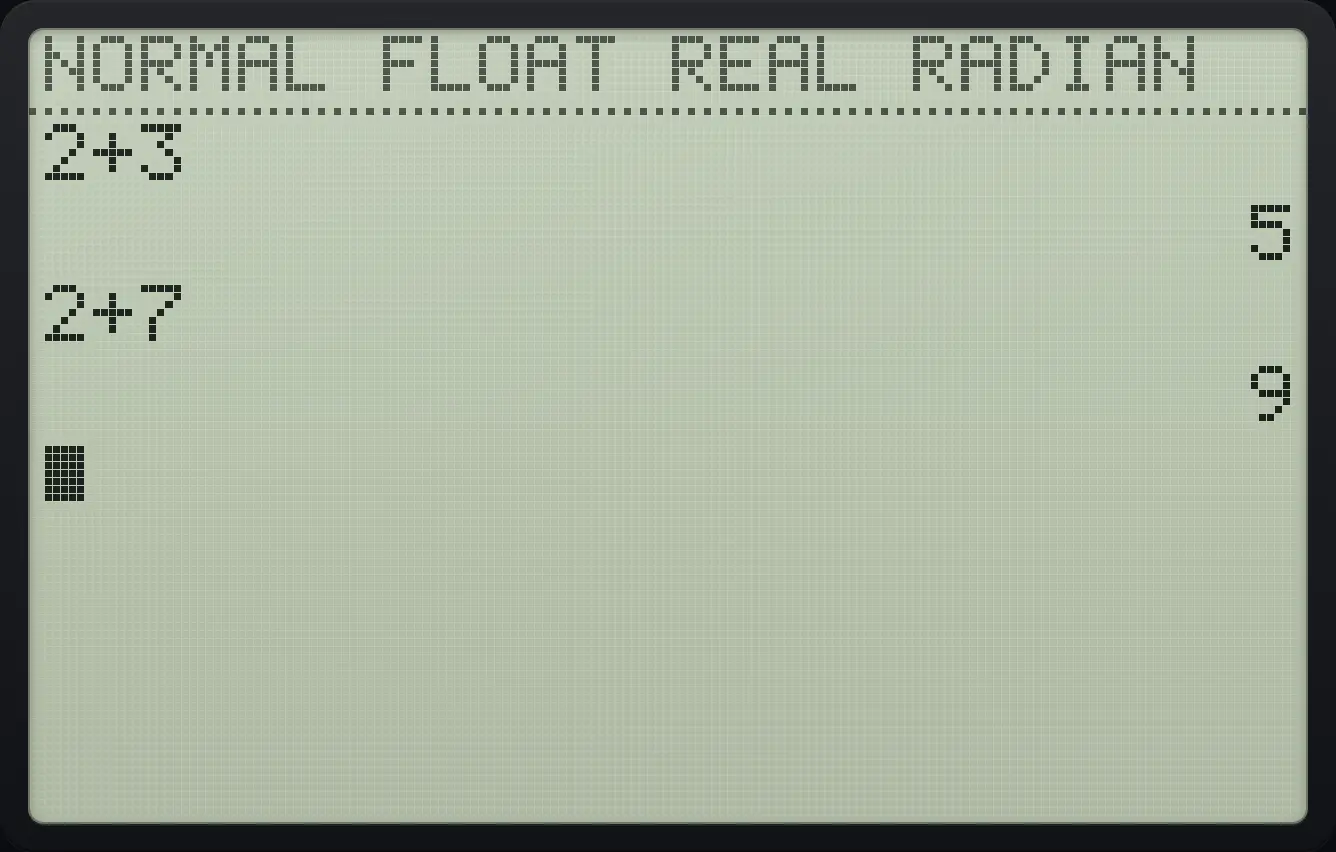
Fix a typo with ENTRY
Calculate 2 + 3.
2+3enterPress 2nd enter to bring the entry back, move left onto the 3, delete it and type 7.
2ndENTRYenter◀del7enter
2+7 9Insert a digit
Type 2 + 3, move left once, switch to insert with 2nd del and type 9.
2+3◀2ndINSdel9enter
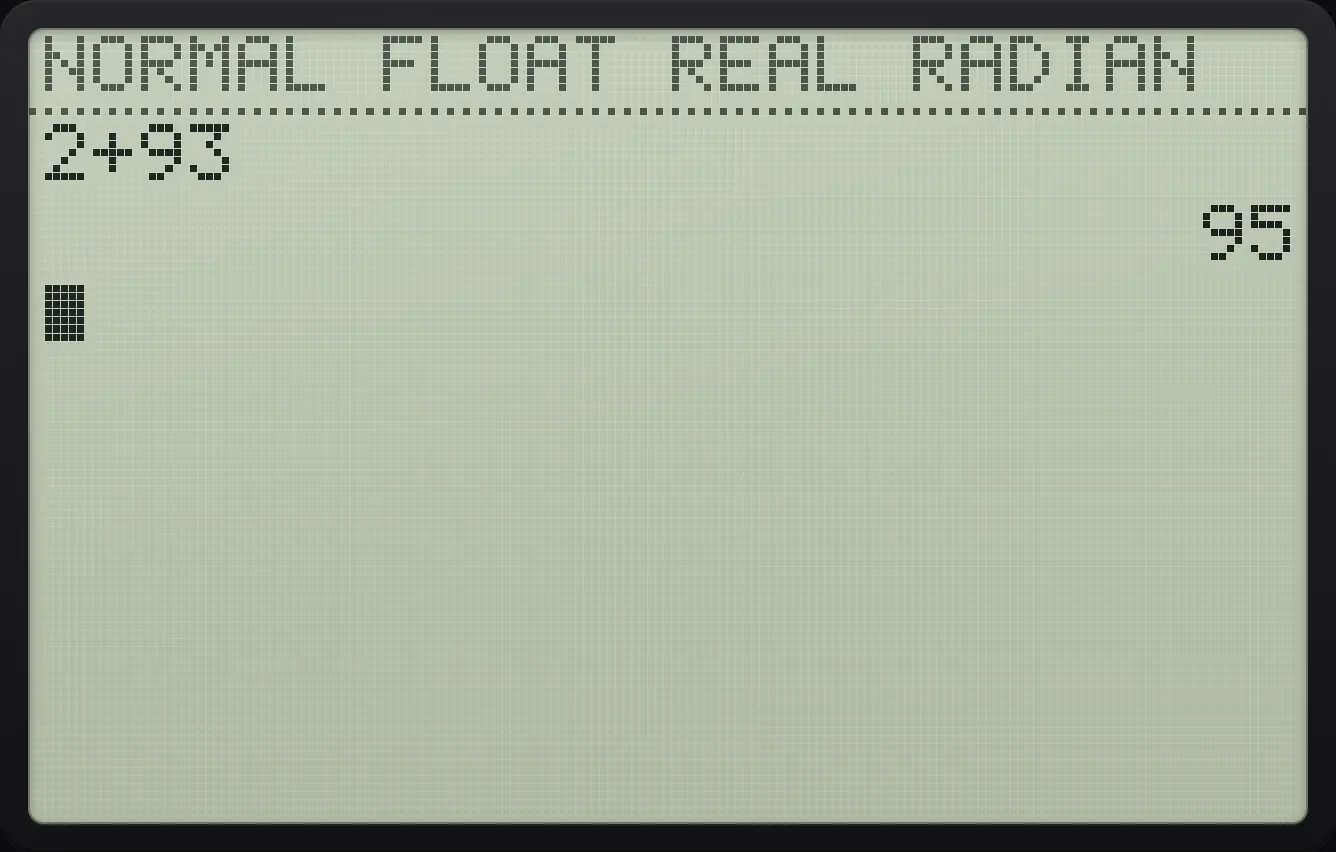
2+93 95Jump to the start of the line
Type 2 + 3, press 2nd left to go to the start, and overwrite the 2 with 8.
2+32nd◀8enter
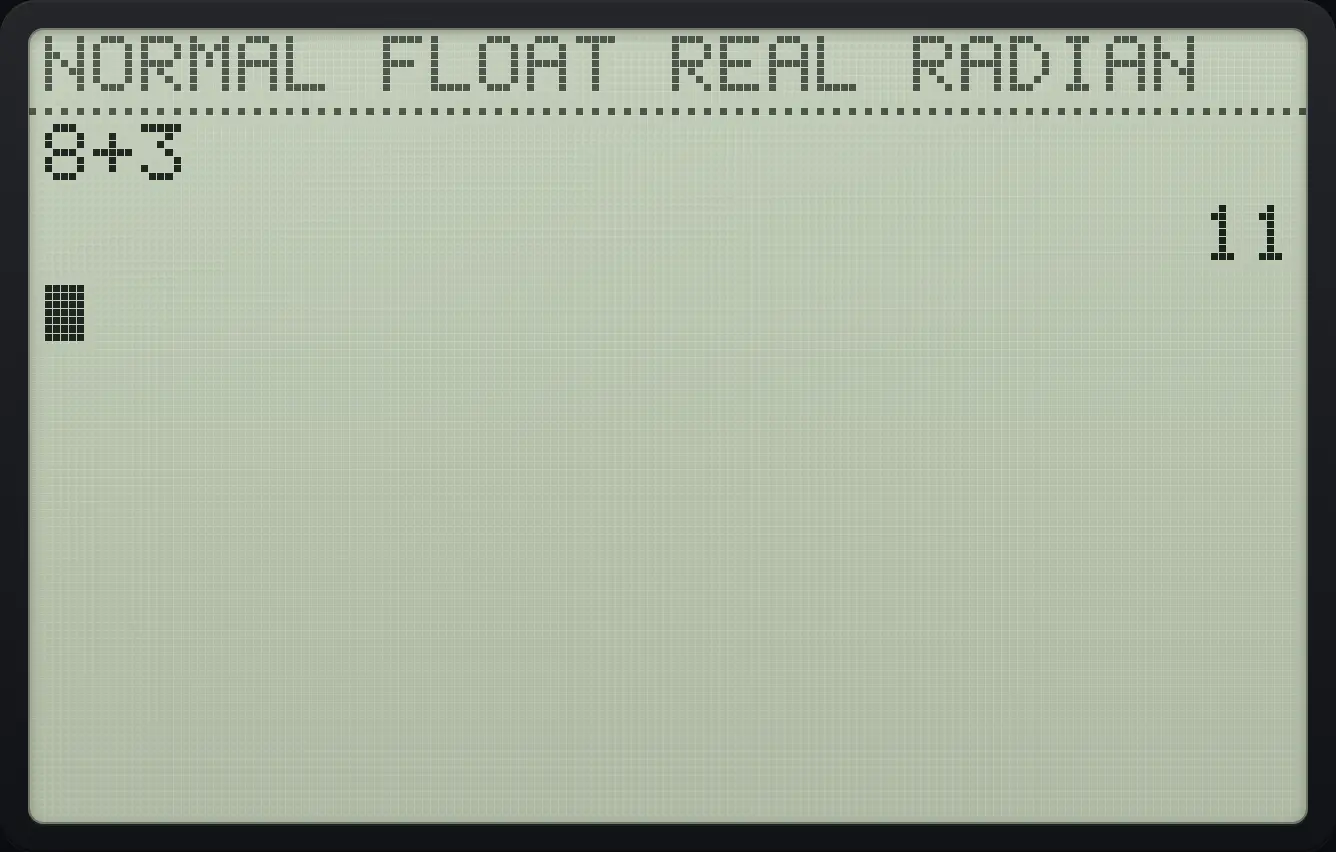
8+3 111.6Reuse an earlier line from the history#
The home screen remembers your earlier entries and answers. Press ▲ on an empty line to highlight the last answer, press ▲ again to move to earlier lines, then press enter to copy the highlighted line into the entry line. Press clear to leave the history without pasting.
Copy an old entry
Calculate 1 + 1 and then 2 + 2.
1+1enter2+2enterPress up twice to reach the entry 2 + 2, then enter twice: once to paste, once to calculate.
▲▲enterenter
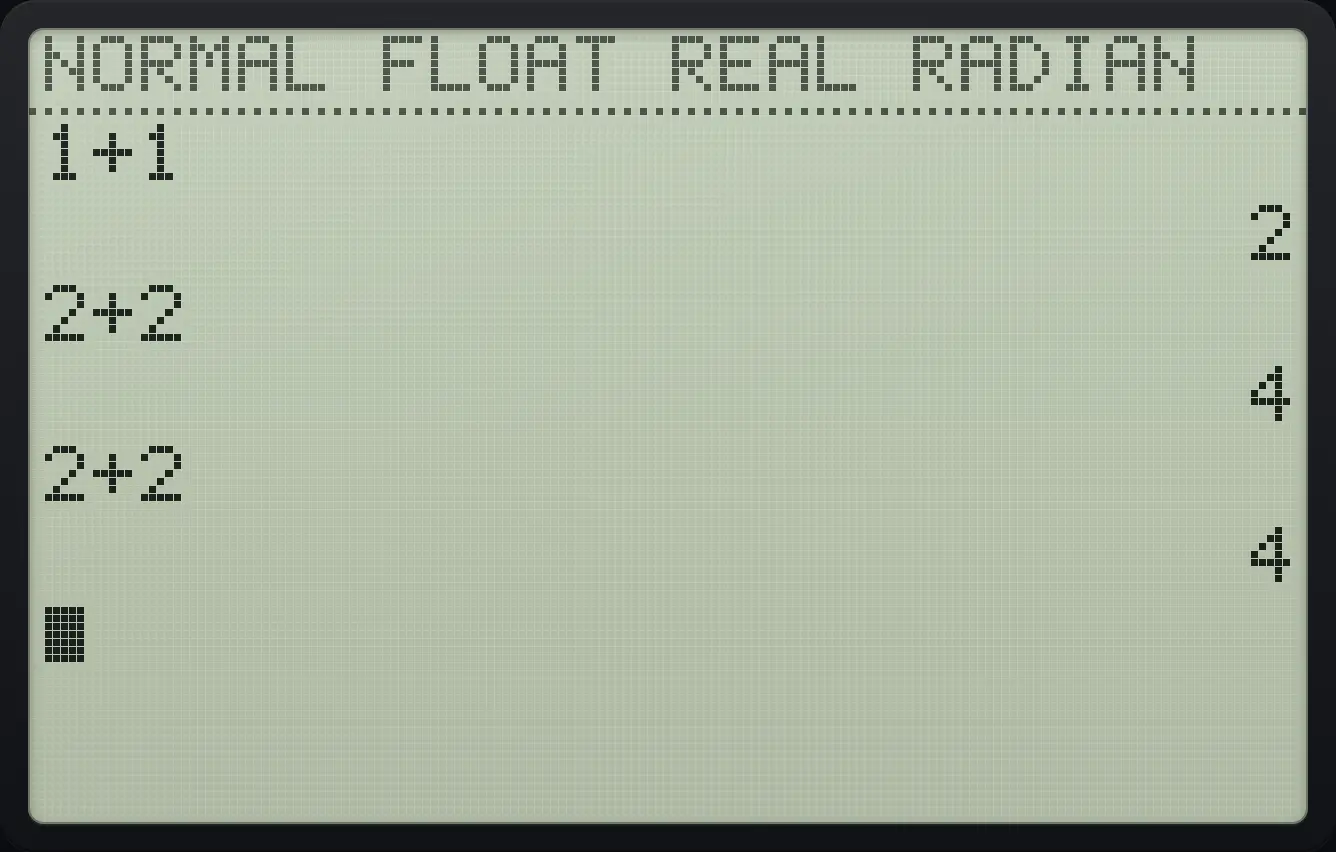
2+2 41.7Using a laptop keyboard#
On a computer you can type instead of clicking keys. The keys below work on the web version.
| Keyboard | Calculator key | Keyboard | Calculator key |
|---|---|---|---|
| 0 to 9 | 0 to 9 | + − * / ^ | + − × ÷ ^ |
| ( ) , | ( ) , | . | . |
| Enter | enter | Backspace or Delete | del |
| Escape | clear | Insert | 2ndINSdel |
| Arrow keys | ◀ ▲ ▼ ▶ | x or X | X,T,θ,n |
| ~ or _ | (−) | > | sto→ |
| s, c, t | sin cos tan | l, n | log ln |
| q | x² | r | 2nd√x² |
| p | 2ndπ^ | e | 2nde÷ |
| i | 2ndi. | E | 2ndEE, |
| { } [ ] | 2nd{( 2nd}) 2nd[× 2nd]− | = | 2ndTESTmath (TEST menu) |
| : " ? and space | alpha:. alpha"+ alpha?(−) alpha␣0 | Capital letters A to Z (except E, X) | The alpha letter keys |
TI-84 Plus CE is a trademark of Texas Instruments Incorporated. Trident Calculator is an independent product by South View Studios and is not affiliated with, sponsored by or endorsed by Texas Instruments. The name is used only to describe the kind of calculator this model resembles; Trident's names, keys, display, fonts and software are its own clean-room design.