
Classic Graphing 84 manual · Chapter 7 of 25
Variables and memory
Store numbers in letters, recall them, use stored values in calculations, and clear entries, lists or all memory.
7.1Store a value in a variable#
Type a value or calculation, press sto→ (the arrow →), then a letter key, then enter. The letters are in green above the keys; press alpha first. The calculator has 26 letter variables A to Z, plus θ. An untouched variable is 0.
- Type 5
- sto→
- alphaAmath
- enter
Store and use a variable
Store 5 in A.
5sto→alphaAmathenterCalculate A².
alphaAmathx²enter
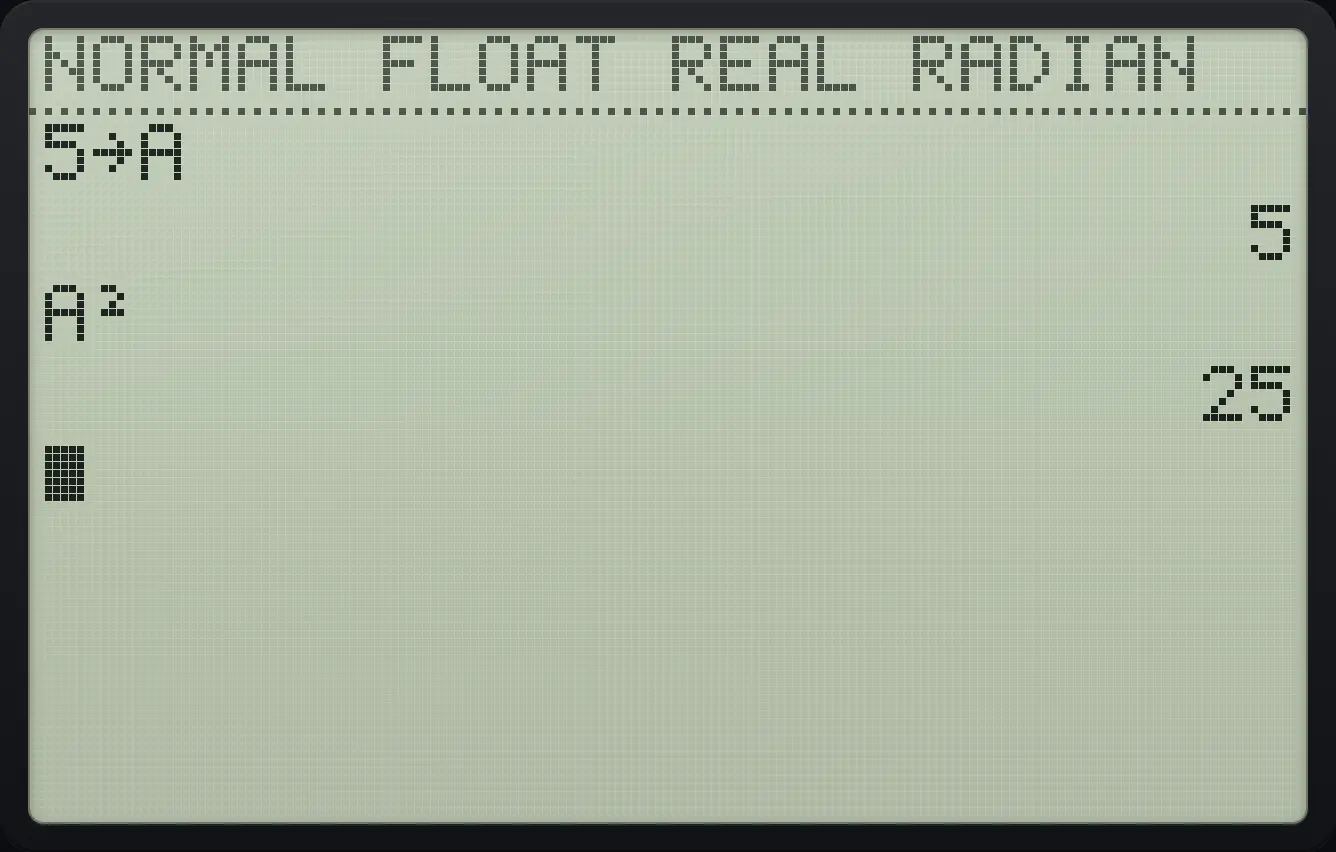
5→A A² 25Store a calculated value
Store 3/4 in B.
3÷4sto→alphaBappsenter
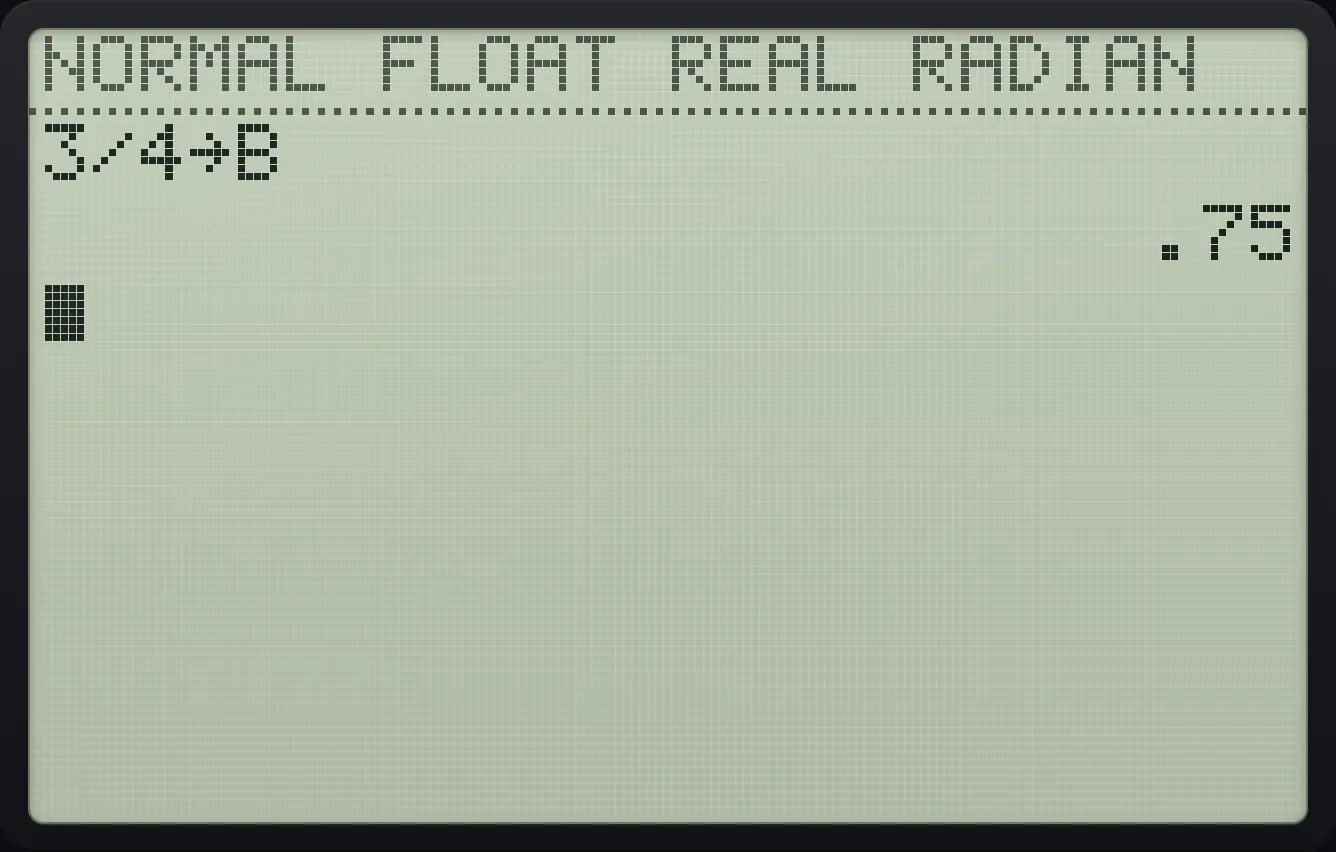
3/4→B .75Variables multiply side by side
Store 2 in A and 3 in B.
2sto→alphaAmathenter3sto→alphaBappsenterCalculate AB + A.
alphaAmathalphaBapps+alphaAmathenter
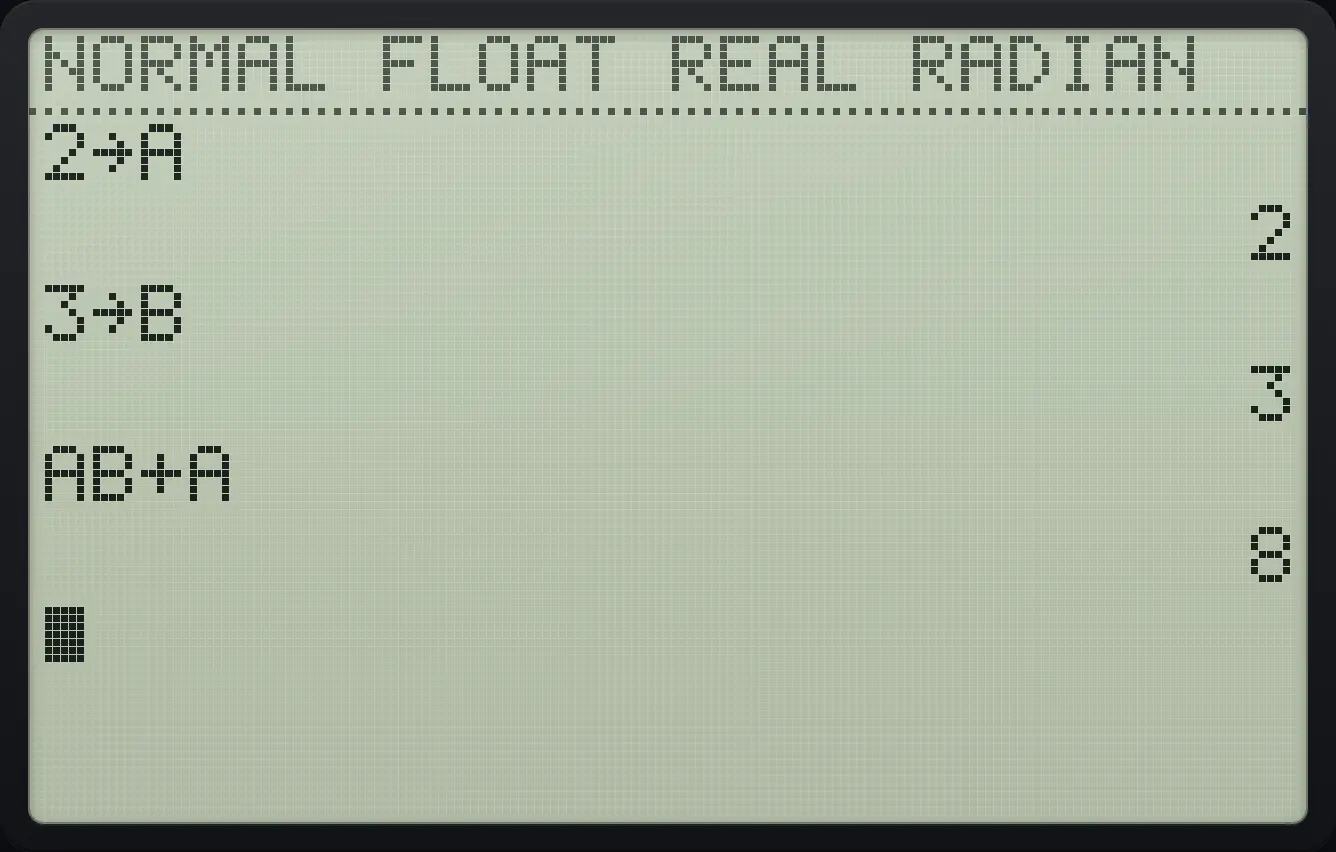
AB+A 8An untouched variable is zero
Calculate Q + 1.
alphaQ9+1enter
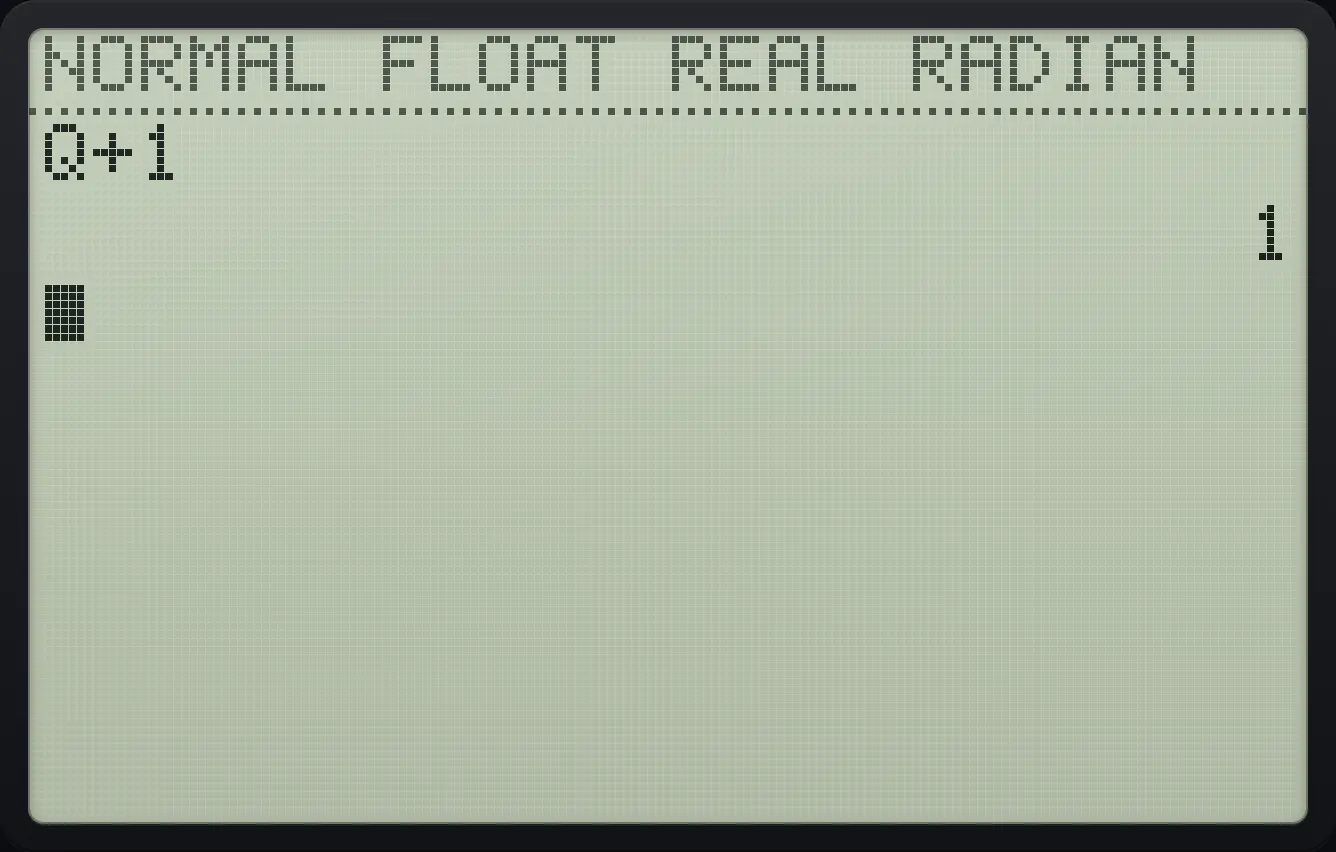
Q+1 17.2Recall a stored value#
Just type the letter to use a variable in a calculation. To see or paste the stored value itself, press 2ndRCLsto→ (RCL), then the letter, then enter. RCL also pastes lists, matrices, strings and Y= functions.
Paste the value of C
Store 12.5 in C.
12.5sto→alphaCprgmenterPress 2nd sto, then alpha and the prgm key for C, then enter. The number 12.5 is typed into the entry line.
2ndRCLsto→alphaCprgmenter
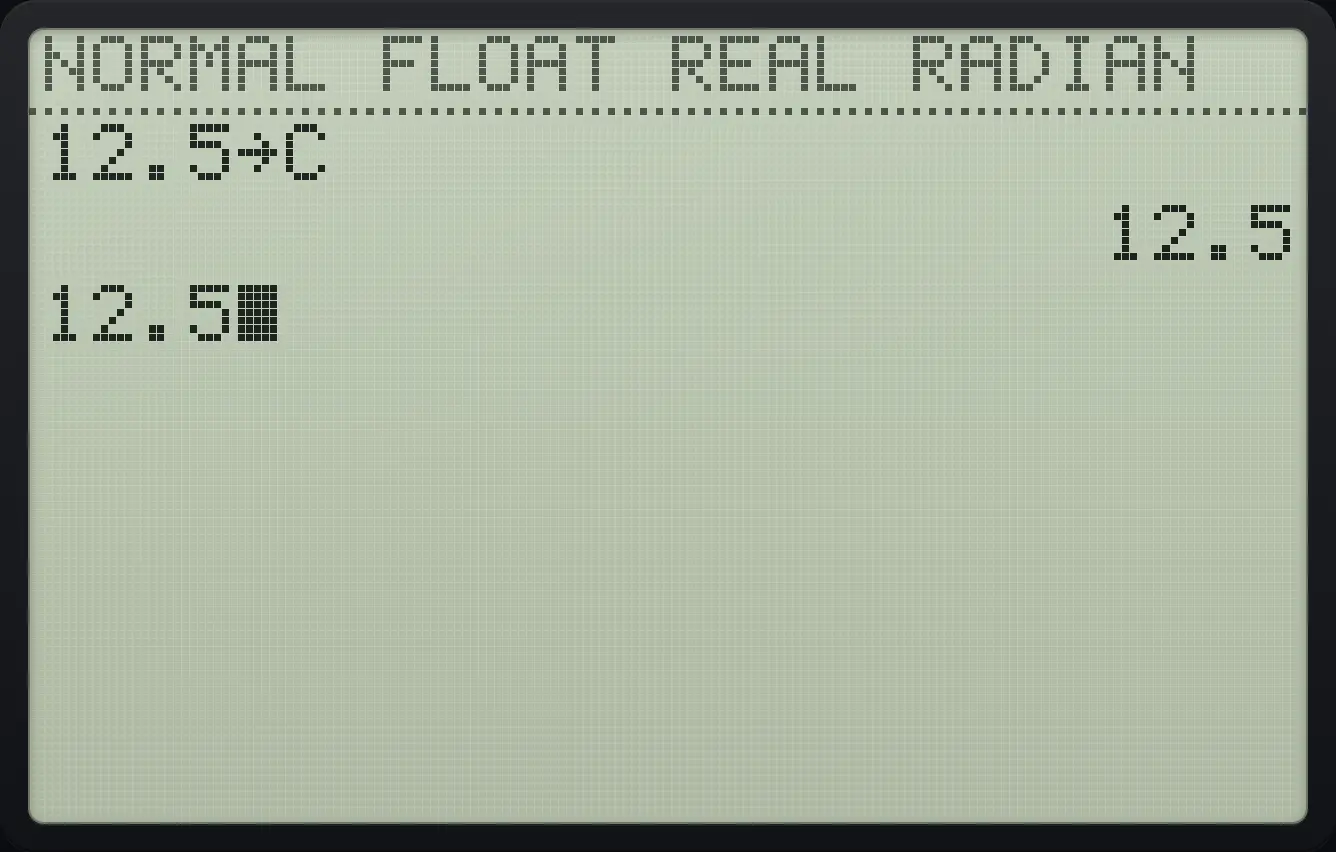
12.57.3Store a list and use its items#
Store a list in L1
Type {4,5,6}, store it in L1 (2nd then the 1 key).
2nd{(4,5,62nd})sto→2ndL11enterRead the second item with L1(2).
2ndL11(2)enter
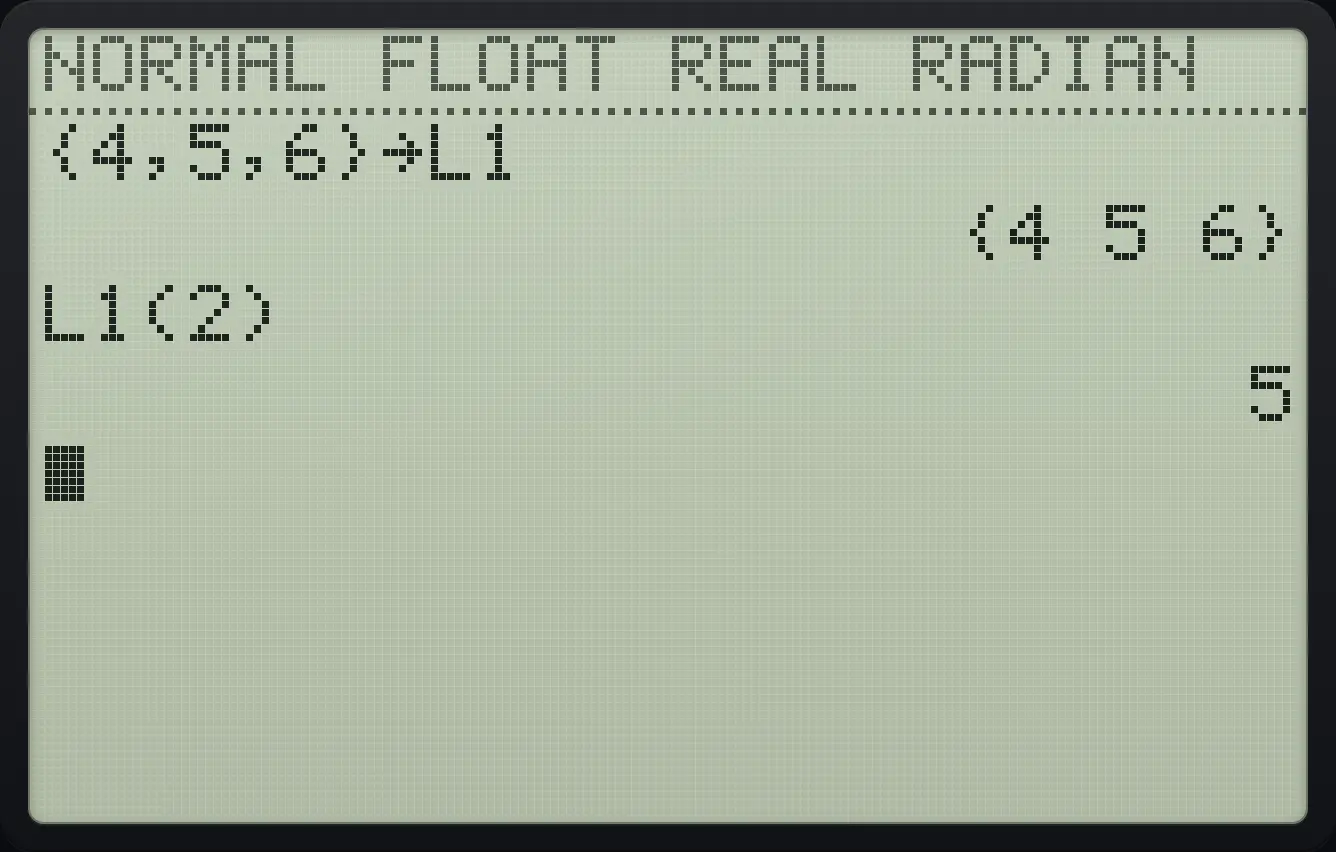
{4 5 6} L1(2) 5See also Lists
7.4Ans and ENTRY#
Ans holds the last answer, and ENTRY (2ndENTRYenter) brings back the last entry. See the calculations chapter for both.
See also Calculations on the home screen: Use the last answer (Ans)Calculations on the home screen: Repeat or recall an entry
7.5Clear entries, lists or all memory#
Press 2ndMEM+ for the MEMORY menu.
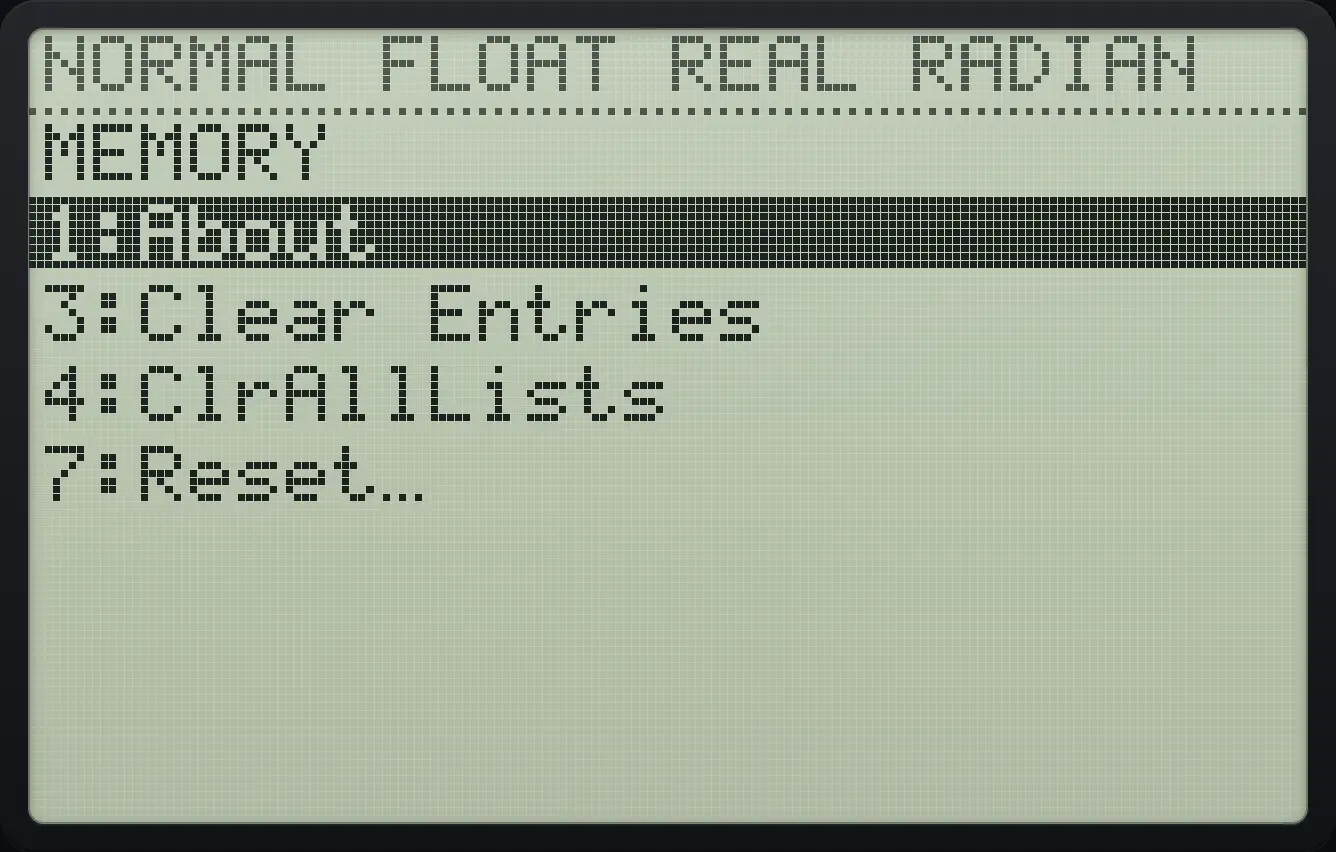
| Item | What it does |
|---|---|
| 1: About | Shows the name of this calculator. |
| 3: Clear Entries | Forgets the saved entries, so 2ndENTRYenter has nothing to bring back. |
| 4: ClrAllLists | Empties every list. |
| 7: Reset… | Opens RESET RAM: choose 1 No or 2 Reset. Reset erases everything: variables, lists, matrices, Y= functions, programs, windows and all settings. |
Clear the saved entries
Calculate 1 + 1.
1+1enterPress 2nd add, then 3.
2ndMEM+3
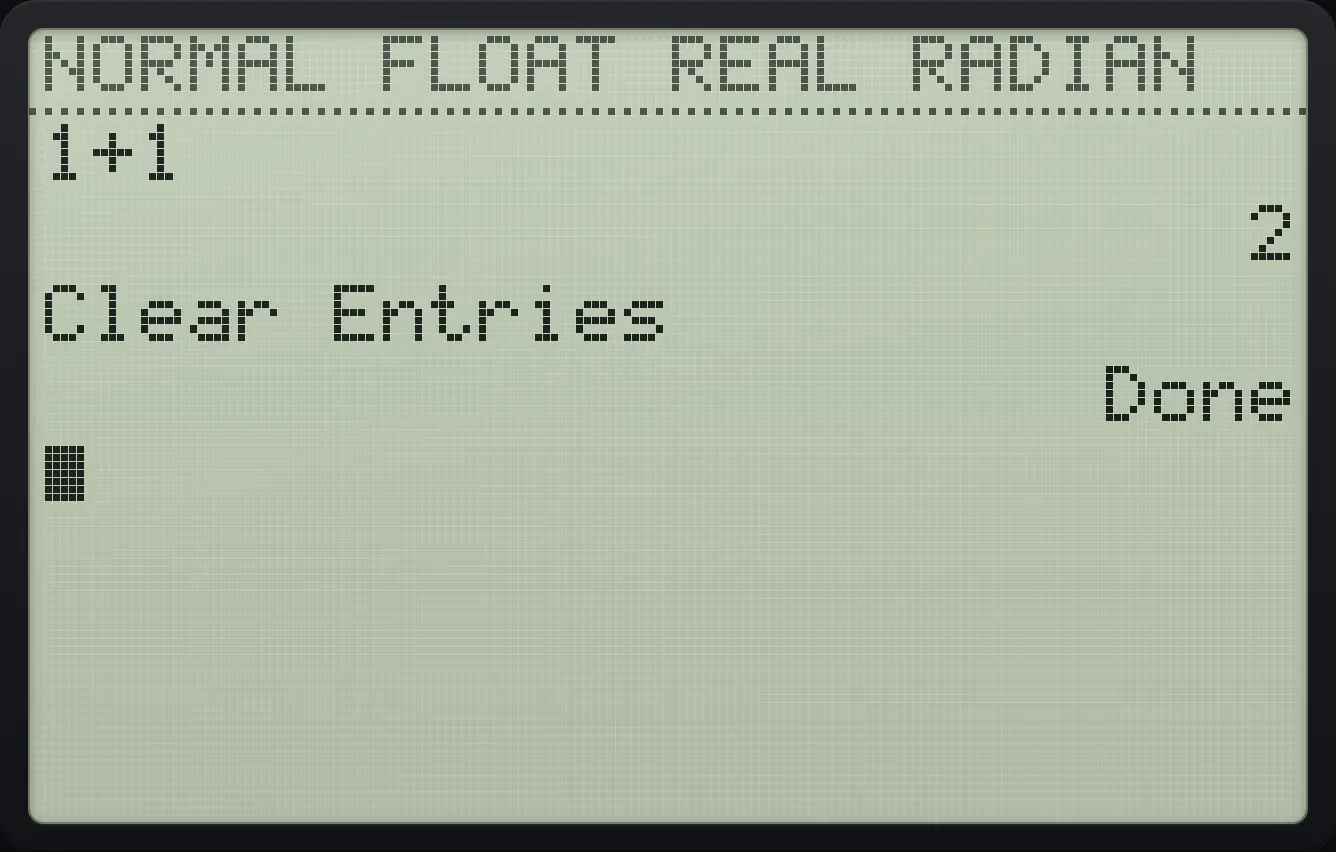
Clear Entries DoneReset all memory
Store 5 in A.
5sto→alphaAmathenterPress 2nd add, 7, move down to Reset and press enter.
2ndMEM+7▼enter
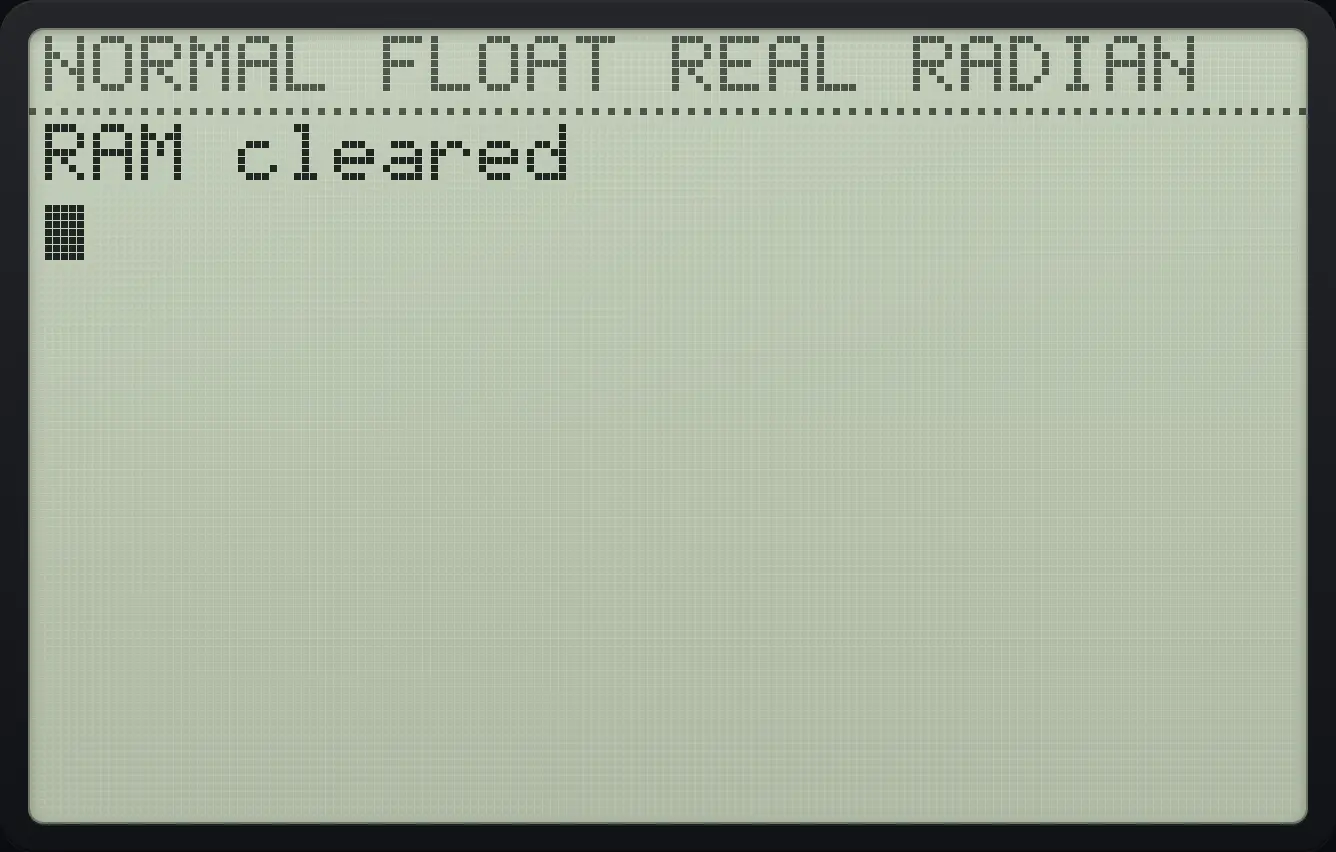
RAM clearedTI-84 Plus CE is a trademark of Texas Instruments Incorporated. Trident Calculator is an independent product by South View Studios and is not affiliated with, sponsored by or endorsed by Texas Instruments. The name is used only to describe the kind of calculator this model resembles; Trident's names, keys, display, fonts and software are its own clean-room design.