
Classic Graphing 84 manual · Chapter 22 of 25
Programming
Write, edit and run programs: the editor, the CTL and I/O command menus, loops, decisions, input and output, menus, subprograms and strings.
22.1What a program is#
A program is a list of commands that the calculator runs one after another. Use programs to repeat a calculation with new numbers, to ask questions and show results, or to automate steps you do often. A program has a name of up to 8 letters and digits, starting with a letter. Programs are saved with the calculator until you reset it.
- prgm NEW
- Name it
- Type the commands
- 2ndQUITmode
- prgm EXEC
- enter
![The PRGM menu on the home screen: EXEC, EDIT and NEW tabs. The display shows: [EXEC] EDIT NEW.](/trident/app/help/manual/img/cd8b380bs.webp)
22.2Create and run your first program#
Press prgm, move to the NEW tab with ▶ twice, and press enter on Create New. The calculator asks for a name with alpha lock already on, so just press the letter keys, then enter. The program editor opens with a colon at the start of each line. Type a command per line and press enter to start the next line. When you are done press 2ndQUITmode to leave: the program is saved automatically.
To run it, press prgm; the EXEC tab lists your programs. Press the number of the program (this types prgmNAME on the home screen) and then enter to run it. When the program ends the calculator shows Done.
A program that says hello
Press prgm, right, right, enter. Type the name HI: press the keys for H (the ^ key) and I (the x² key). Press enter.
prgm▶▶enter^x²enter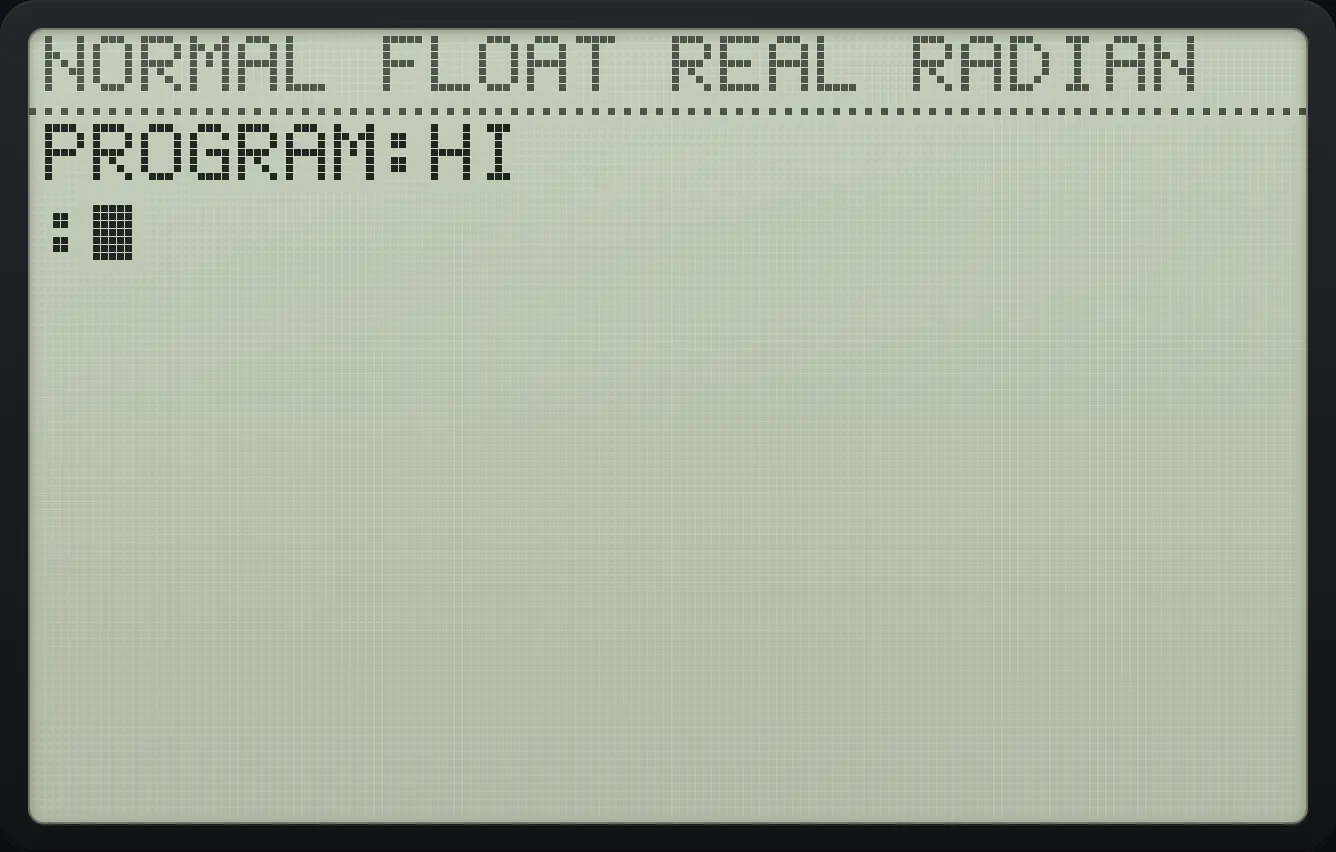
Press prgm, right (I/O), 3 to paste Disp, then type "HELLO" using the quote key and letter keys.
prgm▶3alpha"+alphaH^alphaEsinalphaL)alphaL)alphaO7alpha"+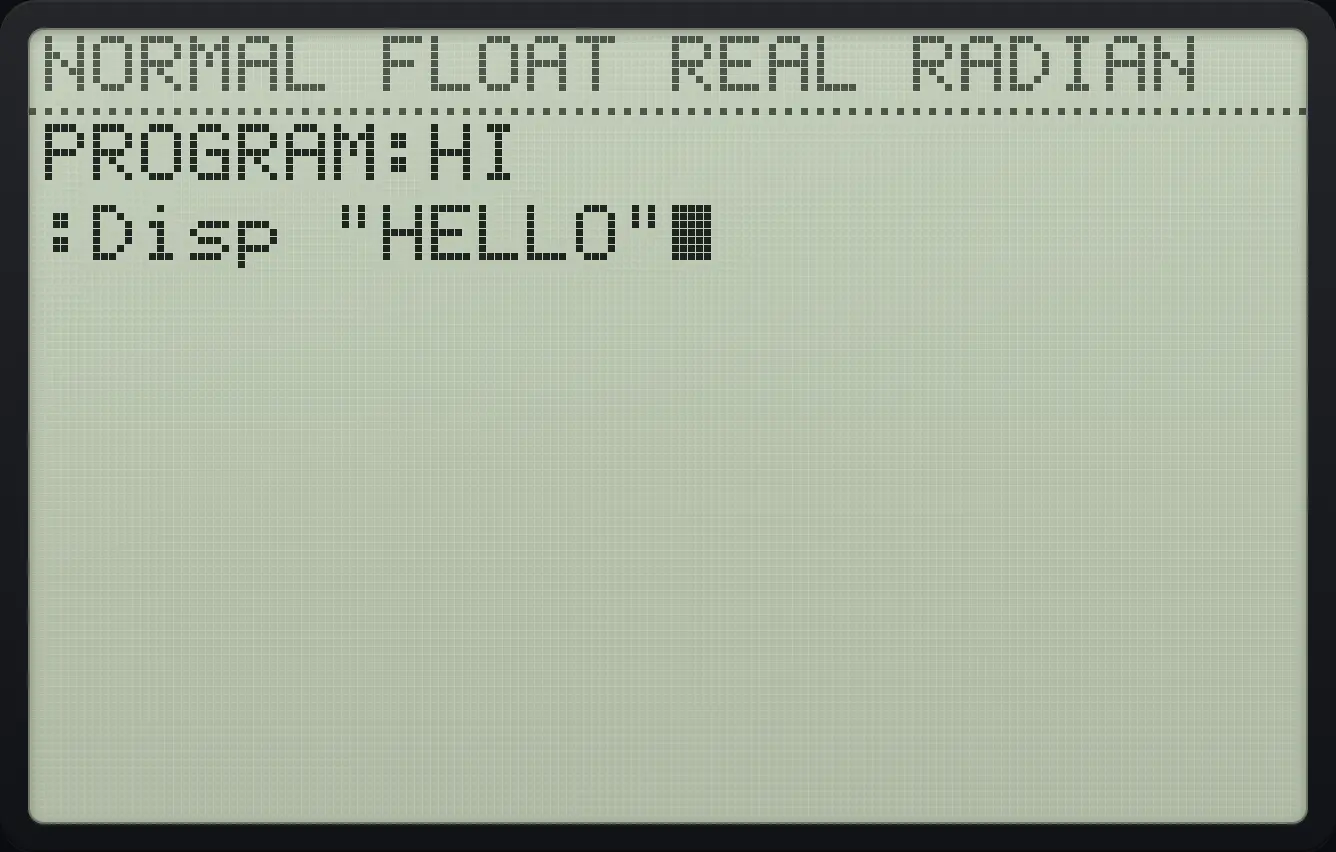
Press 2nd mode to leave the editor, then prgm, 1, enter to run HI.
2ndQUITmodeprgm1enter
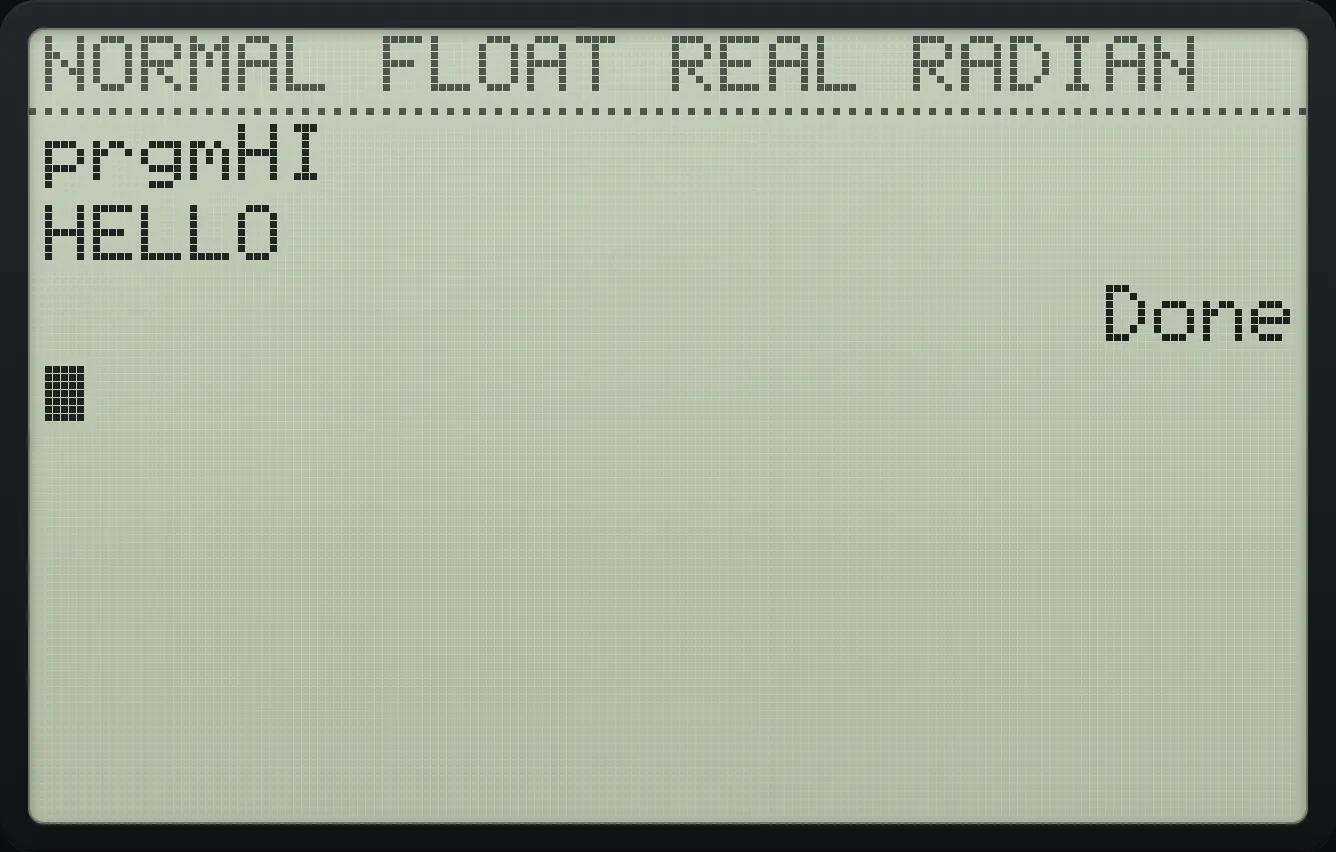
prgmHI HELLO Done22.3Edit, rename and delete programs#
Press prgm, ▶ for the EDIT tab and choose a program to open it again. In the editor ◀ and ▶ move along the line, ▲ and ▼ move between lines, del deletes a character (or an empty line), 2ndINSdel switches insert mode (press enter in insert mode to split a line) and clear empties the current line. A program's text is saved after every key.
| In the editor | Key |
|---|---|
| Open the command menus (CTL, I/O, EXEC) | prgm |
| Paste any menu item or function | The usual keys: math, 2ndLISTstat, vars, 2ndCATALOG0 and so on |
| New line | enter |
| Delete a character, or an empty line | del |
| Empty the current line | clear |
| Leave the editor | 2ndQUITmode |
22.4The CTL menu: loops, decisions and jumps#
Inside the editor, prgm opens CTL (control) with the I/O and EXEC tabs to its right.
![The CTL tab of the PRGM menu inside the program editor. The display shows: [CTL] I/O EXEC / 1:If / 2:Then / 3:Else / 4:For( / 5:While / 6:Repeat / 7↓End.](/trident/app/help/manual/img/889e5478s.webp)
| Item | Command | What it does |
|---|---|---|
| 1 | If | If the condition is true do the next command, otherwise skip it. |
| 2 | Then | With If: run all the lines up to Else or End when the condition is true. |
| 3 | Else | The lines to run when the If condition was false. |
| 4 | For( | For(variable, start, end, step) repeats the lines up to End, counting. The step is optional (default 1). |
| 5 | While | Repeat the lines up to End as long as the condition is true. Checks before each pass. |
| 6 | Repeat | Repeat the lines up to End until the condition becomes true. Always runs at least once. |
| 7 | End | Closes For, While, Repeat and If-Then blocks. |
| 8 | Pause | Stops until you press enter. Pause value shows the value first. |
| 9 | Lbl | A label, such as Lbl A, that Goto can jump to. |
| 0 | Goto | Jump to a label. |
| A | IS>( | IS>(variable, limit): add 1 and skip the next command if now above the limit. |
| B | DS<( | DS<(variable, limit): subtract 1 and skip the next command if now below the limit. |
| C | Menu( | Menu("title","text1",label1,"text2",label2,…) shows a menu and jumps to the chosen label. |
| D | prgm | Run another program: prgmNAME. |
| E | Return | Leave this program; a subprogram goes back to the one that called it. |
| F | Stop | End the whole program. |
| G | DelVar | Delete a variable (back to 0), a list or a string. |
22.5The I/O menu: input and output#
![The I/O tab. The display shows: CTL [I/O] EXEC / 1:Input / 2:Prompt / 3:Disp / 4:DispGraph / 5:Output( / 6:getKey / 7:ClrHome.](/trident/app/help/manual/img/c843e2aes.webp)
| Item | Command | What it does |
|---|---|---|
| 1 | Input | Input A asks for a value for A. Input "text",A shows your text as the prompt. |
| 2 | Prompt | Prompt A,B asks for each variable in turn, showing A=? |
| 3 | Disp | Shows values or text, one per line: Disp A,"TEXT". |
| 4 | DispGraph | Shows the graph screen. |
| 5 | Output( | Output(row,column,value) writes at a position. Rows are 1 to 8, columns 1 to 26. |
| 6 | getKey | The code of the last key pressed, or 0 for none. |
| 7 | ClrHome | Clears the home screen. |
22.6Ask for numbers and show a result#
Add two numbers
Create a program ADD with the lines Prompt A,B and Disp A+B.
prgm▶▶entermathx⁻¹x⁻¹enterprgm▶2alphaAmath,alphaBappsenterprgm▶3alphaAmath+alphaBappsenter2ndQUITmodeRun it and answer 3 and 4.
prgm1enter3enter4enter
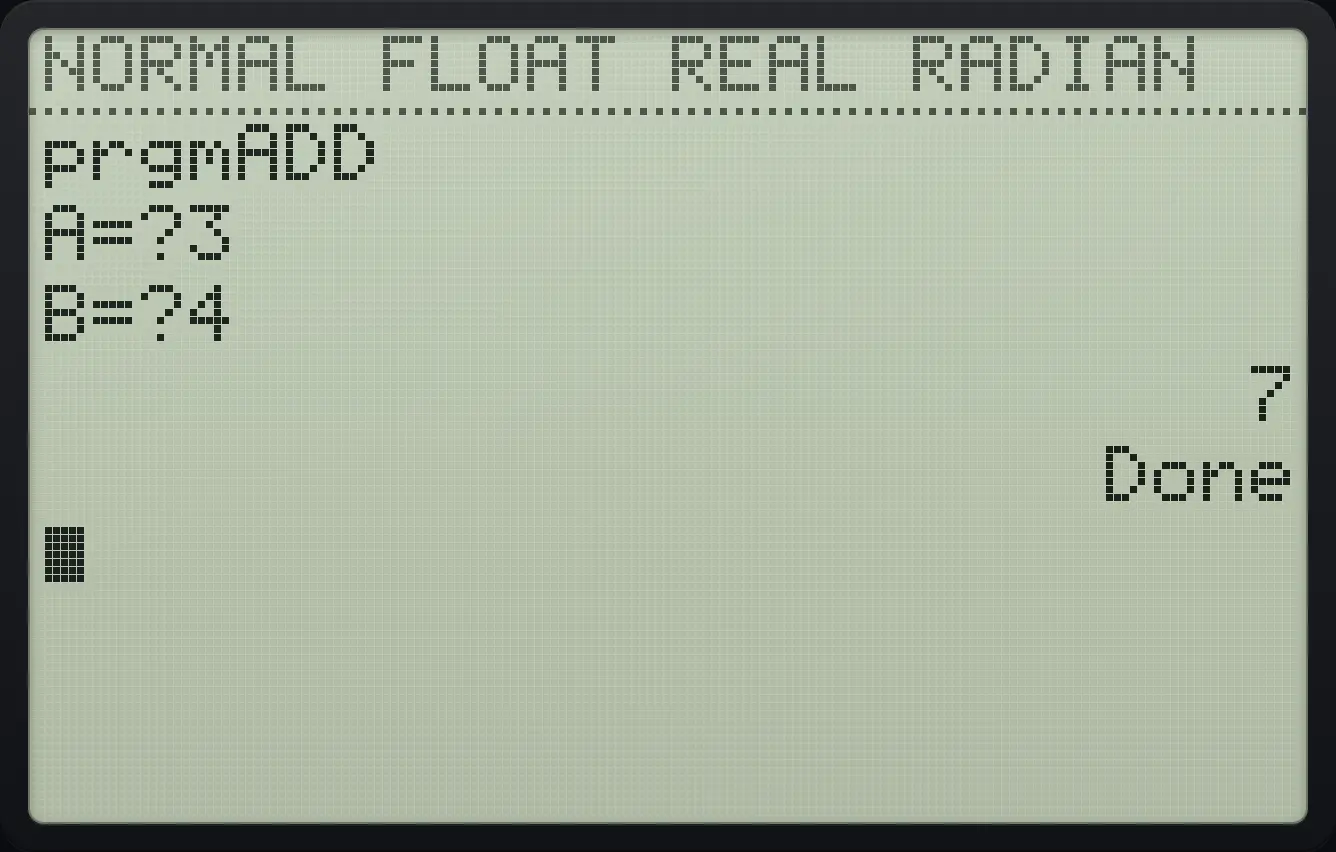
A=?3 B=?4 7Input with your own question
Create AGE: Input "AGE ",A and Disp A+1.
prgm▶▶entermathtansinenterprgm▶1alpha"+alphaAmathalphaGtanalphaEsinalpha␣0alpha"+,alphaAmathenterprgm▶3alphaAmath+1enter2ndQUITmodeRun it and type 12.
prgm1enter12enter
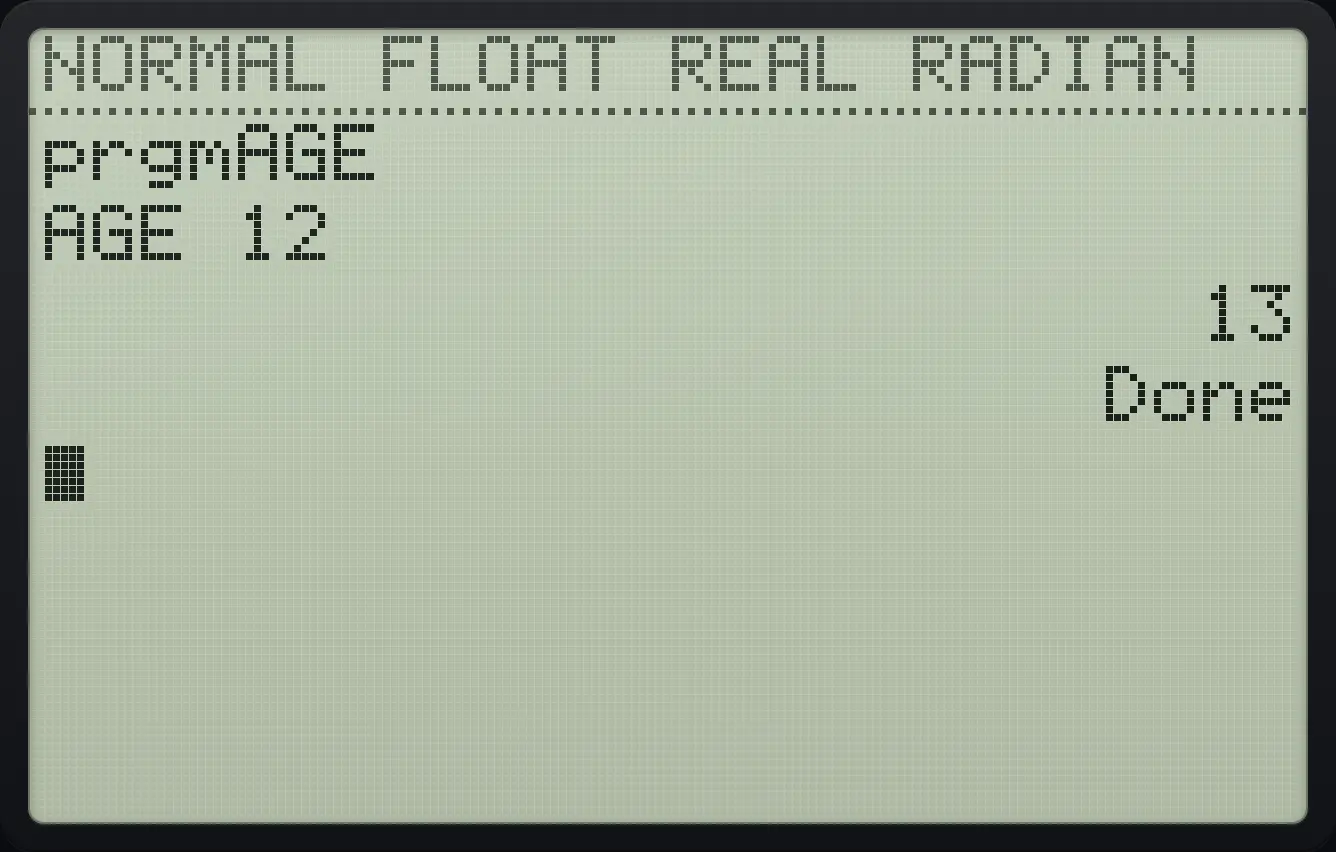
AGE 12 1322.7Repeat steps with a For loop#
For(I,1,100) runs the lines up to End once for each value of I from 1 to 100.
Add the numbers 1 to 100
Create SUMN: 0→S, For(I,1,100), S+I→S, End, Disp S.
prgm▶▶enterln5÷logenter0sto→alphaSlnenterprgm4alphaIx²,1,100)enteralphaSln+alphaIx²sto→alphaSlnenterprgm7enterprgm▶3alphaSlnenter2ndQUITmode
Run it.
prgm1enter
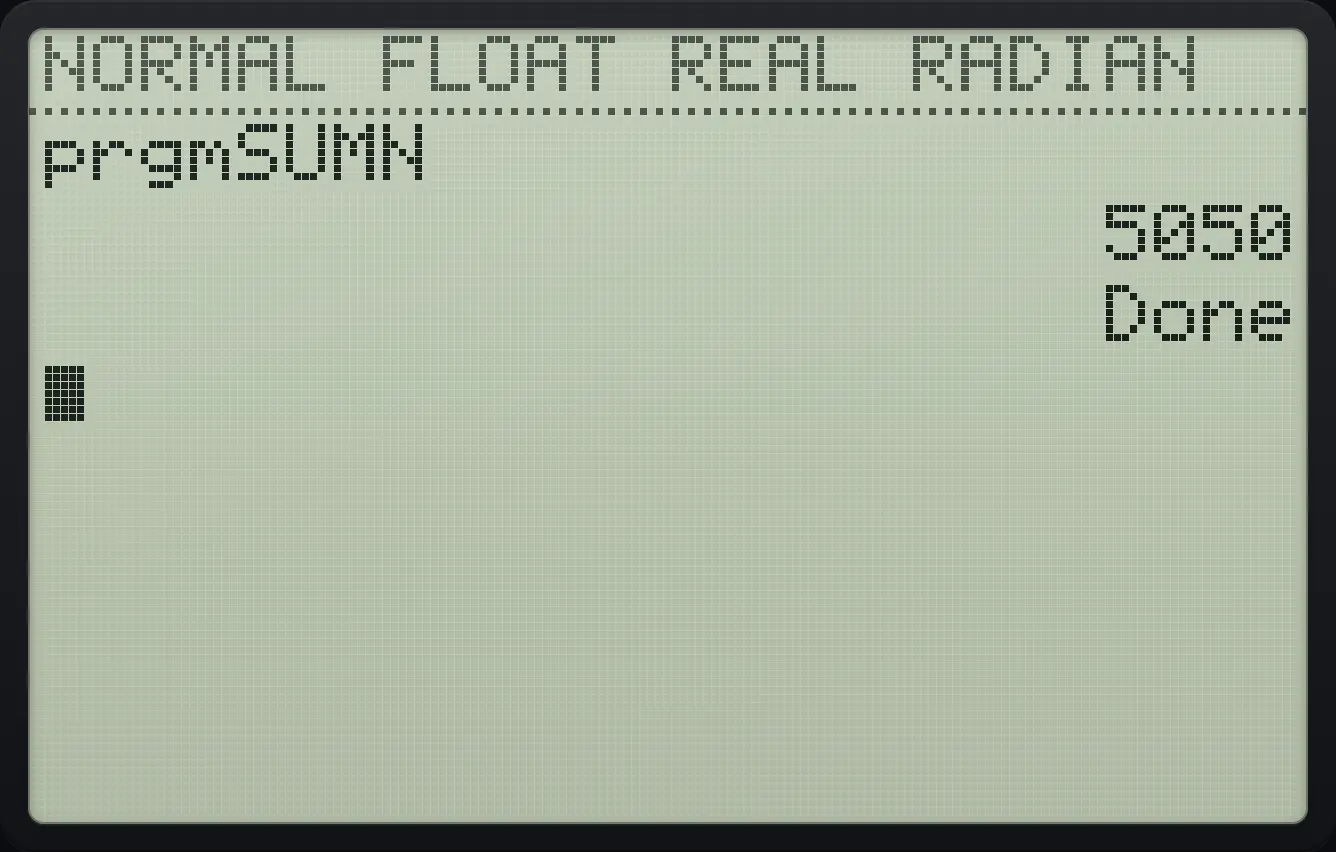
505022.8Make decisions with If, Then and Else#
Pass or fail
Create GRADE: Prompt S; If S≥50; Then; Disp "PASS"; Else; Disp "FAIL"; End. Use 2nd math 4 for ≥.
prgm▶▶entertan×mathx⁻¹sinenterprgm▶2alphaSlnenterprgm1alphaSln2ndTESTmath450enterprgm2enterprgm▶3alpha"+alphaP8alphaAmathalphaSlnalphaSlnalpha"+enterprgm3enterprgm▶3alpha"+alphaFcosalphaAmathalphaIx²alphaL)alpha"+enterprgm7enter2ndQUITmodeRun it and answer 70.
prgm1enter70enter
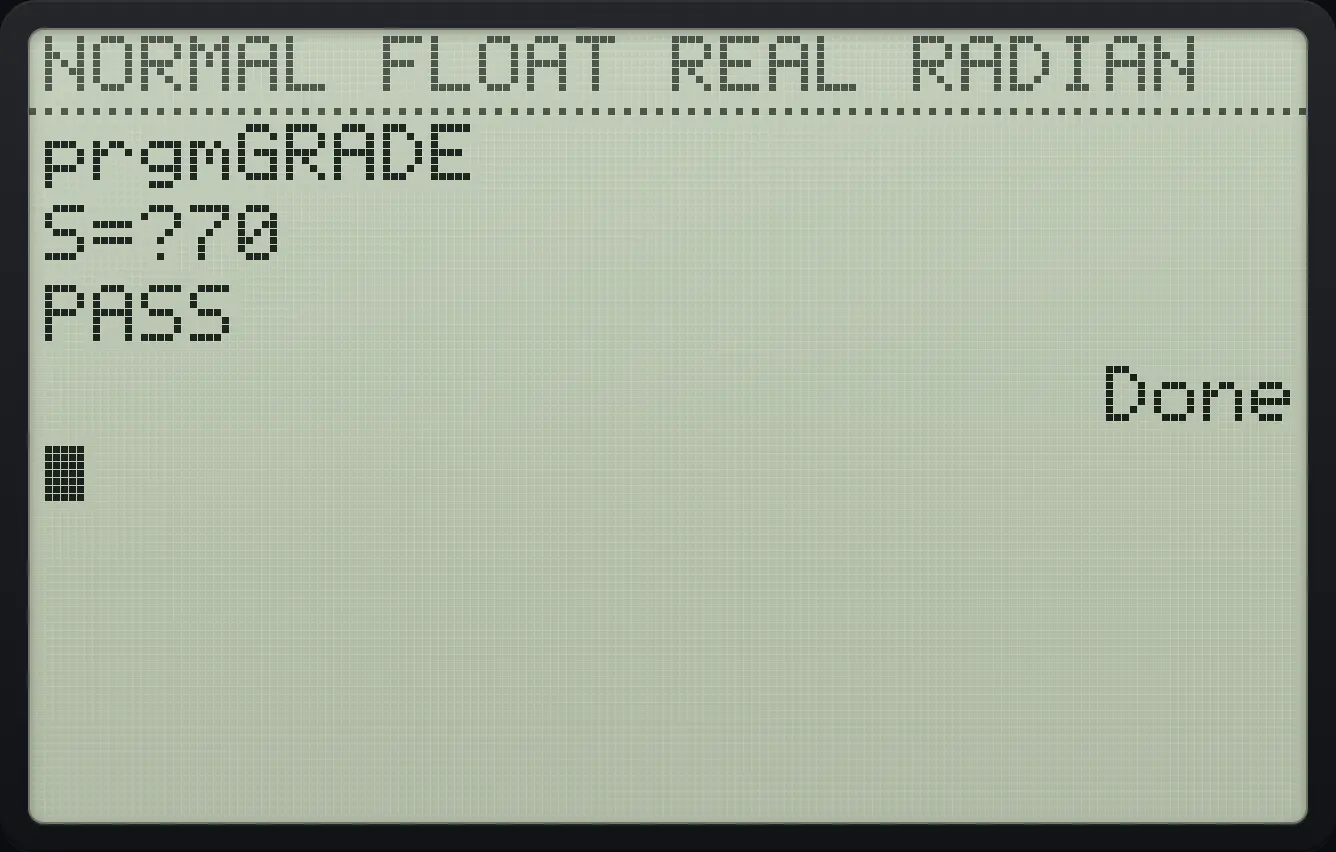
S=?70 PASSThe Else branch
Same program GRADE. Run it and answer 30.
prgm▶▶entertan×mathx⁻¹sinenterprgm▶2alphaSlnenterprgm1alphaSln2ndTESTmath450enterprgm2enterprgm▶3alpha"+alphaP8alphaAmathalphaSlnalphaSlnalpha"+enterprgm3enterprgm▶3alpha"+alphaFcosalphaAmathalphaIx²alphaL)alpha"+enterprgm7enter2ndQUITmodeprgm1enter30enter
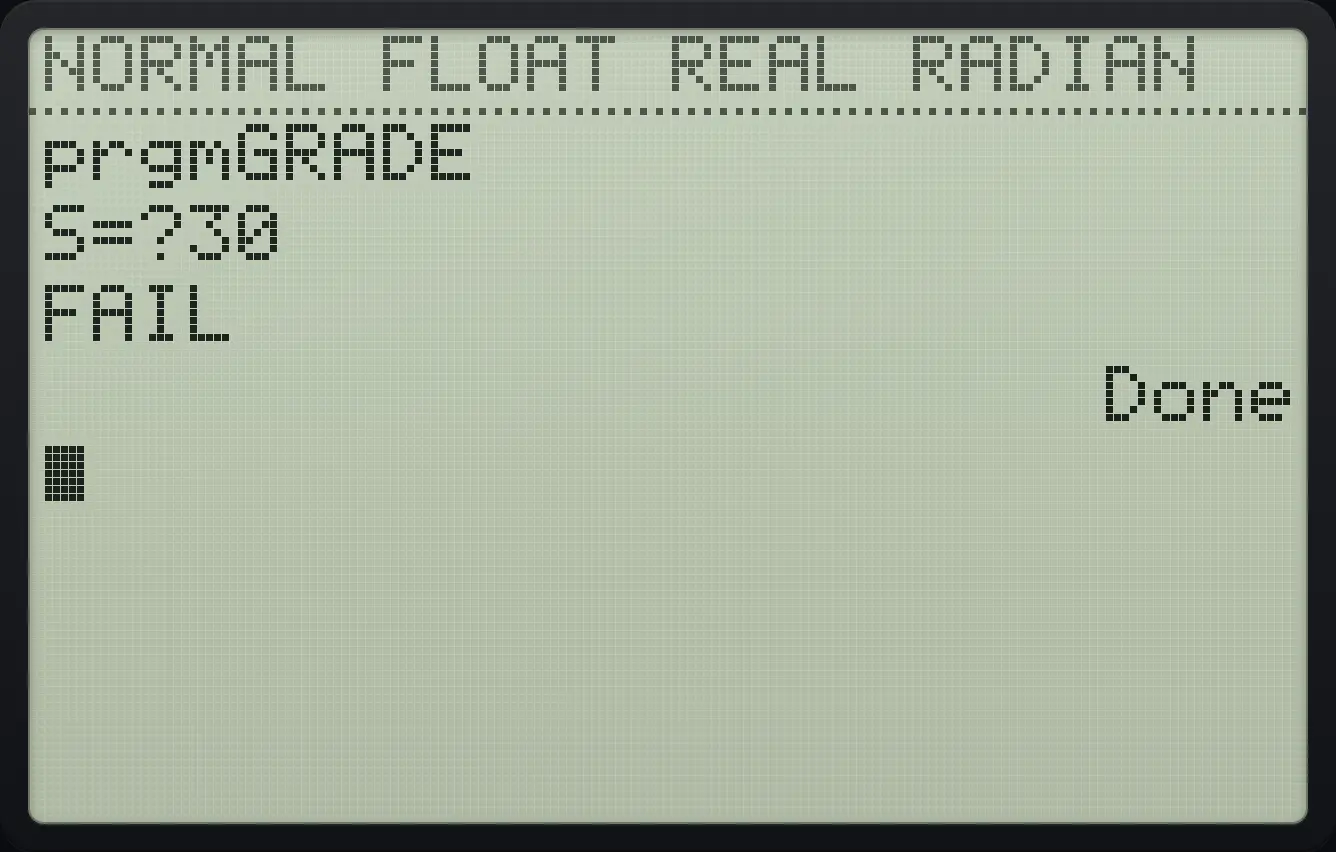
FAIL22.9Repeat while a condition is true (While)#
Double until at least 100
Create DBL: 1→N, While N<100, 2N→N, End, Disp N.
prgm▶▶enterx⁻¹apps)enter1sto→alphaNlogenterprgm5alphaNlog2ndTESTmath5100enter2alphaNlogsto→alphaNlogenterprgm7enterprgm▶3alphaNlogenter2ndQUITmodeRun it.
prgm1enter
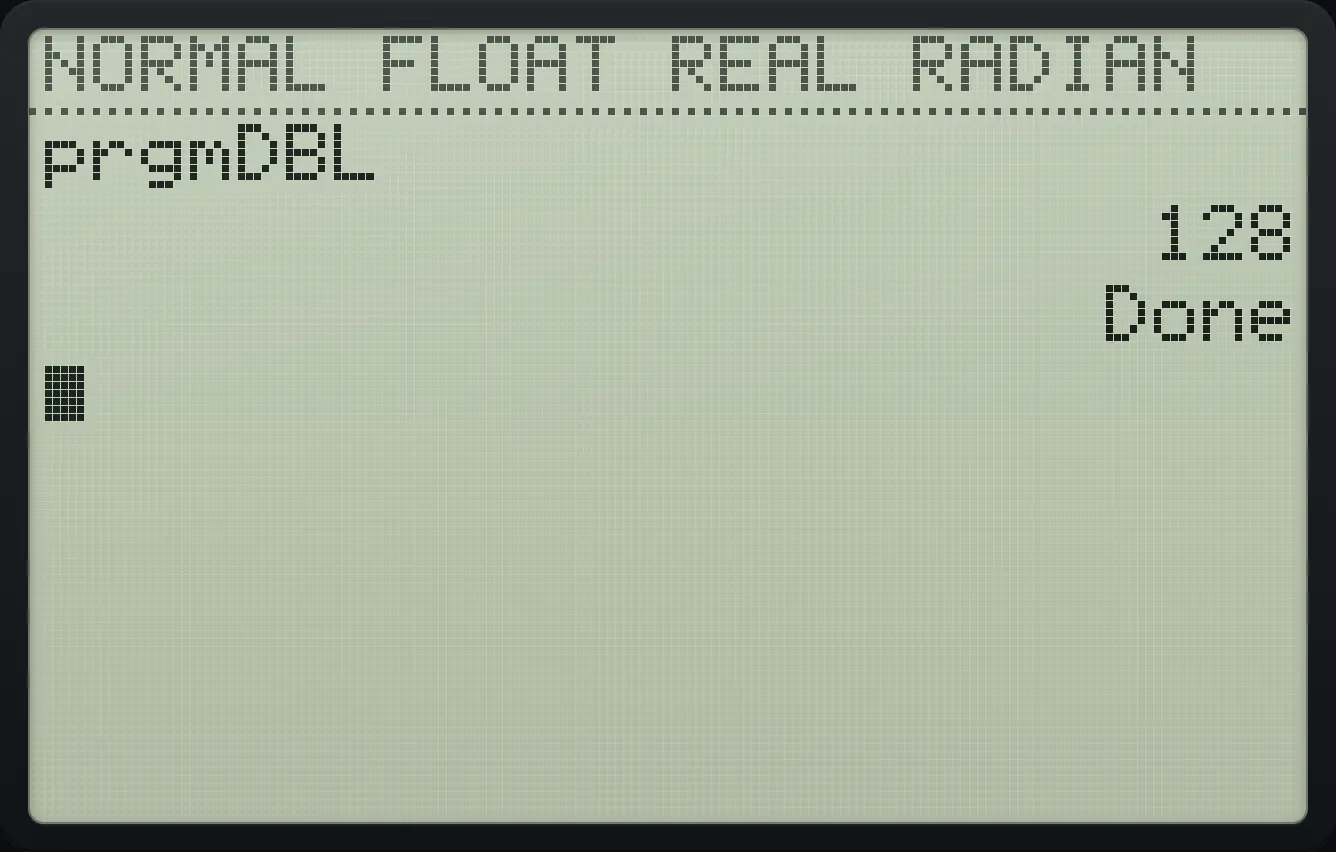
12822.10Jump with Lbl and Goto#
Count to 10 with a label
Create CNT: 0→I, Lbl A, I+1→I, If I<10, Goto A, Disp I.
prgm▶▶enterprgmlog4enter0sto→alphaIx²enterprgm9alphaAmathenteralphaIx²+1sto→alphaIx²enterprgm1alphaIx²2ndTESTmath510enterprgm0alphaAmathenterprgm▶3alphaIx²enter2ndQUITmodeRun it.
prgm1enter
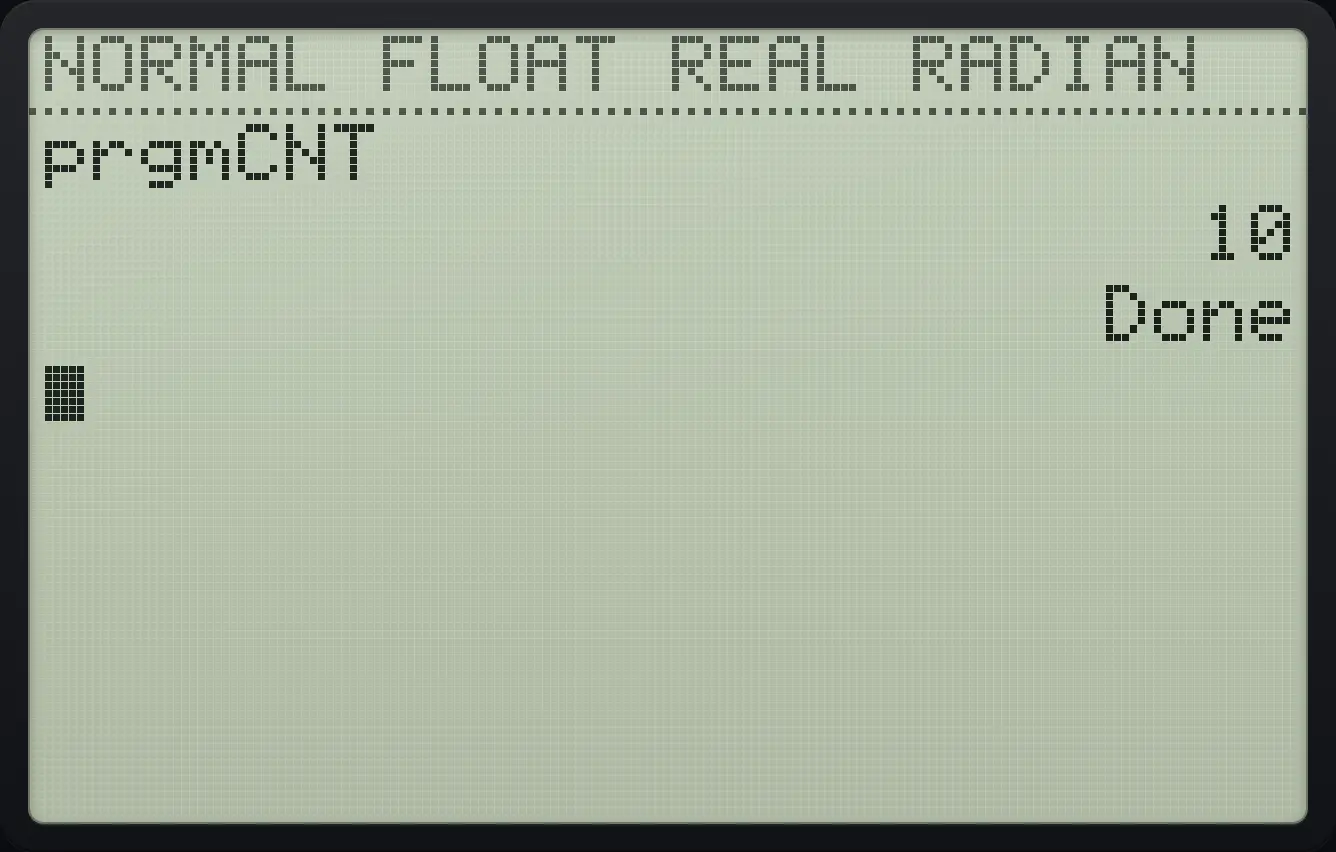
1022.11Show a menu to the user#
Menu( takes a title, then pairs of text and label. When the user picks an option, the program jumps to that label.
Pick one of two options
Create PICK with Menu("PICK","ONE",A,"TWO",B), then Lbl A, Disp "GOT ONE", Stop, Lbl B, Disp "GOT TWO".
prgm▶▶enter8x²prgm(enterprgmalphaCprgmalpha"+alphaP8alphaIx²alphaCprgmalphaK(alpha"+,alpha"+alphaO7alphaNlogalphaEsinalpha"+,alphaAmath,alpha"+alphaT4alphaW−alphaO7alpha"+,alphaBapps)enterprgm9alphaAmathenterprgm▶3alpha"+alphaGtanalphaO7alphaT4alpha␣0alphaO7alphaNlogalphaEsinalpha"+enterprgmalphaFcosenterprgm9alphaBappsenterprgm▶3alpha"+alphaGtanalphaO7alphaT4alpha␣0alphaT4alphaW−alphaO7alpha"+enter2ndQUITmodeRun it. The menu appears. Press 2.
prgm1enter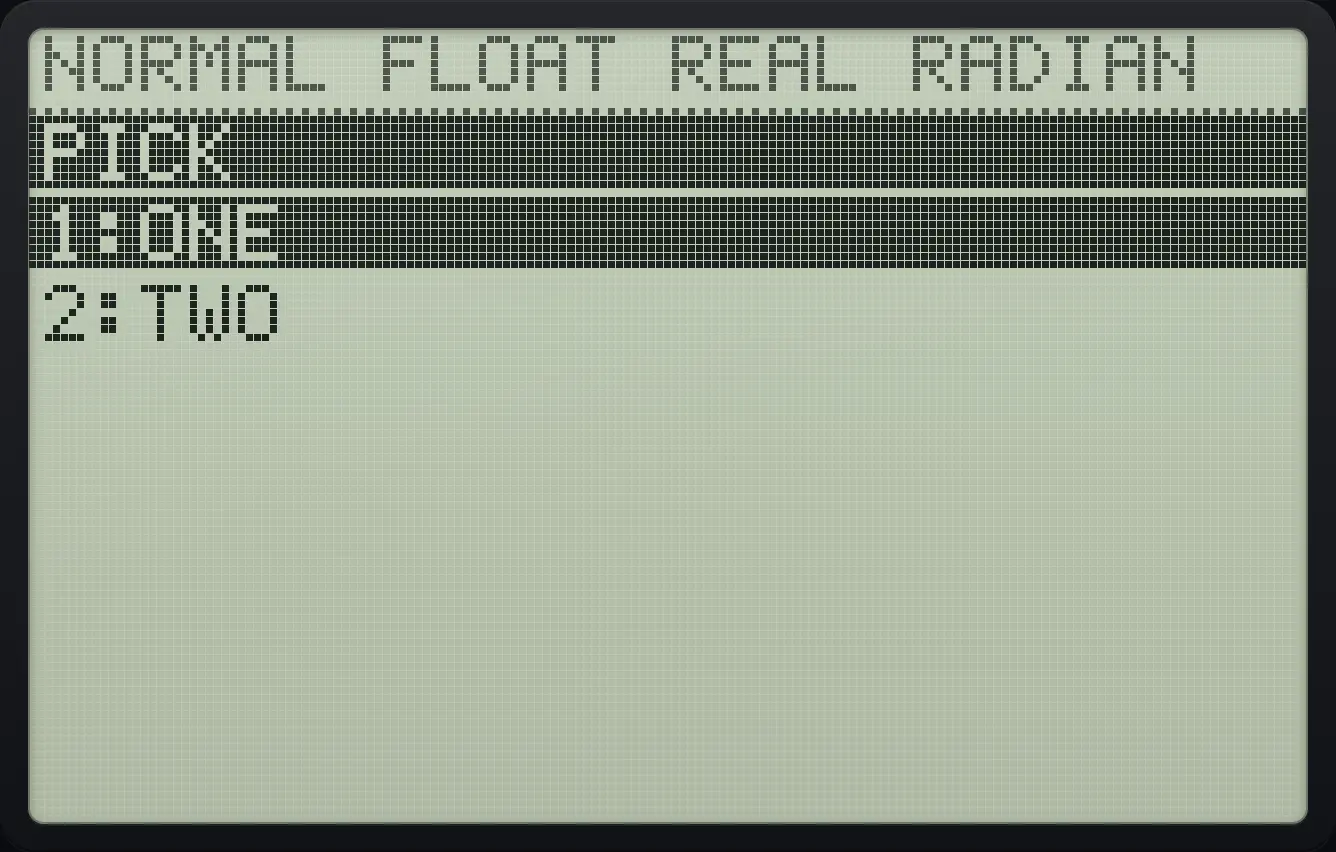
Choose option 2.
2
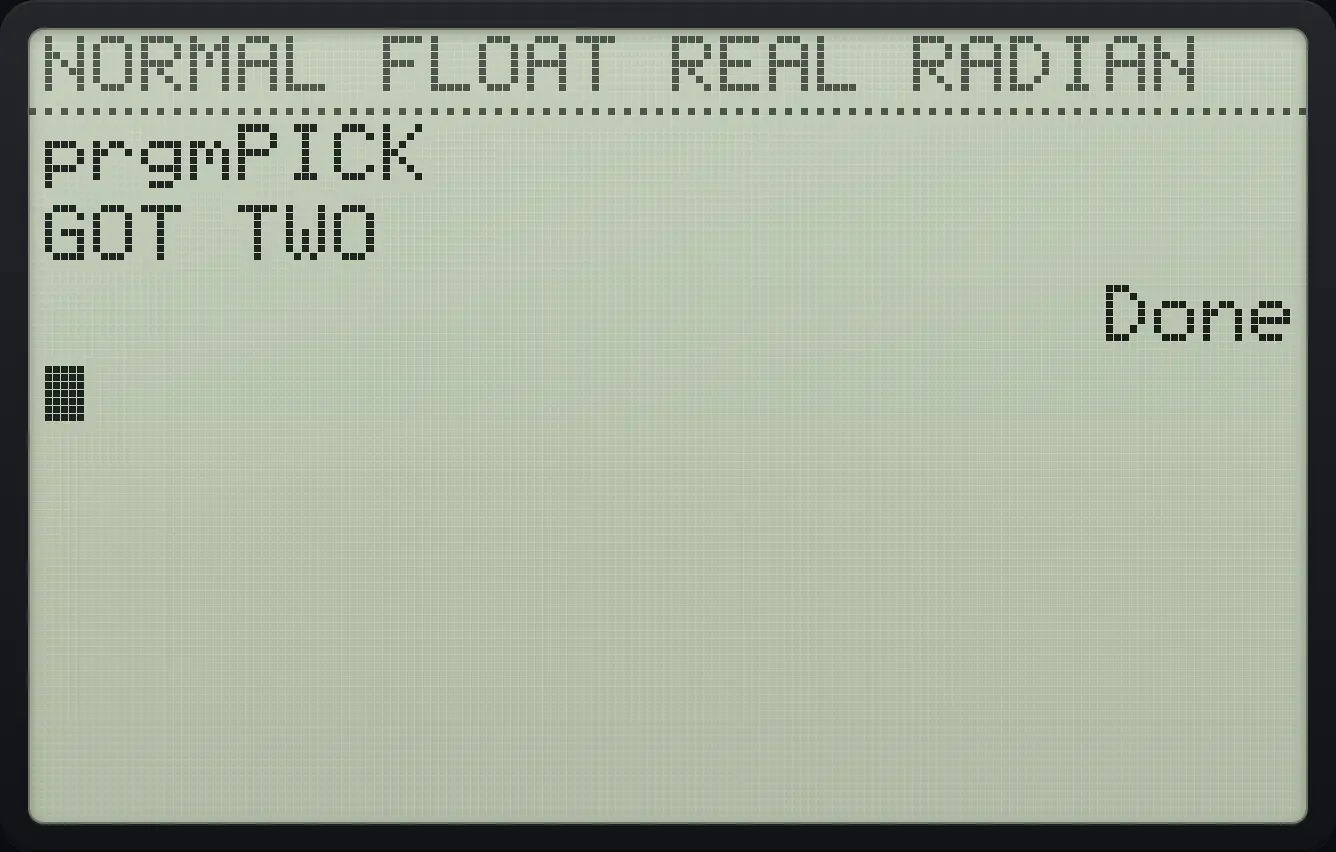
GOT TWO22.12Place text on the screen with Output(#
Write at a row and column
Create POS: ClrHome and Output(2,4,"AB").
prgm▶▶enter87lnenterprgm▶7enterprgm▶52,4,alpha"+alphaAmathalphaBappsalpha"+)enter2ndQUITmodeRun it.
prgm1enter
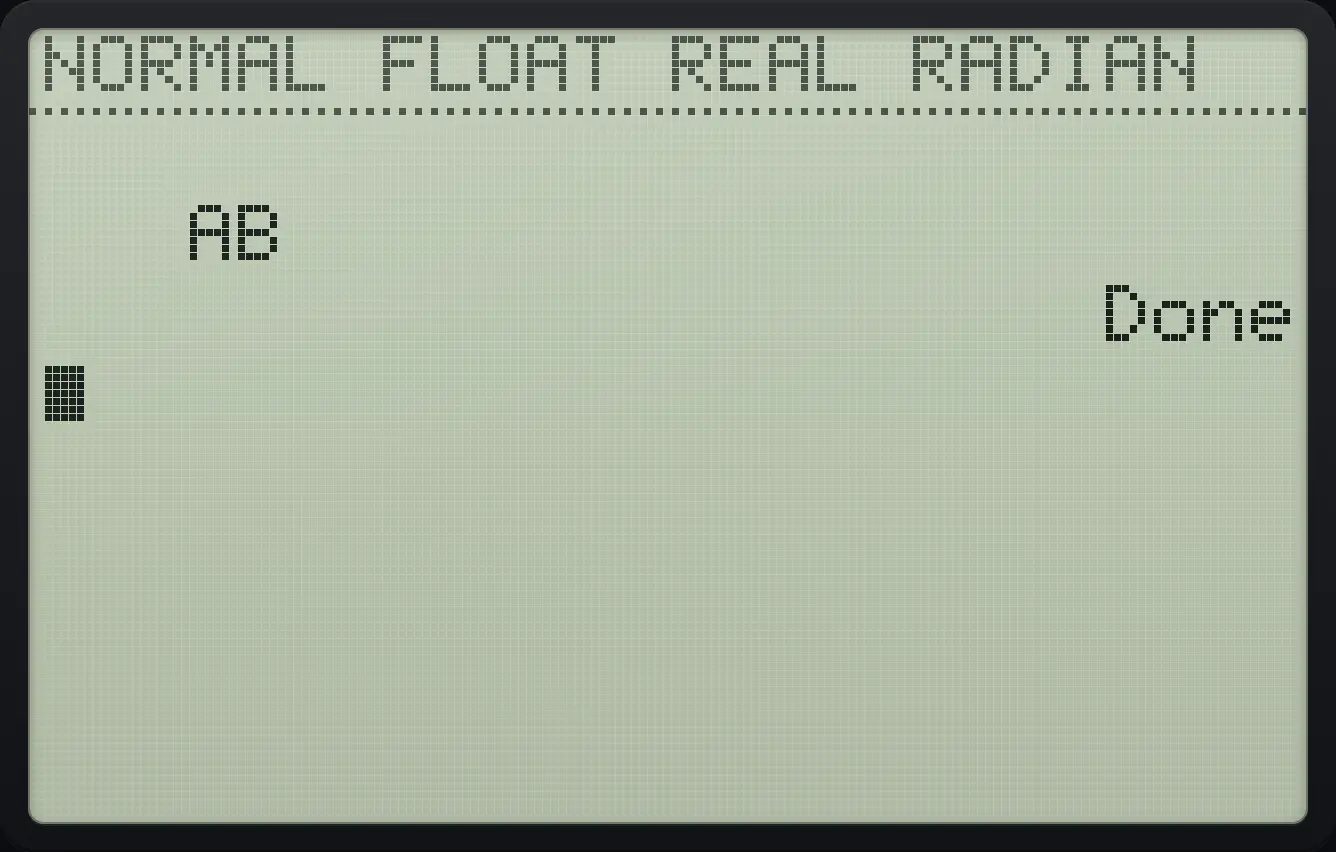
AB DoneWait with Pause
Create WAIT: Disp 1, Pause, Disp 2.
prgm▶▶enter−mathx²4enterprgm▶31enterprgm8enterprgm▶32enter2ndQUITmodeRun it. Only 1 shows. Press enter to continue.
prgm1enterenter
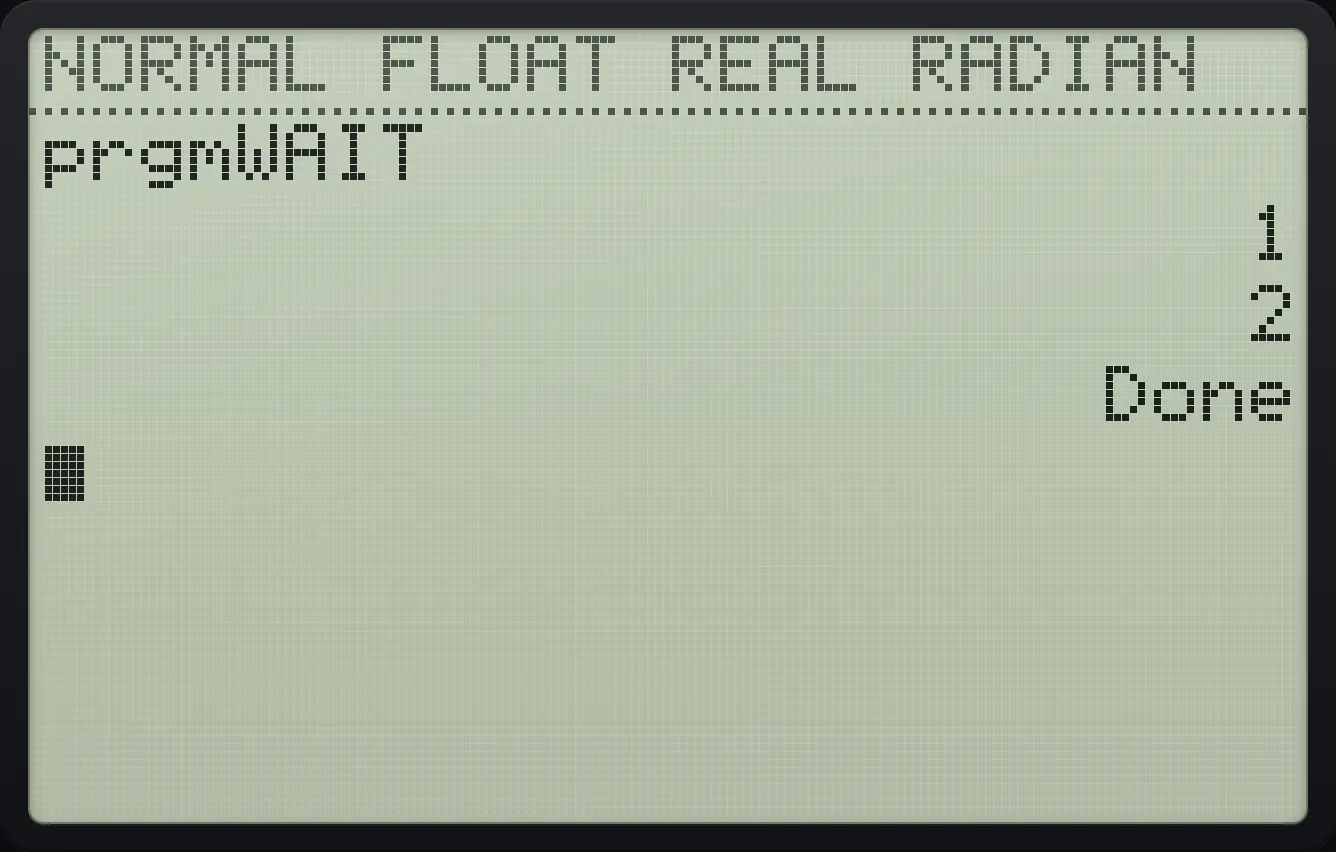
222.13Call one program from another#
Inside the editor, press prgm, ▶ twice for the EXEC tab and choose a program to paste its call, prgmNAME. When the subprogram ends the calling program continues. Variables are shared between programs. Return leaves a subprogram early and Stop ends everything.
A main program and a subprogram
Create SUB with Disp "B".
prgm▶▶enterln5appsenterprgm▶3alpha"+alphaBappsalpha"+enter2ndQUITmodeCreate MAIN: Disp "A", call prgmSUB (EXEC item 2 in alphabetical order), Disp "C".
prgm▶▶enter÷mathx²logenterprgm▶3alpha"+alphaAmathalpha"+enterprgm▶▶2enterprgm▶3alpha"+alphaCprgmalpha"+enter2ndQUITmodeRun MAIN, the first program in the list.
prgm1enter
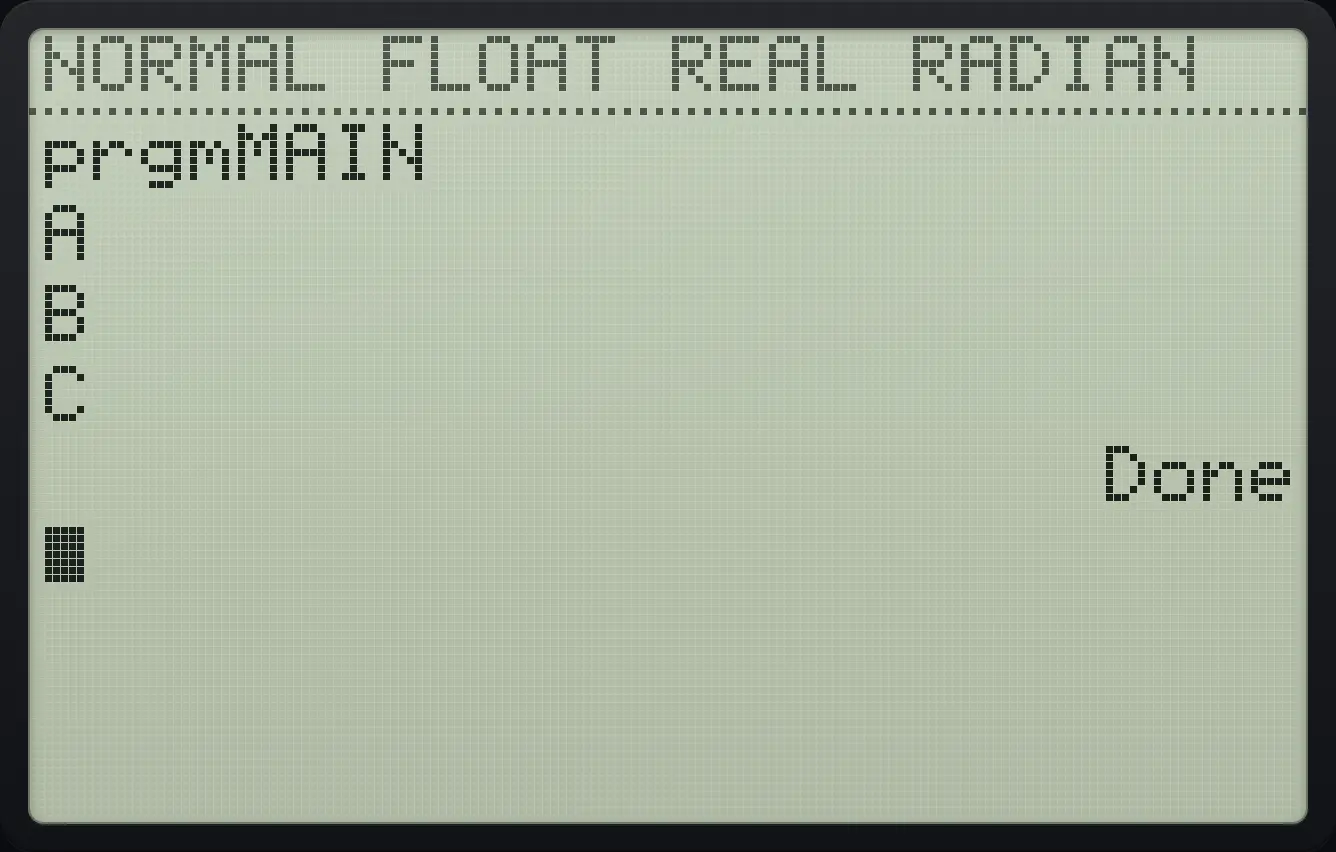
prgmMAIN A B C22.14Text and strings#
Text between quotes is a string. Strings can be stored in Str1 to Str0 (vars, 7) and joined with +. The CATALOG (2ndCATALOG0) also has sub( (part of a string), length(, inString( (find text), expr( (evaluate text as a calculation) and toString(.
Join two strings
Create JOIN: "AB"→Str1 and Disp Str1+"CD". Paste Str1 with vars, 7, 1.
prgm▶▶enter,7x²logenteralpha"+alphaAmathalphaBappsalpha"+sto→vars71enterprgm▶3vars71+alpha"+alphaCprgmalphaDx⁻¹alpha"+enter2ndQUITmodeRun it.
prgm1enter
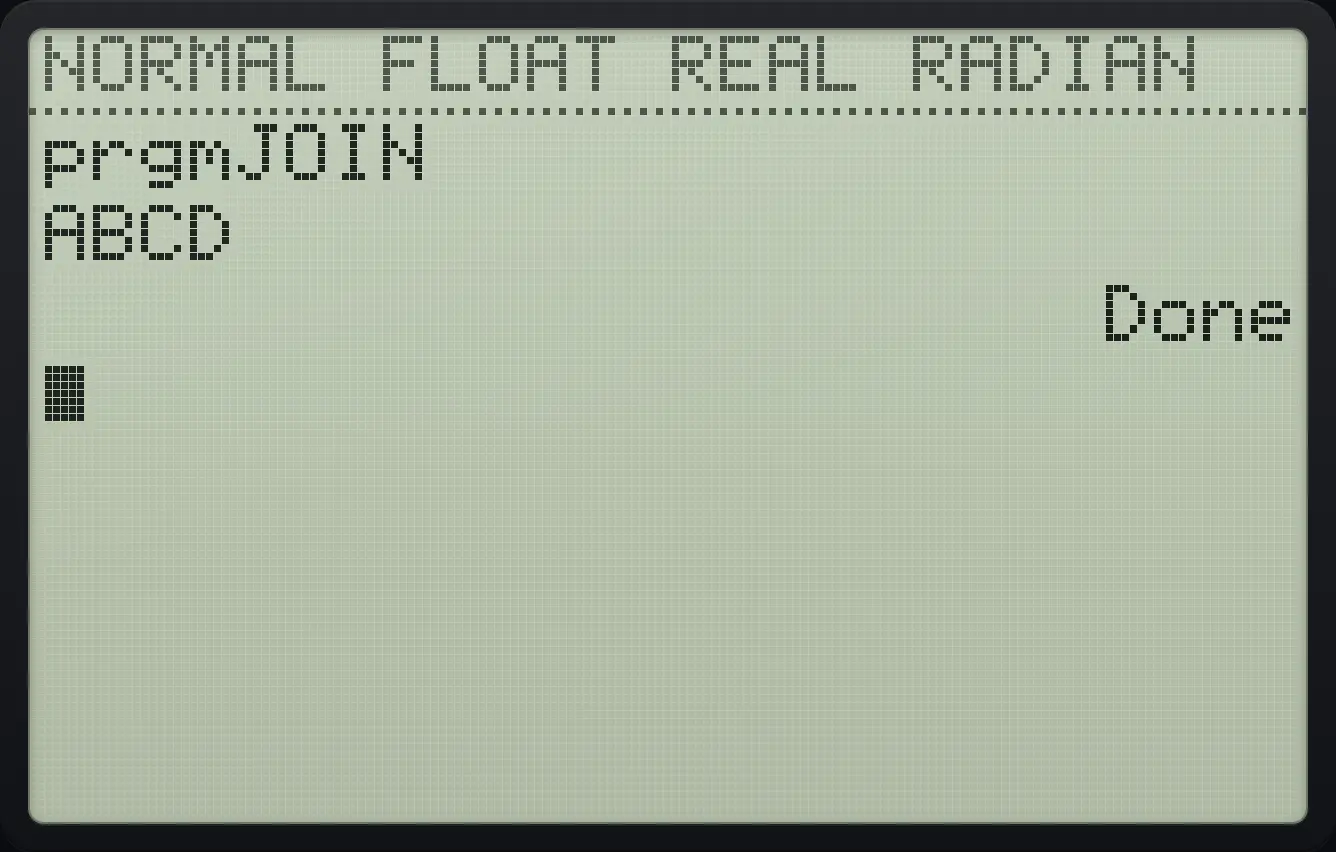
ABCD22.15Lists inside programs#
Build a list of squares
Create SQS: seq(X²,X,1,5)→L1 using 2nd stat, right, 5, then Disp L1.
prgm▶▶enterln9lnenter2ndLISTstat▶5X,T,θ,nx²,X,T,θ,n,1,5)sto→2ndL11enterprgm▶32ndL11enter2ndQUITmodeRun it.
prgm1enter
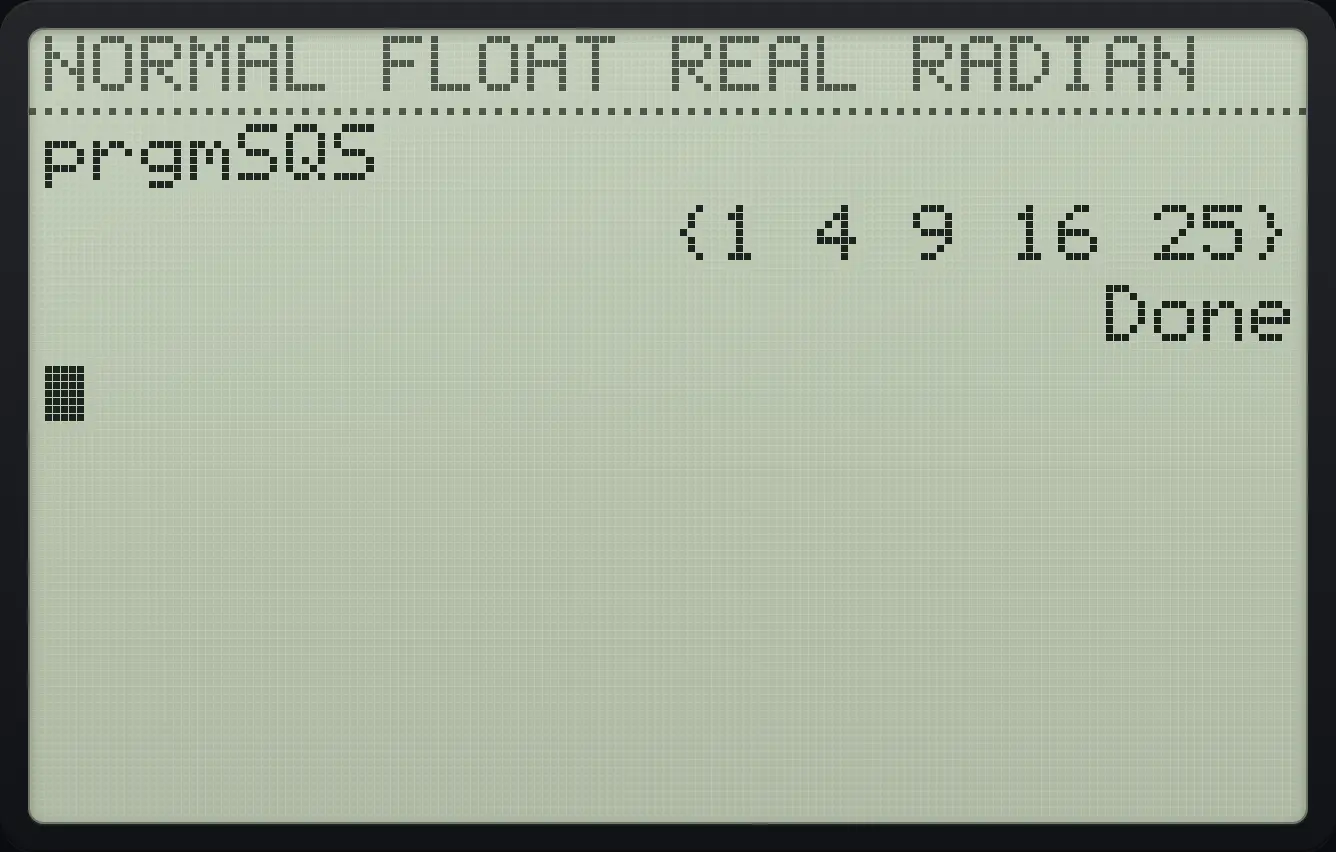
{1 4 9 16 25}22.16Stop a running program#
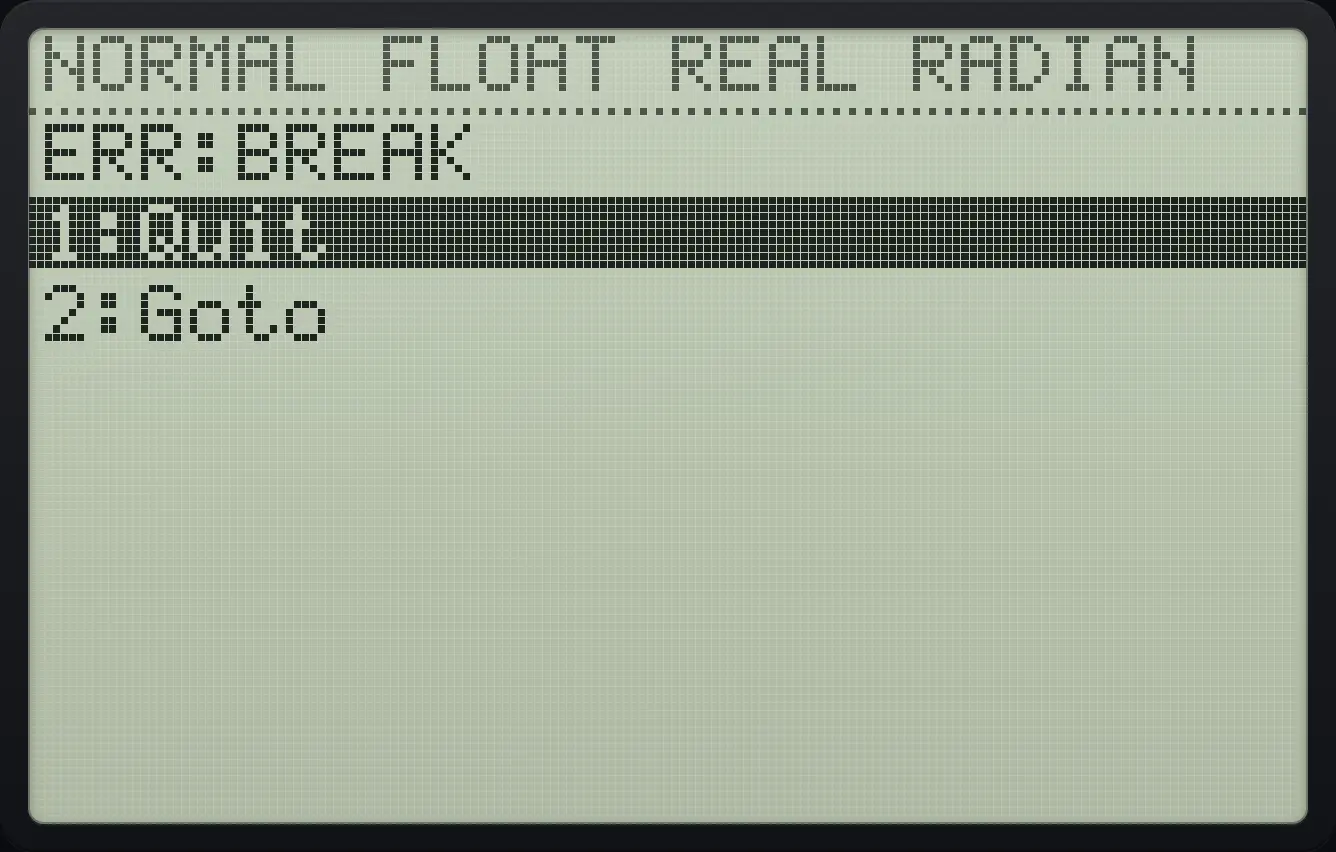
Press on to break a program that is running or waiting, and the calculator shows a BREAK error with a Goto choice that opens the editor at the line. 2ndQUITmode also stops a program with the same BREAK error.
Break a program
Create ASK: Input A. Run it, then press on.
prgm▶▶entermathln(enterprgm▶1alphaAmathenter2ndQUITmodeprgm1enteron
ERR:BREAK22.17Read the keyboard with getKey#
getKey gives the code of the last key pressed, or 0 if none was pressed. The code is the key's row times 10 plus its column, counting from the top-left. A common pattern waits for a key: 0→K, Repeat K, getKey→K, End.
| Key | Code | Key | Code | Key | Code |
|---|---|---|---|---|---|
| ◀ | 24 | ▲ | 25 | ▶ | 26 |
| ▼ | 34 | enter | 105 | clear | 45 |
| 0 | 102 | 1 | 92 | 2 | 93 |
| 3 | 94 | 4 | 82 | 5 | 83 |
| 6 | 84 | 7 | 72 | 8 | 73 |
| 9 | 74 | + | 95 | − | 85 |
| × | 75 | ÷ | 65 | 2nd | 21 |
| alpha | 31 | y= | 11 | graph | 15 |
Show the code of a key
Create KEY: 0→K, Repeat K, getKey→K, End, Disp K. Use getKey from I/O item 6.
prgm▶▶enter(sin1enter0sto→alphaK(enterprgm6alphaK(enterprgm▶6sto→alphaK(enterprgm7enterprgm▶3alphaK(enter2ndQUITmodeRun it and press the 5 key.
prgm1enter5
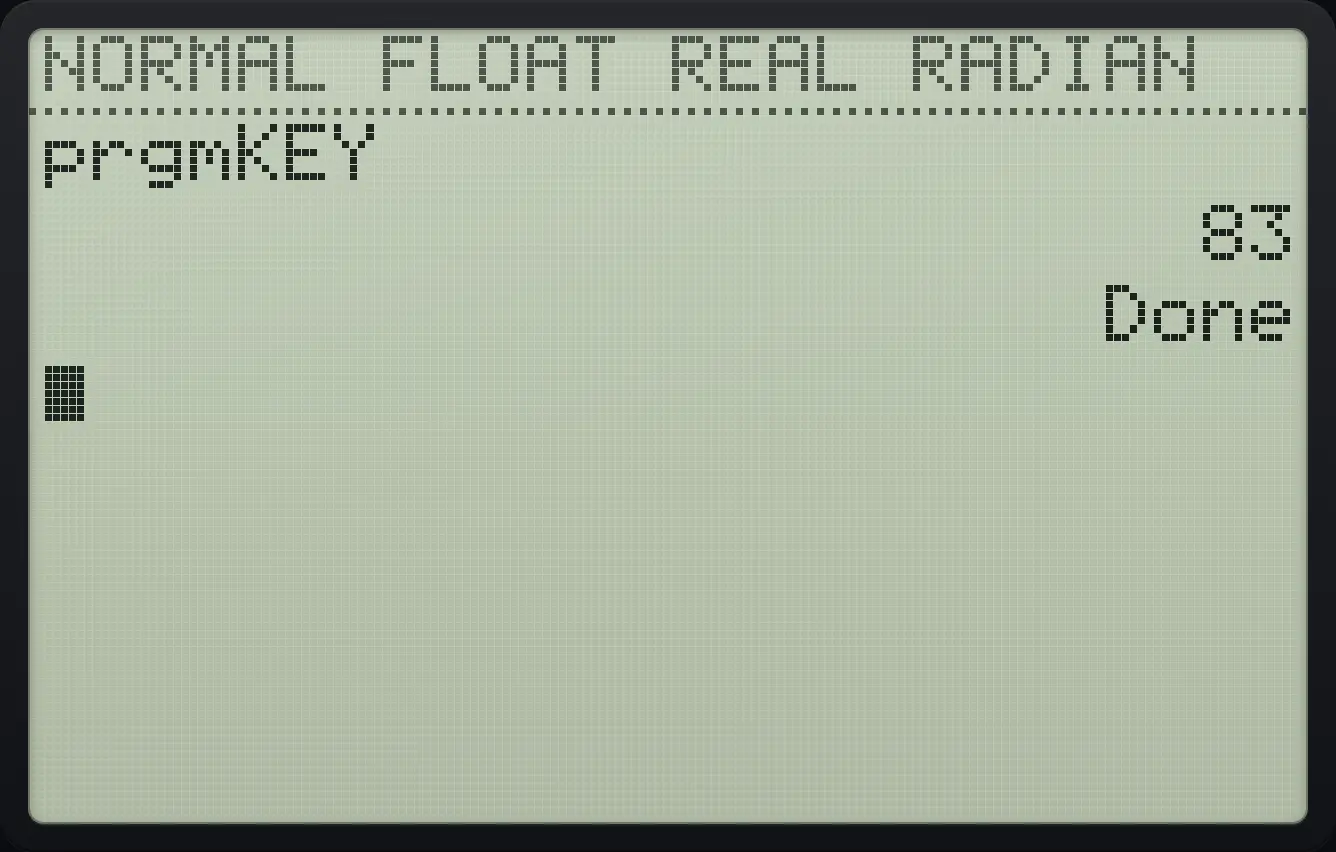
83TI-84 Plus CE is a trademark of Texas Instruments Incorporated. Trident Calculator is an independent product by South View Studios and is not affiliated with, sponsored by or endorsed by Texas Instruments. The name is used only to describe the kind of calculator this model resembles; Trident's names, keys, display, fonts and software are its own clean-room design.